Most Mac jobs come down to a few keys and one settings window: Command-Space opens Spotlight, Shift-Command-5 takes screenshots, and System Settings > General holds Storage, Software Update and Transfer or Reset.
Each section gives the short answer for one job, from shortcuts to a factory reset, then links the full walkthrough.
macOS beginner’s guide: how to get started with Mac
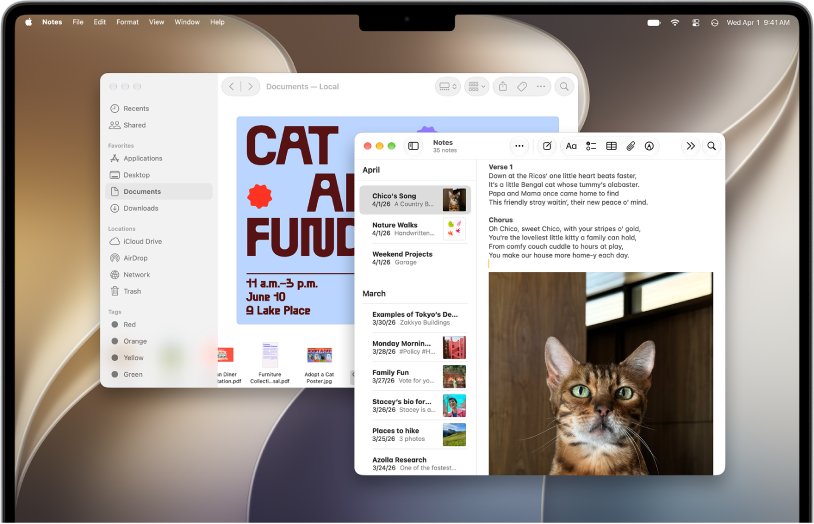
Getting started with your new Mac comes down to six basics, on a MacBook, iMac or Mac mini alike. Learn them and you can figure out a new MacBook in an afternoon.
- Press Command-Space, type an app or file name and press Return to open it.
- Click with two fingers, or hold Control and click, to right-click on a Mac.
- Copy and paste on a MacBook with Command-C and Command-V, for text or Finder files.
- Press Shift-Command-5 for the Screenshot toolbar.
- Press Option-Command-Esc, select the app and click Force Quit to force quit a frozen Mac app.
- Choose Apple menu > System Settings for Wi-Fi, Bluetooth, displays and privacy.
What is macOS?
macOS is the operating system on every Mac, and the newest release is macOS 27 Golden Gate. Understanding the macOS layout starts with these macOS terms every beginner should know.
| Term | What it means |
|---|---|
| Apple silicon | Apple's own Mac chips; startup and recovery steps differ from Intel-based Macs |
| Finder | The file manager, like File Explorer |
| Dock | The app bar at the bottom; running apps show a dot |
| Menu bar | The top strip with the Apple menu, app menus and Control Center |
| System Settings | The settings app; older versions call it System Preferences |
| Mission Control | One view of every open window and desktop |
| Continuity | Features linking a Mac with an iPhone, iPad or Apple Watch |
| macOS Recovery | Built-in tools to reinstall macOS, run Disk Utility or restore a backup |
To see your version, choose Apple menu > About This Mac.
Learn essential macOS keyboard shortcuts
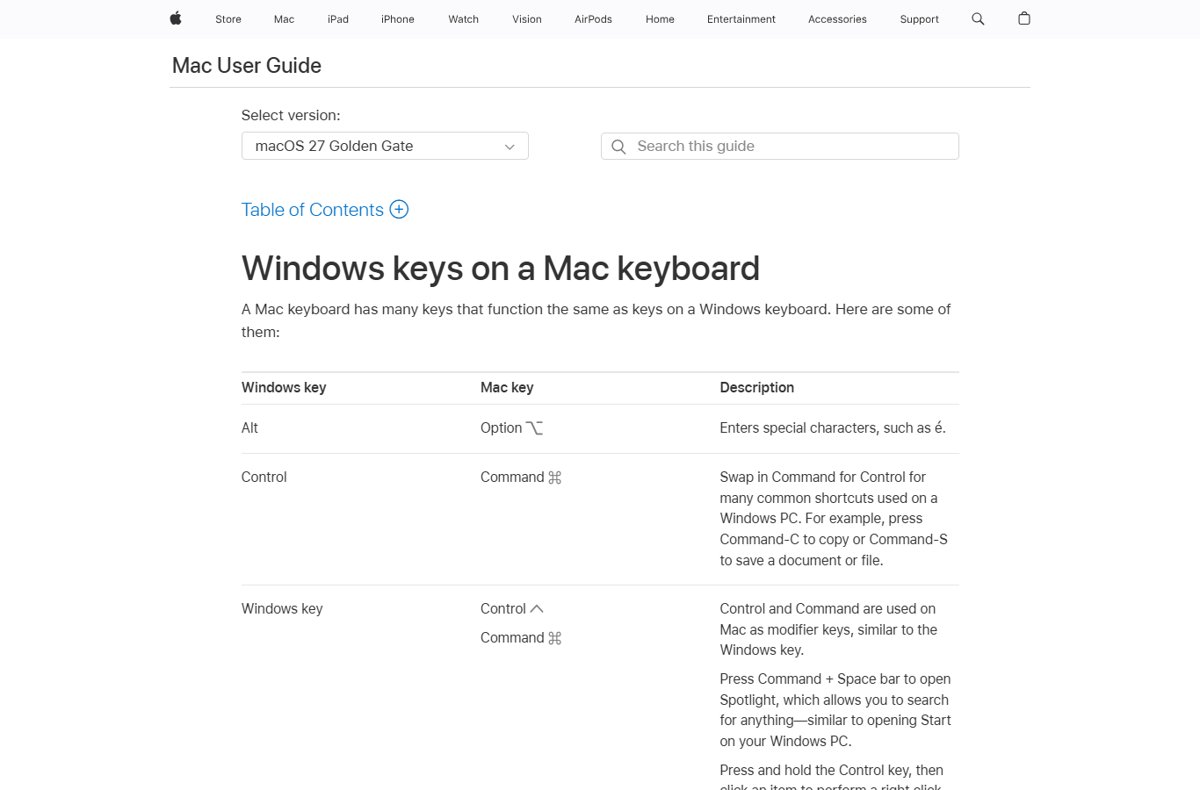
Mac shortcuts use Command where Windows uses Ctrl. Keyboard tricks for a PC keyboard: press Alt for Option, and Ctrl or the Windows logo key for Command.
| Press | What it does | Walkthrough |
|---|---|---|
| Command-A | Select all | select all on a Mac |
| Command-Z | Undo; add Shift to redo | |
| Command-Q | Quit the app; Command-W closes a window | |
| Command-Space | Spotlight; type Terminal to open it | open Terminal on a Mac |
| Control-Command-F | Full screen on or off | exit full screen |
| Control-Command-Space or Fn-E | Emoji and symbols | emoji on a Mac |
| Command-P | print from a Mac | |
| Control-Command-Q | Lock the screen | |
| Fn-Q | Quick Note |
The same print dialog lets you print double-sided and run sheets of Avery 5160 labels.
Screenshots and screen recording on Mac
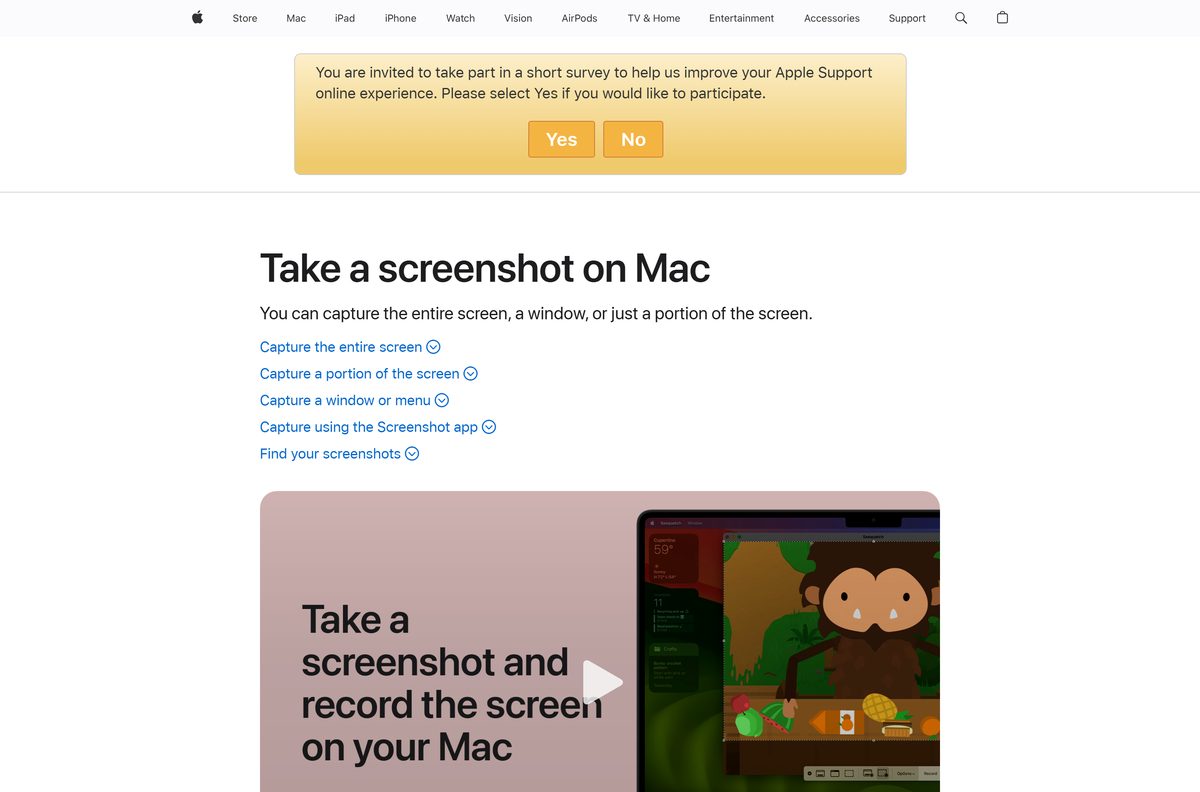
Screenshots save to the desktop, and a corner thumbnail opens editing. Some apps, such as the Apple TV app, may block captures.
| Press | What you get | Walkthrough |
|---|---|---|
| Shift-Command-3 | The entire screen | screenshot on a Mac |
| Shift-Command-4, then drag | A selected area | |
| Shift-Command-4, then Space bar | One window; hold Option to drop the shadow | |
| Add Control | The capture goes to the Clipboard | |
| Shift-Command-5 | Toolbar with timer, save location and video recording | record the screen with audio |
| Command-Control-Esc | Stops a recording | stop a screen recording |
Click Options to pick a microphone before recording; macOS 27 adds Include System Audio. For voice only, record audio on a Mac, and to keep videos offline, download YouTube videos on a Mac with YouTube's own options.
How to set up a new Mac
Setting up your Mac for the first time runs through Setup Assistant, which needs internet for some steps.
- Turn on the Mac and choose a language.
- Set up with an iPhone or iPad, transfer from a Mac, backup or Windows PC, or set up as new.
- Join Wi-Fi, or click Other Network Options for Ethernet.
- Create your computer account name and login password.
- Sign in to your Apple Account, or create one.
- Choose Location Services, Screen Time, Apple Intelligence, Siri and Touch ID settings.
Transitioning from Windows to Mac: moving your files
Migration Assistant copies documents, photos, accounts, passwords and settings from a Windows PC, during setup or later.
- Update both computers and connect them to the same network.
- Download and open Windows Migration Assistant on the PC.
- On the Mac, open Migration Assistant with Spotlight.
- Choose From a Windows PC, select the PC and pick what to transfer.
Intel-based Macs can also run Windows through Boot Camp, which installs Apple's Windows support software (drivers); if Boot Camp brightness control stops working in Windows 10, start there.
Switched from Windows to Mac?
Swap Ctrl for Command in most shortcuts; the rest maps like this.
| On Windows | On a Mac | Walkthrough |
|---|---|---|
| File Explorer | Finder | |
| Control Panel | System Settings | |
| Start menu | The Dock and the Apps list | |
| Task Manager, Ctrl+Alt+Delete | Activity Monitor; Option-Command-Esc to force quit | Task Manager on a Mac |
| Alt+Tab | Command-Tab | alt-tab on a Mac |
| Print Screen | Shift-Command-3 | print screen on a Mac |
| Alt, Backspace, Enter | Option, Delete, Return | |
| Right-click | Two-finger click or Control-click | |
| Windows-only apps | A virtual machine, or Boot Camp on Intel Macs | run Windows software on a Mac |
For iCloud and AirPods on a PC, set up Apple devices on a Windows PC; there is no Apple Finder for Windows.
Use the Dock and menu bar: Control Center and Notification Center
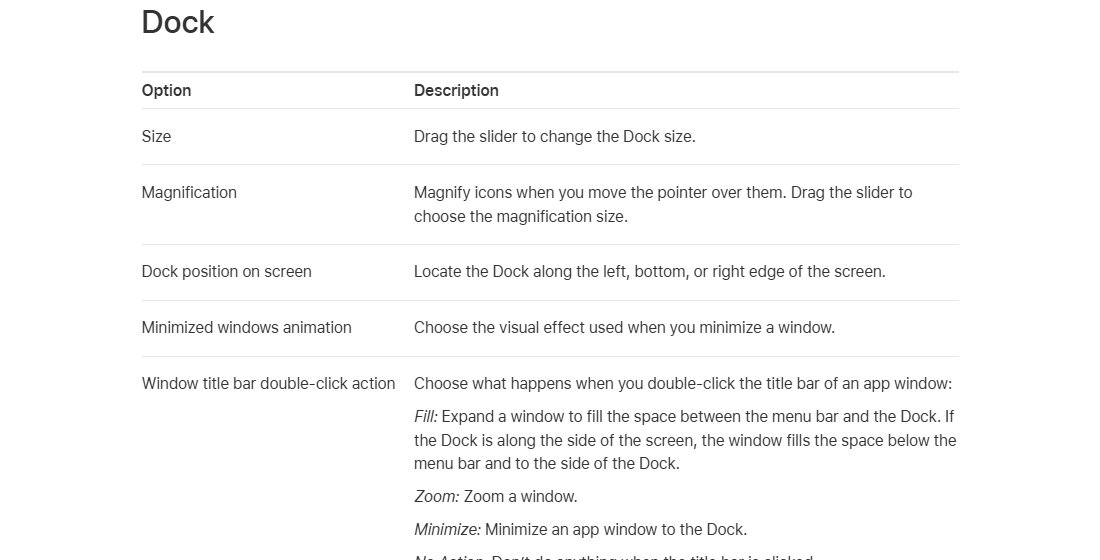
The menu bar runs along the top, the Dock along the bottom, and the desktop sits between. Understanding the Mac desktop and mastering the Dock take minutes, so explore the macOS interface here.
| Part | Open it | Use it for |
|---|---|---|
| Apple menu | Left end of the menu bar | System Settings, Restart, Shut Down |
| Control Center | Icon at the right, or Fn-C | Wi-Fi, Bluetooth, AirDrop, brightness, volume |
| Notification Center | Click the date and time, or Fn-N | Notifications and widgets |
| Dock | Bottom; Option-Command-D hides it | Running apps show a dot; Control-click, then Quit |
| Apps | Fn-Shift-A | Replaces Launchpad from macOS Tahoe 26; Apps menu change on the Dock |
| Wallpaper | The desktop background | Change the wallpaper in System Settings |
Efficient window management
View and manage windows with the close, minimize and full-screen buttons at top left. Closing a window leaves the app running.
| Goal | Do this | Walkthrough |
|---|---|---|
| Two apps side by side | Fn-Control-Left Arrow and Fn-Control-Right Arrow, or drag to an edge | split screen on a Mac |
| Split View | Green button > Full Screen > Left of Screen | |
| Fill or center | Fn-Control-F or Fn-Control-C; Fn-Control-R restores | |
| Every window | Control-Up Arrow opens Mission Control | |
| One app in focus | Stage Manager in Control Center |
Desktop and app management: swipe left or right with four fingers to change desktops.
How to use Mac trackpad gestures: 10+ ways
These gestures work on any Multi-Touch trackpad; change them in System Settings > Trackpad. A Force Touch trackpad adds Force click.
| Gesture | Action |
|---|---|
| One-finger tap | Click |
| Two-finger click | Right-click |
| Two-finger double-tap | Smart zoom |
| Two-finger slide | Scroll |
| Two-finger pinch | Zoom in or out |
| Two-finger swipe | Previous or next page |
| Two-finger swipe from the right edge | Notification Center |
| Three-finger tap | Look up a word |
| Thumb and three fingers spread | Show the desktop |
| Four-finger swipe up | Mission Control |
| Four-finger swipe left or right | Switch desktops and full-screen apps |
Trackpad gestures for navigation use three fingers in some macOS versions. Beyond the pinch, you can zoom in on a Mac with keyboard shortcuts.
Master Finder like a pro
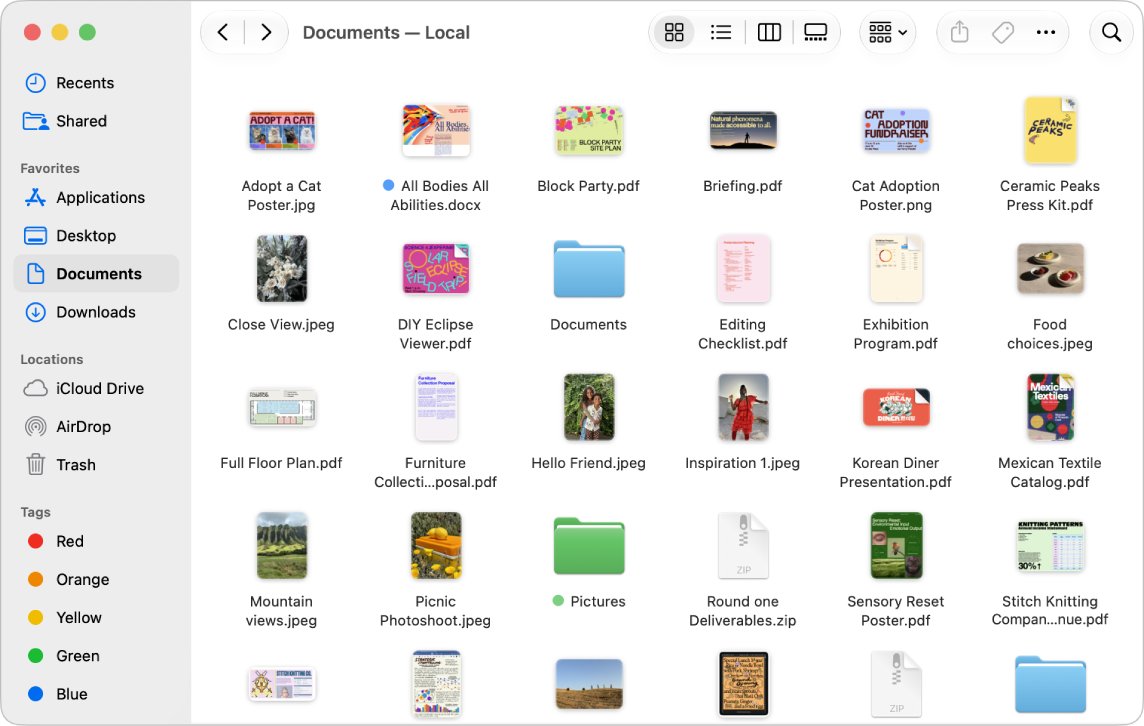
Finder is built into macOS, so there is no separate Finder download. Managing files starts with the views Command-1 to Command-4.
| Task | Do this | Walkthrough |
|---|---|---|
| Select several files | Hold Command or Shift while clicking | select multiple files |
| Zip a folder | Control-click, then Compress | create a ZIP file |
| Change access | Command-I for Get Info | file and folder permissions |
| Hidden system files | Show them only when a fix needs one | show hidden files |
| HEIC photos | Convert them to JPG for sharing | convert HEIC to JPG |
| SD card | Erase it in Disk Utility, which deletes everything | format an SD card |
| Move, not copy | Command-C, then Option-Command-V |
Organizing files with Finder is easier with frequent folders dragged into the sidebar. If Finder freezes, select it in Force Quit and click Relaunch.
How to find files on your Mac: 4 easy methods with Spotlight and Finder
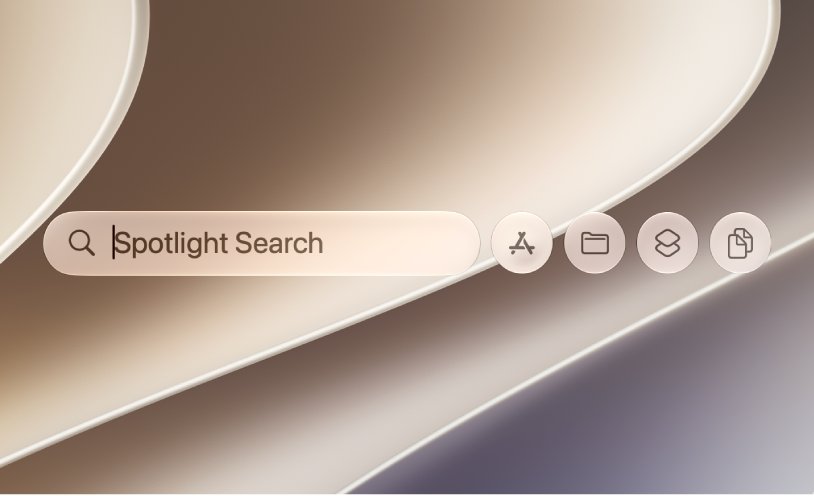
Search faster with Spotlight first, then narrow down in Finder.
| Method | How | Best for |
|---|---|---|
| 1. Spotlight | Command-Space, type, Return | Apps, files, emails, messages |
| 2. Finder search | Command-F in a Finder window | Searching from Finder |
| 3. Recents | Shift-Command-F | Files you recently opened or changed |
| 4. Smart Folder | Option-Command-N | Searches you repeat |
Spotlight also does math, unit conversions and clipboard history, and Smart Folders keep a search ready to find and organize files. For Terminal searches, find any file on a Mac.
Install, update, and remove apps
How to use Mac applications: open them from the Dock or Spotlight and quit with Command-Q. Apps from outside the App Store are checked by Gatekeeper, which looks for Apple's Notarization ticket.
| Job | Do this | Walkthrough |
|---|---|---|
| App Store apps | Search, then install with your Apple Account | Mac App Store |
| Developer tools | Installer from the developer's site | Node.js for Mac |
| CAD software | The vendor's Mac installer | Fusion 360 for Mac |
| Speed test | A speed test app | Speedtest for Mac |
| Updates | App Store apps update there; Safari and built-in apps update with macOS | |
| Uninstall | Run its uninstaller, or drag it to the Trash and empty it | uninstall apps on a Mac |
| Remove Chrome | Quit it first | uninstall Google Chrome |
Apps macOS needs, such as Mail and Music, cannot be deleted, and deleting an app does not cancel its subscription.
Use built-in macOS apps: Safari, Preview, Pages and more
To edit a PDF on your Mac, use Preview's Markup tools; Preview cannot change existing PDF text.
| App | Use it for | Download or fix |
|---|---|---|
| Safari | Browsing; File > New Private Window | Safari for Mac, go incognito on a Mac, clear cookies on a Mac |
| Screenshot | Snipping Tool's Mac counterpart | Snipping Tool for Mac |
| Preview | Annotate, sign and combine PDFs; Live Text copies text from photos | |
| QuickTime Player | Video playback and screen recording | record video on a Mac |
| Photos | Your library and editing | Photos album slideshow |
| Messages | iMessage and iPhone texts | delete several texts at once |
| Pages, Numbers, Keynote | Documents, spreadsheets, presentations | Apple Pages for Mac, labels in Pages, Numbers for Mac, Keynote for Mac |
| GarageBand, iMovie | Music and video | GarageBand for Mac, iMovie for Mac |
| Final Cut Pro, Logic Pro | Pro video and music | Final Cut Pro for Mac, Logic Pro for Mac |
| Xcode | Building apps | Xcode for Mac |
When AOL Mail misbehaves only in Safari, fix Safari AOL Mail separately from the Mail app.
Use your Mac with other Apple devices: iPhone, iPad and Apple Watch
Continuity is built in: connect your Apple devices by signing in to the same Apple Account, with Wi-Fi and Bluetooth on.
| Feature | What it does | Walkthrough |
|---|---|---|
| AirDrop, Universal Clipboard, Handoff | Share files, paste across devices, continue tasks | |
| iPhone Mirroring | Control your iPhone from the Mac; not in the EU | iPhone calls, messages and battery fixes |
| Sidecar, Universal Control | iPad as a display, or one keyboard for both | |
| Auto Unlock | System Settings > Touch ID & Password > Apple Watch | |
| AirPods | Open the case lid, hold its button until the light flashes white, then click Connect in Bluetooth settings | connect AirPods to a Mac |
| AirTag | Find My on the Mac locates items | AirTag in Find My on a Mac |
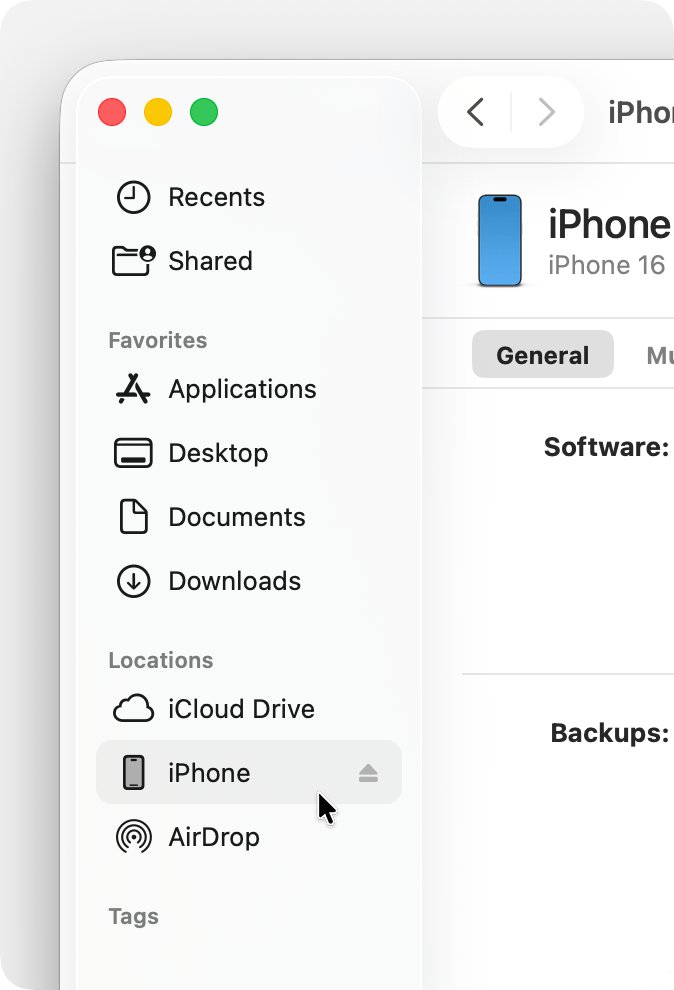
| iPhone backups | Finder manages them | Apple Devices app on a Mac |
Apple Watch and Mac unlocking also needs two-factor authentication and a watch passcode.
Protect your Mac and personal data
Control your privacy and security with what macOS already has. Make file scanning part of your first Mac setup with XProtect, the built-in antivirus, which checks apps when they first launch and updates its signatures automatically.
| Protection | What it does | Set it up or add it |
|---|---|---|
| Login password | Separate users; a standard account for daily work | change your MacBook password |
| FileVault | Apple silicon and T2 Macs encrypt data; FileVault requires the login password to read it | |
| XProtect, Gatekeeper | Block known malware and move it to the Trash | |
| Extra antivirus | An optional second scanner | AVG AntiVirus for Mac, Norton for Mac |
| VPN | The provider's app, or Add VPN Configuration in Network settings | ExpressVPN for Mac, Cisco Secure Client for work |
| Smart cards | A reader and certificates for CAC sites | DoD sites with a CAC |
When macOS blocks an app, check where it came from instead of switching protections off.
How to check storage on Mac and free up space
Check available storage space first. To understand files and storage on macOS, System Data holds files that fit no other category.
- Choose Apple menu > System Settings > General > Storage; on Monterey 12 or earlier, About This Mac > Storage.
- Click More Info next to a category to review its files.
- Turn on Store in iCloud for Desktop, Documents, photos and messages.
- Turn on Optimize Storage to remove watched Apple TV videos and keep only recent mail attachments.
- Turn on Empty Trash automatically to erase items after 30 days.
Those are Apple's recommendations to clear space. iCloud plans start at 50GB for $0.99 a month in the US; manage yours in Apple Account and iCloud settings. If System Data stays large, reduce System Data on a Mac.
9 ways to free up disk space on Mac without cleaner apps
Other ways to free up space need no cleaner app.
| Way | Do this |
|---|---|
| 1. Downloads | Option-Command-L, then delete old files |
| 2. Trash | Shift-Command-Delete empties it |
| 3. Device backups | Select the iPhone in Finder, Manage Backups, Delete |
| 4. Unused apps | Uninstall them |
| 5. Media | Delete music and movies you can stream |
| 6. Libraries | Move Photos or iMovie libraries to an external drive |
| 7. Mail | Mailbox > Erase Junk Mail and Erase Deleted Items |
| 8. Rarely used files | Compress them |
| 9. Caches | macOS clears safe caches when needed; clear cache on a Mac for browsers |
Shared Macs also gain space when you delete unused accounts. For large files, free up disk space on a Mac category by category.
How to update macOS on a Mac
Software Update shows only what your Mac supports, and Apple recommends a backup first.
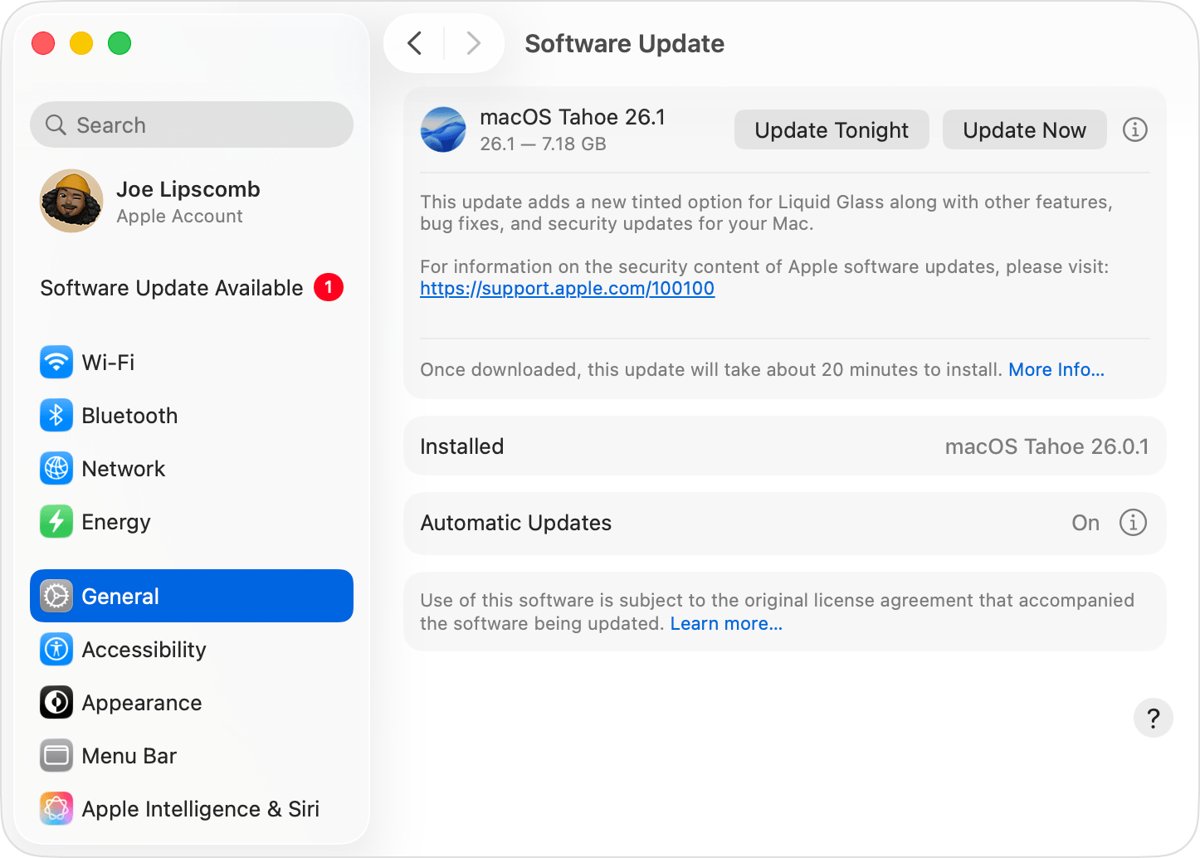
- Open System Settings > General > Software Update.
- Click the button to update, upgrade or restart now.
- Enter your login (administrator) password.
- Keep the lid open until it finishes; restarts and blank screens are normal.
- If it says up to date, press Command-R to check again.
Minor updates stay within a release (macOS 26 to 26.4); major upgrades move to the next (26 to 27). Errors and older models are handled when you update a Mac to the latest macOS, and the macOS download page lists older installers.
What’s new in macOS 27
macOS 27 Golden Gate is the newest macOS; Siri AI (Beta) needs an Apple Intelligence Mac set to a supported language.
| Feature | What changes |
|---|---|
| Siri AI | Understands your screen and files; has its own Siri app |
| Visual Intelligence | Search what is on screen from a screenshot |
| Write with Siri | Drafts and proofreads in Mail and Messages |
| iCloud Shared Albums | Full resolution, easier sharing with Android and Windows |
| Parental controls | Redesigned Screen Time with Ask to Browse |
| Liquid Glass | Ultraclear to fully tinted |
| Screen recording | Include System Audio |
Some features vary by region and carry usage limits. The macOS 27 Golden Gate overview lists supported Macs, and the macOS versions history goes back to Mac OS X Cheetah.
Back up and restore your Mac
Time Machine backs up to a drive with at least twice your Mac's storage.
- Connect a USB or Thunderbolt drive.
- Open System Settings > General > Time Machine.
- Click Add Backup Disk, select the drive and click Set Up Disk.
- Turn on Encrypt Backup if you want a password.
- Choose Back Up Now from the Time Machine menu.
Backups run hourly, with daily and weekly copies kept until the disk fills. Restore with Migration Assistant or Restore from Time Machine in Recovery.
How to reset a Mac to factory settings
Erase All Content and Settings wipes data and apps but keeps macOS. It needs macOS Monterey 12 or later on Apple silicon or a T2 Mac.
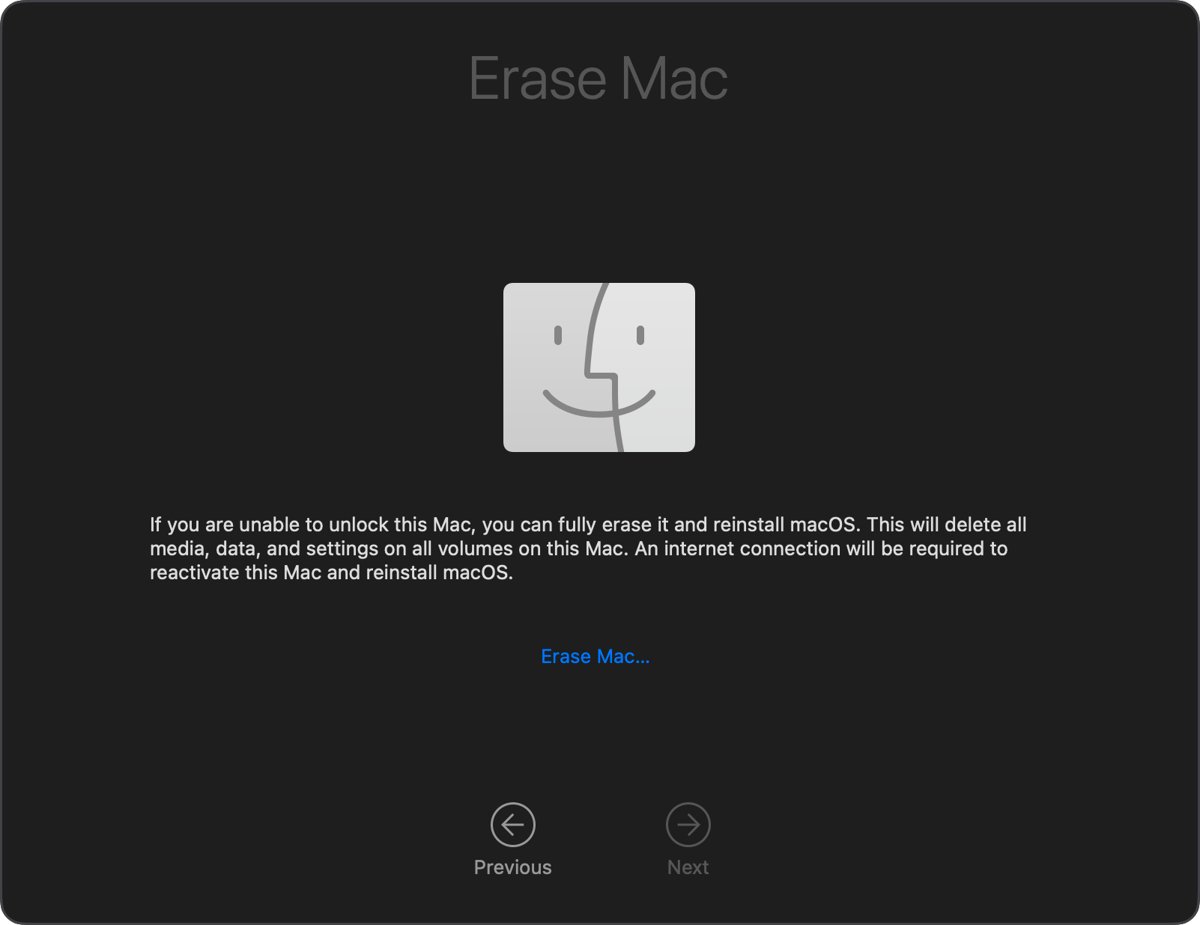
- Back up your files.
- Open System Settings > General > Transfer or Reset.
- Click Erase All Content and Settings.
- Enter your login password, then your Apple Account password.
- Click Erase All Content & Settings and ignore prompts to sign back in.
- To sell the Mac, hold the power button at Setup Assistant to turn it off.
Repaired Apple silicon Macs on macOS 26 or later should run Repair Assistant first, and a Boot Camp partition must be removed. Older Macs erase the disk in Recovery instead; you can factory reset a MacBook either way.
How to start Mac in Internet Recovery mode – 2 methods
The Internet Recovery key combinations work on Intel-based Macs. Press the power button, then hold one combination until a spinning globe appears.

| Method | Hold | Offers to reinstall |
|---|---|---|
| Method 1 | Option-Command-R | The latest compatible macOS |
| Method 2 | Shift-Option-Command-R | The macOS your Mac came with, or the closest available |
On Apple silicon, shut down, hold the power button until Loading startup options appears, then click Options > Continue. Choose Reinstall macOS on Macintosh HD, and your files stay. Errors such as -2001F mean a network problem, so try Ethernet. Recovery has a Wi-Fi menu if you are locked out with no Wi-Fi icon, and you can also reinstall macOS as a clean install.
Keep your Mac running fast
How to maintain macOS: keep it updated, keep space free and limit startup items.
Mac running slow
Heavy apps or startup items.
- Open Activity Monitor with Spotlight and quit the app using the most CPU or memory.
- Install macOS and app updates.
- Remove unneeded login items in System Settings, then restart.
App frozen or not responding
The app stopped responding.
- Press Option-Command-Esc, select it and click Force Quit; Activity Monitor can also force quit an app on a Mac.
- If the Mac hangs, hold the power button for up to 10 seconds.
Problems after new software, or no space for an update
A login item or extension loads at startup, or the startup disk is nearly full.
- On Apple silicon, shut down, hold the power button until startup options load, select Macintosh HD, then hold Shift and click Continue in Safe Mode.
- On an Intel Mac, hold Shift at startup.
- Safe mode also clears caches, which can free space for a macOS update.
- If the problem continues in safe mode, reinstall macOS; your files stay.
Solve common macOS problems
Match the symptom, try the short fix, then open the walkthrough.
| Symptom | Likely cause | Fix |
|---|---|---|
| Safari has no internet after an update | VPN or extension | Turn them off; fix Safari after the Sonoma update |
| WhatsApp Web videos will not play in Safari | Content blockers | Update macOS; play WhatsApp Web videos in Safari |
| AOL stops working in Mail | Rejected sign-in | Re-add it; AOL in Mail after Sonoma |
| Hotmail stops syncing in Mail | Old account settings | Re-add it; Hotmail settings for Apple Mail |
| Mail asks to use key "privateKey" | A keychain signing request | Enter your login password; stop the privateKey prompt |
| Keychain Access missing | macOS Sequoia 15 and later show passwords in the Passwords app | restore Keychain Access |
| App Store error AMD-Action:authenticate:SP | Service, date or sign-in | Check Apple System Status; fix the App Store sign-in error |
| WhatsApp will not install on Catalina | macOS too old | Use WhatsApp Web; WhatsApp on macOS Catalina |
| WhatsApp notifications missing | Notifications off or Focus on | fix WhatsApp notifications |
| WhatsApp error linking an iPhone | Outdated app | Update and relink; fix the WhatsApp linking error |
| Keyboard stops typing | Bluetooth or battery | Restart; fix a Mac keyboard |
| Boot Camp brightness keys dead | Windows support software missing | fix Boot Camp screen brightness |
MacBook Air and MacBook Pro ports, displays and specs
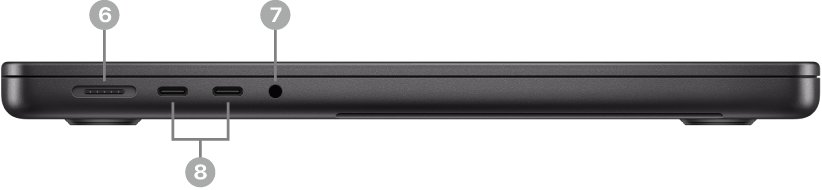
Ports, display limits and the chip are in your Mac's Specifications: open System Settings, click Help in the menu bar and choose Specifications.
| Question | Short answer | Details |
|---|---|---|
| MacBook Pro ports | Match each port's icon | MacBook Pro ports |
| MacBook Air ports | Listed in Specifications | MacBook Air ports |
| External displays | See Display Support in Specifications | two monitors on a MacBook Pro |
| Display not detected | Hold Option in Displays and click Detect Displays | |
| External brightness | Control plus the brightness keys, if supported | Thunderbolt Display brightness on a 5K iMac |
| Brightness slider missing | Use Control Center | missing brightness slider |
| Graphics | The chip in Specifications | MacBook Pro graphics |
| Air or Pro | Compare screens, ports and battery | MacBook Air vs MacBook Pro |
| Air M4 colors | Check finishes before ordering | MacBook Air M4 colors |
| Wi-Fi with Ethernet | Turn Wi-Fi off in Control Center | turn off Wi-Fi when Ethernet connects |
| IP address | Network settings | find your Mac's IP address |
Mac tips and tricks: how to get the most out of your Mac
Discover hidden macOS features: exploring unique macOS features like these is most of unlocking the full potential of macOS, and they increase your productivity at no cost.
| Tip | How |
|---|---|
| Quick Look | Select a file and press Space bar |
| Spotlight math | Type 15% of 85 |
| Clipboard history | Search past copies in Spotlight |
| Live Text | In Preview, Control-click text in a photo, then Copy Text |
| Hide other apps | Option-Command-H |
| Skip confirmations | Hold Option while choosing Shut Down |
| Genmoji | Fn-E, then describe it (Apple Intelligence) |
| Apple Intelligence photo tools | Photos > Edit > Tools: Clean Up, Extend, Reframe |
| Hot corner | Lock the screen by moving the pointer to a corner |
Mac tips and shortcuts FAQ
What is the Mac shortcut for screenshot?
Press Shift-Command-3 for the entire screen, Shift-Command-4 for part of it, or Shift-Command-5 for the Screenshot toolbar. Add Control to any of them to copy the capture to the Clipboard instead of saving it.
What are shortcuts on Mac?
Keyboard shortcuts are key combinations, built on Command, Option, Control, Shift and Fn, that do what normally needs a mouse. The separate Shortcuts app automates multi-step tasks, and in macOS 27 you can describe one in plain language.
How do you create a shortcut on Mac?
A shortcut to a file is called an alias. Select the item and press Control-Command-A, or hold Option-Command while dragging it to the desktop. Control-Shift-Command-T adds a Finder item to the Dock instead.
How do you use a MacBook for the first time?
Open the lid and follow Setup Assistant: language, data transfer, Wi-Fi, account and Apple Account. Then learn Command-Space for Spotlight, a two-finger click for right-click and the Dock for your apps.
What is the Mac shortcut for switching apps?
Press Command-Tab to switch to the most recently used app. Command-Grave accent, the key above Tab, switches windows of the same app, and Control-Up Arrow opens Mission Control.
What is the Mac shortcut for split screen?
Press Fn-Control-Left Arrow or Fn-Control-Right Arrow to tile a window to half the desktop, or Fn-Control-Shift-Left Arrow to tile two windows. For Split View, use the green button's Full Screen menu.
How do I make my Mac run faster?
Install macOS and app updates, free up storage, and quit heavy apps in Activity Monitor. Remove login items you do not need and restart. If the slowdown began after new software, test in safe mode.
How do I access a VPN on a Mac?
Install your provider's app, or double-click the VPN settings file you were given. To enter settings by hand, open System Settings > Network, click the Action pop-up menu and choose Add VPN Configuration.
What are the best Mac tips for beginners?
Learn Command-Space for Spotlight, the Space bar for Quick Look, a two-finger click for right-click and Option-Command-Esc for frozen apps. Then set up Time Machine and keep macOS updated.