You get a product key for Microsoft Office by buying a one-time-purchase version such as Office 2024 from the Microsoft Store or a retail key card, then redeeming the 25-character key once at office.com/setup with your Microsoft account. A Microsoft 365 subscription bought online has no key at all: your Microsoft account activates it.
This guide covers the legitimate ways to get a key, how to redeem it and activate Office, where to find a key you already bought (packaging, email, order history), what to do when Microsoft 365 shows no key, and what each redemption error means.
Step 1: Determine which Office you have
Whether you even have a product key depends on how you got Office. Work this out first, because half of the “where is my key” searches end with the answer that there isn’t one.
| How you got Office | Is there a product key? | What replaces it |
|---|---|---|
| Microsoft 365 Personal, Family or Premium bought online | No | The Microsoft account that pays for the subscription |
| Microsoft 365 or Office key card from a shop | Yes, on the card | Your Microsoft account, once you redeem the card |
| Office 2024 one-time purchase from the Microsoft Store | Yes, in Order History | Your Microsoft account after redemption |
| Office paid for with a new PC | Digital key only, no printed key | Your Microsoft account, linked on first start |
| Microsoft Workplace Discount Program | Yes, typed into the app | Nothing; keep the key |
| Work or school (volume licensing or Microsoft 365 business) | Managed by your organization | Your work or school account |
To see which product is installed, open Word, select File > Account and read the product name under Product Information. “Microsoft 365” means a subscription; “Office Home 2024” or similar means a one-time purchase.
Where to buy a genuine Office license
Microsoft’s advice is to buy directly from the Microsoft Store if Office is asking for a key, because that copy is sure to activate.
- Choose a product: a one-time purchase such as Office Home 2024 or Office Home & Business 2024, an individual app such as Word or Excel, or a Microsoft 365 subscription.
- Buy it from the Microsoft Store at microsoft.com, or buy a Microsoft 365 or Office product key card from a reputable retailer.
- A one-time purchase from the Store puts the key in your order history. A card has the key under a silver foil strip.
- Redeem the key at office.com/setup as shown in the next section.
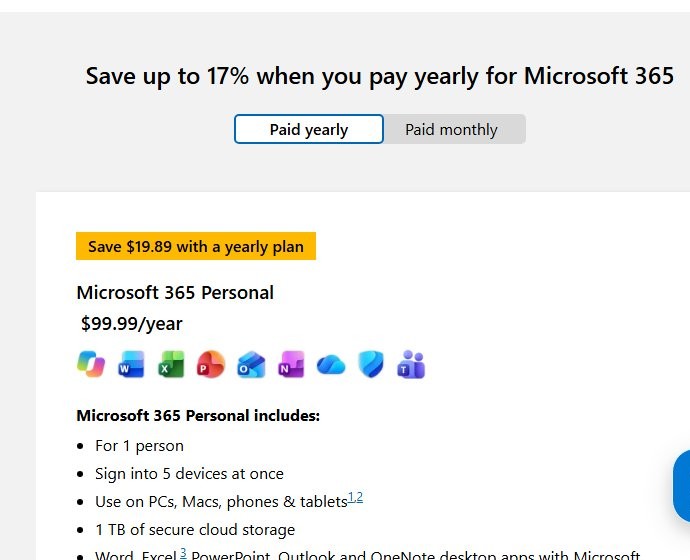
Pick a subscription if you want the latest apps on several devices plus OneDrive storage, and a one-time purchase if you want one PC or Mac licensed for good with no renewal. Only the one-time purchase and key cards give you a key you can hold on to.
Redeem your product key at office.com/setup
A new key has to be redeemed once. After that your Microsoft account carries the licence and you never type the key again.
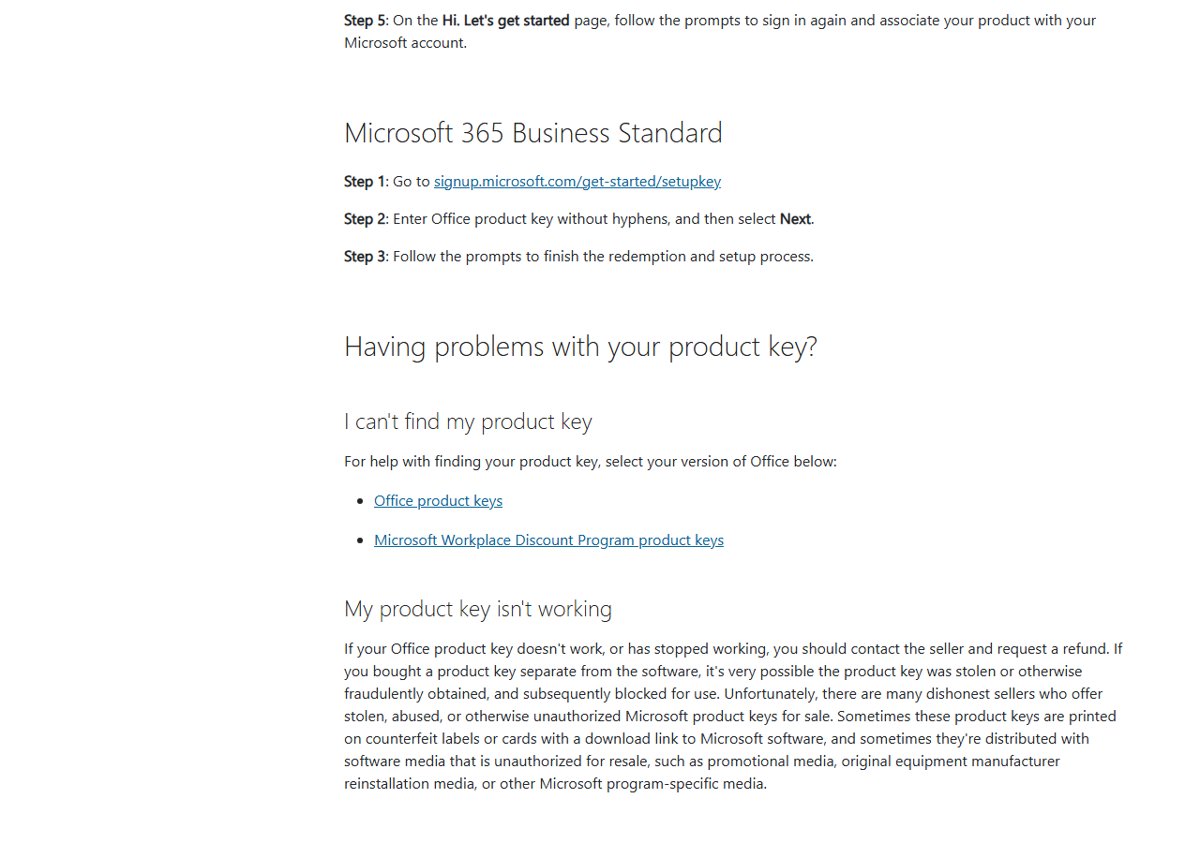
- Go to www.office.com/setup or Microsoft365.com/setup.
- Sign in with your Microsoft account, or create one. Remember it: it replaces the key for every later install.
- Enter the 25-character product key without hyphens if prompted. If you don’t see the box, the key was entered for you automatically.
- Follow the prompts to finish redemption, then download and install Office.
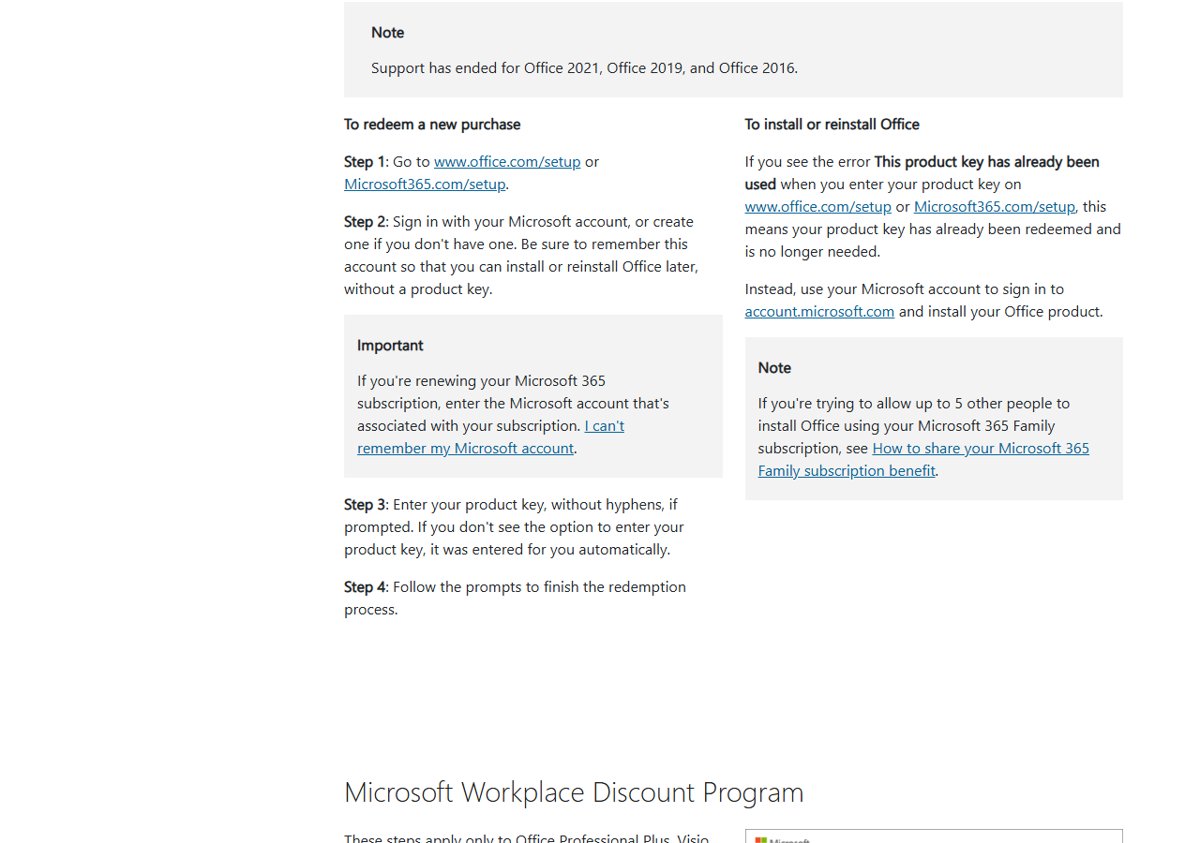
If you are renewing Microsoft 365 with a key card, sign in with the account that already holds the subscription so the extra time is added to it rather than to a new account.
What does an Office product key look like?
| Fact | What it means for you |
|---|---|
| Format | 25 characters in five groups: XXXXX-XXXXX-XXXXX-XXXXX-XXXXX. Other codes on a card, such as a PIN or barcode number, are not the key. |
| Redeemed once | A key can be redeemed only once; after that your Microsoft account takes its place. |
| Not shown inside Office | For security, Office never displays the full key. File > Account shows the Microsoft account it belongs to. |
| Keys that do not match | The key on your account’s Services & subscriptions page always differs from the card or receipt key. That is normal. |
| Supported versions | Microsoft 365 and Office 2024 are supported; support has ended for Office 2021, 2019 and 2016. |
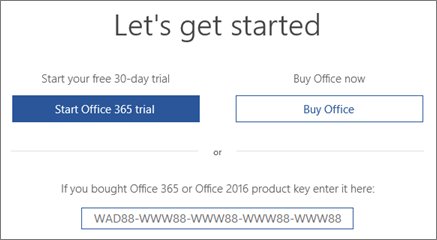
Getting your Office product key from a retail purchase
If you bought Office in a shop or from an online retailer, the key came with the purchase rather than with the software.
- Key card or box: carefully scratch off the silver foil on the back of the card to reveal the 25-character key. Scratch gently; a damaged character is the most common reason a new card fails.
- Download from a retailer: the key is in the confirmation email or in the order page of your account on that retailer’s site. Search your mailbox for “product key” and the retailer’s name.
- Gift or digital code: some retailers send a link to office.com/setup with the key already filled in, which is why the setup page sometimes skips the key box.
Once redeemed, the card has done its job. Keep it as proof of purchase, but install from your Microsoft account.
Find the product key in your Microsoft Store order history
A one-time purchase bought from the Microsoft Store keeps its key in your order history until you install it.
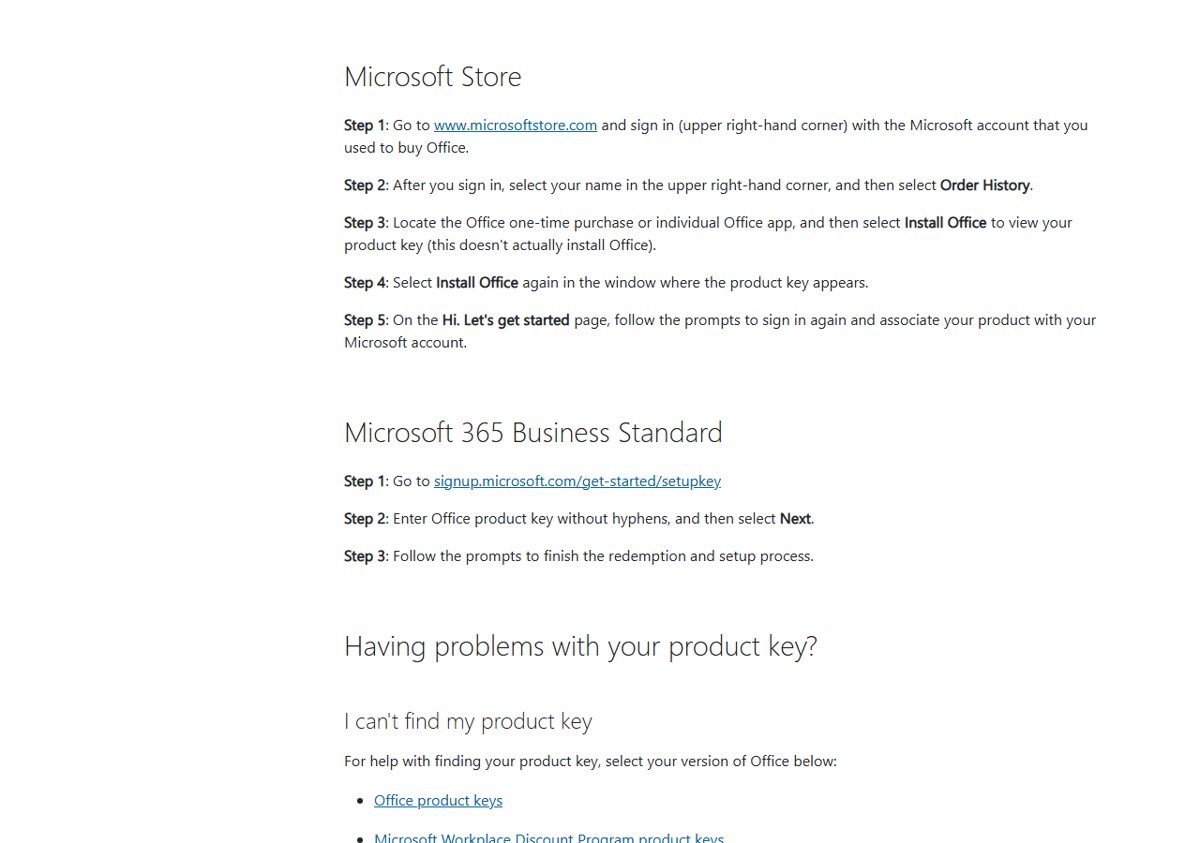
- Go to www.microsoftstore.com and sign in, top right, with the account you used to buy Office.
- Select your name, then Order History.
- Find the Office one-time purchase or individual app and select Install Office to view the product key. This does not actually install Office.
- Select Install Office again in the window that shows the key, then sign in on the Hi. Let’s get started page to link the product to your Microsoft account.
How to find your Microsoft Office product key
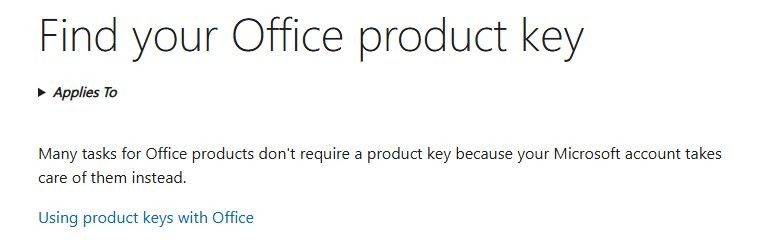
For a copy that is already installed and linked to your account, Microsoft’s position is that you don’t need the key at all: your Microsoft account handles installs, reinstalls and activation.
- Sign in to account.microsoft.com with the account that owns Office.
- Open Services & subscriptions.
- Find your Office product and select Install to reinstall it on this PC.
Office itself never shows the full key, and neither does the account page. Volume-licensed installs at work are the exception that can show part of it: in an elevated Command Prompt, run cscript ospp.vbs /dstatus from the Office installation folder and the output lists the last five characters of each installed key, which is enough to match a key card or invoice. For more detail on what an installed copy can and cannot reveal, see how to find the key behind an installed copy of Office.
Third-party “key finder” programs claim to read keys from the registry. They only work on old versions that stored the key locally, they are a common malware vector, and they are not needed when the licence sits in your Microsoft account. Skip them.
How to find your Microsoft Office product key on a Mac
Office for Mac works the same way as on Windows: Microsoft 365 and Office 2024 for Mac are tied to your Microsoft account, not to a key stored on the Mac. Look for the key on the card, in the retailer’s email or in Microsoft Store order history, and sign in with your account in any Office app to activate. There is no Terminal command that reveals a full Office key on macOS.
Microsoft 365 subscription: no key needed
If your search led here because Microsoft 365 shows no key anywhere, that is by design.
| Option | What you get | Key needed? |
|---|---|---|
| Microsoft 365 subscription bought online | Desktop apps, installed and activated with your Microsoft account | No |
| Reinstalling Office you already own | Install again from the Services & subscriptions page | No (except Workplace Discount Program) |
| Microsoft 365 for the web | Free Word, Excel and PowerPoint in the browser | No, a free Microsoft account |
| Microsoft 365 Family sharing | Up to 5 other people install Office through your invitation | No; never share the key, which fails for them |
| Trial on a new PC | Full apps for a month | No |
Moving to a new computer works the same way: sign in on the new PC and install from your account. The steps are in our guide to transfer Microsoft Office to a new computer.
Get Office free through school, work or a discount program
| Source | What you get | How to start |
|---|---|---|
| Educational institutions | Office 365 A1 (web apps) free for eligible schools; A3 adds desktop apps | Use Get started on Microsoft’s Office 365 Education page, or ask your school |
| Microsoft Workplace Discount Program | Office Professional Plus, Visio Professional or Project Professional with a product key | Your employer’s program page |
| Volume licensing at work | Office for organizations, activated by your IT department | Ask your IT administrator |
| A new Windows PC | A digital key if you paid for Office with the PC; otherwise a Microsoft 365 trial | Start Word and follow the activation screen |
| A lost or damaged key | A possible replacement with valid proof of purchase | Contact Microsoft support |
Students can check eligibility with a school email, as covered in how to get Microsoft Word as a student.
Lists of “Office product keys” posted online are generic volume license keys (GVLKs). Microsoft publishes them for organizations that run their own KMS activation server; they install Office in a state that only activates against that company’s server. They will not activate Office on a home PC, and anyone offering to activate them for you is offering a piracy service.
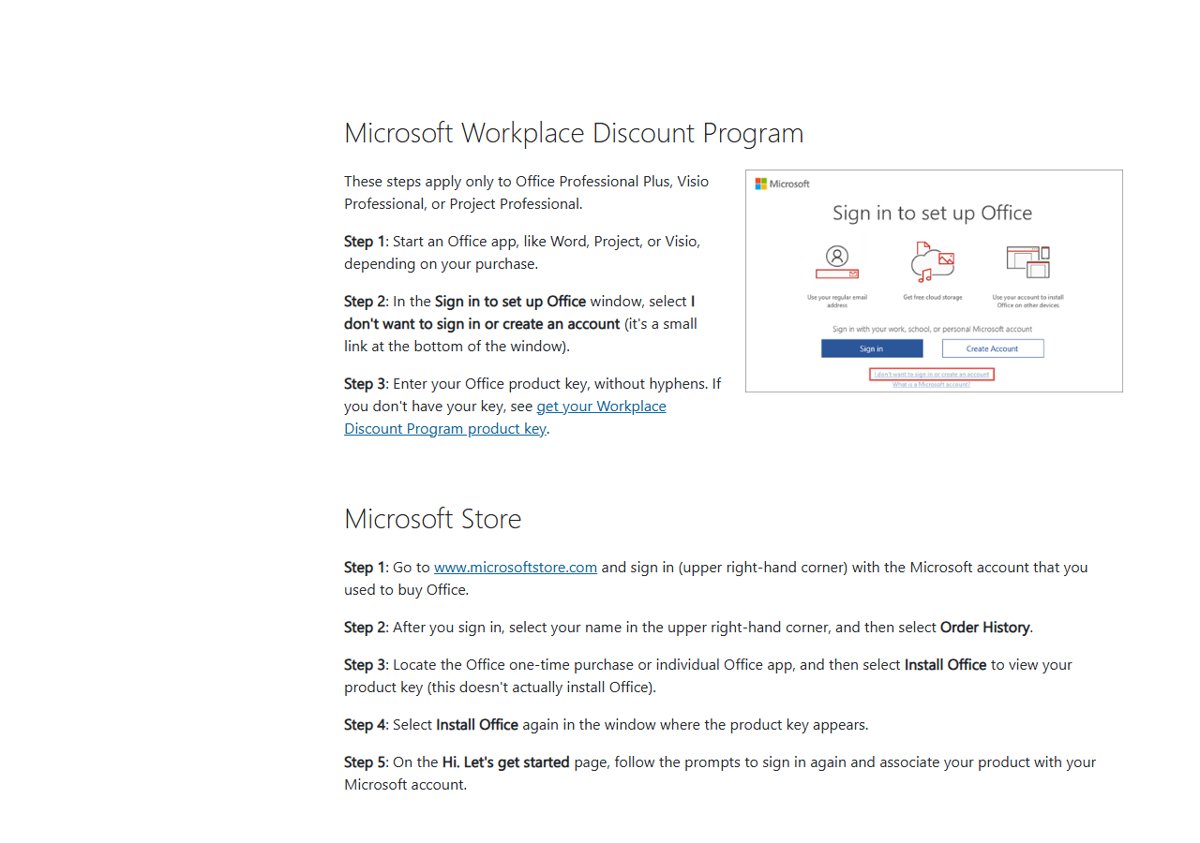
Microsoft Workplace Discount Program
These steps apply only to Office Professional Plus, Visio Professional or Project Professional bought through the program, because those keys are entered in the app rather than at office.com/setup.
- Start an Office app, such as Word, Project or Visio, depending on your purchase.
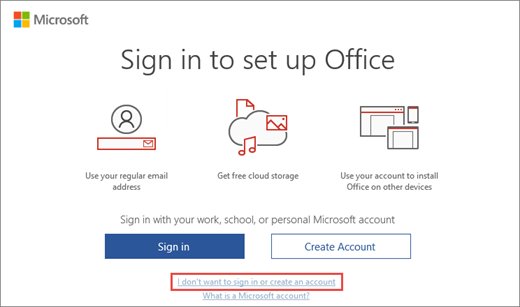
- In the Sign in to set up Office window, select I don’t want to sign in or create an account, the small link at the bottom.
- Enter the product key without hyphens.
How to activate Microsoft Office
- Open any Office app, such as Word.
- When prompted to activate, sign in with the Microsoft account you used to buy or redeem Office.
- If Office still asks for a key and you have a new, unused key card for a Microsoft 365 renewal, you can enter it here.
To change the key on an existing Office Home & Business, Office Professional or individual-app install, use Microsoft’s Change your Office product key steps; most current installs only need you to sign in.
How to check your Microsoft Office activation status
- Open Word or any Office app.
- Select File > Account.
- Look under the product name for Belongs to followed by your Microsoft account email.
- Confirm there is no yellow or red banner such as PRODUCT NOTICE or SUBSCRIPTION EXPIRED at the top of the app.
An unlicensed Office drops into reduced functionality: you can open and print files but not edit or save. That is the practical reason to activate rather than ignore the prompt.
Are cheap Office product keys and key generators legal?
Key generators, “free Office product key” lists and activation cracks are piracy tools. They frequently carry malware, the keys they produce are blocked, and Microsoft can switch an illegally activated copy back to unlicensed at any time. There is no legitimate way to generate an Office key.
| Warning sign | Why it matters |
|---|---|
| A key sold on its own, separate from the software | Microsoft says such keys are very often stolen or fraudulently obtained and later blocked |
| A price far below the Microsoft Store | Grey-market keys are usually volume, education or resold OEM keys |
| Promotional, OEM reinstallation or program-specific media for sale | This media is not authorized for resale |
| A key that worked and then stopped | It was likely blocked; ask the seller for a refund |
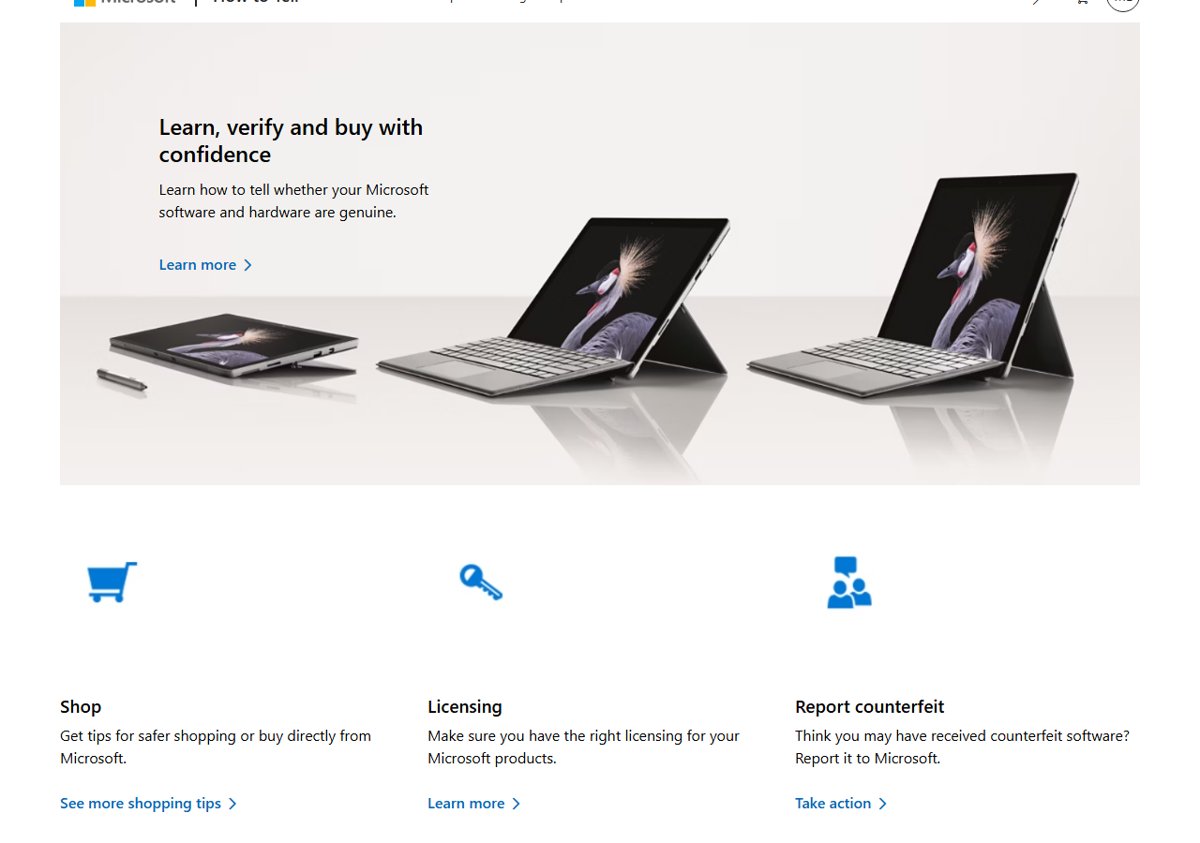
| A seller you cannot verify | Use Microsoft’s How to Tell site to check genuine software and report counterfeits |
Office activation error codes and fixes
“This product key has already been used”
Keys can be redeemed only once, and yours already was.
- Sign in to account.microsoft.com with the account the key was redeemed to.
- Install Office from the Services & subscriptions page.
“Sorry, we can’t find this product key in our database” (ERR_INVALID_TOKEN)
The key is for a version not offered at office.com/setup, such as Office 2010 or Office 2011 for Mac.
- Check which product the key is for.
- Use Microsoft’s virtual support agent, which can say whether the key is valid or blocked.
“This product key isn’t meant for your region”
Keys must be redeemed in the country or region where they were bought. Redeem it from that region or contact Microsoft support; for a renewal key from another region, redeem it to a different Microsoft account or wait until the current subscription expires.
Office keeps asking for a product key
Office is not linked to the account you are signed in with, or it is a trial. Sign in with the Microsoft account you used to buy Office instead of entering a key. If Office also shows a generic failure, work through the fixes for the Something went wrong error in Office.
The key does not work or stopped working
It was probably sold separately and blocked. Contact the seller, request a refund, and buy Office directly from Microsoft.
Office product key FAQ
How do I get a product key for Microsoft Office?
Buy a one-time-purchase version of Office, such as Office 2024, from the Microsoft Store or a retail key card. Then redeem the 25-character key once at office.com/setup with your Microsoft account, which you use for every later reinstall.
How do I get a product key for Microsoft 365?
A Microsoft 365 subscription bought online does not use a key; your Microsoft account activates it. You only get a key if you buy a Microsoft 365 key card from a retailer, which you redeem at Microsoft365.com/setup to start or renew a subscription.
How do I get a product key for Word or Excel?
Buy Word or Excel as an individual app from the Microsoft Store, or buy an Office suite or Microsoft 365. One-time purchases from the Store show the key in Order History. Word and Excel for the web are free with a Microsoft account.
Can I see my Office product key after installing?
No. Office never shows the full key for security reasons, and it is not displayed online either. File > Account shows the Microsoft account Office belongs to, which you use instead of the key to reinstall and activate.
How do I get a new product key if mine was lost?
If Office was already redeemed to your Microsoft account, you do not need the key; reinstall from Services & subscriptions. If the card was damaged before redemption, Microsoft support may help with valid proof of purchase.
Can I get a Microsoft Office product key for free?
Microsoft does not give away Office keys, and free key lists or generators are piracy that leads to blocked keys and malware. Legitimate free options are Word, Excel and PowerPoint for the web, Office 365 A1 through an eligible school, and the Microsoft 365 trial.






How to legally download Office 2021, 2019, or 2016 free from Microsoft - Techdows
[…] new retail Office product key is redeemed once to link Office to your Microsoft account. After that you never need the key again; […]