To use Excel, open a blank workbook, type data into cells, and let formulas such as =SUM(B2:B10) do the math for you.
This guide covers the basics a beginner needs, then the jobs people search for most: merging cells, finding duplicates, building drop-down lists, enabling macros and the shortcuts that save the most time.

How to create a spreadsheet in Microsoft Excel
These steps take you from an empty screen to a saved workbook with data in it. They work in Excel for Windows, Mac and the web.
- Open Excel and select Blank workbook, or press Ctrl + N if Excel is already open.
- Select an empty cell such as A1 and type a heading, a word or a number.
- Press Enter to move down a row or Tab to move one cell to the right.
- Type the first two values of a series, such as Jan and Feb, select both cells and drag the fill handle to continue the series.
- Press Ctrl + S, choose a location and a file name, and select Save.
That loop of opening an Excel spreadsheet, entering data and saving it is the base for every job below.
What is Excel? (Understanding the basics)
Excel is Microsoft's spreadsheet app for storing data in rows and columns, calculating with formulas and turning the results into charts. You can install Excel on Windows or Mac with Microsoft 365, or use Excel for the web free with a Microsoft account.
| Term | What it means | Where you see it |
|---|---|---|
| Workbook | The Excel file itself (.xlsx, or .xlsm when it holds macros) | Title bar at the top of the window |
| Worksheet (sheet) | One grid of cells inside the workbook | Sheet tabs at the bottom |
| Cell | One box, named by column letter and row number, such as B4 | Name Box left of the formula bar |
| Ribbon | The tabs and buttons across the top: Home, Insert, Formulas, Data and more | Top of the window |
| Formula bar | Shows the real content or formula of the selected cell | Above the column letters |
| Range | A block of cells written as first:last, such as A2:A10 | Inside formulas |
Introduction to Excel tabs / ribbons: Home, Insert, Formulas, Data, etc.
Working with the Ribbon is mostly knowing which tab holds a command. This task to menu path table covers the jobs readers ask about most. Press Alt to show the KeyTip letters, or Alt + Q to search for any command by name.
| Task | Menu path | Keyboard route |
|---|---|---|
| Merge cells | Home > Merge & Center > Merge Cells | Alt + H, then follow the KeyTips |
| Unmerge cells | Home > Merge & Center arrow > Unmerge Cells | Alt + H, then follow the KeyTips |
| Highlight duplicates | Home > Conditional Formatting > Highlight Cells Rules > Duplicate Values | Alt + H |
| Remove duplicates | Data > Data Tools > Remove Duplicates | Alt + A |
| Show unique records only | Data > Sort & Filter > Advanced > Unique records only | Alt + A |
| Create a drop-down list | Data > Data Validation > Settings > Allow: List | Alt + A |
| Sort a column | Data > Sort & Filter > Sort A to Z | Alt + A |
| Split text into columns | Data > Text to Columns | Alt + A |
| Enable macros for all files | File > Options > Trust Center > Trust Center Settings > Macro Settings | Alt + F, T |
| Show the Developer tab | File > Options > Customize Ribbon > Developer | Alt + F, T |
| Insert a sheet | Home > Insert > Insert Sheet | Select the plus icon by the sheet tabs |
| Insert a chart | Insert > Recommended Charts | Alt + N |
| File > Print | Ctrl + P | |
| Unprotect a sheet | Review > Unprotect Sheet | Alt + R |
To add many rows in one go, select as many rows as you need and choose Insert; the full set of options for inserting multiple rows includes the ribbon and shortcuts.
Managing your sheets
A workbook can hold many worksheets. Keep raw data, lookup lists and reports on separate sheets so each one stays readable.
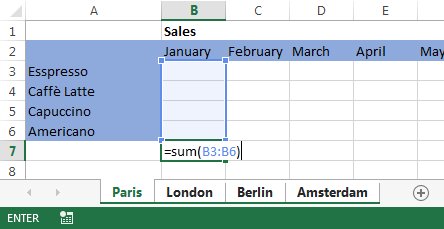
- Select the New Sheet plus icon at the bottom of the workbook to add a sheet, or select Home > Insert > Insert Sheet.
- Double-click a sheet tab, type a new name and press Enter to rename it.
- Drag a sheet tab left or right to change its position.
- Press Ctrl + Page Down for the next sheet and Ctrl + Page Up for the previous one.
- Right-click a sheet tab and select Delete to remove it.
Keyboard users can cycle through sheet tabs without the mouse, and the options for deleting a spreadsheet include removing several sheets at once.
Rows move too: you can move rows without overwriting data by holding Shift while you drag.
Lesson 2: Basic formatting — make your spreadsheet look good
Select the cells first, then apply the format; values underneath stay the same.
- Select the header row and press Ctrl + B to make it bold.
- Press Ctrl + 1 to open Format Cells and pick a number format such as Currency, Date or Percentage.
- Select Home > Fill Color to shade a header, or press Alt + H, B to add borders.
- Select Home > Wrap Text so long entries show on several lines inside one cell.
- Press Ctrl + T to turn a list into a table with banded rows and filter buttons.
Long text can also wrap automatically as row heights adjust. Imported data often carries stray spaces; =TRIM(A2) is the quickest way to remove extra white space before you sort or match it.
Lesson 3: AutoFill and Flash Fill to fill data fast
- Type the first two items of a series, such as 1 and 2, or Monday and Tuesday.
- Select both cells and drag the small square at the bottom-right corner (the fill handle) down or across.
- To repeat one entry in many cells, select the cells, type the entry and press Ctrl + Enter.
- For Flash Fill, type the result you want next to the first row of data, such as a first name pulled from a full name.
- Move to the next cell in that column and press Ctrl + E; Excel fills the rest of the column from the pattern.
Lesson 4: Sorting and filtering data
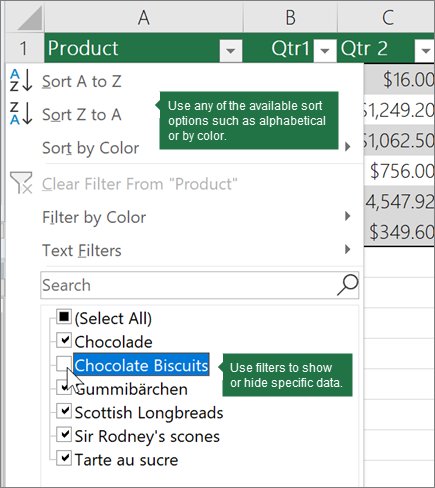
- Select any cell in the column you want to sort.
- On the Data tab, in the Sort & Filter group, select Sort A to Z for text or Sort Smallest to Largest for numbers.
- For several sort levels, such as department then name, select Data > Sort and add a level for each column.
- To filter, select Data > Filter and use the arrow in a header to show only the rows you want.
Basic calculations
Every formula starts with an equals sign. Point at cells instead of typing numbers, so the answer updates when the data changes.
| Operation | Operator | Example | Result with A2 = 10, B2 = 4 |
|---|---|---|---|
| Add | + | =A2+B2 | 14 |
| Subtract | – | =A2-B2 | 6 |
| Multiply | * | =A2*B2 | 40 |
| Divide | / | =A2/B2 | 2.5 |
| Power | ^ | =A2^2 | 100 |
| Join text | & | =A2&" units" | 10 units |
Press F4 inside a formula to switch a reference between relative (A2) and absolute ($A$2).
Lesson 5: Your first Excel formulas and functions
Functions are ready-made formulas. Type = and the first letters of a name, then pick it from the list.
| Function | What it does | Example |
|---|---|---|
| SUM | Adds a range | =SUM(B2:B10) |
| AVERAGE, MEDIAN, MODE.SNGL | Mean, middle value and most common value | =AVERAGE(B2:B10) |
| COUNTIF | Counts cells that meet one condition | =COUNTIF(A2:A5,"London") |
| IF | Returns one value if a test is true and another if false | =IF(B2>50,"Pass","Fail") |
| VLOOKUP | Finds a value in the first column of a range and returns a value from another column | =VLOOKUP("Fontana",B2:E7,2,FALSE) |
| TEXTJOIN | Joins a range of text with a separator | =TEXTJOIN(", ",TRUE,A2:A8) |
| TRIM | Removes extra spaces from text | =TRIM(A2) |
| MINVERSE, LINEST | Matrix inverse and linear regression | =MINVERSE(A1:C3) |
Unlocking the power of functions starts with statistics: you can find mean, median and mode with three short formulas. Matrix work uses MINVERSE to calculate an inverse matrix, and LINEST or the Analysis ToolPak handles multiple linear regression.
What-if analysis lives under Data > What-If Analysis: Scenarios, Goal Seek and Data Tables test different inputs against the same formulas.
Lesson 6: Creating simple charts
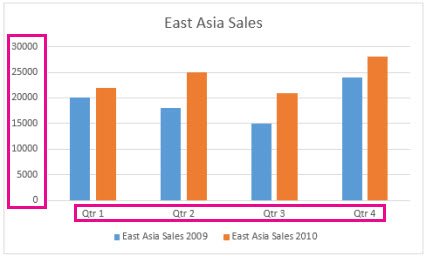
- Select the data, including the header row and the label column.
- Select Insert > Recommended Charts.
- Pick a chart from the preview list and select OK.
- Select the chart to show the Chart Design tab, where you can change the layout, style and data range.
When the horizontal labels are wrong, add X-axis values through Select Data. Chart Filters let you hide chart data without deleting it, and NA() formulas help hide empty chart series in a growing dataset.
For a dashboard, the Camera command takes a live picture of a range that updates when the cells change.
Saving and sharing your work
Lesson 7: printing your spreadsheet sits here too, since printing and sharing both come from the File menu.
- Press Ctrl + S to save; save to OneDrive if other people need to open the same copy.
- Save to OneDrive to keep the file available on every device you sign in to.
- To print, select File > Print or press Ctrl + P, check Settings, then select Print.
- Close the workbook with Ctrl + W when you are done.
A file password stops anyone opening the workbook; the steps to password protect a workbook cover Windows and Mac. If you need to change sheets in a locked structure later, you can unprotect a workbook from the Review tab with the password.
Essential Excel shortcuts every beginner should know
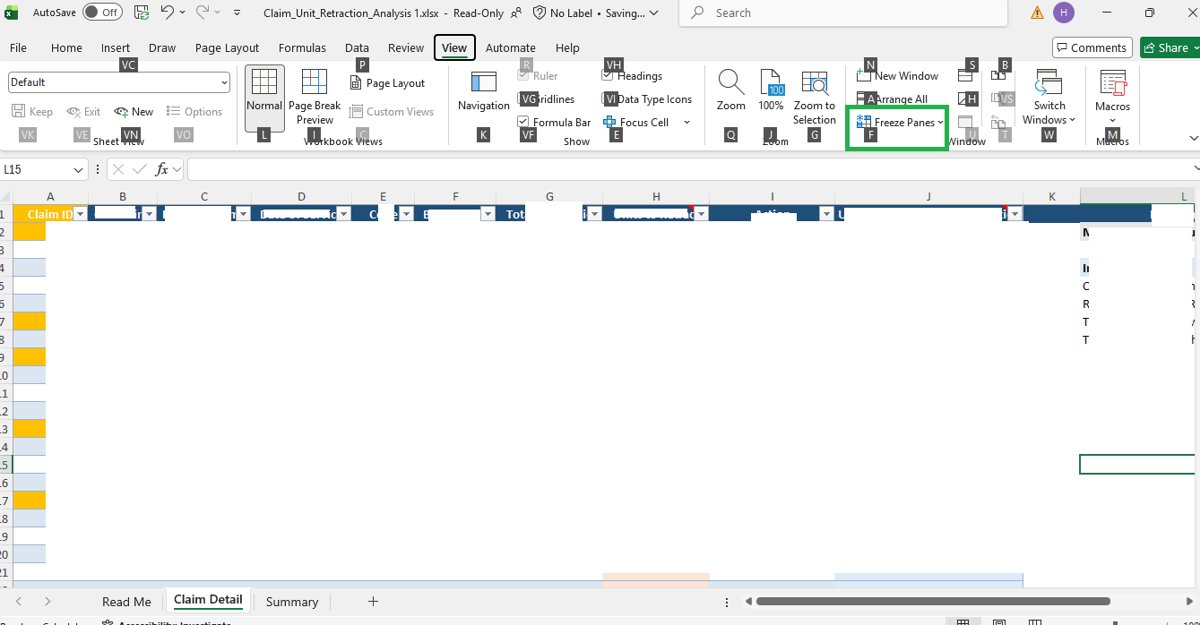
These are the shortcuts from Microsoft's frequently used list that save the most clicks in daily work.
| Shortcut | What it does |
|---|---|
| Ctrl + N / Ctrl + O / Ctrl + S | New, open and save a workbook |
| Ctrl + C / Ctrl + X / Ctrl + V | Copy, cut and paste |
| Ctrl + Z / Ctrl + Y | Undo and redo |
| Ctrl + 1 | Open Format Cells |
| Ctrl + T | Create a table |
| Ctrl + E | Flash Fill |
| Ctrl + Enter | Fill all selected cells with the current entry |
| Alt + Enter | Start a new line inside a cell |
| F2 | Edit the active cell |
| F4 | Repeat the last action, or toggle $ references in a formula |
| Ctrl + ; / Ctrl + Shift + : | Insert the current date / time |
| Ctrl + Page Down / Ctrl + Page Up | Next / previous sheet |
| Ctrl + Spacebar / Shift + Spacebar | Select the whole column / row |
| Ctrl + A | Select the whole sheet |
| Ctrl + 9 / Ctrl + 0 | Hide selected rows / columns |
| Alt + F8 / Alt + F11 | Macro dialog / Visual Basic editor |
The full Excel shortcut list adds ribbon Alt keys, PivotTable and Mac keys.
Merge and unmerge cells in Excel
A merged cell is one large cell made from several adjacent cells, usually to center a title over a table. Merged cells only retain the top left values: Excel keeps the upper-left cell's content and deletes the rest, so combine data before merging cells if you need it.
- Select the cells to merge.
- Select Home > Merge & Center to merge and center, or the Merge & Center arrow > Merge Cells to merge without centering.
- Select OK if Excel warns that only the upper-left value will be kept.
- To unmerge, select the merged cell, then the Merge & Center arrow > Unmerge Cells.
- To unmerge all merged cells, press Ctrl + A to select the sheet, then select Unmerge Cells.
To merge multiple ranges in one step, hold Ctrl while you select each range, then apply Merge Cells once. To find merged cells in a workbook, use the Find command (Ctrl + F) and search by the merged-cell format.
Why you shouldn't merge cells: merged cells break sorting, filtering and copying across columns. A common alternative to merging a cell is joining the text into one cell with a formula, shown in the next section.
Combining cells vs merging cells in Excel
Merging changes the layout and discards values. Combining joins the text of several cells into one new cell and keeps every value.
| Method | Example | Best for |
|---|---|---|
| Ampersand (&) operator | =A2&" "&B2 | Two or three cells, fastest to type |
| CONCAT function | =CONCAT(A2," Family") | Several cells or added text |
| TEXTJOIN function | =TEXTJOIN(", ",TRUE,A2:A8) | A whole range with one separator, skipping blanks |
| Flash Fill feature | Type one example, press Ctrl + E | One-off clean-up without formulas |
| Fill Justify feature | Fill > Justify on the Home tab | Joining short text lines in one column |
| Power Query Merge Columns | Merge Columns in the Power Query editor | Repeatable imports that refresh |
| VBA user defined function | A custom function written in the VBA editor | Rules the built-in functions do not cover |
Additional notes about combining cells in Excel: formula results update when the source changes; copy and paste as values if you need fixed text.
Split text from one cell into multiple cells
You cannot split a single unmerged cell, but you can split its contents across columns.
- Select the cell or column that holds the text.
- Select Data > Text to Columns.
- Choose Delimited and select Next.
- Tick the separators in your data, such as Comma or Space, and check the preview.
- Select Next, pick a Destination cell and select Finish.
How to find duplicates in Excel
Why do you need to search for duplicates in Excel? Repeated entries inflate totals and counts. Highlighting them first lets you review before you delete anything.
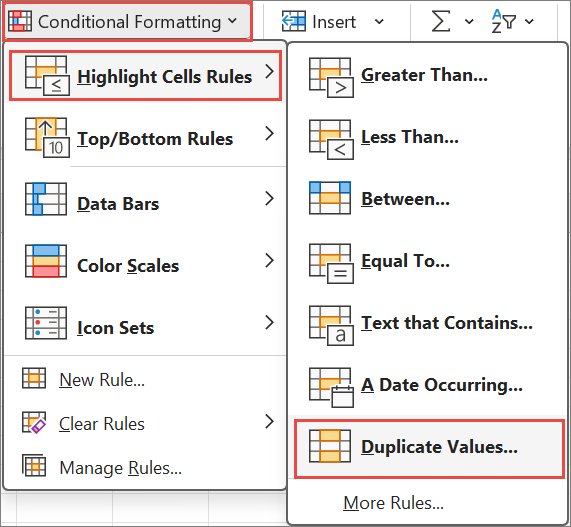
- Select the cells you want to check.
- Select Home > Conditional Formatting > Highlight Cells Rules > Duplicate Values.
- In the box next to values with, pick a format.
- Select OK; every repeated value is now shaded.
Conditional formatting cannot highlight duplicates in the Values area of a PivotTable. After finding them, sort or filter by cell color to select, copy, move, remove or hide duplicates in one block.
How to count duplicates in Excel
Formulas go further than the built-in rule. Put each one in a helper column and fill it down.
| Goal | Formula in row 2 (fill down) | Result |
|---|---|---|
| Count the number of duplicates of a value | =COUNTIF($A$2:$A$100,A2) | How many times A2 appears |
| Flag duplicates with conditional outputs | =IF(COUNTIF($A$2:$A$100,A2)>1,"Duplicate","Unique") | A text label per row |
| Find triplicates | =COUNTIF($A$2:$A$100,A2)>=3 | TRUE for values seen three or more times |
| Excluding 1st occurrence in a column | =COUNTIF($A$2:A2,A2)>1 | TRUE only from the second copy on |
| Find duplicate rows across multiple columns | =COUNTIFS($A$2:$A$100,A2,$B$2:$B$100,B2)>1 | TRUE when the whole row repeats |
| Duplicates from two or three columns | =COUNTIF($C$2:$C$100,A2)>0 | TRUE when A2 also appears in column C |
| Duplicate values across two sheets | =COUNTIF(Sheet2!$A:$A,A2)>0 | TRUE when A2 is on Sheet2 |
| Duplicates between two Excel workbooks | =COUNTIF([Book2.xlsx]Sheet1!$A:$A,A2)>0 | Same test, with the other workbook open |
| Case-sensitive duplicates | =SUMPRODUCT(–EXACT($A$2:$A$100,A2))>1 | Treats Apple and apple as different |
| Consecutive duplicate cells | =A2=A1 | TRUE when a value repeats the row above |
To highlight entire rows when only one column contains duplicates, or to highlight the duplicate rows only, use Conditional Formatting > New Rule > Use a formula with one of these formulas and $ before the column letter. A VBA macro can do the same job on very large sheets, but the formulas are easier to audit.
How to remove duplicates in Excel
Remove Duplicates deletes repeated rows permanently and keeps the first occurrence. Copy the data to another sheet first.
- Remove any outlines or subtotals from the data.
- Select the range, or any cell inside a table.
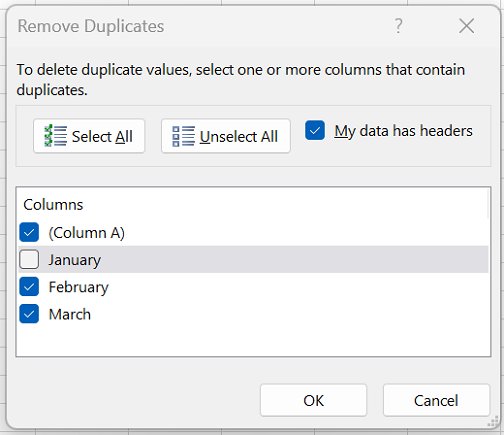
- Select Data > Remove Duplicates.
- Tick only the columns that must match for a row to count as a duplicate.
- Select OK and read the count of removed and remaining values.
How to filter duplicates in Excel without deleting them: select Data > Advanced, choose Copy to another location, tick Unique records only and select OK. The UNIQUE formula and Advanced Filter are also options when you remove duplicates from a column and need to undo it later.
How to create a drop-down list in Excel
A drop-down list lets people pick from fixed entries instead of typing. Keep the source list in a table so new items appear in the list automatically.
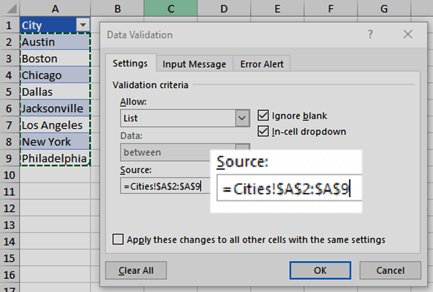
- On another sheet, type the list entries in one column and press Ctrl + T to make them a table.
- Select the cell where the drop-down should appear.
- Select Data > Data Validation.
- On the Settings tab, set Allow to List.
- Select the Source box and select the list range, without the header.
- Keep In-cell dropdown ticked, and tick Ignore blank if the cell may stay empty.
- On the Error Alert tab, choose the Stop style to block entries that are not in the list, then select OK.
Drop-downs are what keep a daily cash book in Excel consistent, with one fixed list of payment types and accounts.
What are macros in Excel?
A macro is a recorded series of commands, stored as VBA code, that repeats a task with one click. Practical use cases of macros include formatting a weekly report, cleaning imported data and building the same chart every month.
Why are macros disabled by default? A macro can run any code with your permissions, so a malicious file could install malware. Excel blocks or asks first, depending on where the file came from.
| What you see when the file opens | Why | What to do |
|---|---|---|
| Yellow Protected View bar with Enable Editing | The file came from the internet or email and opened read-only | First: click “Enable Editing” if you trust the sender; macros may then show their own bar |
| Yellow bar: “Enable Content” | Macros are present and set to Disable VBA macros with notification | Select Enable Content (Method 1) |
| Red banner: “Microsoft has blocked macros from running” | The file carries Mark of the Web from the internet | Unblock the file in its Properties (see the red banner section) |
| No message, macros simply do not run | Trust Center is set to disable without notification | Change macro settings in the Trust Center (Method 2) |
| Macros will not run in a browser | Excel for the web does not run VBA macros | Select Open in Desktop App, or use Office Scripts |
Method 1: Enable macros for a single workbook
Using the security warning bar is the safest route, because it enables macros in a specific workbook only. It is also how you make a document trusted to enable macros.
- Open the workbook and select Enable Editing if Protected View appears.
- Select Enable Content on the yellow security warning bar.
- In the Security Warning dialog, select Yes to make it a trusted document.
- Run the macro from View > Macros, or press Alt + F8.
To revoke that trust later, clear all trusted documents in the Trust Center.
Method 2: Change macro settings for all workbooks
Change macro settings in the Trust Center when you want the same rule for every file. The change applies to Excel only, not Word or PowerPoint, and a work or school administrator can lock it.
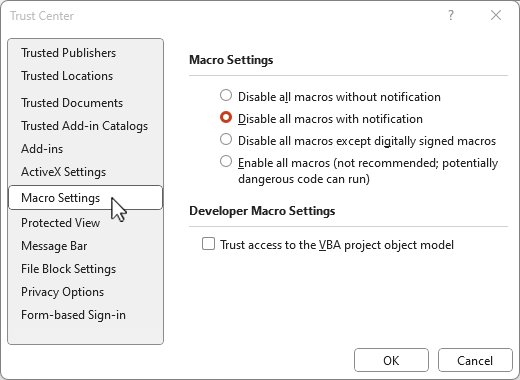
- Select File > Options.
- Select Trust Center > Trust Center Settings.
- Select Macro Settings.
- Choose an option, then select OK twice.
How to disable macros in Excel: pick Disable VBA macros without notification. Disable VBA macros with notification is the default and the best balance. Disable VBA macros except digitally signed macros runs code from trusted publishers only. Enable VBA macros (not recommended, potentially dangerous code can run) runs everything without asking; avoid it on a computer that opens email attachments.
Method 3: Enable macros for trusted locations
Enable for a trusted location and documents when you open your own macro files every day. Files in a trusted location skip the Trust Center checks and Protected View.
- Select File > Options > Trust Center > Trust Center Settings.
- Select Trusted Locations in the left pane.
- Select Add new location, then Browse to the folder.
- Select OK until every window closes.
Red banner: “Microsoft has blocked macros from running”
Office blocks macros in files from the internet, including email attachments, and shows a red Security Risk banner with no Enable Content button. The fix is on the file, not in Excel.
- Close the workbook.
- In File Explorer, right-click the file and select Properties.
- On the General tab, tick Unblock and select OK.
- Open the file again and select Enable Content.
For a file on OneDrive or SharePoint, open it with Open in Desktop App instead of downloading a copy. In Excel Online, VBA macros never run; Office Scripts are the web alternative and need a work or school license.
How to enable the Developer tab (optional)
Enable macros via the Developer tab when you record or edit them often. The tab also holds Macro Security, a shortcut to the Trust Center.
- Select File > Options > Customize Ribbon.
- Under Main Tabs, tick Developer.
- Select OK; the tab stays until you clear the box.
- Select Developer > Macro Security to reach the macro settings in one click.
The same checkbox exists in Word and PowerPoint, and the steps to show the Developer tab cover Mac too. Tips for safe macro usage: keep the default setting, enable macros per file, and open unknown files with macros left off, since you can view and edit a file without enabling them.
Common issues and fixes
These are the common mistakes beginners make and the problems people search for most, grouped by symptom.
Why won't Excel let me merge cells? (Merge & Center greyed out)
The cell is in Edit mode or the sheet is protected.
- Press Esc to leave the cell you are typing in.
- Select Review > Unprotect Sheet and enter the password if asked.
- Select the cells again and select Merge & Center.
Arrow keys scroll the sheet instead of moving between cells
Scroll Lock is on.
- Press ScrLk on the keyboard to turn off Scroll Lock.
- On a laptop without the key, open the Windows On-Screen Keyboard and select ScrLk.
- If the keys still fail, work through the other arrow key fixes, starting with leaving Edit mode.
Macros still do not run after Enable Content
A policy or a blocked file overrides the bar.
- Check for the red banner and unblock the file in Properties.
- Open File > Options > Trust Center > Trust Center Settings > Macro Settings and confirm the option is not Disable VBA macros without notification.
- On a work PC, ask the administrator; managed settings cannot be changed locally.
Remove Duplicates leaves rows that look identical
Hidden spaces or different number formats make the displayed values differ.
- Clean the column with =TRIM(A2) in a helper column and paste the result as values.
- Apply the same number format to the whole column.
- Run Data > Remove Duplicates again.
Microsoft Excel how-to FAQ
How do I use Excel for free?
Use Excel for the web, which is free with a Microsoft account at office.com. It covers formulas, charts, tables and sharing. It cannot run VBA macros, and some desktop features are missing.
Can I use Excel without Office 365?
Yes. Excel for the web is free with a Microsoft account and does not need a Microsoft 365 subscription. It covers everyday formulas, charts and sharing; desktop-only features such as VBA macros need the desktop app.
How do I use Excel formulas?
Type an equals sign in a cell, then the calculation or function, such as =SUM(B2:B10), and press Enter. Point at cells rather than typing numbers, so the result updates when the data changes.
What is VLOOKUP in Excel and how do I use it?
VLOOKUP finds a value in the first column of a range and returns a value from another column in the same row. Use =VLOOKUP(value, range, column number, FALSE) for an exact match.
How do I use What-If Analysis in Excel?
Select Data > What-If Analysis and choose Scenario Manager, Goal Seek or Data Table. Goal Seek finds the input that produces a target result; Scenarios and Data Tables compare several inputs at once.
How do I use Copilot in Excel?
Copilot in Excel needs a Microsoft 365 plan that includes it. Once you enable Copilot in Excel, select the Copilot button on the ribbon and type a request such as a summary or a new formula column.
Why can I not merge cells in Excel?
Merge & Center is unavailable while you are editing a cell or when the sheet is protected. Press Esc, unprotect the sheet from the Review tab, then select the cells and merge again.
What's next? Level up your Excel skills
Learn the five-step workbook loop, SUM and COUNTIF, Remove Duplicates and Data Validation first, then add macros only when a task repeats every week. Those few features cover most everyday spreadsheet work, and leaving macros on the default setting keeps files from the internet from running code you did not check.