To delete multiple text messages at once on a Mac, open a conversation in Messages, select the messages in the transcript, press Delete, then click Delete in the dialog.
This guide covers deleting several messages, several conversations, batches of photos and files, automatic deletion, and recovering texts you removed by mistake.
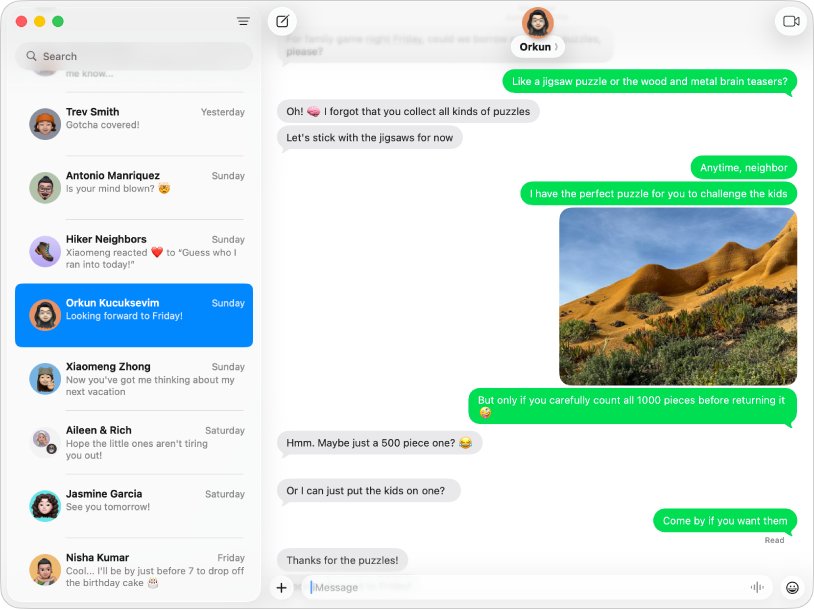
Delete multiple messages in a Messages conversation on Mac
- Open the Messages app on your Mac.
- Select the conversation in the sidebar.
- Select the messages you want to remove in the transcript. Hold Command and click to add each extra message to the selection.
- Press the Delete key.
- Click Delete in the dialog that appears.
The selection can mix text messages, photos, videos, files, web links, audio messages and emoji. Deleted items move to Recently Deleted for up to 30 days.
How to delete multiple conversations in Messages on Mac
Use this to clear whole threads instead of single texts. Apple's guide lets you select several conversations in the sidebar and delete them together.
- Open Messages on your Mac.
- In the sidebar, click the first conversation, then hold Command and click each other conversation you want to remove.
- Control-click one of the selected conversations.
- Choose Delete.
- Confirm in the dialog if Messages asks.
For a single thread, a two-finger swipe left on a trackpad or Magic Mouse shows a delete button. An empty conversation shows a close button when you move the pointer over it.
Delete multiple photos and attachments in Messages on Mac
- Open Messages and select the conversation.
- Click the contact or group icon at the top of the conversation.
- Scroll to a category, such as Photos, then click Show more.
- Shift-click each item you want to delete.
- Control-click the selected items, then choose Delete.
This removes the files from the conversation while leaving the text messages in place.
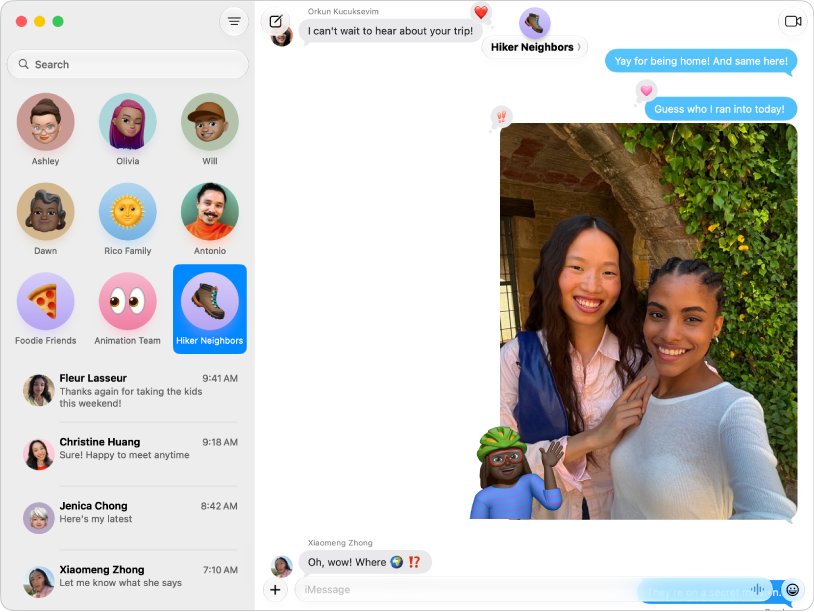
Automatically delete old text messages on Mac
Instead of deleting in batches by hand, Messages can remove old conversations on a schedule.
- Open Messages on your Mac.
- Choose Messages > Settings, then click General.
- Click the Keep messages pop-up menu.
- Choose a time period, or Forever to keep everything.
Any option other than Forever removes conversations and all their attachments once they pass that age. The same option is also available in iCloud settings.
Delete text messages on Mac, iPhone or all devices
| What you want | Use this | What happens |
|---|---|---|
| Remove a few texts from one thread | Select messages, press Delete | Thread stays, those texts go to Recently Deleted |
| Remove several whole threads | Select conversations, Control-click, Delete | Each conversation goes to Recently Deleted |
| Clear old photos and files only | Contact icon > category > Show more | Attachments go, texts stay |
| Stop old texts piling up | Messages > Settings > General > Keep messages | Older conversations are removed automatically |
| Remove a text from the recipient's phone too | Undo Send within 2 minutes of sending | The message is deleted for both sides, permanently |
| Delete on Mac and iPhone together | Turn on Messages in iCloud, then delete on either device | The deletion syncs to every device using Messages in iCloud |
How to recover deleted messages on Mac
Deleted texts stay in Recently Deleted for up to 30 days. After 30 days they are removed from all your devices, and after 40 days they are permanently deleted from iCloud.
- Open Messages on your Mac.
- Choose View > Recently Deleted.
- Select the conversation in the sidebar.
- Click Recover.
If Recently Deleted is missing from the View menu, nothing was deleted in the last 30 days. Messages removed with Undo Send never reach this folder.
Permanently delete messages from Recently Deleted on Mac
Deleted texts are still recoverable until this folder is cleared. Empty it to confirm they are gone for good.
- Choose View > Recently Deleted in Messages.
- Select the conversations whose messages you want to remove permanently.
- Click Delete, then follow the onscreen instructions.
- Return to the main conversation list and confirm the threads no longer appear.
This step cannot be undone, so check the selection before you confirm.
Fix deleted messages that come back on Mac
Messages deleted on Mac still show on iPhone
Messages in iCloud is off on one device, so deletions do not sync.
- Check the same Apple Account is signed in on the Mac and the iPhone.
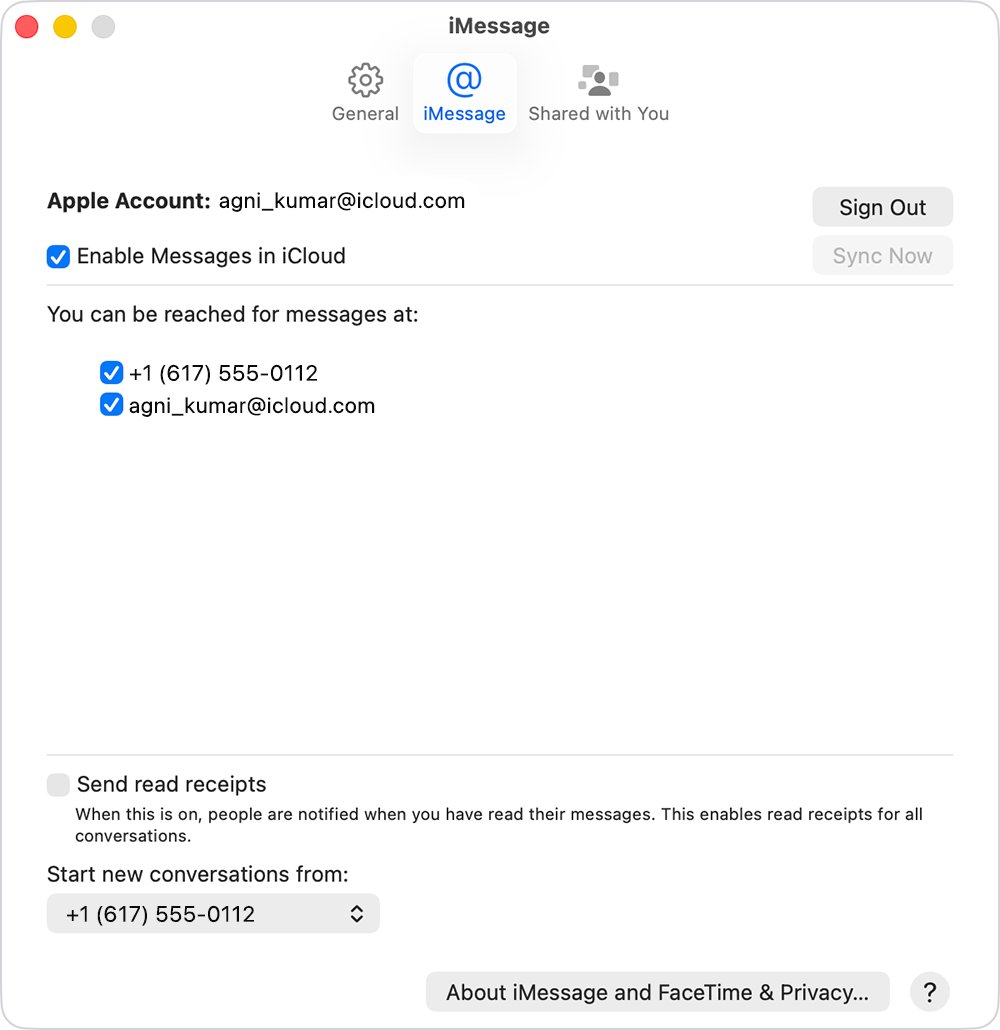
- Turn on Messages in iCloud on both devices.
- Delete the messages again on either device and wait for the sync.
Deleted texts disappeared from the recipient's phone too
They were removed with Undo Send, which deletes for both sides.
- Use the Delete key route, not Undo Send, when you only want texts off your own devices.
- Note that Undo Send deletions are permanent and cannot be recovered.
How to keep text messages from deleting automatically
Keep messages is set to a time period instead of Forever.
- Choose Messages > Settings > General.
- Set Keep messages to Forever.
- Recover anything removed in the last 30 days from View > Recently Deleted.
Delete multiple text messages on Mac FAQ
How do I delete multiple text messages on Mac?
Open the conversation in Messages, select the messages in the transcript, press Delete, then click Delete in the dialog. Hold Command while clicking, the same way you select multiple files in Finder, to add more messages to the selection. The removed texts go to Recently Deleted for up to 30 days.
How do I delete multiple messages at once in the Messages app?
To remove whole conversations, select them in the sidebar, Control-click, and choose Delete. To remove individual texts, select them in the transcript and press the Delete key. Both work on any Mac running a current version of Messages.
How do I delete all text messages on a Mac?
Select every conversation in the sidebar, Control-click, and choose Delete. Then open View > Recently Deleted and delete them there too if you want them gone permanently. With Messages in iCloud on, the deletion also clears your other devices.
How do I delete a single text message on Mac?
Select the message in the conversation transcript, press Delete, then click Delete in the dialog. Only your copy is removed; the recipient still sees the message unless you used Undo Send within 2 minutes of sending it.
How do I delete multiple text messages on iPhone?
Open Messages, touch and hold a message bubble, tap More, select the messages, then tap the delete button. For whole threads, tap Edit at the top of the conversation list, tap Select Messages, choose the conversations, then tap Delete.
Can I recover multiple deleted texts on Mac?
Yes, within 30 days. Choose View > Recently Deleted in Messages, select the conversation in the sidebar, and click Recover. The iPhone has its own Recently Deleted folder for recovering lost iPhone texts.
How do I keep text messages from deleting on Mac?
Choose Messages > Settings, click General, and set Keep messages to Forever. Any shorter period removes conversations and their attachments automatically once they reach that age, and the same setting is available in iCloud settings.
Should you delete text messages regularly?
Deleting old threads, especially large photo and video attachments, frees storage on a Mac, much like removing unused Mac apps. If you prefer not to do it by hand, set Keep messages to a time period in Messages settings and Messages removes old conversations for you.