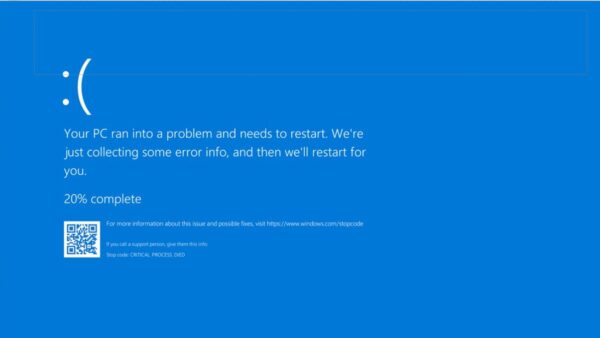
Windows Security is the built-in protection app in Windows 11 and Windows 10, and it bundles Microsoft Defender Antivirus, Microsoft Defender Firewall, device encryption controls and app protection in one place.
This guide covers opening the app, Defender scans and updates, firewall settings and rules, BitLocker recovery keys, UAC, SmartScreen and Core isolation, and removing malware or a third-party antivirus.
How to open Windows Security in Windows 11 and 10
Windows Security is already installed and turned on, so there is nothing to download. If a section shows a red or yellow warning, you can turn Windows Security protection back on from the same page.
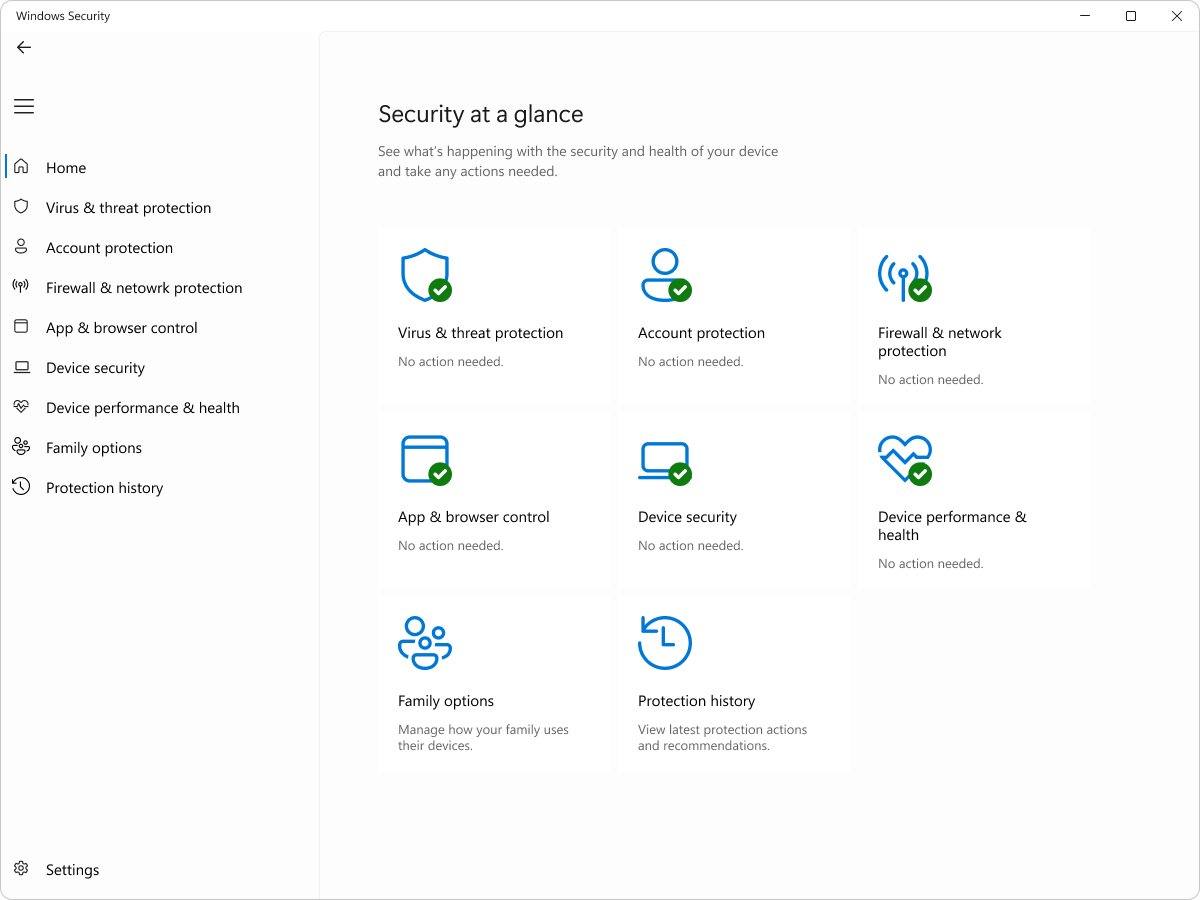
- Select Start and type
Windows Security. - Select Windows Security in the results.
- Check the Security at a glance page for any area marked with a warning.
- Select a tile, such as Virus & threat protection, to open its settings.
You can also select the shield icon in the notification area or go to Settings > Privacy & security > Windows Security. The taskbar, Run box and Terminal routes are listed among the ways to open Windows Security.
Windows Security settings: where each protection lives
Each tile in Windows Security controls a different part of the system. Settings applied by Group Policy, Intune or Configuration Manager take precedence over the app, so a greyed-out switch usually means your organisation manages it.
| Windows Security page | What it controls | Windows 10 route |
|---|---|---|
| Virus & threat protection | Scans, protection history, real-time protection, tamper protection, cloud-delivered protection, controlled folder access, security intelligence updates | Settings > Update & Security > Windows Security |
| Firewall & network protection | Microsoft Defender Firewall for domain, private and public networks, allowed apps, advanced rules, restore defaults | Same tile in the Windows Security app |
| App & browser control | Reputation-based protection (SmartScreen), phishing protection, Smart App Control on Windows 11, exploit protection | Same tile; Smart App Control is Windows 11 only |
| Device security | Core isolation and memory integrity, security processor (TPM), Secure Boot | Same tile |
Cloud protection, tamper protection and controlled folder access are the best Windows Defender settings to check first on a home PC. Business tenants manage the same protection from the Microsoft 365 Defender portal at security.microsoft.com instead of the local app.
Microsoft Defender scan types: quick, full, custom and offline
Real-time protection already checks files as you open them, and Microsoft says a quick scan is enough in most cases. The scan process itself runs as MsMpEng.exe, which is why Antimalware Service Executable climbs in Task Manager while a scan is running.
| Scan type | What it checks | When to use it | PowerShell |
|---|---|---|---|
| Quick scan | Locations where malware usually registers to start with Windows, such as registry keys and startup folders | Routine check; the default scheduled scan | Start-MpScan -ScanType QuickScan |
| Full scan | Every file on fixed drives plus running programs; can take hours | After a detection, or when you suspect an infection | Start-MpScan -ScanType FullScan |
| Custom scan | Only the files and folders you pick | A USB drive, a download folder or one suspicious file | Start-MpScan -ScanType CustomScan -ScanPath <folder> |
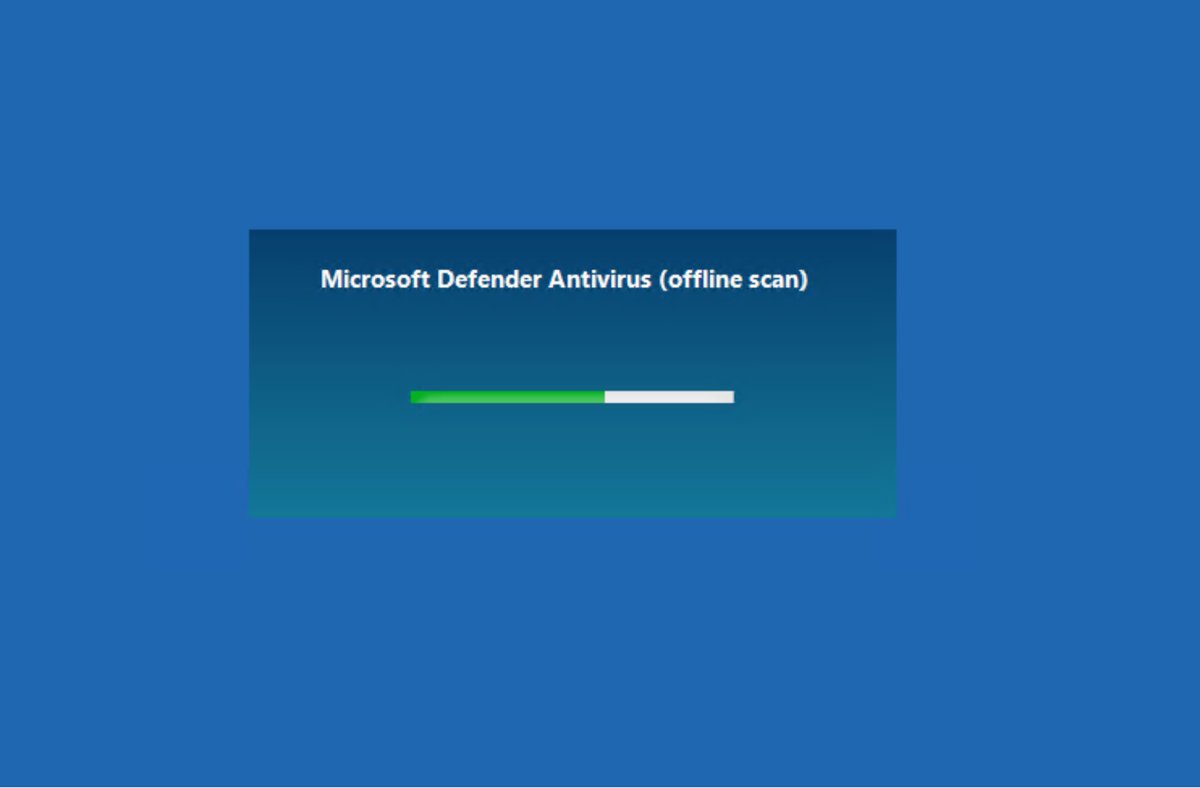
| Microsoft Defender Offline scan | Scans from outside the running Windows kernel, so it can reach rootkits that hide while Windows runs; restarts the PC and takes about 15 minutes | Malware that returns after a restart or blocks Defender | Start-MpWDOScan |
To start one in the app, open Virus & threat protection, select Scan options, pick the scan and select Scan now. You can also run a Microsoft Defender full scan from PowerShell and put it on a schedule. Know when to reboot into Defender Offline before you start one, because it needs the Windows Recovery Environment and may ask for your BitLocker recovery key.
For a second opinion, a free online virus scanner such as Microsoft Safety Scanner runs alongside Defender, and Malwarebytes Free for Windows can scan on demand.
How to update Microsoft Defender definitions
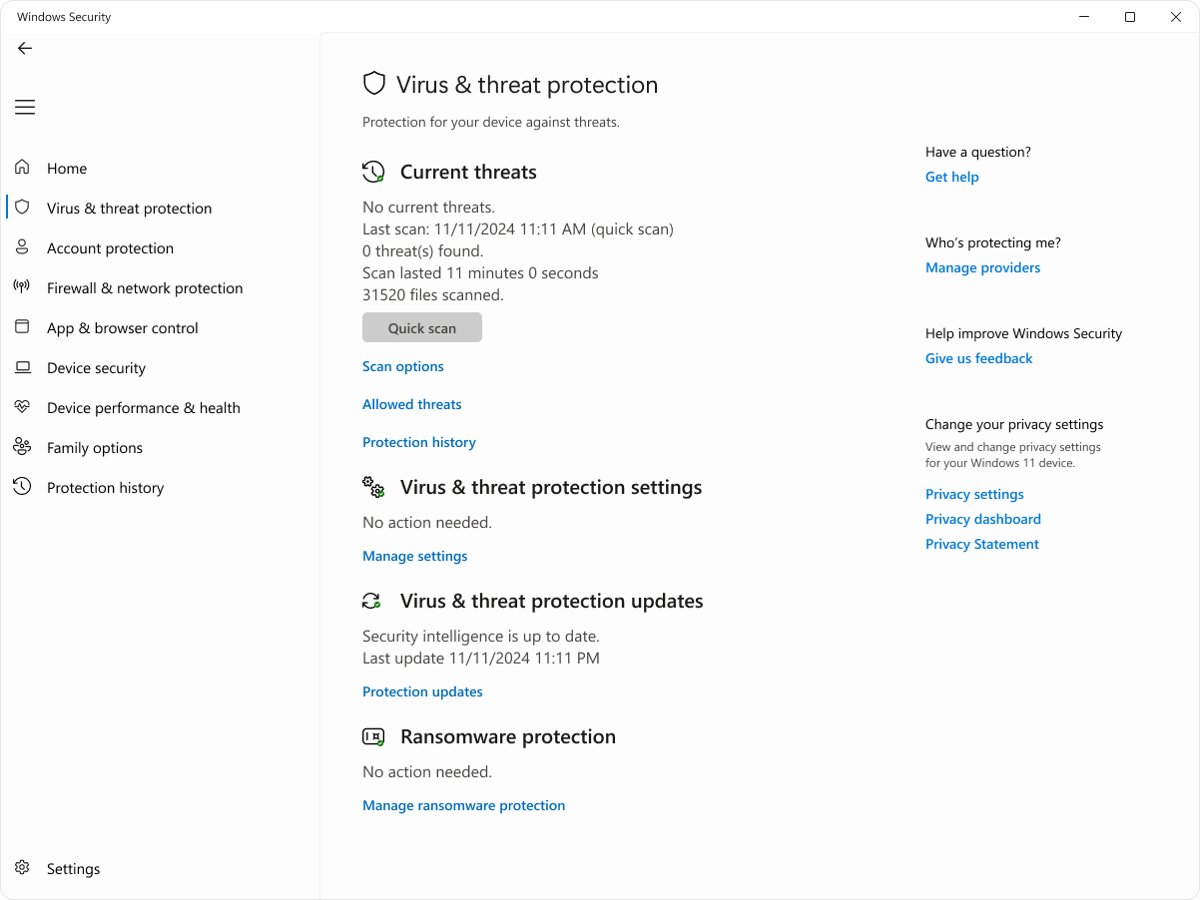
Security intelligence updates (formerly called definitions) arrive through Windows Update. A manual check helps when the version is old or a scan reports outdated protection.
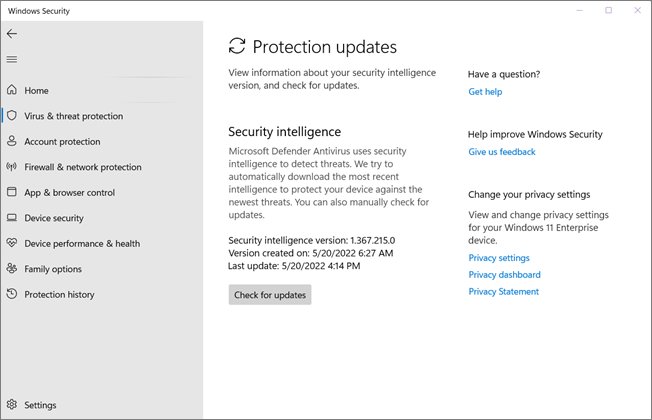
- Open Windows Security and select Virus & threat protection.
- Under Virus & threat protection updates, select Protection updates.
- Select Check for updates.
- Confirm the security intelligence version and the date shown have changed.
In an elevated PowerShell window, Update-MpSignature does the same job, and Get-MpComputerStatus shows AntivirusSignatureLastUpdated. When Windows Update itself is broken, you can manually update Microsoft Defender with MpCmdRun or the offline package from Microsoft.
How to view Microsoft Defender protection history
Protection history lists detections and actions from the last two weeks. Red cards are severe or need action; yellow cards need review but are not urgent.
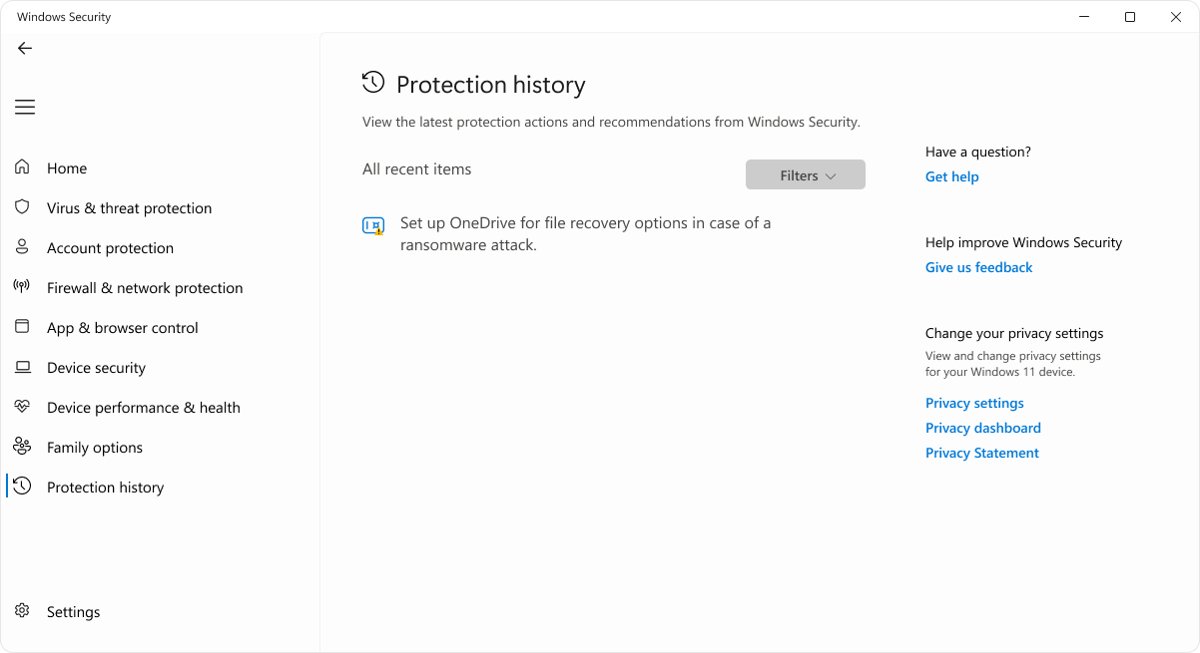
- Open Windows Security and select Virus & threat protection.
- Under Current threats, select Protection history.
- Select an entry to expand it; you need administrator rights to see the details.
- Choose an action such as Remove, Restore or Allow on device, depending on the alert type.
You can still check older Defender detections in Event Viewer and PowerShell after two weeks. Restore a quarantined file only when you are sure it is safe.
How to turn off Windows Defender: Quick steps
Before you start, know what the switch does: turning off real-time protection is temporary, and Windows turns it back on after a short while. Scheduled scans keep running, but files you download in the meantime are not scanned until the next scan. Adding an exclusion for one file or folder is safer than turning protection off.
- Open Windows Security and select Virus & threat protection.
- Under Virus & threat protection settings, select Manage settings.
- Turn Real-time protection to Off.
- Select Yes at the User Account Control prompt.
- Turn the switch back On as soon as the task that needed it is done.
This is how you disable Windows Defender temporarily on both Windows 11 and Windows 10. You can also disable Windows Defender with Group Policy or PowerShell and check that it is really off.
How to disable Windows Defender using Group Policy
Group Policy Editor exists on Pro, Enterprise and Education editions. Tamper protection must be off first, or Windows ignores the policy.
- In Virus & threat protection > Manage settings, turn Tamper Protection off.
- Press Windows key + R, type
gpedit.mscand press Enter. - Go to Computer Configuration > Administrative Templates > Windows Components > Microsoft Defender Antivirus > Real-time Protection.
- Double-click Turn off real-time protection, select Enabled and select OK.
- Restart the PC, then set the policy back to Not Configured when you no longer need it.
How to turn off Windows Defender from Registry
Do not use the old DisableAntiSpyware or DisableAntivirus registry values to turn off Defender on Windows 11 or 10. Microsoft has removed those settings, they are not meant for consumer devices, and tamper protection (on by default for home users since Windows 10 version 1903) blocks registry changes to Defender. The edit either does nothing or is reversed.
If you need Defender out of the way for a specific folder, add an exclusion in Virus & threat protection > Manage settings > Exclusions instead.
How do I permanently disable Windows Defender on Windows 11?
Install another compatible antivirus: Windows 11 and 10 switch Microsoft Defender Antivirus into disabled mode automatically, and that is the only supported permanent route on home PCs. When the other product expires or is uninstalled, Defender turns itself back on, so the PC is never left without an antivirus. Running two active antivirus engines is unsupported and slows the PC.
Defender cannot be uninstalled from Windows 11 or 10; the Windows Defender removal options explain what actually works, including Windows Server. The engine itself runs as the WinDefend antivirus service, which you should never stop by hand.
Steps to check firewall settings
Microsoft Defender Firewall is on by default in every edition. It blocks unsolicited inbound traffic and allows outbound traffic unless a rule says otherwise.
- Open Windows Security and select Firewall & network protection.
- Check that Domain network, Private network and Public network each say the firewall is on.
- Note which profile is marked (active); that is the one applying now.
- Select a profile to see the Microsoft Defender Firewall switch and the Incoming connections option.
- Run
Get-NetFirewallProfilein PowerShell to read the Enabled value for all three profiles at once.
To switch it on or off with netsh, PowerShell or Group Policy, use the steps to turn Windows Firewall on or off. Microsoft recommends leaving it on and never stopping the firewall service.
Configure Windows Firewall with Windows Security
Private and public networks get separate settings. Windows treats an unidentified network as public, which is the strictest profile, so a home network set to public can block file sharing and casting. The additional settings below sit under the three network profiles.
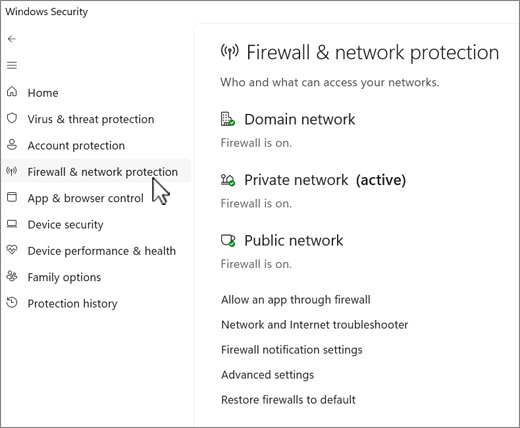
| Setting in Firewall & network protection | What it does | When to use it |
|---|---|---|
| Domain, Private, Public network | Turns the firewall on or off for that profile and can block all incoming connections | Block all incoming connections on untrusted public Wi-Fi |
| Allow an app through firewall | Opens access for a program only while it runs | A game or app needs inbound connections |
| Network and Internet troubleshooter | Diagnoses connection problems | Something stopped connecting after a firewall change |
| Firewall notification settings | Controls the alert shown when the firewall blocks an app | Too many or no block notifications |
| Advanced settings | Opens Windows Defender Firewall with Advanced Security (wf.msc) for inbound and outbound rules | Open a specific port or limit an app to certain IP addresses |
| Restore firewalls to default | Removes custom rules and returns every profile to default | Rules are tangled or an app was wrongly blocked |
An allowed app opens a port only while it needs it, which is safer than a permanently open port. When you do need one, allow port 443 in Windows Firewall with a narrow inbound TCP rule, and use advanced firewall rules for programs, IP ranges and outbound blocks.
Firewall glossary terms
| Term | Meaning in Windows Firewall |
|---|---|
| Profile | A set of rules tied to a network type: Domain, Private or Public |
| Inbound rule | Controls connections that other devices start towards your PC; blocked by default |
| Outbound rule | Controls connections your PC starts; allowed by default |
| Allowed app | A program permitted through the firewall, which opens ports only while it runs |
| Port | A numbered endpoint such as TCP 443 for HTTPS that a rule can open or block |
Reset Windows Firewall settings to default
A reset deletes every rule you or your apps added, so apps that needed an exception will ask again.
- Open Windows Security and select Firewall & network protection.
- Select Restore firewalls to default.
- Select Restore defaults, then Yes to confirm.
- Allow any app again when Windows asks the next time it connects.
From an elevated Command Prompt, netsh advfirewall reset does the same thing.
What is BitLocker and device encryption in Windows 11?
Both encrypt your drive so that a stolen disk cannot be read without the PC's TPM or a 48-digit recovery key.
| Device encryption | BitLocker Drive Encryption | |
|---|---|---|
| Editions | All editions, including Windows Home, on supported hardware | Pro, Enterprise, Education |
| How it turns on | Automatically after you sign in with a Microsoft or work account | You turn it on in Manage BitLocker |
| Drives covered | Operating system and fixed drives | Operating system, fixed and removable drives (BitLocker To Go) |
| Where to manage it | Settings > Privacy & security > Device encryption | Start > type BitLocker > Manage BitLocker |
Hardware requirements and the 24H2 changes decide whether device encryption in Windows 11 turns on by itself.
Step 1. Take note of the recovery key ID
BitLocker asks for the recovery key when it cannot unlock the drive automatically at startup, for example after a hardware or firmware change, or when you forget a data drive's password.
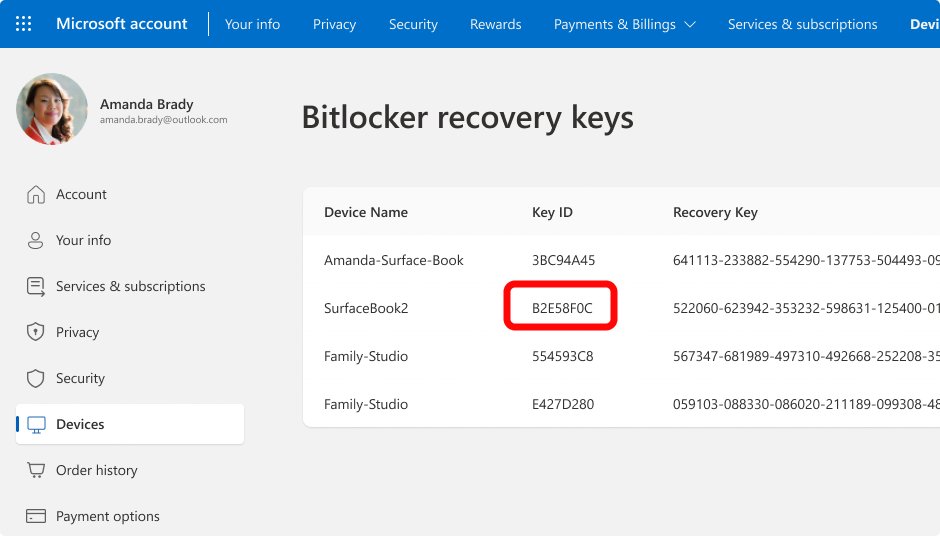
- On the blue BitLocker recovery screen, find the Recovery key ID line.
- Write down the first 8 characters of the ID.
- On Windows 11 version 24H2 and later, note the account hint shown on the screen; it tells you which Microsoft account holds the key.
Step 2. Find your recovery key
Finding your BitLocker recovery key means matching that ID against every place a key could have been saved. Use another phone or PC for the online locations.
| Where the key might be | How to get it | Who this applies to |
|---|---|---|
| Your Microsoft account | Go to aka.ms/myrecoverykey (account.microsoft.com/devices/recoverykey), sign in and match the key ID | Home PCs signed in with a Microsoft account; check the account of whoever set up the PC too |
| Work or school account | Go to aka.ms/aadrecoverykey, select Devices, expand the PC and select View BitLocker Keys | PCs that were ever signed in to an organisation account |
| A printout | Check where you keep papers for the device; the sheet lists the key ID and key | Anyone who chose Print the recovery key |
| A USB flash drive | Plug it into the locked PC and follow the prompts, or open the text file on another PC | Anyone who chose Save to a USB flash drive |
| A saved text file | Search your other drives or OneDrive for the BitLocker Recovery Key .txt file | Anyone who chose Save to a file |
| Your IT department | Admins read it from Microsoft Entra ID, the Intune admin center or Active Directory | Managed work devices |
What if I can't find the recovery key?
If the key is in none of the locations above, and you cannot undo whatever triggered the prompt, the only way back is to reset the PC from the Windows recovery options, which removes your files. Microsoft Support cannot retrieve, provide or recreate a lost BitLocker recovery key, and there is no supported way to skip the prompt. The encryption is doing its job.
So what do you do if the BitLocker recovery key is lost? Check every account that ever signed in to the PC, including a family member's Microsoft account and an old work account, before you reset.
How do I back up the BitLocker recovery key?
Windows usually backs up the key when BitLocker is first turned on, but confirm the copy exists before you need it. You can make as many backups as you like.
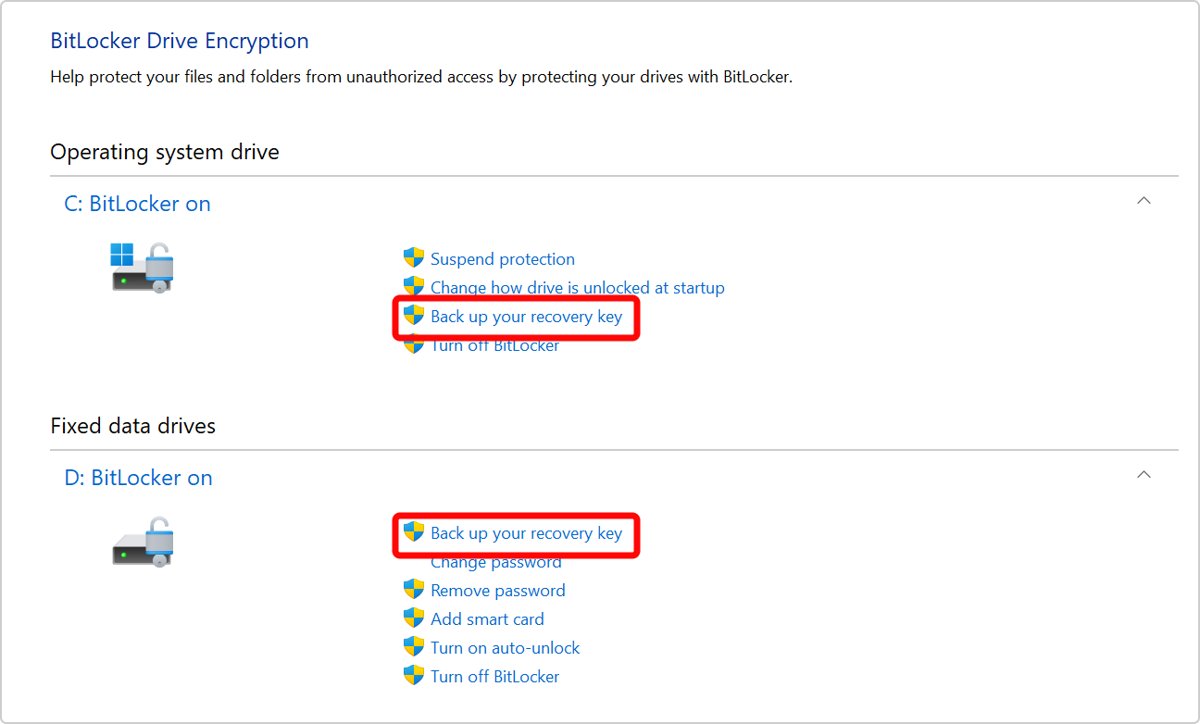
- Select Start, type
BitLockerand select Manage BitLocker. - Select Back up your recovery key next to the drive.
- Choose Save to your Microsoft Account, Save to a USB flash drive, Save to a file or Print the recovery key.
- Select Finish.
You cannot save the file to the encrypted drive itself. Keep the USB drive or printout away from the PC, because anyone holding both can unlock it. Run manage-bde -protectors -get C: in an elevated Command Prompt to display the current recovery password and its ID.
How to update BitLocker password on protected drive in Windows 11
The operating system drive uses a PIN if you set one, while data and removable drives use a password. Both are changed after the drive is unlocked.
- Open Manage BitLocker and expand the drive.
- For the system drive, select Change PIN; if you forgot it, select Reset a forgotten PIN and enter administrator credentials.
- Enter and confirm the new PIN, then select Finish.
- For a data drive without a password, select Add password, enter it twice and select Finish.
- From an elevated Command Prompt,
manage-bde -protectors -add -pw D:adds a password protector to drive D:.
Helpdesk recovery
On work devices, self-recovery and helpdesk recovery both rely on the key being backed up to the organisation. Microsoft notes this backup may not happen automatically unless a policy requires it.
| Recovery route | Where the key is stored | How it is retrieved |
|---|---|---|
| Self-recovery (Entra ID) | Microsoft Entra ID | User signs in at myaccount.microsoft.com, opens Devices and selects View BitLocker Keys |
| Helpdesk in Entra ID | Microsoft Entra ID | Entra admin center, or Microsoft Graph, by device name or key ID |
| Helpdesk in Intune | Device record in Intune | Microsoft Intune admin center, device properties, recovery keys |
| Helpdesk in Active Directory | AD DS computer object | Active Directory Users and Computers > computer Properties > BitLocker Recovery tab, or Find BitLocker Recovery Password by the first 8 characters |
| Data Recovery Agent | A certificate held by IT | Attach the drive to another PC and run manage-bde -unlock with the certificate |
BitLocker Repair tool
repair-bde.exe decrypts a damaged BitLocker volume at block level when the recovery key no longer unlocks it. It still needs the recovery password, so a saved key matters even here.
| Stage | What happens or what to do |
|---|---|
| Use the Repair tool when | The drive is BitLocker-encrypted, Windows or the recovery screen will not start, and you have no backup of the data |
| It cannot | Repair a drive that failed during encryption or decryption; it assumes the whole drive is encrypted |
| Post-recovery tasks | Windows logs an event, resets the TPM measurements to the current setup and unlocks the drive normally |
| Find the root cause | Run manage-bde -status and check for a firmware update, boot change, forgotten PIN or lost startup key |
| Rotate passwords | Entra-joined PCs can rotate the recovery password automatically after use; IT can also trigger it from Intune or Configuration Manager |
On a home PC you can rotate a used key yourself: remove the old recovery password protector, add a new one with manage-bde -protectors -add C: -RecoveryPassword, and back the new key up again.
UAC, SmartScreen and Core isolation settings in Windows 11
These three features block a different stage of an attack: UAC stops silent admin changes, SmartScreen warns before you run an unknown download, and memory integrity stops malicious drivers loading into the kernel.
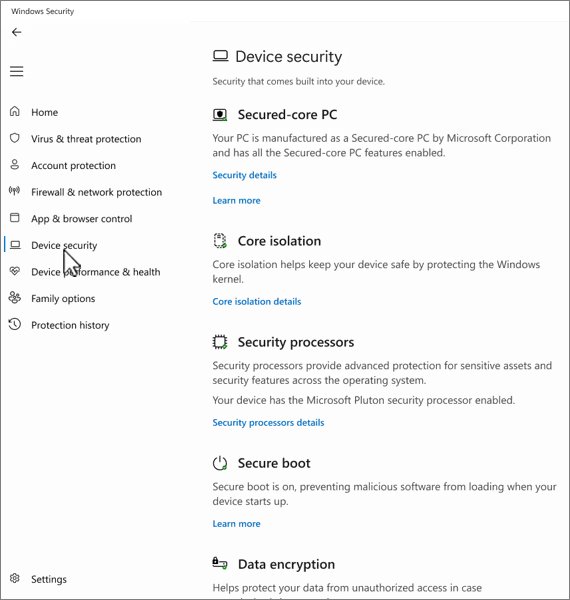
| Feature | Where to change it | Recommended setting |
|---|---|---|
| User Account Control (UAC) | Control Panel > System and Security > Change User Account Control settings | Default level; Microsoft says Never notify is not recommended |
| SmartScreen | Windows Security > App & browser control > Reputation-based protection settings | All switches on, including Check apps and files |
| Core isolation memory integrity | Windows Security > Device security > Core isolation details | On, unless an incompatible driver blocks it |
You can enable or disable UAC with the Control Panel slider, the registry or Group Policy. The Edge and Group Policy routes are in the SmartScreen settings for Windows 11, and driver conflicts are covered under Core isolation memory integrity. Together with updates and the firewall, these are the habits that protect your computer from viruses.
How to remove malware and third-party antivirus from Windows
Start with Defender, because it is already on the PC and updated through Windows Update. Beginners can remove a virus from a computer with the same tools, one step at a time.
- Update Defender with Check for updates in Protection updates.
- Run a Full scan from Scan options.
- If the threat returns after a restart, run Microsoft Defender Antivirus (offline scan).
- Act on every entry in Protection history.
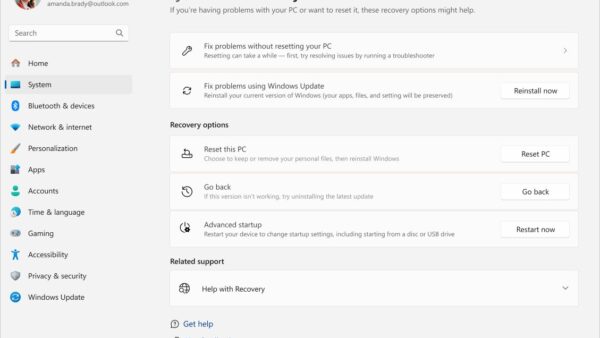
- If Windows is still damaged, back up your files and use Reset this PC.
Remote access trojans need more than a scan; the XWorm removal steps include changing passwords from a clean device.
To switch from a paid suite back to Defender, uninstall third-party antivirus from Settings > Apps > Installed apps, then run the vendor's own removal tool for leftovers. McAfee needs its MCPR tool to uninstall McAfee on Windows, and its browser add-on has to be removed separately as McAfee WebAdvisor. If you only want a pause, you can turn off McAfee antivirus real-time scanning instead. Avast users can start from the Avast Free Antivirus page, which also covers a clean uninstall.
Defender turns itself back on once the other antivirus is gone; confirm it in Virus & threat protection.
Windows Security problems: symptoms, causes and fixes
| Symptom | Likely cause | Fix |
|---|---|---|
| Antimalware Service Executable uses high CPU, memory or disk | A scan or update is running, or a large folder is rescanned constantly | Let the scan finish, then fix Antimalware Service Executable usage by moving scan times |
| Windows Security says the Security Center service is off | The wscsvc service is stopped or disabled | Set it back to automatic and turn on the Security Center service |
| Edge shows Couldn't download – Virus scan failed | The antivirus scan of the download failed or a policy blocks it | Check Protection history, update Defender, then fix the Edge virus scan error |
| A McAfee pop-up says your PC is infected | Usually a scam notification from a website, not the McAfee app | Block the site's notifications in the browser; is McAfee a virus explains how to tell them apart |
| Virus & threat protection settings are greyed out | Another antivirus is active, or the PC is managed by policy | Check the antivirus listed in Windows Security, or ask IT |
| BitLocker keeps asking for the recovery key | Firmware, boot or TPM change since the last start | Enter the key once, then suspend BitLocker before future firmware updates |
BitLocker stuck on decrypting or encrypting in Windows 11
Encryption or decryption percentage does not move
Device encryption pauses during heavy use or on battery, and resumes on its own.
- Plug the laptop into power and leave it idle and signed in.
- Run
manage-bde -statusin an elevated Command Prompt and note Percentage Encrypted and Conversion Status. - Run the command again after an hour to confirm the percentage is changing.
- Do not shut down during conversion; restart normally if you must, and it continues.
Drive shows Waiting for Activation or a yellow warning icon
The drive is encrypted with a clear key and has no protector yet, so it is not actually protected.
- Sign in with a Microsoft account, or open Manage BitLocker.
- Select Back up your recovery key to add a recovery protector.
- Check that the status changes to On.
BitLocker recovery key not working on Windows 11
The key is rejected on the recovery screen
It belongs to a different drive or an older protector.
- Compare the first 8 characters of the Recovery key ID with the ID next to each saved key.
- Check every Microsoft and work account that has signed in to the PC.
- Retype each 6-digit block; the screen flags a mistyped block.
BitLocker asks for the key on every startup
The TPM measurements keep failing, often after a firmware or boot configuration change.
- Enter the key and sign in.
- Open Manage BitLocker and select Suspend protection.
- Restart, then select Resume protection so BitLocker records the current configuration.
- Suspend BitLocker before the next BIOS or firmware update.
The drive is damaged and will not unlock even with the right key
Disk corruption rather than a wrong key.
- Connect the drive to another PC and run
manage-bde -unlock D: -recoverypasswordfollowed by the key. - If that fails, use the BitLocker Repair tool with the recovery password.
Windows could not start the Windows Firewall on Local Computer
The Windows Defender Firewall service will not start or the firewall cannot be turned on
The firewall service or its settings were changed, often by a removed third-party security suite or malware.
- Open Windows Security > Firewall & network protection and select Restore firewalls to default.
- Run a Full scan in Virus & threat protection in case malware disabled the service.
Windows Security, Defender and BitLocker FAQ
What is a BitLocker recovery key?
It is a 48-digit number that unlocks a BitLocker-encrypted drive when Windows cannot unlock it automatically, for example after a hardware change. Each key has a key ID so you can match it to the right drive.
Where is the BitLocker recovery key stored?
Usually in the Microsoft account used on the PC, at aka.ms/myrecoverykey. It may also be in a work or school account, on a printout, a USB drive, a text file, or with your IT department through Entra ID, Intune or Active Directory.
How do I find my BitLocker recovery key in Windows 11?
Note the first 8 characters of the key ID on the recovery screen, then sign in at aka.ms/myrecoverykey on another device and match that ID. Windows 11 version 24H2 shows a hint of the account that holds the key.
Why does BitLocker keep asking for the recovery key?
BitLocker asks when the TPM cannot confirm the startup environment, typically after a BIOS update, boot order change or hardware change. Enter the key, then suspend and resume protection so the new configuration is trusted.
Does the BitLocker recovery key change?
Not on its own on a home PC. It changes when a new recovery password protector is added, and Entra-joined work PCs can rotate it automatically after it is used.
How do I disable Windows Defender in Windows 11?
Open Windows Security > Virus & threat protection > Manage settings and turn Real-time protection off. It turns itself back on after a short while; installing another antivirus is the only supported permanent route.