Press Windows logo key + G to open Xbox Game Bar, and change Xbox Game Bar settings under Settings > Gaming on Windows 11 and Windows 10.
This hub covers Game Bar capture and FPS, Game Mode, Xbox mode, the Xbox app, Xbox controllers over USB, Bluetooth or the Xbox Wireless Adapter, PS5 controllers, DirectX and Steam, with an overview table of settings and a fix table for the common failures.
Open Game Bar by pressing Windows logo key + G
Game Bar is built into Windows 11 and Windows 10, so try the keyboard shortcut before installing anything. Once it opens, you can enable and use Xbox Game Bar widgets over any game.
- Press Windows logo key + G while a game or app is open.
- On a connected Xbox controller, press the Xbox button instead; it opens Game Bar as well.
- From the Start menu, select Start, type Game Bar and open it from the results.
- To jump straight to its settings page, press Windows + R, type
ms-settings:gaming-gamebarand press Enter.
What is Xbox Game Bar?
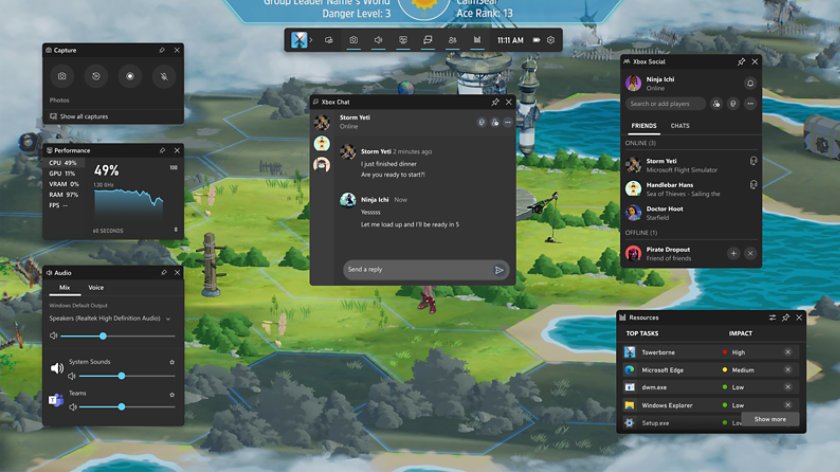
Xbox Game Bar is a Windows overlay of widgets for capture, audio, performance and Xbox social features. Many Xbox features in it also need the Xbox app signed in.
| Widget | What it does | Why use it |
|---|---|---|
| Capture | Start recording, Take screenshot, Record last…, mic toggle | Clips without a separate recorder |
| Gallery | Every clip and screenshot you captured | Review or open the Captures folder |
| Audio | Mix sets app volume; Voice picks the mic | Balance game sound and chat |
| Performance | CPU, GPU, VRAM, RAM and FPS | Monitor frame rate in any game |
| Resources | Rates app impact; X ends a task | Close heavy background apps |
| Xbox Social and Looking for Group | Friends, chat and party invites | Play with Xbox friends on PC |
| Widget Store | More widgets, such as Spotify | Extend the bar |
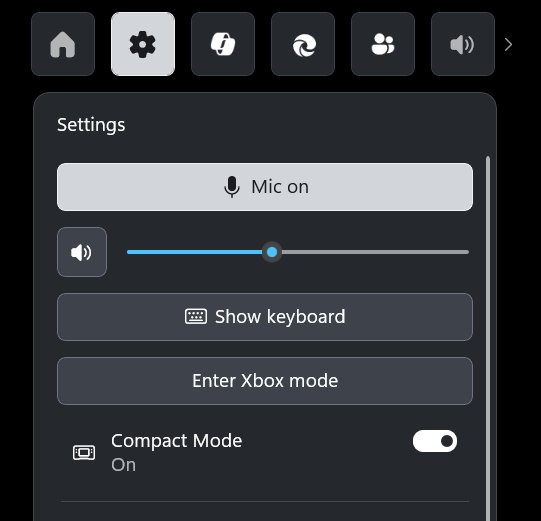
Using the widget menu in Xbox Game Bar: select Widget Menu on the top bar, pick a widget, then select its Pin icon to keep it on screen while you play. Game Bar settings also offer Compact Mode for handhelds and controllers.
How to change Xbox Game Bar recording settings for keyboard shortcuts
These are the default Game Bar keys. To change one, open Game Bar, select Settings > More settings > Shortcuts, type the new combination and select Save.
| Keys | Action | Note |
|---|---|---|
| Windows + G | Open or close Game Bar | The Xbox button on a controller does the same |
| Windows + Alt + PrtScn | Take a screenshot | Saved as a PNG file |
| Windows + Alt + R | Start or stop recording | Works in full-screen games |
| Windows + Alt + G | Record the last moments of play | Needs background recording (Record what happened) turned on |
| Windows + Alt + M | Turn the microphone on or off during a recording | Mic must be allowed in capture settings |
| Windows + F11 | Enter or exit Xbox mode | Windows 11 version 24H2 or later |
Set custom keys if your keyboard has no Windows key.
Where this gaming setting lives in Windows 11 and Windows 10
Most gaming switches sit under Settings > Gaming in both versions. The ms-settings:gaming-gamebar command opens the settings for Xbox Game Bar in Windows 10 and 11, and the other commands below work the same way from Run (Windows + R).
| Setting | Windows 11 | Windows 10 | Run command |
|---|---|---|---|
| Game Bar on or off | Settings > Gaming > Game Bar | Settings > Gaming > Xbox Game Bar | ms-settings:gaming-gamebar |
| Captures folder, background recording, quality | Settings > Gaming > Captures | Settings > Gaming > Captures | ms-settings:gaming-gamedvr (listed as Game DVR) |
| Game Mode | Settings > Gaming > Game Mode | Settings > Gaming > Game Mode | ms-settings:gaming-gamemode |
| Xbox mode | Settings > Gaming > Xbox mode (24H2 or later) | Not available | ms-settings:gaming-fullscreen |
| Xbox Networking | No Xbox Networking page; use Settings > Network & internet > Advanced network settings > Network reset | Settings > Gaming > Xbox Networking | None listed |
| Bluetooth pairing | Settings > Bluetooth & devices > Add device | Settings > Devices > Bluetooth | ms-settings:bluetooth |
| Optional driver updates | Settings > Windows Update > Advanced options > Optional updates | Settings > Update & Security > Windows Update > View optional updates | ms-settings:windowsupdate-optionalupdates |
Make sure Xbox Game Bar is enabled
Prerequisites: Game Bar's current features need Windows 10 version 22H2 or later; check under Settings > System > About > Windows specifications > Version. If the app itself is missing, reinstall Game Bar from Microsoft Store first.
- On Windows 11: open Settings > Gaming > Game Bar and turn the switch On.
- On Windows 10: open Settings > Gaming > Xbox Game Bar and turn it On.
- Open your game, then press Windows + G.
- If capture stays unavailable in that app, select Enable gaming features for this app to record gameplay, or tick Remember this is a game under Game Bar Settings > General.
Turn on the FPS counter
The FPS readout lives in the Performance widget and needs Game Bar version 3.34.11002.0 or later. Steam's Performance Monitor and GPU overlays are alternatives, and an FPS counter for any PC game compares them.
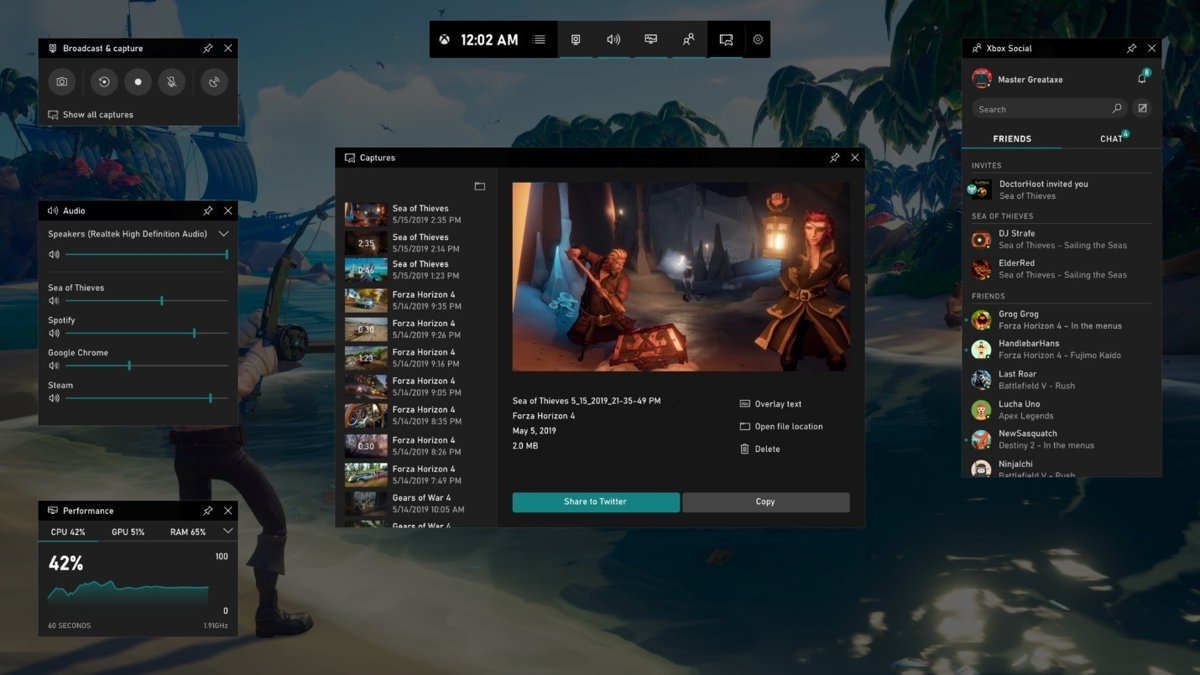
- Start the game and press Windows + G.
- Open Widget Menu > Performance.
- Select the FPS tab, then select Request access.
- Restart the PC when prompted, then reopen the game and Game Bar.
- Select Pin on the Performance widget to keep FPS, CPU, GPU, VRAM and RAM on screen.
Record your screen with Game Bar
Screenshots work on every PC, but video clips need a GPU encoder: Intel Quick Sync H.264, NVIDIA NVENC or AMD VCE.
- Press Windows + G and open the Capture widget.
- To record microphone audio, select the microphone icon first.
- Select Start recording (Windows + Alt + R) to record gameplay, then Stop recording.
- To take a screenshot, select Take screenshot or press Windows + Alt + PrtScn.
- With background recording enabled, select Record last… (Windows + Alt + G) to save the seconds you just played.
- Select Show all captures to open the Gallery.
How to change Xbox Game Bar recording settings
Clips save as MP4 and screenshots as PNG in Videos > Captures, named after the game and the date and time.
- Open Settings > Gaming > Captures.
- Select Open folder to find your recorded videos and screenshots; move the Captures folder in File Explorer if you want them on another drive.
- Turn Record what happened on for background recording and set the maximum length; it uses system resources, so leave it off on weaker PCs.
- Set the recorded frame rate and video quality for better results; quality changes both resolution and bitrate.
- Choose the audio bitrate and the system and microphone levels, and turn on mouse cursor capture for tutorials.
- In Game Bar, open Settings > Widgets > Captures and set Audio to record to Game, All or None.
Game Mode and graphics settings for gaming on Windows 11
Game Mode is on by default; during play it holds back Windows Update driver installs and restart prompts. Version 26H2 shares its system files with 24H2 and 25H2, so 26H2 gaming performance matches them and the Game Mode switch on 26H2 works as before.
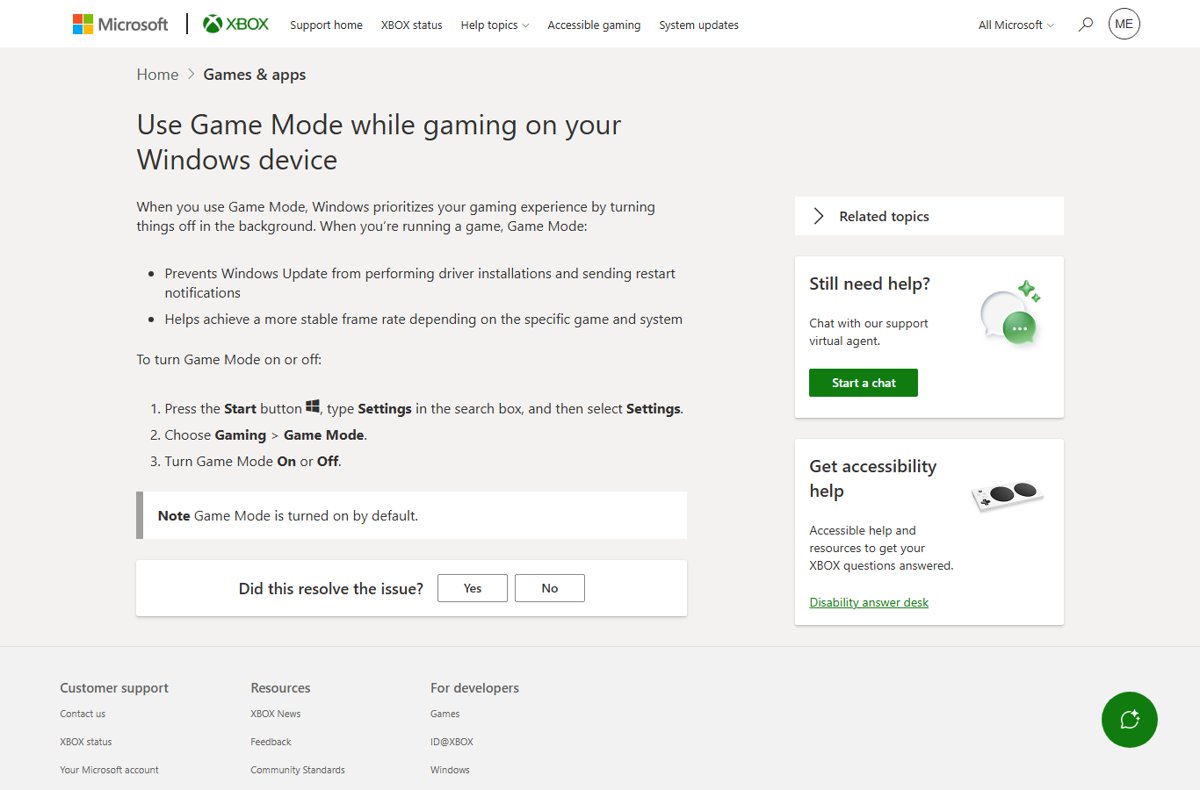
- Open Settings > Gaming > Game Mode and turn it On.
- Open Settings > System > Display > Graphics > Default settings and turn on Optimizations for windowed games for DirectX 10 and 11 games in windowed or borderless mode.
- Under Custom options for apps, select the game, select Options, choose High performance, then Save.
- Open Settings > System > Power & battery > Power mode and choose Best performance; expect more power use and heat.
- Install GPU drivers offered under Settings > Windows Update > Advanced options > Optional updates.
There are 30 PC gaming performance tweaks beyond these five. On Arm laptops, gaming on Snapdragon X runs most games through Prism emulation, but titles whose anti-cheat drivers are not built for Arm might not start.
Xbox Game Bar and what the controller unlocks in Windows
Pressing the Xbox button opens Game Bar, and the Controller bar lets you jump back into recently played games quickly. On Windows 11 version 24H2 or later, Xbox mode adds a full-screen, controller-first view in supported markets.
- Open Settings > Gaming > Xbox mode.
- Turn on Enable Xbox mode; on a handheld, choose a home app instead (None turns it off).
- Press Windows + F11, or pick Xbox mode in Task View or Game Bar settings, to enter it.
- Press Windows + F11 again to return to the desktop.
Handheld owners can also turn Xbox mode on or off at startup.
Install the Xbox app and Gaming Services on Windows 11
The Xbox app needs Windows 10 or 11 version 22H2 or later and relies on Gaming Services to install and run PC Game Pass titles. Get the free Xbox app for PC from Microsoft Store.
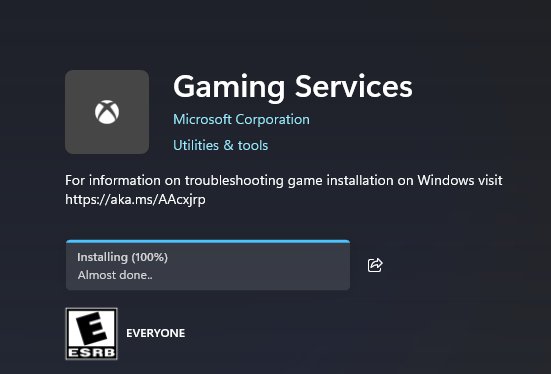
- Install the Xbox app from Microsoft Store and sign in with your Microsoft account.
- Open Microsoft Store > Library > Get updates so Xbox, Gaming Services and Game Bar are current.
- If games will not install or the app reports missing content, run the Gaming Services Repair Tool built into the Xbox app.
- If the repair fails, reinstall Gaming Services from Microsoft Store or winget, then restart.
- Check the Xbox status page before deeper troubleshooting.
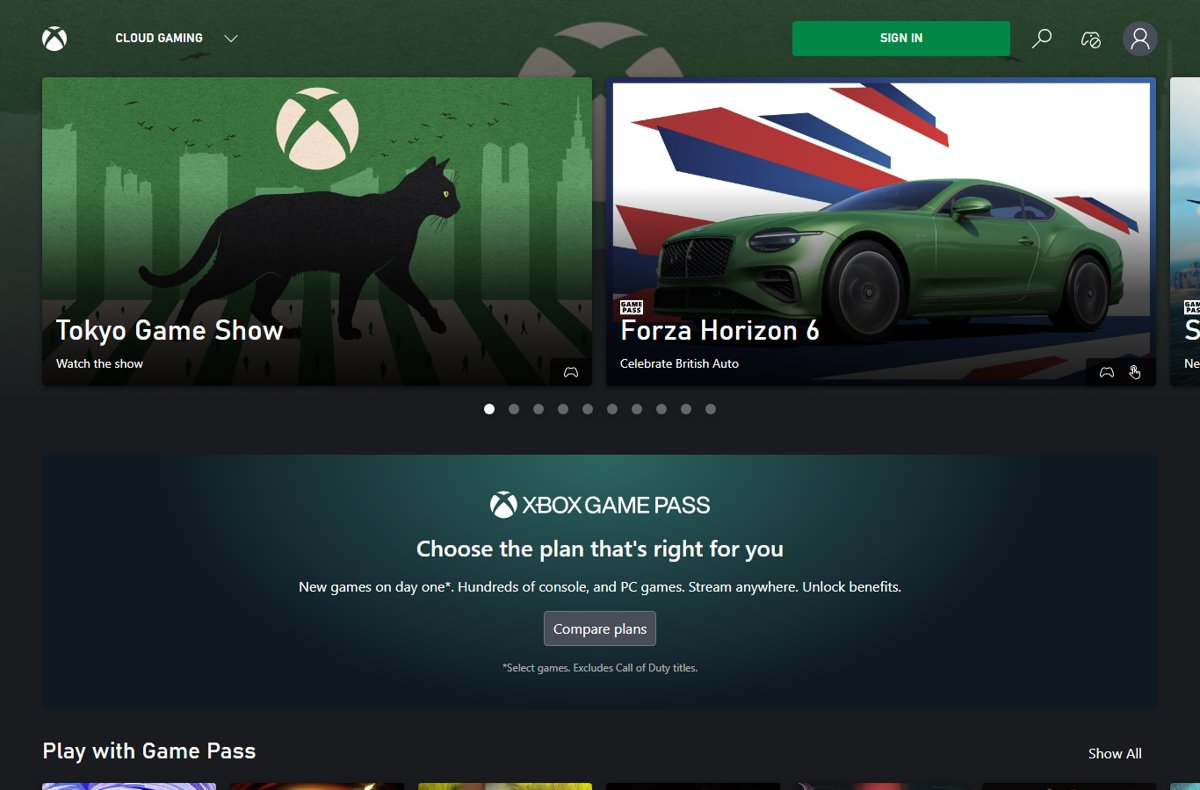
Xbox cloud gaming and remote play on PC
| Cloud gaming | Remote play | |
|---|---|---|
| What it streams | Game Pass titles and select games you own, from Microsoft servers | Games installed on your own Xbox Series X|S or Xbox One |
| Where to start | Xbox app or xbox.com/play | xbox.com/remoteplay in a supported browser |
| Subscription | Game Pass Essential (5 cloud hours a month), Premium (10) or Ultimate (15); not PC Game Pass | None for most games; some may need Game Pass |
| Network | 10 Mbps minimum, 20 Mbps recommended on PC, 5 GHz Wi-Fi | 5 GHz Wi-Fi or 10 Mbps download |
| Console | Not needed | On, or asleep, with remote features enabled |
To stream from your console, use Xbox remote play; without one, cloud play Xbox on PC in the Xbox app.
Xbox account, Game Pass and Microsoft Store refunds
| Task | Where | Key rule |
|---|---|---|
| Create an Xbox profile | Sign in with a Microsoft account on PC, console or phone | Your first gamertag is free |
| Refund a digital game | Xbox Request a refund page | Ask within 14 days; purchases older than 90 days are not listed |
| Cancel Game Pass | Microsoft account > Services & subscriptions > Manage > Cancel | Turning off recurring billing keeps benefits until expiry |
| Privacy settings | Xbox privacy and online safety settings, on console or the web | Decide who sees your profile and how people interact with you |
| Track a refund | Order history | Approved refunds take several business days to post |
You can create an Xbox Live account in a few minutes, and the Microsoft Store and Xbox refund rules also cover subscriptions and hardware returns.
Update DirectX and check your version with dxdiag
DirectX 12 ships with Windows 11 and Windows 10 and updates only through Windows Update. Windows 11 itself requires DirectX 12 compatible graphics with a WDDM 2.0 driver.
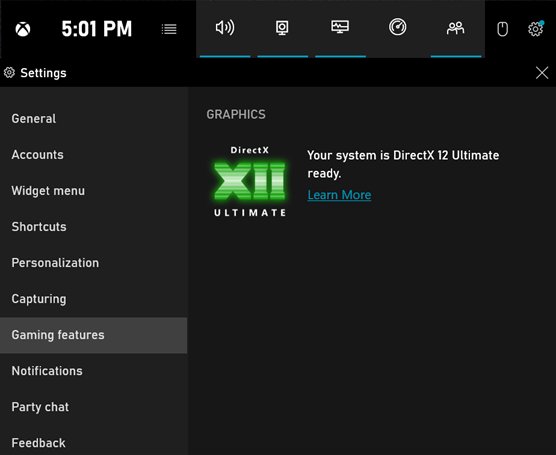
- Select Start, type
dxdiagand press Enter. - Read DirectX Version under System Information on the System tab.
- Run Windows Update to receive DirectX updates.
- For a missing d3dx9_35.dll error in an older game, install the DirectX End-User Runtime; it adds legacy files without changing your DirectX version.
Games pick DirectX 12 in their own graphics menus, so to enable DirectX 12 in Windows 11 there is no Windows switch. On Windows 10 you also update DirectX through Windows Update only.
XInput vs DirectInput: the layer most guides skip
Using the controller in games depends on which input API the game reads. Xbox controllers use XInput, whose driver arrives through Windows Update; older DirectInput games still see the pad but lose features.
| Feature | XInput | DirectInput |
|---|---|---|
| Left and right triggers | Independent | Combined into one axis |
| Vibration | Supported | Not available |
| Headset detection | Supported | Not available |
| Older non-Xbox gamepads | Not recognized | Recognized |
| Microsoft Store games | Supported | Not supported |
Which connection method for you
Many PC games let you trade a keyboard and mouse for an Xbox Wireless Controller. Identify your Xbox controller model first: every Xbox Series X|S controller has Bluetooth, and Bluetooth Xbox One pads have the plastic around the Xbox button molded into the faceplate.
The table doubles as a quick reference for controller compatibility. Connecting Xbox 360 controllers works in games, but the Xbox Accessories app does not support them, and Xbox Support publishes no measured latency per connection method.
| Factor | USB cable | Bluetooth | Xbox Wireless Adapter |
|---|---|---|---|
| What you need | A USB cable (USB-C on Series controllers) | PC Bluetooth and a Bluetooth controller model | The adapter in a USB port, or a PC with Xbox Wireless built in |
| Setup | Plug in; the driver comes from Windows Update | Hold Pair, then Add device in Settings | Bind the controller with its Pair button |
| Accessories app, firmware, button mapping | Supported; mapping needs USB-C | Not detected by the app | Supported |
| Controllers per PC | One per cable | Several, one pairing each | Up to eight per adapter |
| Batteries | Not needed while wired | Low batteries cause drops | Low batteries cause drops |
| Best for | Firmware updates, remapping, zero setup | Laptops with no spare port | Local co-op and Xbox headsets |
Connect via USB
A wired connection is the fastest setup, needs no pairing, and is the reliable choice for firmware updates.
- Plug the cable into the controller and a USB port on the PC.
- Wait while Windows installs the driver from Windows Update.
- If the controller is not recognized, open Settings > Windows Update > Advanced options > Optional updates, install any driver offered and restart.
- Press the Xbox button; Game Bar opening proves Windows sees the controller.
Older pads use the same Xbox One controller driver delivery through Windows Update.
How to pair an Xbox controller over Bluetooth (Windows 10 and 11)
- Press Xbox on the controller to turn it on.
- Hold Pair for three seconds until the Xbox button flashes.
- On Windows 11: select Start > Settings > Bluetooth & devices and turn Bluetooth on.
- Select Add device, choose Bluetooth, then pick the Xbox controller from the list.
- On Windows 10: open Settings > Devices > Bluetooth, add a device and select the controller.
Bluetooth pairing is convenient but has tradeoffs: the Xbox Accessories app cannot see a Bluetooth-connected controller.
How to use the Xbox Wireless Adapter
Both adapter models work on Windows 10 and 11, and one adapter handles up to eight controllers, four chat headsets or two stereo headsets.
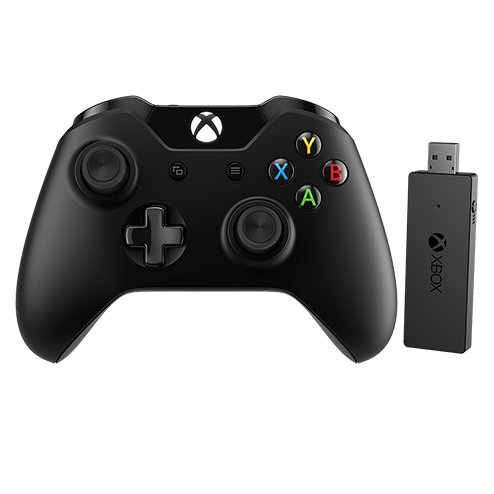
- Plug the adapter into a USB 2.0 or 3.0 port.
- Let Windows Update install the adapter driver.
- Start pairing on the adapter, then hold Pair on the controller until the Xbox button flashes.
- Repeat the pairing for each extra controller or headset.
If the adapter shows no driver, Xbox Wireless Adapter drivers come from Windows Update or the Microsoft Update Catalog.
Xbox Accessories app, firmware and custom mapping
The Xbox Accessories app updates controller firmware, assigns buttons, swaps triggers and turns off vibration. It supports Xbox controllers only, including the Elite Series 2 and Adaptive Controller, and you can get Xbox Accessories free from Microsoft Store.
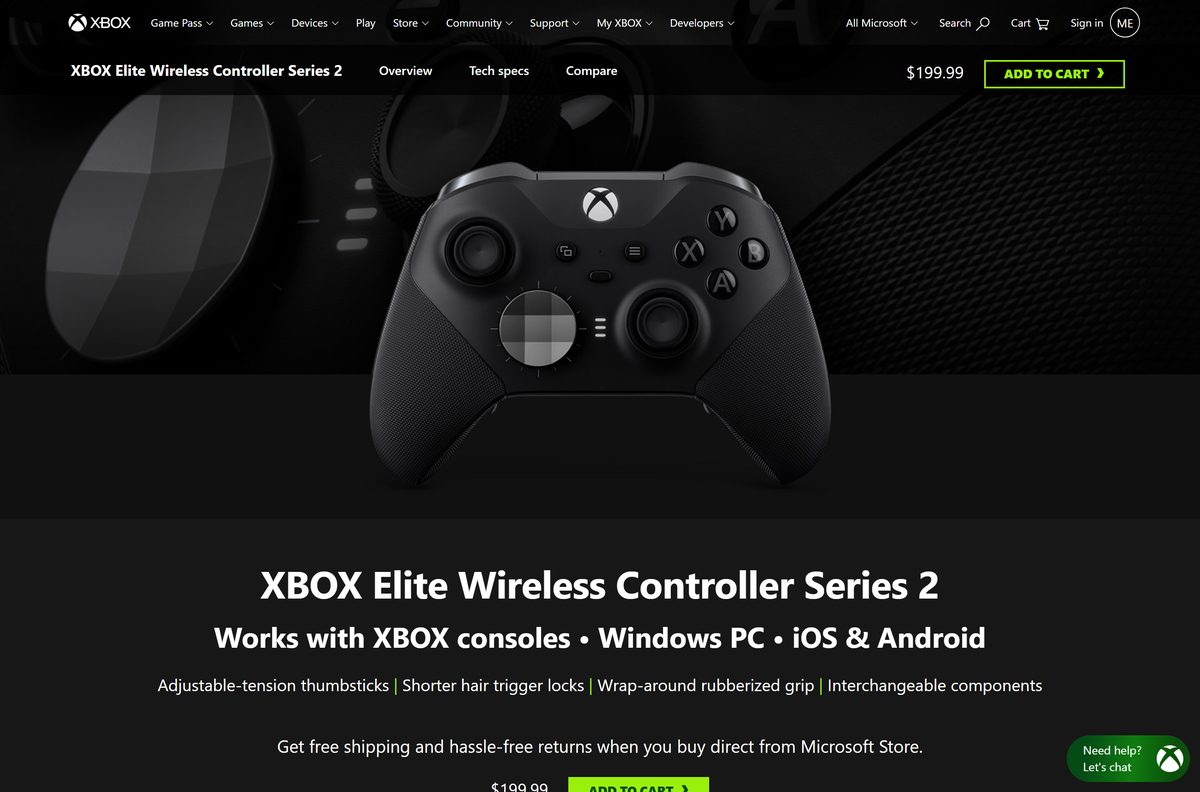
- Connect the controller with a USB-C cable or the Xbox Wireless Adapter.
- Select Start, type Xbox Accessories, open the app and sign in.
- Select the controller, then More options (…) > Firmware version.
- Select Update now if an update is available.
- Select Configure to create a profile: assign buttons, swap triggers or disable vibration.
The app lists no stick or trigger calibration tool. Power users can double-tap Pair to switch between a remembered Bluetooth host and Xbox Wireless host, and update an Xbox controller on PC or roll its firmware back.
Configure the controller in Steam
- Open Steam > Settings > Controller; detected controllers listed there verify the connection.
- Turn on configuration support for your controller type: Xbox, PlayStation or generic.
- Connect the controller, then open the game's controller configuration from your Library to set per-game Steam Input overrides; it appears only while a controller is connected.
- For local co-op with two controllers, connect both before launching the game; an Xbox Wireless Adapter takes up to eight.
- For emulators and third-party launchers, add them with Games > Add a Non-Steam Game to My Library so they launch from Steam.
Xbox controller vs PS5 DualSense on PC
| Feature | Xbox Wireless Controller | PS5 DualSense |
|---|---|---|
| Windows support | Windows 10 and 11 by USB, Bluetooth or adapter | Windows 10 (64-bit) and 11 by USB-C or Bluetooth |
| Firmware updates on PC | Xbox Accessories app | PlayStation Accessories app |
| Extras | Vibration through XInput | Haptics and the headset jack need USB |
| XInput-only games | Native | Steam's PlayStation configuration support, or a remapper such as DS4Windows that emulates an Xbox 360 pad |
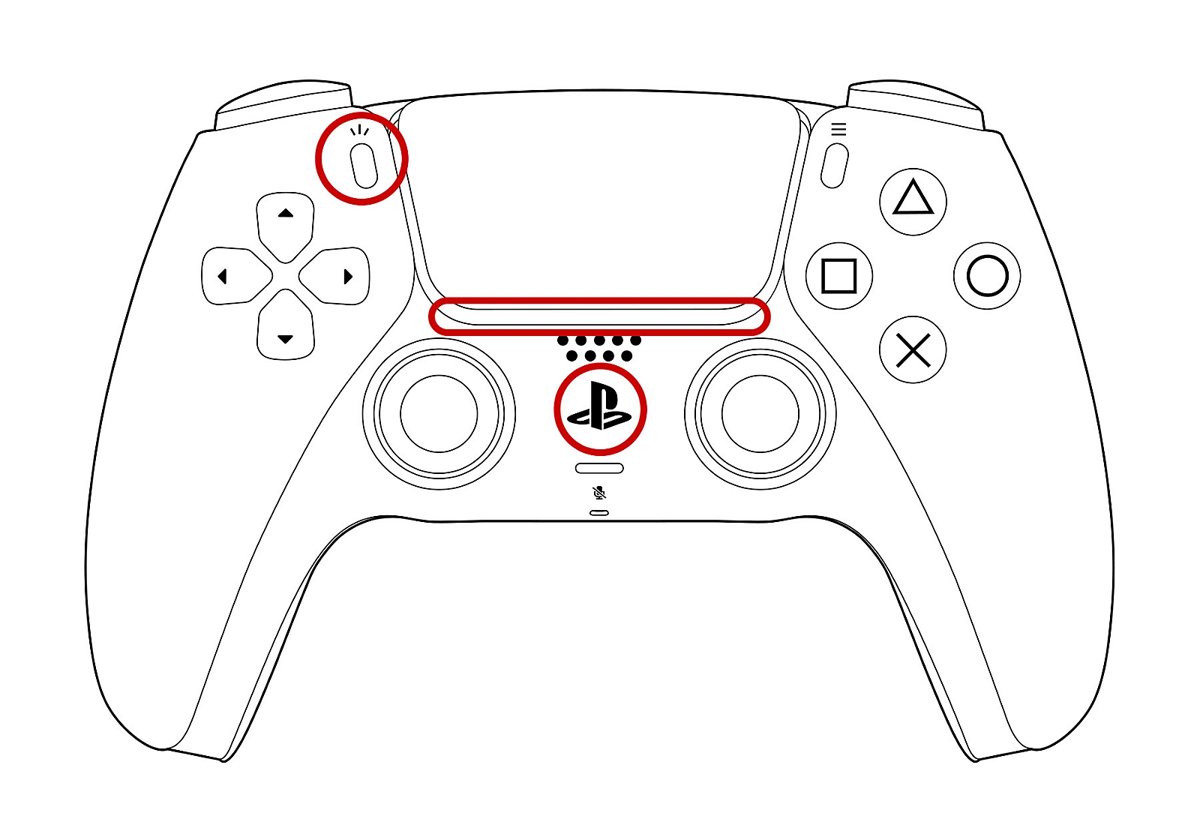
| Reset | Power cycle: hold the Xbox button 5-10 seconds | Unplug USB, then hold the reset button beside the Sony logo for 5 seconds |
To connect a PS5 controller with DS4Windows, get its HidHide companion only from github.com/nefarius/HidHide or nefarius.at; the developer calls other copies scams. That practical security rule applies to any remapper driver. For first-party vs third-party Xbox controllers, remember the Accessories app manages only Microsoft's own.
Steam settings on Windows: library, launch options, overlay and account
Steam runs on Windows 10 and 11 only; support for Windows 7, 8 and 8.1 ended on January 1, 2024. Download the Steam client for Windows from store.steampowered.com.
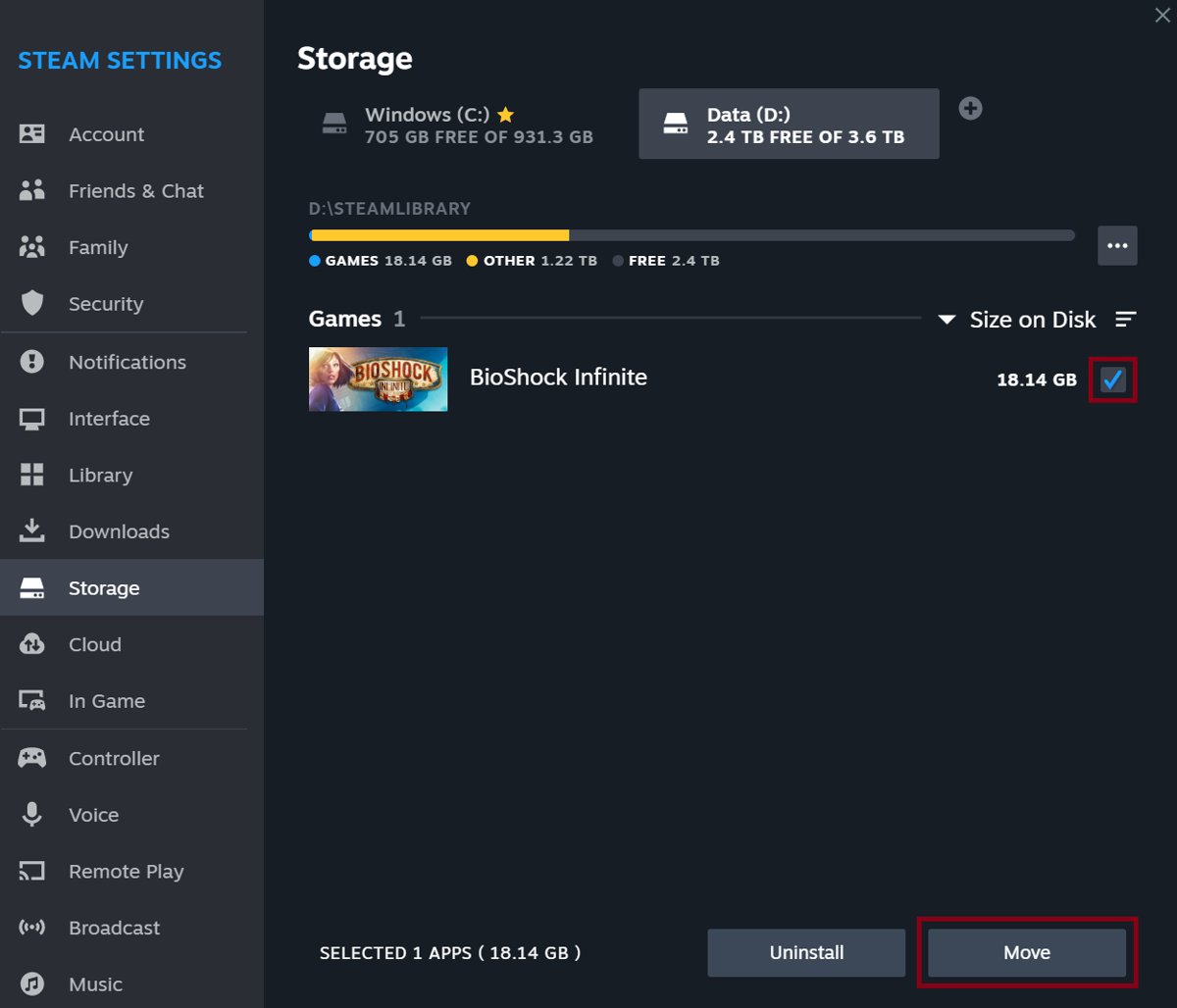
| Task | Where in Steam | Key rule |
|---|---|---|
| Add a library folder | Settings > Storage > + | Add a Steam library folder and move games without redownloading |
| Launch options | Library > right-click the game > Properties > General > Launch Options | Separate Steam launch options with a space |
| Steam overlay | Settings > In-game > Enable the Steam Overlay while in-game | Shift+Tab opens it; turn the Steam overlay off per game |
| Screenshots | F12 in game; View > Recordings & Screenshots | The Steam screenshot folder opens from that viewer |
| Redeem a product key | + Add a Game > Activate a Product on Steam… | Wallet codes redeem on the Steam website |
| Store region | Buy with a payment method from your new country | To change your Steam region: once every three months, no VPN |
| Appear offline | Friends list status Invisible; Steam > Go Offline for Offline Mode | Invisible lets you appear offline on Steam and still chat |
| Delete the account | Steam Support > My Account > Data Related to Your Steam Account | 30-day grace period before you delete your Steam account |
How to fix the Steam not opening/launching issue on Windows 11/10
Why is Steam not opening?
Steam maintenance, a blocked connection, or interfering software such as VPNs, firewalls, P2P tools and download accelerators.
- To resolve Steam when it won't launch, restart the PC, then open Steam once.
- If Steam is under maintenance, wait a few hours and try again.
- Add Steam to your firewall's exceptions and pause any VPN or P2P program.
- Reinstall Steam to the same location; this keeps installed games, while other uninstall routes delete game data.
Steam downloads are slow
A distant download region, a bandwidth limit or a stale download cache.
- Open Steam > Settings > Downloads and pick the download region nearest you.
- Clear any bandwidth limit on the same page.
- Exit Steam and delete the
appcacheanddepotcachefolders in the Steam install folder.
Tips and troubleshooting
Match the symptom, check the cause, then apply the fix. These are the common pitfalls behind most Game Bar, Xbox and Steam complaints.
| Symptom | Likely cause | Fix |
|---|---|---|
| Xbox Networking says Server connectivity: Blocked | No Teredo connection to the Xbox server | Fix Xbox Networking Teredo errors before reinstalling anything |
| Xbox app will not install games | Gaming Services damaged or outdated | Run the Gaming Services Repair Tool in the Xbox app |
| Steam will not launch | Maintenance, firewall or interfering software | Work through Steam not opening fixes |
| Steam downloads crawl | Wrong download region or a bandwidth cap | Speed up slow Steam downloads from Settings > Downloads |
| "Easy Anti-Cheat is not installed" | Anti-cheat service files missing | Verify game files to repair Easy Anti-Cheat |
| Game asks for a Visual C++ or DirectX DLL | Shared runtime not installed | Reinstall the Steamworks common redistributables by verifying the game |
Troubleshooting: the most common issues and fixes
Game Bar does not open
The switch is off, a full-screen game blocks the overlay, or the broadcast process is stuck.
- Turn Game Bar on under Settings > Gaming.
- If Windows + G makes the screen flash twice, switch the game to borderless windowed mode.
- End Broadcast bar server (bcastdvr.exe) in Task Manager, or select Repair under the app's Advanced options.
Recording button is grayed out
No supported GPU encoder, a game that blocks capture, or a Windows N edition.
- Update the driver in Device Manager > Display adapters > Update driver.
- On Windows N editions, install the Media Feature Pack.
FPS counter not showing
Game Bar is older than 3.34.11002.0, or FPS access was never requested.
- Update Game Bar in Microsoft Store, then select Request access on the FPS tab and restart.
Recording affects game performance
Background recording uses system resources.
- Turn Record what happened off and lower the capture frame rate and quality.
Microphone audio is missing
The mic is toggled off or excluded from captured audio.
- Press Windows + Alt + M before recording.
- Set Audio to record to All and check the Voice tab of the Audio widget.
Controller not detected via USB
A faulty cable or port, or a missing driver.
- Try another cable and port, then install optional driver updates and restart.
Bluetooth pairing stalls or fails
Low batteries, a stale pairing, or firmware conflicts with non-Xbox hosts.
- Fit fresh batteries.
- Select Remove device, turn Bluetooth off for 10 seconds, then add the controller again.
Controller connects but shows lag or dropouts
Weak batteries or Bluetooth range.
- Charge the batteries, move closer, or switch to USB or the Xbox Wireless Adapter.
Game Bar or other overlays block controller input
The Xbox button opens Game Bar, and the Steam overlay can also take focus.
- Press the Xbox button again to close Game Bar.
- Untick the Steam overlay for that game in Properties > General.
Headset audio problems or headset disconnections
Missing headset audio is a known Bluetooth issue.
- Use USB or the Xbox Wireless Adapter, and update controller firmware.
Resetting a controller to factory defaults
Xbox Support's reset step for a misbehaving controller is a power cycle.
- Hold the Xbox button 5-10 seconds until it turns off, then press it again.
Xbox Game Bar and PC gaming FAQ
Where are Xbox Game Bar clips saved?
Game Bar saves clips as MP4 files and screenshots as PNG files in Videos > Captures. Open the folder from Settings > Gaming > Captures > Open folder, or from the Gallery widget.
How do I disable Xbox Game Bar?
Open Settings > Gaming > Game Bar on Windows 11, or Settings > Gaming > Xbox Game Bar on Windows 10, and turn the switch off. Windows + G and the Xbox button then stop opening it.
Can I uninstall Xbox Game Bar in Windows 11?
Game Bar is a Microsoft Store app that ships with Windows. Turning it off in Settings > Gaming is the supported way to stop it, and Microsoft Store reinstalls it if you need it back.
Why can't I record with Xbox Game Bar?
Recording needs a GPU encoder (Intel Quick Sync, NVIDIA NVENC or AMD VCE) and a game that allows capture. Update the display driver and use Windows + Alt + R in full-screen games.
Does Xbox Game Bar affect performance?
Background recording, called Record what happened, uses system resources and is off by default. Leave it off on weaker PCs and lower capture quality if recording slows a game.
Does Xbox Game Bar record audio?
Yes. Game Bar records game audio, and Audio to record switches between Game, All and None. Turn the microphone on with the Capture widget's mic icon or Windows + Alt + M.
Why is the Xbox app on Windows 11 not working?
Check the Xbox status page, confirm Windows is version 22H2 or later, update the Xbox app and Gaming Services from Microsoft Store, then run the Gaming Services Repair Tool.
Can I use an Xbox controller wirelessly without buying the adapter?
Yes, if the controller has Bluetooth. Xbox Series X|S controllers and later Xbox One models pair through Settings > Bluetooth & devices, though the Accessories app then cannot see them.
Final verdict and recommendations
Keep Game Bar and Game Mode on, connect an Xbox controller by USB for firmware and button mapping, and move to the Xbox Wireless Adapter when you need several controllers or Xbox headsets. Those defaults cost nothing, give you capture and FPS on demand, and keep the controller on the connection the Xbox Accessories app fully supports.
Final tips: test one clip before changing Xbox Game Bar recording settings.