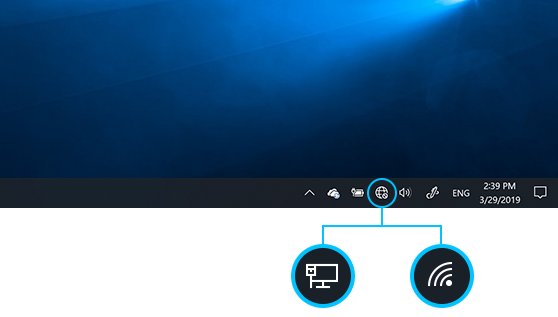
Wi-Fi and network settings in Windows 11 and Windows 10 are in Start > Settings > Network & internet, or right-click the network icon on the taskbar and select Network and internet settings.
This hub gives the short answer for each network job, from connecting to Wi-Fi and changing DNS to fixing no internet, then points to the full walkthrough.
Where are Wi-Fi settings on Windows 11 and Windows 10?
Every route starts in Settings > Network & internet, and the Network & Internet settings tour explains what each page there controls.
| You want to | Do this |
|---|---|
| Connect to Wi-Fi | Select the network icon on the taskbar, then Manage Wi-Fi connections, pick the network, select Connect and type the password. You can also connect a computer to Wi-Fi on Windows 10 or a Mac. |
| Find your IP address | Select Properties next to your network and read IPv4 address, or find your IP address with ipconfig. |
| Change DNS | Open Wi-Fi > Manage known networks > your network > IP assignment > Edit, choose Manual and fill in Preferred DNS and Alternate DNS. You can also change DNS settings on Windows with PowerShell or netsh. |
| Fix Wi-Fi not working or no internet | Check Wi-Fi is on and Airplane mode is off, forget and rejoin the network, restart the router, then run the network commands below. |
| Reset network settings | Windows 11: Advanced network settings > Network reset > Reset now. Windows 10: Status > Network reset. When you reset network settings, VPN software may need reinstalling. |
Where each network setting lives in Windows 11 vs Windows 10
Paths start from Start > Settings > Network & internet (Windows 10: Network & Internet).
| Setting | Windows 11 | Windows 10 |
|---|---|---|
| Wi-Fi on/off and saved networks | Wi-Fi > Manage known networks | Wi-Fi > Manage known networks |
| IP address | Properties next to the connected network | Run ipconfig in Command Prompt |
| IP assignment and DNS | Wi-Fi > Manage known networks > network > IP assignment > Edit | ncpa.cpl > adapter Properties > Internet Protocol Version 4 (TCP/IPv4) > Properties |
| DNS over HTTPS | Edit IP settings > DNS over HTTPS | Not available |
| Public or private profile | Wi-Fi > network > Network profile type | Chosen on first connect, when Windows asks whether the PC should be discoverable |
| Metered connection | Wi-Fi > network > Metered connection | Wi-Fi > network > Properties > Set as metered connection |
| Mobile hotspot and proxy | Mobile hotspot; Proxy | Mobile hotspot; Proxy |
| Network troubleshooter | Get Help app > search connect to network and internet > Run network diagnostics | Status > Network troubleshooter |
| Network reset | Advanced network settings > Network reset | Status > Network reset |
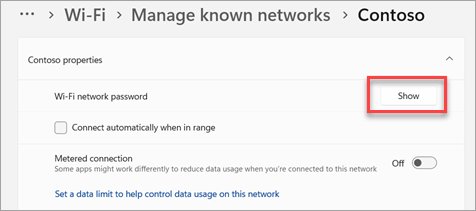
| Saved Wi-Fi password | Properties > Wi-Fi network password > Show | Status > Network and Sharing Center > Wi-Fi name > Wireless Properties > Security > Show characters |
Both password routes need a PC that already joined; you can find your Wi-Fi password on phones or with CMD too.
On Windows 11 you can still turn on Network and Sharing Center, or show the Network icon on the desktop. Xbox apps have their own Xbox Networking settings page.
How to set up Wi-Fi on Windows 11 and Windows 10
On Windows 10, select the network icon, choose the network, select Connect, enter the password and select Next.
- Select the network icon on the taskbar to open quick settings.
- Select Manage Wi-Fi connections on the Wi-Fi quick setting; use Refresh network list if yours is missing.
- Choose the network and select Connect.
- Type the network password and select Next.
A PC with a camera can join Wi-Fi with a QR code in the Camera app's barcode mode. To link devices without a router, turn on Wi-Fi Direct.
Find IP address on Windows 11 in Settings or CMD
Settings shows the active connection; Command Prompt shows every adapter.
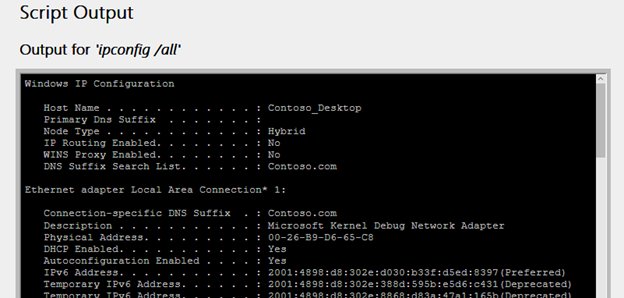
- Open Settings > Network & internet and select Properties next to your network.
- Read the value next to IPv4 address.
- Or open Command Prompt, type
ipconfigand press Enter. - Note Default gateway too; that is your router's address.
You can also view Wi-Fi or Ethernet status in the older Status window, and find a printer's IP address from its network report. A 169.254.x.x address means the router gave Windows none.
Ways to change DNS on Windows 11
| Your situation | Use this | Why |
|---|---|---|
| One Wi-Fi network, no typing commands | Method 1: the Settings app | Applies to the network you pick, and offers DNS over HTTPS |
| Scripting or several PCs | Method 2: PowerShell | One cmdlet sets or resets the adapter's DNS servers |
| Command Prompt only | Method 3: netsh | Works in any administrator Command Prompt |
| Windows 10, or every network on one adapter | Method 4: Control Panel | Sets DNS on the adapter itself, not one saved network |
Before you begin, note that the current setting is probably Automatic (DHCP) so you can revert, and get the adapter name from ipconfig for PowerShell and netsh.
Method 1: Change DNS settings in the Settings app
This is the route Microsoft documents for Windows 11. It changes DNS for one saved Wi-Fi network, or for the Ethernet connection you select.
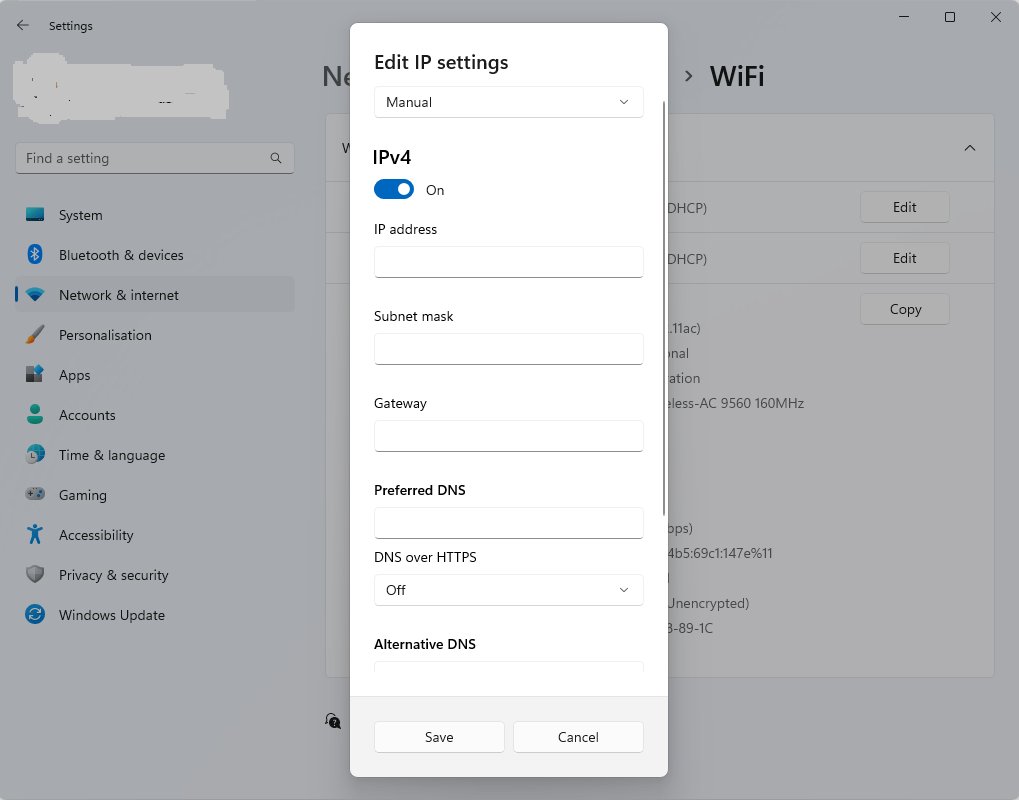
- Open Settings > Network & internet > Wi-Fi > Manage known networks, and choose the network.
- Select Edit next to IP assignment.
- Under Edit IP settings, choose Manual and turn on IPv4.
- Type the primary server in Preferred DNS and the secondary in Alternate DNS.
- Select Save.
Enable DNS over HTTPS (DoH) in Windows 11
DoH encrypts lookups between the PC and the DNS server. It appears in the same Edit IP settings dialog once you enter manual DNS servers.
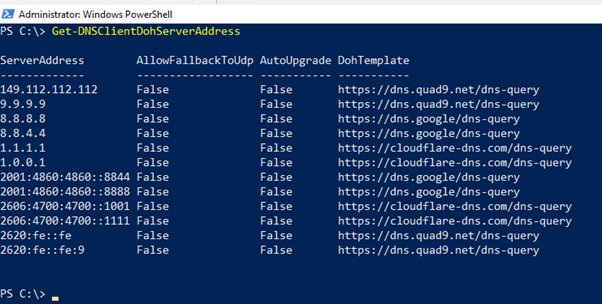
- Open Edit IP settings for the network and enter your Preferred DNS and Alternate DNS.
- Under DNS over HTTPS, choose On (automatic template), or On (manual template) and type the provider's template.
- Turn Fallback to plaintext on to allow unencrypted lookups when HTTPS fails, or off to block them.
- Select Save.
Method 2: Change DNS settings with PowerShell
Run PowerShell as administrator. Set-DnsClientServerAddress sets static DNS servers on an interface, and they override what DHCP supplied.
Set-DnsClientServerAddress -InterfaceAlias "Wi-Fi" -ServerAddresses ("1.1.1.1","1.0.0.1")Replace Wi-Fi with your adapter name from ipconfig, and the two addresses with your chosen servers.
You should see: ipconfig /all now lists the new DNS servers under the adapter.
Method 3: Change DNS settings with Command Prompt
Open Command Prompt as administrator. netsh interface ipv4 set dnsservers sets the primary server, and add dnsservers appends the secondary.
netsh interface ipv4 set dnsservers name="Wi-Fi" source=static address=8.8.8.8
netsh interface ipv4 add dnsservers name="Wi-Fi" address=8.8.4.4 index=2
source=static switches the interface from DHCP to the address you give; index=2 places the second server after the first.
You should see: ipconfig /all shows both servers under the adapter.
Method 4: Change DNS settings in Control Panel
This is the way to change DNS on Windows 10, and it still works on Windows 11. The ncpa.cpl command opens the Network Connections folder directly.
- Press Win + R, type
ncpa.cpland select OK. - Right-click your Wi-Fi or Ethernet adapter and select Properties.
- Select Internet Protocol Version 4 (TCP/IPv4), then Properties.
- Choose to enter DNS server addresses manually, and type the preferred and alternate servers.
- Select OK in each dialog to save.
Best public DNS servers for Windows 11 and why to change DNS
What is DNS? It turns names into IP addresses; with DHCP, the router supplies the DNS servers. Why change your DNS server: the current one does not answer, or you want DNS over HTTPS or filtering. The benefits of using a public DNS server differ by provider.
| Provider | IPv4 | IPv6 | Notes |
|---|---|---|---|
| Cloudflare 1.1.1.1 | 1.1.1.1, 1.0.0.1 | 2606:4700:4700::1111, 2606:4700:4700::1001 | No content filtering; you can use Cloudflare 1.1.1.1 with DoH on Windows and phones |
| Cloudflare for Families (malware) | 1.1.1.2, 1.0.0.2 | 2606:4700:4700::1112, 2606:4700:4700::1002 | Blocks known malware and phishing |
| Cloudflare for Families (malware and adult) | 1.1.1.3, 1.0.0.3 | 2606:4700:4700::1113, 2606:4700:4700::1003 | Adds adult-content blocking |
| Google Public DNS | 8.8.8.8, 8.8.4.4 | 2001:4860:4860::8888, 2001:4860:4860::8844 | Google's published resolver addresses |
| OpenDNS (Cisco) | 208.67.222.222, 208.67.220.220 | Not listed on the setup page | You can set up OpenDNS on the router to cover every device |
How to verify the DNS change worked
- Open Command Prompt as administrator.
- Type
ipconfig /all | findstr /c:"DNS Servers"and press Enter; the new addresses should appear. - Type
nslookup techdows.comand press Enter; with no server given, nslookup queries your default DNS server, which should now be the new one. - Type
pingfollowed by the DNS server address to confirm it replies.
Common problems and how to fix them: if sites stop loading, an address is mistyped, so correct it or revert. A missing DoH option means Windows 10 or automatic DNS.
How to revert to automatic DNS
- In Settings, open the network, select Edit next to IP assignment, choose Automatic (DHCP) and select Save.
- In PowerShell, run
Set-DnsClientServerAddress -InterfaceAlias "Wi-Fi" -ResetServerAddressesto return to the DHCP servers. - In Command Prompt, run
netsh interface ipv4 set dnsservers name="Wi-Fi" source=dhcp. - Run
ipconfig /flushdnsso cached answers from the old servers are discarded.
What happens on other Wi-Fi networks: the Settings change is saved per network. Other Wi-Fi networks keep their own setting, usually Automatic (DHCP), so a manual DNS set on your home network does not follow you to a café. To change DNS settings for all Wi-Fi networks on one PC, set them on the adapter with Method 2, 3 or 4.
Network profiles, network discovery and file sharing settings
New networks join as Public network (Recommended), which hides the PC. Choose Private network only on a network you trust, because that makes the PC discoverable for file and printer sharing.
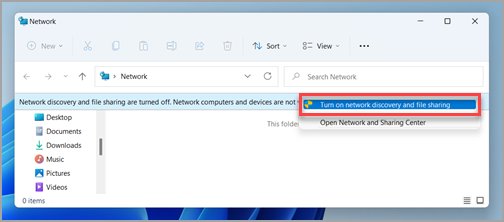
- Open Settings > Network & internet, select Wi-Fi and your network (or Ethernet).
- Under Network profile type, select Private network.
- Search Settings for manage advanced sharing settings and open Manage advanced sharing settings.
- Under Private networks, turn on Network discovery and File and printer sharing.
- In File Explorer, right-click a folder, select Show more options > Give access to > Specific people.
You can set public or private network profiles on Windows 10 too. From there you can share files and folders over a network and map a network drive with Reconnect at sign-in so the share comes back after a restart.
Wi-Fi adapter settings in Windows 11: enable, band and power saving
Most adapter options live in Device Manager under Network adapters. You can also open network adapter settings from Advanced network settings or ncpa.cpl.
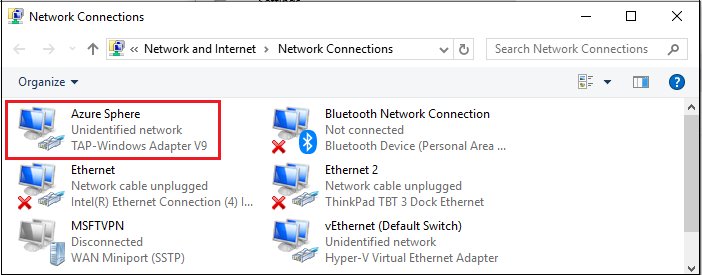
- Select Search on the taskbar, type device manager and open Device Manager.
- Expand Network adapters and right-click your Wi-Fi adapter.
- Select Enable device if it is disabled.
- Select Properties > Advanced, and check that Wireless Mode or Band allows your router's band.
- On the Power Management tab, clear Allow the computer to turn off this device to save power.
- Check Driver Version and Driver Date on the Driver tab against the PC maker's site.
You can also manage Wi-Fi adapter settings such as band and DNS from Settings.
If Task Manager lists a Killer service, the Killer Network Service explained shows whether to keep it. For wired adapters, 26H2 Ethernet driver fixes handle Code 10, 43 and 52.
Mobile hotspot, metered connection and VPN settings in Windows 11
A Windows PC can share its Wi-Fi, Ethernet or cellular connection over Wi-Fi or Bluetooth.
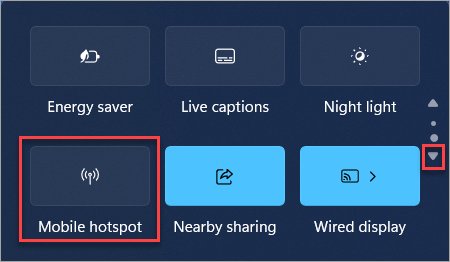
- Open Settings > Network & internet > Mobile hotspot.
- Under Share my internet connection from, choose the connection to share.
- Under Share over, choose Wi-Fi or Bluetooth.
- Expand Properties, select Edit, set the name, password and band, then select Save.
- Turn on the Mobile hotspot toggle.
If phones cannot join, fix Mobile Hotspot not working by checking the shared connection and band.
Turn on Metered connection under Wi-Fi > your network for capped plans; Windows Update then downloads only priority updates. For privacy, you can use a VPN in Microsoft Edge.
Network command cheat sheet: ipconfig, ping, tracert and netsh
Run these in Command Prompt, as administrator for the release, renew, flush and reset commands.
| Command | What it does | Go deeper |
|---|---|---|
ipconfig / ipconfig /all |
Shows IP address, subnet mask and default gateway; /all adds DNS servers and full TCP/IP details |
The ipconfig command reference explains every switch |
ipconfig /release, ipconfig /renew |
Drops the DHCP address, then requests a fresh one | No-internet table, step 2 |
ipconfig /flushdns |
Flushes and resets the DNS client resolver cache | No-internet table, step 3 |
ping 192.168.1.1 |
Sends four echo requests; /t repeats until Ctrl + C |
You can ping an IP address from PowerShell or Linux too |
tracert 8.8.8.8 |
Lists each router hop, up to 30; -d skips name lookups |
Shows where packets stop |
netsh winsock reset, netsh int ip reset |
Reset the Winsock catalog and TCP/IP stack | Restart afterwards |
ncpa.cpl |
Opens Network Connections from Win + R | Method 4 above |
netsh wlan show wlanreport |
Saves an HTML report of three days of Wi-Fi events | Debug section below |
getmac |
Lists each network card's MAC address | MAC address row below |
Router admin pages: 192.168.1.1, Xfinity, Verizon and Orbi login
Your router's address is the Default gateway that ipconfig shows. Type it into a browser on a device connected to that router.
| Router | Admin address | Username and password | Full guide |
|---|---|---|---|
| Most home routers | The default gateway, often 192.168.1.1 | Printed on the router label or in its manual | The 192.168.1.1 admin page covers WAN and DNS |
| Xfinity Gateway | http://10.0.0.1, after allowing Admin Tool online access in the Xfinity app | admin and the password you set when enabling access | You can log in to the Xfinity router and switch access off after |
| Verizon Router | http://mynetworksettings.com or 192.168.1.1 | Network Settings password on the router's rear label | You can log in to a Verizon router on Fios or 5G Home |
| NETGEAR Orbi | http://orbilogin.com | admin, with the password you set at setup | You can log in to the Orbi router from its app too |
Once inside, the wireless page is where you change your Wi-Fi password; every device then has to rejoin with the new one.
WPS, UPnP, Gigabit Ethernet and MAC address explained
| Term | What it is | What to do with it |
|---|---|---|
| WPS (Wi-Fi Protected Setup) | A Wi-Fi Alliance protocol that lets a device join a router without typing the password; Windows Connect Now is Microsoft's implementation | Find where the WPS button is on your router |
| UPnP (Universal Plug and Play) | A framework for devices and PCs to discover and control each other on a network; Windows file sharing relies on the UPnP Device Host service | Decide whether to disable UPnP on the router |
| Gigabit Ethernet | Wired networking at up to 1 gigabit per second (1000 Mbps); Microsoft recommends 10/100/1000 Cat 6 cable | Check your link runs at Gigabit Ethernet speed; Mac users can turn off Wi-Fi when Ethernet connects |
| Router vs switch | A switch sends data only to the intended device on the network; a router shares one internet connection among several devices | The router vs switch comparison shows which you need |
| MAC address | The unique hardware address of a network card; getmac lists it, and Windows can use random hardware addresses while scanning Wi-Fi |
You can find the MAC address on Windows, Mac, iPhone and Android |
Windows 11 WiFi not working: fixes in order
First, work out which problem you have: no Wi-Fi option points to the adapter, networks listed but no connection points to the password or band, and connected with no internet points to IP, DNS or the router. Stop when the connection returns.
Fix 1: Check that Wi-Fi is on and Airplane mode is off
Turn Wi-Fi back on first: a toggle, Airplane mode or a hardware switch cuts the radio.
- Turn on the Wi-Fi tile in quick settings.
- Disable Airplane mode in Settings > Network & internet > Airplane mode.
- Check the Windows Wi-Fi switch and adapter state: flip any laptop Wi-Fi switch on and confirm the adapter is enabled in Device Manager.
Fix 2: Restart the PC and run the Windows troubleshooter
The troubleshooter repairs common faults automatically.
- Select Start > Power > Restart.
- On Windows 11, open Get Help, search connect to network and internet, and select Run network diagnostics.
- On Windows 10, select Status > Network troubleshooter.
Fix 3: Forget the network and reconnect
A stale saved profile or changed password.
- Open Wi-Fi > Manage known networks, select the network and select Forget.
- Select it again and enter the password.
Fix 4: Test another device, then restart the modem and router
Rule out the router or Wi-Fi band before blaming Windows.
- Join the same network on a phone; if it works, the PC is the problem.
- Unplug the router and modem, wait 30 seconds, plug in the modem, then the router.
- Try the other band, 2.4 GHz or 5 GHz.
Fix 5: Disable metered connection
A metered connection limits what apps and Windows Update download.
- Open Wi-Fi > your network and turn off Metered connection if your plan is not capped.
Fix 6: Configure Windows services
WLAN AutoConfig manages Wi-Fi connections.
- Press Win + R, type
services.mscand press Enter. - Right-click WLAN AutoConfig and select Restart.
Fix 7: Reset network devices and network stack
A damaged TCP/IP stack, old address or stale DNS cache.
- In an administrator Command Prompt, run
netsh winsock reset,netsh int ip reset,ipconfig /release,ipconfig /renewandipconfig /flushdnsin that order. - Restart the PC.
Fix 8: Update or reinstall network adapter drivers
Repair or reinstall the Wi-Fi driver when an update broke it.
- Before you reset, handle drivers carefully: save the PC maker's latest driver to USB first.
- In Device Manager, right-click the adapter, select Uninstall device, tick Attempt to remove the driver for this device and select Uninstall.
- Restart; if no driver returns, install the correct manufacturer driver you saved.
Fix 9: Reset network settings, the last resort
Use network reset only at the end: it reinstalls every adapter with default settings.
- Open Advanced network settings > Network reset (Windows 10: Status > Network reset).
- Select Reset now > Yes, then reinstall VPN clients and set trusted networks back to Private network.
Common Windows 11 Wi-Fi issues and solutions
Why Wi-Fi is not showing in Windows 11
When the Wi-Fi option is missing, check the adapter: it is disabled, switched off or has no driver.
- Turn on any hardware Wi-Fi switch.
- In Device Manager, right-click the Wi-Fi adapter under Network adapters and select Enable device.
- Restart WLAN AutoConfig. Older PCs can fix Wi-Fi not showing on Windows 10 the same way.
Can't connect to Wi-Fi on Windows 11 (no networks found)
The adapter does not support, or filters out, the router's band.
- Open the adapter's Properties > Advanced tab.
- Set Wireless Mode or Band to allow the router's band.
WiFi adapter not working on Windows 11 after an update
The update replaced or broke the adapter driver.
- Compare Driver Version on the adapter's Driver tab with the maker's site.
- Run Windows Update > Check for updates, or update the network adapter driver offline from USB.
Wi-Fi keeps dropping
Power saving or a busy channel.
- In Power Options > Change advanced power settings, set Wireless Adapter Settings > Power Saving Mode to Maximum Performance.
- Change the wireless channel in the router's admin page.
Connected but no internet: adapter, IP, DNS and router checks
No Internet under the network name means Windows reached the router but not the internet. Check each layer in order.
| Step | Check | Fix |
|---|---|---|
| 1. Adapter | Wi-Fi is on, the adapter is enabled, and the icon shows connected | Turn Wi-Fi off and on and reconnect. On Windows 11 26H2, the 26H2 no-internet fixes add a driver rollback |
| 2. IP address | ipconfig shows an IPv4 address that is not 169.254.x.x |
Run ipconfig /release then ipconfig /renew; you can also release and renew the IP for one adapter. A 169.254 address after that means DHCP is off on the router |
| 3. DNS | ipconfig /all | findstr /c:"DNS Servers" lists a server, and ping to it replies |
Flush the DNS cache and turn off any manual proxy in Settings > Network & internet > Proxy; if the server still does not reply, switch to a public DNS server |
| 4. Router and ISP | ping to the Default gateway gets four replies |
Replies: restart the modem or ask your ISP about an outage. No replies: connect the PC to the modem by Ethernet and update router firmware |
Error messages quick reference for Windows network problems
| Error or symptom | What it means | Where to fix it |
|---|---|---|
| No Internet under the Wi-Fi name | Windows got no reply to a small HTTP request to an internet server | Run the no-internet checks above |
| 169.254.x.x address | Windows got no IP address from the router | Renew the IP; confirm DHCP is on in the router |
| 0.0.0.0 address | Any address, no address yet, or every destination, by context | Decode it with the 0.0.0.0 IP address explainer |
| ERR_CONNECTION_TIMED_OUT | The site never answered the browser | Fix ERR_CONNECTION_TIMED_OUT with a TCP/IP reset |
| ERR_CONNECTION_CLOSED | The connection dropped before the page loaded | Fix ERR_CONNECTION_CLOSED in Chrome, starting with extensions and proxy |
| ERR_NETWORK_CHANGED | The connection changed while the page loaded | Fix ERR_NETWORK_CHANGED by renewing the IP |
| Network discovery is turned off | File Explorer cannot see other PCs | Select the banner, or turn on network discovery when it keeps switching off |
| nslookup: No response from server | No DNS server runs at that address | Switch to a public DNS server |
Getting help and collecting debug information with the wireless network report
Collect evidence before you contact the PC maker, your ISP or IT support. The report lists Wi-Fi sessions, errors and every adapter, including hidden ones.
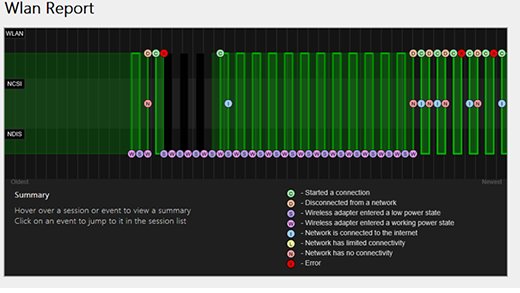
netsh wlan show wlanreportRun it in an administrator Command Prompt. It saves an HTML report of the last three days of Wi-Fi events, grouped by session.
You should see: Open the saved HTML file in a browser and select any red circle in the Wi-Fi summary chart to read that error.
When to escalate: a Problem number on the adapter in the report matches a Device Manager error code for the PC maker. Router replies with no internet point to the ISP.
Best practices, prevention tips and configuration issues to check
| Do this | Mistake to avoid |
|---|---|
| Keep new networks on Public network (Recommended); choose Private only at home or work | Making café Wi-Fi private, which exposes file and printer sharing |
| Leave IP assignment on Automatic (DHCP) unless you need a fixed address | Typing a static IP that clashes with another device |
| Enter both a preferred and an alternate DNS server | Relying on one DNS server |
| Install Windows updates and router firmware updates | Running router firmware the maker has already fixed |
| Turn on Random hardware addresses on public Wi-Fi | Assuming your MAC address cannot be used to track you |
Windows Wi-Fi and network settings FAQ
Where are Wi-Fi settings on Windows 11?
Wi-Fi settings on Windows 11 are in Start > Settings > Network & internet > Wi-Fi. You can also right-click the network icon on the taskbar and select Network and internet settings.
How do I enable Wi-Fi in Windows 11?
Turn on the Wi-Fi tile in quick settings or the Wi-Fi toggle in Settings > Network & internet. If no toggle appears, turn on any hardware switch and enable the adapter in Device Manager.
How do I reset all Wi-Fi settings in Windows 11?
Open Settings > Network & internet > Advanced network settings > Network reset and select Reset now. Windows reinstalls every network adapter with default settings and restarts; VPN software may need reinstalling.
How do I change Wi-Fi settings in Windows 11?
Select Wi-Fi > Manage known networks and choose the network. That page holds the IP and DNS settings, the network profile, the metered connection switch and random hardware addresses.
Why is Wi-Fi not working on Windows 11?
Common causes are Wi-Fi or Airplane mode set the wrong way, a disabled adapter, a driver broken by an update, a router needing a restart, or a damaged TCP/IP stack. Work through the fixes in order.
Why is Wi-Fi not showing in Windows 11?
A missing Wi-Fi option means Windows cannot use the adapter. Check the hardware switch, enable the adapter in Device Manager and restart WLAN AutoConfig; if the adapter is not listed, install the maker's driver.
Why can't I connect to Wi-Fi on Windows 11?
A wrong saved password, an unsupported band or a router fault are the usual causes. Forget the network and rejoin, try the other band, and test the network on another device.
How do I find my IP address in Windows 11 with CMD?
Open Command Prompt, type ipconfig and press Enter. The IPv4 Address line under your adapter is your local address, and Default Gateway is your router.

How to connect to a Wi-Fi using a QR code: latest guide - Techdows
[…] Wi-Fi and network settings […]
ipconfig/release and renew: How to? All You Need to Know - Techdows
[…] Wi-Fi and network settings […]