Apple has shipped 23 major Mac operating system releases since March 24, 2001, from Mac OS X 10.0 Cheetah to macOS 27 Golden Gate, which arrived on September 14, 2026.
This history lists every version with its release date, headline features, latest build and current security status, then shows how to check, update and download macOS on your own Mac.
macOS versions at a glance
Each row gives the name Apple uses today, the date the release went on sale or became available, and the final or current version number from Apple's own list.
The newest release, macOS 27 Golden Gate, sits at the bottom.
| Version | Name | Released | Latest version |
|---|---|---|---|
| Mac OS X 10.0 | Cheetah | March 24, 2001 | 10.0.4 |
| Mac OS X 10.1 | Puma | September 29, 2001 | 10.1.5 |
| Mac OS X 10.2 | Jaguar | August 23, 2002 | 10.2.8 |
| Mac OS X 10.3 | Panther | October 24, 2003 | 10.3.9 |
| Mac OS X 10.4 | Tiger | April 29, 2005 | 10.4.11 |
| Mac OS X 10.5 | Leopard | October 26, 2007 | 10.5.8 |
| Mac OS X 10.6 | Snow Leopard | August 28, 2009 | 10.6.8 |
| OS X 10.7 | Lion | July 20, 2011 | 10.7.5 |
| OS X 10.8 | Mountain Lion | July 25, 2012 | 10.8.5 |
| OS X 10.9 | Mavericks | October 22, 2013 | 10.9.5 |
| OS X 10.10 | Yosemite | October 16, 2014 | 10.10.5 |
| OS X 10.11 | El Capitan | September 30, 2015 | 10.11.6 |
| macOS 10.12 | Sierra | September 20, 2016 | 10.12.6 |
| macOS 10.13 | High Sierra | September 25, 2017 | 10.13.6 |
| macOS 10.14 | Mojave | September 24, 2018 | 10.14.6 |
| macOS 10.15 | Catalina | October 7, 2019 | 10.15.8 |
| macOS 11 | Big Sur | November 12, 2020 | 11.7.11 |
| macOS 12 | Monterey | October 25, 2021 | 12.7.6 |
| macOS 13 | Ventura | October 24, 2022 | 13.7.8 |
| macOS 14 | Sonoma | September 26, 2023 | 14.8.9 |
| macOS 15 | Sequoia | September 16, 2024 | 15.8.1 |
| macOS 26 | Tahoe | September 15, 2025 | 26.7.1 |
| macOS 27 | Golden Gate | September 14, 2026 | 27.0.1 |
There is no macOS 16 to 25. The release after macOS Sequoia 15 is macOS Tahoe 26, which shares its number with iOS 26, iPadOS 26, watchOS 26, tvOS 26 and visionOS 26.
Complete macOS history
These are the features Apple put first when each version launched, along with the launch price. From OS X Mavericks in 2013 onward, every upgrade has been free.
Version labels follow Apple's current support list, so Lion appears as OS X even though its 2011 launch announcement called it Mac OS X Lion.
| Release | Year | Headline features at launch | Launch price (US) |
|---|---|---|---|
| Mac OS X 10.0 Cheetah | 2001 | Aqua interface, the Dock, UNIX-based Darwin core, Quartz graphics with built-in PDF, protected memory and preemptive multitasking | $129 |
| Mac OS X 10.1 Puma | 2001 | Faster app launches, Dock can move to the left or right, DVD playback, DVD-R burning in the Finder, SMB/CIFS client for Windows networks | $129; free upgrade kit for 10.0 owners |
| Mac OS X 10.2 Jaguar | 2002 | iChat, junk mail filtering in Mail, system-wide Address Book, Rendezvous networking, Quartz Extreme, Inkwell handwriting recognition | $129 |
| Mac OS X 10.3 Panther | 2003 | Redesigned Finder with a sidebar, Exposé window overview, iChat AV video conferencing | $129 |
| Mac OS X 10.4 Tiger | 2005 | Spotlight search, Dashboard widgets, Automator, RSS in Safari, QuickTime 7 with H.264, 64-bit app support | $129 |
| Mac OS X 10.5 Leopard | 2007 | Time Machine backups, Spaces, Quick Look, Stacks in the Dock, Cover Flow in the Finder, Boot Camp out of beta | $129 |
| Mac OS X 10.6 Snow Leopard | 2009 | 64-bit Finder, Mail, iCal, iChat and Safari, Microsoft Exchange support, Grand Central Dispatch, OpenCL, QuickTime X | $29 upgrade from Leopard |
| OS X 10.7 Lion | 2011 | Sold as a Mac App Store download, Mission Control, Launchpad, full-screen apps, Multi-Touch gestures, AirDrop, Auto Save, Versions, Resume | $29.99 |
| OS X 10.8 Mountain Lion | 2012 | iCloud integration, Messages, Notification Center, Gatekeeper, Power Nap, Dictation, AirPlay Mirroring, Game Center | $19.99 |
| OS X 10.9 Mavericks | 2013 | iBooks and Maps on the Mac, Finder Tabs and Tags, better multi-display support, power efficiency work | Free |
| OS X 10.10 Yosemite | 2014 | Flatter new design, Continuity and Handoff, iPhone calls on the Mac, Today view, redesigned Spotlight | Free |
| OS X 10.11 El Capitan | 2015 | Streamlined Mission Control and window management, smarter Spotlight, Pinned Sites in Safari, new Notes app, Metal for faster graphics | Free |
| macOS 10.12 Sierra | 2016 | Siri on the Mac, Universal Clipboard, iCloud Desktop and Documents, Auto Unlock, Apple Pay on the web, Memories in Photos | Free |
| macOS 10.13 High Sierra | 2017 | Apple File System (APFS), HEVC video, Metal 2, Core ML, VR content creation | Free |
| macOS 10.14 Mojave | 2018 | Dark Mode, Dynamic Desktop, desktop Stacks, News, Stocks, Voice Memos and Home apps, redesigned Mac App Store | Free |
| macOS 10.15 Catalina | 2019 | New Music, Podcasts and TV apps, Sidecar with iPad, Voice Control, Screen Time, Mac Catalyst, Apple Arcade | Free |
| macOS 11 Big Sur | 2020 | Full visual redesign, Safari, Messages and Maps updates, new privacy features, built for the M1 chip | Free |
| macOS 12 Monterey | 2021 | FaceTime audio and video updates, AirPlay to Mac, Live Text, Visual Lookup, Safari Tab Groups, Shortcuts, later Universal Control and SharePlay | Free |
| macOS 13 Ventura | 2022 | Stage Manager, Continuity Camera, passkeys in Safari, Mail and Messages updates | Free |
| macOS 14 Sonoma | 2023 | Desktop widgets, new screen savers, video conferencing and Safari updates, optimized gaming | Free |
| macOS 15 Sequoia | 2024 | iPhone Mirroring, Passwords app, Safari updates, Apple Intelligence from the following month | Free |
| macOS 26 Tahoe | 2025 | Liquid Glass design, transparent menu bar, the biggest Spotlight update yet, Phone app and Live Activities from iPhone | Free |
| macOS 27 Golden Gate | 2026 | Siri AI beta, Write with Siri, a Siri app that syncs chats across devices, redesigned Screen Time and child safety tools | Free |
macOS 27 status in 2026
macOS 27 Golden Gate is released, not a preview. Apple shipped it on September 14, 2026 and followed with macOS Golden Gate 27.0.1 on September 28, 2026.
It runs only on Macs with Apple silicon and on MacBook Neo, so Intel Macs stay on macOS Tahoe 26.
| Item | macOS 27 Golden Gate |
|---|---|
| Release date | September 14, 2026 |
| Latest version | 27.0.1, released September 28, 2026 |
| Supported Macs | MacBook Neo (2026), MacBook Air and MacBook Pro with Apple silicon (2020 and later), iMac with Apple silicon (2021 and later), Mac mini with Apple silicon (2020 and later), Mac Studio (2022 and later), Mac Pro with Apple silicon (2023) |
| Headline feature | Siri AI, rolling out as a beta in English, with French, Japanese, Korean, Portuguese and Spanish due in October 2026 |
| Other changes | Write with Siri, Safari tab topics and change alerts, Ask to Browse for child accounts, a Liquid Glass transparency slider, faster AirDrop and network file browsing |
| Apple Intelligence requirement | Mac with M1 or later, or MacBook Neo (A18 Pro) |
Siri AI is available to Mac users in the EU when the Mac is set to a supported language.
Hardware milestones that changed compatibility
Most cut-offs in macOS history follow a hardware change. The minimums below come from Apple's launch announcements and support lists.
| Year | Release | What changed | Effect on older Macs |
|---|---|---|---|
| 2001 | Mac OS X 10.0 | Needs 128MB of memory on an iMac, iBook, Power Mac G3, Power Mac G4, G4 Cube or PowerBook from after May 1998 | Earlier Macs stayed on Mac OS 9 |
| 2003 | Mac OS X 10.3 Panther | Needs a PowerPC G3, G4 or G5 with built-in USB | Macs without built-in USB dropped |
| 2005 | Mac OS X 10.4 Tiger | Needs built-in FireWire and 256MB; Apple announced the move to Intel processors on June 6, 2005 | Macs without FireWire dropped |
| 2007 | Mac OS X 10.5 Leopard | Needs an Intel, PowerPC G5 or 867MHz G4 processor and 512MB | G3 Macs and slower G4 Macs dropped |
| 2009 | Mac OS X 10.6 Snow Leopard | Runs on Intel Macs only, with 1GB of memory | All PowerPC Macs stopped at Leopard |
| 2011 | OS X 10.7 Lion | Needs a Core 2 Duo, Core i3, i5, i7 or Xeon processor and 2GB | First Intel Macs with Core Solo and Core Duo dropped |
| 2017 | macOS 10.13 High Sierra | APFS becomes the file system on all-flash Macs | Supports Macs from late 2009 or later |
| 2018 | macOS 10.14 Mojave | Needs a Mac from mid-2012 or later, or a 2010 or 2012 Mac Pro with a Metal-capable graphics card | Last version that runs 32-bit apps |
| 2019 | macOS 10.15 Catalina | 64-bit apps only | 32-bit apps no longer open |
| 2020 | macOS 11 Big Sur | Apple announced the move to Apple silicon on June 22, 2020; Big Sur shipped built for M1 | Intel and Apple silicon both supported |
| 2025 | macOS 26 Tahoe | Final release with Intel models on the list | Only four Intel models qualify |
| 2026 | macOS 27 Golden Gate | Apple silicon and MacBook Neo only | Every Intel Mac stops at Tahoe |
Which Macs support macOS Tahoe 26?
macOS Tahoe 26 is the last version that installs on an Intel Mac. If your Mac is not in this table, it cannot run Tahoe.
| Mac family | Models that can run macOS Tahoe 26 |
|---|---|
| MacBook Pro | All Apple silicon models from the 13-inch M1 (2020) to the 14-inch and 16-inch M5 Pro and M5 Max, plus the Intel 16-inch (2019) and 13-inch (2020, four Thunderbolt 3 ports) |
| MacBook Air | MacBook Air (M1, 2020) and every later model up to the 13-inch and 15-inch M5 |
| MacBook Neo | MacBook Neo (13-inch, A18 Pro) |
| iMac | iMac (24-inch, M1, 2021) and later, plus the Intel iMac (Retina 5K, 27-inch, 2020) |
| Mac mini | Mac mini (M1, 2020), Mac mini (2023) and Mac mini (2024) |
| Mac Studio | Mac Studio (2022), (2023) and (2025) |
| Mac Pro | Mac Pro (2019) and Mac Pro (2023) |
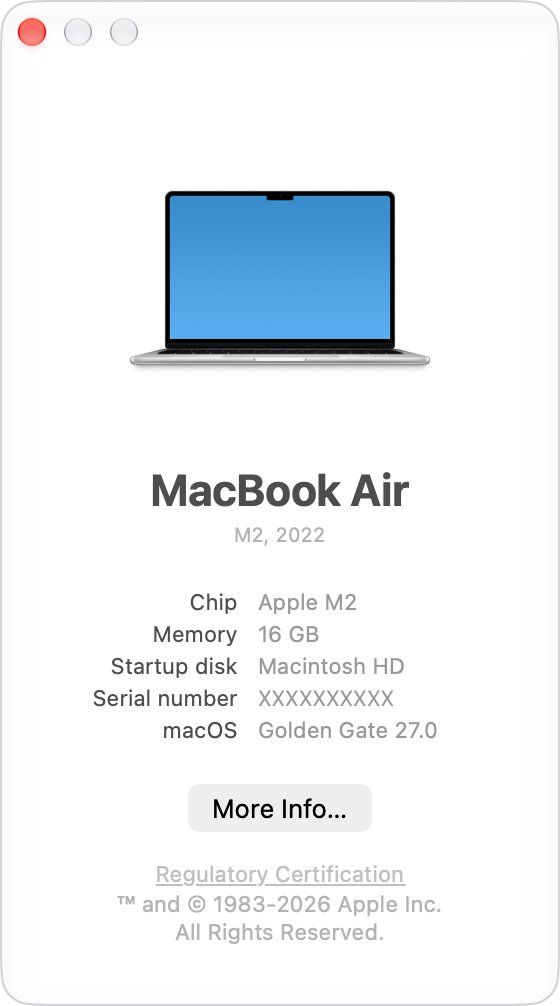
To identify your exact model, choose Apple menu > About This Mac and read the model name and year under the Mac name.
Which macOS versions still get security updates?
Apple does not publish end-of-support dates for macOS. Its security releases page shows which versions still receive fixes, and the dates below are the most recent entry for each.
With no published end-of-support dates, the only reliable macOS signal is this release list.
| macOS version | Most recent update listed by Apple | Status in October 2026 |
|---|---|---|
| macOS 27 Golden Gate | 27.0.1, September 28, 2026 | Current release |
| macOS Tahoe 26 | 26.7.1, September 28, 2026 | Receiving security updates |
| macOS Sequoia 15 | 15.8.1, September 28, 2026 | Receiving security updates |
| macOS Sonoma 14 | 14.8.9, August 6, 2026 | Latest Sonoma release came in August 2026 |
| macOS Ventura 13 | 13.7.8, August 20, 2025 | No update listed for over a year |
| macOS Monterey 12 | 12.7.6, July 29, 2024 | No longer updated |
| macOS Big Sur 11 | 11.7.11, February 2, 2026 (no published CVE entries) | No security fixes since 11.7.10 in September 2023 |
| macOS Catalina 10.15 | Security Update 2026-001 Catalina, February 2, 2026 (no published CVE entries) | No security fixes since Security Update 2022-005, July 2022 |
| macOS Mojave 10.14 | Security Update 2021-005 Mojave, July 21, 2021 | No longer updated |
| macOS High Sierra 10.13 | Security Update 2020-006 High Sierra, November 12, 2020 | No longer updated |
| macOS Sierra 10.12 and earlier | Final versions only | No longer updated |
Apple recommends running the latest macOS your Mac supports, because that version gets every fix.
How to check your macOS version and build
Use this to match your Mac against the tables above. The window looks different across versions, but it always shows the macOS name and version number.
- Click the Apple menu in the upper-left corner of the screen.
- Choose About This Mac.
- Read the macOS name and version number, such as macOS Tahoe 26.7.1.
- Click the version number to show the build number next to it.
- Compare the version with the Latest version column in the first table to see whether an update is waiting.
How to update macOS
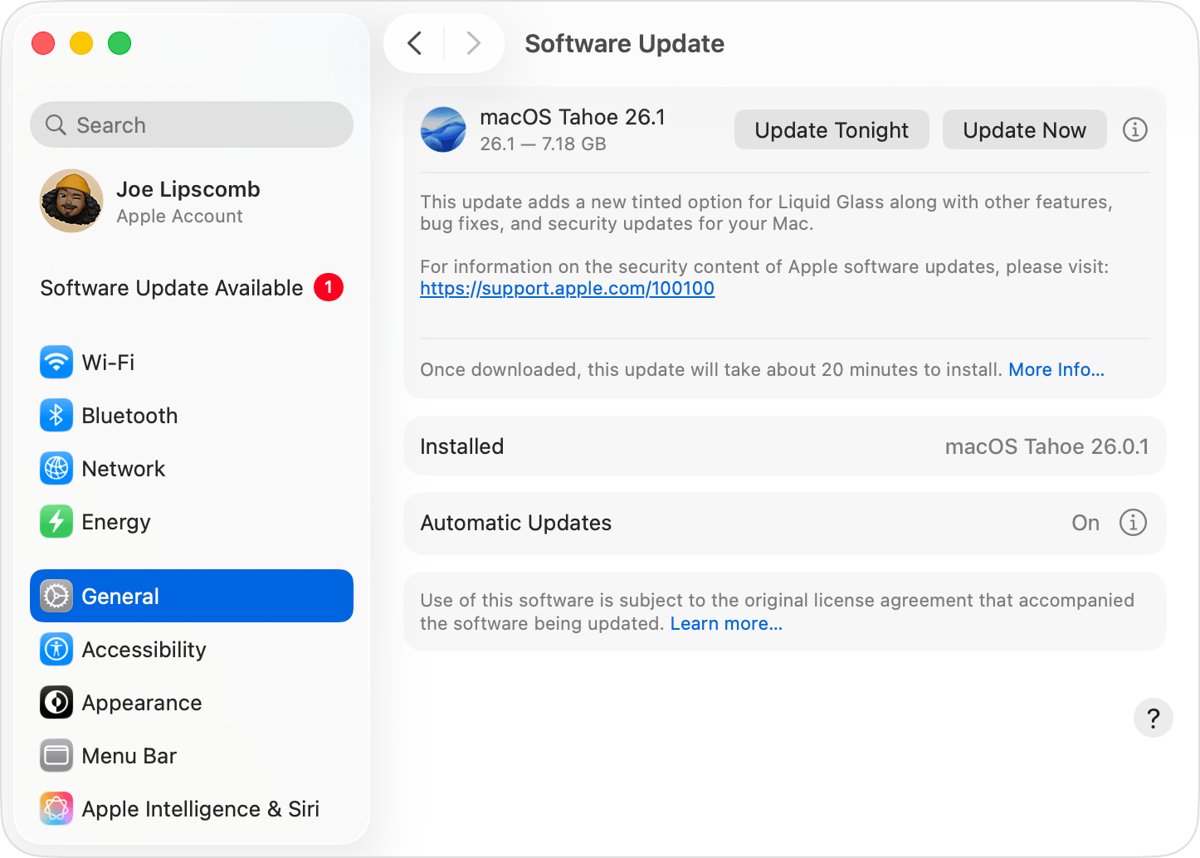
Software Update is the fastest way to install the latest macOS on your Mac, and it only offers versions your Mac can run. Back up your Mac before a major upgrade.
- Choose Apple menu > System Settings.
- Click General in the sidebar, then click Software Update on the right.
- Wait while Software Update checks for new software for your Mac model.
- Click the button to update, upgrade or restart now when an update appears.
- Enter your administrator password, which is the password you use to log in.
- Leave the Mac awake with the lid open until installation finishes. It may restart and show a progress bar or blank screen several times.
If Software Update says your Mac is up to date, click Check for Updates or press Command-R to check again. If it still offers nothing, your Mac either has the latest compatible version or is not compatible with the newer one.
Download a full macOS installer from Terminal
Terminal downloads a complete installer app, which is useful for a bootable installer or for installing on several Macs. Your Mac must already run macOS Catalina 10.15 or later.
It only fetches versions your Mac supports, no earlier than the version that came with it.
- Open Terminal from the Utilities folder inside Applications, or find it with Spotlight.
- Type
softwareupdate --list-full-installersand press Return to see the versions available for your Mac model. - Type
softwareupdate --fetch-full-installer --full-installer-version 26.6.2, replacing 26.6.2 with the version you want, and press Return. - Watch Terminal show the download percentage as the installer saves to the Applications folder.
- When Terminal says the install finished successfully, open Applications and double-click Install [Version Name], or leave it there for later.
If Terminal says update not found, that version is not available for your Mac. Older versions from High Sierra to Sequoia are also in the App Store, and you can download older macOS versions such as Lion, Mountain Lion, Yosemite, El Capitan and Sierra from Apple as disk images.
Common macOS history mistakes
These errors show up in many version lists. Each correction is based on Apple's own pages.
| Mistake | What is correct |
|---|---|
| Looking for macOS 16 | No such version exists. Apple went from macOS Sequoia 15 in 2024 to macOS Tahoe 26 in 2025. |
| Calling every version macOS | Apple's list uses Mac OS X up to Snow Leopard, OS X from Lion to El Capitan, and macOS from Sierra 10.12 in 2016. |
| Treating macOS 27 as a future release | macOS 27 Golden Gate shipped on September 14, 2026. |
| Assuming every Tahoe Mac gets macOS 27 | The four Intel models that run Tahoe are not on the macOS 27 list. |
| Saying Catalina was the last 32-bit release | Mojave 10.14 was the last to run 32-bit apps. Catalina 10.15 runs only 64-bit apps. |
| Saying macOS upgrades always cost money | Upgrades have been free since OS X Mavericks in 2013. Snow Leopard cost $29, Lion $29.99 and Mountain Lion $19.99. |
| Assuming support ends when a new version ships | Apple still issued Sonoma 14.8.9 in August 2026 and Sequoia 15.8.1 in September 2026. |
| Giving Big Sur a November 9 launch | 11.0 shipped preinstalled on some Macs on November 9, 2020. The public release is November 12, 2020. |
Sources for macOS release dates and support
Every version name, date and support status on this page comes from Apple.
- Find out which macOS your Mac is using — Every macOS name and its latest version, and how to read the build number
- Apple security releases — Release dates and latest security updates from 2024 to 2026, with archive pages back to 2003
- macOS Tahoe 26 compatible computers — Every Mac that can install Tahoe
- macOS 27 Golden Gate compatible computers — Every Mac that can install macOS 27
- How to download and install macOS — Terminal, App Store and disk image downloads
- 32-bit app compatibility with macOS — Mojave as the last version for 32-bit apps
- Apple Newsroom archive — Launch announcements with dates and features for each release
macOS version history FAQ
What was the last version of macOS?
The latest version of macOS is macOS 27 Golden Gate, version 27.0.1, released on September 28, 2026. The major release arrived on September 14, 2026. The last version for Intel Macs is macOS Tahoe 26, now at 26.7.1.
What is the latest macOS version in 2026?
macOS 27 Golden Gate is the latest macOS version in 2026. It shipped on September 14, 2026, and 27.0.1 followed on September 28. Macs that cannot run it can use macOS Tahoe 26.7.1 or macOS Sequoia 15.8.1.
Which macOS version was the last to support 32-bit apps?
macOS Mojave 10.14 was the last version to run 32-bit apps. Apple told developers in 2018, and starting with macOS Catalina 10.15, 32-bit apps no longer open. Contact the app's developer for a 64-bit version.
Can an older Mac be fully up to date without running Tahoe?
Yes, for now. A Mac on macOS Sequoia 15.8.1 received the same September 28, 2026 security release date as Tahoe and macOS 27. Sonoma got 14.8.9 in August 2026, but anything older no longer receives regular fixes.
What is the macOS version history in order?
In order: Cheetah, Puma, Jaguar, Panther, Tiger, Leopard, Snow Leopard, Lion, Mountain Lion, Mavericks, Yosemite, El Capitan, Sierra, High Sierra, Mojave, Catalina, Big Sur, Monterey, Ventura, Sonoma, Sequoia, Tahoe and Golden Gate, from 2001 to 2026.
When did OS X become macOS?
The name changed in 2016 with macOS Sierra, version 10.12. The previous release, OS X El Capitan 10.11 from 2015, was the last to use the OS X name. Before that, Apple called the system Mac OS X.
How do I get a previous version of macOS?
Use Terminal with softwareupdate –fetch-full-installer on Catalina or later, or use Apple's App Store links for High Sierra to Sequoia. Lion, Mountain Lion, Yosemite, El Capitan and Sierra are disk image downloads from Apple.
What is the latest version of macOS Sequoia 15?
The latest version of macOS Sequoia is 15.8.1, released on September 28, 2026. Sequoia first shipped on September 16, 2024, and it still receives security updates alongside macOS Tahoe 26 and macOS 27 Golden Gate.
Which was the first free macOS upgrade?
OS X Mavericks, released on October 22, 2013, was the first free upgrade. Snow Leopard cost $29, Lion $29.99 and Mountain Lion $19.99, and every major release since Mavericks has been free from Apple.
The bottom line on macOS versions
Run macOS 27 Golden Gate on an Apple silicon Mac, and macOS Tahoe 26 on one of the four Intel Macs that support it. Those are the newest versions each Mac can install, and Apple recommends the latest compatible macOS because it receives every security fix.