To log in to iTunes, open iTunes on your PC, choose Account > Sign In, and enter the email address or phone number and password of your Apple Account, the new name for Apple ID.
This guide covers the iTunes login on Windows, the Apple Music app and the Mac Music app, signing in online, authorizing a computer, using your login to restore an iPhone, and fixes when sign-in fails.
How to log in to iTunes on a PC
- Open the iTunes app on your Windows PC.
- Choose Account > Sign In from the menu bar.
- Enter your Apple Account email address or phone number and your password, then click Next.
- If asked, type the six-digit verification code shown on your trusted device or sent to your trusted phone number.
- Open the Account menu again and confirm it now offers Sign Out.
No Apple Account yet? Choose Account > Sign In, click Create New Apple ID and follow the onscreen steps. You already have one if you use iCloud, Apple Music or have bought from Apple's website.
Is iTunes login the same as Apple ID?
Yes. iTunes has no separate username. Apple ID is now called Apple Account, and you still sign in with the same email address or phone number and password.
| Where you sign in | Login it uses | What changes when you edit the account |
|---|---|---|
| iTunes Store in iTunes for Windows | Apple Account | Password, payment and billing changes apply to every Apple app |
| App Store on iPhone, iPad and Mac | Apple Account | Same purchases and payment method as iTunes |
| Apple Music, Apple TV and Podcasts | Apple Account | Music, Podcasts and the Apple TV app must use the same account |
| iCloud and iCloud.com | Apple Account | Same password and two-factor codes |
The same details let you sign in to the App Store on iPhone, iPad and Mac. You cannot use two Apple Accounts at once in the App Store and other media services, so sign out before you switch.
iTunes login on Windows, Mac and online: where to sign in
Apple has split iTunes into separate apps, so where you sign in depends on your device and what you want to do.
| Your situation | Sign in here | Why |
|---|---|---|
| Windows PC using iTunes for music, podcasts or audiobooks | iTunes > Account > Sign In | iTunes still runs the iTunes Store on PC if you have not installed Apple Music |
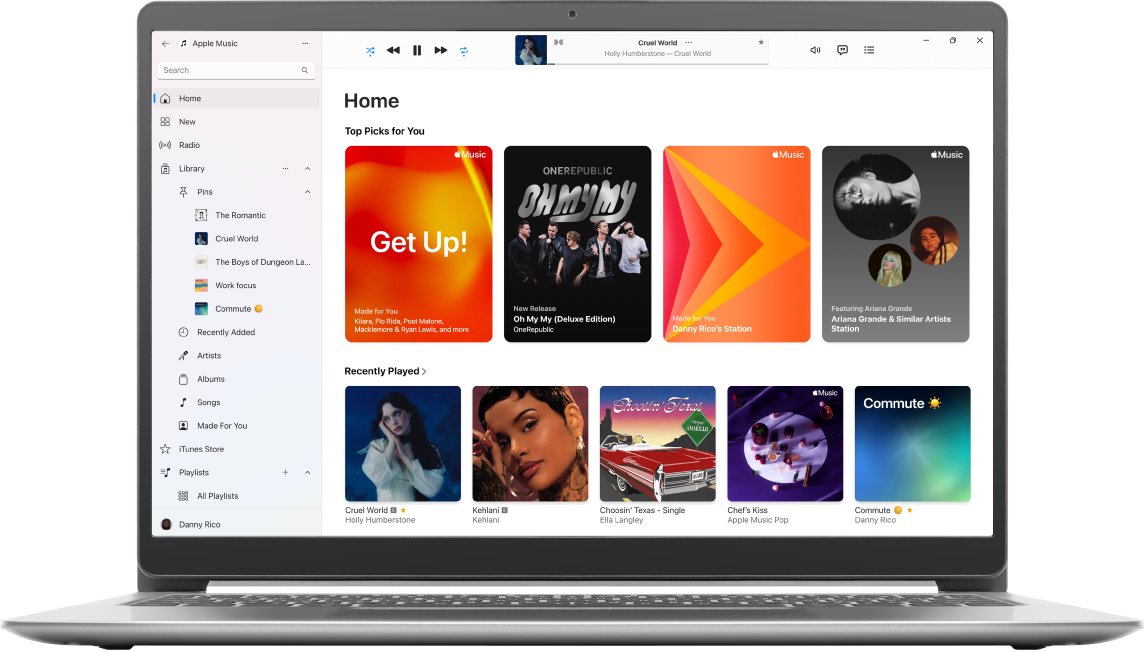
| Windows PC with the Apple Music app installed | Apple Music > Sign In at the bottom of the sidebar | Once Apple Music is installed, music moves out of iTunes |
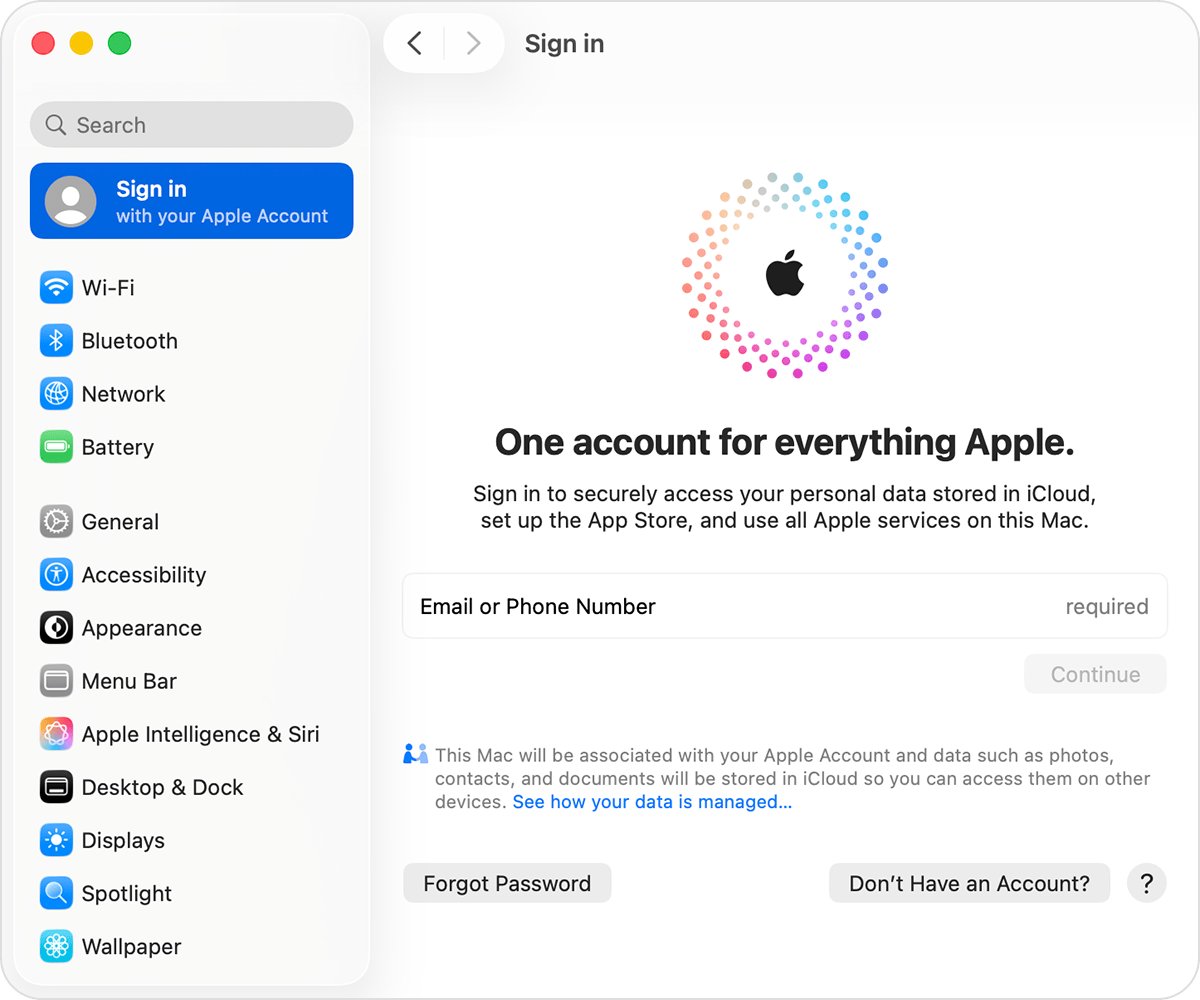
| Mac | Music app > Sign In at the bottom-left | On a Mac, the iTunes Store is part of the Music app |
| Any browser | The Apple Account website or iCloud.com | Manage the account and payment details online |
| Restoring an iPhone or iPad on PC | iTunes or the Apple Devices app | The device asks for the Apple Account password for Activation Lock |
iTunes Store login in the Apple Music app on Windows
If you installed the Apple Music app on Windows, it handles your music and iTunes Store purchases, while iTunes keeps audiobooks and podcasts.
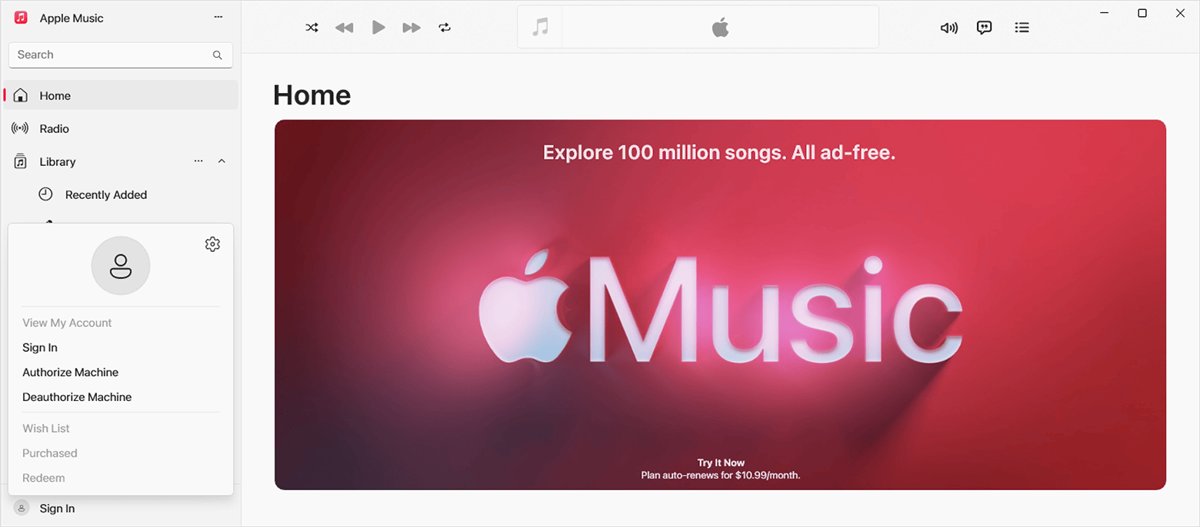
- Open the Apple Music app on your Windows PC.
- Select Sign In at the bottom of the sidebar, then select Sign In again.
- Enter your Apple Account email or phone number and password.
- Enter the verification code if asked.
- Check that your name now appears at the bottom of the sidebar, where Sign Out lives.
If you already signed in to the Apple TV app on the same PC, Apple Music signs you in automatically.
iTunes login on Mac in the Music app
- Open the Music app on your Mac.
- Click Sign In at the bottom-left corner of the Music window.
- Enter your Apple Account details and follow the onscreen prompts.
- Select Forgot password? if you cannot remember the password.
- Open the Account menu and confirm Sign Out is listed.
iTunes account login: view and change account details
- In iTunes, choose Account > View My Account and sign in.
- Click Edit at account.apple.com to change your password or Apple Account details.
- Click Manage Payments to change your payment method.
- Click Edit next to the billing address to update it.
- Click See All under Purchase History to check what you bought.
- Click Done when you finish.
Changes take effect immediately and apply to every app that uses your Apple Account.
Authorize your computer after the iTunes login
Signing in lets you buy items; authorizing the computer lets it play and download your iTunes Store purchases. You can authorize up to five computers, Mac or PC, at a time.
- Open iTunes on your PC.
- Choose Account > Authorizations > Authorize This Computer.
- Enter your Apple Account password if asked.
- To free a slot before selling a PC, choose Account > Authorizations > Deauthorize This Computer.
- If you have five computers authorized and lost one, choose Account > View My Account and click Deauthorize All, which you can do once a year.
iTunes login to restore an iPhone or iPad
Restoring erases the device and reinstalls its software. iTunes backs it up first, so you can put your data back afterwards.
- Connect the iPhone or iPad to your PC with a USB or USB-C cable.
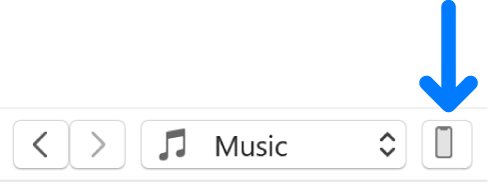
- Open iTunes and click the Device button near the top left.
- Click Summary.
- Click Restore and follow the onscreen instructions.
- Keep the Apple Account email and password that was on the device to hand, because Activation Lock stays on after a restore if Find My was turned on.
On PCs with the Apple Devices app installed, use that app to back up and restore the device instead. If you are giving the device away, remove it from Find Devices on iCloud.com so the new owner can activate it.
Sign out of iTunes or switch accounts
- In iTunes for Windows, choose Account > Sign Out.
- In the Apple Music app on Windows, select your name at the bottom of the sidebar, then select Sign Out.
- In the Music app on Mac, choose Account > Sign Out.
- Sign back in with the other Apple Account using the same menu.
Check the iTunes login worked
- Open the Account menu in iTunes and confirm Sign Out is listed.
- Choose Account > View My Account and check the Account Information window opens with your details.
- Open a song or film you bought and confirm it plays, which shows the computer is authorized.
- Choose Account > Authorizations and confirm Deauthorize This Computer is offered, which shows the PC is authorized.
iTunes login not working on PC
Forgot the iTunes password
The iTunes password is your Apple Account password.
- Select Forgot password? on the sign-in screen.
- Follow the prompts, which send you to a trusted device or ask for your trusted phone number.
- If you have a trusted iPhone, iPad or Mac already signed in, change the Apple Account password there instead.
- Sign in to iTunes with the new password.
iTunes says it cannot connect to the iTunes Store
A network problem, a wrong date and time, or the Windows firewall blocking iTunes.
- Choose another item such as Podcasts from the pop-up menu, then click Store again.
- Open a website in your browser to confirm the internet connection works.
- Set the correct date, time and time zone in Windows.
- Open Windows Defender Firewall, click Allow an app or feature through Windows Defender Firewall, click Change settings, tick iTunes for Private and Public, then click OK.
iTunes sign-in keeps spinning or verification fails
An Apple outage, a slow network, or third-party security software blocking Apple's servers.
- Check Apple's system status page for an outage in your country.
- Connect to another network or try again later.
- Update iTunes from Help > Check for Updates, or from Library in the Microsoft Store if you installed it there.
- Ask your security software provider how to allow the ports and services Apple products use.
Your Apple Account is locked or disabled
Too many wrong attempts or a security hold on the account.
- Stop retrying the password in iTunes.
- Use Forgot password? to reset it with your trusted device or phone number.
- If you have no trusted device, request account recovery at
iforgot.apple.comand expect a wait of several days or more.
Signed in, but purchases will not play
The computer is not authorized for that Apple Account.
- Choose Account > Authorizations > Authorize This Computer.
- Check you are signed in with the Apple Account that made the purchase.
- If five computers are already authorized, deauthorize one or use Deauthorize All.
iTunes login FAQ
How do I log in to iTunes?
Open iTunes on your PC, choose Account then Sign In, and enter your Apple Account email or phone number and password. On a Mac, open the Music app and click Sign In at the bottom-left of the window instead.
Is iTunes login the same as Apple ID?
Yes. Your iTunes login is your Apple ID, now called Apple Account. The same email address or phone number and password sign you in to iTunes, the App Store, Apple Music and iCloud.
Can I log into iTunes online?
There is no web version of the iTunes Store. You can sign in online on the Apple Account website to manage your account, password and payment details, or on iCloud.com for iCloud data, but buying and playing iTunes content needs the app.
How do I log in to iTunes on my computer?
On a Windows PC, open iTunes and choose Account then Sign In, or select Sign In at the bottom of the Apple Music app sidebar. On a Mac, use the Music app. Then authorize the computer to play your purchases.
Where is iTunes login on Mac?
On a Mac, the iTunes Store login is in the Music app. Open Music and click Sign In at the bottom-left corner of the window. Music, Podcasts and the Apple TV app must use the same Apple Account.
Do I need an iTunes login to restore my iPhone?
The Restore button in iTunes works without an iTunes Store sign-in, but if Find My was on, Activation Lock stays on after the restore. Keep that Apple Account password, or remove the iPhone from Find Devices on iCloud.com before handing it on.
How do I see my iTunes account details?
In iTunes, choose Account then View My Account and sign in. From there you can edit your Apple Account, manage payments, change your billing address or country, check your Apple purchase history and deauthorize all computers.
Why does iTunes keep asking me to sign in?
iTunes asks again after you sign out, change your password or use a new computer. It also asks for a verification code on a new device. If prompts repeat, update iTunes, check the date and time, and allow iTunes through the firewall.
How many computers can use one iTunes login?
You can authorize up to five computers, Mac or PC, with one Apple Account to play iTunes Store purchases. iPhone, iPad and Apple TV do not count. Deauthorize a computer before you sell it to free a slot.