Copilot in Windows 11 is the Microsoft Copilot app: press the Copilot key or Windows key + C to open it, and change its behaviour from Account > Settings inside the app.
This guide covers installing and signing in, the app settings, remapping the Copilot key, turning Copilot off or removing it, Copilot in Word, Excel, Outlook and Edge, the plans that include it, privacy, and fixes when it stops working.
How to open Copilot in Windows 11
On new Windows 11 PCs the Copilot app is installed by default and pinned to the taskbar.
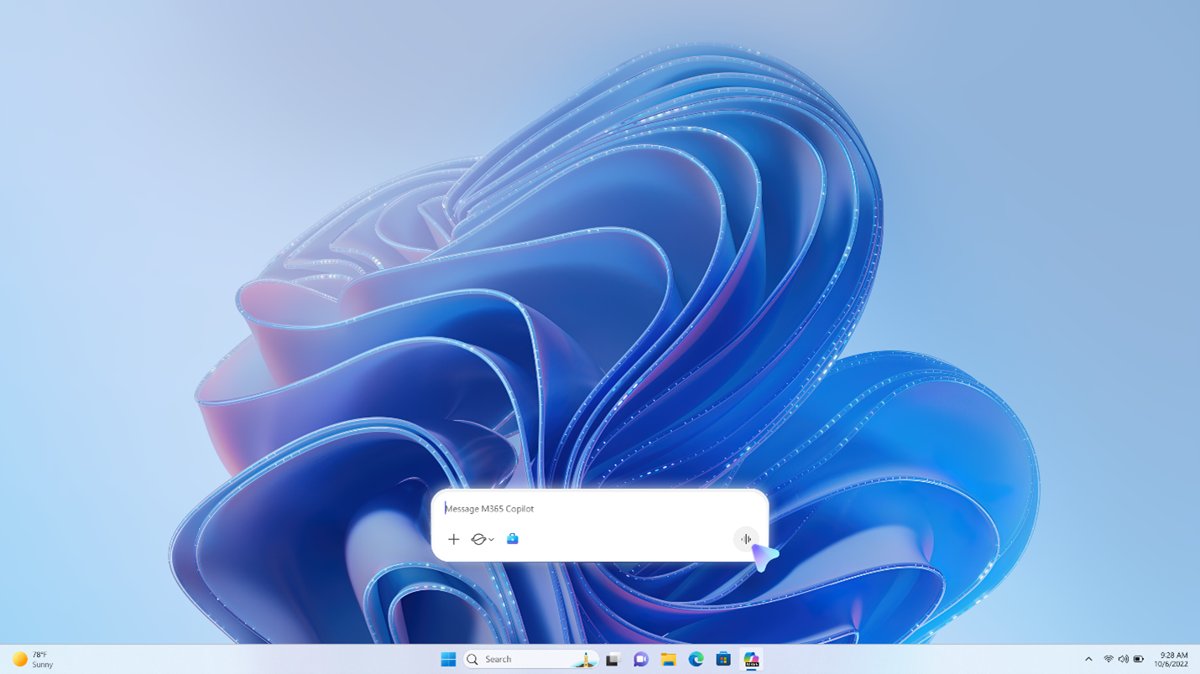
- Press the Copilot key on your keyboard, or press Windows key + C if your keyboard has no Copilot key.
- Type your question in the small prompt box that opens.
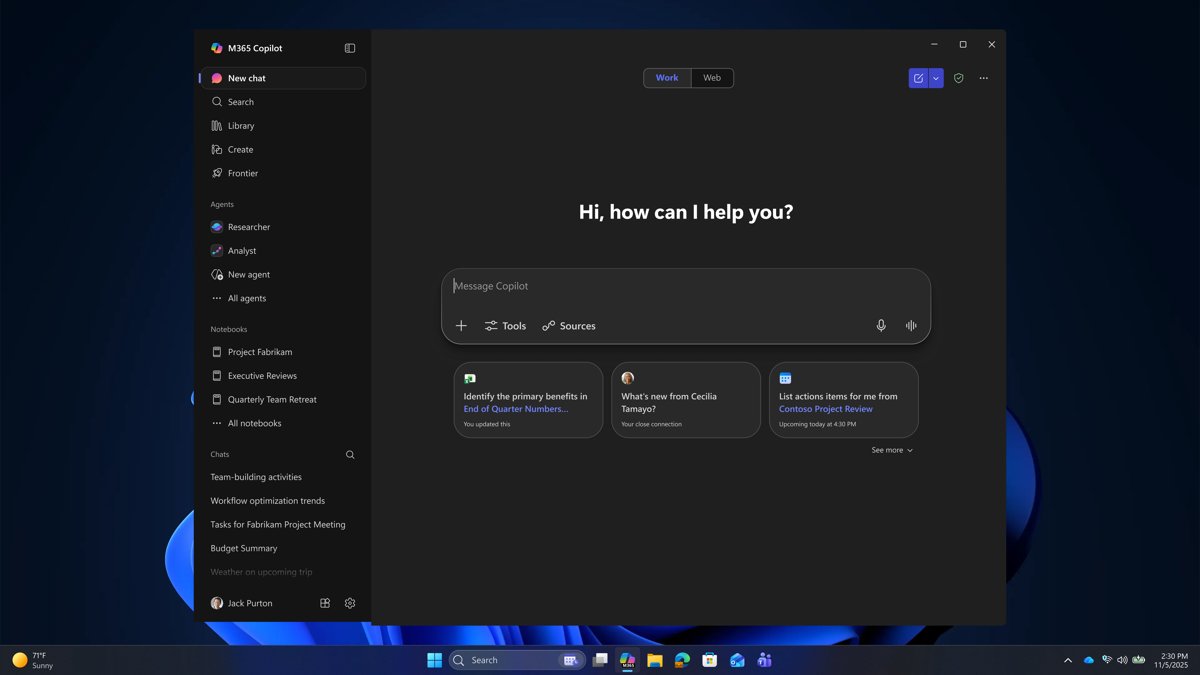
- Expand the prompt box into the full Microsoft Copilot app when you need more room.
- Long press the Copilot key (or Windows key + C) to start a voice chat instead.
- Select Copilot on the taskbar or in the Start menu if you prefer the mouse.
Where is Copilot in Windows 11? Every place it lives
Copilot is not one switch. Each surface below opens and turns off in its own place, so match the row to the Copilot you want to control.
| Surface | How to open it | How to turn it off |
|---|---|---|
| Microsoft Copilot app (Windows 11 and Windows 10) | Copilot key, Windows key + C, taskbar or Start | Uninstall it in Settings > Apps > Installed apps; admins block it with an AppLocker rule |
| Copilot key on the keyboard | Short press for the prompt box, long press for voice | Remap it in Settings > Personalization > Text input |
| "Hey, Copilot" wake word | Say "Hey, Copilot" while the PC is unlocked | It is opt-in, so leave it off in the app settings |
| Click to Do (Copilot+ PCs) | Opens on top of your screen or a Recall snapshot | Settings > Privacy & security > Click to Do |
| Recall (Copilot+ PCs) | Opens after you opt in and confirm with Windows Hello | Stop saving snapshots, or remove the Recall feature with PowerShell |
| Copilot in Word, Excel, PowerPoint, Outlook | Copilot button in the lower-right corner of the document | Depends on your plan; business admins control the licence |
| Copilot in Microsoft Edge | Copilot icon in the upper-right corner of Edge | More (…) > Copilot and AI for its context settings |
| Copilot on the web and in Bing | copilot.cloud.microsoft, or the Copilot search on Bing | Do not sign in or visit it; nothing runs on the PC |
What is Copilot in Windows 11?
Microsoft Copilot is an AI assistant built on large language models. In Windows it answers questions, writes and summarizes text, creates images, searches your files and points you to the right Windows setting.
The free version needs no sign-in, but a personal Microsoft account adds chat history, image creation, longer conversations and voice. If you are weighing it against other assistants, a Grok and Copilot comparison shows where each one fits.
| Copilot app feature | What it does | Where to control it |
|---|---|---|
| Chat and voice | Typed or spoken conversations, grounded in web search | Copilot key, Windows key + C, "Hey, Copilot" |
| Copilot Vision | Looks at a browser window or app you share and helps step by step | Started from the app when you choose to share |
| File search | Finds and reads .docx, .xlsx, .pptx, .txt, .pdf and .json files, including synced OneDrive files | Account > Settings > File Search and File Read |
| Screenshots | Lets you ask about part of your screen | Select +, then Take a Screenshot in the composer |
| Windows Settings help | Guides you to the right setting, such as making the screen easier to read | Ask in the chat |
Copilot+ PC requirements for Recall in Windows 11
A Copilot+ PC has a neural processing unit (NPU) of at least 40 TOPS, which runs some AI features locally. Snapdragon and other ARM64 Copilot+ PCs are part of this group.
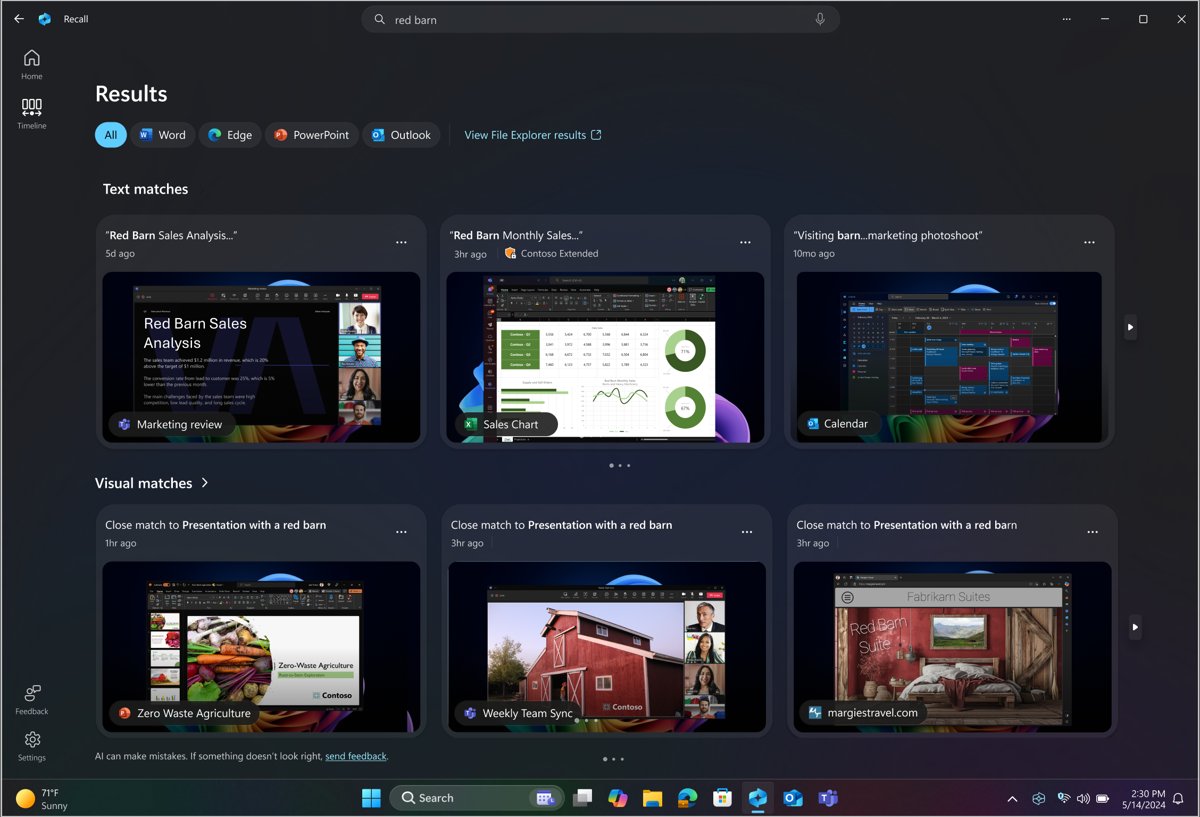
Recall is opt-in: snapshots stay on the device, Microsoft cannot view them, and you confirm your identity with Windows Hello before it opens. Before turning it on, check whether your build includes Recall on Windows 11 26H2 and what it needs.
| Feature | Requirement | Turn it off |
|---|---|---|
| Recall | Copilot+ PC (Secured-core), 40 TOPS NPU, BitLocker or Device Encryption, Windows Hello with a biometric sign-in | Stop saving snapshots, or run Disable-WindowsOptionalFeature -Online -FeatureName "Recall" -Remove |
| Click to Do | Its text actions (Summarize, Rewrite, bulleted list) use the on-device Phi Silica model on Copilot+ PCs | Settings > Privacy & security > Click to Do |
| Click to Do actions | An action for an app, such as Microsoft Copilot, appears only if that app is installed | Settings > Apps > Actions |
| Snapshot storage | Saving pauses when less than 25 GB of space is free | Admins set a storage cap of 10 to 150 GB |
How to install Copilot in Windows 11 and sign in
If the app is missing, install the free Microsoft Copilot app for Windows from the Microsoft Store.
- Open Microsoft Store from the taskbar or Start.
- Search for Microsoft Copilot and install the app.
- Open Copilot from Start once the install finishes.
- Select Sign in and use your personal Microsoft account.
- Use a work or school account at m365.cloud.microsoft/chat instead; the consumer app redirects Microsoft Entra accounts there.
Open Copilot app settings in Windows 11
- Open the Microsoft Copilot app.
- Select your Account picture or name.
- Select Settings.
- Open Copilot Keyboard Shortcuts to choose whether the shortcut opens the full app or the quick view.
- Open File Search and File Read to limit which files Copilot can find and read.
Change Copilot settings in Windows 11
Some Copilot settings live in the app and some in Windows Settings. This table lists the documented ones.
| Setting | Where it is | What it changes |
|---|---|---|
| Copilot Keyboard Shortcuts | Copilot app: Account > Settings | Full app or quick view when you press the key |
| File Search and File Read | Copilot app: Account > Settings | Which local and OneDrive files Copilot can use |
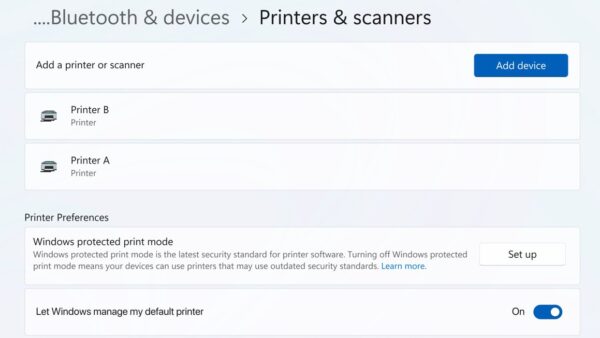
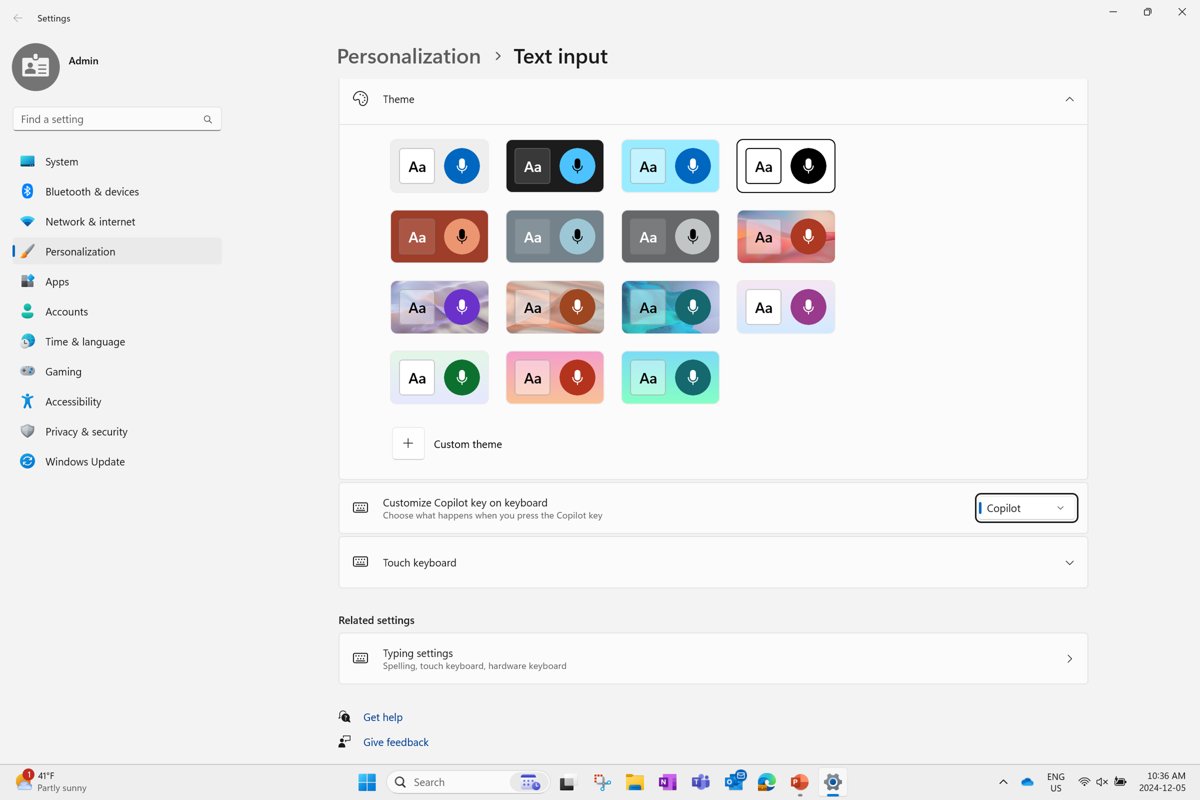
| Customize Copilot key on keyboard | Settings > Personalization > Text input | Which app the Copilot key launches |
| Pen shortcut button | Settings > Bluetooth & devices > Pen & Windows Ink | Set Choose what your shortcut button does to Same as Copilot key |
| Click to Do | Settings > Privacy & security > Click to Do | Turns Click to Do off on Copilot+ PCs |
Copilot key and voice in Microsoft Copilot
Updates to the Copilot hardware key arrived with the May 2025 optional preview release: the key now opens a lightweight prompt box instead of the old Copilot in Windows sidebar.
Voice chat transcripts are stored like text conversations, and no user or Copilot audio is kept.
| Action | Result |
|---|---|
| Short press the Copilot key or Windows key + C | Lightweight prompt box that you can expand into the full app |
| Short press, then Start a new voice chat icon | Voice chat from the prompt box |
| Long press the Copilot key or Windows key + C | Voice controller window that stays on screen |
| Say "Hey, Copilot" | Hands-free voice chat when the opt-in wake word is on and the PC is unlocked |
End user settings for the Copilot key
Remapping the key is the quickest way to stop it opening Copilot. The Windows 11 26H2 options for remapping the Copilot key include Right Ctrl and the Context Menu key.
- Open Settings and select Personalization.
- Select Text input.
- Open the Customize Copilot key on keyboard dropdown.
- Pick Search, or pick Custom and choose an app from the app picker.
- Reinstall Copilot from the Microsoft Store if it is missing from the picker and you want the key mapped back to it.
The picker lists only MSIX packaged and signed apps. Copilot key for developers: an app appears there once its manifest registers com.microsoft.windows.copilotkeyprovider as an app extension.
Policies to manage the Copilot key
Admins can set the key's target app for every user, or send users straight to the setting with the ms-settings:personalization-textinput-copilot-hardwarekey link.
| Tool | Setting |
|---|---|
| Group Policy | User Configuration > Administrative Templates > Windows Components > Windows Copilot > Set Copilot Hardware Key |
| CSP (Intune or MDM) | ./User/Vendor/MSFT/Policy/Config/WindowsAI/SetCopilotHardwareKey |
| Settings link for scripts | ms-settings:personalization-textinput-copilot-hardwarekey |
Why users want to disable Copilot
Disabling Copilot on Windows means different things depending on what bothers you. Pick the row that matches and use the method it names.
| Your situation | Use this | What it does |
|---|---|---|
| The Copilot key keeps opening Copilot | Remap the Copilot key | The key opens Search or another app; the app stays installed |
| You never want the app on your own PC | Method 1: uninstall from Settings | Removes the Microsoft Copilot app |
| You manage company PCs | Method 2: AppLocker policy | Blocks install and launch of the app |
| You want a scripted removal | Method 3: PowerShell | Removes the app package |
| Copilot in the browser reads your tabs | Method 4: Edge settings | Stops Edge sharing page context with Copilot |
| Click to Do or Recall on a Copilot+ PC | Settings > Privacy & security | Turns those features off separately |
Method 1: Disable Copilot from Windows Settings (easiest)
- Open Settings and select Apps.
- Select Installed apps.
- Find Microsoft Copilot in the list.
- Select the three dots (…) next to it.
- Select Uninstall and confirm.
Method 2: Disable Copilot using Group Policy
Microsoft now recommends an AppLocker policy instead of the legacy Turn Off Windows Copilot policy and its MDM equivalent, TurnOffWindowsCopilot, which is subject to deprecation.
This is also how you remove or prevent installation of the Microsoft Copilot app across a fleet: the rule stops the app installing and blocks it from launching if it is already there.
- Open your AppLocker policy for editing in Group Policy or your management tool.
- Add a deny rule for packaged apps.
- Set the publisher to CN=MICROSOFT CORPORATION, O=MICROSOFT CORPORATION, L=REDMOND, S=WASHINGTON, C=US.
- Set the package name to MICROSOFT.COPILOT and the version to \* (and above).
- Apply the policy before installing new Windows updates so the app is not added.
Method 3: Remove Copilot via PowerShell (advanced users)
Microsoft documents no registry value for Copilot, so the advanced route is PowerShell. Open Windows PowerShell from Start and run the command for the signed-in user.
Remove-AppxPackage -Package (Get-AppxPackage -Name "Microsoft.Copilot").PackageFullNameGet-AppxPackage finds the full package name of the Copilot app, and Remove-AppxPackage uninstalls that package.
You should see: The command returns no error and Copilot no longer appears in Start or Installed apps.
Method 4: Disable Copilot in Microsoft Edge
Copilot in Edge summarizes pages, videos and PDFs and can use your open tabs and history as context. Work accounts get Copilot Chat in Edge under enterprise data protection.
You can also hide the Copilot button in Edge so it stops sitting on the toolbar.
- Open Microsoft Edge and select More (…) on the toolbar.
- Select Copilot and AI.
- Turn off Allow Copilot to read context clues on the web.
- Turn off Copilot new tab page if you turned it on earlier.
- Close tabs and clear browsing history to remove context already shared.
Can Copilot be completely removed?
You can remove the Copilot app, but Copilot also lives in Edge, Microsoft 365 apps and the web, and each is controlled separately.
| Part | Can it be removed? | How |
|---|---|---|
| Microsoft Copilot app | Yes | Settings, PowerShell, or AppLocker for managed PCs |
| Recall | Yes | PowerShell -Remove; managed PCs have it removed by default |
| Click to Do | Turned off, not removed | Settings or the Disable Click to Do policy |
| Copilot in Microsoft 365 apps | Tied to your plan or licence | Business admins assign or withhold the licence |
| Copilot in Edge | Context sharing can be turned off | More > Copilot and AI |
Will Copilot re-enable after updates?
Microsoft states that the Copilot app is enabled automatically after the relevant Windows updates unless a policy already prevents its installation.
On a managed PC, set the AppLocker rule before updating; on a home PC, check Installed apps after major updates and uninstall Copilot again if it returns. The AppLocker rule both blocks installation and blocks launch, so an update cannot bring the app back into use.
Is it safe to disable Copilot?
Removing the app affects only Copilot features. The documented side effect is in Click to Do, which drops its Copilot actions when the app is gone.
| What changes | Effect |
|---|---|
| Copilot key | Point it at Search or another app so it still does something |
| Click to Do actions | Actions that use Microsoft Copilot disappear from the menu |
| Turning off optional connected experiences (work PCs) | Disables web grounding for Copilot voice and text |
| Reinstalling | Install Microsoft Copilot from the Microsoft Store again |
Copilot in Word, Excel and Outlook with Microsoft 365
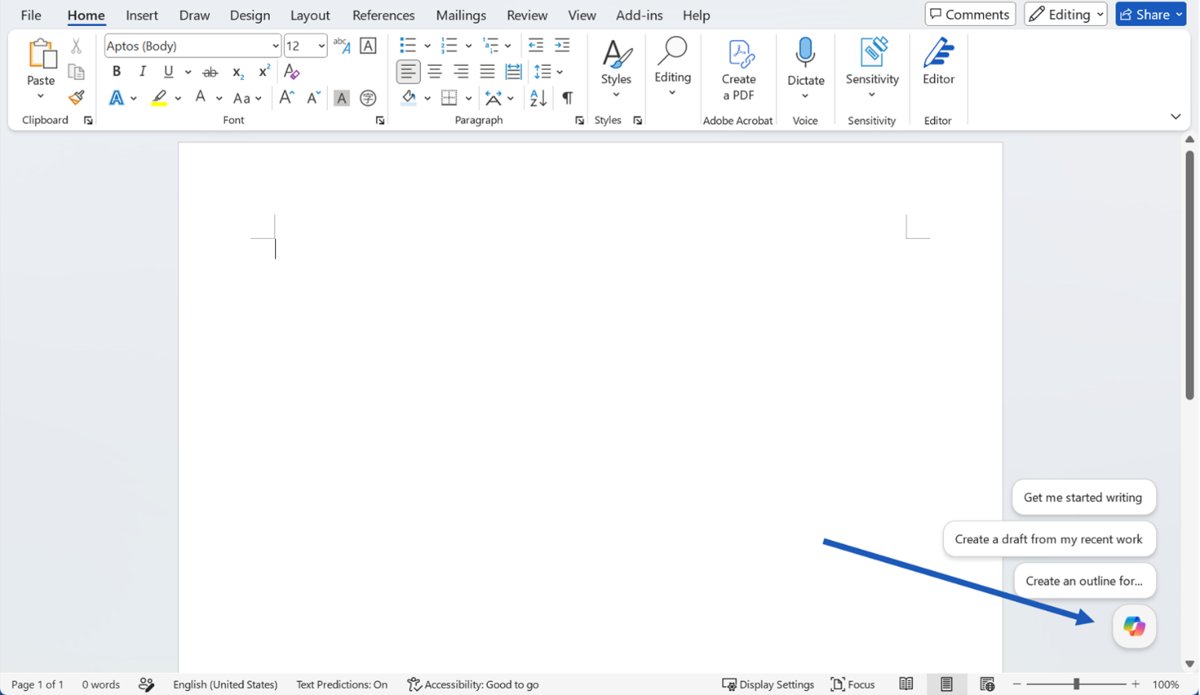
In Word, Excel and PowerPoint, Copilot opens from the Copilot button in the lower-right corner of the document. In Word it can draft and edit text, rewrite a passage or summarize a long file.
Excel needs one setting first: enable Copilot in Excel, and keep the file on OneDrive with AutoSave on. For writing outside Office, Copilot for writing on the web works in Edge too.
| App | Open Copilot | What it does |
|---|---|---|
| Word | Copilot button, then the chat pane | Drafts, rewrites selected text, summarizes documents |
| Excel | Copilot button on a workbook saved to OneDrive | Analyzes data such as a budget spreadsheet |
| Outlook | Copilot in the message | Summarizes an email discussion and helps with tone |
| PowerPoint | Copilot button | Builds a presentation from a prompt |
Which Microsoft 365 plans include Copilot?
Copilot in the desktop apps comes with Microsoft 365 Personal, Family and Premium, but only for the subscription owner, and AI usage limits apply. If you already pay for a Copilot Pro subscription, compare it with these plans before you renew.
Business plans include Copilot Chat; Copilot inside the apps needs the paid Microsoft 365 Copilot add-on. That is also the answer for Copilot in Business Standard.
| Plan | Copilot in Word, Excel, Outlook | US price on microsoft.com |
|---|---|---|
| Microsoft Copilot (free) | No; chat on the web, app and Edge | Free |
| Microsoft 365 Basic | No AI features | Not listed on the comparison page |
| Microsoft 365 Personal | Yes, higher usage than free | $9.99/month or $99.99/year |
| Microsoft 365 Family | Yes, for the subscription owner only | $12.99/month or $129.99/year |
| Microsoft 365 Premium | Yes, extensive usage plus Researcher and Analyst agents | $19.99/month or $199.99/year |
| Microsoft 365 business plans | Copilot Chat included; apps need the Microsoft 365 Copilot add-on | Add-on price not covered here |
Microsoft Copilot with enterprise data protection (EDP)
When you sign in with a Microsoft Entra work or school account, Copilot Chat prompts and responses fall under enterprise data protection, the same Data Protection Addendum and Product Terms that cover Microsoft 365.
Copilot only shows work data you already have permission to open. Organisations that build their own agents use Copilot Studio access with a work account.
| Account | Web chat | Work data (Microsoft Graph) |
|---|---|---|
| Entra account, no Copilot licence | Copilot Chat at no extra cost | No |
| Entra account with Microsoft 365 Copilot | Yes, via the web toggle | Yes, via the work toggle |
| Personal Microsoft account | Yes | Not applicable |
Copilot privacy settings and chat history in Windows 11
Signing in with a personal account keeps your conversations, and you can delete your Copilot chat history or export it from your account.
| Privacy control | Where | What it limits |
|---|---|---|
| File access | Copilot app: Account > Settings > File Search and File Read | Which files Copilot can find and read |
| Edge context | Edge: More > Copilot and AI | Use of the current page, tabs and history |
| Recall snapshots | Recall settings on a Copilot+ PC | Saving and keeping screen snapshots |
| Click to Do | Settings > Privacy & security > Click to Do | On-screen analysis |
| Voice | Applies automatically | Transcripts are kept like text chats; audio is not stored |
Copilot not working in Windows 11: symptoms, causes and fixes
| Symptom | Likely cause | Fix |
|---|---|---|
| Can't find Copilot on Windows 11 | The app was removed or never installed | Reinstall Microsoft Copilot from the Microsoft Store |
| Copilot not available on my Windows 11 work PC | An AppLocker rule or admin pinning choice | Ask your admin, or use m365.cloud.microsoft/chat |
| Copilot key opens Search or another app | The key was remapped | Pick Copilot under Customize Copilot key on keyboard |
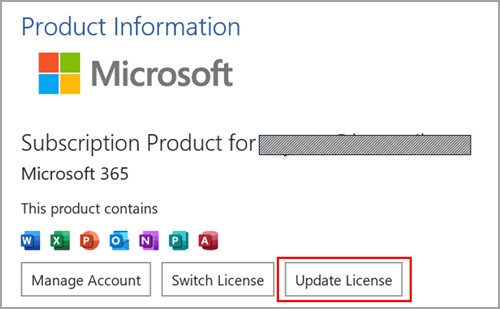
| Copilot button missing in Word or Excel | Licence, build, update channel or privacy settings | File > Account > Update License, then check privacy settings |
| Copilot buttons missing in classic Outlook | A known Outlook build issue | Update Outlook; the classic Outlook Copilot fix lists the checks |
| Copilot cannot connect | Firewall rules or other network blocks | Run the Copilot connectivity troubleshooter in Get Help |
Fix Copilot not working in Windows 11
Why doesn't my Windows 11 have Copilot?
The app is not installed, or a policy blocks it.
- Open Microsoft Store and search for Microsoft Copilot.
- Select Install.
- If the install is blocked on a work PC, contact your IT admin.
Copilot button missing in Microsoft 365 apps
Licence not refreshed, old build, Semi-Annual Enterprise Channel or privacy settings.
- Install the latest Office updates.
- Go to File > Account and select Update License, then restart the apps.
- Check Product Information; Semi-Annual Enterprise Channel has no Copilot, so ask for Current or Monthly Enterprise Channel.
- Under Account Privacy, select Manage Settings and turn on Experiences that analyze your content and All connected experiences.
Copilot licence or connection errors
The licence is not detected, or the network blocks Copilot.
- Open the Get Help app.
- Search for Copilot License Troubleshooter and follow its steps.
- Search for Copilot connectivity troubleshooter if Copilot cannot connect.
Copilot in Windows 11 FAQ
Is Copilot in Windows 11 free?
Yes. Microsoft Copilot is free in the Windows app, on the web at copilot.cloud.microsoft and in Edge. Copilot inside Word, Excel and Outlook needs Microsoft 365 Personal, Family or Premium, or a business Copilot licence.
Where is Copilot located in Windows 11?
Copilot is an app pinned to the taskbar on new Windows 11 PCs and listed in the Start menu. The Copilot key or Windows key + C also opens it from anywhere on the desktop.
How do I enable Copilot in Windows 11?
Install Microsoft Copilot from the Microsoft Store if it is missing, open it and sign in with a Microsoft account. On work PCs, an admin may need to allow it first.
Can I turn off Copilot in Windows 11?
Yes. Uninstall the Microsoft Copilot app from Settings > Apps > Installed apps, and remap the Copilot key in Settings > Personalization > Text input. Admins can block the app with an AppLocker rule.
How do I update Copilot in Windows 11?
Copilot is installed from the Microsoft Store, so reinstalling it from the Store gives you the current version. If the Copilot key app picker does not list Copilot, Microsoft also advises reinstalling it from the Store.
What happened to Copilot in Windows 11's sidebar?
The Copilot in Windows sidebar was replaced. The Copilot key now opens a lightweight prompt box that expands into the full Microsoft Copilot app, a change that arrived with the May 2025 optional preview release.
Is Copilot on Windows 11 safe and secure?
Work and school accounts get enterprise data protection for Copilot Chat. Recall snapshots on Copilot+ PCs stay encrypted on the device and need Windows Hello. You can limit file access in the Copilot app settings.
Does Windows 10 have Copilot?
Yes. The Microsoft Copilot app also runs on Windows 10 and is installed from the Microsoft Store. Recall and Click to Do need a Copilot+ PC with Windows 11.
The bottom line on Copilot in Windows 11
Use the Copilot key or Windows key + C for quick questions, set file access in Account > Settings, and remap the key or uninstall the app if you do not want Copilot on your PC. Each Copilot surface has its own switch, so changing the one you actually use is faster and safer than hunting for a single off button that does not exist.