To re-pair Bluetooth earbuds for stereo sound on Windows, remove them under Settings > Bluetooth & devices, put them back in pairing mode, add them again, and pick them as the output device with Mono audio off.
If only one earbud plays, or music sounds flat and mono, a clean re-pair fixes most cases: Windows forgets the old keys, the buds re-link to each other, and both channels come back as one stereo device. The steps below work on Windows 11 and Windows 10.
How to re-pair Bluetooth earbuds for stereo sound on Windows
These are Microsoft's own steps for Bluetooth audio that plays in one ear only, in the order that fixes most cases on Windows 11.
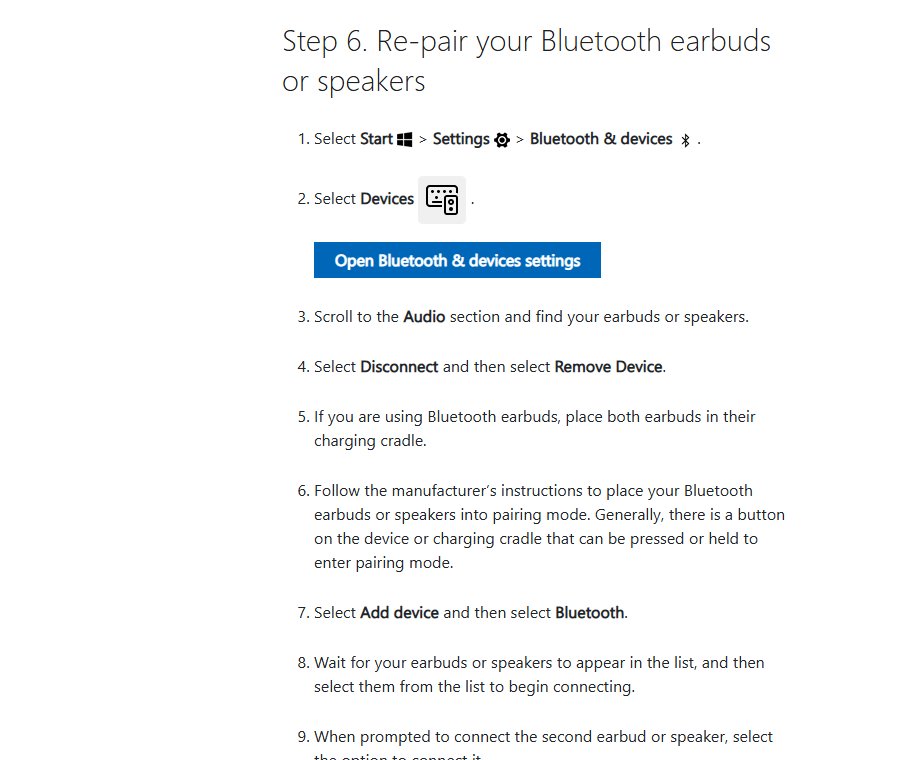
- Select Start > Settings > Bluetooth & devices > Devices.
- Find the earbuds, select Disconnect, then select More options (…) > Remove device.
- Put both earbuds in the charging case and put them in pairing mode, following the maker's instructions.
- Back on Bluetooth & devices, select Add device > Bluetooth, then select the earbuds from the list.
- Select Start > Settings > System > Sound and choose the earbuds under Output.
- In the same Output section, make sure Mono audio is turned off.
- Play music or a video and listen for sound in both ears.
If sound drops to flat, phone-call quality whenever a call app opens, jump to the hands-free section below. That is a profile switch, not a pairing fault.
Bluetooth earbuds mono sound on Windows: causes
Classic Bluetooth earbuds talk to Windows through two profiles. Microsoft's driver documentation states that A2DP carries high-quality stereo playback, while the Hands-Free Profile (HFP) carries mono playback and the microphone at the same time.
Windows moves the earbuds to HFP as soon as an app opens their microphone, or plays a stream marked as communications. Stereo returns once the microphone closes.
| Cause | What you hear | Where the fix is |
|---|---|---|
| An app is using the earbuds' microphone, so Windows switched to HFP | Flat, muffled, mono sound during calls or while a chat app is open | Disable hands-free section |
| Windows 10 is playing to the Hands-Free entry instead of the Stereo entry | Mono, low-quality sound all the time | Stereo output section |
| Mono audio is on in Windows | Both ears play the same mixed signal | Turn off Mono audio under Settings > System > Sound |
| Left and right balance is uneven | One side is quieter or silent | Set both channels to the same level in the device's Volume settings |
| The two earbuds lost sync with each other, or an old pairing is stale | Only one earbud plays, or the buds connect one at a time | Remove the pairing, reset the buds, and re-pair |
| Low battery, damaged hardware, or old earbud firmware | Dropouts or one channel cutting out | Charge the buds fully and check the maker's site for firmware |
| Your situation | Do this | Why |
|---|---|---|
| Only one earbud plays, or the buds keep reconnecting one at a time | Remove, reset and re-pair the earbuds | A fresh pairing links both buds as one device again |
| Both earbuds play but sound flat only during calls | Use a different microphone for calls | Opening the earbuds' microphone forces mono HFP |
| Windows 10 shows the earbuds twice, as Stereo and Hands-Free | Set the Stereo entry as the default output | Only the Stereo entry uses A2DP |
| Both ears play identical sound with no left-right separation | Turn off Mono audio | Mono audio mixes both channels into one |
| The earbuds connect but play no sound | Select them under Output and set the format to 2 channels, 16 bit, 48000 Hz (DVD Quality) | Microsoft's fix for Bluetooth connected but silent |
| The earbuds will not pair at all | Follow the pairing fixes in the troubleshooting section | The cause is usually discovery, Bluetooth being off, or the driver |
How to unpair (forget) Bluetooth headphones
Removing the pairing deletes the keys Windows stored for the earbuds. The next pairing starts clean, which is what fixes a buds-out-of-sync or one-ear-only fault.
- Windows 11: select Start > Settings > Bluetooth & devices > Devices.
- Find the earbuds and select Disconnect if they are connected.
- Select More options (…) next to the earbuds, then Remove device, and confirm with Yes.
- Repeat for every entry with the earbuds' name, including separate left and right entries if Windows lists them.
- Windows 10: select Start > Settings > Devices > Bluetooth & other devices.
- Select the earbuds, select Remove device, and confirm.
- Remove the earbuds from any other nearby phone or tablet you are not using, so they do not reconnect to it first.
Remove hidden audio entries if the earbuds keep coming back: open Device Manager, select View > Show hidden devices, and expand Bluetooth. Right-click any leftover entry with the earbuds' name, select Uninstall device, then Uninstall, and restart the PC before pairing again.
Bluetooth pairing vs. connecting
Pairing and connecting are different steps. Pairing happens once: the earbuds and Windows swap keys and remember each other. Connecting happens every time you use them, using the keys already stored.
| Action | What it does | Where to do it on Windows 11 |
|---|---|---|
| Disconnect | Ends the current link but keeps the pairing | Bluetooth & devices > Devices > earbuds > Disconnect |
| Reconnect | Uses the stored pairing to link again | Take the buds out of the case, or select Connect |
| Unpair (remove) | Deletes the stored keys, so the next pairing starts clean | More options (…) > Remove device |
Only unpairing clears a bad pairing. Disconnecting and reconnecting will not fix one-ear-only sound caused by a broken left-right link.
How to put Bluetooth earbuds into pairing mode
Every brand resets differently, so the manual or the maker's support site is the authority. A reset clears the earbuds' own pairing memory and re-links the left and right buds to each other.
Remove the earbuds from Windows first. Apple's reset steps also say to forget the earbuds on every device before resetting.
Brand-specific pairing instructions
| Earbuds | Common earbud reset methods | Ready to pair when |
|---|---|---|
| Apple AirPods 1st–3rd generation, AirPods Pro 1st and 2nd generation | Put the AirPods in the case, close the lid for 30 seconds, open it, then hold the setup button on the back of the case for about 15 seconds | The case light flashes amber, then white |
| Apple AirPods 4, AirPods 5 and AirPods Pro 3 | Put the AirPods in the case, close the lid for 30 seconds, open it, then double-tap the front of the case at each status-light stage Apple describes | The light cycles through amber and white |
| Other true wireless earbuds | Place both buds in the charging case and use the reset or pairing sequence in the maker's instructions, often a long press on a case button or on both touch panels | The indicator shows the pairing pattern the manual describes |
| Earbuds with a companion app | Check the maker's app or site for a firmware update before you re-pair | The app reports the latest firmware |
Charge the case and earbuds fully before you reset. Microsoft notes that low battery can cause sound in only one channel.
Understanding the types of earbuds and their pairing modes
Most true wireless earbuds enter pairing mode in one of three ways. Check the maker’s manual for the exact button and light pattern.
- Case button: with both buds in the open case, press and hold the button on the case until the light flashes.
- Touch control: with the buds out of the case, press and hold both touch areas until a tone or voice prompt plays.
- First use: new earbuds often enter pairing mode on their own the first time the case opens.
Disconnect the earbuds from your phone, tablet or Mac first. Earbuds usually reconnect to the last device they used, and while they are linked there, Windows cannot find them.
Pairing earbuds with Windows computers
Pair from the case with both buds inside, so Windows sees one device with a stereo pair instead of a single bud. Keep the earbuds close to the PC.
- Put the earbuds in pairing mode with both buds in the case and the lid open.
- Windows 11: select Start > Settings > Bluetooth & devices, make sure Bluetooth is on, then select Add device > Bluetooth.
- Select the earbuds from the list and follow any prompts, then select Done.
- If Windows asks you to connect the second earbud, accept that prompt as well.
- Windows 10: select Start > Settings > Devices > Bluetooth & other devices > Add Bluetooth or other device > Bluetooth, select the earbuds, then select Done.
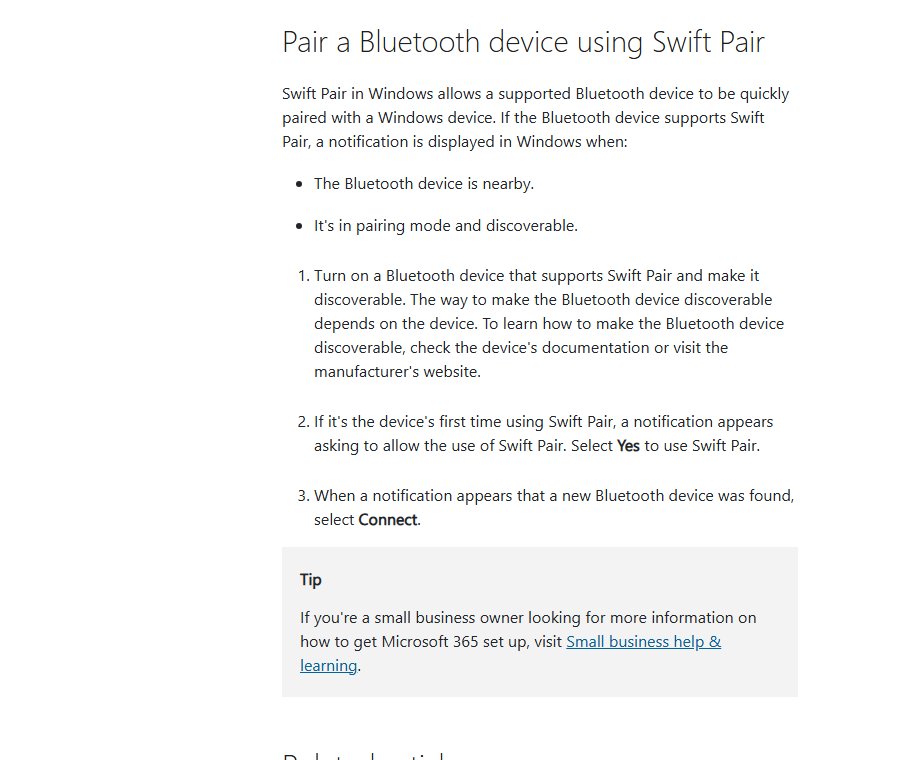
- If a Swift Pair notification appears instead, select Connect.
- Take both buds out of the case and put them in your ears.
If the earbuds do not appear in the list on Windows 11, open Bluetooth & devices > Devices, and under Device settings set Bluetooth devices discovery to Advanced.
Pair a Bluetooth device using Swift Pair
Swift Pair shows a notification when supported earbuds in pairing mode come near the PC, so you can skip the Add device dialog.
- Select Start > Settings > Bluetooth & devices > Devices.
- Under Device settings, turn on Show notifications to connect using Swift Pair.
- Put the earbuds in pairing mode close to the PC.
- When the notification appears, select Connect.
Swift Pair works only with earbuds that support it. If no notification appears, use Add device > Bluetooth as above. If the PC has no Bluetooth entry at all, check whether the computer has Bluetooth and that it is turned on in Windows 11.
Bluetooth versions and what they mean for pairing
For stereo on Windows, the version that matters is LE Audio, which the Bluetooth SIG built on Bluetooth Core 5.2. Older Classic Bluetooth earbuds pair as before and use A2DP for stereo.
Microsoft says one-channel audio is common with Bluetooth Low Energy Audio (LE Audio) earbuds when only one side connects during pairing. It can also start after a firmware or Windows update adds LE Audio support and disrupts the existing pairing.
The fix is the same full re-pair: remove the earbuds, put both buds in the case, enter pairing mode, add them again, and accept the prompt to connect the second earbud. After that, update the earbuds’ firmware from the maker’s own app or support site.
Set Bluetooth earbuds as stereo output in Windows 11 and 10
Pairing does not always make the earbuds the playback device. On Windows 10, a paired headset can show two outputs: {Name} Stereo for A2DP and {Name} Hands-Free for HFP. Windows 11 shows one output that switches profile by itself.
| Setting | Windows 11 | Windows 10 |
|---|---|---|
| Set the earbuds as the default playback device | Start > Settings > System > Sound, then select the earbuds under Output | Start > Settings > System > Sound, then under Choose your output device select the Stereo entry |
| Quick switch from the taskbar | Select the Sound icon and pick the earbuds as the output | Select the Sound icon and pick the Stereo entry |
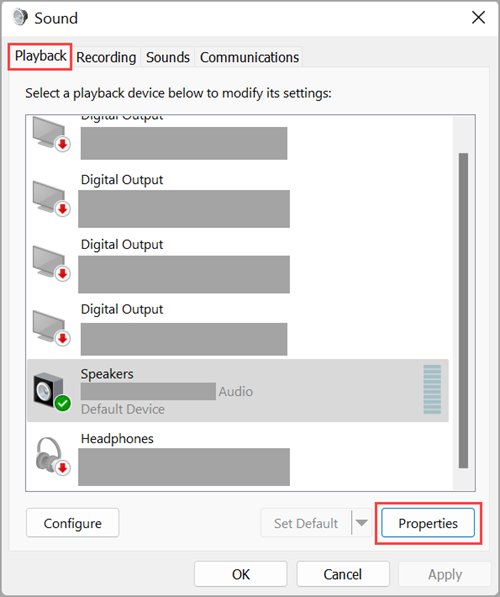
| Check app-specific output settings | Settings > System > Sound > Volume mixer, then under Apps check each app's Output device | Right-click the Volume icon > Sounds > Playback, set the Stereo entry as Default, then check Volume mixer |
| Force a two-channel format | Settings > Bluetooth & devices > Devices, select the earbuds > Advanced sound properties, then set Format to 2 channels, 16 bit, 48000 Hz (DVD Quality) | Right-click the Sound icon > Sounds > Playback, select the earbuds > Properties > Advanced, then set Default Format to 2 channel, 16 bit, 48000 Hz (DVD Quality) |
| Turn off Mono audio | Settings > System > Sound, Mono audio toggle in the Output section | Not covered in Microsoft's Windows 10 Bluetooth article |
| Even out left and right | Settings > System > Sound, select the earbuds, then Output settings > Volume, and set left and right to the same level | Not covered in Microsoft's Windows 10 Bluetooth article |

Bluetooth headphones mono when the microphone is on: disable hands-free
Windows drops the earbuds to mono whenever an app opens their microphone. On Windows 10, any audio sent to the Hands-Free output does the same, and stereo audio is discarded while it lasts.
The fix is to keep apps away from the earbuds' microphone and hands-free entry. You lose the earbuds' microphone for those apps, so use the PC's built-in or a USB microphone instead.
- Close any call, meeting or voice-chat app that is running, then check that music returns to full quality.
- Windows 11: select Start > Settings > System > Sound, and under Input choose the PC's built-in or a USB microphone.
- To stop Windows using the earbuds' microphone at all, select the earbuds under Input and, next to Device usage, change Use this device (enable) to the disable option.
- Windows 10: set the {Name} Stereo entry as the default output, and set another microphone as the input under Settings > System > Sound.
- In each call or chat app's audio settings, choose the earbuds' stereo output as the speaker and the other microphone as the mic.
- Play audio again with the call app open and confirm it stays in stereo.
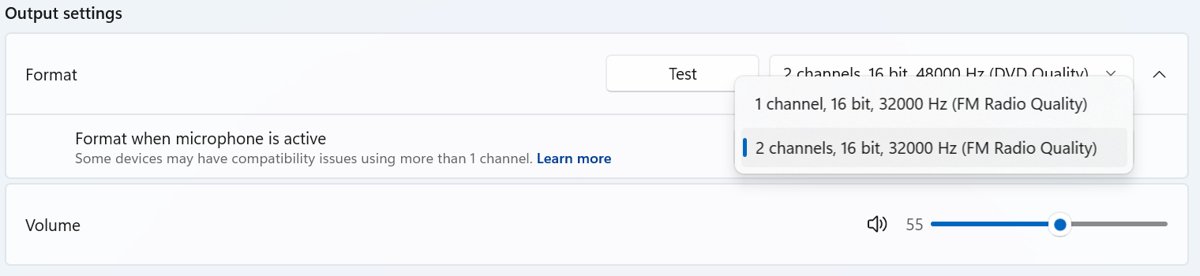
LE Audio earbuds: Windows 11 version 24H2 and later can keep stereo while the microphone is active on supported PCs and earbuds. Open Settings > System > Sound, select the earbuds, expand Output settings > Format, and choose Stereo (2 channels) under Format when microphone is active. Pick Mono (1 channel) if audio glitches.
Without LE Audio support on both the PC and the earbuds, Microsoft states that you hear mono audio whenever the microphone is in use.
How to test left and right earbuds on Windows
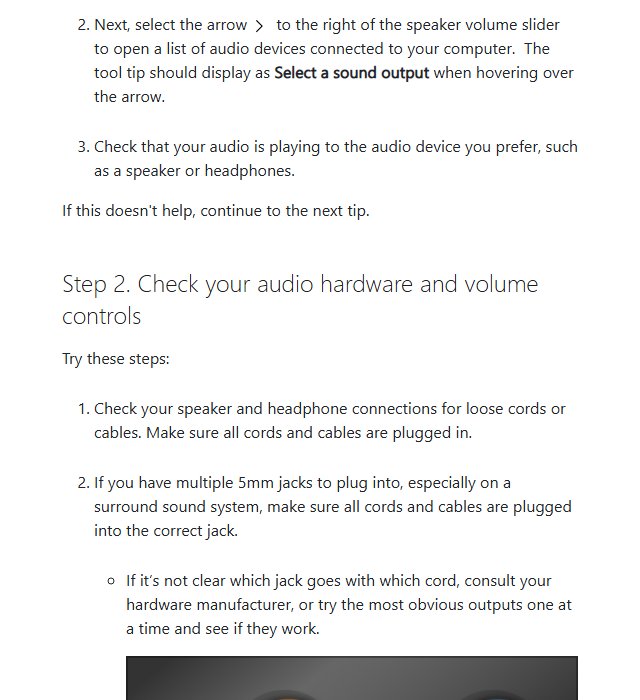
- Open Settings > System > Sound and confirm the earbuds are selected under Output. On Windows 10, the name should end in Stereo, not Hands-Free.
- Check that Mono audio is off and that left and right volume match.
- Play a stereo test track or a video with sound panned left and right, and listen for the sound moving between ears.
- Remove one earbud, then the other. Each side should carry its own part of the mix, not identical sound.
- Open your call app with the other microphone selected, and confirm music quality does not drop.
Troubleshooting common pairing problems
Work through the group that matches what you see.
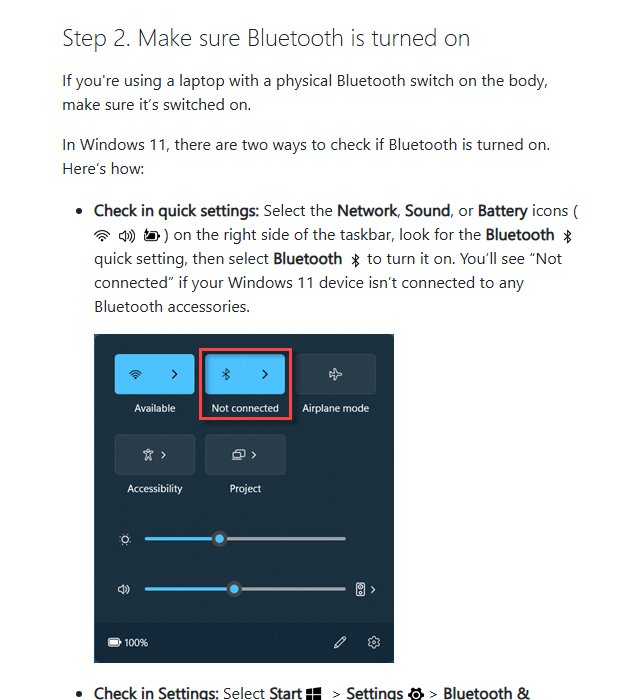
Why aren't my Bluetooth earbuds pairing?
Bluetooth is off, the buds are not discoverable, or they are still connected to another device.
- Select Start > Settings > Bluetooth & devices and turn Bluetooth off, wait 10 seconds, then turn it on again.
- Disconnect the earbuds from your phone or any other device nearby.
- Put the earbuds back in pairing mode and keep them close to the PC.
- Set Bluetooth devices discovery to Advanced under Device settings, then select Add device again.
- Restart the PC with Start > Power > Restart and try once more.
One earbud not working on Windows: left and right sync fixes
The buds lost their link to each other, one is low on battery, or the balance is off.
- Charge both earbuds and the case fully.
- Remove the earbuds from Windows and every other device.
- Reset them in the case using the maker's reset steps.
- Pair again with both buds in the case.
- In Settings > System > Sound, open the earbuds' Output settings > Volume and set left and right to the same level.
- If one side still fails with another phone or PC, the fault is in the earbud; contact the maker.
Bluetooth earbuds connected but no sound
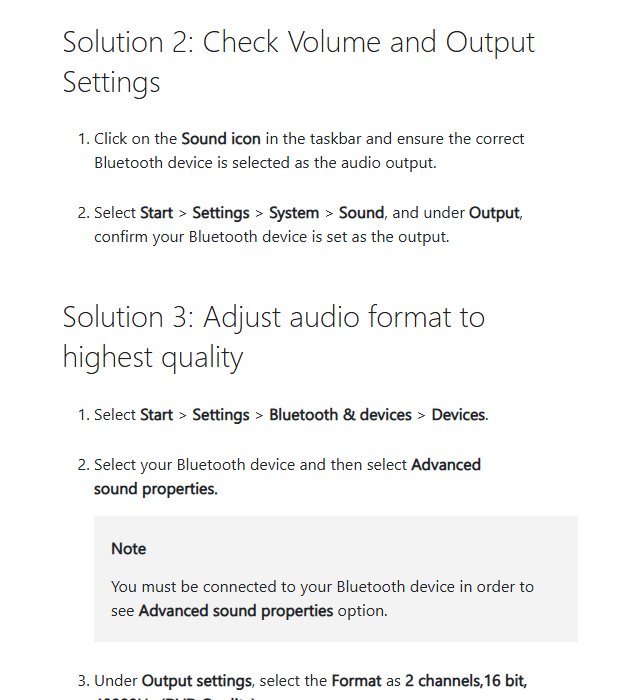
Windows is sending audio to another output, or the format is wrong.
- Select the Sound icon on the taskbar and choose the earbuds as the output.
- Open Settings > Bluetooth & devices > Devices, select the earbuds > Advanced sound properties, and set Format to 2 channels, 16 bit, 48000 Hz (DVD Quality).
- Check Volume mixer so the app you are using outputs to the earbuds.
- Confirm on the maker's site that the earbuds support A2DP for high-quality audio.
- Run the Bluetooth troubleshooter in the Get Help app.
Start with the output device: open Settings > System > Sound, select the earbuds under Output, and set Format to 2 channels, 16 bit, 48000 Hz (DVD Quality). AirPods have their own quirks, covered in the AirPods no sound fix.
Update or reinstall Bluetooth driver on Windows 11
An outdated or damaged Bluetooth adapter driver breaks pairing or audio.
- Right-click Start and select Device Manager, then expand Bluetooth.
- Right-click the Bluetooth adapter and select Update driver > Search automatically for drivers.
- Select Start > Power > Restart after it installs.
- If that fails, right-click the adapter, select Uninstall device > Uninstall, then shut down and turn the PC back on so Windows reinstalls it.
- Select Start > Settings > Windows Update > Check for updates and install what is offered.
Restart Bluetooth Support Service and Windows Audio
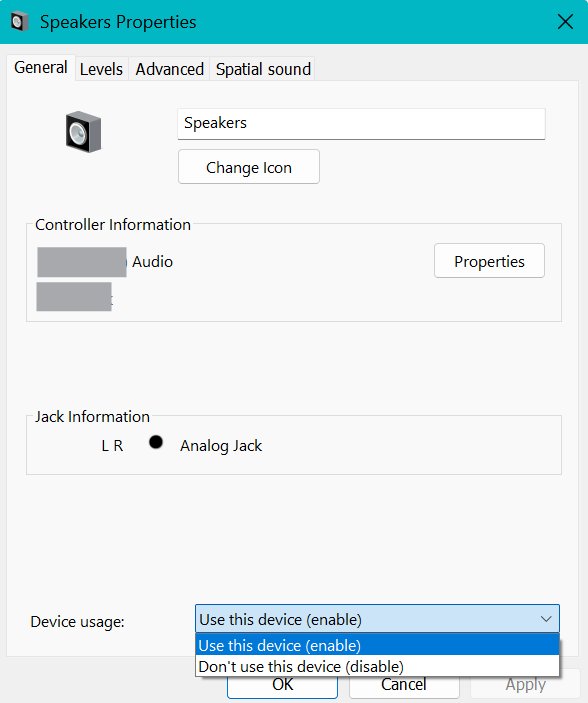
An audio service has stopped, or the earbuds' output is disabled.
- Press Windows + R, type
services.msc, and press Enter. - Right-click Bluetooth Support Service and select Restart, or Start if it is stopped.
- Restart Windows Audio and Windows Audio Endpoint Builder the same way.
- In Settings > System > Sound, select the earbuds and check Device usage reads Use this device (enable).
- On the same page, scroll to Advanced settings and set Audio enhancements to Off if the audio is distorted.
Bluetooth earbuds keep disconnecting from Windows
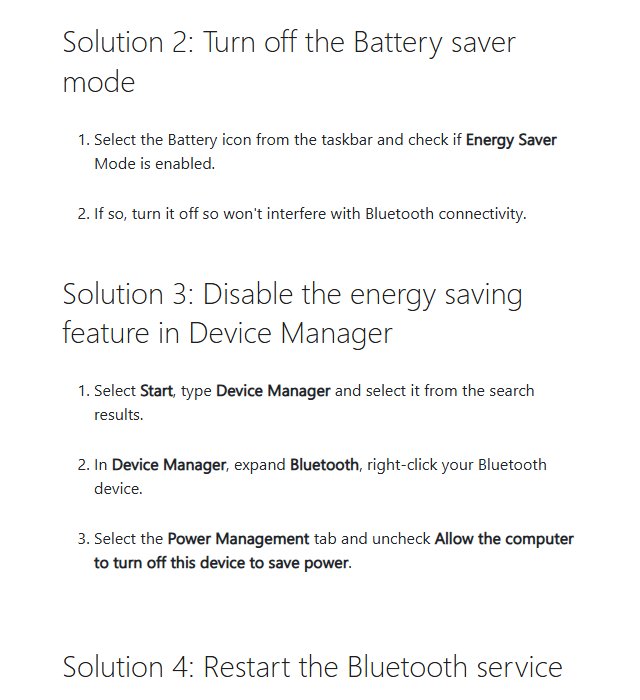
Drops are usually caused by distance, interference or power saving.
- Keep the earbuds within a few metres of the PC, with no metal or walls between them, and away from USB 3 hubs and Wi-Fi routers.
- Charge the case and buds; a low battery can drop one side first.
- Open Device Manager, expand Bluetooth, open the Bluetooth adapter’s Properties, and on the Power Management tab clear Allow the computer to turn off this device to save power, if the tab is present.
- Update or reinstall the Bluetooth driver, then remove and re-pair the earbuds.
Re-pair Bluetooth earbuds FAQ
How do I pair Bluetooth earbuds with a Windows PC?
Put the earbuds in pairing mode, then on Windows 11 select Start > Settings > Bluetooth & devices > Add device > Bluetooth and pick them from the list. On Windows 10 use Settings > Devices > Bluetooth & other devices > Add Bluetooth or other device > Bluetooth.
How do I unpair Bluetooth earbuds on Windows?
On Windows 11, open Settings > Bluetooth & devices > Devices, select More options (…) next to the earbuds, then Remove device and Yes. On Windows 10, open Settings > Devices > Bluetooth & other devices, select the earbuds and choose Remove device.
How do I re-pair Bluetooth earbuds that stopped working properly?
Remove the earbuds in Windows Bluetooth settings, place both buds in the charging case, and reset them with the maker's steps. Then put them in pairing mode and add them again under Bluetooth & devices > Add device > Bluetooth, with both buds still in the case.
Why do my Bluetooth earbuds show up twice in Windows?
Windows 10 creates separate audio entries for each Bluetooth profile: {Name} Stereo for high-quality playback and {Name} Hands-Free for calls. Pick the Stereo entry for music. Windows 11 merges them into one output that switches profile automatically.
How do I make Windows use both earbuds instead of only one?
Remove the pairing, reset the earbuds in their case so the two buds re-link, and pair again with both inside the case. Then turn off Mono audio and set left and right volume to the same level in Settings > System > Sound.
Why do my earbuds sound bad when I use the microphone?
Opening the earbuds' microphone switches them to the Hands-Free Profile, which carries only mono sound at call quality. Use a different microphone for calls to keep stereo, or use LE Audio earbuds on Windows 11 version 24H2 or later with stereo selected for microphone use.
Where do I select the stereo version of my earbuds in Windows?
Open Start > Settings > System > Sound. On Windows 11, select the earbuds under Output. On Windows 10, choose the entry ending in Stereo under Choose your output device, not the one ending in Hands-Free.
How do I fix Bluetooth earbuds that connect but play no sound?
Select the earbuds as the output from the taskbar Sound icon, then set their format to 2 channels, 16 bit, 48000 Hz (DVD Quality) under Advanced sound properties. If that fails, remove and re-pair them, turn Bluetooth off and on, and update the Bluetooth driver.
How do I get Bluetooth earbuds to connect when they will not show up?
Disconnect them from your phone, put them back in pairing mode close to the PC, and turn Windows Bluetooth off and on. On Windows 11, set Bluetooth devices discovery to Advanced under Bluetooth & devices > Devices > Device settings before selecting Add device.
What should I do if re-pairing still does not fix stereo audio?
Charge the earbuds, update their firmware from the maker's site, and test them with another phone or PC. If they fail there too, the earbuds are at fault. If they work elsewhere, update the PC's Bluetooth driver and install pending Windows updates.
Final tips for successful pairing
Remove the earbuds from Windows, reset them in the case, and pair them again with both buds inside, then choose them under Output with Mono audio off. If sound turns mono only during calls, give your call apps a different microphone. A clean pairing re-links both buds as one stereo device, which fixes one-ear playback. Call-quality sound is Windows switching to the Hands-Free Profile for the microphone, and re-pairing cannot change that; only keeping apps off the earbuds' microphone, or LE Audio, keeps stereo.

![Java JRE latest version: Download & Install [32-bit, 64-bit]](https://techdows.com/wp-content/uploads/2026/10/Java-JRE-latest-version-Download-Install-32-bit-64-bit-1-600x338.jpg)