To change the default web browser in Windows 11, open Settings > Apps > Default apps, select your browser, and select Set default; in Windows 10, select the browser under Web browser instead.
This guide covers both versions, setting individual file and link types, the prompts inside each browser, links that still open in Edge, and fixes when the setting keeps changing back.
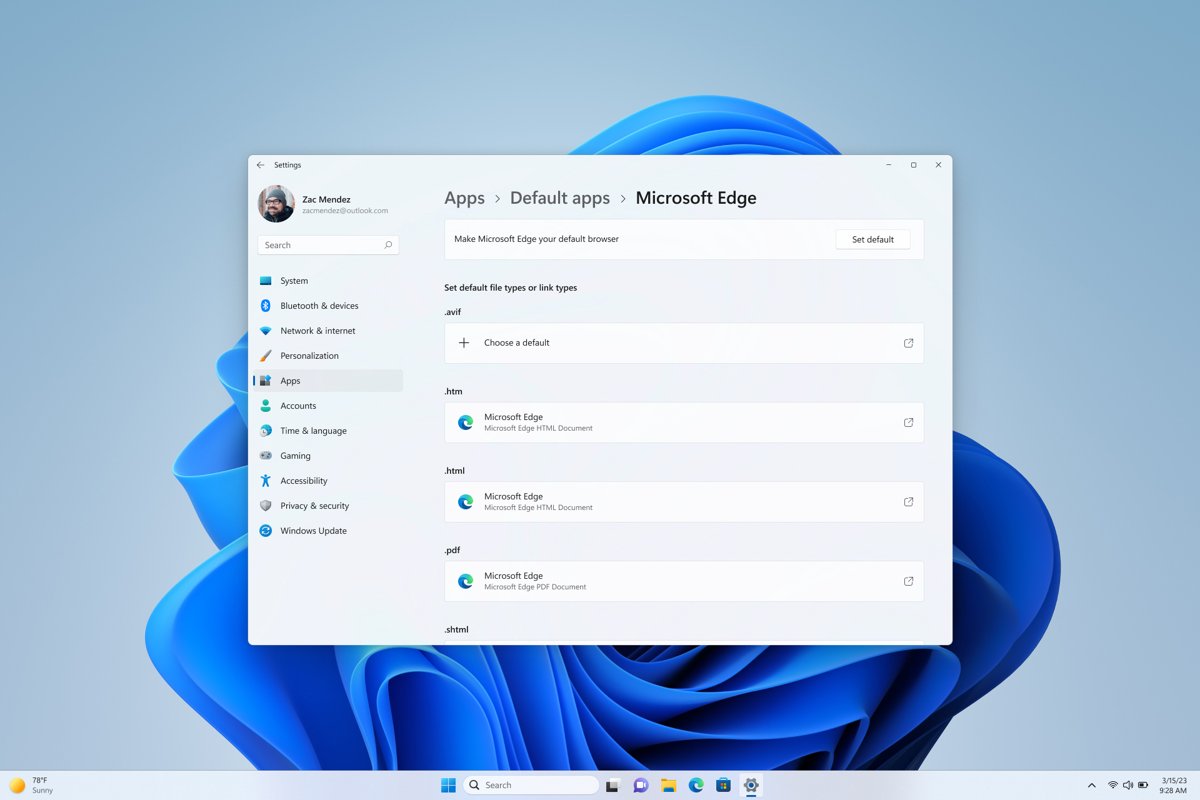
Change the default browser in Windows 11 with Set default
This is the route Microsoft documents for Windows 11. The browser must already be installed, or it will not appear in the list.
- Select Start > Settings > Apps > Default apps.
- In the search box under Set defaults for applications, type the name of your browser, such as Firefox or Chrome.
- Select the browser in the results.
- Next to Make [browser name] your default browser, select Set default.
- Close Settings and open a web link from another app to confirm it opens in the new browser.
Outside the European Economic Area, Set default assigns http, https, .htm and .html to that browser. Other types, such as .pdf, keep their current app until you change them separately.
Check that your preferred browser is installed and registered
Windows lists a browser on the Default apps page only after it is installed. Confirm that first, because a missing browser is the most common reason the list looks wrong.
- Select Start > Settings > Apps > Installed apps (Apps & features in Windows 10).
- Search for the browser by name and confirm it appears in the list.
- If it is missing, install it from the vendor's own site or the Microsoft Store.
- Return to Settings > Apps > Default apps and search for the browser again.
Change the default browser in Windows 10
Windows 10 has a single Web browser entry on the Default apps page. Choosing a browser there handles web links in one step.
- Select Start > Settings > Apps > Default apps. On the original Windows 10 release, the page is under System > Default apps.
- Scroll to Web browser.
- Select the browser currently listed, often Microsoft Edge.
- In the Choose an app window, select the browser you want.
- Close Settings and open a web link from another app to confirm the change.
Set browser defaults by file type and link type
Use this when one type still opens in the wrong browser, when you want a different app for .pdf files, or when your Windows 11 Default apps page shows no Set default button.
The four types that make a browser the default for web pages and saved pages are HTTP, HTTPS, .htm and .html.
- Open Settings > Apps > Default apps.
- In the Set a default for a file type or link type search box, type
httpsand select the result. - Select the app shown, choose your browser, and confirm with Set default.
- Repeat for
http,.htmland.htm. - To choose only some types, select your browser under Set defaults for applications instead, then select each file or link type in its list and pick an app.
- Set
.pdfthe same way if you want PDF files to open in your browser or in a separate PDF reader.
Change the default browser from inside the browser app
Browsers offer to become the default, but on Windows the final switch happens in Windows Settings. Microsoft's rule for apps, its own included, is to send you to the Default apps page to make the change yourself.
| Browser | What the vendor documents for Windows | What you do next |
|---|---|---|
| Microsoft Edge | Settings > Apps > Default apps > Microsoft Edge, then Set default under Make Microsoft Edge your default browser | Select Set default on that page |
| Google Chrome | Windows 11: search for Chrome in Default apps and select Set default. Windows 10: select Google Chrome under Web browser | Follow the Windows steps; Chrome's in-browser Make default button is documented for Mac and Linux |
| Mozilla Firefox | The Firefox set-as-default page asks you to change the default in the Windows settings panel it opens | Pick Firefox in that panel using the Windows 11 or Windows 10 steps above |
| Brave, Opera, Vivaldi and others | Each registers with Windows like any other browser | Search for the browser name in Default apps and use the Windows 11 or Windows 10 steps above |
For Chrome-only detail, such as the Chrome settings screens, see the separate techdows guide How to Make Chrome Default Browser.
Where the default browser setting lives in Windows 11 and Windows 10
The setting sits on the same page in both versions, but the control and what it changes differ. Match your version and region to a row.
| Your Windows | Where to set it | What it changes |
|---|---|---|
| Windows 11, outside the European Economic Area | Settings > Apps > Default apps > your browser > Set default | http, https, .htm and .html |
| Windows 11, inside the European Economic Area | Settings > Apps > Default apps > your browser > Set default | ftp, http, https and read links, plus .htm, .html, .mht, .mhtml, .shtml, .svg, .xht, .xhtml and .xml if the browser registers them; offers to pin the browser to the taskbar and Start; .pdf has its own one-click button |
| Windows 11, any region, one type at a time | Settings > Apps > Default apps > search box for a file type or link type | Only the type you pick, such as .pdf or https |
| Windows 10, Creators Update and later | Settings > Apps > Default apps > Web browser | The browser Windows uses for web links |
| Windows 10, original release | Settings > System > Default apps > Web browser | The browser Windows uses for web links |
| Any version, shortcut | Press Win + R, type ms-settings:defaultapps and press Enter |
Opens the Default apps page directly |
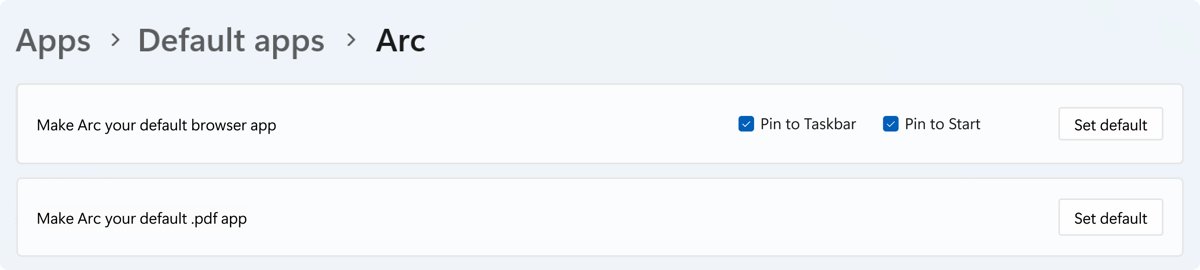
How to check the new default browser worked
- Open Settings > Apps > Default apps and select your browser; HTTP, HTTPS, .htm and .html should each show its name.
- In Windows 10, confirm the Web browser entry shows the browser you picked.
- Select a web link in an app that respects the Windows default, such as a link inside a PDF or a text document.
- Double-click a saved .html file in File Explorer and confirm it opens in the same browser.
- Select a link in an Outlook email; if it still opens in Edge, change the Outlook setting in the troubleshooting section below.
Fix default browser problems in Windows 11 and 10
An older Windows 10 case has its own fix: can't set Chrome or any other browser as default in Windows 10.
You can't change the default browser, or it is not listed
The browser is not installed for Windows to see, has not registered its link types, or a work or school policy controls file associations.
- Confirm the browser appears in Settings > Apps > Installed apps.
- Reinstall the browser from the vendor's site or the Microsoft Store if it is missing, then open it once.
- Search for the browser by name under Set defaults for applications rather than scrolling the list.
- If Set default still does nothing, set HTTP, HTTPS, .htm and .html one at a time.
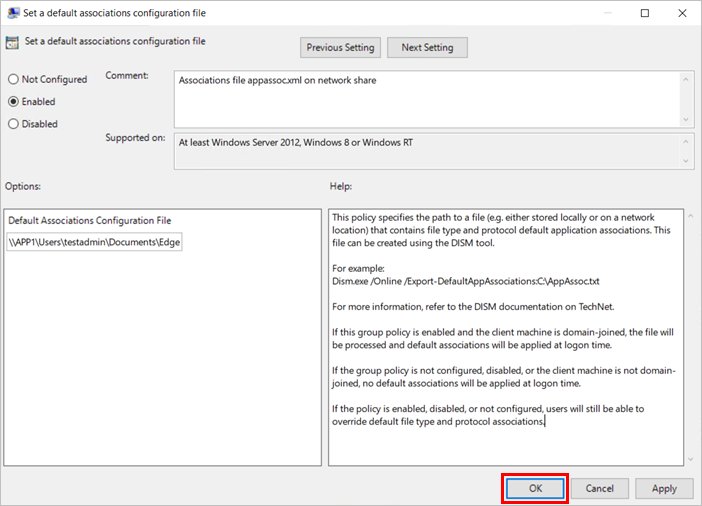
- On a work or school PC, ask your IT administrator; organizations can deploy a default associations file that sets the browser for you.
The default browser keeps changing back
Another browser was allowed to make itself the default, or your organization reapplies a default associations file each time you sign in.
- Open each browser you do not want as the default and decline its prompt to become the default.
- Set your preferred browser again with Set default or under Web browser.
- Check all four types, HTTP, HTTPS, .htm and .html, because one reverted type is enough to send links elsewhere.
- Sign out and back in, then check the Default apps page again.
- If it reverts at every sign-in on a domain-joined or managed PC, the Set a default associations configuration file policy is in use; only your administrator can change it.
Links still open in Microsoft Edge after you change the default
Some Microsoft apps choose to open web content in Edge instead of your default; Outlook and Teams do this until you change their own link setting.
- In new Outlook for Windows, select Settings > General > Files and links and set Open hyperlinks from Outlook in to your default browser.
- In classic Outlook, select File > Options > Advanced, and under File and browser preferences choose your browser.
- In Microsoft Teams, select Settings > Files and links > Link open preferences and choose your browser; the Outlook and Teams settings change each other.
- For web results from Windows Search and stories in Widgets, note that Microsoft's change to open them in your default browser applies to the European Economic Area; Windows Settings has no separate switch for them.
.html or .htm files open in the wrong browser
Set default was never applied to the file types, or another app claimed .html after you set it.
- Open Settings > Apps > Default apps.
- Type
.htmlin the file type search box and select the result. - Choose your browser and select Set default.
- Repeat for
.htm.
Frequently asked questions
Where do I change the default web browser in Windows?
Open Settings > Apps > Default apps in both Windows 11 and Windows 10. In Windows 11, select your browser and then Set default. In Windows 10, select the browser under Web browser and choose a new one. Press Win + R and run ms-settings:defaultapps to jump straight there.
How do I change the default web browser in Windows 11?
Select Start > Settings > Apps > Default apps, search for your browser under Set defaults for applications, select it, and select Set default. Outside the European Economic Area that assigns http, https, .htm and .html to the browser.
How do I change the default web browser in Windows 10?
Select Start > Settings > Apps > Default apps, then select the browser listed under Web browser. In the Choose an app window, pick the browser you want. On the original Windows 10 release, Default apps is under System instead of Apps.
Why can't I change my default web browser?
The usual causes are a browser that is not properly installed, a single link type such as HTTPS still assigned to another app, or a work or school policy that sets file associations. Reinstall the browser, set HTTP, HTTPS, .htm and .html individually, and ask IT on a managed PC.
Why does my default browser keep changing?
Another browser was allowed to make itself the default, or a managed PC reapplies a default associations file at every sign-in. Decline default prompts in browsers you do not want, set your choice again, and ask your administrator if it reverts on a work PC.
How do I change the default web browser to Google Chrome?
Install Chrome, then open Settings > Apps > Default apps, search for Chrome, select Google Chrome, and select Set default next to Make Google Chrome your default browser. In Windows 10, select Google Chrome under Web browser instead.
How do I change the default web browser in Outlook?
Outlook can send links to Edge regardless of the Windows default. In new Outlook, go to Settings > General > Files and links and change Open hyperlinks from Outlook in. In classic Outlook, go to File > Options > Advanced > File and browser preferences.
How do I change the default web browser away from Microsoft Edge?
Open Settings > Apps > Default apps, select the browser you want instead of Edge, and select Set default. Then change the link setting in Outlook and Teams, because those apps open links in Edge until you change their own preference.
How do I change the default web browser on a Mac?
Choose Apple menu > System Settings > Desktop & Dock, then pick a browser from the Default web browser list. The browser must be installed first to appear in the list.
How do I change the default web browser on iPhone?
Update to the latest iOS, open Settings, tap Apps, and tap Default Apps at the top of the list. Tap Browser App and choose the browser you want instead of Safari. Some browsers show extra onscreen steps afterwards.

How to Use Discord Via the Web Browser - Techdows
[…] window is still the web app, so it keeps browser permissions and browser limits. Setting your default browser decides which one Discord links open […]