You can find your Mac’s IP address from System Settings > Network, from the Wi-Fi menu, or with a Terminal command. The address shown inside macOS is usually your private or local IP address, while your public IP address is the address websites see when your Mac connects to the internet.
The quickest method on a Mac connected through Wi-Fi is to hold the Option key and click the Wi-Fi icon in the menu bar. Your current IP address appears with other connection details. You can also use System Settings when you need the IPv4 address, IPv6 address, subnet mask, or router IP.
The same methods work on MacBook Air, MacBook Pro, iMac, Mac mini, Mac Studio, and other Macs running current versions of macOS.
How to Find IP Address on Mac in System Settings
System Settings gives you the clearest view of the IP address assigned to your Mac by the current Wi-Fi or Ethernet network.
Find your Wi-Fi IP address
- Click the Apple menu in the upper-left corner.
- Select System Settings.
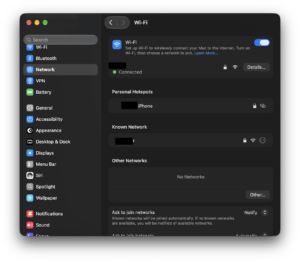
- Click Network in the sidebar.
- Select Wi-Fi.
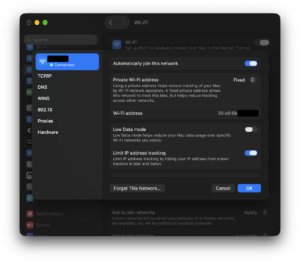
- Click Details next to the Wi-Fi network you are currently using.
- Select TCP/IP.
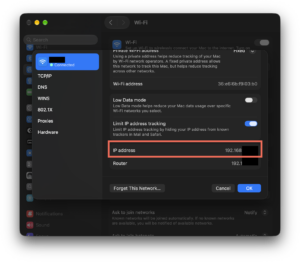
- Look for the IP address or IPv4 address field.
You will normally see an address similar to 192.168.1.25, 192.168.0.12, or 10.0.0.8. This is the Mac’s private IP address on your local network.
The same page also shows the router address and IPv6 information when the network uses IPv6.
Find your Ethernet IP address
If your Mac connects through Ethernet, check the Ethernet service instead of Wi-Fi:
- Open System Settings > Network.
- Select Ethernet or the name of your USB-C or Thunderbolt Ethernet adapter.
- Click Details.
- Select TCP/IP.
- Find the IP address listed under IPv4.
A Mac connected to Wi-Fi and Ethernet at the same time can have a different IP address for each network interface, so check the connection you are actually using.
Find Your Mac IP Address from the Wi-Fi Menu
You can find a Mac’s Wi-Fi IP address without opening System Settings. This is usually the fastest method when you only need the current address.
- Hold the Option key on your keyboard.
- While holding Option, click the Wi-Fi icon in the Mac menu bar.
- Look under the connected network.
- Find IP Address.
The expanded Wi-Fi information also shows useful network details such as the router address, channel, security type, Wi-Fi standard, and signal information.
If the Wi-Fi icon is not visible in the menu bar, you can access Wi-Fi through Control Center or enable the Wi-Fi menu from System Settings.
How to Find IP Address on Mac Using Terminal
Terminal is useful when you need to copy the IP address quickly, check it remotely, or use it in a script.
Find the Wi-Fi IP address with Terminal
Open Applications > Utilities > Terminal and run:
ipconfig getifaddr en0Terminal should return an address such as:
192.168.1.25On many Macs, en0 is the Wi-Fi interface. If the command returns nothing, your active connection may use another interface.
Find your Mac’s network interfaces
Run this command:
networksetup -listallhardwareportsFind the section for Wi-Fi or Ethernet and note the device name, such as en0 or en1. You can then run:
ipconfig getifaddr en1Replace en1 with the interface shown on your Mac.
Show all IPv4 addresses on a Mac
If you have several network interfaces and want to see their assigned addresses, run:
ifconfigLook for lines beginning with inet. Ignore 127.0.0.1, which is the loopback address used internally by the Mac.
Because ifconfig returns considerably more network information, ipconfig getifaddr is easier when you only need one IP address.
How to Find Your Public IP Address on Mac
Your public IP address is different from the private address shown in macOS Network settings. It is assigned to your internet connection and is normally shared by devices connected through the same router.
The simplest way to find it is:
- Open Safari, Chrome, Firefox, or another browser.
- Search for what is my IP.
- The search result or an IP lookup service will display your current public IP address.
Find public IP address from Mac Terminal
You can also query a public IP service from Terminal. For example:
curl https://api.ipify.orgThe command returns the public IP address used for that internet connection.
If you are connected to a VPN, the result will normally show the VPN server’s public IP instead of the address supplied directly by your internet provider.
Private IP vs Public IP on Mac
| Address | What it identifies | Example | Where to find it |
|---|---|---|---|
| Private IP | Your Mac inside the local network | 192.168.1.25 |
System Settings, Wi-Fi menu, or Terminal |
| Public IP | Your internet connection to outside services | 203.0.113.20 |
Web search or online IP lookup |
| Router IP | Your router on the local network | 192.168.1.1 |
TCP/IP settings or Option-click Wi-Fi |
| IPv6 | IPv6 address assigned to your Mac or connection | Long address containing numbers and letters | TCP/IP settings |
For file sharing, SSH, local servers, printers, and other devices on the same network, you normally need the private IP address. For remote access from outside your home or checking the address visible to websites, you need the public IP.
How to Find Router IP Address on Mac
Your router IP, also called the default gateway, is useful when you need to open the router’s settings page or troubleshoot your network.
Find router IP in System Settings
- Open System Settings > Network.
- Select your active Wi-Fi or Ethernet connection.
- Click Details.
- Select TCP/IP.
- Look beside Router.
Common router addresses include 192.168.0.1, 192.168.1.1, and 10.0.0.1, although your network can use another range.
Find router IP from the Wi-Fi menu
Hold Option and click the Wi-Fi icon in the menu bar. The Router field appears alongside your Mac’s IP address.
Find router IP using Terminal
Run:
route -n get default | grep gatewayTerminal returns the gateway used by your Mac, for example:
gateway: 192.168.1.1How to Find IPv4 and IPv6 Address on Mac
Most home networks still assign a familiar IPv4 address containing four groups of numbers, but your Mac can also receive one or more IPv6 addresses.
To view both:
- Open System Settings > Network.
- Select the active connection.
- Click Details.
- Select TCP/IP.
The page displays the current IPv4 configuration and available IPv6 information. An IPv4 address looks similar to 192.168.1.20, while IPv6 uses a longer combination of hexadecimal characters separated by colons.
How to Find IP Address on Older macOS Versions
Macs running macOS Monterey or an older release use System Preferences instead of the newer System Settings interface.
- Open the Apple menu > System Preferences.
- Select Network.
- Choose Wi-Fi or Ethernet from the sidebar.
- Check the connection information for the current IP address.
- Click Advanced > TCP/IP for the complete IPv4 and router details.
The Terminal methods remain useful on older macOS releases as well.
Why Does My Mac IP Address Keep Changing?
Most home and office networks use DHCP, which automatically assigns an IP address when your Mac connects. The router can give your Mac a different private IP after a restart, DHCP lease renewal, network change, or long period offline.
If you need the same local IP for a server, file sharing, or another network service, configure a DHCP reservation in your router or use a manual IP configuration recommended by the network administrator. Avoid choosing a random static address because it can conflict with another device.
Why Is My Public IP Different in Safari?
A VPN changes the public IP address seen by websites because internet traffic exits through the VPN server. Safari can also show a different address when iCloud Private Relay is active.
Private Relay hides your original IP address from websites while browsing in Safari and replaces it with a temporary address. If you need to identify the address directly exposed by your internet connection, account for any active VPN, proxy, or Private Relay service before comparing results.
Frequently Asked Questions
Where can I find the IP address on a Mac?
Open System Settings > Network, select your active connection, click Details, and open TCP/IP. Your IPv4 address appears there.
What is the fastest way to find my IP address on a Mac?
Hold the Option key and click the Wi-Fi icon in the menu bar. The expanded connection information shows your current local IP address immediately.
How do I find the IP address on a MacBook?
MacBook Air and MacBook Pro use the same method as other Macs. Open System Settings > Network > Wi-Fi > Details > TCP/IP or Option-click the Wi-Fi icon.
What Terminal command shows the IP address on a Mac?
For the interface identified as en0, run:
ipconfig getifaddr en0If it produces no result, use networksetup -listallhardwareports to identify the active Wi-Fi or Ethernet interface first.
How do I find my public IP on a Mac?
Search for what is my IP in a browser or use a public IP lookup service. From Terminal, a service such as ipify can return the public address.
Is 192.168 an IP address?
Yes. Addresses beginning with 192.168 belong to a private IPv4 range commonly used by home routers. They identify devices inside the local network and are not the public IP address visible across the internet.
Is the IP address the same as the MAC address?
No. An IP address identifies a device or connection at the network layer and can change between networks. A MAC address identifies a network interface at the hardware level, although modern operating systems can use private or randomized Wi-Fi addresses for privacy.
How do I find my router’s IP address on Mac?
Open System Settings > Network > your connection > Details > TCP/IP and check the Router field. You can also Option-click the Wi-Fi menu.
Why does my Mac have more than one IP address?
Your Mac can have separate addresses for Wi-Fi, Ethernet, VPN interfaces, virtual network adapters, IPv4, and IPv6. Use the address assigned to the network interface relevant to what you are trying to connect to.
Does a VPN change my Mac’s IP address?
A VPN changes the public IP address visible to internet services by routing traffic through the VPN server. Your Mac can still retain its normal private IP address on the local Wi-Fi or Ethernet network.
Does iCloud Private Relay change my IP address?
When Private Relay is enabled, Safari websites receive a temporary IP address instead of your original public IP address. The local IP assigned to your Mac by the router does not change because of Private Relay.