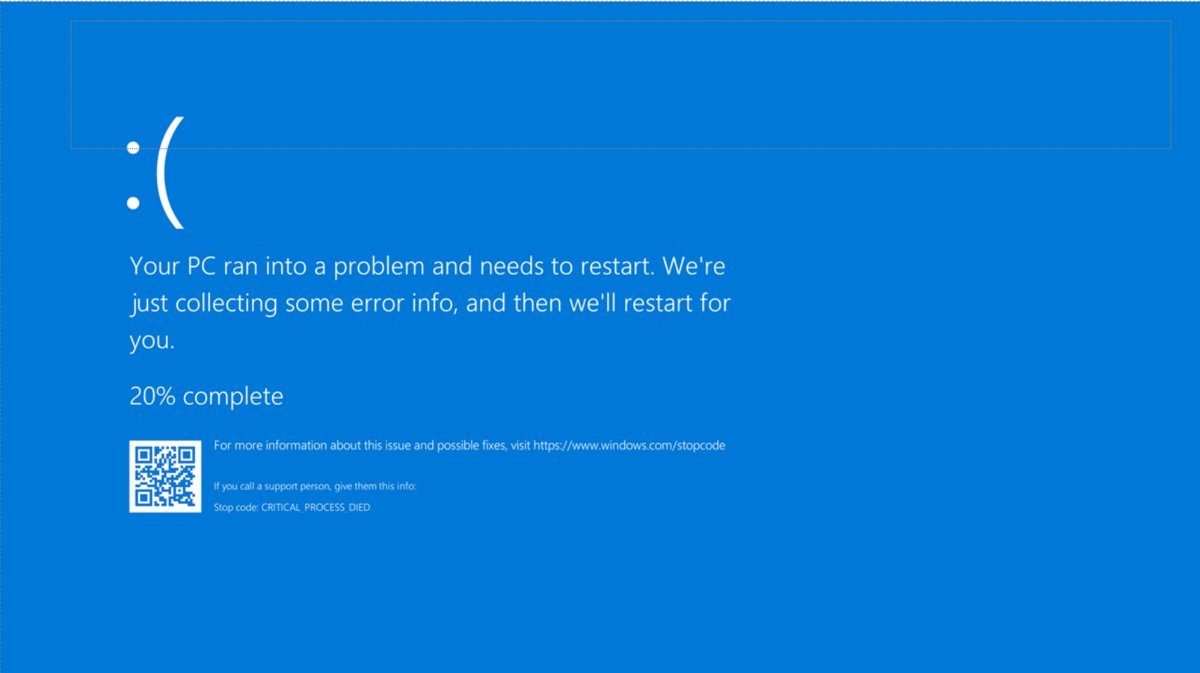
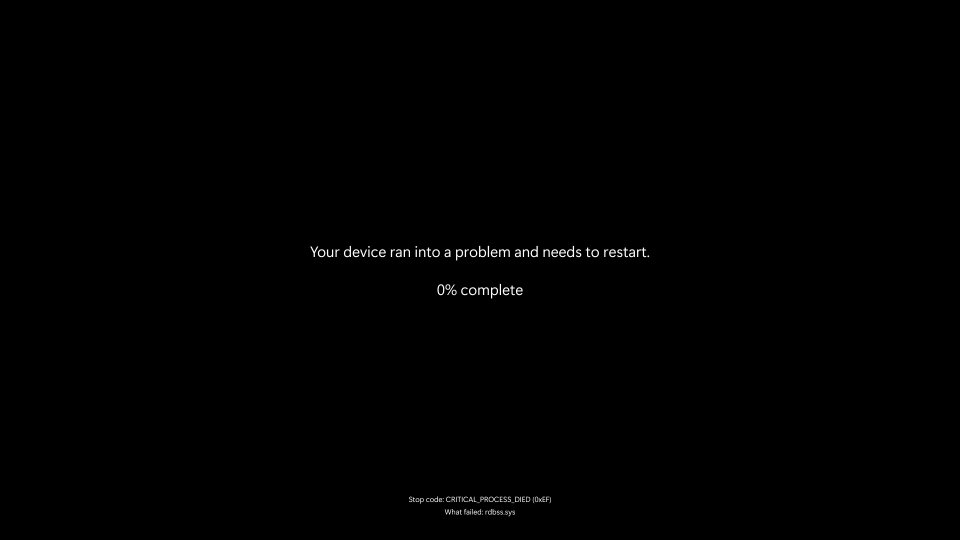
A blue screen of death (BSOD) is a stop code error: Windows halts and restarts because a driver, a hardware fault or system software put the PC at risk, and the stop code at the bottom of the screen names the failure.
This hub explains what the common stop codes mean, the first-aid steps that fix most blue screens on Windows 11 and Windows 10, where to read crash logs and dumps, and which detailed fix to open for each error.
Basic troubleshooting steps for Windows 11 blue screens, black screens and stop code errors
A single blue screen usually clears with the automatic restart, and nothing else is needed. When the same stop code returns, work through these steps in order.
- Shut down and remove any hardware you added just before the crashes started, then restart.
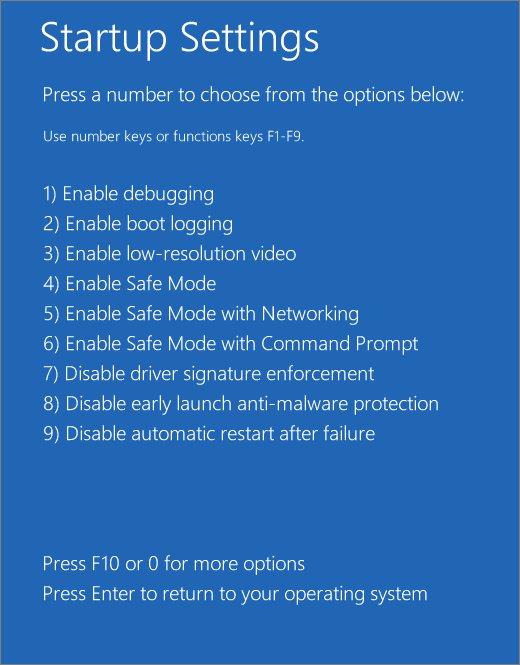
- If Windows will not stay up long enough to work, start the PC in safe mode and do the remaining steps from there.
- Right-click Start, select Device Manager and look for devices marked with an exclamation point. Right-click one and select Update driver; if that does not help, disable or uninstall the device.
- Make sure the system drive has 10 to 15 percent free space for swap files.
- Select Start > Settings > Windows Update > Check for updates and install everything offered.
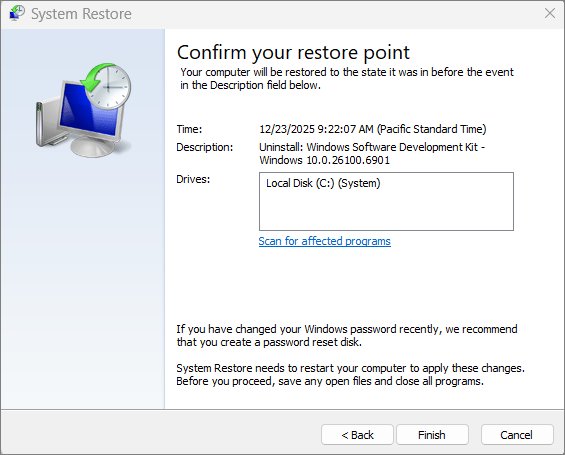
- If the crashes continue, roll Windows back with a system restore point or another recovery option.
Safe mode is easier to reach once you enable the F8 boot menu, which brings back the old startup key. A rollback only works if protection was on beforehand, so it pays to create System Restore points while the PC is healthy.
What does a blue screen of death mean?
Microsoft calls the same event a stop code error, a bug check, a kernel error, a blue screen error or a black screen error. The message reads "Your device ran into a problem and needs to restart" before Windows restarts on its own.
| Term | What it means |
|---|---|
| BSOD | Short for blue screen of death, the full-screen error Windows shows when it stops to protect itself |
| Bug check | Microsoft's technical name for the stop, used in its debugging documentation |
| Stop code | The name printed on the screen, such as PAGE_FAULT_IN_NONPAGED_AREA or MEMORY_MANAGEMENT |
| Module name | The file that was running when the crash happened, shown when Windows can identify it |
| Black screen error | The same stop error; screen colour and wording vary between Windows 11 versions |
| Green screen of death | The same stop error on preview (Insider) releases of Windows |
The meaning of BSOD has not changed with the colour: the system stopped because carrying on could corrupt the operating system or your data, or weaken security.
What causes blue screens of death
Microsoft's analysis of crash root causes puts third-party drivers far ahead of everything else. An app can trigger a stop error, but it is usually exposing a fault in a driver, the hardware or Windows.
| Cause | Share of crashes (Microsoft analysis) | Typical clue |
|---|---|---|
| Third-party driver code | 70% | A .sys file named on the screen or in the dump |
| Hardware problems | 10% | WHEA_UNCORRECTABLE_ERROR, random codes, crashes under heat or load |
| Microsoft code | 5% | Crashes after a specific Windows update |
| Unknown | 15% | Memory too corrupted to analyse |
What causes a blue screen on Windows 11 and how can I fix it?
When the crashes started tells you more than the colour of the screen. Match your situation to the first fix worth trying.
| When the blue screen happens | Likely cause | Try this first |
|---|---|---|
| Right after fitting new RAM, a card or a USB device | New hardware or its driver | Remove the hardware and restart |
| After a driver update | The new driver | Roll the driver back in Device Manager |
| After installing an app or service | A driver or service it added | Uninstall or reinstall the app, then test a clean boot |
| During games or heavy load | Overclocking, heat, power supply or graphics driver | Remove overclocks, check fans and update the display driver |
| At startup, before the desktop | Storage driver, disk errors or a boot-start driver | Use safe mode or Startup Repair |
| Random codes that keep changing | Faulty memory or failing hardware | Test the RAM and check the disk |
What is a Windows stop code?
A stop code is the name and hexadecimal number of the bug check that halted Windows. IRQL_NOT_LESS_OR_EQUAL, for example, has the value 0x0000000A, often written as 0xA.
| Part of the stop screen | How to use it |
|---|---|
| Stop code name | Look it up in the table below to see what failed |
| Hex value (0x…) | Appears in Event Viewer and dump files instead of the name |
| What failed (module or driver name) | Points to the driver to update, roll back or remove |
If the screen vanishes before you can read it, the same code is stored in the logs, as the viewing section explains.
The complete Windows BSOD error codes list
These are the stop codes Windows 11 and 10 users meet most often. Microsoft's Bug Check Code Reference on Learn holds an exhaustive list of Windows stop codes; every entry below comes from its page for that code.
| Stop code | What it means | Fix |
|---|---|---|
| IRQL_NOT_LESS_OR_EQUAL (0xA) | Windows or a kernel-mode driver accessed paged memory at an invalid address at a raised IRQL, usually a bad pointer | Update or roll back the named driver, then fix IRQL_NOT_LESS_OR_EQUAL step by step |
| DRIVER_IRQL_NOT_LESS_OR_EQUAL (0xD1) | A kernel-mode driver touched pageable memory while the IRQL was too high | Install the latest updates; update the network or listed driver from its maker |
| KMODE_EXCEPTION_NOT_HANDLED (0x1E) | A kernel-mode program raised an exception nothing caught | Disable or remove the named or newly added driver, then repair KMODE_EXCEPTION_NOT_HANDLED crashes |
| PAGE_FAULT_IN_NONPAGED_AREA (0x50) | Invalid system memory was referenced, often a wrong or freed address | Update or disable the named driver, run chkdsk /f /r, and fix PAGE_FAULT_IN_NONPAGED_AREA errors |
| MEMORY_MANAGEMENT (0x1A) | A severe memory management error occurred | Run Windows Memory Diagnostic, then update drivers |
| SYSTEM_SERVICE_EXCEPTION (0x3B) | An exception happened while code moved from non-privileged to privileged mode | Run System File Checker, then check the named driver |
| INACCESSIBLE_BOOT_DEVICE (0x7B) | Windows lost access to the system partition during startup | Undo recent storage driver or disk changes; use Startup Repair |
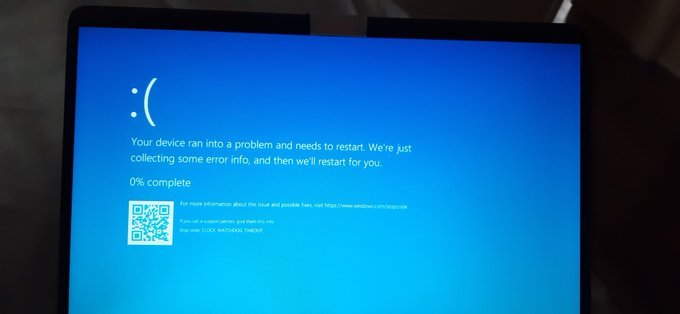
| CLOCK_WATCHDOG_TIMEOUT (0x101) | A secondary processor stopped answering clock interrupts, usually hung or deadlocked | Remove overclocks, update BIOS and drivers, then stop the clock watchdog timeout crashes |
| WHEA_UNCORRECTABLE_ERROR (0x124) | A fatal hardware error, often heat, memory or a failing processor | Turn off overclocking, check fans, test memory, and fix WHEA_UNCORRECTABLE_ERROR by isolating the part |
| DPC_WATCHDOG_VIOLATION (0x133) | A driver ran too long at DISPATCH_LEVEL or above | Disable the named driver, get an update from its maker, check the System log |
| KERNEL_SECURITY_CHECK_FAILURE (0x139) | The kernel found a critical data structure corrupted | Update drivers and Windows; test memory if it repeats |
| KERNEL_MODE_HEAP_CORRUPTION (0x13A) | The kernel-mode heap manager detected heap corruption | Roll back the faulty driver, then fix kernel mode heap corruption with SFC and a RAM test |
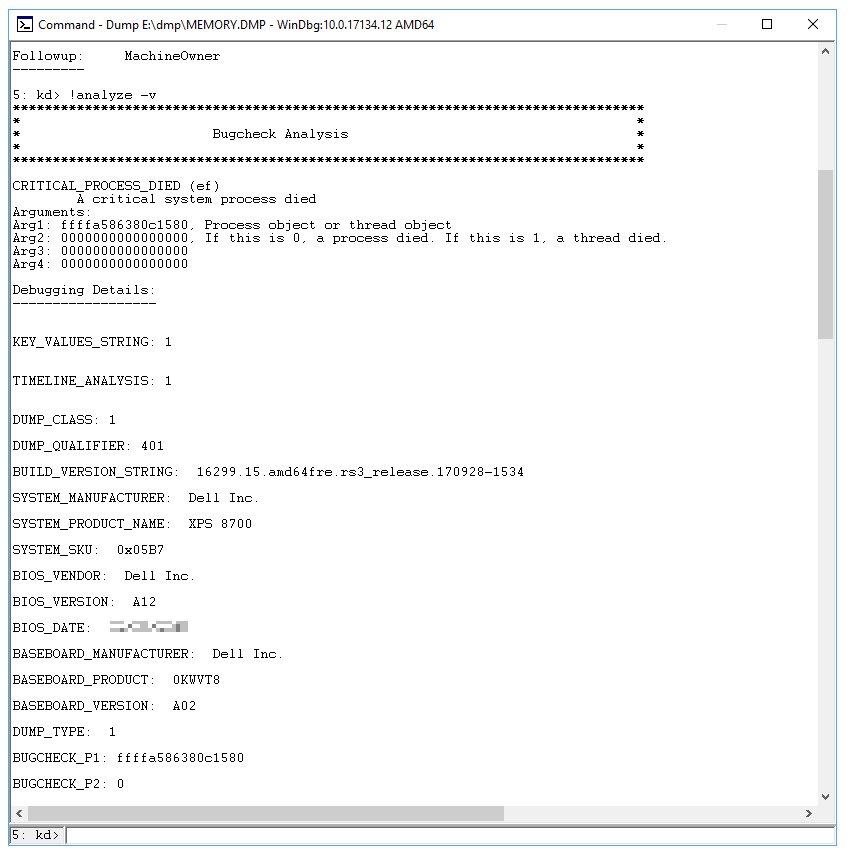
| CRITICAL_PROCESS_DIED (0xEF) | A critical system process ended or its state was damaged | Repair system files with SFC; compare several dump files |
| NTFS_FILE_SYSTEM (0x24) | NTFS corruption or bad sectors on the disk | Scan the drive and run chkdsk using the right chkdsk switches like /f and /r |
| VIDEO_TDR_TIMEOUT_DETECTED (0x117) / VIDEO_ENGINE_TIMEOUT_DETECTED (0x141) | The display driver stopped responding | Get an updated driver from the graphics card maker |
When the stop screen names a Windows 10 PC and the code is not listed here, the steps to fix a Windows 10 stop code cover the general route from hardware removal to disk checks.
Basic troubleshooting steps for Windows 10 blue screens and stop code errors
Windows 10 uses the same first-aid list, but safe mode sits under Update & security. Use this route when a driver crashes the PC during startup.
- Go to Settings > Update & security > Recovery.
- Under Advanced startup, select Restart now.
- On the Choose an option screen, select Troubleshoot > Advanced options > Startup Settings > Restart.
- Press 4 or F4 for safe mode, or 5 or F5 for Safe Mode with Networking.
- In safe mode, disable the driver named on the stop screen in Device Manager, or uninstall recently added software.
- Restart normally and watch for the stop code.
General BSOD first aid: repair files, memory and disk
These checks apply to almost every stop code, so run them before chasing a rare cause. Each one rules out a whole group of faults.
| Check | What it rules out | How |
|---|---|---|
| Install all Windows updates | Known Microsoft bugs already fixed | Settings > Windows Update > Check for updates |
| Update BIOS and firmware | Firmware bugs behind hardware stop codes | PC or motherboard maker's support page |
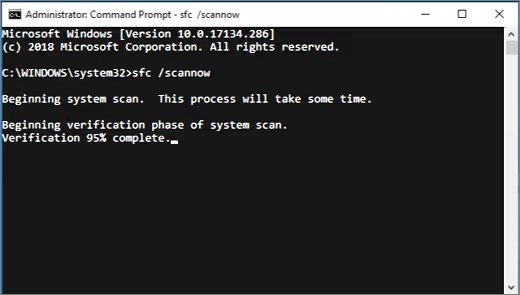
| Repair system files | Damaged Windows files | Run SFC /scannow as administrator, then repair the Windows image with DISM if SFC cannot fix everything |
| Test memory | Faulty RAM | Run Windows Memory Diagnostic and read the result in Event Viewer |
| Check the disk | File system errors and bad sectors | Scan and repair the drive with chkdsk; the C: drive is checked at the next restart |
| Scan for malware | Infections that load drivers | Microsoft Safety Scanner or your antivirus full scan |
| Free disk space | No room for the page file and dump | Keep 10 to 15 percent of the system drive free |
| Remove overclocks | Unstable CPU or memory timings | Reset clocks to default in the BIOS or vendor tool |
Viewing BSOD and Windows stop codes information
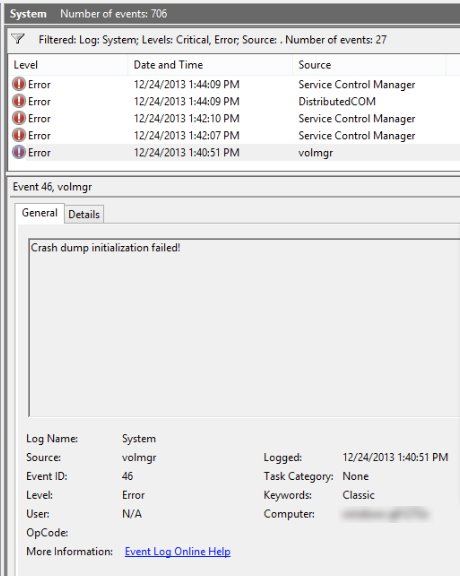
Windows records a crash in two places: Event ID 41 in the System log, and a memory dump file. Both keep the stop code after the screen is gone.
| Where | What you find | Path |
|---|---|---|
| Event Viewer, System log | Event ID 41 (Kernel-Power) with the bug check code in its event data | Event Viewer > Windows Logs > System |
| Small memory dump | A 256 KB crash file per crash | %SystemRoot%\Minidump |
| Kernel, complete or automatic dump | One larger dump, overwritten each time | %SystemRoot%\MEMORY.DMP |
| Startup Repair log | What Startup Repair found and changed | %windir%\System32\LogFiles\Srt\Srttrail.txt |
You can open Event Viewer from the Start menu, then filter the System log by event ID 41.
Dump files need a debugger. WinDbg setup and dump analysis walks through the symbol path; in short, open the dump, run !analyze -v and read the STACK_TEXT section for the module that crashed.
Find the faulty driver with Driver Verifier
Microsoft estimates that about 75 percent of stop errors come from faulty drivers. Driver Verifier is built into Windows and stresses chosen drivers until the bad one crashes with its name in the dump.
verifierOpens Driver Verifier Manager from an administrator Command Prompt. Pick only suspicious drivers, such as recently updated ones, or groups of 10 to 20 third-party drivers. Verifying every driver at once can make the PC unusable.
You should see: The PC runs slower and may crash more often; each new dump should name the failing driver. If Windows will not reach the desktop, start in safe mode, where Driver Verifier does not run, and turn it off.
Specify whether Windows restarts when a BSOD appears
Windows restarts automatically after a stop error, which can hide the code. Turn the restart off to keep the blue screen up until you read it, and choose which dump file Windows writes.
- Select the taskbar search box, type Advanced system settings and press Enter.
- On the Advanced tab, under Startup and Recovery, select Settings.
- Clear the Automatically restart check box to keep the stop screen visible.
- Under Write debugging information, choose Automatic memory dump, or Small memory dump (256k) if disk space is short.
- Select OK and restart the PC for the setting to take effect.
Windows needs a page file of at least 2 MB on the boot volume to write any dump, so leave the page file switched on.
Kernel-Power event ID 41 and unexpected shutdowns
Event ID 41 means Windows did not shut down cleanly. It appears after a stop error, after you hold the power button, or after the power drops, so its data decides which fix applies.
| Event ID 41 shows | What happened | Next step |
|---|---|---|
| A non-zero bug check code | A stop error caused the restart | Look the code up in the stop code list |
| A PowerButtonTimestamp value | The power button was held down | Find out why the PC stopped responding |
| Bug check code of zero, or no event | Power was cut, or the dump could not be written | Check the power supply wattage, cooling, overclocks and memory |
The System log is where this event lives, and a primer on what Event Viewer records explains its filters. For power-related cases, the Kernel Power error fixes cover fast startup, RAM reseating and PSU checks.
How to get a blue screen of death in Windows 11 on purpose
Testers force a crash to check that dump files are written. Windows supports a keyboard-initiated crash once a registry value is added, and it ends in a real stop code with a restart.
- Save your work, because the crash closes everything without saving.
- For a USB keyboard, create the DWORD value CrashOnCtrlScroll set to 1 under
HKEY_LOCAL_MACHINE\System\CurrentControlSet\Services\kbdhid\Parameters. - Restart the PC.
- Hold the rightmost Ctrl key and press Scroll Lock twice.
- After the restart, confirm a new file in the dump folder, then delete the value to undo the change.
Laptops with a PS/2 internal keyboard use a different service key, and the guide to force a blue screen in Windows 11 covers that case and other triggers.
Windows error codes that are not blue screens
Codes such as 0xc000007b appear in a dialog box while Windows keeps running. They come from one app, not the kernel, so the BSOD steps above are the wrong tool.
| Error | What it means | Fix |
|---|---|---|
| 0xc000007b | STATUS_INVALID_IMAGE_FORMAT: a program file is damaged or built for the wrong architecture | Reinstall the app and its runtimes to fix the 0xc000007b error |
| 0xc0000142 | STATUS_DLL_INIT_FAILED: a library failed to start when the app loaded | Repair the app and runtimes to solve application error 0xc0000142 |
| 0x0 | A code that names no specific fault, so the place it appears matters | Repair Windows files and clean boot to fix error code 0x0 |
| WerFault.exe errors | Windows Error Reporting itself, which collects app and kernel faults | Update the crashing app and fix WerFault.exe errors with SFC and DISM |
WerFault.exe is not malware when it runs from the Windows folder; the overview of what WerFault.exe does explains its CPU use and pop-ups.
Troubleshooting BSODs
Why do I keep getting the blue screen of death?
The same driver or hardware fault is still present after each restart.
- Read the stop code and any driver name from Event ID 41 or the dump.
- Update, roll back or uninstall that driver.
- Undo any hardware or software change made just before the crashes.
- Run the memory test and disk check from the first-aid table.
Blue screen of death at startup and Windows will not load
A boot-start driver, damaged startup files or a disk problem.
- Start from Windows installation media if the PC cannot reach the recovery screen on its own.
- Select Troubleshoot > Advanced options > Startup Repair.
- If that fails, start in safe mode and remove the newest driver or update.
- As a last step, use a restore point from the same Advanced options screen.
Blue screen with no driver named
Memory corruption hides the source, or hardware is failing.
- Turn off overclocking and check that fans work.
- Test the RAM and check that all modules run at the same speed.
- Confirm the power supply can handle any parts you added.
- Run Driver Verifier on third-party drivers in small groups.
Stop code disappears before you can read it
Automatic restart is on.
- Clear Automatically restart under Startup and Recovery.
- Or read the bug check code from Event ID 41 in the System log after the restart.
Blue screen of death FAQ
Is the blue screen of death bad?
One blue screen is not a disaster. Windows stops on purpose to prevent data corruption, and in most cases the restart resolves the problem. Repeated blue screens with the same stop code point to a driver or hardware fault that needs fixing.
Is the blue screen of death permanent?
No. A BSOD is a stop event, not lasting damage, and Windows restarts afterwards. If the cause is a failing part such as RAM or a disk, the crashes continue until that part is replaced, but Windows itself is not permanently broken.
Can a blue screen of death be fixed?
Yes. Most blue screens are fixed by updating or rolling back the driver named in the stop code, installing Windows updates, repairing system files with SFC, or removing new hardware. Hardware faults need the failing part tested and replaced.
Where do I find blue screen of death logs?
Open Event Viewer and check Windows Logs > System for Event ID 41, which holds the bug check code. Crash dumps are saved in the Minidump folder under the Windows directory, or as MEMORY.DMP in the Windows folder.
Why does the blue screen of death happen?
Windows stops when something threatens safe operation, such as a driver writing to invalid memory or a hardware error. Microsoft's crash analysis attributes about 70 percent of stop errors to third-party drivers and about 10 percent to hardware.
How do I avoid the blue screen of death?
Keep Windows, drivers, BIOS and firmware updated, leave 10 to 15 percent of the system drive free, avoid unstable overclocks, and install drivers only from Windows Update or the device maker. Create restore points so you can roll back quickly.
Does the blue screen of death still exist?
Yes. Windows 11 and Windows 10 still stop with a stop code screen, although its colour and wording change between Windows 11 versions, so Microsoft now also calls it a black screen error. Preview builds show a green screen.
How do I get the blue screen of death on Windows 11?
Add the CrashOnCtrlScroll registry value for your keyboard, restart, then hold the right Ctrl key and press Scroll Lock twice. Windows crashes with a real stop code and writes a dump, so save your work first.