To play Roblox on PC, log in at roblox.com, open any experience and select Play, which installs the free Roblox app on 64-bit Windows 10 or Windows 11.
This hub covers Roblox installs, passwords, parental controls, legitimate Robux, game settings, Minecraft editions and fixes for Exit Code 1 and launch problems.
How to play Roblox on PC
Roblox installs from the website the first time you join an experience.
- Go to roblox.com in Microsoft Edge, Chrome or Firefox and log in, or create a free account.
- Open any experience and select the green Play button.
- Wait while the pop-up shows that Roblox Player is installing.
- If the browser asks which program should open the link, select Roblox and confirm. Tick the remember option so it does not ask again.
- The experience opens in the Roblox app. Select Play on any other experience to join it the same way.
Roblox also ships a Microsoft Store app, "Roblox – Windows", which asks you to link an Xbox account once. The Roblox download options for PC list both installers.
There is no browser-only player: playing Roblox in a browser still hands the game to the installed app. Roblox does not run on Linux.
How to update Roblox on PC
The route depends on where Roblox came from; a fresh copy from roblox.com is always the latest version.
- Close every other program, as Roblox recommends before any install or update.
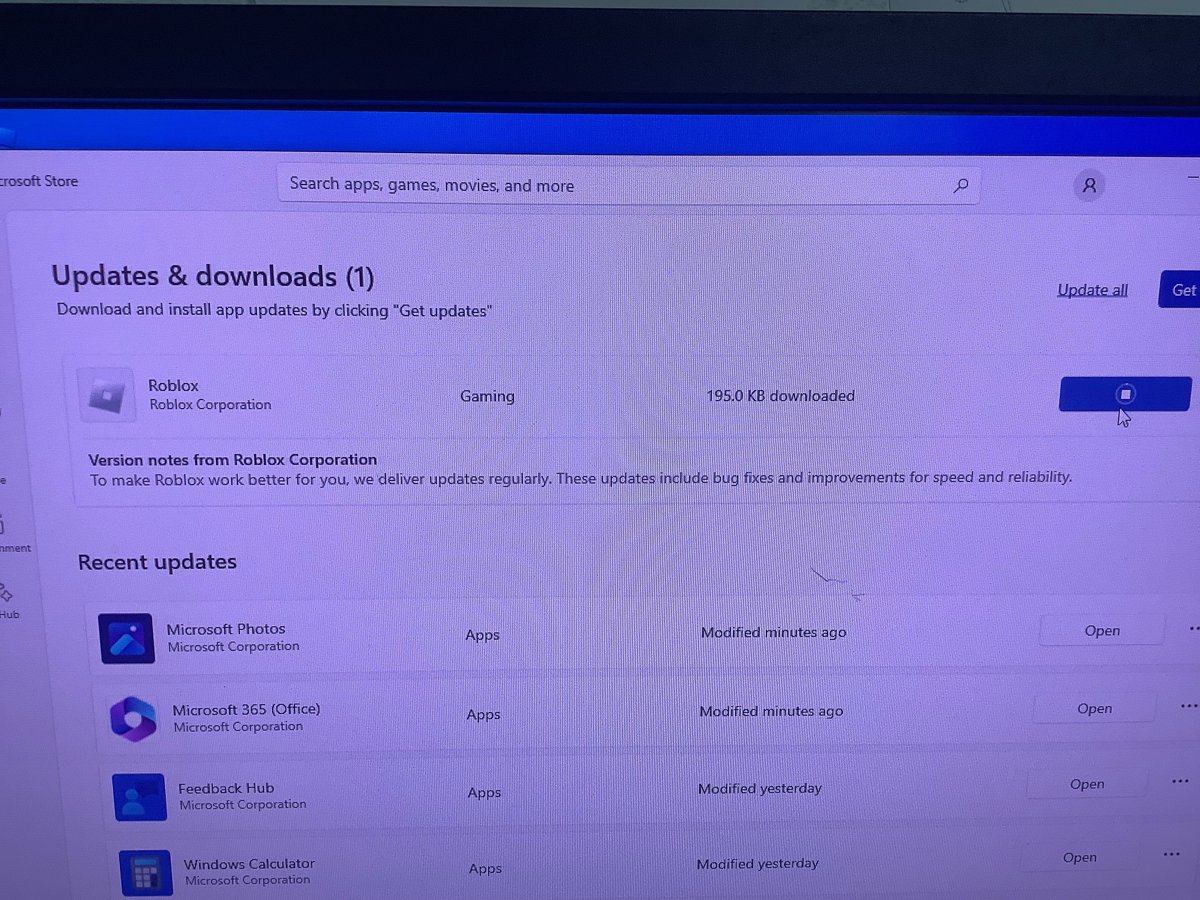
- For the "Roblox – Windows" Store app, open Microsoft Store and select Check for updates.
- For the website version, uninstall Roblox, restart the PC, then select Play on any experience at roblox.com to install a new copy.
- If you still have the old gray-icon "Roblox" Store app, install "Roblox – Windows", log in, then uninstall the old one, because it will stop working.
- For Roblox Studio, select Update in the upper-right corner, save or close your place, and let Studio restart.
Mac steps and the fixes for a stuck update are in the walkthrough to update Roblox on Windows and Mac.
Reset your password using an email address
Use this when you have forgotten your Roblox password and your account has an email address on it.
- Select Forgot Password or Username? on the Roblox Login page. The page title reads "Recover your Roblox Account".
- Type your email address exactly as it is on the account, then select Submit. A missing or extra period counts as a different address.
- Open the email Roblox sends and select Reset Password. Check junk and spam folders if it has not arrived after a few minutes.
- If several accounts share that email, select the account to reset.
- Enter and confirm a new password that you have not used before, then select Submit.
Reset your password using a phone number
The Phone tab is the route when your account has no email address but does have a phone number.
- Select Forgot Password or Username? on the Roblox Login page.
- Select the Phone tab and choose your country code.
- Enter your phone number in the Phone Number box and select Continue.
- Select Verify and complete the check. Roblox texts a 6-digit code.
- Enter the code and select Verify, pick the account if there is more than one, then set a new password and select Submit.
With neither an email nor a phone number, contact Roblox Customer Support at roblox.com/support, which verifies ownership before any reset. Quick Login and the support route are covered in the steps to reset a Roblox password without email.
Changing your password and adding security in Roblox account settings
Roblox account settings open from the gear icon in the upper-right corner of roblox.com. Changing your password there needs your current password, and 2-Step Verification needs a verified email address first.
| Task | Where it lives | What to know |
|---|---|---|
| Change your password | Settings > Account Info > Change Password (pencil and paper icon) | Enter the current password once and the new one twice |
| Turn on 2-Step Verification | Settings > Security, then turn on one method | Email, authenticator app or security key; only one method at a time |
| Create backup codes | Settings > Security > Generate | Each code works once; new codes cancel the old set |
| Add a phone number or passkey | Settings > Account Info | With 2SV on, recovery needs two different verification methods |
| Manage Roblox Plus or Premium | Settings > Subscriptions | Renewal date, expiry date, payment method, Cancel Renewal |
| Robux spending and purchase history | Robux icon > your Robux amount > My Transactions | Filters include Currency Purchases, Purchases and Premium Stipends; Roblox transaction and purchase history explains each |
| Bans, warnings and appeals | Violations & Appeals (roblox.com/report-appeals) | Appeal within 30 days; check your Roblox ban history for every place a ban shows up |
How can parents manage their child's settings?
Roblox gives parents two routes. A parent account is a separate account belonging to a parent or caregiver, linked to the child's account. Parent mode works on the child's device with no account of your own.
| Your situation | Use this | Why |
|---|---|---|
| You want to change settings from your own phone or PC at any time | Linked parent account | Manage the child's settings remotely and get emails such as spending notifications |
| You want updates on a child under 13 | Linked parent account | Regular updates on top-played games and screen time |
| You only want to approve a one-off request | Parent mode on your child's device | The child selects Ask in Person, you verify you are an adult and set a 6-digit PIN for next time |
| Your child already has a linked parent account | Your own device, Settings > Parental Controls | Parent mode is only for children without a linked parent account |
The benefits of parent accounts over Parent mode are remote access, activity emails and a notice when your child starts managing a setting. To manage parental controls on your child's device, complete the one-time onboarding, then grant or deny the request. Parent mode is still rolling out.
How to set up your parent account
You must pass an age check showing you are 18 or older, using facial age estimation, a government-issued ID or a credit card. Have an ID ready before you start.
- On your child's Roblox account, open Settings and go to the Parental controls tab.
- Select Add parent and type your email address.
- Follow the instructions in the email Roblox sends. Create a Roblox account if you are new.
- Verify your age when prompted.
- When asked whether to link your account to your child's, select Agree.
Several parents can link to the same child from their own accounts, and Roblox discourages sharing an account with parent privileges. To unlink, go to Settings > Parental Controls, select the child, select the pencil icon and choose Unlink accounts.
What types of controls do parents have?
To manage your child's settings, open Settings > Parental Controls in your linked parent account and pick the child. The controls change as the child ages, and some move to the child at set ages.
| Control | What a parent can do |
|---|---|
| Content | Set the maximum maturity rating for games, and allow or block specific games |
| Chat | Turn chat on or off and approve trusted friends for a child under 13 |
| Screen time | Set daily limits for a child under 13 and keep seeing screen time as they age |
| Spending | Set a monthly spending limit and turn on spend notifications |
| Robux balance | View the child's Robux balance and add Robux to their account |
| Friends and private servers | Review the friends list and the private servers the child uses |
| Robux transfers | Approve or reject every transfer a child under 16 sends or receives |
Parent mode covers most of these, but spending notifications need a linked account.
Can you really get free Robux or free Robux codes?
No. Roblox states that Robux are bought for real money or earned as a creator, and that any offer of free Robux, subscriptions or codes is a scam. Real codes exist, but they are bought or won, and each type gives something specific.
| Code type | Where it comes from | What you get |
|---|---|---|
| Roblox gift card | Bought from a retailer or roblox.com | Robux or Roblox Credit, plus up to 25% more Robux |
| Promo code | Roblox events or giveaways; often time-limited | Usually a virtual item |
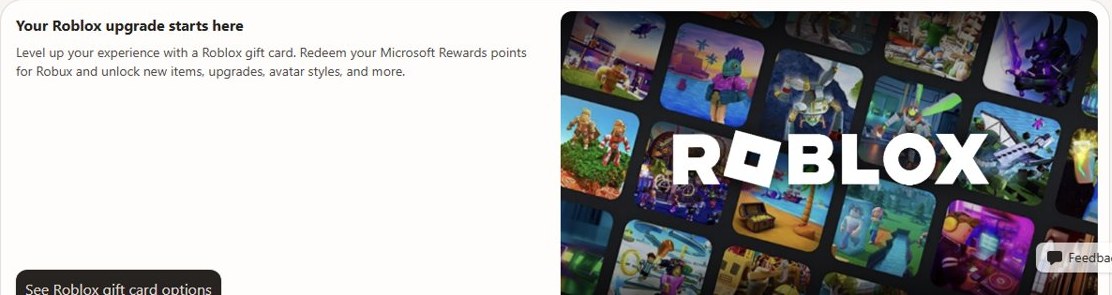
| Microsoft Rewards Roblox gift card | Redeemed with Microsoft Rewards points | A gift card code that only works at roblox.com |
| "Free Robux code" from a video, site or player | Scammers | Nothing; the goal is your password and items |
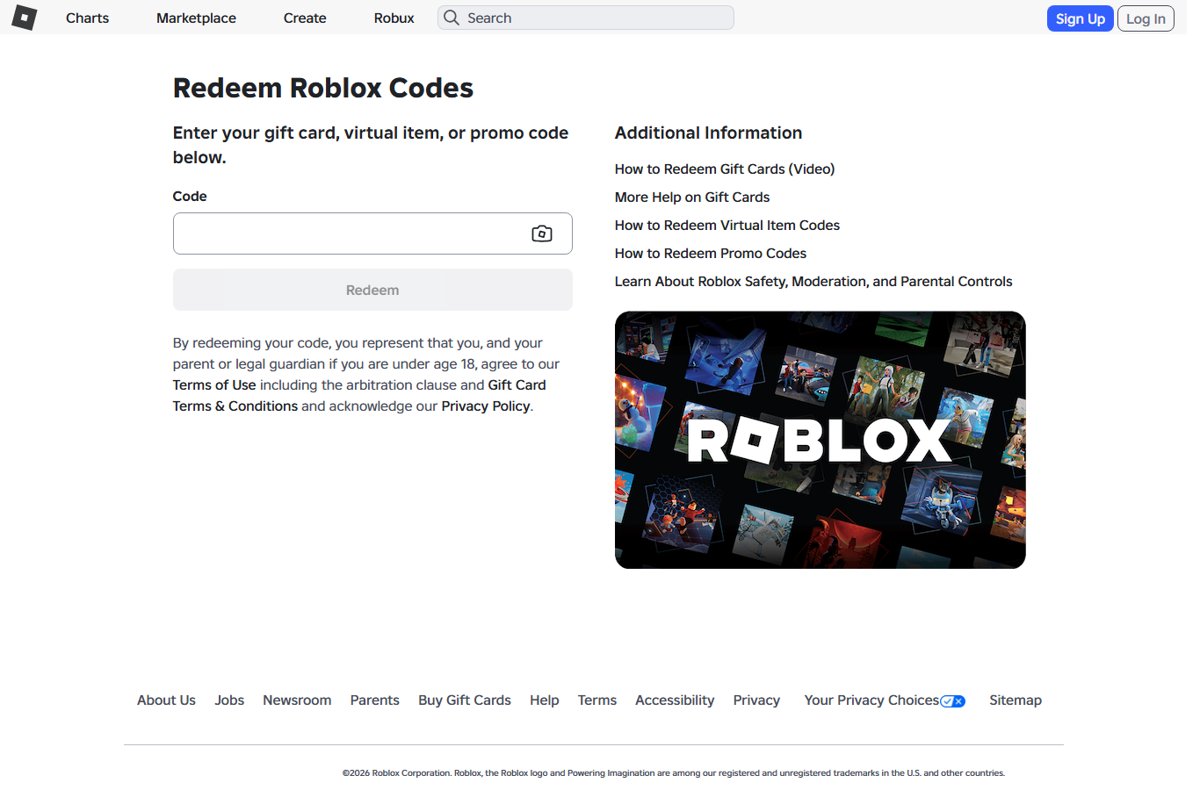
Redeem any real code at roblox.com/redeem in a web browser: log in, enter the code and select Redeem.
How to get free Robux in Roblox: ways that work
"Free" here means Robux you do not pay for yourself. Each route Roblox and Microsoft run has a catch.
| Route | How it works | Catch |
|---|---|---|
| Microsoft Rewards | Earn points for everyday activities, then redeem them for a Roblox gift card; you can claim Robux from Microsoft Rewards step by step | Offers run while supplies last, and the code works only at roblox.com |
| Roblox Plus referrals | When someone you invite subscribes to Plus and pays, you both get 100 Robux after a 21-day hold | You must be a paying Plus subscriber; referral Robux cannot be cashed out |
| Robux transfers | A friend or parent on Roblox Plus sends you Robux; select Accept on the notification | Age checks apply, and under-16s need a parent to approve |
| Promo codes | Codes from Roblox events and giveaways | Mostly items, not Robux |
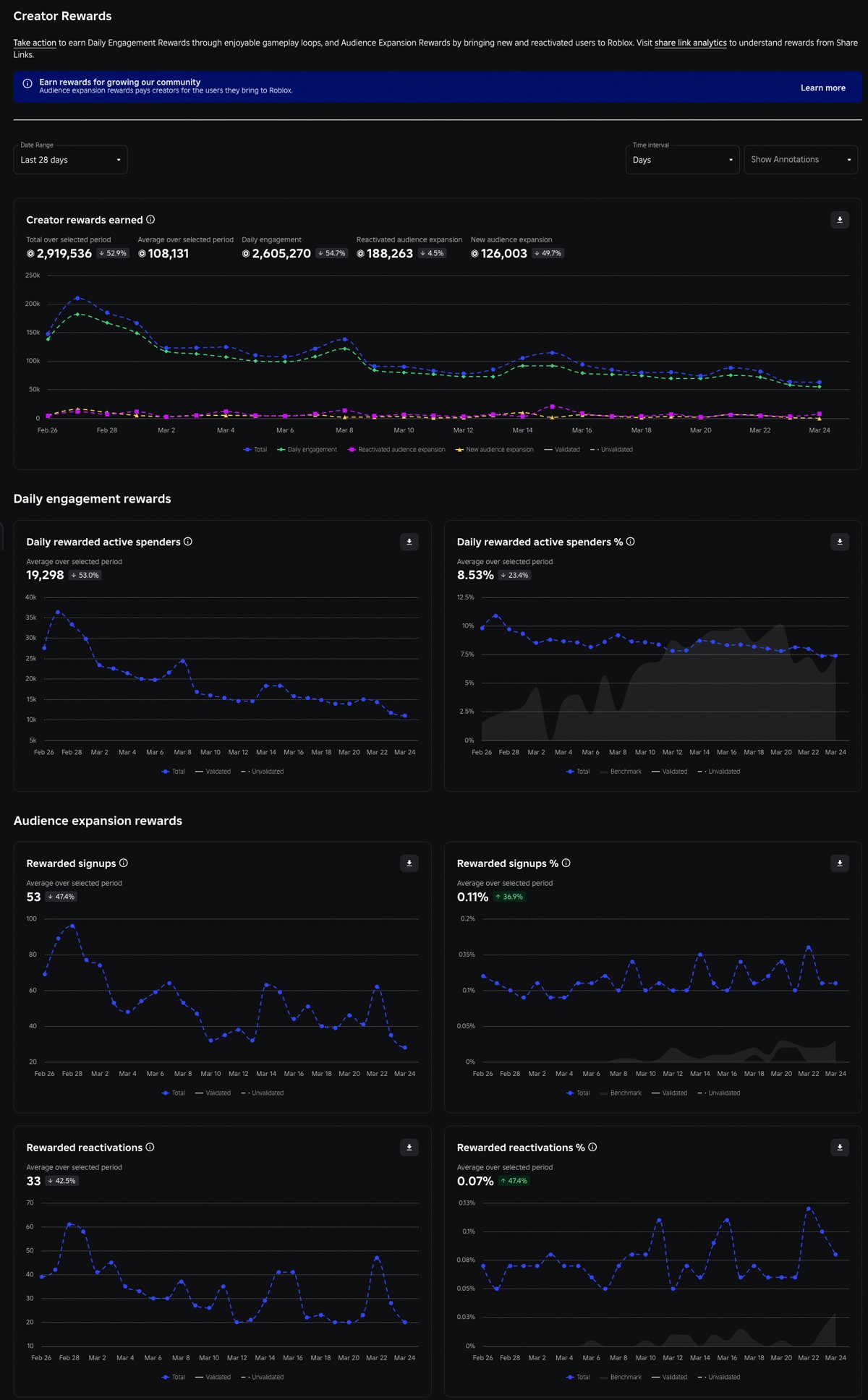
| Creator earnings | Sell avatar items or build a game that earns Robux | Takes work; covered in the earning section below |
Every one of these is slow or conditional, which is why the legit ways to get free Robux focus on creator income.
Purchasing Robux and Roblox Plus on PC
Buying Robux on the web or a computer gives up to 25% more Robux than other platforms, and Roblox says this pricing is permanent. Gift cards get the same bonus, including cards bought before November 26, 2024.
| Option | What you get | Note |
|---|---|---|
| Buy Robux on roblox.com or the desktop app | Robux packages with up to 25% more Robux | Robux are also sold in the mobile, PlayStation and Xbox apps |
| Roblox gift card | Robux or Roblox Credit | Redeem at roblox.com/redeem in a browser, one card at a time |
| Roblox Plus | 10% off in-game and avatar items, rising to 20% from the third straight month; a free private server per game; free Robux transfers | No monthly Robux stipend |
| Plus 500, Plus 1000, Plus 2000 | Plus plus 500, 1000 or 2000 Robux each month | Bundles a subscription and monthly Robux in one payment |
| Roblox Premium | No longer sold since April 30, 2026 | Existing members keep their stipend; the 10% purchase bonus ended May 30, 2026 |
Plus transfers are capped at 500 Robux a day and 1,000 a month, or 5,000 and 10,000 with 2-Step Verification, and are final. The other ways to gift Robux to friends include gift cards and group payouts.
What happened to the Roblox Affiliate Program?
Do not plan on an affiliate link: Roblox's current list of ways to earn has no affiliate program. The Creator Hub's earning page lists Creator Rewards, Roblox Plus, in-game items, developer subscriptions, paid access, avatars, models and plugins, ads and commerce. The nearest thing to an affiliate payout today is the Roblox Plus referral, which pays 100 Robux to both people.
Are free Robux generators real? How to spot a free Robux scam
Free Robux generators are not real. Roblox says no generator exists, and any person, video, website or game that claims one is a scam that breaks the Terms of Use. These are the free Robux methods you should avoid and what each one is really after.
| Warning sign | What is really happening |
|---|---|
| A site or app promises Robux for your username and password | Account theft; enter your password only on the Roblox login page |
| An in-game form asks you to log in | Phishing; leave the experience and report it |
| Someone asks for a 2SV code, backup code or browser cookie | Roblox employees never ask for these |
| A "Robux generator" download or browser extension | Malware; Roblox makes no browser extensions |
| Advice to claim a fake purchase for free Robux | Breaks Roblox rules and can get your account deleted |
| A request to send Robux to "verify" your account | Roblox never asks for this; transfers cannot be reversed |
Real promotions appear only on the Roblox blog, in Messages notifications or in a roblox.com banner. Report scams with Report Abuse in any experience menu.
Earning Robux: what's the best way to earn Robux without buying it?
Creating is the only route that pays steadily. Creators generally keep 70% of Robux sales inside their own game and 30% of Marketplace sales.
| Way to earn | What it takes | Payout |
|---|---|---|
| Build a game in Roblox Studio for PC | Studio is free on Windows 10 or later and Mac, with 3 GB RAM minimum | In-game items, passes, subscriptions and paid access |
| Sell avatar items on the Marketplace | An 80 Robux upload fee per item; publishing needs Roblox Plus or Premium 1000/2200 | 30% of each Marketplace sale |
| Classic T-shirts | A square image such as 512 x 512 pixels; you can make a classic T-shirt and test it in Studio first | Same Marketplace share |
| Creator Rewards | A game that brings engagement to Roblox | Extra Robux paid by Roblox |
| Paid private servers | A public game with private servers enabled | Up to 100 Robux a month per Plus subscriber who plays them |
| Developer Exchange (DevEx) | Age 13 or older and at least 30,000 earned Robux | Cash at 10,000 Robux = $38 USD |
Roblox on PC controls and game settings
Each experience's creator decides which controls it offers, so a setting can exist in one game and not another.
| Setting or task | How it works on PC | Full steps |
|---|---|---|
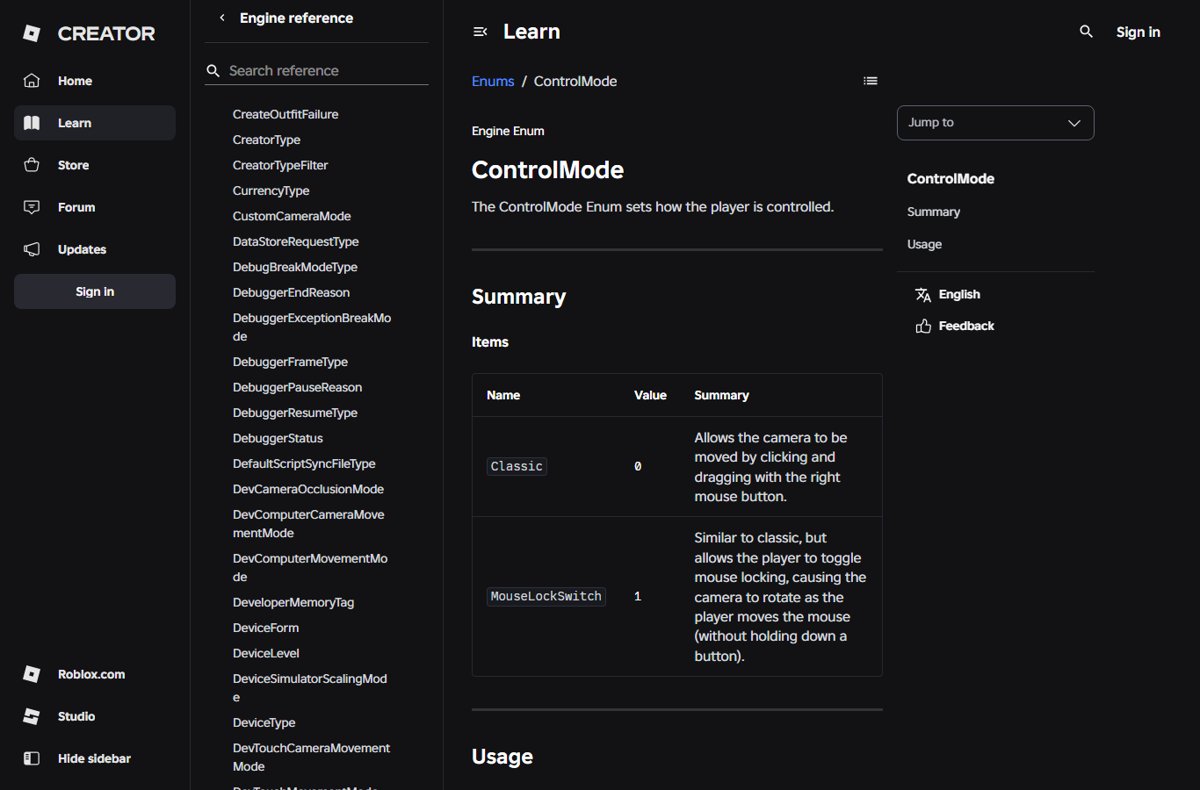
| Shift lock | Press Shift to lock the mouse when the experience allows it; you can turn the switch off in the experience's settings | shift lock on Roblox PC |
| Private server kicks | Kicking is done by the experience's own scripts, so only trusted users can trigger it | kick a player from a private server |
| Donation stands | Pls Donate is a community-made experience built around donation booths | setting up a Pls Donate stand |
| Extra hair and accessories | In the Avatar Editor, select Advanced in the lower-right corner and add up to 10 items by Asset ID; select Redraw if the preview does not change | equip more than one hair |
Minecraft Java vs Bedrock vs Education on PC
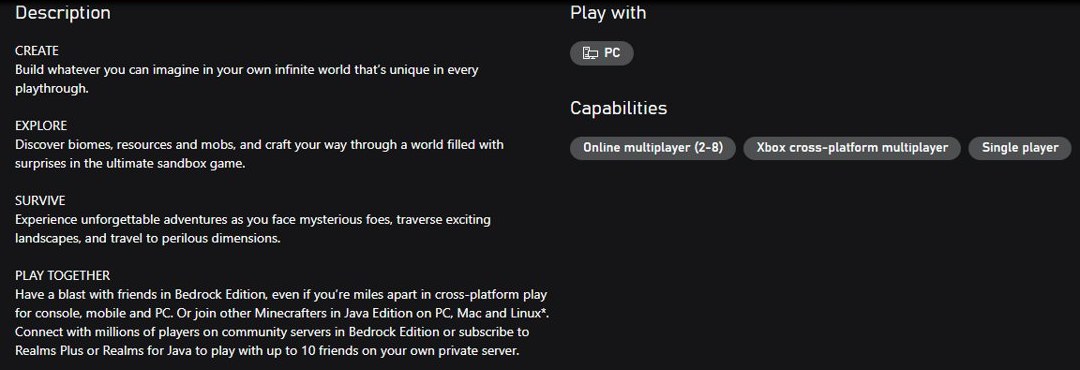
Minecraft: Java Edition and Bedrock Edition have been sold as one bundle for PC since June 7, 2022, so one purchase gives you both in the Minecraft Launcher.
| Edition | Runs on | Where to get it | Note |
|---|---|---|---|
| Java Edition | Windows, Mac, Linux | Minecraft Launcher, with the Java & Bedrock PC bundle | Version 26.1 needs Java 25, which the launcher includes |
| Bedrock Edition | Windows 10 and later, Xbox, PlayStation 4/5, Nintendo Switch, iOS, Android, Chromebook, VR headsets | Minecraft Launcher on PC; each console or phone store elsewhere | Same bundle on PC |
| Minecraft Education | Windows, iPad, Mac, Chromebook | education.minecraft.net; Minecraft Education for PC lists the installers | Built for schools, camps and clubs |
| Minecraft Classic | Windows, Mac, Linux in a browser | classic.minecraft.net | The original version, free to play |
You can download Minecraft for PC from minecraft.net or the Microsoft Store, and the same page carries the Minecraft server software for PC. Minecraft Dungeons for PC is a separate game, not an edition, and the full Minecraft release history dates every version.
How to download Minecraft Launcher on Windows 11
The Minecraft Launcher installs, updates and starts every PC edition. It needs Windows 10 or later to keep receiving updates.
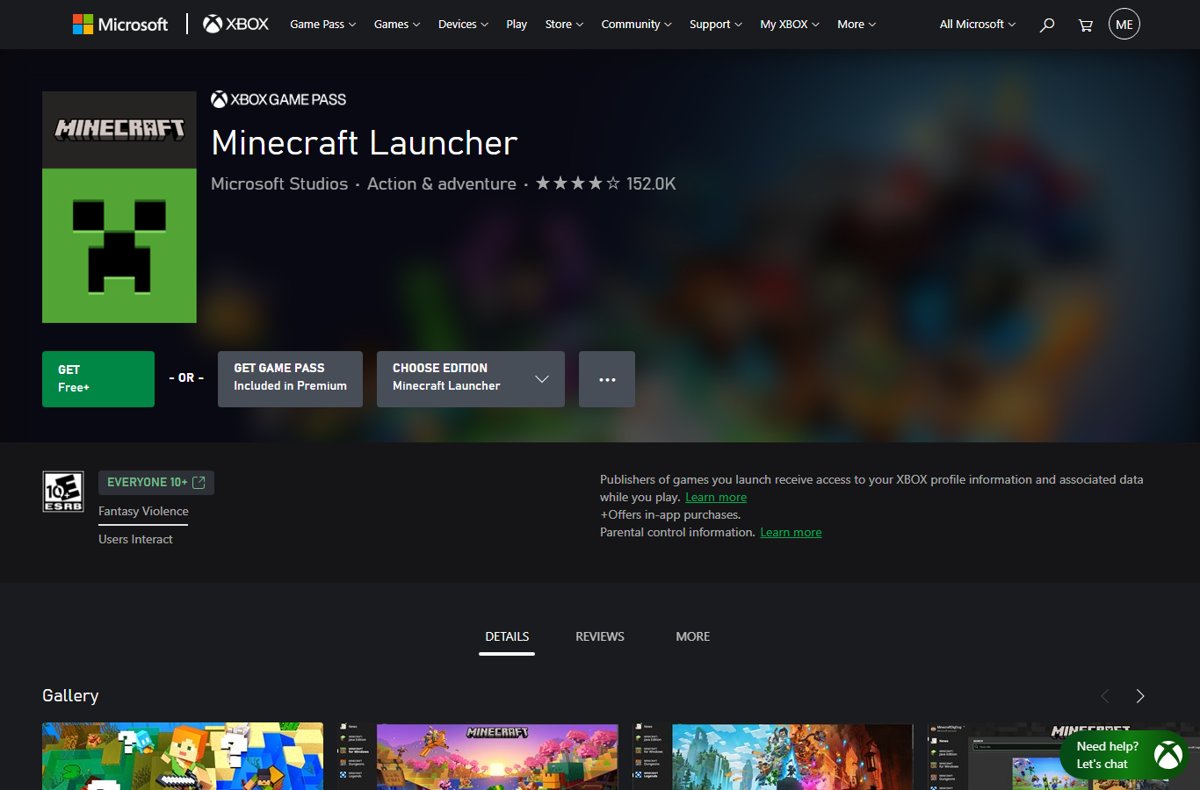
- Open Minecraft Launcher in the Microsoft Store, or the Download Minecraft & Server Software page on minecraft.net.
- Choose your edition, then select Get or Install.
- Open the launcher and sign in with the Microsoft account you used to buy Minecraft.
- Select Minecraft: Java Edition or Minecraft: Bedrock Edition on the left.
- Select Play or Install for an edition you own; Buy Now means that account does not own it.
The Minecraft Launcher setup on Windows covers sign-in mix-ups and install errors. To play old versions of Minecraft, select Installations > New, pick a release from the VERSION list and select Create; back up worlds first, because opening a world in an older version can damage it permanently.
What is error code 1 in Minecraft? The most common causes, in order
Exit Code 1 means Minecraft: Java Edition closed with an error after you selected Play; the number alone does not name the cause. Read the crash report, not just the exit code: find the crash report through the launcher's game output log or the Open game directory button on each Java installation.
| Cause | Sign | Fix |
|---|---|---|
| A mod or mod loader that does not match the game version | A fresh installation without mods starts fine | Fix 2 below |
| Wrong Java runtime | The crash started after a version change; 26.1 and later need Java 25 | Fix 1 below |
| Memory setting too high or too low | Crashes on a PC with 4 GB of RAM or less, since 26.1 allocates 4 GB by default | Set -Xmx2G in the installation's JVM arguments |
| Old graphics driver | Vanilla installations also crash after a recent driver update | Fix 3 below |
| Damaged launcher or game files | Every installation fails | Fix 4 below |
Mod conflicts are the usual culprit, and the five Minecraft Exit Code 1 solutions start with a launch without mods for that reason.
Steps to fix Minecraft Exit Code 1
This order finds the faulty part fast, so you can stop a Minecraft Exit Code 1 crash and keep playing.
- Close the Minecraft Launcher and restart the PC.
- Back up your worlds: in Java Edition select Singleplayer, pick the world, select Edit and then Make Backup.
- Launch a new installation without mods (Fix 2). If it starts, the old installation is the cause.
- If it still crashes, check the memory value in More Options > JVM arguments and lower it on a PC with 4 GB of RAM or less.
- Update the graphics driver (Fix 3), then repair or reinstall the launcher (Fix 4) if nothing works.
Fix 1: Reinstall Java to fix a Minecraft “Exit Code: 1” error
You do not need to download Java yourself. The launcher includes the Microsoft Build of OpenJDK 25, which Java Edition 26.1 requires, so the fix is to put the installation back on the launcher's own runtime and default settings.
- Open the Minecraft Launcher and select Minecraft: Java Edition on the left.
- Select the Installations tab, then New installation.
- Name it and select the same game version as the world that crashes.
- Select Install, then launch the new installation.
- If it starts, open the old installation's More Options and copy the defaults from the new one, including the JVM arguments.
Fix 2 – Remove mods from Minecraft (disable mods to diagnose Minecraft crashes)
A clean installation is the fastest way to prove a mod is the culprit. Bisect the mod list to find the exact culprit instead of removing mods one at a time.
- Back up the world you play, as in the steps above.
- Create a new installation of the same version with no mods and launch it.
- If it runs, return to your modded installation and remove half of the mods.
- Launch again: if it still crashes, the culprit is in the half that stayed; if not, it is in the half you removed.
- Keep halving that group until one mod remains, then update or remove it.
When it needs the mod author, send them the crash report and the game version, since only they can fix the mod itself.
Fix 3 – Update the graphics card driver (GPU drivers)
Windows Update delivers video card drivers automatically on Windows 11 and Windows 10. Device Manager can push an update or roll back a bad one; get drivers only from the manufacturer's official site.
- Right-click Start and select Device Manager.
- Expand the category that holds your graphics card.
- Right-click the graphics card and select Update driver.
- Select Search automatically for updated driver software and let Windows install anything it finds.
- If the crash began after a driver update, open the card's Properties, select the Driver tab and choose Roll Back Driver.
Fix 4 – Uninstall Minecraft and reinstall Minecraft
Try Repair in the launcher's Advanced options first, as in the troubleshooting steps below, and reinstall only if that fails.
- Back up your worlds.
- Select Start > Settings > Apps > Installed apps.
- Find Minecraft Launcher and select More > Uninstall.
- Restart the PC.
- Download the launcher again from minecraft.net or the Microsoft Store and sign in.
Roblox or Minecraft not working on PC
Match the message or behaviour to its cause and apply the fix in the right column.
| Symptom | Cause | Fix |
|---|---|---|
| Error 280: "Your version of Roblox may be out of date" | An old copy of the Roblox app | Uninstall, then install a new copy from roblox.com |
| "Could Not Connect" or "ID=17" in Roblox | A firewall blocking Roblox, or a weak wireless connection | Allow Roblox in the firewall and try a wired connection |
| Minecraft Launcher shows Buy Now for a game you own | Signed in with a different Microsoft account | Sign in with the account used to buy Minecraft |
| Minecraft Launcher stops getting updates | Windows older than Windows 10 | Move to Windows 10 or later; older systems lose updates and some multiplayer options |
Why won't Roblox open on my PC?
Roblox is not opening or keeps crashing on PC
Corrupted temporary or Roblox files, a firewall block, or another program running during install.
- Restart the PC and try again.
- Clear your browser's temporary internet files and cookies.
- In your firewall or security program's permissions, allow Roblox to access the internet.
- Reinstall Roblox with every other program closed.
- If it still fails, uninstall it and delete the Roblox folder in C:\Users\(your Windows username)\AppData\Local, then restart and reinstall.
Roblox is so laggy on my PC
A slow or unstable connection, a large map still loading, or a PC below Roblox's requirements.
- Switch to a wired connection if you can.
- Turn off ad-blocker extensions in the browser you launch from.
- Give large experiences time to load; the map is ready when your avatar appears.
- Check that the PC meets DirectX 10, 1 GB of RAM and a 4-8 Mb/s connection.
Roblox password reset email is not arriving
The email went to spam, or the address typed does not match the account exactly.
- Wait a few minutes and check junk and spam folders.
- Request it again with the address typed exactly as on the account.
- Use the Phone tab if a phone number is on the account.
- With neither, contact Roblox Customer Support and prove ownership.
Minecraft Launcher will not open or freezes
Damaged launcher files or a stuck Microsoft Store cache, since the launcher relies on the Store app.
- Run the Gaming Services Repair Tool that Minecraft Help links for PC.
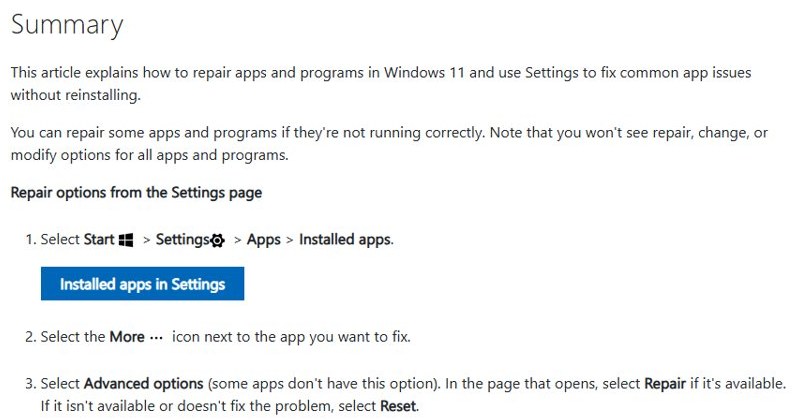
- Select Start > Settings > Apps > Installed apps, select More next to Minecraft Launcher, then Advanced options > Repair, or Reset if Repair fails.
- Reset the Microsoft Store cache, then reinstall the launcher (Fix 4) if it still freezes.
Roblox on PC FAQ
Can I play Roblox on PC without downloading?
No. Roblox has no in-browser player on Windows. Selecting Play on roblox.com installs the free Roblox Player the first time, and after that the website opens each experience in the app. The Microsoft Store app "Roblox – Windows" is the other install route.
Is Roblox on PC free?
Yes. Roblox accounts are free to make, and Roblox Player installs from roblox.com the first time you select Play on an experience. You pay only for optional extras such as Robux, Roblox gift cards or a Roblox Plus subscription.
Can I run Roblox on my PC?
Roblox runs on 64-bit Windows 10 or Windows 11 with DirectX 10 feature level graphics, a 1.6 GHz or faster processor from 2005 or later, at least 1 GB of RAM and 300 MB of storage. It does not run on Linux, and a 4-8 Mb/s connection is recommended.
How do I delete Roblox on PC?
Select Start > Settings > Apps > Installed apps, find Roblox and select More > Uninstall. For persistent problems, also delete the Roblox folder in C:\Users\(your Windows username)\AppData\Local. That does not remove Roblox Studio places unless you saved them in that folder.
Where is Roblox on PC?
Roblox keeps its files in a Roblox folder under C:\Users\(your Windows username)\AppData\Local. The app itself appears in the Start menu under All apps, and in Settings > Apps > Installed apps, where you can repair or uninstall it.
Why is my Roblox crashing on PC?
Roblox usually crashes on PC because of corrupted temporary or Roblox files, a firewall block, or another program running during installation. Restart, allow Roblox in your firewall and reinstall with every other program closed.