To enable ransomware protection on Windows 11, open Windows Security, go to Virus & threat protection > Manage ransomware protection, and switch Controlled folder access to On.
This guide covers the Windows Security toggle, protected folders, allowed apps, the PowerShell and Group Policy routes, OneDrive file recovery and how to turn the feature off again. The same steps work on Windows 10.
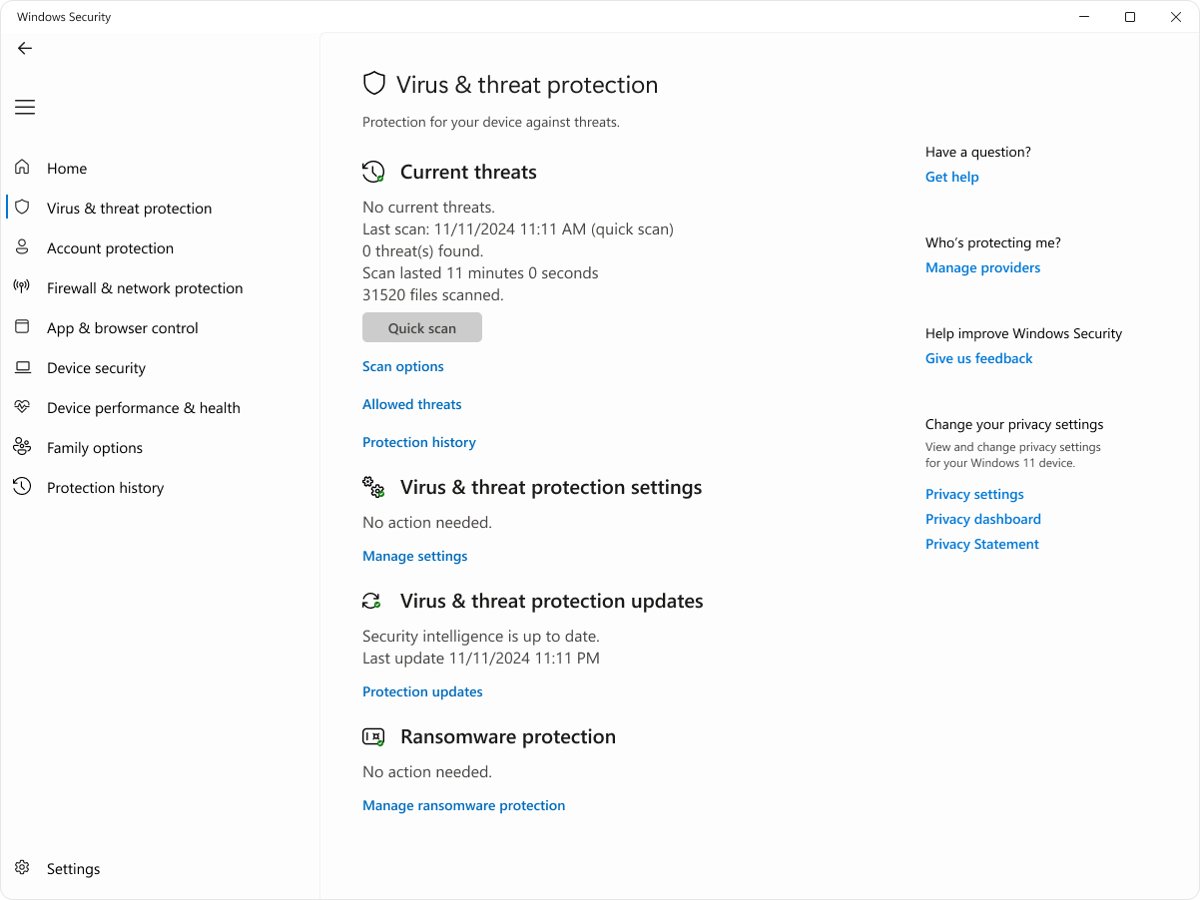
Enable ransomware protection on Windows 11
Ransomware protection in Windows 11 is the Controlled folder access feature of Microsoft Defender Antivirus, one of the built-in Windows Security protections. It is off by default on every edition, including Windows 11 Home.
- Open Start, type Windows Security and open the app.
- Select Virus & threat protection.
- Under Ransomware protection, select Manage ransomware protection.
- Under Controlled folder access, switch the toggle to On.
- Select Yes in the User Account Control prompt.
- If you used the feature before, choose whether to keep the protected folders and allowed apps you set up last time.
Once it is on, two more links appear in the same section: Protected folders and Allow an app through Controlled folder access. Untrusted apps can no longer change or delete files in protected folders, and Windows shows a notification each time it blocks one.
What is controlled folder access in Windows 11?
Controlled folder access counters ransomware by letting only trusted apps change files in protected folders. Microsoft Defender Antivirus trusts most well-known apps automatically, based on how widely they are used and their reputation.
| Part | What it does |
|---|---|
| Protected folders | Untrusted apps cannot modify or delete files in these folders. A fixed default set is protected, and you can add more. |
| Trusted apps | Apps allowed to change files in protected folders. Defender checks every executable type, including .exe, .scr and .dll files. |
| Disk sectors | Untrusted apps cannot write directly to the boot record, which blocks bootkits and disk-wiper malware. |
| Notifications | A pop-up appears when an app is blocked, and the block is logged in Protection history. |
| Requirement | Microsoft Defender Antivirus must be the active antivirus with Real-time protection on. The feature does not work when Defender is in passive mode or off. |
Controlled folder access sits alongside the other Defender hardening options, such as Exploit Protection in Windows 11, which guards running processes rather than files.
Controlled folder access default protected folders
The default list cannot be edited or shortened. It covers these locations for every user account and for system accounts such as LocalService and NetworkService.
| Location | Default path |
|---|---|
| Boot sectors | Hard drive boot sectors |
| Documents | C:\Users\<username>\Documents and C:\Users\Public\Documents |
| Pictures | C:\Users\<username>\Pictures and C:\Users\Public\Pictures |
| Music | C:\Users\<username>\Music and C:\Users\Public\Music |
| Videos | C:\Users\<username>\Videos and C:\Users\Public\Videos |
| Favorites | C:\Users\<username>\Favorites |
If a folder is redirected, the protection follows it. When OneDrive backs up your Documents or Pictures folder, Windows protects the copy inside the OneDrive folder. With the feature on, the default folders appear at the bottom of the Protected folders list.
Allow apps ransomware protection on Windows 11
Add an app only when Windows blocks it and you know it is safe, such as a photo editor or backup tool that saves into Documents. Most popular apps are trusted automatically and never need adding.
- Open Windows Security > Virus & threat protection > Manage ransomware protection.
- Select Allow an app through Controlled folder access.
- Select Yes in the User Account Control prompt.
- Select + Add an allowed app.
- Choose Recently blocked apps to pick an app Windows has just stopped, or Browse all apps to find its .exe or .com file.
- Close and reopen the app so the new permission takes effect.
The permission is tied to that exact file location. A copy of the same program in a different folder is not trusted and may still be blocked.
Protect other folders against ransomware on Windows 11
Add a folder when you keep important files outside the default locations, for example a work folder on a second drive. Subfolders of an added folder are protected too.
- Open Windows Security > Virus & threat protection > Manage ransomware protection.
- Select Protected folders.
- Select Yes in the User Account Control prompt.
- Select + Add a protected folder.
- Browse to the folder and select it.
- Repeat for each extra folder you want guarded.
Network shares and mapped drives can be added. For a folder you share from this PC, add its local path such as C:\demo, not the \\mycomputer\demo share path.
Turn on controlled folder access with PowerShell
PowerShell sets the same feature and also unlocks Audit Mode, which logs what would be blocked without stopping anything. Open PowerShell with Run as administrator first.
Set-MpPreference -EnableControlledFolderAccess EnabledValid values are Disabled (0), Enabled (1), AuditMode (2), BlockDiskModificationOnly (3) and AuditDiskModificationOnly (4). To add a folder without replacing the existing list, run Add-MpPreference -ControlledFolderAccessProtectedFolders "D:\Work". To allow an app, run Add-MpPreference -ControlledFolderAccessAllowedApplications "C:\Apps\app1.exe".
You should see: No output on success. The toggle in Windows Security now shows On.
Use Add-MpPreference rather than Set-MpPreference for folders and apps. Set-MpPreference overwrites the whole list with the values you give it.
Enable controlled folder access with Group Policy
Windows 11 Pro, Enterprise and Education include the Local Group Policy Editor. A policy set here overrides the toggle in Windows Security.
- Press Win + R, type
gpedit.mscand press Enter. - Go to Computer Configuration > Administrative Templates > Windows Components > Microsoft Defender Antivirus > Microsoft Defender Exploit Guard > Controlled Folder Access.
- Double-click Configure controlled folder access.
- Select Enabled.
- Under Configure the guard my folders feature, choose Block.
- Select OK.
To add folders or apps through policy, open Configure protected folders or Configure allowed applications, select Enabled, select Show…, and enter each path as the value name with 0 as the value.
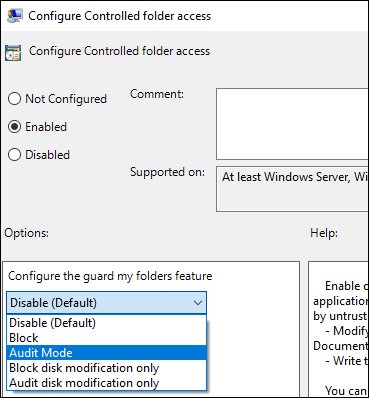
How to tell if controlled folder access is on
Get-MpPreference | Format-Table EnableControlledFolderAccessRun it in an elevated PowerShell window. To list the default protected folders, run (Get-MpPreference).ControlledFolderAccessDefaultProtectedFolders, which returns results only while the feature is on.
You should see: 1 means on (block), 2 means Audit Mode and 0 means off.
Without PowerShell, open Manage ransomware protection and check that the Controlled folder access toggle reads On and the Protected folders link is visible.
Controlled folder access event IDs in Event Viewer
Every block and audit is written to the Defender log. Open Event Viewer and expand Applications and Services Logs > Microsoft > Windows > Windows Defender > Operational, then filter by these IDs.
| Event ID | Meaning |
|---|---|
| 1123 | An app was blocked from changing a protected folder |
| 1124 | An app would have been blocked (Audit Mode) |
| 1127 | A write to the disk boot sectors was blocked |
| 1128 | A write to the disk boot sectors was audited |
| 5007 | Defender settings were changed |
Blocked apps also appear in Windows Security > Protection history as Protected memory access blocked entries.
Set up ransomware data recovery with OneDrive
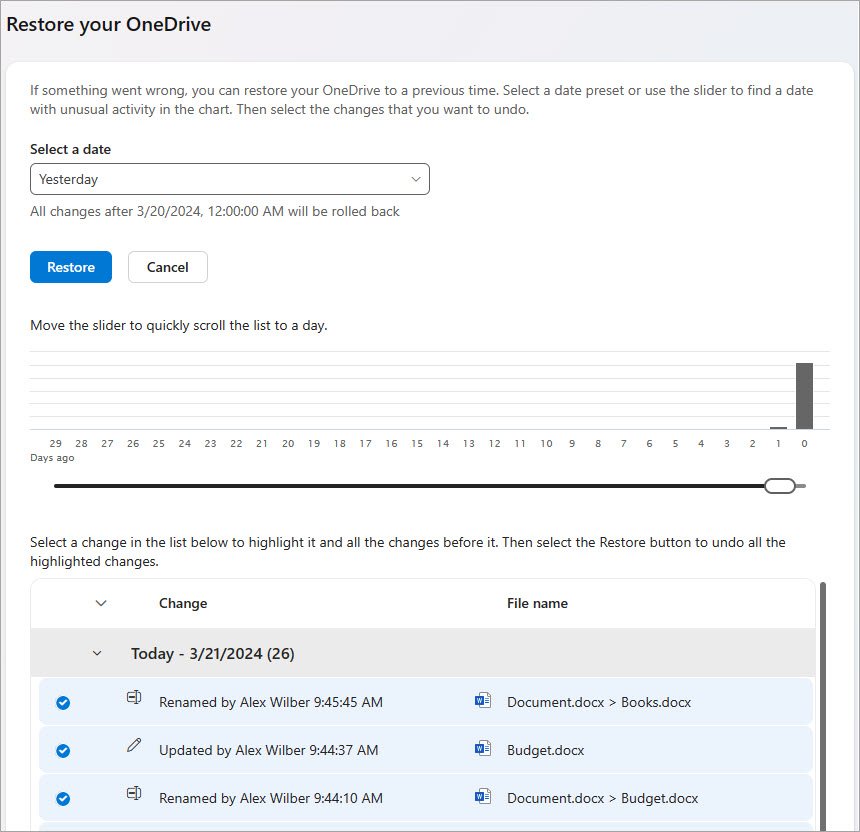
The Ransomware data recovery section of the same page links Windows Security to OneDrive. Files stored in OneDrive keep version history, and Microsoft 365 subscribers can roll the whole OneDrive back to any point in the last 30 days.
- Under Ransomware data recovery on the Ransomware protection page, sign in to OneDrive if prompted.
- Move or back up your important folders to OneDrive.
- After an attack, scan and clean every device that syncs with OneDrive first.
- Go to onedrive.com and sign in.
- Select Settings > Options > Restore your OneDrive (work or school accounts: Settings > Restore OneDrive).
- Choose a date such as Yesterday, or select Custom date and time.
- Review the Activity chart and Activity feed, then select Restore.
Without a Microsoft 365 subscription you can still restore individual files from version history, but not the entire OneDrive. Microsoft advises against paying a ransom, because payment does not guarantee you get your files back.
Disable ransomware protection on Windows 11
Turning the feature off lets every app change files in your folders again. Your list of protected folders and allowed apps is kept, and Windows offers to reuse it when you switch back on.
- Open Windows Security > Virus & threat protection.
- Select Manage ransomware protection.
- Switch Controlled folder access to Off.
- Select Yes in the User Account Control prompt.
In PowerShell, the equivalent is Set-MpPreference -EnableControlledFolderAccess Disabled. If a single app is the problem, allowing that app is safer than switching the whole feature off.
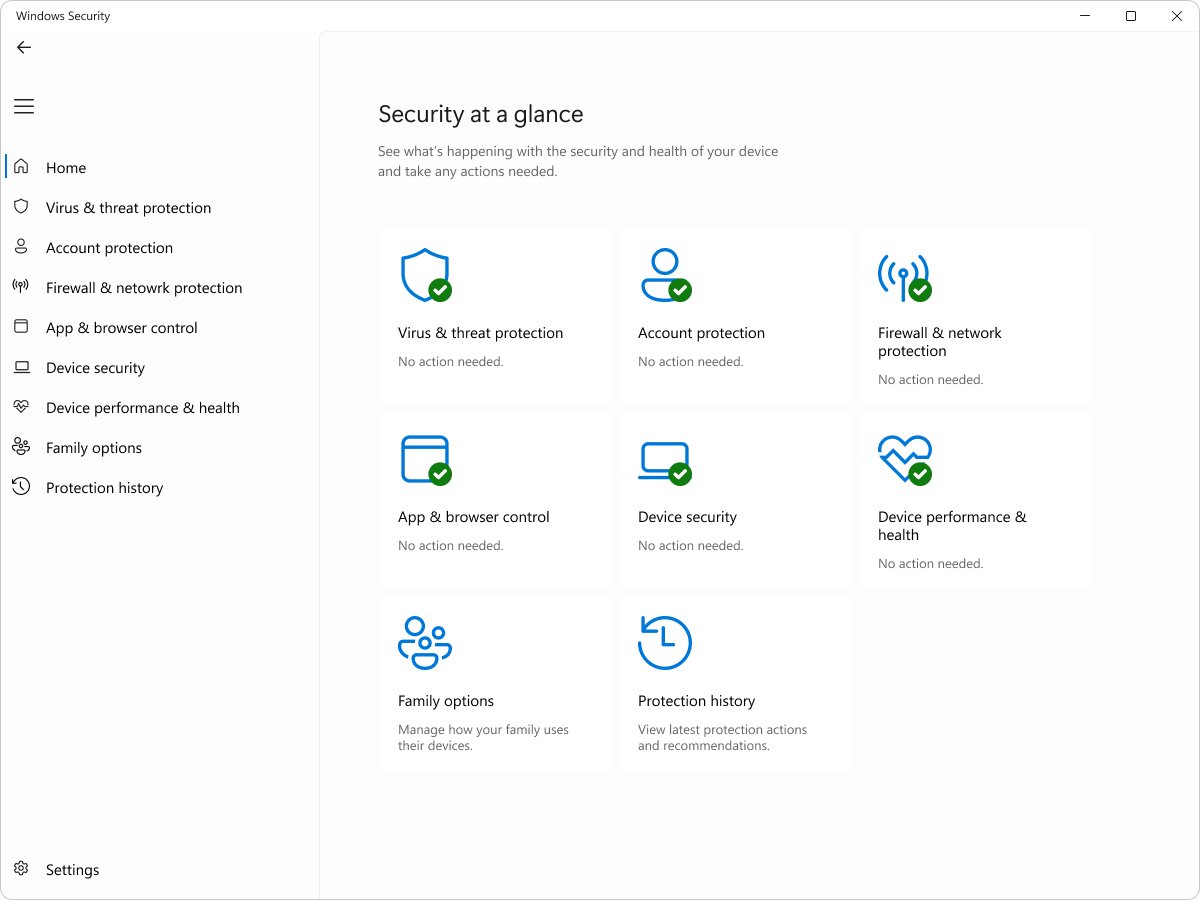
Controlled folder access blocking apps on Windows 11
"App is blocked" notification from Windows Security
An app without enough reputation tried to save into a protected folder.
- Select the notification, or open Windows Security > Protection history, and note the app's path.
- Confirm the app is one you installed and trust.
- Open Manage ransomware protection > Allow an app through Controlled folder access.
- Select + Add an allowed app > Recently blocked apps and pick the app.
- Restart the app and save the file again.
An allowed app is still blocked
Permissions apply only when an app starts, and only to the exact path you added.
- Close the app completely, including any tray icon or background service, then reopen it.
- Check Protection history for the path Windows blocked.
- If that path differs from the one you allowed, add the blocked path as well.
Controlled folder access missing or cannot be turned on
The feature needs Microsoft Defender Antivirus active with Real-time protection on. Defender switches itself off when another antivirus is installed.
- Open Windows Security > Virus & threat protection and check which antivirus is listed as active.
- If another antivirus is active, use its own ransomware or folder protection instead.
- If Defender is active, select Manage settings under Virus & threat protection settings and make sure Real-time protection is On.
- On a work PC, ask your IT administrator, because a Group Policy or Intune setting overrides the toggle.
Windows 11 ransomware protection FAQ
Does Windows 11 have built-in ransomware protection?
Yes. Windows 11 includes Controlled folder access in Windows Security, which blocks untrusted apps from changing files in protected folders. It is off by default, so you turn it on under Virus & threat protection > Manage ransomware protection.
Is ransomware protection available on Windows 11 Home?
Yes. Controlled folder access is part of Microsoft Defender Antivirus, which ships with every Windows 11 edition, including Home. Only the Group Policy route needs Pro, Enterprise or Education; the Windows Security toggle and PowerShell work on Home.
Should I turn on controlled folder access?
Turn it on if you rely on Microsoft Defender and keep important files in Documents, Pictures or other local folders. Expect an occasional block on a lesser-known app that saves into those folders, which you fix by allowing that one app.
Why is ransomware protection off by default?
Controlled folder access can block legitimate apps that are not yet trusted, such as older or niche tools that write into protected folders. Microsoft ships it disabled and recommends testing with Audit Mode first so these apps can be allowed before blocking starts.
Does controlled folder access work with a third-party antivirus?
No. Controlled folder access needs Microsoft Defender Antivirus in active mode with Real-time protection on. When another antivirus is installed, Defender turns itself off and the feature stops working, so use that product's own ransomware protection instead.
Can I add a USB or network drive to protected folders?
Network shares and mapped drives are supported as protected folders, and environment variables work in paths. Wildcards are not supported for protected folders. For a folder shared from the same PC, add its local path rather than the share path.
Does ransomware protection back up my files?
No. Controlled folder access only blocks changes. Backup comes from the Ransomware data recovery section, which uses OneDrive version history. Microsoft 365 subscribers can also restore their whole OneDrive to a point within the last 30 days.