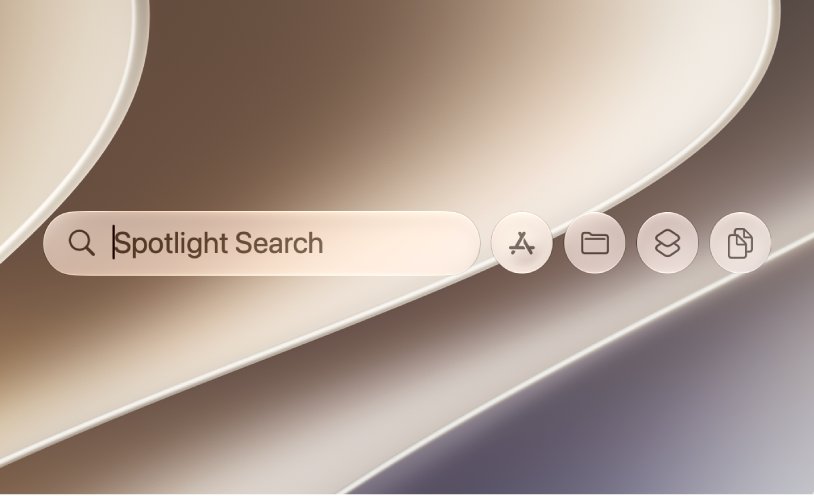
Press Command-Space bar, type part of the file's name, and Spotlight finds any file on your Mac in seconds.
This guide covers Spotlight, Finder search and its keywords, Smart Folders, large and duplicate files, Siri and Terminal, and what to do when search returns nothing.
How to quickly find any file on Mac
Spotlight searches a local index of everything on your Mac, so results appear as you type.
- Press Command-Space bar to open Spotlight.
- Press Command-2 to switch to the Files browse mode.
- Type any part of the file name or a word inside the file.
- Hold Command to see where the highlighted result is stored.
- Press Return to open it, or Command-R to show it in the Finder.
Press Space bar on a result to preview it with Quick Look before you open it.
Which Mac file search method should you use?
| What you know or need | Use this | Why |
|---|---|---|
| Part of the name or a word inside | Spotlight, Command-Space bar | Fastest, searches file contents too |
| File type, date or author | Finder search with criteria | Combine rules such as Kind and Date |
| The same search every week | A Smart Folder | Updates itself as files change |
| Running out of space | System Settings > General > Storage | Lists the biggest documents with sizes |
| Edited something recently | Finder List view sorted by Date Modified | Newest work at the top |
| The folder path | Go > Go to Folder | Jumps straight to the folder |
| A phrase inside a text file | grep in Terminal |
Prints the matching lines |
| Duplicate photos | Photos > Utilities > Duplicates | Photos finds them for you |
Searching with Spotlight Search
Spotlight can narrow results by location, app and type without opening the Finder.
- Press Command-Space bar to open Spotlight.
- To search one location, type its name, such as
iCloud Drive, then press Tab. - To search inside one app, type the app name, such as
Notes, then press Tab. - To limit results to one kind, type
/PDFand press Return. - Type the file name and press Return to open the top match.
Categories such as Folders or Screenshot appear below the search field as you type; click one to filter instantly.
Searching with the Finder app
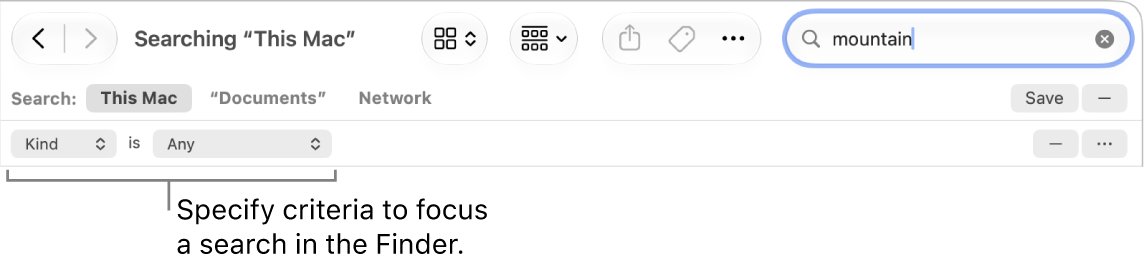
Finder search shows results in a window you can sort, so it suits searches that return many files.
- Press Option-Command-Space bar to open a Finder window with the search field selected.
- Type your search term and press Return.
- Click + on the right, below the search field.
- Click the far-left pop-up menu and choose Kind, Name or another criterion.
- Pick a value in the next pop-up menu, such as Document or Image.
- Click + again to add more rules, or – to remove one.
An item must match every rule to appear. For extra attributes, choose Other in the first pop-up menu and select from the list.
How to find large files
macOS lists your largest documents in Storage settings, with a button to reveal each one in the Finder.
- Choose Apple menu > System Settings.
- Click General in the sidebar, then click Storage.
- Click the Info button next to Documents.
- Click the large files button to list the biggest documents, or click Size to sort.
- Select a file and click Show in Finder to see where it lives, or Delete to remove it.
File Browser in the same dialog shows how much space each folder uses, which helps when you need to free up disk space on your Mac. On macOS versions before Ventura 13, use Apple menu > About This Mac > Storage.
Find recently modified files
Sorting a Finder window by date puts your latest work at the top.
- Click the Finder icon in the Dock.
- Choose Go > Recents to see recently used files.
- Switch to List view with the view buttons in the toolbar.
- Click the Date Modified column heading; click it again to reverse the order.
- For a date cutoff, search
modified:<=7/29/24in the search field, changing the date.
If Date Modified is not shown, Control-click any column heading and select it.

Find specific documents
Search keywords narrow results to one file type, author or title. They work in the Finder search field and in Spotlight.
| To find | Type this | Result |
|---|---|---|
| Documents containing a word | trip kind:document |
Only documents that mention trip |
| PDFs only | invoice kind:pdf |
PDF files that match invoice |
| Presentations | kind:presentation |
Keynote and other slide files |
| Files by one author | author:tom |
Documents written by Tom |
| Files with a word in the name | name:budget |
Name matches, not content matches |
| Files with a tag | tag:work |
Everything tagged Work |
| Documents of multiple types | kind:pdf OR kind:presentation |
Either type in one list |
| Exclude a word | trip -france |
Trip files that do not mention France |
Find folders
Folders have their own search keyword, and the Go menu jumps straight to one when you know its path.
- Press Command-Space bar and type
kind:folderfollowed by the folder name. - Hold Command to see the folder's path, then press Return to open it.
- If you know the path, choose Go > Go to Folder in the Finder.
- Type the path, such as
~/Pictures/, and press Tab to accept a suggestion. - Double-click the destination folder.
Go > Recent Folders lists folders you opened lately. Hold Option in the Go menu to reveal Library, one of the folders macOS hides; you can also show hidden files in the Finder with a keyboard shortcut.
Searching with Siri
Siri uses the same Spotlight index. Siri AI, in beta in macOS 27 on Apple Intelligence Macs, can search photos, mail, messages and more by description.
- Go to System Settings and click Siri in the sidebar.
- Click Turn on Siri and follow the onscreen instructions.
- Activate Siri by pressing and holding the Siri key, clicking Siri in the menu bar, or saying "Siri".
- Ask for what you need, for example "Find photos from my trip to Lisbon".
- With Siri AI, you can also press Command-Space bar and type the request into Spotlight.
Siri needs an internet connection. When it does not return the file, Spotlight's Files mode is the faster fallback.
Searching with Terminal
Terminal's grep tool finds a word or phrase inside a file and prints every matching line. You can open Terminal on your Mac by searching for it in Spotlight.
grep search_string filenameReplace search_string with the text to look for and filename with the file to search. Run it from the folder that holds the file, or give the file's full path.
You should see: Terminal prints each line that contains the text. No output means the file does not contain it.
Advanced search tips and tricks with Finder app
Finder search accepts more than file names. These tricks cut a long result list to the file you want.
| Trick | How | Use it for |
|---|---|---|
| Any, All or None rules | Hold Option and click the button beside a rule | Match either of two names, or exclude a type |
| Search metadata | Use attributes from Other, after checking them with File > Get Info | Camera model, copyright, author |
| Group results | Click the group button and choose Date Last Opened, Kind or Size | Scan large result lists by section |
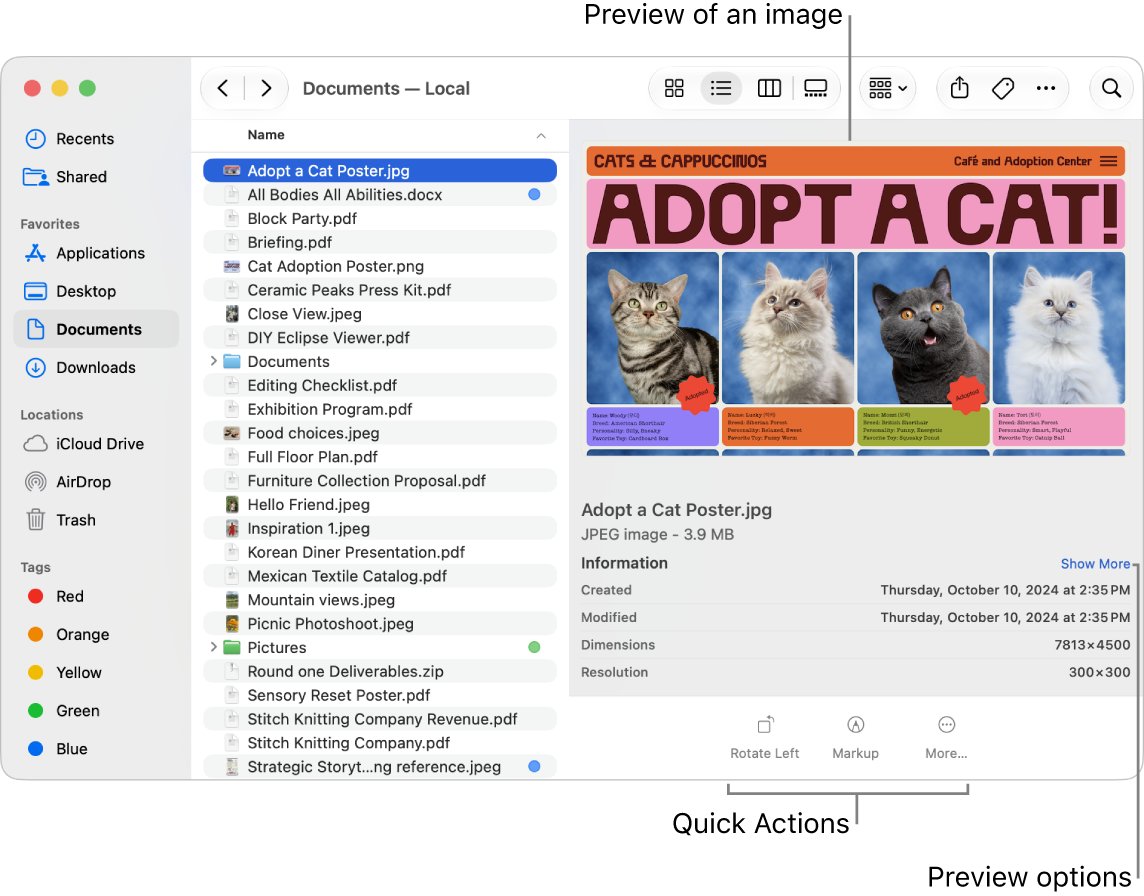
| Preview without opening | Select a result and press Space bar | Confirm the right version quickly |
| Preview pane | View > Show Preview | See contents beside the result list |
| Tags | Control-click a file and choose a color tag | Find it later from the sidebar or Spotlight |
| Date ranges | date:6/29/24-7/25/24 |
Files from a specific period |
Smart folders (Save repeated searches)
A Smart Folder is a saved search that updates itself as files are added, changed or deleted. Files stay where they are.
- In the Finder, choose File > New Smart Folder.
- Type a term in the search field and choose a suggestion below it.
- Click + below the search field to add a rule, such as Kind is PDF.
- Click Save, then enter a name and location.
- Keep Add To Sidebar selected so the folder appears in the Finder sidebar.
- Click Save.
To change the rules later, open the Smart Folder, click the action button and choose Show Search Criteria. Folder names cannot contain a colon.
A Finder search can become a Smart Folder too: click Save below the search field.
Advanced search with Spotlight Search
Spotlight shortcuts and keywords let you search without touching the mouse.
| Action | Shortcut or syntax | What it does |
|---|---|---|
| Search files only | Command-2 | Hides apps and actions |
| Search apps only | Command-1 | Lists installed apps |
| Search clipboard history | Command-4 | Finds text and files you copied |
| Filter by kind | kind:images New York City |
Only images that match |
| Show a file's path | Hold Command | Reveals the folder |
| Show in Finder | Command-R | Opens the enclosing folder |
| Recall the last search | Up Arrow | Repeats your previous query |
| Quick Actions | Select a result, press Tab | Acts on the file without opening it |
How to find duplicate files
macOS finds duplicate photos and videos for you in Photos. For other files, a name search sorted by size shows copies side by side.
- Open Photos and click Duplicates below Utilities in the sidebar.
- Select the duplicates, or press Command-A to select all.
- Click Merge [number] Items, then confirm.
- For other files, search the file name in a Finder window with
name:before it. - Switch to List view and click Size so identical copies line up.
- Hold Command on each result in Spotlight, or check Get Info, to compare locations before you delete one.
Merged photo duplicates go to Recently Deleted, where you can recover them for 30 days.
How to check you found the right file on Mac
Two files can share a name. Confirm the location and contents before you edit or delete.
- Select the result and press Space bar to preview it.
- Choose File > Get Info to check its size, location and dates.
- In List view, compare Date Modified against other copies.
- Press Command-R in Spotlight to open the folder that holds it.
Common issues with search in Finder
Spotlight or Finder finds nothing after an update
Spotlight is rebuilding its index, which can take hours or even days after setup or a macOS update.
- Press Command-Space bar and look for an indexing progress indicator at the top.
- Keep the Mac awake and connected to power.
- Connect to Wi-Fi or Ethernet so mail and other data can download for indexing.
A certain type of file never shows up
That category is turned off in Spotlight settings.
- Choose Apple menu > System Settings, then click Spotlight.
- Review Results from Apps and Results from System.
- Turn on the categories you want to search.
Files you know exist are missing from results
The Spotlight index for that disk or folder is damaged.
- Open System Settings > Spotlight and click Search Privacy at the bottom.
- Click + and add the disk, such as Macintosh HD, or the folder.
- Wait a few seconds, select it, and click – to remove it.
- Click Done; Spotlight reindexes that location.
An "unknown" or permissions error appears when reindexing
Your user account does not own some items in the disk or folder.
- Select the folder in the Finder and choose File > Get Info.
- Check its permissions and change the folder permissions so your account has access.
- Repeat the Search Privacy steps.
Search returns too many results
A plain word matches names and file contents across the whole Mac.
- Add
kind:to limit the file type. - Use
name:to match only file names. - Add a Finder rule with + for date or kind.
Find files on Mac FAQ
How do I locate a file on my Mac?
Press Command-Space bar, type part of the file name, and hold Command to see where the highlighted result is stored. Press Command-R to open the folder that contains it in the Finder.
How do I find all files on my Mac?
Open Spotlight and press Command-2 to switch to Files mode, or open a Finder window and search with a Kind rule. For a list by size, use System Settings > General > Storage and open the Documents category.
How do I find certain files by type?
Add a kind keyword to your search, such as kind:pdf, kind:image or kind:presentation. In Spotlight you can also type /PDF and press Return. Finder search accepts the same keywords and lets you add rules with the + button.
How do I search inside files on a Mac?
Spotlight and Finder search file contents as well as names, so type a phrase from the document. In Terminal, grep search_string filename prints every line in a file that contains the text.
How do I see my files on a Mac?
Click the Finder icon in the Dock and choose Go > Recents for recently used files, or pick Documents, Desktop or Downloads in the sidebar. List view shows each file's size, kind and date modified.
Where are files stored on a Mac?
Most personal files are in your home folder, inside Documents, Desktop, Downloads, Pictures and Music. If you use iCloud Drive for Desktop and Documents, those folders appear under iCloud Drive in the Finder sidebar.
How do I find a file with Finder?
Press Option-Command-Space bar to open a Finder window with the search field selected, type your term and press Return. Click + below the search field to add rules such as Kind, Name or date.
Why can't my Mac find a file I know exists?
Spotlight may still be indexing, or the file's category may be turned off. Check System Settings > Spotlight, and if results stay wrong, add the disk to Search Privacy and remove it again to rebuild the index.
Bottom line: the fastest way to find files on Mac
Start every search with Command-Space bar and Command-2, then move to Finder rules or a Smart Folder only when Spotlight returns too much. Spotlight searches names and contents in one step, and the Finder's criteria and saved searches cover the cases where you need type, date or size filters.