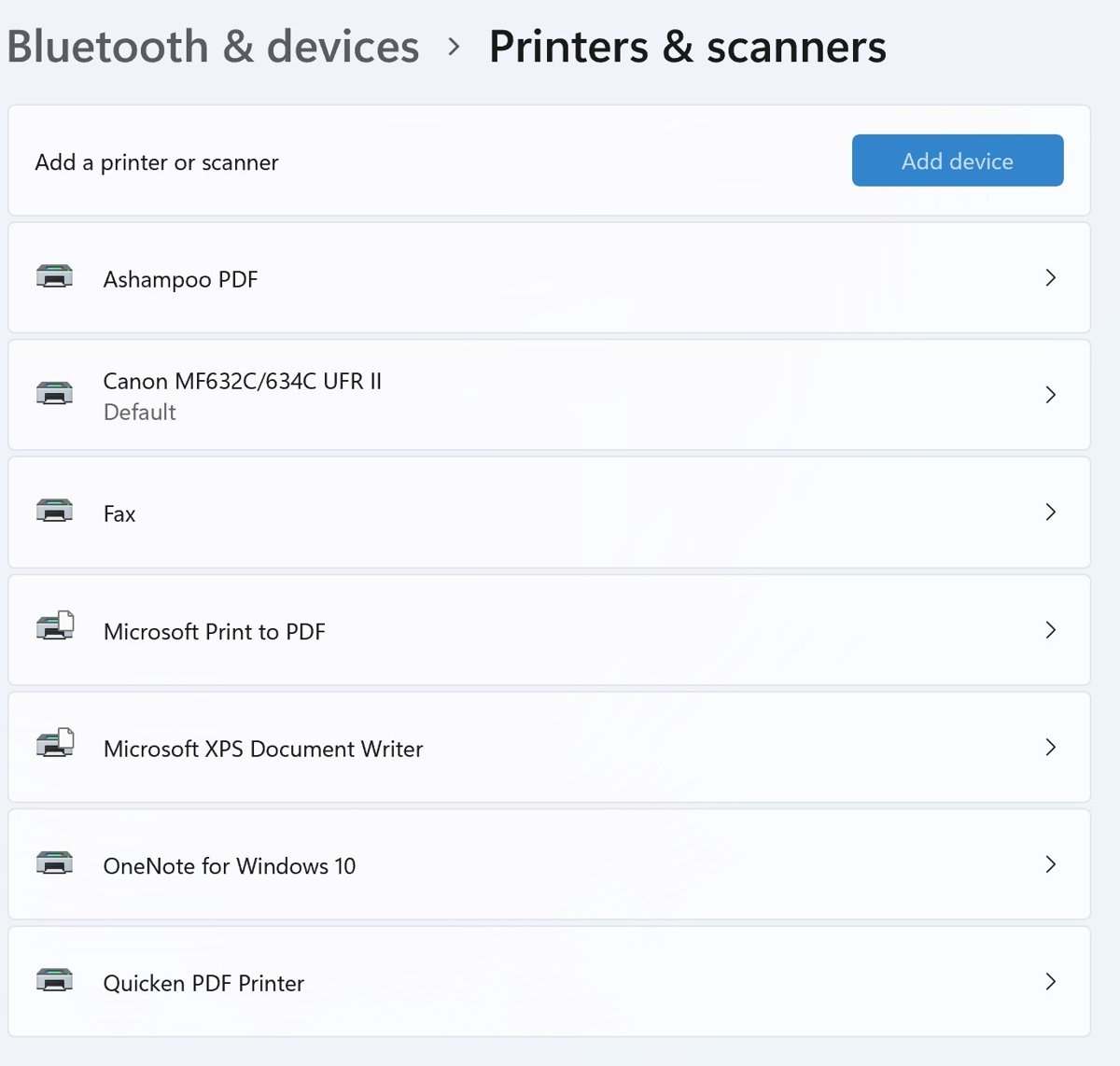
Printer settings in Windows 11 are in Settings > Bluetooth & devices > Printers & scanners, and in Windows 10 in Settings > Devices > Printers & scanners; select a printer there for its preferences, properties and print queue.
This guide covers adding a printer, the settings that matter, scanning, fixing a printer that is offline or will not print, drivers and print servers.
Locating printer settings on Windows
These are the five jobs most readers arrive with. On Windows 10, start at Settings > Devices instead.
| You want to | Do this |
|---|---|
| Add a printer | In Printers & scanners, select Add device next to Add a printer or scanner, then Add device beside your printer. You can add a printer in Windows 11 by USB, Wi-Fi, IP address or Bluetooth. |
| Open printer settings or preferences | Select the printer, then Printing preferences (paper, quality, color) or Printer properties (ports, sharing, test page). |
| Set the default printer | Turn off Let Windows manage my default printer, select the printer and choose Set as default. |
| Fix a printer that won't print or shows offline | Power-cycle the printer, cancel jobs in Open print queue, then restart Print Spooler. A printer that keeps showing as offline usually has a network or queue fault. |
| Scan from the printer to the PC | Open Windows Scan, pick the scanner and File type, then select Scan. Files land in Pictures > Scans unless you scan with the Windows Scan app to another folder. |
Open devices and printer settings on Windows
Most printer controls moved from Control Panel's Devices and Printers into Settings, but the older consoles still open.
| Setting | Windows 11 | Windows 10 |
|---|---|---|
| Installed printers and scanners | Settings > Bluetooth & devices > Printers & scanners | Settings > Devices > Printers & scanners |
| Default printer | Printer preferences > Let Windows manage my default printer, then Set as default | Untick the same option, then Manage > Set as default |
| Printing preferences and printer properties | Select the printer > Printing preferences or Printer properties | Select the printer > Manage |
| Print queue | Select the printer > Open print queue | Select the printer > Open queue |
| Scanner options on an all-in-one | Select the printer > Scanner settings | Manage > the item starting Scanner: |
| Installed drivers | Related settings > Print server properties > Drivers | Same |
| Classic view | Control Panel > Devices and Printers | Same |
| Print Management console | Win + R > printmanagement.msc |
Same, on editions that include it |
| Print Spooler service | Win + R > services.msc > Print Spooler |
Same |
| Network discovery and printer sharing | Settings > Network & internet > Advanced network settings > Advanced sharing settings | Control Panel > Network and Sharing Center > Advanced sharing settings |
Settings also manages Bluetooth and other devices, so a paired Bluetooth printer shows in the same list. You can open Devices and Printers from a desktop shortcut too, and Get-Printer will list all installed printers in PowerShell.
Open printer settings from Settings app, Control Panel or Run command
| Method | Route | Best when |
|---|---|---|
| Method 1: Settings app | Printers & scanners > select the printer | You want defaults, preferences, the queue and removal in one place |
| Method 2: Control Panel | Devices and Printers, right-click the printer | You prefer the classic printer device settings pages |
| Method 3: Run command | Win + R, then printmanagement.msc or services.msc |
You manage many printers or the spooler |
| Method 4: Access printer preferences while printing | Ctrl + P in the app, choose the printer, then its preferences button | You want a change for this job only |
Install a wired or local printer
A USB printer usually installs itself when plugged in and turned on. If it does not, add it by hand.
- Connect the USB cable and turn the printer on.
- Select Start > Settings > Bluetooth & devices > Printers & scanners.
- Select Add device next to Add a printer or scanner and wait for the list.
- Select Add device beside your printer.
- If a Find drivers button appears, get the full driver from Windows Update.
On an Arm PC such as a Copilot+ PC, Microsoft advises this route rather than the maker's installer.
Install a network or wireless printer
Configure the printer's network and wireless settings first: it must be on the same Wi-Fi network (SSID) as the PC, not an extender with its own name.
- Join the printer to your Wi-Fi from its control panel or maker's app.
- Open Printers & scanners and select Add device.
- Wait for the list, then select Add device next to the printer.
- Check Windows Update afterwards for a newer driver.
You can also connect a wireless printer by IP address or Wi-Fi Direct.
Adding a printer that Windows can’t find automatically
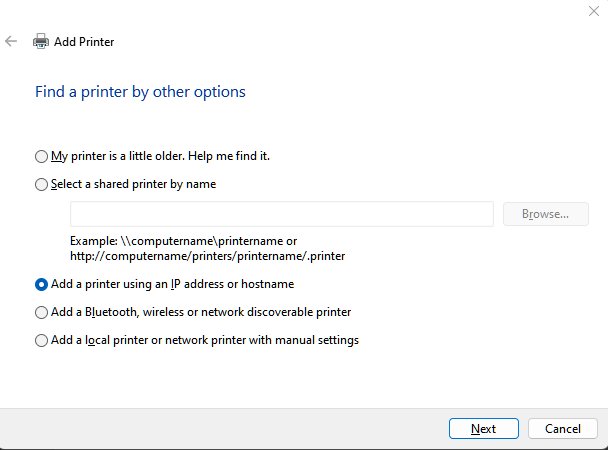
- In Printers & scanners, select Add device, then Add a new device manually (Windows 10: The printer that I want isn't listed).
- For a network printer, choose Add a printer using a TCP/IP address or hostname and type its IP address.
- For a shared printer, choose Select a shared printer by name and type
\\ComputerName\PrinterShareName. - For USB, choose Add a local printer or network printer with manual settings, then Use an existing port.
- Pick the driver with Have Disk or Windows Update, then maker and model.
- Name the printer and select Print a test page before Finish.
Install a Bluetooth printer
- Turn on the Bluetooth printer and make it discoverable.
- Open Printers & scanners and select Add device (Windows 10: Add a printer or scanner).
- Select Add device next to the printer when it appears.
- If it is missing, check Bluetooth is on in both devices and the printer is in range.
How to set up a shared printer
Sharing a printer on your network lets other PCs print through the host PC. The host must stay on, and the network must be Private.
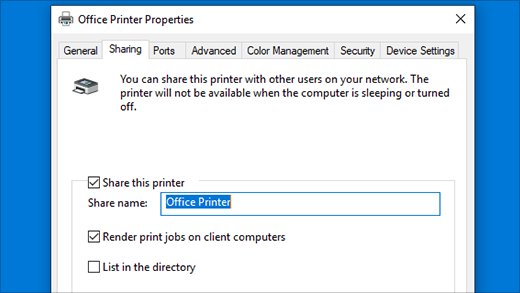
- On the host, select the printer > Printer properties (Windows 10: Manage > Printer properties).
- On Sharing, select Change Sharing Options, tick Share this printer and note the share name.
- Note the host's Device name in Settings > System > About.
- On the client, turn on Network discovery and File and printer sharing.
- Select Add device > Add a new device manually > Select a shared printer by name and type
\\computer_name\printer_name.
Shared printer and network permissions fail most often on credentials: use the same account on both PCs, or enter the host's user name and password. On Windows 10 you can add a shared printer by IP address or PowerShell too.
Print to PDF instead: emergency workaround
- Press Ctrl + P in the app.
- Choose Microsoft Print to PDF as the printer.
- Select Print, pick a folder and name, and select Save.
- Switch back to the real printer before the next job.
If the PDF printer is missing, you can add Microsoft Print to PDF back through Windows Features.
HP app setup: recommended method and alternative setup methods
HP recommends the HP app, which replaced HP Smart. Before you begin, have your Wi-Fi name and password and a phone or PC on the same network.
| Method | What it does |
|---|---|
| HP app (123.hp.com) | Finds the printer over Bluetooth or a temporary Wi-Fi link and sends your Wi-Fi details to connect the HP printer to Wi-Fi |
| WPS button | Press WPS on the router, then the printer's Wi-Fi button within two minutes |
| Wireless Setup Wizard | Joins Wi-Fi from the printer's touchscreen |
| USB or Ethernet | Cable first; switch to wireless later in the app |
| Multiple devices | Install the HP app on each device on the same network |
| HP Print and Scan Doctor | Windows tool for discovery, queue and driver problems |
For common setup problems and solutions, HP starts with the same network checks as Windows, then adding the printer by IP address. Its security best practices: a strong Wi-Fi password, a printer PIN and firmware auto-updates.
Printer setup apps for HP, Canon, Epson and Brother
| Brand | Official app | What it does |
|---|---|---|
| HP | HP app | Wi-Fi setup, account registration and management; HP also documents the most common HP printing problems |
| Canon | Software listed for your model on Canon's support site | Windows' own Add device installs most Canon printers once you connect the Canon printer to your laptop by USB or Wi-Fi |
| Epson | Epson Smart Panel (iOS, Android) | Wireless setup, printing, scanning, monitoring and troubleshooting tips; on a PC you can install the Epson printer with Epson's or Windows' driver |
| Brother | Brother Mobile Connect (phone), Brother iPrint&Scan (PC) | Mobile Connect sets up the printer; iPrint&Scan manages it from your computer |
How to set your default printer
Point Windows at the right default printer, or jobs go to whichever printer you used last.
- Open Printers & scanners.
- Under Printer preferences, turn Let Windows manage my default printer off.
- Select the printer and choose Set as default; its Printer status changes to Default.
On Windows 10, untick the option, select the printer, then Manage > Set as default.
Printer properties vs. printing preferences
Adjusting printer preferences changes how pages print; managing printer properties changes how Windows talks to the printer.
| Printing preferences | Printer properties | |
|---|---|---|
| What you can change in printer settings | Paper size and type, quality, color, two-sided printing, orientation | Ports, sharing, driver, advanced printer settings, security |
| Customizing print quality and paper options | Quality Normal or Best; Economy, Draft or Toner saver off; paper type matches the tray | Not here |
| Test page | Not here | General > Print Test Page |
| Applies to | New jobs, unless an app's print dialog overrides it | The printer, for every user |
To make grayscale or duplex stick, change the printer default settings in Printing preferences, not each app.
How to create multiple printer profiles
Windows has no profile switch, but you can add the same printer twice with different preferences.
- Add the printer again with Add a new device manually.
- Choose Use the driver that is currently installed.
- Name the copy after its job, such as "Office – Draft".
- Set its own quality, color and paper in Printing preferences.
How to print a test page
A test page is the baseline: if it prints, Windows, driver and connection work, and the fault is in the app.
- Select the printer in Printers & scanners.
- Select Printer properties (Windows 10: Manage > Printer properties).
- On General, select Print Test Page.
- If nothing prints, print a test page from the printer's control panel; a good page there points at Windows or the driver.
You can also print a test page in Windows 11 from Control Panel or run the printer's self-test.
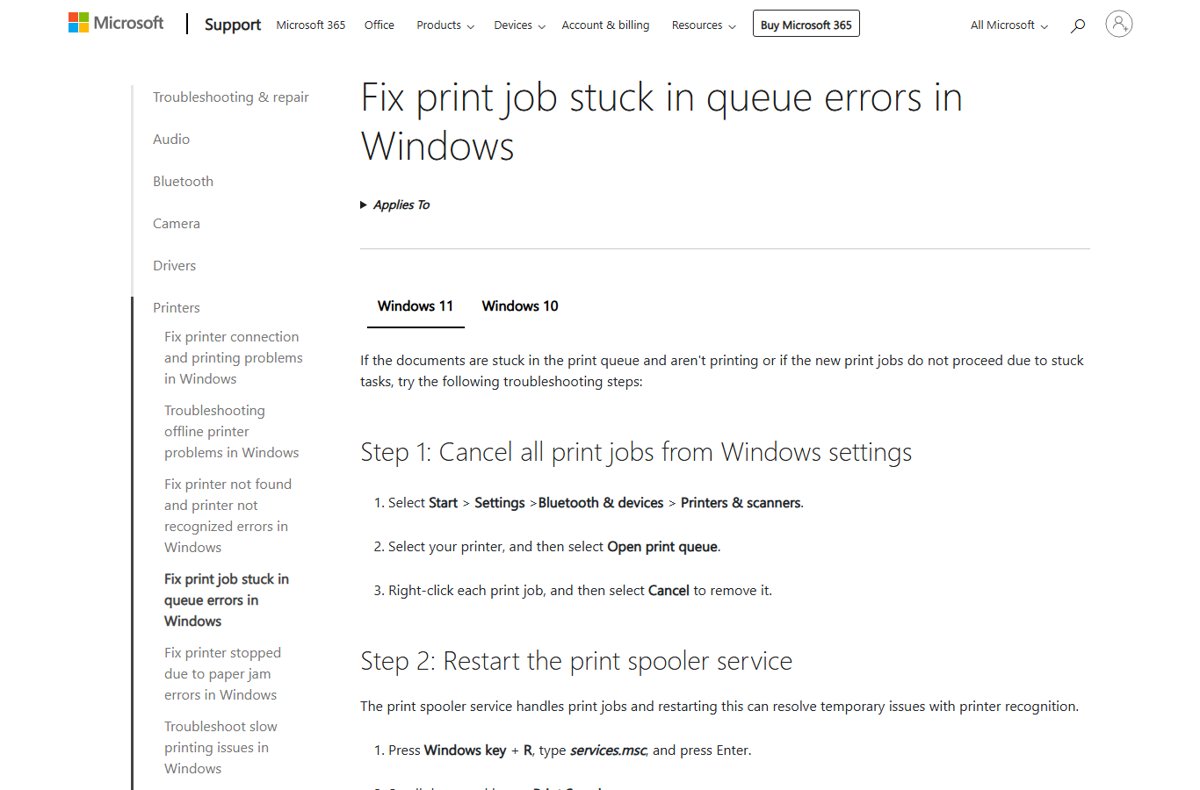
How to manage your print queue
- Select the printer and choose Open print queue (Windows 10: Open queue).
- Right-click a job and select Cancel.
- To clear everything, select … > Cancel all.
- If a job will not leave, restart Print Spooler and clear its folder.
You can also cancel or delete a stuck print job from the command line.
Check ink levels, clean the print head and fix alignment
Printer maintenance settings live in the maker's app, some drivers' Printing preferences, or the printer's control panel. Each cleaning cycle uses ink.
| Task | Where | When |
|---|---|---|
| Check ink or toner | Maker's app or printer display; you can check HP ink levels three ways | Faded or blank pages |
| Clean the print head | Clean printhead in the maker's tools; clean the print head, then run a nozzle check | Streaks or missing colors |
| Align the print head | Align printhead; you can fix printer alignment on most brands | Jagged or doubled lines |
| Epson ink pad error | Use Epson's supported fix for the Epson ink pad error, not a reset tool | Printer reports its ink pads need service |
How to scan from printer to computer?
To connect a printer with a computer for scanning, add it in Printers & scanners; an all-in-one adds its scanner too.
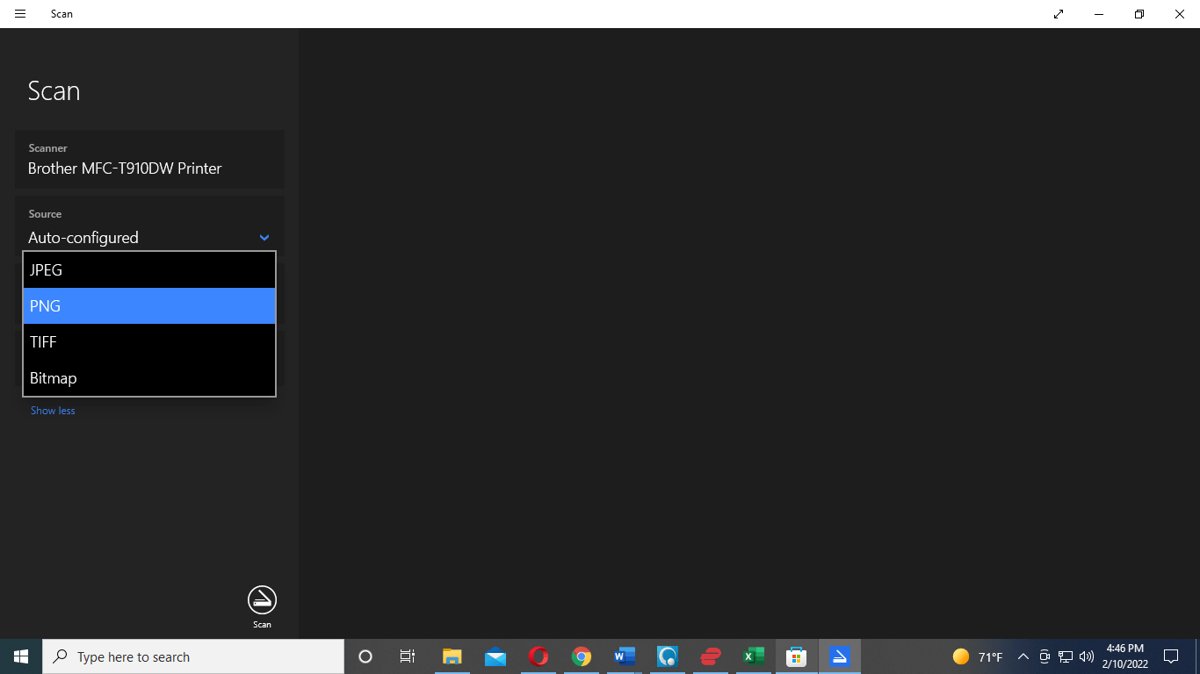
- Search for Windows Scan in Start; install it from Microsoft Store if missing.
- Place the page face down on the glass, or load the feeder.
- Pick the Scanner and Source: Flatbed, Feeder or Auto-configured.
- Choose File type (JPEG, PNG, TIFF or Bitmap); Show more changes the folder.
- Select Scan, then View to open the result.
A wireless scanner must share the PC's network. You can connect a scanner in Windows 11 by USB or Wi-Fi first.
Windows Scan, Windows Fax and Scan, or the printer maker's scan app
| Tool | Use it for | Notes |
|---|---|---|
| Windows Scan | Quick scans to an image | Free in Microsoft Store; you can scan documents to PDF by combining the pages afterwards |
| Windows Fax and Scan | Scanning plus faxing | Not preinstalled after Windows 11 22H2; you can install Windows Fax and Scan from Optional features |
| Epson Scan 2 | Full Epson scanner controls | Get Epson Scan 2 for Windows 11 from your model's Epson page |
| HP app, Canon IJ Scan Utility, Brother iPrint&Scan | Brand scan profiles | From the maker's own site or store; you can scan a document on an HP printer with the HP app, or download Canon IJ Scan Utility for your model |
Quick diagnosis summary
Match what you see to a row. These are the most common printer problems in Windows 11 and 10.
| Symptom | Likely cause | Fix |
|---|---|---|
| Printer offline | Asleep, on another Wi-Fi network, or a stalled queue | Power-cycle, check the network, set as default, cancel all jobs |
| Won't print, apps hang on Ctrl + P | Print Spooler crashed | Restart the Print Spooler, remove duplicate drivers |
| Stuck print job | A damaged job blocks the queue | Cancel it, then clear the print spooler folder |
| Not found or not recognized | Loose USB, other network, Bluetooth off | Try another port, check the network, then find printers and scanners |
| Blank, faded or garbled pages | Empty cartridge, clogged head, draft mode or bad driver | Check ink, clean the head, set quality, reinstall the driver; fixes for an HP printer printing blank pages follow the same order |
| Scanner not detected | Not added, or on another network | Add it with Add device, reopen Windows Scan |
| Driver is unavailable | Missing, outdated or wrong for 64-bit | Install or update the printer driver |
Fix not working printer on Windows 11
Why can I not print from Windows 11? Most failures are a connection, the queue, the spooler or the driver, even when printers are installed but won't print. Start with the built-in printer troubleshooter.
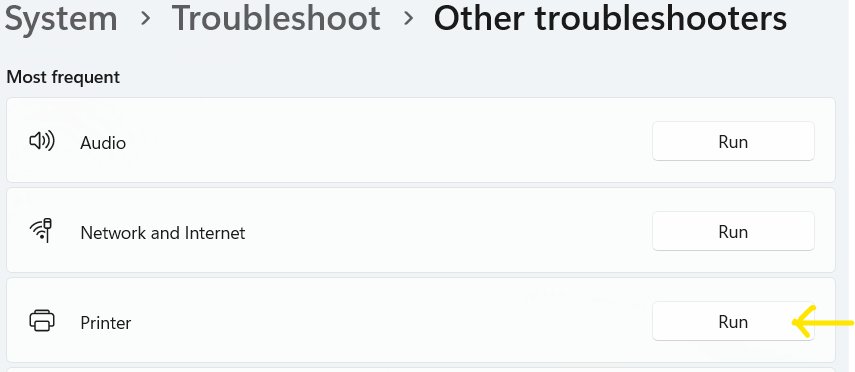
Any printing problem: let the built-in printer troubleshooter take a look first
The Windows built-in printer troubleshooter in Get Help runs diagnostics and fixes common faults.
- Open Get Help from Start.
- Run the printer troubleshooter and follow its prompts.
Printer status is Offline
The printer is asleep or on a different network.
- Power cycle the printer before touching Windows: unplug it for 30 seconds.
- Run the printer's wireless connectivity test.
- Set it as default and cancel all jobs in the queue.
Print queue stuck jobs and the Print Spooler service
A damaged job or a crashed spooler holds the queue.
- Press Win + R, type
services.mscand press Enter. - Right-click Print Spooler and select Stop.
- Manually delete the stuck spooler files in
C:\Windows\System32\spool\PRINTERS. - Start Print Spooler again with Startup type set to Automatic.
USB connection issues, network printer connectivity, or a firewall blocking network printing
A loose cable, a different network, or sharing settings that block discovery.
- Reseat the USB cable or try another port.
- Put PC and printer on the same network name.
- Turn on Network discovery and File and printer sharing.
- Add the printer by IP address when the computer cannot find the wireless printer.
Driver reinstall for persistent issues
An outdated or incompatible driver, often after an upgrade.
- In Device Manager, expand Printers, right-click the printer and select Update driver.
- If that fails, select Uninstall device and restart.
- If trouble began after an update, use Properties > Driver > Roll Back Driver.
Printer settings not opening, or devices and printers problems
Preferences and properties pages come from the driver and spooler.
- Restart Print Spooler.
- Update the driver, or remove the printer and add it again.
- Check Windows Event Viewer for printer errors under Applications and Services Logs.
Garbled output and wrong print quality
Blurry, faded or streaked prints
Low ink, a dirty head, draft mode or the wrong paper type.
- Check cartridges and load the right paper.
- Set quality to Normal or Best in Printing preferences.
- Run Clean printhead and Align printhead, then update the driver.
Duplex, colour and quality printing issues
The app's print dialog overrides the defaults, or the driver lacks the option.
- Set two-sided, color and quality in Printing preferences.
- Install the maker's full driver if the options are missing.
Paper jams and physical issues
Scraps or badly loaded paper keep the jam sensor triggered.
- Turn off and unplug the printer.
- Check the tray, rear door and cartridge area for paper and scraps.
- Reload paper with the guides snug and power on.
Printer requires firmware update
The maker's app or the printer reports old firmware.
- Update firmware from the maker's app or the printer's control panel.
- Print a test page afterwards.
Printing from specific applications
If Notepad prints but Word or Excel does not, the fault is in the app.
- Print the same file from Notepad to confirm Windows can print.
- In the app, select File > Print and check the printer shows Ready.
- Make sure Print to PDF or Print to file is not selected.
- For Microsoft 365 apps, open Settings > Apps > Installed apps > Microsoft 365 > Advanced options and run Quick Repair.
- For envelopes in Word, use Mailings > Envelopes and set Envelope size under Options.
You can print envelopes in Word with mail merge too.
Updating printer drivers the right way
Windows Update is Microsoft's recommended source for printer drivers. Use the maker's package only when Windows has none, matched to your Windows version and 64-bit or 32-bit system.
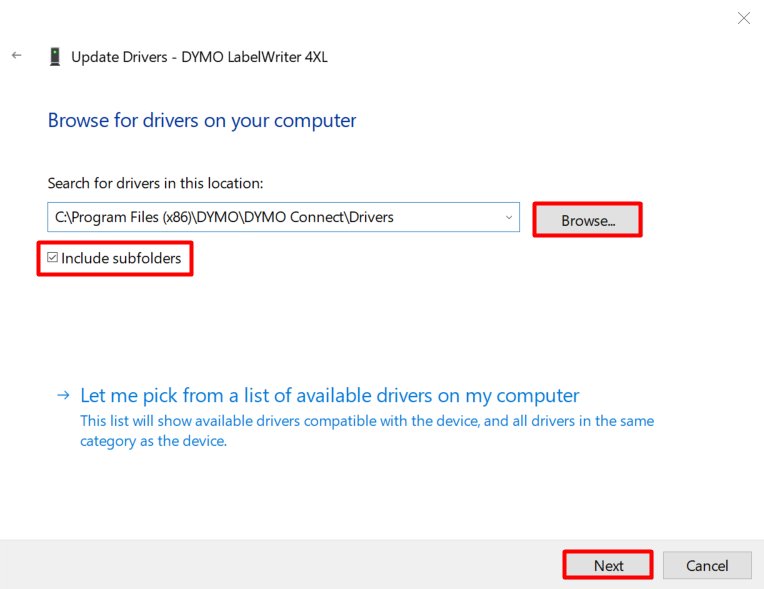
- Check your version in Settings > System > About.
- Select the printer, then Manage > Update driver if offered.
- Look for printer drivers in Windows Update's optional updates.
- Otherwise, download the driver for your model from the maker's site and run it.
- As a last resort, use Print server properties > Drivers > Add > Windows Update.
Windows can install optional printer drivers it does not apply automatically, and you can install a printer driver without the printer before it arrives. Never use a third-party driver updater.
Windows 11 and IPP printing
Windows 11 and older printer drivers are on a timeline: printing is moving to the built-in Microsoft IPP Class Driver, which runs Mopria-certified printers with no maker driver.
| Date or feature | What it means |
|---|---|
| Windows 10 21H2 and later | Mopria printers work over network or USB with the inbox IPP Class Driver |
| January 15, 2026 | No new printer drivers on Windows Update for Windows 11; existing ones still install |
| July 1, 2026 | Windows prefers the IPP class driver when ranking drivers |
| Maker installers | Still allowed, so older printers keep working |
| Windows protected print mode | Blocks third-party drivers, needs Mopria printers with IPP on; you can switch back |
Removing a printer and leftover drivers
- Select the printer in Printers & scanners.
- Select Remove and confirm (Windows 10: Remove device).
- Open Print server properties > Drivers and remove the old driver.
- Uninstall the maker's software from Settings > Apps > Installed apps.
To completely remove a printer, also clear its driver package and spool folder. On Windows 10 you can uninstall a printer driver with pnputil as well.
Corporate printers: Group Policy and print server
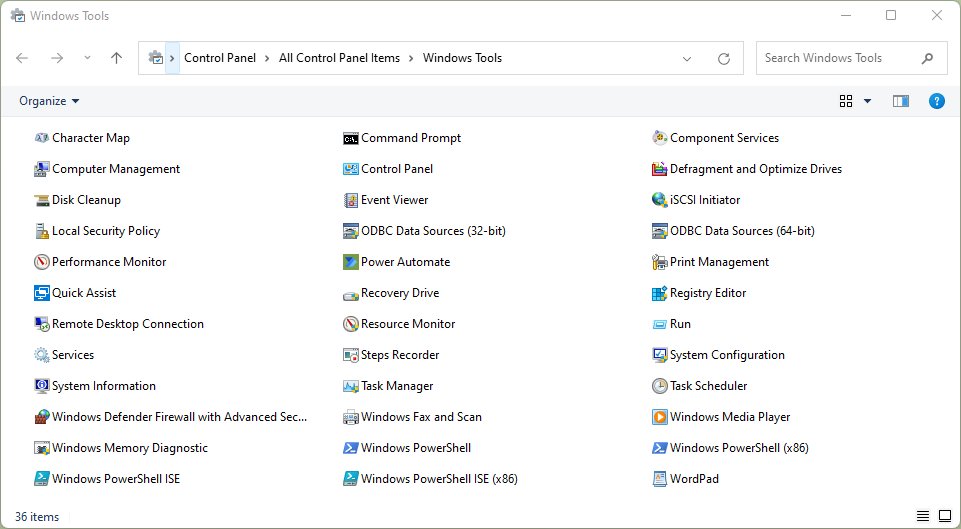
Sharing and print server setups replace one PC sharing a printer with a managed server or a cloud service.
| Option | What it does | Needs |
|---|---|---|
| Print Management | An optional tool for power users that manages printers, drivers and print servers; you can use Print Management to deploy printers | Windows 10 version 2004 or later |
| Windows print server | Hosts shared queues and drivers for many PCs; you can set up a Windows print server and deploy it with Group Policy | Windows Server |
| Universal Print | Cloud printing with no print servers or drivers; weigh the pros and cons of Universal Print first | Internet and Microsoft Entra ID |
Best practices and common mistakes: keep one driver per model, never share from a PC that sleeps, and keep printers off open networks.
Windows printer settings FAQ
Where is printer settings on Windows 10?
On Windows 10, open Start > Settings > Devices > Printers & scanners, select the printer and choose Manage. That page holds Printer properties, the default printer button and the print queue.
How do I print a settings page?
Print a configuration or test page from the printer's own control panel to see its network and hardware settings. To test Windows instead, open Printer properties and select Print Test Page.
Why do my printer settings keep changing?
The default printer changes because Let Windows manage my default printer is on, so Windows picks the last printer used. Turn it off in Printers & scanners and choose Set as default.
Why are my printer settings not saving?
Changes in an app's print dialog apply to that job only. Set paper, color and quality in Printing preferences so new jobs inherit them; if they still reset, reinstall the driver.
Why can't I change my printer settings?
Printer properties such as sharing and drivers need an administrator account, and a work or school PC can lock them by policy. Sign in as an administrator or ask your IT team.
Why does my printer say error in settings?
Printer in error state points at the printer itself. Check for low paper or ink, an open cover or a jam, then power-cycle the printer for 30 seconds.
Why can't I find my printer in settings?
Windows lists only printers it has added. Make sure the printer is on and on the same network, then select Add device and use Add a new device manually with its IP address.
What printer settings should I use for cardstock?
In Printing preferences, set the paper type to the heaviest option your driver offers, such as cardstock or heavy paper, plus the matching size. Feed from the tray your printer's manual recommends.