Run php -v in a terminal or Command Prompt to see your PHP version, and treat anything older than PHP 8.5.12, 8.4.27, 8.3.36 or 8.2.35 as vulnerable to CVE-2026-109618.
As part of our PHP update guide, this article shows how to read the version on Windows, Linux, Ubuntu and XAMPP, how to confirm what your web server actually runs with phpinfo(), and how to judge the result.
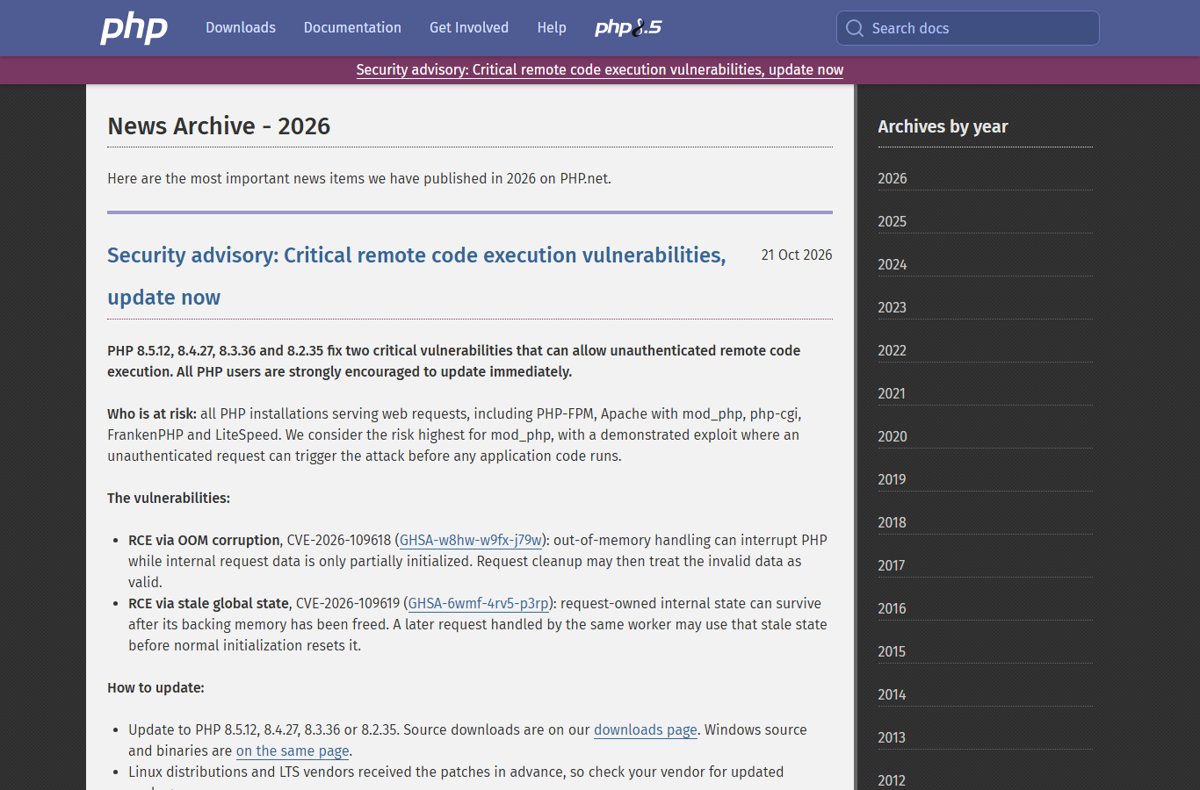
Check PHP version in cmd (php -v)
The -v switch prints the version number and the SAPI name, and it works the same in Command Prompt, PowerShell and any Linux shell.
php -vPrints the PHP version of the command-line binary, for example a first line that starts with PHP 8.4.27 (cli). The number right after PHP is the one to compare against the fixed releases.
You should see: The first line shows the full version, such as PHP 8.3.36 (cli), followed by the build date and the Zend Engine line.
php --version is the long form of the same switch and gives identical output.
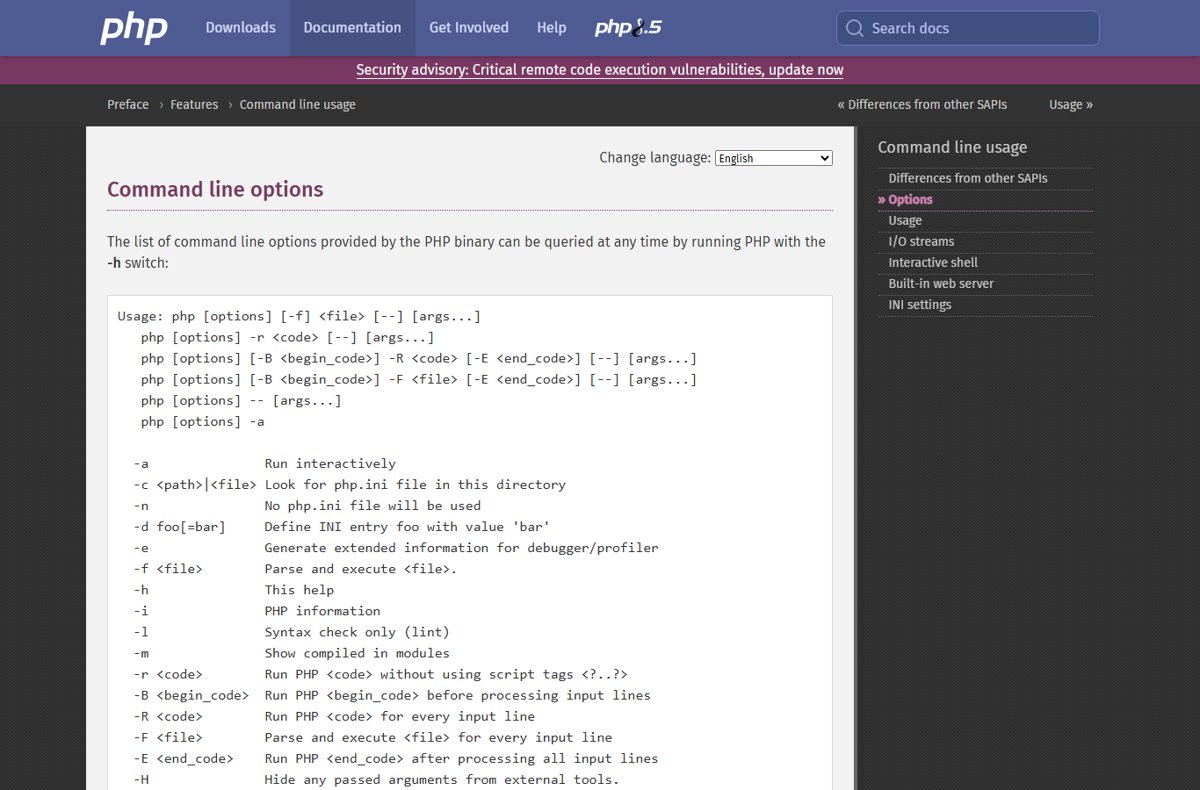
Which PHP version check shows what your website runs?
The command line and the web server can use different PHP builds on the same machine, so pick the check that matches what you need to know.
| What you want to know | Use this | Why |
|---|---|---|
| Version of PHP on the command line | php -v |
Fastest; shows the CLI binary on your PATH |
| Version the website actually serves | phpinfo() page | Runs inside the web server, so it reports the real Server API and version |
| Which php.ini the CLI loads | php --ini |
Lists the loaded configuration file and scanned directories |
| Version inside your own code | phpversion() or PHP_VERSION |
Returns the running version as a string you can compare |
| Whether a Linux package carries the fix | Package manager plus the vendor security notice | Distributions can patch without changing the upstream number |
Check PHP version on Windows
- Press Win + R, type
cmdand press Enter to open Command Prompt. - Type
php -vand press Enter. - Read the version on the first line of the output.
- If Windows reports that php is not recognized, change to the folder that holds php.exe with
cdand runphp -vagain from there. - Run
php --inito see which php.ini file that copy of PHP loads.
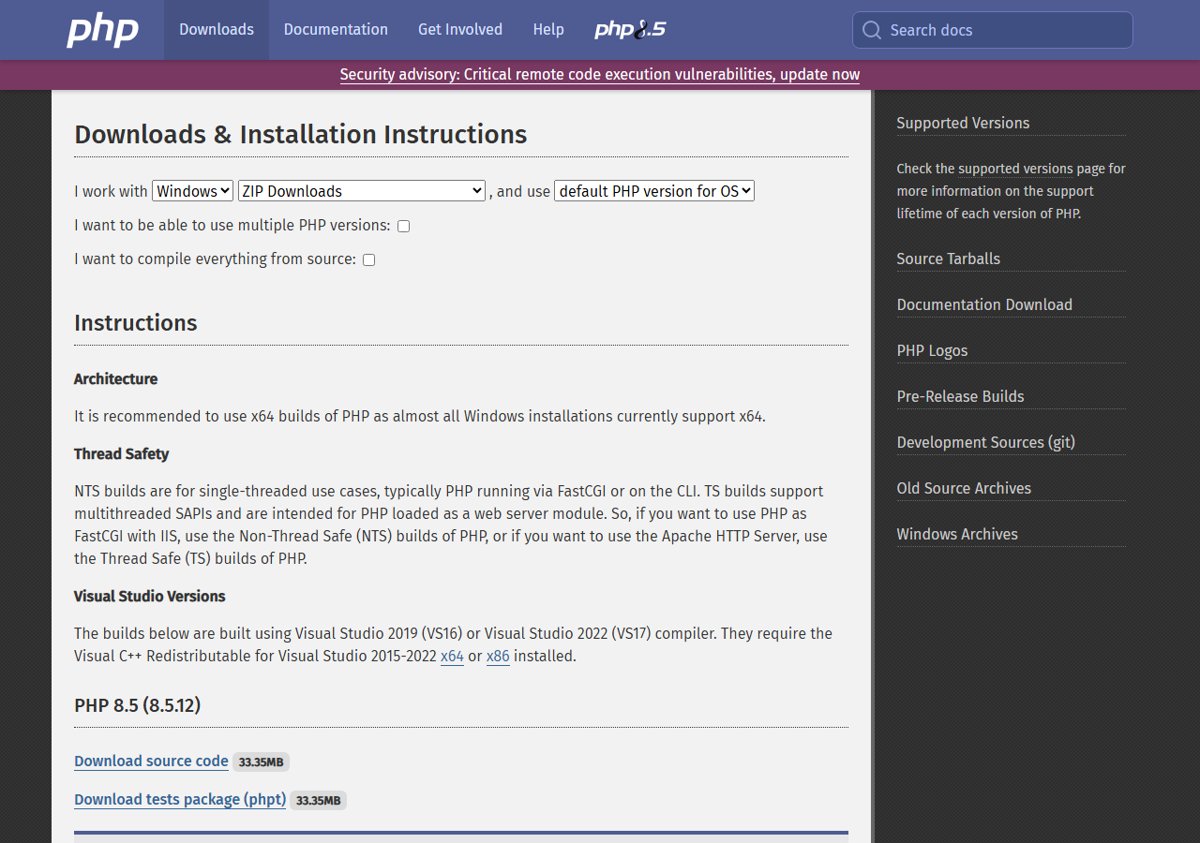
If you installed PHP from the official Windows builds, you can download the patched PHP build for Windows once you know which branch you are on.
Check PHP version on Linux and Ubuntu
On Linux, the PHP version and the package version are two separate answers, and the package one decides whether a distribution fix is installed.
- Open a terminal on the server, or connect over SSH.
- Run
php -vand note the version on the first line. - On Ubuntu and Debian, run
dpkg -l | grep phpto list installed PHP packages and their package versions. - On Fedora, RHEL and similar systems, run
rpm -qa | grep phpfor the same list. - Compare the package version with your vendor's security notice for CVE-2026-109618, not only with the upstream PHP number.
Linux distributions and LTS vendors received the patches in advance, so a distribution package can be fixed while php -v still shows an older upstream number. The vendor's notice is the only reliable answer for packaged PHP.
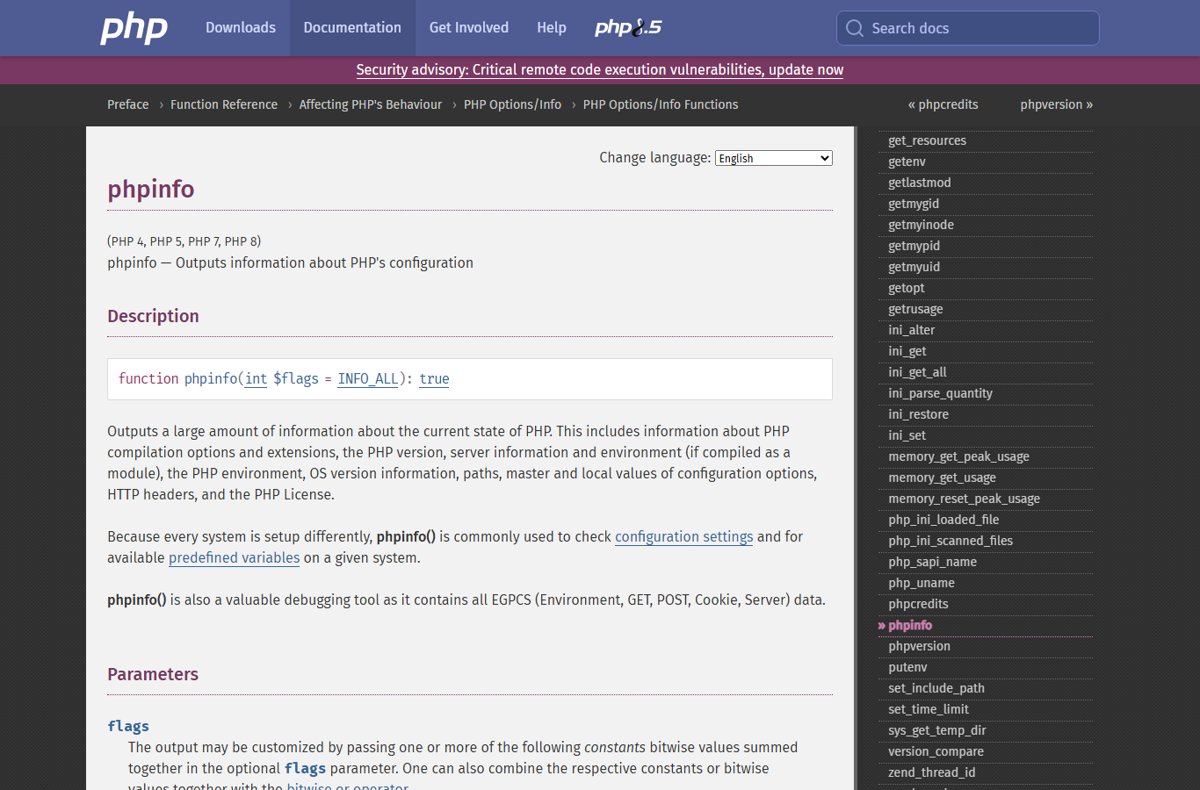
Check PHP version with phpinfo()
phpinfo() runs inside the web server, so it reports the PHP build that actually handles web requests, which is the one CVE-2026-109618 targets.
- Create a file named
info.phpin your site's document root. - Put this single line in it:
<?php phpinfo(); ?> - Open
https://your-domain/info.phpin a browser. - Read the version in the page header and the Server API row, which shows whether PHP runs as FPM/FastCGI, an Apache module or CGI.
- Delete
info.phpas soon as you have the answer.
phpinfo() exposes configuration details, file paths and environment data, so never leave the file on a public site. On the command line, php -i prints the same information for the CLI build.
Check PHP version in XAMPP
- Open the XAMPP Control Panel and click Shell, or open Command Prompt in the
phpfolder inside your XAMPP installation folder. - Run
php -vand read the first line. - To see the version Apache serves, create the phpinfo() file from the previous section in the XAMPP web root and open it through
http://localhost/. - Delete the phpinfo() file when you are done.
XAMPP bundles its own PHP, so its version is independent of any other PHP on the same PC. Development stacks that only listen on localhost are less exposed than a public server, but they still run an affected build until you replace it.
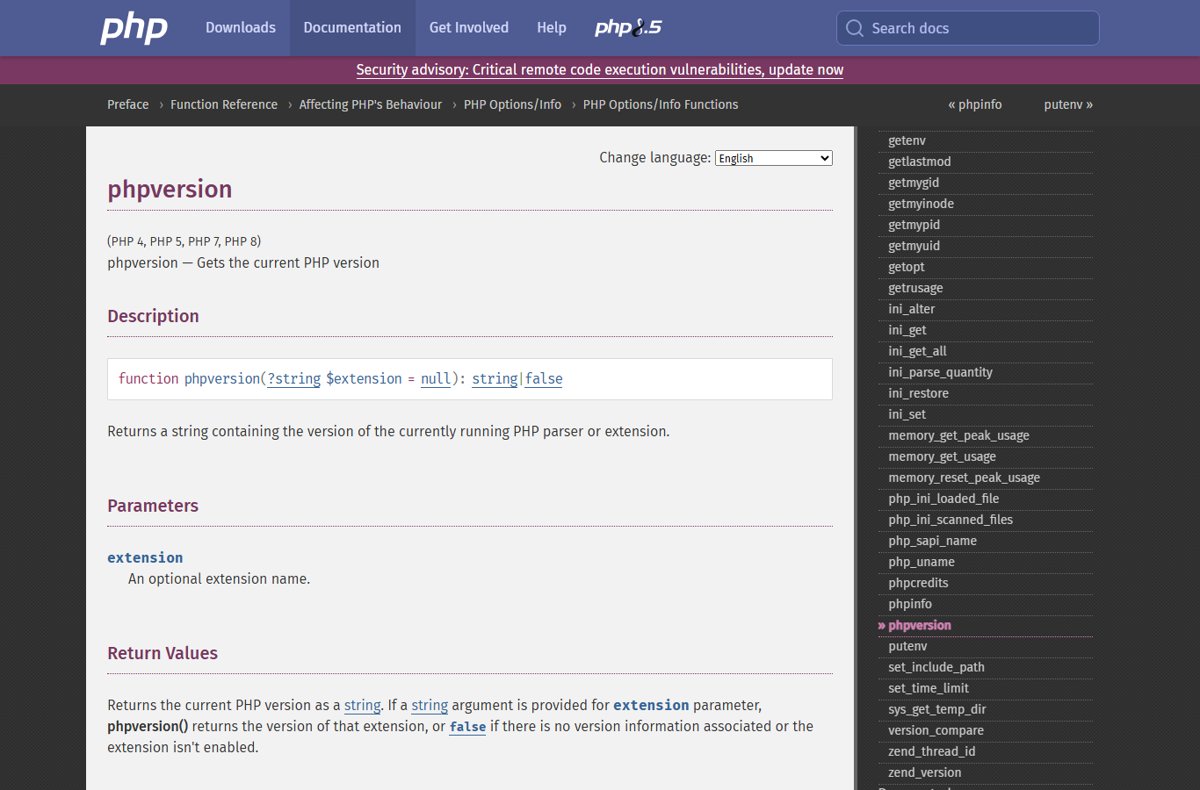
Check the PHP version from code with phpversion() and PHP_VERSION
Use this when you have no shell access, for example on shared hosting or a WordPress site, and want a quick check inside an existing script.
php -r "echo PHP_VERSION, PHP_EOL;"Prints only the version string. Inside a web script, echo phpversion(); returns the same value for the build serving that page, and PHP_VERSION_ID gives it as a number such as 80427 for easy comparison.
You should see: A single line such as 8.5.12.
Is my PHP version vulnerable to CVE-2026-109618?
CVE-2026-109618 (GHSA-w8hw-w9fx-j79w) is a remote code execution flaw in how PHP handles out-of-memory failures while request data is only partly initialized. php.net fixed it, together with CVE-2026-109619, on 21 October 2026.
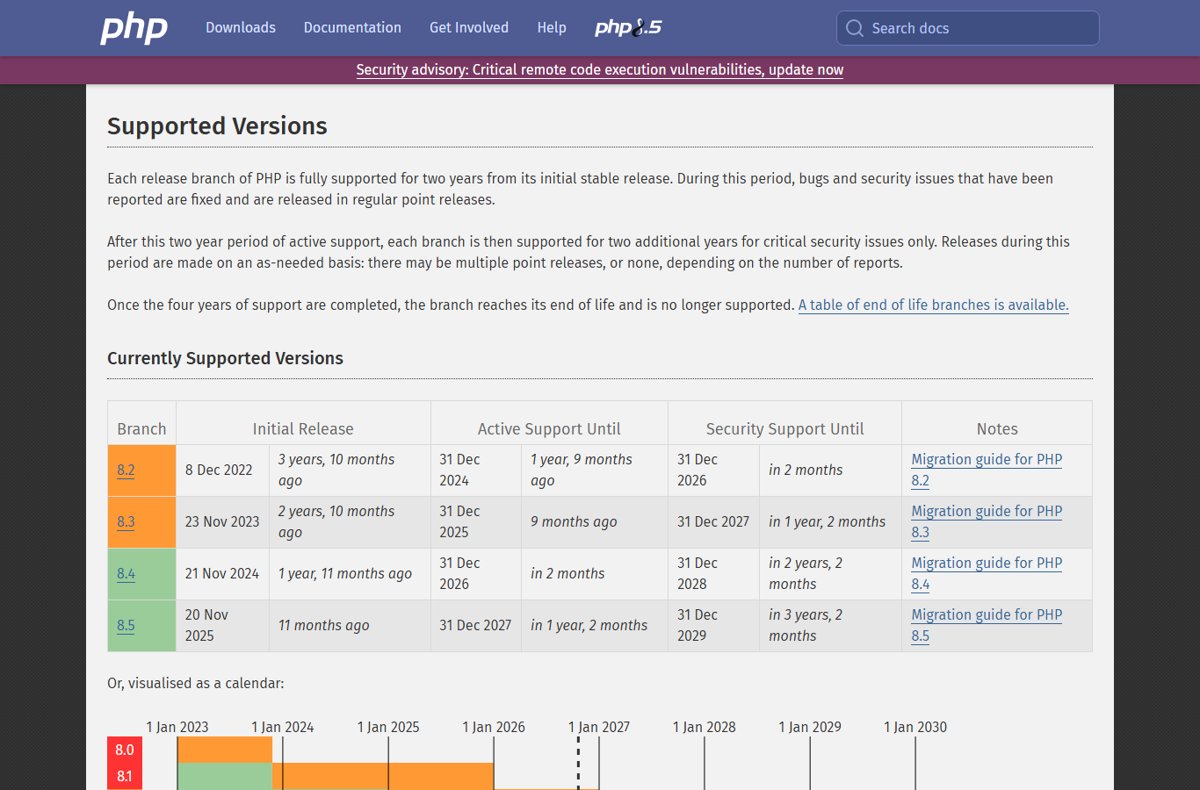
| Your branch | Fixed in | Vulnerable if you run | Branch support status |
|---|---|---|---|
| PHP 8.5 | 8.5.12 | 8.5.11 or older | Security support until 31 Dec 2029 |
| PHP 8.4 | 8.4.27 | 8.4.26 or older | Security support until 31 Dec 2028 |
| PHP 8.3 | 8.3.36 | 8.3.35 or older | Security support until 31 Dec 2027 |
| PHP 8.2 | 8.2.35 | 8.2.34 or older | End of life on 31 Dec 2026 |
| PHP 8.1, 8.0, 7.4 | No official release | Every version, unless a vendor backport is installed | End of life |
php.net says every PHP installation that serves web requests is at risk, including PHP-FPM, Apache mod_php, php-cgi, FrankenPHP and LiteSpeed. It rates the risk highest for mod_php, where a demonstrated exploit works before any application code runs.
A CLI-only install that never serves web requests falls outside that description, but update it anyway so a later web setup does not inherit the old build. The PHP RCE security advisory covers both flaws in full.
What to do if your PHP version is vulnerable to CVE-2026-109618
| Result of your check | Next step |
|---|---|
| 8.5, 8.4, 8.3 or 8.2 below the fixed number | Update to 8.5.12, 8.4.27, 8.3.36 or 8.2.35 |
| Distribution package (Ubuntu, Debian, RHEL) | Install the vendor's updated package from its security notice |
| Packages from rpms.remirepo.net | php.net says the repo has no update on release day; switch to distribution packages or build from source |
| PHP 8.1 or older | Ask your LTS vendor for a backport, use the PHP project's minimal source backports for 7.4, 8.0 and 8.1, or move to a supported branch |
| Cannot update today | Apply the partial mitigations, then update as soon as possible |
Follow the steps to update PHP to 8.5.12, 8.4.27, 8.3.36 or 8.2.35 for your platform. If a change window is days away, the temporary PHP mitigations reduce exposure but php.net is clear that only the update is a complete fix.
Confirm the PHP update fixed CVE-2026-109618
- Restart PHP-FPM, Apache or whichever service runs PHP so every worker loads the new build.
- Run
php -vand confirm the first line shows 8.5.12, 8.4.27, 8.3.36, 8.2.35 or later. - Load a temporary phpinfo() page and confirm the web server reports the same patched version.
- On Linux, confirm the installed package version matches the fixed version in your vendor's security notice.
- Delete the phpinfo() page.
PHP version check problems and fixes
php -v shows a different version from phpinfo()
The command line and the web server use separate PHP builds.
- Trust the phpinfo() result for web exposure.
- Run
php --iniand compare its configuration path with the Loaded Configuration File row in phpinfo(). - Update the build the web server uses, then recheck both.
'php' is not recognized as an internal or external command
The folder that holds php.exe is not on the Windows PATH.
- Change to the folder that contains php.exe with
cd. - Run
php -vfrom that folder.
Ubuntu still shows an older PHP number after updating
Distributions often backport security fixes without changing the upstream version.
- Run
dpkg -l | grep phpand note the package version. - Compare it with the fixed package listed in the Ubuntu or Debian security notice for CVE-2026-109618.
phpinfo() still shows the old version after the update
Running PHP workers keep the old binary until they restart.
- Restart the PHP-FPM service or the web server.
- Reload the phpinfo() page and check the version again.
PHP version and CVE-2026-109618 FAQ
How do I check my PHP version in cmd?
Open Command Prompt, type php -v and press Enter. The first line shows the version, such as PHP 8.4.27 (cli). If Windows says php is not recognized, run the command from the folder that contains php.exe.
How do I check my PHP version on Ubuntu?
Run php -v in a terminal for the version number, then dpkg -l | grep php for the package versions. Compare the package version with Ubuntu's security notice, because Ubuntu can ship the CVE-2026-109618 fix without changing the upstream number.
How do I check the PHP version in XAMPP?
Open the XAMPP Control Panel, click Shell and run php -v. To see what Apache serves, open a temporary phpinfo() page through localhost and delete it afterwards. XAMPP uses its own bundled PHP.
Which PHP versions fix CVE-2026-109618?
PHP 8.5.12, 8.4.27, 8.3.36 and 8.2.35, all released on 21 October 2026. The same releases also fix CVE-2026-109619. Any earlier build in those branches is affected.
Is PHP 8.1 vulnerable to CVE-2026-109618?
PHP 8.1 and older get no official release from the PHP project. The security team provided minimal source backports for 7.4, 8.0 and 8.1, and some LTS vendors ship backported packages. Otherwise, move to a supported branch.
Why does php -v show a different version than phpinfo()?
The command line and the web server can run separate PHP installations. phpinfo() reports the build that serves web requests, which is the one that matters for CVE-2026-109618, so update that build first.
Is it safe to leave a phpinfo() file on my server?
No. phpinfo() exposes configuration, paths and environment details that help an attacker. Create it only for the check and delete it as soon as you have read the version.
Does CVE-2026-109618 affect PHP on the command line only?
php.net describes the risk for installations that serve web requests, such as PHP-FPM, mod_php, php-cgi, FrankenPHP and LiteSpeed. A CLI-only install is outside that description, but it should still be updated.
Bottom line: is your PHP safe from CVE-2026-109618?
Your PHP is safe from CVE-2026-109618 only if the build that serves your website reports 8.5.12, 8.4.27, 8.3.36, 8.2.35 or later, or a vendor package that its security notice lists as fixed. php -v only shows the command-line build, while phpinfo() and the package manager show what the web server really runs, and that is the build attackers can reach.