macOS has no switch that powers Wi-Fi off the moment an Ethernet cable is plugged in, but moving Ethernet above Wi-Fi in Set Service Order makes your Mac use the cable automatically whenever it is connected.
This guide covers setting the service order, turning Wi-Fi off by hand while keeping Ethernet, switching back to Wi-Fi, and checking which connection your Mac is actually using.
Make Ethernet take priority over Wi-Fi on a Mac
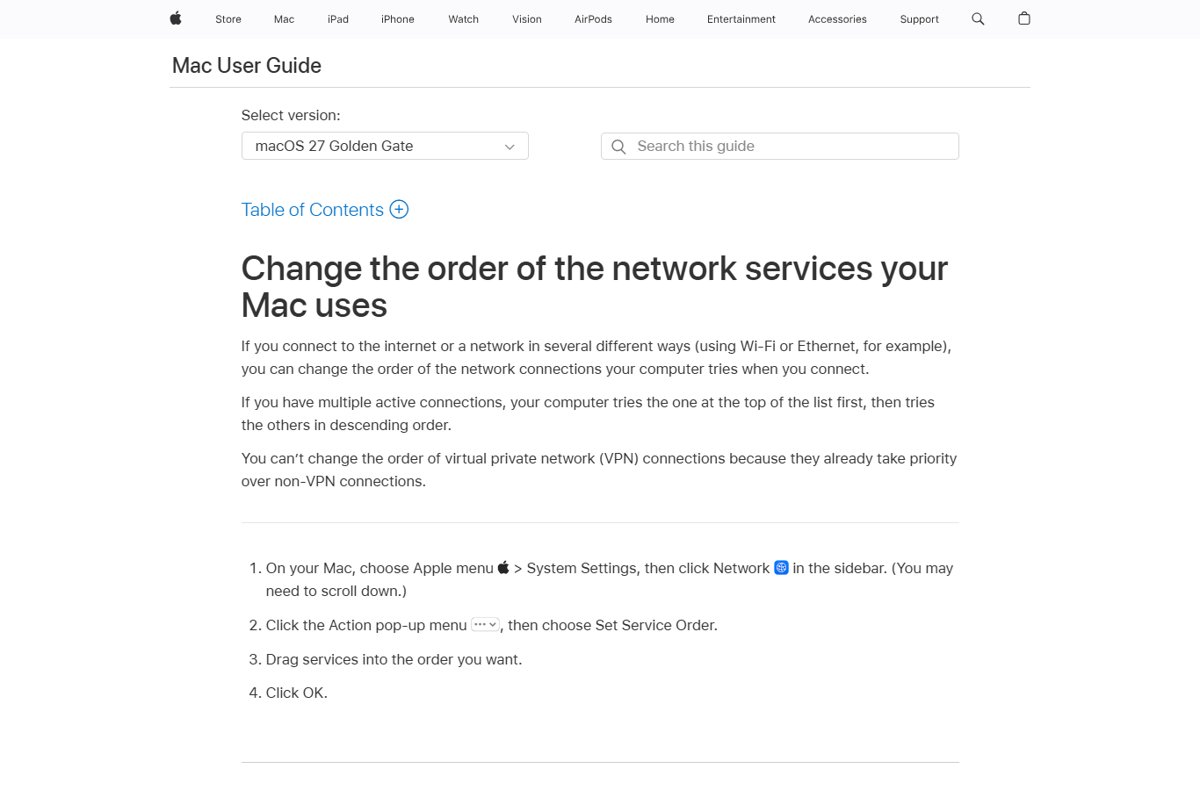
When several connections are active, your Mac tries the service at the top of the list first, then the rest in order. Put Ethernet on top and the cable carries your traffic whenever it is plugged in, with Wi-Fi as the fallback when you unplug.
- Choose Apple menu > System Settings.
- Click Network in the sidebar; you may need to scroll down.
- Click the Action pop-up menu in the Network pane.
- Choose Set Service Order.
- Drag Ethernet, or your Ethernet adapter's service, to the top of the list.
- Click OK.
VPN connections cannot be reordered, because they already take priority over every non-VPN service.
Disable Wi-Fi when Ethernet is connected: which option fits
Each option trades convenience against how completely Wi-Fi is switched off. Match your situation to a row.
| Your situation | Use this | Why |
|---|---|---|
| You want the Mac to use the cable whenever it is plugged in | Ethernet first in Set Service Order | Automatic every time; Wi-Fi stays ready as a backup |
| You want the Wi-Fi radio fully off while you are wired | Turn Wi-Fi off in System Settings > Wi-Fi or the menu bar | Nothing travels over Wi-Fi until you switch it back on |
| You move between a wired desk and wireless rooms | Ethernet first, plus the Wi-Fi menu bar icon | Order handles the desk; one click turns Wi-Fi off or on |
| You want Wi-Fi only and the cable ignored | Make Inactive on the Ethernet service | The Mac stops using Ethernet even when it is plugged in |
| You want a true automatic radio switch | A custom script using the networksetup tool |
macOS has no built-in setting for this |
Turn off Wi-Fi on a Mac and keep Ethernet connected
Switching Wi-Fi off affects only the wireless service. A plugged-in wired Ethernet connection keeps working.
- Plug the Ethernet cable, or your USB or Thunderbolt Ethernet adapter, into the Mac.
- Choose Apple menu > System Settings.
- Click Wi-Fi in the sidebar.
- Turn the Wi-Fi switch off.
- Click Network in the sidebar and confirm the Ethernet service shows a connection.
Turn the switch back on before you unplug the cable, or the Mac will have no network at all.
Add the Wi-Fi menu to the Mac menu bar for one-click switching
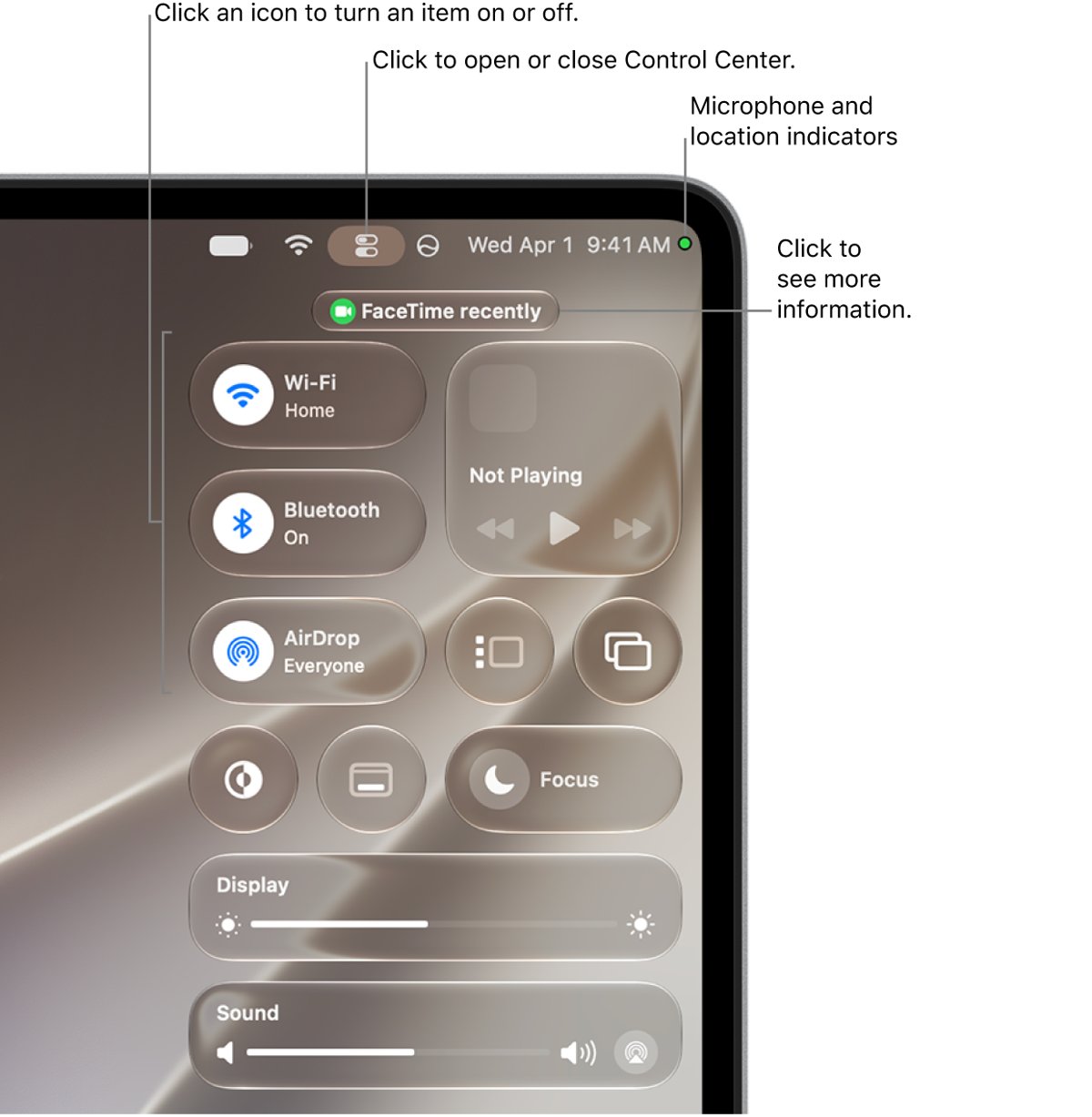
A Wi-Fi icon in the menu bar is the quickest way to turn Wi-Fi off when you sit down at a wired desk and back on when you leave.
- Open System Settings.
- Click Menu Bar in the sidebar; you may need to scroll.
- Select the Wi-Fi checkbox.
- Click the Wi-Fi icon in the menu bar.
- Use the Wi-Fi switch at the top of the menu to turn Wi-Fi off or on.
You can also reach the Wi-Fi control from Control Center in the menu bar without adding a separate icon.
How to disable Ethernet and enable Wi-Fi on a Mac
Sometimes you need the reverse: Wi-Fi in use with the cable still plugged in, for example to test a wireless network.
- Choose Apple menu > System Settings and click Network.
- Click the Ethernet service.
- Choose Make Inactive for that service.
- Click Wi-Fi in the sidebar and turn the Wi-Fi switch on.
- Join your wireless network if the Mac does not connect automatically.
To use the cable again, open the Ethernet service and make it active. Alternatively, drag Wi-Fi above Ethernet in Set Service Order to prefer wireless without deactivating anything.
Why a Mac does not turn off Wi-Fi when Ethernet is plugged in
macOS keeps every active service available and picks between them by order. That design explains what you see after plugging in a cable.
| Behaviour | What it means for you |
|---|---|
| Service order decides the active connection | The service highest in the list is tried first when more than one is connected |
| Wi-Fi stays powered with Ethernet connected | The Wi-Fi icon still shows a network, even when traffic uses the cable |
| Unplugging falls back to the next service | If Wi-Fi is below Ethernet and still on, the Mac moves to Wi-Fi without any action |
| VPN always wins | VPN services take priority over non-VPN services and cannot be reordered |
| Adapters appear as their own service | A USB-C or Thunderbolt adapter can show under its maker or model name, not Ethernet |
Check whether your Mac is using Ethernet or Wi-Fi
The Network pane shows the connection status of each service, so you can confirm the cable is doing the work.
- Choose Apple menu > System Settings and click Network.
- Click the Ethernet service and read the connection status under its name.
- Click Details and select TCP/IP to see the IP address the cable received.
- Click the Action pop-up menu, choose Set Service Order and confirm Ethernet is at the top, then click OK.
- Unplug the cable briefly: if Wi-Fi is on, the Mac should move to Wi-Fi; plug it back in and Ethernet takes over.
List Mac network services with networksetup in Terminal
Terminal's networksetup tool shows the exact service names, which you need for any script and for spotting a disabled service.
networksetup -listallnetworkservicesLists every network service on the Mac's hardware ports, such as Wi-Fi, Ethernet and any adapter, using the names macOS uses internally.
You should see: A list of service names appears; an asterisk (*) next to a name means that service is disabled.
Run networksetup -help to see every command the tool accepts before writing your own automation. macOS ships no ready-made rule that turns Wi-Fi off on cable connect, so any automatic switch is a script you maintain yourself.
Mac uses Wi-Fi when Ethernet is connected: fixes
The Mac keeps using Wi-Fi with the Ethernet cable plugged in
Wi-Fi sits above Ethernet in the service order.
- Open System Settings > Network.
- Click the Action pop-up menu and choose Set Service Order.
- Drag the Ethernet service to the top and click OK.
- If you want no wireless traffic at all, turn Wi-Fi off in System Settings > Wi-Fi.
No Ethernet service appears with a USB-C or Thunderbolt adapter
Adapters often appear under the manufacturer's name or model number instead of Ethernet.
- Open System Settings > Network and look for a service named after the adapter, such as a USB-C LAN entry.
- If none appears, click the Action pop-up menu and choose Add Service.
- Pick the adapter from the Interface pop-up menu, enter a Service Name and click Create.
- Move the new service to the top in Set Service Order.
Wi-Fi turned off and Ethernet shows no internet
The wired connection has not received network settings from the router or modem.
- Check the cable runs from the router, switch or wall jack to the Mac's port or adapter.
- Open the Ethernet service, click Details and select TCP/IP.
- Set Configure IPv4 to Using DHCP unless your provider gave you a fixed address, then click OK.
- Turn Wi-Fi back on until the wired connection works.
Mac Wi-Fi and Ethernet switching FAQ
How do I turn off Wi-Fi on a Mac?
Choose Apple menu > System Settings, click Wi-Fi in the sidebar and turn the Wi-Fi switch off. You can also use the Wi-Fi switch in the menu bar icon or Control Center. An Ethernet connection keeps working while Wi-Fi is off.
Can a Mac turn off Wi-Fi automatically when Ethernet is connected?
Not with a built-in setting. macOS keeps Wi-Fi powered and chooses the connection by service order. Put Ethernet first in Set Service Order so the cable is used automatically, or turn Wi-Fi off yourself while you are wired.
How do I disable Ethernet and enable Wi-Fi on a Mac?
Open System Settings > Network, click the Ethernet service and choose Make Inactive, then turn Wi-Fi on in the Wi-Fi pane. Or drag Wi-Fi above Ethernet in Set Service Order to prefer wireless without deactivating the cable.
Does a Mac automatically use Ethernet over Wi-Fi?
It uses whichever active service is highest in the service order. If Ethernet is above Wi-Fi, the Mac sends traffic over the cable whenever it is connected and falls back to Wi-Fi when you unplug it.
How do I turn off Wi-Fi but keep Ethernet on a Mac?
Plug in the cable, then turn the Wi-Fi switch off in System Settings > Wi-Fi. The Ethernet service is separate, so it stays connected. Check System Settings > Network to confirm the Ethernet service still shows a connection.
Why does my Mac still show Wi-Fi connected when Ethernet is plugged in?
macOS keeps every active service available. Wi-Fi stays joined to the network as a backup even while Ethernet carries traffic, provided Ethernet sits higher in the service order. Turn Wi-Fi off if you want it fully disconnected.
Can I script Wi-Fi to switch off when the Ethernet cable connects?
Only with your own script. The Terminal tool networksetup manages network services, and networksetup -help lists its commands. macOS includes no preset rule for this, so test any script carefully and keep a way to turn Wi-Fi back on.
Does a VPN change which connection my Mac uses?
VPN connections always take priority over non-VPN services and cannot be reordered in Set Service Order. The VPN itself still runs over whichever physical connection, Ethernet or Wi-Fi, is highest in the list.
Bottom line: the best way to prefer Ethernet over Wi-Fi on a Mac
Put Ethernet at the top of Set Service Order once, and add the Wi-Fi menu bar icon for the times you want the radio fully off. Service order switches to the cable automatically every time it is plugged in, which is the closest macOS gets to an automatic Wi-Fi cut-off without maintaining a custom script.