To block spam calls on iPhone, open Settings > Apps > Phone, set Screen Unknown Callers to Silence or Ask Reason for Calling, and turn on Spam under Call Filtering.
This guide covers each built-in setting step by step, how to block a single number, carrier apps that add network blocking, and what to do when spam calls still ring through.
How to block spam calls on iPhone
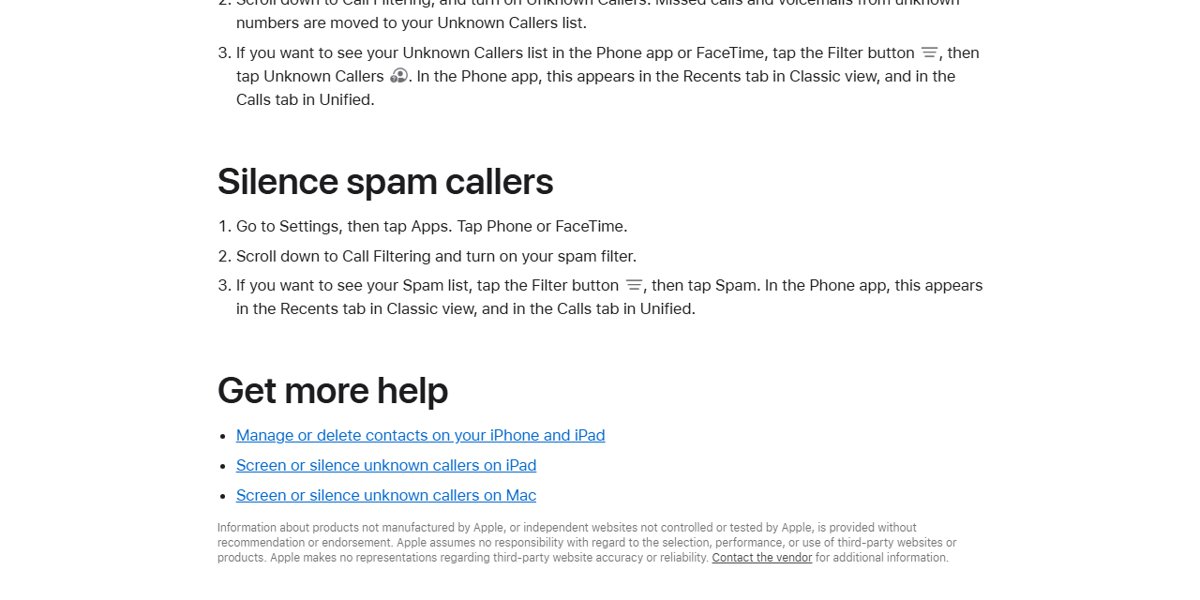
These settings are in the Phone app settings on current iOS versions. Calls your carrier marks as spam or fraud are silenced, sent to voicemail and moved to a separate Spam list.
- Unlock your iPhone and open the Settings app.
- Tap Apps, then tap Phone.
- Scroll to Call Filtering and turn on Spam.
- Turn on Unknown Callers in the same section to move calls from unknown numbers out of your main call list.
- Scroll to Screen Unknown Callers and select Silence to send every unsaved number straight to voicemail.
Comparison of spam-blocking methods on iPhone
| Method | What it stops | Best for | Trade-off |
|---|---|---|---|
| Spam filter (Call Filtering) | Calls your carrier flags as spam or fraud | Everyone; leave it on | Only works on calls the carrier identifies |
| Screen Unknown Callers: Ask Reason for Calling | Unknown callers must state their name and reason first | People who still get real calls from new numbers | Not used while roaming; standard call and data rates may apply |
| Screen Unknown Callers: Silence | Every number not in your contacts | Heavy spam, few calls from strangers | Deliveries, doctors and schools go to voicemail too |
| Block Caller | One specific number | A repeat caller using the same number | Spammers switch numbers often |
| Focus with Allowed People | Calls from anyone outside your chosen list | Nights or work hours | Only while the Focus is on |
| Carrier app | Known fraud calls in the network, before they reach the phone | Extra protection on top of iOS | Advanced tiers may cost extra |
Step-by-step guide
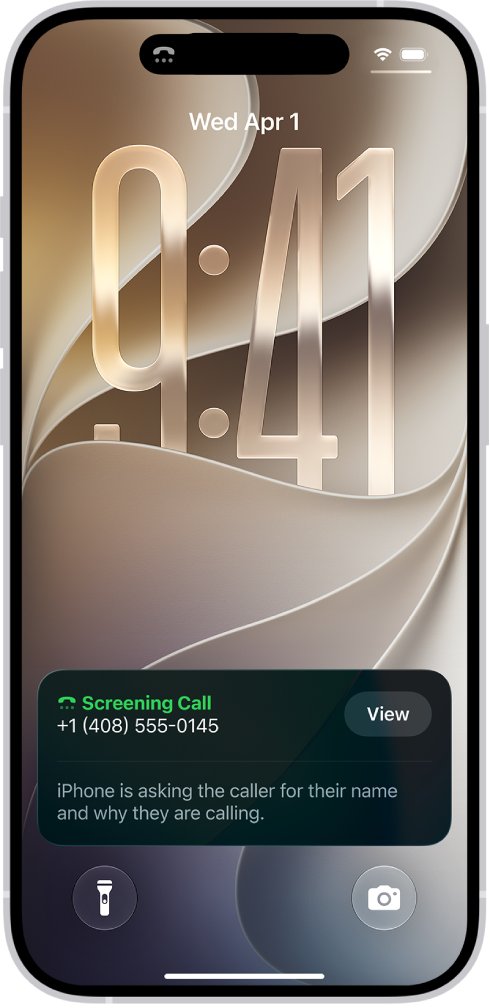
Call Screening answers calls from unknown numbers without interrupting you. Once the caller gives a name and reason, your iPhone rings and shows the response so you can decide whether to pick up.
- Unlock your iPhone and open Settings.
- Tap Apps, then tap Phone.
- Tap Screen Unknown Callers and choose Ask Reason for Calling.
- Go back and, under Call Filtering, enable Spam for cell carrier filtering.
- Confirm the Spam toggle is green; it only appears when your carrier supports spam identification.
- Test the settings: ask a friend whose number is not in your contacts to call you and check that the screening prompt appears.
Add important numbers such as family, your child's school and your doctor's office to Contacts so they always ring. If you call emergency services, call screening turns off for 24 hours.
How to block a specific number on iPhone
- Open the Phone app and tap Recents (or Calls in the Unified layout).
- Tap the number you want to block, or tap the Info button next to it in Classic view.
- Scroll down and tap Block Caller.
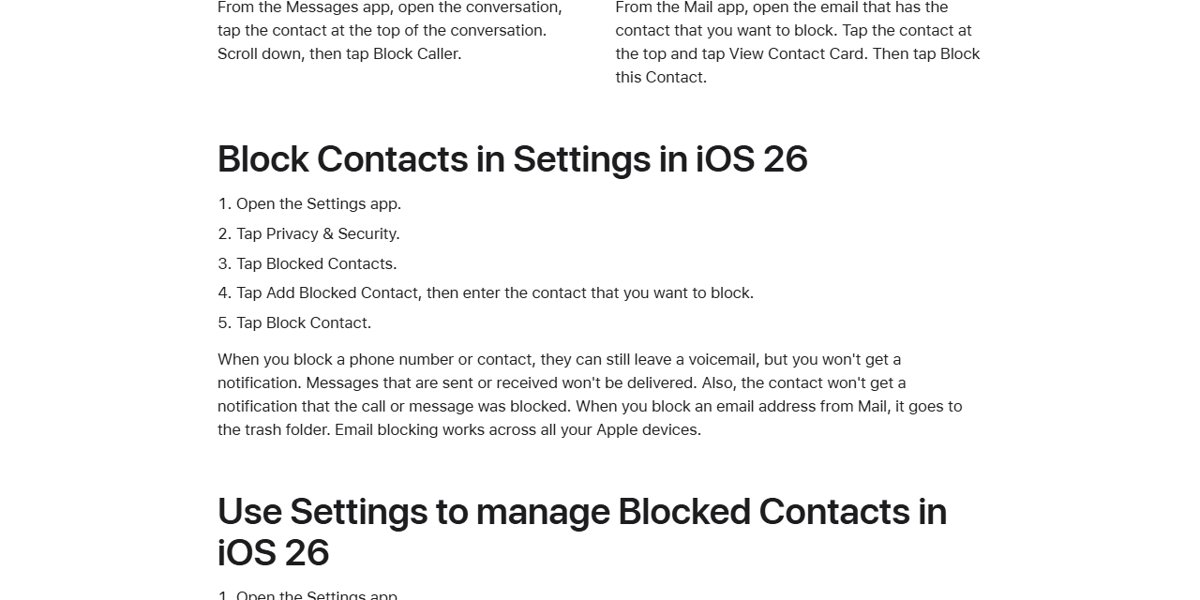
- To add a number by hand on iOS 26, open Settings > Privacy & Security > Blocked Contacts and tap Add Blocked Contact.
- Enter the number and tap Block Contact.
A blocked number can still leave a voicemail, but you get no notification. The caller is not told the call was blocked. You can also find your recent calls first if you need to identify which number to block.
Why is blocking spam calls difficult?
| Reason | What it means for you |
|---|---|
| Spoofed caller ID | Scammers fake the number shown, so blocking that number does not stop the next call |
| Constantly changing numbers | Block Caller works per number, so a new number gets through |
| Carrier detection decides the Spam list | The iPhone spam filter only silences calls your carrier has identified as spam or fraud |
| Answering confirms your number | Picking up tells robocallers the line is active, which can lead to more calls |
| Do Not Call registry limits | The FTC registry stops law-abiding telemarketers, not scammers |
Alternative solutions
If the built-in filters are not enough, add a Focus, a caller ID app or your carrier's service. Each works alongside the iPhone settings.
- Use Focus mode: open Settings > Focus, tap Do Not Disturb (or another Focus), tap People and allow calls only from the contacts you choose.
- Try third-party apps: install a caller ID or spam app from the App Store, then go to Settings > Apps > Phone > Call Blocking & Identification and turn it on.
- Turn on Business Call Identification in the same screen so verified businesses show their name.
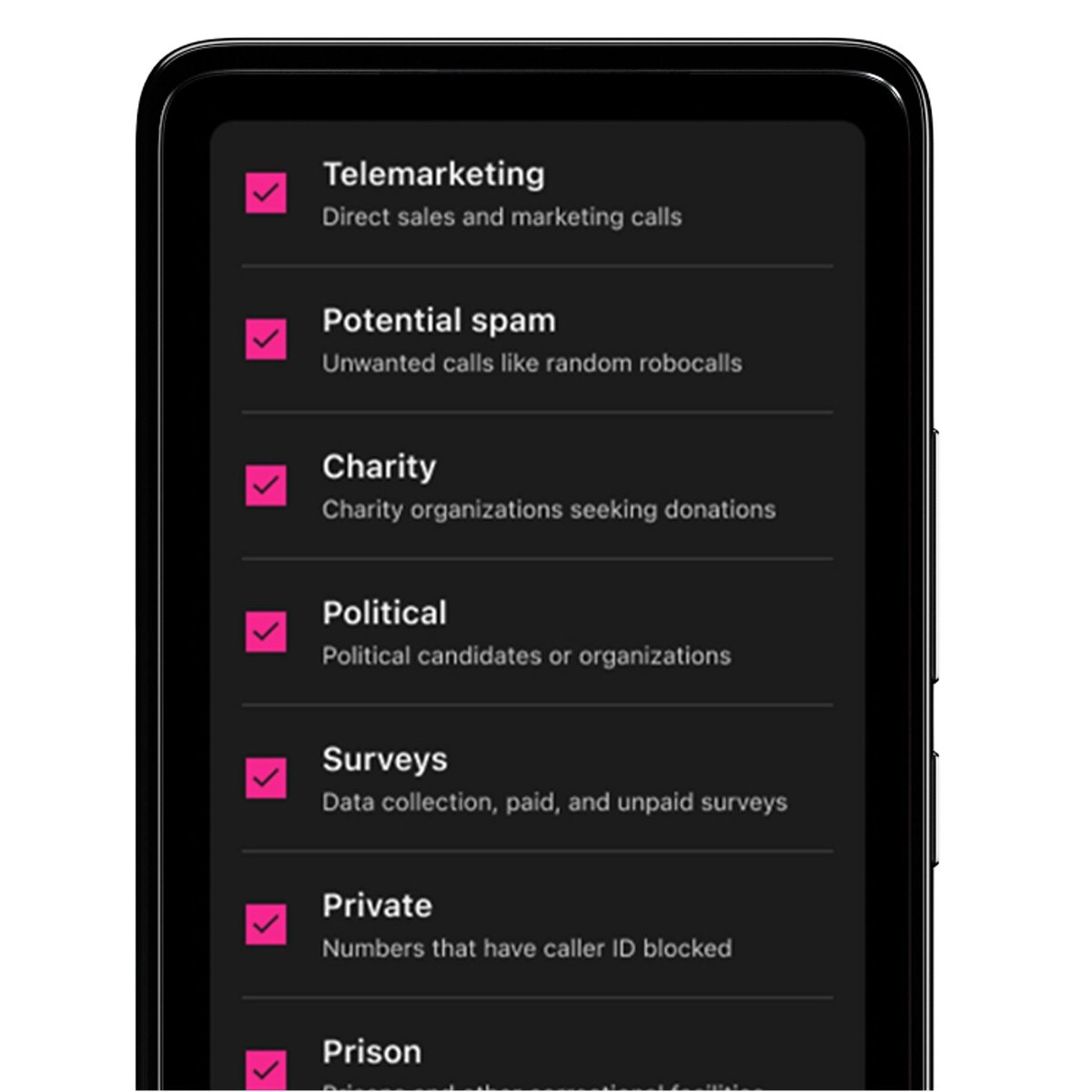
- AT&T: use the free ActiveArmor app, which blocks fraud and spam calls on every plan.
- Verizon: use Call Filter, free on standard monthly and prepaid plans, which sends high-risk calls to voicemail.
- T-Mobile: use Scam Shield; turn on Scam Block in the T-Life app or dial
#662#.
Tips for stopping more spam calls
| Tip | Why it helps |
|---|---|
| Do not answer unknown numbers | Answering confirms the number is active |
| Hang up immediately if you do answer | Never press keys or respond to a recording |
| Report numbers at donotcall.gov | The FTC shares reported numbers with carriers working on call blocking |
| Register on the National Do Not Call Registry | Cuts legal telemarketing calls, though scammers ignore it |
| Report spam in your carrier's app | Carrier reports improve the spam detection the iPhone filter relies on |
| Check the Spam and Unknown Callers lists weekly | Catch a real call that was filtered by mistake |
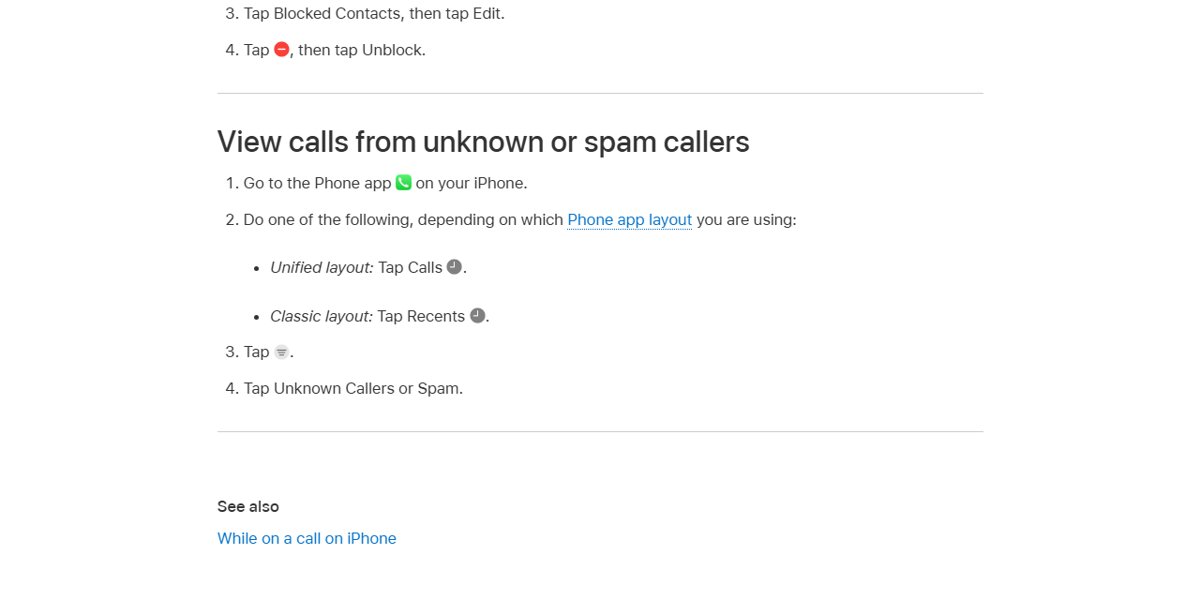
How to see silenced spam calls on iPhone
- Open the Phone app.
- Tap Calls in the Unified layout or Recents in the Classic layout.
- Tap the Filter button.
- Tap Spam or Unknown Callers to see the calls that were silenced.
To stop a wanted number landing in Unknown Callers, tap Mark as Known next to the call.
Still not working?
Spam calls still ring through
The carrier has not flagged the number, so the spam filter lets it ring.
- Set Screen Unknown Callers to Silence or Ask Reason for Calling.
- Turn on your carrier's blocking service, such as Scam Block or Call Filter.
- Report the number in your carrier app and at donotcall.gov.
The Spam toggle is missing under Call Filtering
Spam identification depends on carrier support.
- Update iOS from Settings > General > Software Update.
- Ask your carrier whether it supports spam identification on iPhone.
Calls are not screened while travelling
Phone calls are not screened while roaming, whatever the setting.
- Use Silence or a Focus with Allowed People until you are back on your home network.
Important calls go to voicemail
The number is not in your contacts, so Silence treats it as unknown.
- Open the Unknown Callers list and tap Mark as Known.
- Add the number to Contacts.
- Switch Screen Unknown Callers to Ask Reason for Calling so new numbers can still reach you.
iPhone spam calls FAQ (frequently asked questions)
Can I block spam calls on iPhone?
Yes. Open Settings > Apps > Phone, turn on Spam under Call Filtering, and set Screen Unknown Callers to Silence or Ask Reason for Calling. Use Block Caller in Recents for individual numbers.
Can I block all potential spam calls?
The Spam filter silences every call your carrier flags as potential spam or fraud. To catch unflagged numbers too, set Screen Unknown Callers to Silence, which sends all unsaved numbers to voicemail.
How do I block spam calls on iPhone 16 or iPhone 17?
The steps are the same on every iPhone running current iOS, including iPhone 13, 14, 15, 16 and 17: Settings > Apps > Phone, then Screen Unknown Callers and Call Filtering.
How do I block spam calls permanently?
No setting stops every spam call forever, because spammers change and spoof numbers. Combining the Spam filter, Silence for unknown callers and your carrier's blocking service stops most of them.
Does blocking spam calls work?
Blocking a single number only stops that number. Filtering by carrier spam detection and silencing unknown callers works better, since it does not depend on the spammer reusing the same number.
Will important calls still come through?
Calls from saved contacts always ring. Calls from new numbers ring only if you use Ask Reason for Calling or Never, so add important numbers to Contacts before choosing Silence.
Will I see who called me even if it was silenced?
Yes. Silenced calls appear in the Unknown Callers or Spam list. Open the Phone app, tap the Filter button in Recents or Calls, and select the list.
Is the carrier Spam toggle free?
The iPhone Spam toggle costs nothing. Carrier services such as AT&T ActiveArmor, Verizon Call Filter and T-Mobile Scam Shield have free versions, with paid tiers for extra features.
Can I unblock a number later?
Yes. Open Settings > Privacy & Security > Blocked Contacts on iOS 26, tap Edit, tap the delete button next to the number, and tap Unblock.
How do I block spam calls on Android or a landline?
Android phones and landlines use different settings. On a landline, ask your provider about spam alerts and register the number at donotcall.gov to cut legal telemarketing calls.
iPhone spam call blocking quick summary
Turn on the Spam filter, set Screen Unknown Callers to Ask Reason for Calling, and add your carrier's free blocking service. Screening stops unknown spam without hiding real calls from new numbers, while carrier blocking catches fraud before it reaches the phone.