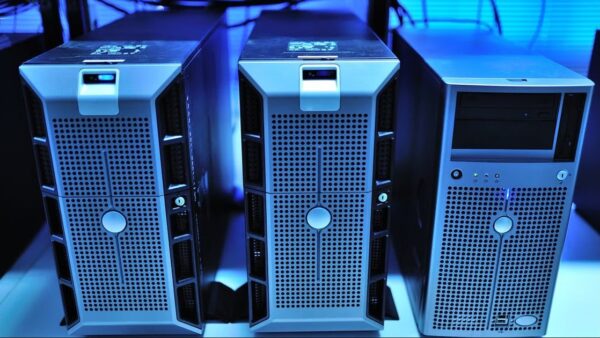
Windows Server 2025 ships as Standard, Datacenter and Datacenter: Azure Edition, and you add roles such as WSUS, DHCP and Active Directory Domain Services from the Add Roles and Features wizard in Server Manager or with Install-WindowsFeature in PowerShell.
This hub covers edition differences, hardware minimums, end of support dates, remote management tools, Active Directory and Windows LAPS, the main server roles, WSUS, and OpenSSH Server from install to logs.
How to add roles and features in Windows Server
Server Manager's wizard works on the local server, any remote server you added to Server Manager, or an offline VHD.
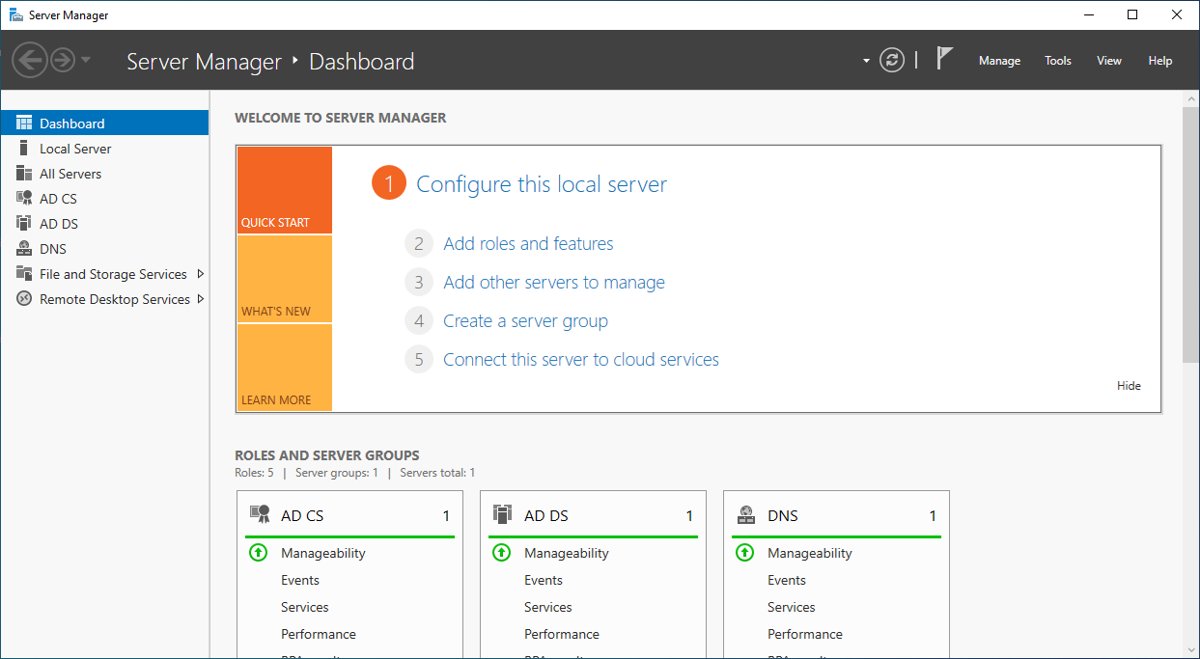
- Open the Start menu, type Server Manager, and open it.
- Select Manage in the top-right corner, then select Add Roles and Features.
- On Installation Type, choose Role-based or feature-based installation and select Next.
- On Server Selection, pick the target server and select Next.
- Tick the role on Server Roles, accept any required features it adds, and select Next through Features.
- On Confirmation, tick Restart the destination server automatically if required if you want an automatic reboot, then select Install.
In PowerShell, run Get-WindowsFeature to list role names, then install with a command such as Install-WindowsFeature -Name DNS,DHCP -IncludeManagementTools. Management tools are skipped unless you add -IncludeManagementTools, and -Restart reboots without prompting.
Server Manager adds roles only on the same Windows Server version or an earlier one: a 2025 server can manage 2022, but not the reverse. Remote Desktop Services uses its own deployment process instead of the role-based option.
Windows Server 2025 editions: Standard vs Datacenter
All three editions carry the same core roles, including AD DS, DHCP, DNS, IIS, Remote Access and WSUS. The differences sit in storage, software-defined networking and virtualization features.
| Feature | Standard | Datacenter | Datacenter: Azure Edition |
|---|---|---|---|
| Storage Spaces Direct | No | Yes | Yes |
| Network Controller (SDN) | No | Yes | Yes |
| Host Guardian Hyper-V Support | No | Yes | Yes |
| Containers | Yes | Yes | No |
| Azure Extended Networking | No | No | Yes |
| Hotpatching | Through Azure Arc | Through Azure Arc | Yes |
| Key Management Service (KMS) host | Yes | Yes | No, activated by Azure |
| Automatic Virtual Machine Activation | As a guest on a Datacenter host | Yes | Yes |
| Maximum cores | Unlimited | Unlimited | 2,048 logical processors |
| Maximum RDS connections | 65,535 | 65,535 | 65,535 |
Standard and Datacenter also differ in virtualization rights, so compare the Windows Server 2025 edition differences before you buy licenses.
Windows Server 2025 minimum hardware requirements
These minimums apply to Standard and Datacenter, in both Server Core and Server with Desktop Experience.
| Component | Minimum | Detail |
|---|---|---|
| Processor | 1.4 GHz 64-bit, x64 compatible | NX and DEP, CMPXCHG16b, LAHF/SAHF, PrefetchW, SLAT (EPT or NPT), SSE4.2 and POPCNT |
| Memory | 2 GB | Desktop Experience: 4 GB recommended; ECC or similar on physical hosts |
| Storage | 32 GB system partition | PCI Express storage adapter; no PATA, ATA, IDE or EIDE for boot, page or data drives |
| Network | 1 Gbps Ethernet adapter | PCI Express compliant |
| TPM and UEFI | Only for certain features | TPM 2.0 for BitLocker; UEFI 2.3.1c with Secure Boot |
| Secured-core server | Optional | TPM 2.0, Secure Boot, VBS, IOMMU, Kernel DMA Protection and DRTM |
A virtual machine with 1 core and 1,024 MB of RAM fails setup. Give it at least 1,280 MB for the install, then lower it afterwards. The Windows Server 2025 hardware minimums add GUI and VM sizing notes.
What's new in Windows Server 2025
| Area | Change in Windows Server 2025 |
|---|---|
| Desktop | Windows 11 style shell, the modern Task Manager, and Bluetooth device support |
| OpenSSH | The server component is installed by default, with a Remote SSH Access switch in Server Manager |
| Hotpatch | Azure Arc-connected machines can apply OS security updates without a restart |
| Credential Guard | Enabled by default on devices that meet its requirements |
| Active Directory | New domain controllers can use a 32k-page database; the forest-wide switch needs every DC to support it |
| Windows LAPS | Automatic account management, image rollback detection and passphrase passwords |
| NTLM and Kerberos | NTLMv1 is removed and the KDC no longer issues RC4 Ticket Granting Tickets; why Kerberos replaces NTLM |
| SMB over QUIC | Now in Standard and Datacenter, not only Azure Edition |
| TLS | TLS 1.0 and 1.1 are disabled by default |
| Licensing | Azure Arc pay-as-you-go subscription as an alternative to perpetual licenses |
Servers moving from 2019 skip a release, so review the Windows Server 2022 feature changes too.
Windows Server 2025 EOL and end of support dates
Every current release follows the Fixed Lifecycle Policy, with dates in Pacific Time. After mainstream support ends, a release gets security updates only.

| Version | Released | Mainstream support ends | Extended support ends | Planning note |
|---|---|---|---|---|
| Windows Server 2016 | Oct 14, 2016 | Jan 11, 2022 | Jan 12, 2027 | Plan 2016 ESU and upgrade paths now |
| Windows Server 2019 | Nov 12, 2018 | Jan 9, 2024 | Jan 9, 2029 | Security updates only; 2019 end of life details |
| Windows Server 2022 | Aug 17, 2021 | Oct 13, 2026 | Oct 14, 2031 | Security updates only since October 2026 |
| Windows Server 2025 | Oct 31, 2024 | Nov 13, 2029 | Nov 14, 2034 | In mainstream support |
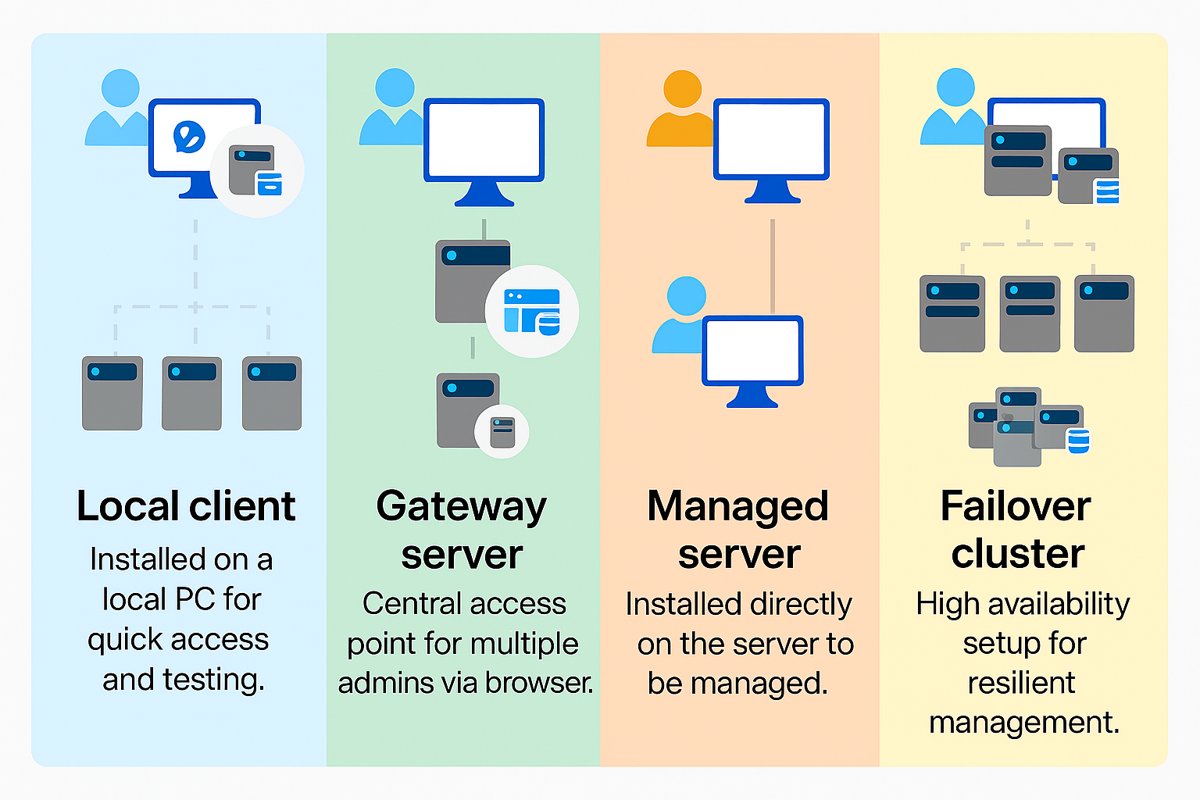
Windows Server remote management: Server Manager vs Windows Admin Center vs RSAT
| Your situation | Use this | Why |
|---|---|---|
| Manage AD, DNS, DHCP or WSUS from a Windows 11 PC | RSAT Features on Demand | Windows 10 and 11 Pro or Enterprise only;Remote Server Administration Tools for Windows 11 |
| Want the full Server Manager console on a client | RSAT: Server Manager | Adds and removes roles on remote servers; Server Manager on Windows 11 |
| Browser dashboard for servers, clusters and VMs | Windows Admin Center | Download from the Microsoft Evaluation Center; Windows Admin Center setup and TLS |
| Shell access from Windows, Linux or macOS | OpenSSH Server | One TCP port (22), key or password sign-in |
| Print, Fax, WDS or NPAS administration | Tools on Windows Server itself | Those RSAT tools are not available on Windows client |
Each non-preview Windows Admin Center version is supported until 30 days after the next non-preview release, so keep it updated through Microsoft Update.
Install Active Directory Users and Computers on Windows 11
ADUC ships in the AD DS and AD LDS Tools, part of RSAT. It needs Windows 11 Pro or Enterprise and an administrator account.
- Open PowerShell as administrator.
- Run
Get-WindowsCapability -Online | Where-Object Name -like 'RSAT*'to see which tools are present. - Run
Add-WindowsCapability -Online -Name Rsat.ActiveDirectory.DS-LDS.Tools~~~~0.0.1.0. - Wait for
Online : Truein the output. - Open Windows Tools from the Start menu and launch Active Directory Users and Computers.
Windows 10 uses the same capability name; the ADUC install on Windows 10 and 11 also shows the Settings route. On a server, run Install-WindowsFeature -Name RSAT-AD-Tools -IncludeAllSubFeature instead.
For hybrid identity, the Microsoft Entra Connect sync tool runs on-premises and syncs users, groups and password hashes to Microsoft Entra ID. Microsoft names Entra Cloud Sync as its successor, and Azure AD Connect V1 was retired on August 31, 2022.
How to configure Windows LAPS in Active Directory
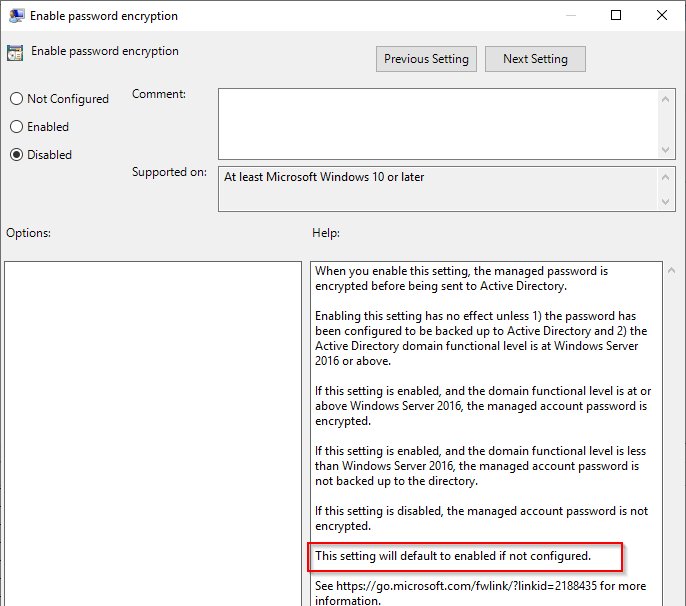
Windows LAPS is built into Windows Server 2019 and later and Windows 11 with the April 11, 2023 update or later. It rotates the local administrator password and backs it up to Active Directory or Microsoft Entra ID, not both.
- Run
Update-LapsADSchemaonce for the forest, on a Windows Server 2019 or later DC or any server with the LAPS module. - Let devices write their own passwords:
Set-LapsADComputerSelfPermission -Identity <OU name>. - Grant a group read access:
Set-LapsADReadPasswordPermission -Identity <OU name> -AllowedPrincipals @("domain\LapsReaders"). - Configure the policy under Computer Configuration > Administrative Templates > System > LAPS, then run
Invoke-LapsPolicyProcessingon a device to apply it now. - Retrieve a password with
Get-LapsADPassword -Identity <computer> -AsPlainText, and force an early rotation withReset-LapsPassword.
Legacy Microsoft LAPS is deprecated from Windows 11 23H2, and newer releases block its installer. The Windows LAPS rollout for Active Directory details OU permissions and the GPO.
Windows Server roles and features list
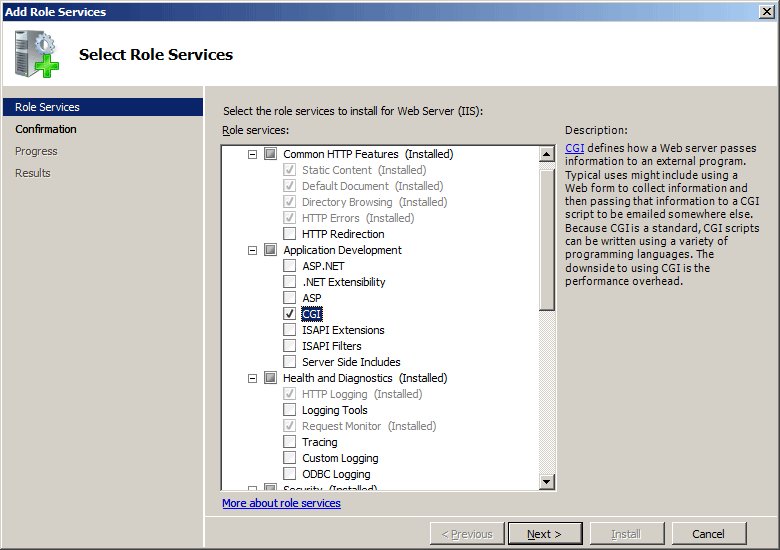
Names in the second column are what you tick on the Server Roles page of the wizard.
| Workload | Where to find it | What to know | Setup guide |
|---|---|---|---|
| DHCP Server | DHCP Server (Install-WindowsFeature DHCP -IncludeManagementTools) |
Needs a static IPv4 address; authorize it in AD with Add-DhcpServerInDC; no reboot |
DHCP Server install, scopes and leases |
| iSCSI Target Server | File and Storage Services > iSCSI Target Server | Serves block storage over existing Ethernet; add the Multipath I/O feature for redundancy | iSCSI target and initiator setup |
| DirectAccess | Remote Access > DirectAccess and VPN (RAS) | Microsoft recommends Always On VPN for new deployments; Remote Access is not supported in Azure VMs | DirectAccess with the Getting Started Wizard |
| Remote Desktop Services | Its own RDS installation, not role-based | Needs Desktop Experience; FSLogix keeps each profile in a VHD(x) file | FSLogix profile containers on RDS, plus the FSLogix download and licensing |
| Print Server | Print and Document Services > Print Server | Desktop Experience only; print tools are not part of client RSAT | print server and printer deployment, or a step-by-step print server build |
| Web Server (IIS) | Web Server (IIS) > Web Server, FTP Server | Also installs as a Windows feature on Windows 11 | IIS on Windows 11, FTP server on Windows 11/10 |
| PHP applications | Web Server (IIS) | PHP is installed separately, so you keep it patched yourself | add the FastCGI module, then patch PHP against PHP2Shell |
| Exchange Server | Not a role: a separate Microsoft product | Installs on top of Windows Server | Exchange Server trial download |
A small office without a server can share a printer from one PC running Windows 10 or 11 instead.
How to install WSUS on Windows Server
Sign in with an account in the Local Administrators group. WSUS needs only the default Web Server (IIS) configuration.
- In Server Manager, select Manage > Add Roles and Features and keep Role-based or feature-based installation.
- Choose the server, then tick Windows Server Update Services and select Add Features.
- Keep the defaults on Select features and on Select Role Services; one database type must stay selected.
- On Content location selection, enter a folder for updates, such as
k:\WSUS_database. - Accept the IIS defaults and select Install.
- Select Launch Post-Installation tasks and wait for Configuration successfully completed, then restart if Server Manager asks.
The PowerShell equivalent is Install-WindowsFeature -Name UpdateServices -IncludeManagementTools -Restart. Clients reach WSUS on port 8530 (HTTP) and 8531 (HTTPS), and you point them at it with the Specify intranet Microsoft update service location policy, for example https://wsus.contoso.com:8531.
WSUS defaults to Windows Internal Database, which Microsoft lists as deprecated, so larger sites can move SUSDB to a Microsoft SQL Server instance. The WSUS install and configuration walkthrough adds the sync wizard and WsusPool tuning.
Is WSUS being deprecated?
Yes, but it still works: keep running WSUS where it serves you and plan the next tool calmly. Microsoft lists WSUS as no longer actively developed, while all existing capabilities and content remain available for deployments. Windows Internal Database, its default store, is also deprecated and will be removed in a future release.
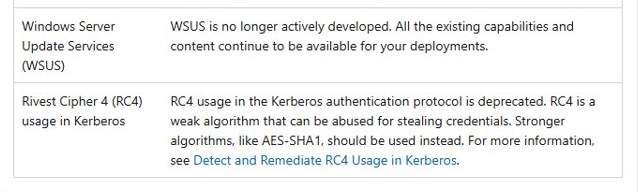
The WSUS deprecation status and alternatives compares Intune, Autopatch and the Update Catalog. WSUS still delivers feature updates too, including Windows 11 26H2 for enterprise fleets.
How is SSH implemented in Windows?
OpenSSH has been a Feature on Demand since Windows 10 build 1809 and Windows Server 2019. Microsoft services the in-box version through Windows Update, and its binaries sit in C:\Windows\System32\OpenSSH.
| Command | What it does |
|---|---|
ssh |
The client that runs on your local system |
sshd |
The server component that runs on the managed machine |
ssh-keygen |
Generates, manages and converts authentication keys |
ssh-agent |
Stores private keys used for public key authentication |
ssh-add |
Adds private keys to the list the agent offers |
ssh-keyscan |
Collects public SSH host keys from hosts |
sftp |
Secure File Transfer Protocol over SSH |
scp |
File copy over SSH |
How to install OpenSSH Server on Windows
Prerequisites: Windows Server 2019 or Windows 10 build 1809 or later, PowerShell 5.1 or later, and membership of the built-in Administrators group. Check them with winver.exe and $PSVersionTable.PSVersion.
| Windows release | Default state | What to do |
|---|---|---|
| Windows Server 2025 | Installed but not enabled | Turn on Remote SSH Access in Server Manager |
| Windows Server 2022 and 2019 | Not installed | Add it from Optional features or PowerShell |
| Windows 11 and Windows 10 1809+ | Not installed | Add it from Optional features or PowerShell |
For keys, sshd_config and logs in one place, the SSH server setup on Windows goes further.
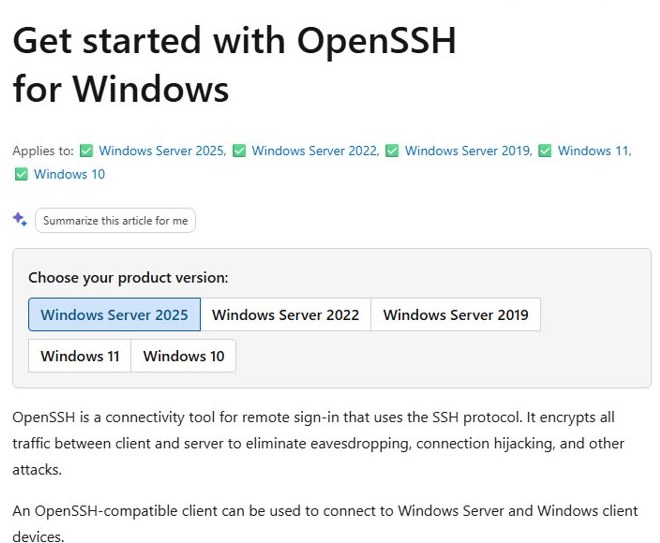
Install OpenSSH Server & Client using Windows Settings
- Select Start, type *Optional Features*, and open Optional features (Settings > System > Optional features on Windows 11).
- Check the installed list for OpenSSH.
- Select View features, search for OpenSSH Client, and select Add.
- Repeat the search for OpenSSH Server and add it.
- Open
services.msc, double-click OpenSSH SSH Server, set Startup type to Automatic, select OK, then select Start.
Setup creates and enables the OpenSSH-Server-In-TCP firewall rule for inbound port 22. If that rule is off, connections are refused or reset.
Install OpenSSH using PowerShell
Get-WindowsCapability -Online | Where-Object Name -like 'OpenSSH*'
Add-WindowsCapability -Online -Name OpenSSH.Client~~~~0.0.1.0
Add-WindowsCapability -Online -Name OpenSSH.Server~~~~0.0.1.0
Run these in PowerShell as administrator. The first line shows State : NotPresent for each component that is missing; the next two install the client and the server.
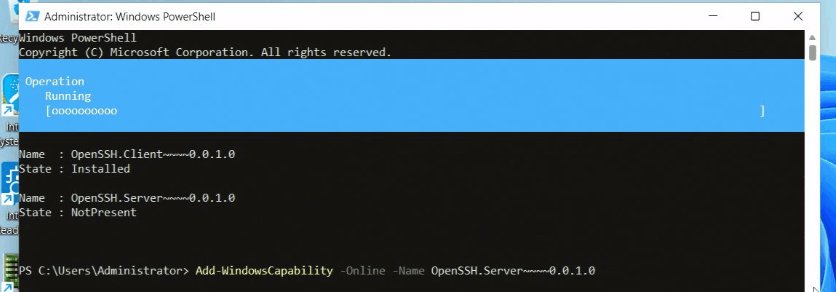
You should see: Online : True and RestartNeeded : False after each Add command.
Enable OpenSSH Server
On Windows Server 2025 the server is already installed, so you only switch the sshd service on.
- Open Server Manager and select Local Server in the left pane.
- In Properties, find Remote SSH Access.
- Select Enabled to turn on the OpenSSH service.
- Add the accounts or groups allowed to connect to the local OpenSSH Users group.
Start and configure OpenSSH Server
Start-Service sshd
Set-Service -Name sshd -StartupType 'Automatic'
Get-NetFirewallRule -Name "OpenSSH-Server-In-TCP"
Run in an elevated PowerShell window. The second line keeps sshd running after a reboot. If the firewall rule is missing, create it with New-NetFirewallRule -Name 'OpenSSH-Server-In-TCP' -DisplayName 'OpenSSH Server (sshd)' -Enabled True -Direction Inbound -Protocol TCP -Action Allow -LocalPort 22.
You should see: Get-Service -Name sshd reports Running, and netstat -an | findstr :22 shows 0.0.0.0:22 and [::]:22 as LISTENING.
Configuring SSH Server on Windows
SSH sessions open in cmd.exe by default. Set PowerShell as the default shell through the DefaultShell value under HKEY_LOCAL_MACHINE\SOFTWARE\OpenSSH.
- Open PowerShell as administrator.
- Run
New-ItemProperty -Path "HKLM:\SOFTWARE\OpenSSH" -Name DefaultShell -Value "C:\Windows\System32\WindowsPowerShell\v1.0\powershell.exe" -PropertyType String -Force. - Open
%programdata%\ssh\sshd_configin an elevated editor to limit who can sign in, for exampleAllowGroups sshusers. - Run
Restart-Service sshd, because sshd reads its configuration only at start.
Once keys work, switch OpenSSH to key-only sign-in and turn password sign-in off.
Sshd_config: OpenSSH Server configuration file
sshd reads %programdata%\ssh\sshd_config and creates a default copy if the file is missing. These directives behave differently on Windows.
| Directive | Windows behaviour |
|---|---|
DenyUsers, AllowUsers, DenyGroups, AllowGroups |
Processed in that order; names in lower case; domain accounts as domain\user or user?domain* |
AuthenticationMethods |
Only password and publickey; Microsoft Entra accounts can't sign in |
AuthorizedKeysFile |
Default .ssh/authorized_keys; administrators use %programdata%/ssh/administrators_authorized_keys |
PermitRootLogin |
Not applicable; block admins with DenyGroups administrators |
SyslogFacility |
AUTH (default) logs to Event Viewer; LOCAL0 writes files to %programdata%\ssh\logs |
GSSAPIAuthentication |
Kerberos sign-in, default no; Windows Server 2022, Windows 11 and later |
ChrootDirectory |
Works only for SFTP sessions |
X11Forwarding, PermitTunnel, PrintMotd |
Not available in the Windows build |
Connect to OpenSSH Server
Any OpenSSH-compatible client can reach a remote Windows computer via SSH, including the built-in client in PowerShell and Windows Terminal.
- Open PowerShell or Windows Terminal on the client.
- Run
ssh domain\username@servername, orssh username@servernamefor a local account. - Type
yesat the host fingerprint prompt to add the server to your known hosts. - Enter the password; the characters stay hidden as you type.
- Look for a prompt such as
domain\username@SERVERNAME C:\Users\username>, which confirms the session.
Using SSH in Windows Terminal is quicker with a profile: add "commandline": "ssh user@machine" to a profile in settings.json, and the tab opens straight into the session.
Checking SSH connection logs in Windows
By default sshd sends its logs to Windows Event Viewer. Switch to verbose or file logging when you need detail on failed sign-ins.
- Open
%ProgramData%\ssh\sshd_configin an editor running as administrator. - In the
# Loggingsection, setSyslogFacility AUTHandLogLevel VERBOSE. - For text files instead of Event Viewer, use
SyslogFacility LOCAL0; logs then land in%ProgramData%\ssh\logs. - Save the file and run
Restart-Service sshd. - On the client, run
ssh -v user@serverto print each step of the handshake.
Disable OpenSSH Server
- On Windows Server 2025, open Server Manager > Local Server and set Remote SSH Access to Disabled.
- On other versions, open PowerShell as administrator and run
Stop-Service sshd. - Run
Set-Service -Name sshd -StartupType 'Disabled'so it stays off after a reboot. - Disable the
OpenSSH-Server-In-TCPfirewall rule if nothing else needs port 22.
Uninstall OpenSSH Server & Client using Windows Settings
- Select Start, type *Optional Features*, and open Optional features.
- Find OpenSSH Client in the installed list and select Remove.
- Find OpenSSH Server and select Remove.
- Restart Windows if the service was in use when you removed it.
Uninstall OpenSSH using PowerShell
Remove-WindowsCapability -Online -Name OpenSSH.Client~~~~0.0.1.0
Remove-WindowsCapability -Online -Name OpenSSH.Server~~~~0.0.1.0
Remove-NetFirewallRule -Name 'OpenSSH-Server-In-TCP'
Run in PowerShell as administrator. The last line deletes the inbound port 22 rule that setup created.
You should see: Get-WindowsCapability -Online | Where-Object Name -like 'OpenSSH*' shows State : NotPresent for both. Restart if sshd was running.
Issues with Windows Server 2025
| Symptom | Cause | Fix |
|---|---|---|
| Setup fails on a new virtual machine | 1 core and 1,024 MB of RAM is below what setup needs | Allocate 1,280 MB or more for the install, then reduce it |
| Evaluation server shuts down on its own | The evaluation was not activated online within 10 days | Activate it over the internet, or convert it to retail |
| .NET Framework 3.5 will not install | The feature files are not on the server | Select Specify an alternate source path, for example WIM:e:\sources\install.wim:4 |
| Server Manager can't add roles to a server | The target runs a newer Windows Server than the console | Manage it from the newer version, or run Install-WindowsFeature locally |
| DHCP role installed but clients get no address | The server is not authorized in Active Directory | Run Add-DhcpServerInDC, then check Get-DhcpServerInDC |
| WSUS clients never report in | Ports 8530/8531 blocked or a wrong URL in the policy | Open the ports, fix the URL and port, then work through the WSUS client reporting fixes |
| Old apps fail to authenticate | NTLMv1 is removed in Windows Server 2025 | Move the app to Negotiate, which uses Kerberos first |
| FSLogix profiles fail on SMB shares | The April 2026 update changes the default Kerberos encryption from RC4 to AES-SHA1 | Upgrade the shares that host the containers to AES-SHA1 before installing the update |
| Older clients can't make TLS connections | TLS 1.0 and 1.1 are disabled by default | Update the client to TLS 1.2 or later |
OpenSSH Server not working on Windows
SSH connection refused or reset on port 22
sshd is stopped, or Windows Firewall has no inbound rule for port 22.
- Run
Get-Service -Name sshdand start the service if it is stopped. - Run
netstat -an | findstr :22and confirm0.0.0.0:22is LISTENING. - Run
Get-NetFirewallRule -DisplayName "*SSH*" | Get-NetFirewallPortFilter | Where-Object {$_.LocalPort -eq 22}to find the rule, and createOpenSSH-Server-In-TCPif it is missing. - Check NAT devices or network firewalls between client and server.
Permission denied (publickey)
The public key is in the wrong file, or the file has loose permissions. Administrators use a shared key file.
- For an administrator account, put the public key in
C:\ProgramData\ssh\administrators_authorized_keys. - Reset its permissions:
icacls.exe "C:\ProgramData\ssh\administrators_authorized_keys" /inheritance:r /grant "Administrators:F" /grant "SYSTEM:F". - For standard users, use
.ssh\authorized_keysin the user profile. - Run
Restart-Service sshdand retry withssh -v.
Unable to negotiate: no matching host key type found
OpenSSH 8.8 and later disable the older ssh-rsa algorithm, so legacy clients and RSA keys fail.
- Update the client to a current OpenSSH release.
- Generate a newer key with
ssh-keygen -t ecdsaand add the public key to the server. - Reconnect with
ssh -v user@serverto confirm the algorithm both sides agree on.
ssh: Could not resolve hostname
The client can't turn the server name into an IP address.
- Check the spelling of the host name in the command.
- Connect by IP address to prove sshd itself answers.
- If the IP works, fix the hostname resolution error in DNS, the hosts file or your SSH config.
Windows Server 2025 FAQ
Is Windows Server 2025 free?
No. Windows Server 2025 needs a paid license, but Microsoft offers a free evaluation of Standard and Datacenter as an ISO, a VHD or an Azure image. The evaluation expires after 180 days and must be activated online within the first 10 days.
How to download Windows Server 2025?
Download Windows Server 2025 from the Microsoft Evaluation Center after a short registration. It offers a 64-bit ISO in eight languages, an English VHD, and a separate Languages and Optional Features ISO for adding languages and Features on Demand.
What is Windows Server 2025 evaluation?
It is a 180-day trial of Windows Server 2025 Standard and Datacenter. You choose the edition and installation option during setup, and you can convert the evaluation to a retail version when the trial ends.
Is Windows Server 2025 still supported?
Yes. Windows Server 2025 launched on October 31, 2024, gets mainstream support until November 13, 2029, and extended security support until November 14, 2034, under the Fixed Lifecycle Policy.
What is Windows Server 2025 Standard?
Standard is the general-purpose edition with every core role, including AD DS, DHCP, DNS, IIS, Hyper-V and WSUS. It lacks Storage Spaces Direct, Network Controller and Host Guardian Hyper-V Support, which need Datacenter.
What is Windows Server 2025 Datacenter?
Datacenter is the edition for heavily virtualized and software-defined datacenters. It adds Storage Spaces Direct, Network Controller and Host Guardian Hyper-V Support on top of Standard, and it can host Automatic Virtual Machine Activation for guests.
What is Windows Server 2025 Essentials?
Essentials is a Windows Server 2025 edition listed alongside Standard, Datacenter and Datacenter: Azure Edition on the Microsoft lifecycle page. It follows the same support dates, ending extended support on November 14, 2034.
What is Windows Server 2025 legacy LAPS?
Legacy LAPS is the older Microsoft LAPS download from 2016. It is deprecated, newer Windows versions block its installer, and Windows Server 2025 uses the built-in Windows LAPS instead, with an emulation mode for migrating old policies.
Is Windows Server 2025 based on Windows 11?
Windows Server 2025 shares the Windows 11 look: its desktop shell follows Windows 11 styling and it uses the modern Task Manager. It remains a separate server operating system with its own editions, roles and lifecycle dates.
Can I install Windows Server 2025 on a PC?
Yes, if the PC meets the minimums: a 1.4 GHz 64-bit CPU with SSE4.2 and POPCNT, 2 GB of RAM, 32 GB of storage on a PCI Express adapter, and a 1 Gbps Ethernet adapter. A TPM is needed only for features such as BitLocker.
Does Windows Server 2025 require TPM?
No. A TPM is required only for certain features, such as BitLocker Drive Encryption, and it must be TPM 2.0. Secured-core server features also need TPM 2.0, Secure Boot and virtualization-based security.
What's new in Windows Server 2025?
Headline changes include OpenSSH Server installed by default, Hotpatch for Azure Arc-connected servers, Credential Guard on by default, a 32k-page Active Directory database option, SMB over QUIC in Standard and Datacenter, and pay-as-you-go licensing through Azure Arc.
Why upgrade to Windows Server 2025
Move Windows Server 2016 workloads first, because extended support ends on January 12, 2027, and choose Standard unless you need Storage Spaces Direct or SDN. Windows Server 2022 left mainstream support in October 2026, while 2025 stays in mainstream support until November 2029 and adds built-in OpenSSH, newer LAPS features and stronger Kerberos defaults.