Windows 11 and Windows 10 start programs from two Startup folders, four Run and RunOnce registry keys, a Group Policy run list and the Winlogon key, with scheduled tasks and auto-start services on top.
This list gives the exact path of each location, what it runs and for whom, and how to open, query and clean them, including the Task Manager and Settings views.
Windows startup paths, folders & registry settings
Every location below works the same way in Windows 11 and Windows 10. HKCU and per-user folders apply to the signed-in account; HKLM and the common folder apply to everyone who signs in to the PC.
| Location | Path | What starts from it |
|---|---|---|
| Startup folder, current user | %APPDATA%\Microsoft\Windows\Start Menu\Programs\StartUp (shell:startup) | Shortcuts and files for your account, at sign-in |
| Startup folder, all users | %ProgramData%\Microsoft\Windows\Start Menu\Programs\StartUp (shell:common startup) | Shortcuts and files for every account, at sign-in |
| Run key, current user | HKEY_CURRENT_USER\Software\Microsoft\Windows\CurrentVersion\Run | Programs for your account, every sign-in |
| RunOnce key, current user | HKEY_CURRENT_USER\Software\Microsoft\Windows\CurrentVersion\RunOnce | Programs for your account, one time, then the entry is deleted |
| Run key, all users | HKEY_LOCAL_MACHINE\Software\Microsoft\Windows\CurrentVersion\Run | Programs for every account, every sign-in |
| RunOnce key, all users | HKEY_LOCAL_MACHINE\Software\Microsoft\Windows\CurrentVersion\RunOnce | Programs one time, only when an administrator signs in after the reboot |
| Run key, 32-bit apps on 64-bit Windows | HKEY_LOCAL_MACHINE\SOFTWARE\Wow6432Node\Microsoft\Windows\CurrentVersion\Run | 32-bit programs for every account |
| Group Policy run list | Software\Microsoft\Windows\CurrentVersion\Policies\Explorer (under HKLM or HKCU) | Programs set in Run these programs at user logon |
| Winlogon shell and user init | HKEY_LOCAL_MACHINE\SOFTWARE\Microsoft\Windows NT\CurrentVersion\Winlogon (Shell, Userinit) | explorer.exe and userinit.exe at every sign-in |

Windows 11 startup folder path for the current user and all users
Both Startup folders keep the same location in Windows 11 and Windows 10. The shell: shortcuts open them without typing the full path, which matters because the AppData folder is hidden.
| Folder | Full path | Shortcut to type in Run | Older legacy path |
|---|---|---|---|
| Current user Startup | C:\Users\<your name>\AppData\Roaming\Microsoft\Windows\Start Menu\Programs\Startup | shell:startup | %USERPROFILE%\Start Menu\Programs\StartUp |
| All users (common) Startup | C:\ProgramData\Microsoft\Windows\Start Menu\Programs\StartUp | shell:common startup | %ALLUSERSPROFILE%\Start Menu\Programs\StartUp |
Anything placed in these folders runs when the matching user signs in. To add or remove a startup folder shortcut, copy or delete the shortcut inside the folder.
Registry settings for startup programs: Run and RunOnce keys
Each value under a Run or RunOnce key is one program, written as a name with a command line as its data. The command line can be no longer than 260 characters.
| Rule | What it means |
|---|---|
| Run runs every time | The program starts at every sign-in until the value is removed |
| RunOnce runs one time | The value is deleted before the command runs, so a failed run is not retried |
| Exclamation mark prefix (!) | A RunOnce value named with a leading ! is deleted only after the command runs |
| Asterisk prefix (*) | A RunOnce value named with a leading * runs even in Safe Mode |
| Safe Mode | Run and RunOnce keys are ignored by default when Windows starts in Safe Mode |
| Order | When several programs share one key, the order they run in is not fixed |
| Timing | Windows may delay Run key and Startup folder programs so they do not slow the desktop |
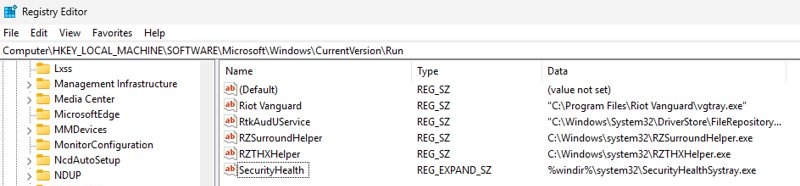
Programs to run at logon time or when Explorer runs
Beyond the Run keys, Windows reads several other registry locations at sign-in or when File Explorer loads. Malware also uses these, so an unknown entry here deserves a closer look.
| Registry location | What it starts | Default or note |
|---|---|---|
| HKLM\SOFTWARE\Microsoft\Windows NT\CurrentVersion\Winlogon, value Shell | The Windows shell after sign-in | explorer.exe |
| HKLM\SOFTWARE\Microsoft\Windows NT\CurrentVersion\Winlogon, value Userinit | The user initialisation program that sets up the session | C:\windows\system32\userinit.exe |
| HKLM\SOFTWARE\Microsoft\Windows NT\CurrentVersion\Winlogon\Notify | Packages that receive sign-in event notifications from winlogon.exe | Usually empty on home PCs |
| Software\Microsoft\Windows\CurrentVersion\Policies\Explorer | The Run these programs at user logon list from Group Policy | Computer Configuration entries start just before User Configuration entries |
| HKLM\Software\Microsoft\Windows\CurrentVersion\Group Policy\Scripts\Startup | Startup scripts assigned by Group Policy | Mostly on work and school PCs |
| HKLM\SOFTWARE\Microsoft\Active Setup\Installed Components | Per-user setup steps that run when an account signs in | Set by installers |
| HKLM\Software\Classes\Directory\ShellEx\ContextMenuHandlers | Context menu handlers that load inside explorer.exe | Added by archivers, cloud drives and similar apps |
| HKLM\Software\Microsoft\Windows\CurrentVersion\Explorer\ShellIconOverlayIdentifiers | Icon overlay handlers that load inside explorer.exe | Used by sync tools to badge file icons |
Back up the registry in Registry Editor before you change any Winlogon value. A wrong Shell or Userinit value can stop you signing in at all.
How to go to startup folder in Windows 11
- Right-click Start and select Run.
- Type
shell:startupand press Enter to open your own Startup folder. - To open the folder for all users instead, type
shell:common startupin Run and press Enter. - Copy a shortcut into the folder to start that app at sign-in, or delete a shortcut to stop it.
- To pick an app to add, open Run again, type
shell:appsfolder, press Enter, and drag the app from that window into the Startup folder.
List Run key startup entries with reg query
Command Prompt reads a Run key without opening Registry Editor, so nothing can be changed by accident. Swap HKCU for HKLM to read the all-users key, or Run for RunOnce.
reg query HKCU\Software\Microsoft\Windows\CurrentVersion\RunLists every value name and command line stored in the current user's Run key. Add /s to include subkeys.
You should see: Each line shows a value name, its type such as REG_SZ, and the command that runs at sign-in. An empty result means the key holds no entries.
See every Windows startup location at once with Autoruns
Autoruns is a free Microsoft Sysinternals tool. It shows programs in the Startup folders, Run and RunOnce keys, Explorer shell extensions, Winlogon notifications and auto-start services in one list.
- Open the Autoruns page on Microsoft Learn (learn.microsoft.com/sysinternals/downloads/autoruns) and get the tool from there or from the Microsoft Store Sysinternals Suite.
- Start Autoruns; it lists the currently configured auto-start entries and every location it checks.
- Switch tabs to view autostarts by category, such as logon entries, Explorer add-ons, services and Winlogon notifications.
- Select an entry and use Properties to inspect the file it starts.
- Clear an entry's check box to disable it, or use Delete to remove the entry completely.

Startup tab missing from Task Manager in Windows 11
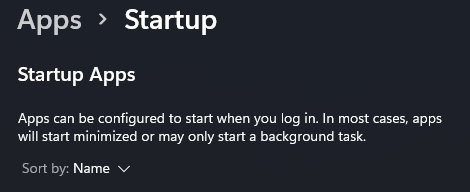
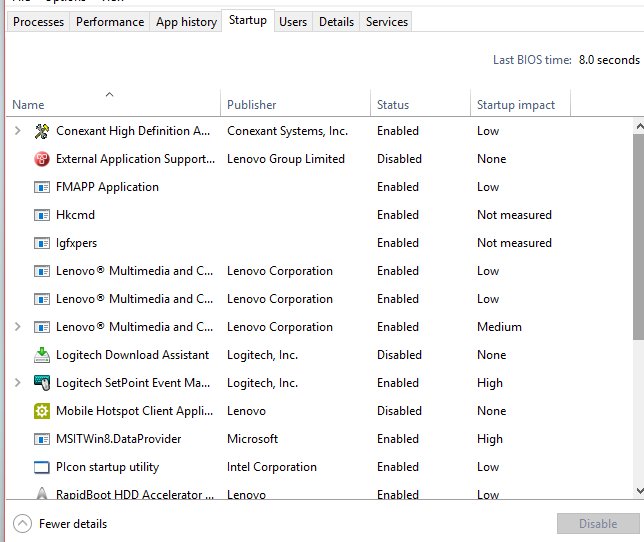
Windows 11 Task Manager no longer uses a row of tabs. The startup list is still there as the Startup apps page in the left-hand pane, and Settings shows the same list.
- Right-click Start and select Task Manager.
- Select Startup apps in the left-hand pane.
- Select an app and choose Enable or Disable.
- Check the impact rating next to each app: High means more than 1 second of CPU time or more than 3 MB of disk use at startup.
- For the same list in Settings, select Start > Settings > Apps > Startup.
Task Manager and Settings only show apps registered with a startup task. Programs launched from other registry locations in the tables above need Autoruns or Registry Editor.
Stop Discord from launching at startup in Windows 11
- Select Start > Settings > Apps > Startup.
- Find Discord in the list and set its toggle to Off.
- If Discord is not listed, open Task Manager, select Startup apps, select Discord and choose Disable.
- If it still starts, run
reg query HKCU\Software\Microsoft\Windows\CurrentVersion\Runand look for a Discord entry. - Open
shell:startupfrom Run and delete any Discord shortcut you find there. - Restart the PC and check that Discord no longer opens on its own.
The same steps let you disable startup programs for any app that adds itself to startup. Windows 11 can also notify you when an app adds itself to startup, so a new entry does not go unnoticed.
What is in my startup folder?
- Open Run, type
shell:startupand press Enter to see your own startup shortcuts. - Open Run, type
shell:common startupand press Enter to see the shortcuts that start for every account. - Compare both folders with Task Manager > Startup apps to see which entries are currently enabled.
- Run
reg query HKLM\Software\Microsoft\Windows\CurrentVersion\Runto check the all-users Run key as well, because those programs never appear as shortcuts in a folder.
Windows startup programs not running: Run key and startup app problems
Settings shows "We couldn't find this app" in the startup list
The entry points to an app on a removable or network drive, a path that no longer exists, or an app that was uninstalled.
- Select the icon next to the On / Off toggle to see the missing app's details.
- Reconnect the drive the app lives on, if it is on one.
- Reinstall the app if it was removed, or turn the entry off if you no longer use it.
A program in a Run or RunOnce key does not start
The key is ignored in Safe Mode, the command line is too long, or HKLM RunOnce is waiting for an administrator sign-in.
- Restart Windows normally; Run and RunOnce keys are skipped in Safe Mode by default.
- Check that the command line stored in the value is no longer than 260 characters.
- For an HKLM RunOnce entry, sign in with an administrator account after the reboot.
- Run the command from the value in Command Prompt to confirm the path is valid.
A program set in Run these programs at user logon does nothing
The path in the policy is wrong; Windows shows no error when the file is not found.
- Open the policy under Administrative Templates > System > Logon > Run these programs at user logon.
- Select Show and enter the full path to the program, unless it is in the %Systemroot% folder.
- Sign out and back in to test the entry.
Windows startup folder path FAQ
What is the startup folder path?
The current user's startup folder path is C:\Users\<your name>\AppData\Roaming\Microsoft\Windows\Start Menu\Programs\Startup. The all-users startup folder is C:\ProgramData\Microsoft\Windows\Start Menu\Programs\StartUp. Both paths are the same in Windows 11 and Windows 10.
Where is the startup folder?
The startup folder is inside the hidden AppData folder of your user profile, under Microsoft\Windows\Start Menu\Programs\Startup. Type shell:startup in the Run box to open it directly instead of browsing to it.
How do I go to the startup folder?
Right-click Start, select Run, type shell:startup and press Enter. File Explorer opens your own Startup folder. Type shell:common startup instead to open the folder that applies to every user on the PC.
What is in my startup folder?
Your startup folder holds shortcuts to apps and files that open when you sign in. It does not show programs started from registry Run keys or startup tasks, so check Task Manager's Startup apps page for the full enabled list.
What is the common startup folder location?
The common startup folder is C:\ProgramData\Microsoft\Windows\Start Menu\Programs\StartUp, written %ProgramData%\Microsoft\Windows\Start Menu\Programs\StartUp. Shortcuts placed there start for every account that signs in to the computer.
Which registry key runs programs at startup?
HKEY_CURRENT_USER\Software\Microsoft\Windows\CurrentVersion\Run starts programs for your account, and HKEY_LOCAL_MACHINE\Software\Microsoft\Windows\CurrentVersion\Run starts them for all users. The matching RunOnce keys run a program one time and then delete the entry.
Is the Windows 10 startup folder location the same as Windows 11?
Yes. Windows 10 and Windows 11 use the same per-user and all-users startup folder paths, the same shell:startup and shell:common startup shortcuts, and the same Run and RunOnce registry keys.