You cannot run the Apple Devices app on a Mac, because Apple makes it only for Windows; on macOS Catalina or later, the Finder does the same jobs of syncing, backing up, updating and restoring an iPhone, iPad or iPod touch.
This guide shows how to open your device in Finder, how each Apple Devices task maps to the Mac, what to use on macOS Mojave or earlier, and how to fix a device that does not appear.
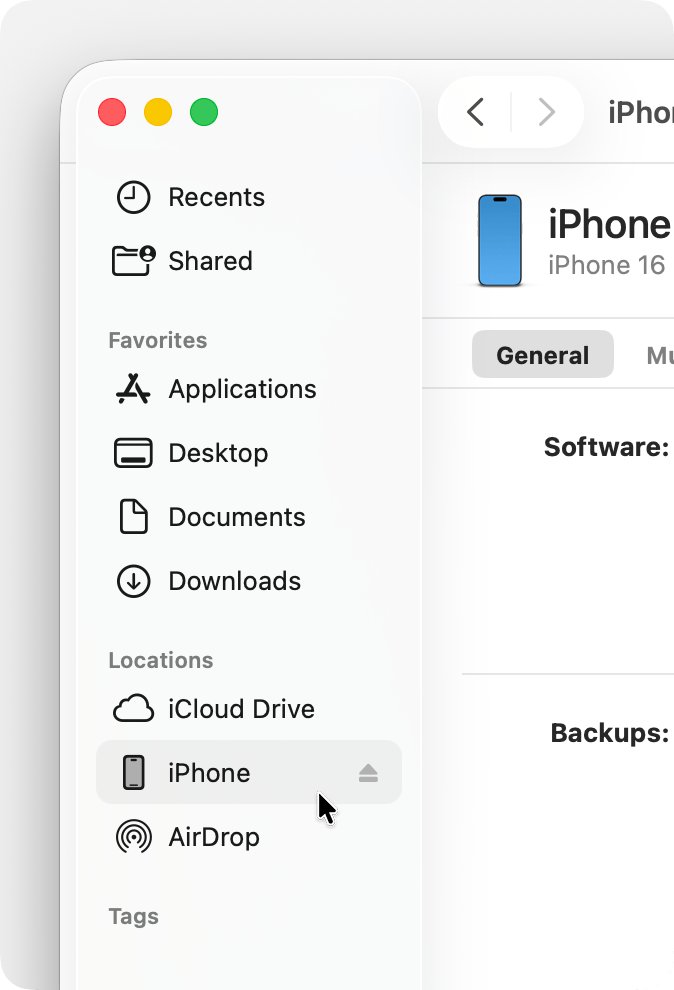
How to open your iPhone in Finder on Mac
This is the Mac equivalent of opening Apple Devices and selecting your device.
- Connect your iPhone or iPad to the Mac with a USB or USB-C cable.
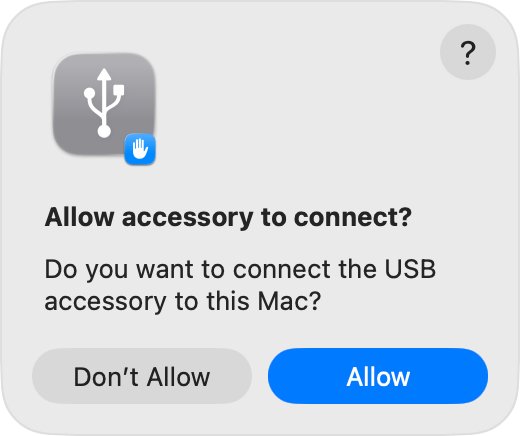
- If the Allow accessory to connect? alert appears on the Mac, click Allow.
- Click the Finder icon in the Dock to open a Finder window.
- Select your device in the Finder sidebar.
- If asked, click Trust on the Mac, then tap Trust on the device and enter the device passcode.
- Use the row of tabs near the top, such as General, Music, Movies, Photos or Files, to manage the device.
If the Finder window has no sidebar, choose View > Show Sidebar from the menu bar.
What does the Apple Devices app do, and where is it on Mac?
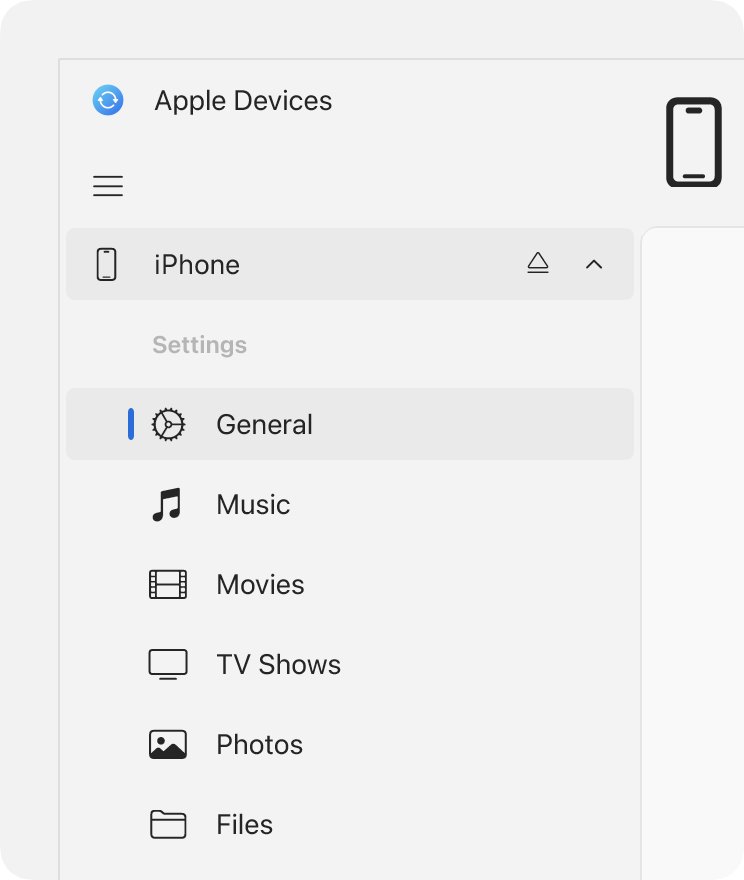
On Windows, Apple Devices manages an iPhone, iPad or iPod touch, syncs music, movies and TV shows, and backs up, updates or restores the device. Each of those jobs has a home on a Mac.
| Apple Devices task on Windows | Where to do it on a Mac (Catalina or later) | On macOS Mojave or earlier |
|---|---|---|
| Sync music, movies, TV shows | Finder, device's Music, Movies or TV Shows tab | iTunes |
| Sync photos, contacts, calendars | Finder, Photos or Info tab | iTunes |
| Back up the device | Finder, Back Up Now | iTunes, Back Up Now |
| Update iOS or iPadOS | Finder | iTunes, Summary tab, Check for Update |
| Restore to factory settings | Finder, Restore [device] | iTunes |
| Sync over Wi-Fi | Finder, General tab, Show this [device] when on Wi-Fi | iTunes |
The Apple Devices app installs from the Microsoft Store on a Windows PC. On a PC you can download Apple Devices for Windows and get the same features listed in the first column.
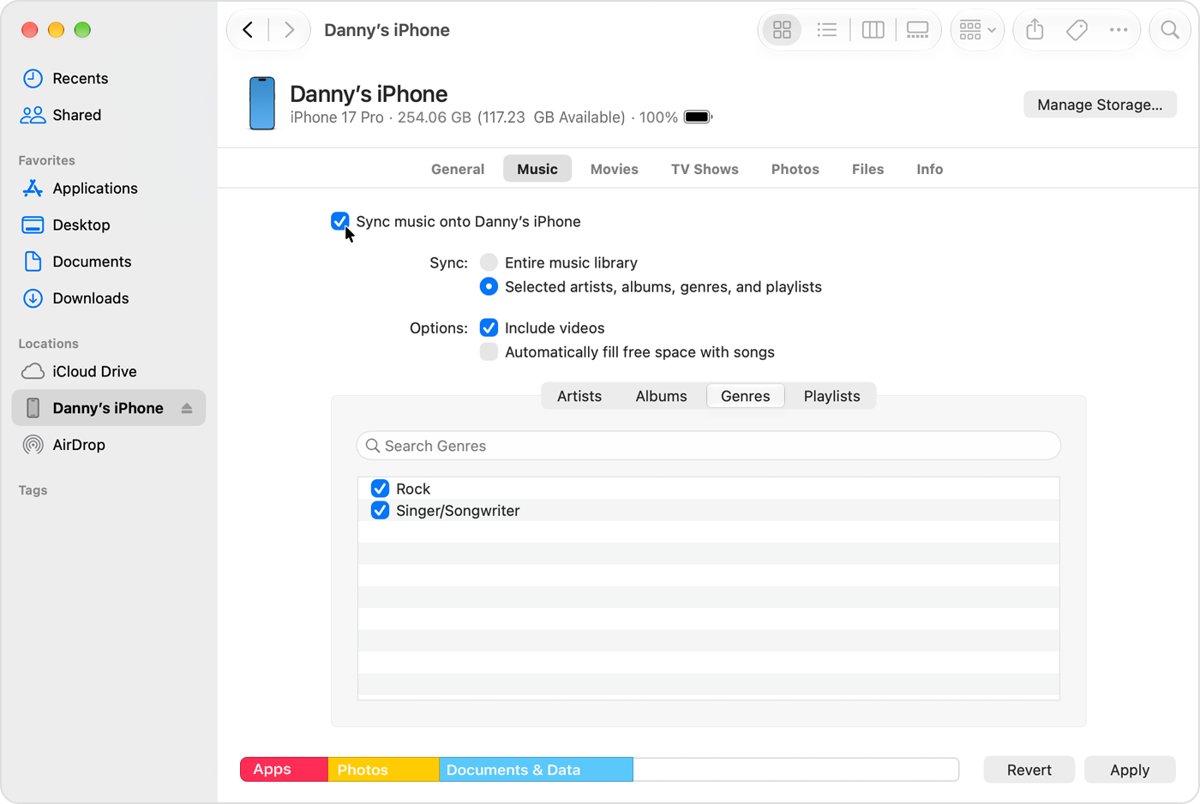
Sync an iPhone or iPad with Finder on Mac
- Open the device in the Finder sidebar.
- Click the type of content to sync, such as Music, Movies, TV Shows, Photos or Files. For contacts and calendars, click Info.
- Select the Sync [content type] onto [device name] checkbox.
- Choose all items or a selection, for example Selected artists, albums, genres, and playlists.
- Click Apply. If syncing does not start, click Sync.
- Before unplugging, click the eject button next to the device in the Finder sidebar.
If you use iCloud Photos and Apple Music, photos and music sync through iCloud, and the Music and Photos tabs show no sync options.
Back up iPhone to Mac without the Apple Devices app
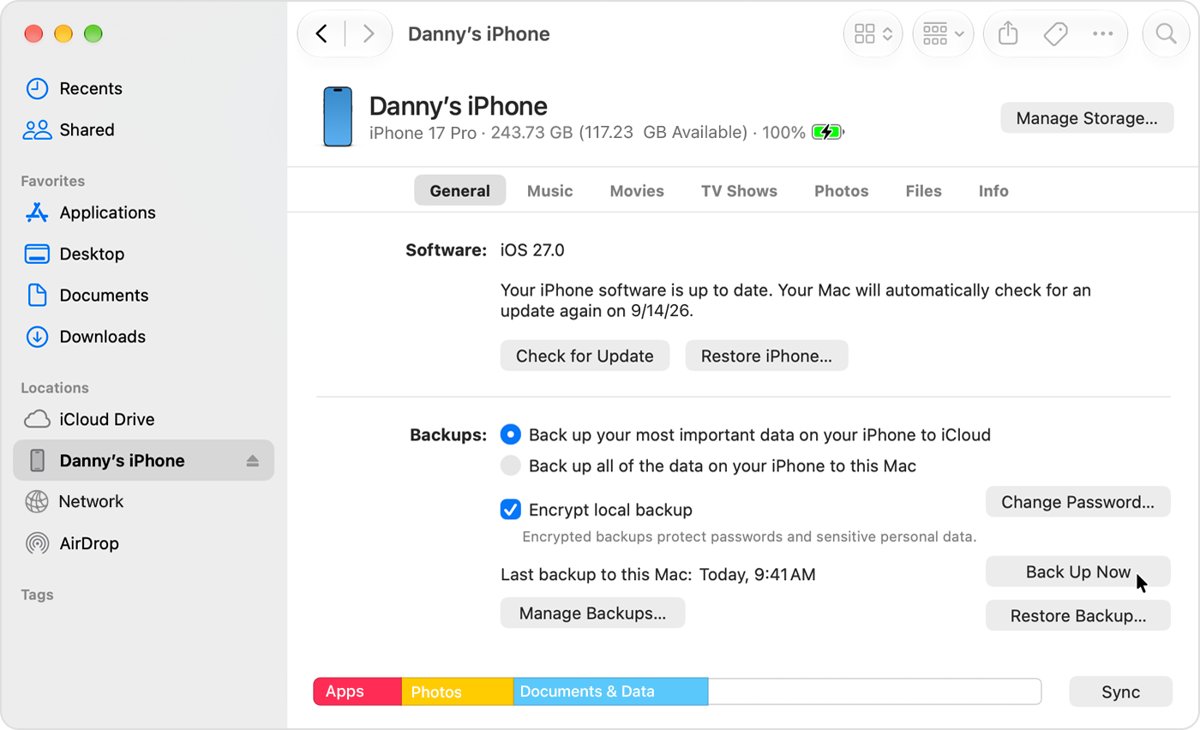
- Connect the device and select it in the Finder sidebar.
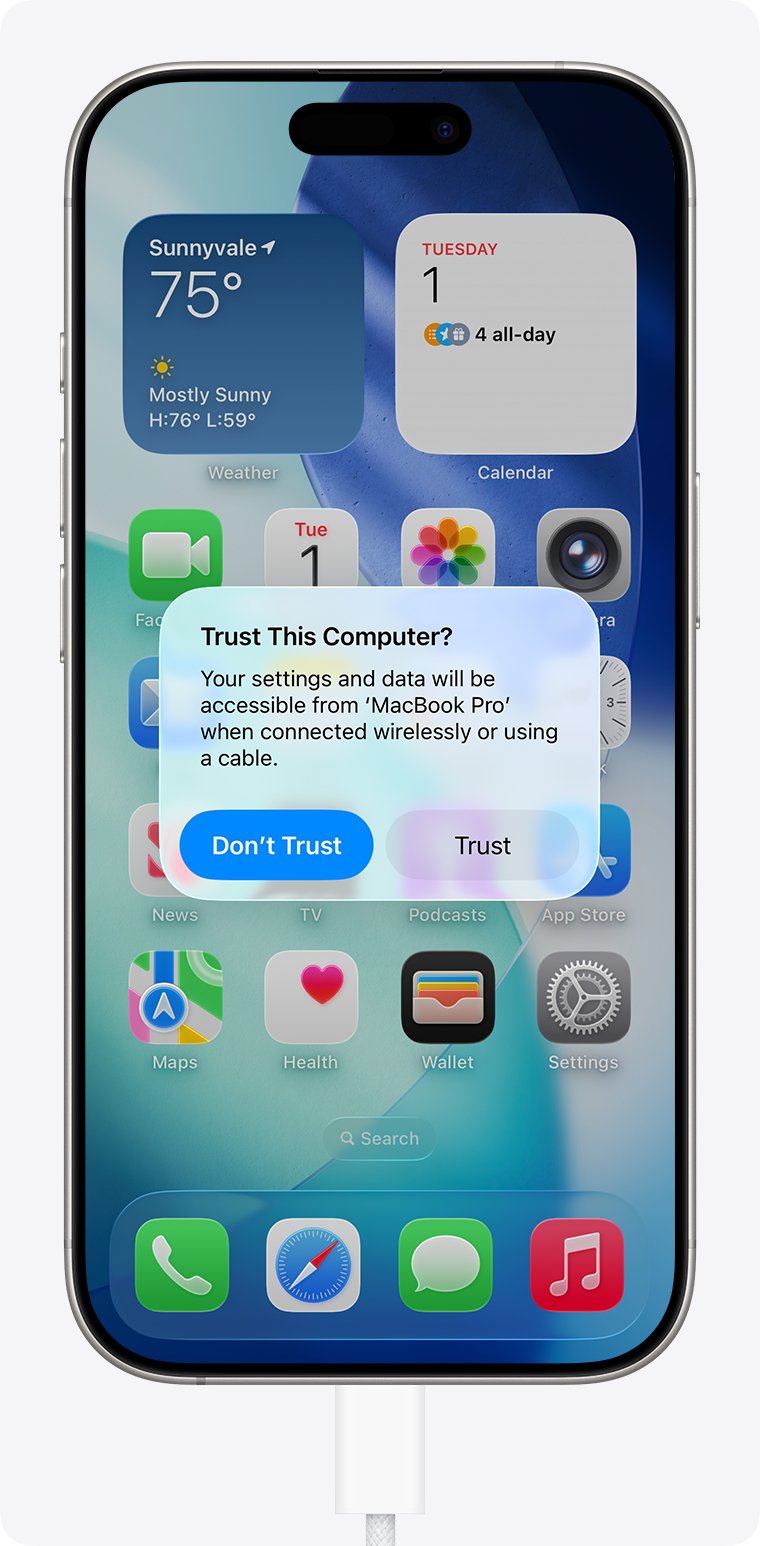
- Click Trust if asked, then tap Trust on the device and enter its passcode.
- To keep Health and Activity data, select Encrypt local backup, create a password and click Set Password.
- Click Back Up Now.
- Wait for the backup to finish. The date and time of the last backup then appear.
Keep the encryption password safe. An encrypted backup cannot be recovered without it.
Restore an iPhone to factory settings from a Mac
A factory restore erases all information and settings and installs the latest iOS or iPadOS. Back up first.
- On the device, go to Settings > [your name] > Find My > Find My [device] and turn it off.
- Connect the device to the Mac and click Allow if the accessory alert appears.
- Open Finder and select the device in the sidebar.
- Click Trust on the Mac, tap Trust on the device and enter the passcode.
- Click Restore [device] and follow the onscreen instructions.
- Review the terms and conditions and click Agree. The Hello screen appears on the device when it finishes.
Sync iPhone to Mac over Wi-Fi instead of a cable
- Connect the device with a cable the first time and select it in the Finder sidebar.
- Click General.
- Scroll down and select Show this [device] when on Wi-Fi.
- Click Apply, then unplug the device.
- Keep the Mac and device on the same Wi-Fi network. The device appears in the Finder sidebar and syncs whenever it is plugged in to power.
Run iPhone and iOS apps on Mac
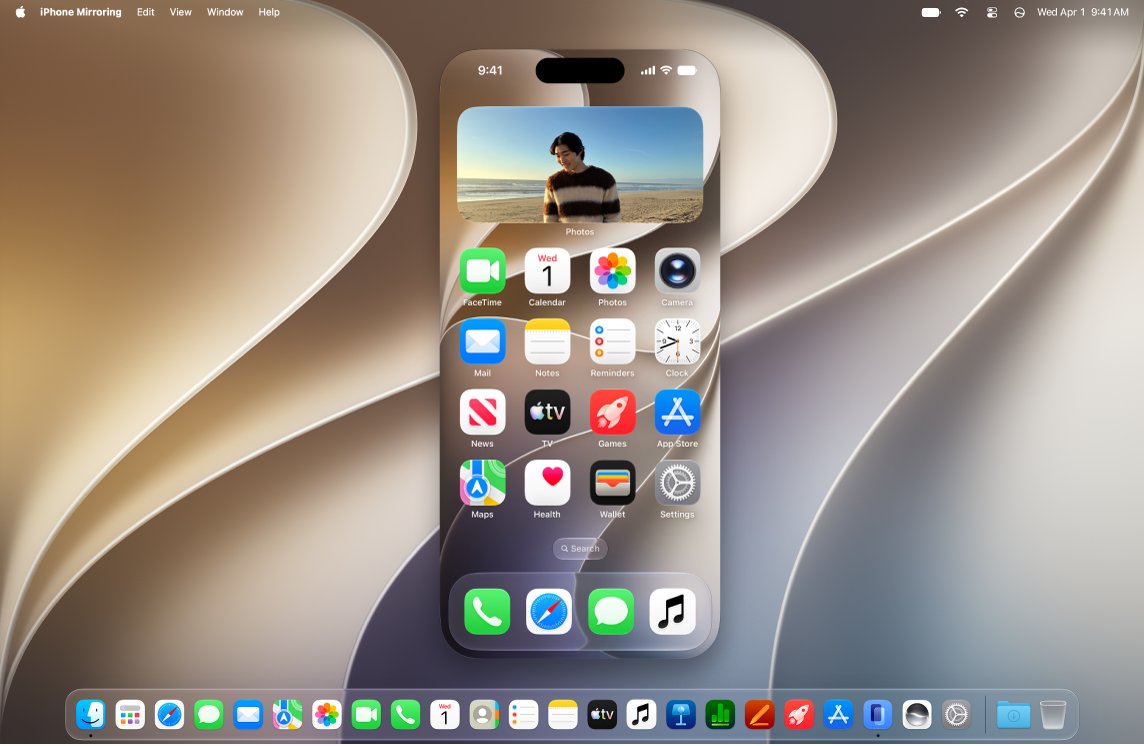
Many searches for Apple Devices on Mac are really about using iPhone apps on the Mac. Finder does not do that, but two Apple features do.
| What you want | Use this | Requirement |
|---|---|---|
| Install an iPhone or iPad app on the Mac | Mac App Store apps labeled Designed for iPhone or Designed for iPad | Mac with Apple silicon |
| Use any app on your iPhone from the Mac screen | iPhone Mirroring app on the Mac | macOS 15 or later, iOS 18 or later, same Apple Account, not available in the EU |
| Manage, sync, back up or restore the iPhone | Finder | macOS Catalina or later |
In an iPhone app on the Mac, press and hold Option to use the trackpad as a virtual touch screen. Turn on touch alternatives from [App] > Settings.
iPhone not showing up in Finder on Mac
The device does not appear in the Finder sidebar
The sidebar is hidden, the connection was not allowed, or the device does not trust the Mac.
- Choose View > Show Sidebar in Finder.
- Unplug and reconnect, then click Allow on the Mac.
- Tap Trust on the device when the Trust This Computer? alert appears.
- If you tapped Don't Trust by mistake, reset location and privacy settings on the device and reconnect.
The Mac still does not recognize the iPhone
A charge-only cable, a dirty port or outdated software.
- Check the charging port for debris if the device does not chime or vibrate when connected.
- Use a cable that supports both data and charging.
- Try another USB port or another Mac.
- Check for VPN and third-party security software that could block the connection.
- Update macOS and iOS or iPadOS to the latest versions.
Message that the device synced with another library
A device syncs with only one Apple Music or Apple TV library at a time.
- Cancel if you want to keep the content from the other computer.
- Click Erase and Sync only if you want this Mac's content to replace that content type on the device.
Apple Devices app for Mac FAQ
Is there an Apple Devices app for macOS?
No. Apple Devices is a Windows app from the Microsoft Store. On a Mac with macOS Catalina or later, Finder manages the iPhone, iPad or iPod touch, and on macOS Mojave or earlier, iTunes does.
What does Apple Devices do?
Apple Devices lets a Windows PC manage an iPhone, iPad or iPod touch. It syncs music, movies and TV shows, and it backs up, updates and restores the device. Finder does these jobs on a Mac.
How does the Apple Devices app work?
You connect the device by cable, select it in the app's sidebar, trust the computer, then choose content to sync or click back up, update or restore. Finder on a Mac follows the same pattern with a sidebar and tabs.
Where do I find the Apple Devices app on a PC?
Install it from the Microsoft Store by searching for Apple Devices and selecting Get. The Music and TV apps must already be installed to sync with them.
Can I run iOS apps on Mac?
Yes, on a Mac with Apple silicon. In the Mac App Store, apps labeled Designed for iPhone or Designed for iPad work on the Mac. iPhone Mirroring also shows your iPhone apps on a Mac running macOS 15 or later.
Can iPad apps run on a MacBook?
They can on a MacBook with Apple silicon, when the developer allows it. Look for the Designed for iPad label in the Mac App Store. Intel-based MacBooks cannot run them.
Where are apps on Mac?
Mac apps from the App Store install on the Mac like any other app. iPhone and iPad apps you bought that work on the Mac are shown in your purchased apps in the Mac App Store.
Can I back up my iPhone on a Mac without iTunes?
Yes. On macOS Catalina or later, select the device in the Finder sidebar and click Back Up Now. iTunes is only needed on macOS Mojave or earlier.