To exit full screen on a Mac, press Control + Command + F. This is the standard macOS shortcut for entering or leaving full-screen mode in supported apps. You can also move the pointer to the top-left corner of the screen and click the green window button.
If that does not work, press Esc. Some video players, browsers, games, and media apps use Escape to leave their own full-screen mode instead of the standard macOS shortcut.
The correct method depends on whether you are exiting macOS full screen, a full-screen browser video, a game, Split View, or Accessibility Zoom. The sections below cover each case without changing or closing the app.
How to Exit Full Screen on Mac with a Keyboard Shortcut
The main Mac full-screen shortcut is:
Control + Command + F
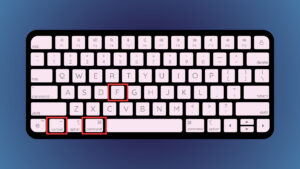
Press all three keys together while the full-screen app is active. In most supported Mac apps, the window returns to the desktop immediately.
The same shortcut also enters full-screen mode, so it works as a toggle.
| Action | Shortcut |
|---|---|
| Exit macOS full screen | Control + Command + F |
| Enter macOS full screen | Control + Command + F |
| Exit many videos and media players | Esc |
| Switch to another app | Command + Tab |
| Open Mission Control | Control + Up Arrow |
If Control + Command + F does nothing, the app may be using its own full-screen implementation. Try the Escape key or the app-specific methods below.
How to Get Out of Full Screen on Mac Without the Keyboard
You can exit full screen using the green window control if you prefer the mouse or trackpad.
- Move the pointer to the very top of the screen.
- Wait for the menu bar and window controls to appear.
- Move the pointer over the green button in the upper-left corner.
- Click the green button, or choose Exit Full Screen from the menu that appears.
The app returns to a normal window on the desktop.
If the top controls do not appear immediately, keep moving the pointer against the top edge for a moment. Full-screen apps normally hide the menu bar until the pointer reaches that area.
How to Exit Full Screen in Safari on Mac
If the entire Safari window is full screen, press:
Control + Command + F
You can also move the pointer to the top-left corner and click the green window button.
Exit a full-screen video in Safari
If only a YouTube, Netflix, Vimeo, or another web video is full screen, press:
Esc
You can also click the full-screen icon inside the video player.
This distinction is useful because Safari itself and a video playing inside Safari can each have their own full-screen state.
Safari is still full screen after pressing Esc
Press Control + Command + F. Escape may exit the video player while leaving the Safari window itself in full-screen mode.
How to Exit Full Screen in Google Chrome on Mac
For a Chrome window using macOS full-screen mode, press:
Control + Command + F
Alternatively:
- Move the pointer to the top of the display.
- Wait for the Chrome window controls to appear.
- Click the green button in the upper-left corner.
Exit a full-screen website or video in Chrome
Press Esc first. This usually exits full-screen video players, presentations, browser games, and websites that requested full-screen access.
If Chrome itself remains full screen afterward, press Control + Command + F.
How to Exit Full Screen on YouTube on Mac
To leave YouTube full screen, press Esc or click the full-screen button in the lower-right corner of the video.
YouTube also uses the F key to toggle its video player between full screen and normal mode when the player has keyboard focus.
If the video returns to normal but Safari or Chrome still covers the entire desktop, the browser itself is also in macOS full-screen mode. Press Control + Command + F to exit that second full-screen layer.
How to Exit Full Screen in Firefox on Mac
When the entire Firefox window is full screen, use Control + Command + F or the green window button.
For a full-screen video or website, press Esc.
If pressing Escape only closes the website’s full-screen view, press Control + Command + F afterward to return Firefox itself to a normal window.
How to Exit Full Screen in QuickTime Player
QuickTime Player uses its own full-screen controls. Apple lists both of these methods for leaving full-screen movie playback:
- Press Command + F.
- Press Esc.
This differs from the standard macOS Control + Command + F shortcut used by many other apps.
If you are watching a video and Control + Command + F does not respond, try Command + F or Escape before assuming the keyboard shortcut is broken.
How to Exit Full Screen in a Game on Mac
Mac games do not all use the same full-screen controls. Start with Control + Command + F if the game uses macOS native full-screen mode.
Other common methods include:
- Esc to open the game menu and change display mode.
- Command + Return or Option + Return in games that support their own windowed-mode shortcut.
- Changing Display Mode from Full Screen to Windowed or Borderless in the game’s graphics settings.
On Apple silicon Macs running recent versions of macOS, native full-screen games can also activate Game Mode automatically. Exiting full screen turns Game Mode off for that session.
Game is stuck in full screen
Press Command + Tab to switch to another app. You can then return to the game and change its display settings.
If the game has completely stopped responding, press Option + Command + Esc, select the game, and use Force Quit. Unsaved progress may be lost, so use this only when the app no longer responds normally.
How to Exit Full Screen on a MacBook
The process is the same on a MacBook Air and MacBook Pro:
Control + Command + F
The Control and Command keys are on the lower row of the keyboard.
You do not normally need the Fn key. If an app uses an F-key shortcut such as F11 or another function key, you may need to hold Fn depending on your keyboard settings.
How to Exit Full Screen with a Trackpad
There is no dedicated trackpad gesture that directly exits the current full-screen app, but Mission Control provides a quick way to manage it.
- Swipe up with three or four fingers, depending on your trackpad settings, to open Mission Control.
- Move the pointer to the full-screen app in the Spaces bar at the top.
- Move over its thumbnail.
- Click the exit control when it appears.
You can also swipe left or right with three or four fingers to move between full-screen apps and desktop spaces.
How to Exit Split Screen on Mac
Split View is different from ordinary full-screen mode because two apps share a dedicated full-screen space.
To remove one app from Split View:
- Move the pointer to the top of the screen.
- Move over the green button on the window you want to remove.
- Choose Move Window to Desktop.
The selected app returns to the desktop. The other app may remain full screen in its own space.
You can also open Mission Control with Control + Up Arrow, locate the Split View space, and manage the windows from there.
How to Exit Full Screen When the Green Button Is Missing
The green button usually disappears because macOS has hidden the menu bar and title bar while the app is full screen.
Move the pointer to the very top-left corner of the display and wait briefly. The controls should slide back into view.
If they do not:
- Press Control + Command + F.
- Try Esc.
- Press Control + Up Arrow to open Mission Control.
- Switch to another app with Command + Tab and return.
An app using a custom full-screen interface may not show the normal red, yellow, and green macOS controls at all. In that case, look for a Full Screen, Windowed, or View option inside the app.
Mac Stuck in Full Screen: What to Do
Try the standard shortcut again
Click inside the app first so it has keyboard focus, then press Control + Command + F.
If another dialog box, menu, or app has focus, the shortcut may not reach the full-screen window.
Press Escape
Escape is commonly used by videos, presentations, games, and browser-based full-screen content.
If Escape exits only the content but leaves the app full screen, follow it with Control + Command + F.
Use Mission Control
Press Control + Up Arrow or swipe up with three or four fingers. Full-screen apps appear as separate spaces across the top of Mission Control.
You can move to another space or exit the full-screen app from there.
Switch to another app
Press Command + Tab. This does not exit full screen, but it gets you out of the app temporarily if its controls are inaccessible.
Force quit only if the app is frozen
Press Option + Command + Esc, select the unresponsive app, and click Force Quit.
Force quitting closes the application rather than simply exiting full-screen mode, so unsaved changes can be lost.
Full Screen vs Maximized Window on Mac
A full-screen window and a maximized window behave differently on macOS.
| Mode | What happens |
|---|---|
| Full screen | The app occupies its own desktop space and usually hides the Dock and menu bar. |
| Maximized | The window expands while remaining on the normal desktop. |
| Split View | Two apps share a dedicated full-screen space. |
| Tiled window | The app fills part of the desktop without necessarily entering full screen. |
If you want a large app window but still want easy access to the Dock and other windows, maximize or tile the window rather than entering full screen.
Frequently Asked Questions
What is the shortcut to exit full screen on Mac?
Press Control + Command + F. Apple uses this as the standard shortcut to enter or exit full-screen mode in supported Mac apps.
How do I get out of full screen on a MacBook?
Press Control + Command + F, or move the pointer to the top-left corner and click the green window button.
Why does Esc not exit full screen on my Mac?
Escape often controls a video, game, or website rather than macOS full-screen mode itself. Press Control + Command + F when Escape does not work.
Why does Control + Command + F not work?
The app may use its own full-screen mode or shortcut. Try Escape and check the app’s View menu for an Exit Full Screen command.
How do I exit full screen in Safari?
Press Control + Command + F for the Safari window. For a full-screen video inside Safari, press Esc.
How do I exit full screen in Chrome on Mac?
Press Control + Command + F to exit Chrome’s macOS full-screen mode. Press Esc to exit a full-screen website or video.
How do I exit YouTube full screen on Mac?
Press Esc or F, or click the full-screen icon inside the YouTube player.
How do I exit full screen without closing the app?
Use Control + Command + F or click the green window button. Do not press Command + Q, which quits the app.
Can I exit full screen using the mouse?
Yes. Move the pointer to the top-left corner of the display and click the green window button when it appears.
Why did my Dock disappear on Mac?
The app may be in full-screen mode. Move the pointer to the Dock’s normal location or press Control + Command + F to return to a regular window.
How do I exit Split View on Mac?
Move to the top of the screen, hover over the green button on one of the windows, and choose Move Window to Desktop.
Is Command + F the full-screen shortcut on Mac?
Usually no. The standard macOS shortcut is Control + Command + F. Some apps use their own shortcut, however. QuickTime Player, for example, uses Command + F for full-screen movie playback.







How To Go Full Screen On Windows 11 [5 Ways + Shortcuts] - Techdows
[…] a Mac the keys are different; the guide to exit full screen on Mac covers Safari, Chrome and games […]