Manage Microsoft Edge favorites from the Favorites menu (Ctrl + Shift + O) or the full Favorites page at edge://favorites, and turn the favorites bar on or off with Ctrl + Shift + B.
This guide covers adding, sorting and deleting favorites, folders, duplicates, import, export, sync, restoring from a backup, phones, and the fixes for a missing or locked favorites bar.
The fastest way to manage your Edge favorites
These three moves cover most daily jobs on Windows. On a Mac, use Command in place of Ctrl.
- Press Ctrl + D on any page to save it as a favorite, then select Done.
- Press Ctrl + Shift + B to show or hide the favorites bar under the address bar.
- Press Ctrl + Shift + O to open Favorites, where you can open, move and tidy every saved site.
- For bigger clean-ups, select More options (…) in the Favorites window and choose Open favorites page, or type
edge://favoritesin the address bar.
What Favorites Are in Microsoft Edge
Favorites are Edge's name for bookmarks. Every favorite lives in one of a few fixed places, and knowing them saves a lot of hunting.
| Location | What it holds | Where you see it |
|---|---|---|
| Favorites bar | Sites and folders you want one click away | The strip under the address bar, when it is turned on |
| Other favorites | Everything saved outside the bar, plus older data such as Reading list saves and Tabs set aside | Favorites menu (Ctrl + Shift + O) |
| Favorites page | The full manager for every folder and favorite | edge://favorites, or More options > Open favorites page |
| Imported folder | Favorites brought in from another browser or file | A folder on the favorites bar, often named Imported |
| Managed favorites | A folder your employer or school pushes by policy | A locked folder you can hide but not edit |
How to Add a Favorite in Microsoft Edge
Give each favorite a short, specific name when you save it. "Bank – checking" is easier to find later than the page's full marketing title.
- Open the page you want to keep.
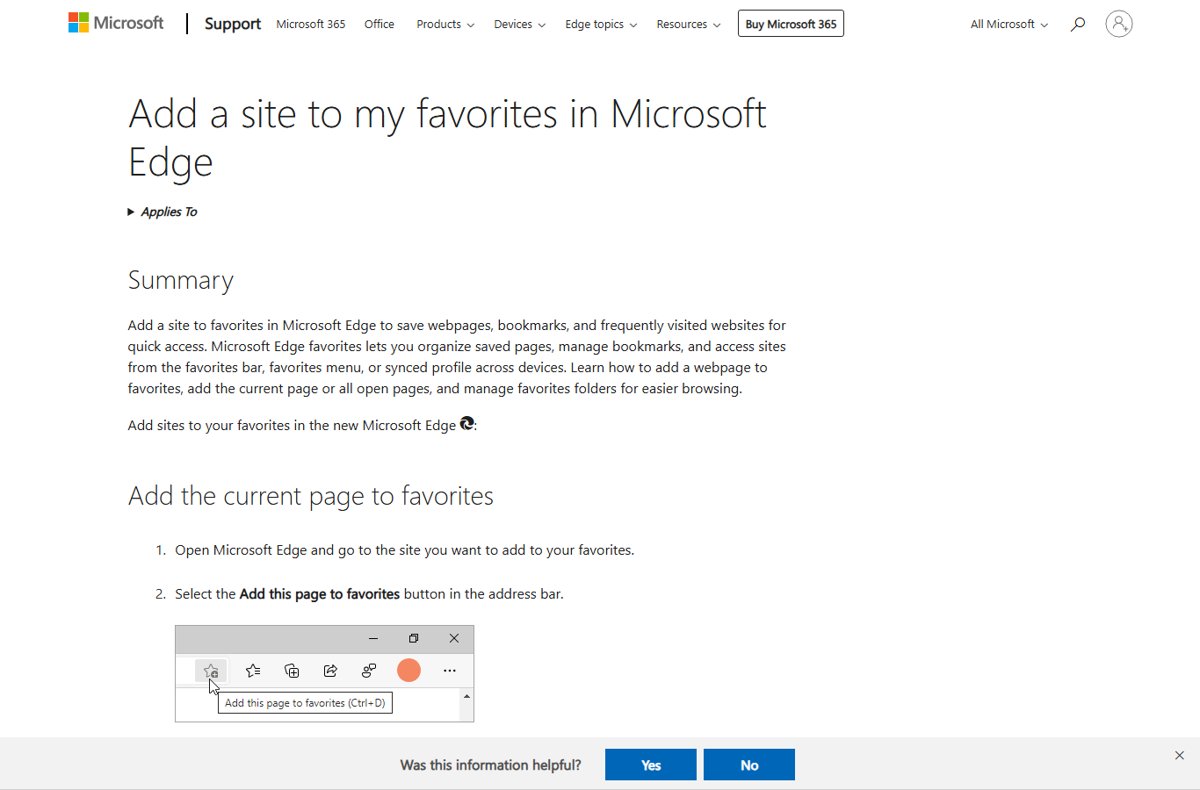
- Select the Add this page to favorites button (the star) in the address bar, or press Ctrl + D.
- Edit the name if you want, and pick a folder such as Favorites bar or one of your own folders.
- Select Done.
- To save every open tab at once, press Ctrl + Shift + D; Edge puts them in a new folder.
- Alternatively, go to Settings and more > Favorites > More options and choose Add this page to favorites or Add open pages to favorites.
How to Show or Hide the Favorites Bar
The favorites bar has three display modes, and the setting applies to the current Edge profile. Techdows' older quick tip on showing the favorites bar covers the legacy browser; the steps below are for current Edge.
- Select Settings and more (…) in the top-right corner, then select Settings.
- Select Appearance.
- Under Other appearance settings, select Toolbar.
- Open the Favorites drop-down and choose Always to show the bar, Never to hide it, or Only on new tabs.
- To toggle it without opening Settings, press Ctrl + Shift + B (Command + Shift + B on a Mac).
If the bar comes back after you hide it, or will not appear at all, an organization policy may be controlling it. See the troubleshooting section below.
How to Open and Use the Favorites Menu
The Favorites menu is a drop-down panel for quick jobs. The Favorites page is a full tab for heavy editing.
- Press Ctrl + Shift + O, or select Settings and more > Favorites.
- Select a favorite to open it in the current tab.
- Expand Favorites bar or Other favorites to see folders inside them.
- Right-click Favorites bar and choose Open all, Open all in new window or Open all in new InPrivate window to launch every site on the bar.
- Select More options (…) > Open favorites page when you need more room to move or sort items.
Edge can also show page thumbnails in the Favorites panel; turn off favorites thumbnails if you prefer a plain list.
How to Organize Favorites into Folders
Folders are the only structure Edge favorites have, and they can nest inside each other. Microsoft's guide describes creating folders and dragging links into them from the Favorites menu.
- Open Favorites with Ctrl + Shift + O, or open
edge://favoritesfor a full-size view. - Create a new folder inside Favorites bar or Other favorites, and give it a clear name such as "Work" or "Travel".
- Drag favorites onto the folder to move them into it.
- Drag one folder onto another to nest it, for example "Travel" inside "Personal".
- To put a folder in alphabetical order, open the favorites page, right-click an empty area of the list and select Sort by name.
A practical system keeps the bar for daily sites and uses Other favorites for everything else, grouped by project or topic rather than by date saved.
How to Edit, Rename, and Delete Favorites
The quickest rename happens while saving: the save box lets you change the name and folder before you select Done. For anything already saved, work from the Favorites page.
- Open
edge://favorites, or Settings and more > Favorites > More options > Open favorites page. - Find the favorite or folder you want to change.
- Right-click it to see the options for that item.
- Choose the edit option to change its name or web address, then save the change.
- Choose the delete option to remove a favorite or a whole folder; deleting a folder removes everything inside it.
- Before a large clean-up, export a backup first (covered below) so you can bring anything back.
If every edit option is missing or greyed out, your organization may block favorites editing by policy. Existing favorites still open normally.
How to Manage the Favorites Bar
The favorites bar is itself a folder named Favorites bar, so anything saved into it appears on the strip. Folders you place there appear on the bar too, keeping it short.
- To add a site to the bar, save it with Ctrl + D and choose Favorites bar as the folder.
- To move an existing favorite onto the bar, open
edge://favoritesand drag it into Favorites bar. - To rearrange the bar, drag items into the order you want inside the Favorites bar folder on the favorites page.
- To group sites, create a folder inside Favorites bar and drag related sites into it.
- To alphabetize the bar, open the Favorites bar folder on the favorites page, right-click an empty area and select Sort by name.
- Press Alt + Shift + B to put keyboard focus on the first item of the bar.
How to Remove Duplicate Favorites
Imports and sync across several computers are the usual source of duplicates. Edge has a built-in clean-up that checks favorites across your synced devices.
- Export a backup of your favorites first, so a mistaken deletion is recoverable.
- Open Settings and more > Favorites.
- Select More options (…) and choose the option to remove duplicate favorites.
- Review the duplicates Edge highlights.
- Confirm the removal.
How to Import Favorites from Another Browser
Edge can pull favorites straight from another browser on the same computer, or from an HTML bookmarks file exported anywhere else.
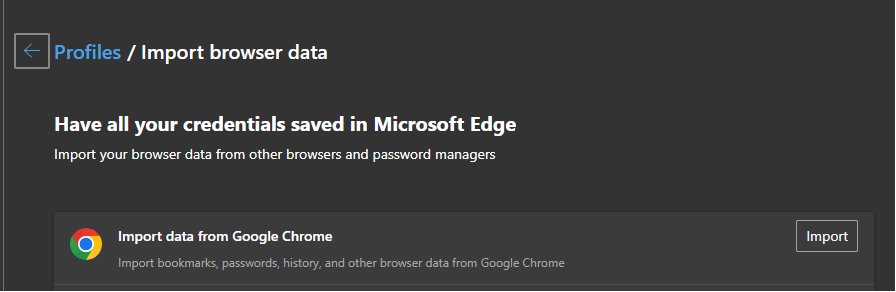
- Open Settings and more > Settings, and in Profiles select Import browser data.
- Select Import next to Import data from Google Chrome (or next to the browser you use).
- Under Choose what to import, tick Favorites or bookmarks, then select Import and Done.
- For a file, select Import next to Import browser data now under Other import locations.
- In Import from, choose Favorites or bookmarks HTML file, select Choose file, pick the file and select Open.
- Look for the new folder on your favorites bar, usually named Imported, and move its contents where you want them.
How to Export and Back Up Edge Favorites
An export is a single HTML page listing every favorite in its folders. Any major browser, including Edge on another PC, can import it.
- Open Settings and more (…) > Favorites.
- Select More options (…) above the list of favorites.
- Select Export favorites.
- Choose a save location, give the file a dated name such as "edge-favorites-2026-09", and select Save.
- Copy the file somewhere off the PC, such as OneDrive or a USB drive.
Back up before a big clean-up, before removing duplicates, before resetting or reinstalling Windows, and before signing out of a synced profile.
How to restore deleted favorites from a backup
Microsoft documents one dependable way to bring deleted favorites back: import a file you exported earlier. This is why the export step above matters.
- Open Settings and more > Settings > Profiles > Import browser data.
- Under Other import locations, select Import next to Import browser data now.
- In Import from, choose Favorites or bookmarks HTML file.
- Select Choose file, pick your exported backup and select Open.
- Select Done, then open the Imported folder on the favorites bar.
- Drag back only the favorites you lost, then remove the rest of the imported copy to avoid duplicates.
Do not clear browsing data to "reset" favorites while sync is on. Microsoft warns that deleting data while signed in and syncing removes it from all your synced devices.
How to Sync Favorites Across Devices
Sync keeps favorites identical on every PC, Mac and phone signed in to the same account. Syncing favorites also syncs older reading list items and tabs you set aside.
- Select the profile icon in the top-right corner of Edge.
- Choose your account, or select Add new account if it is not listed.
- Select Sign in to sync data.
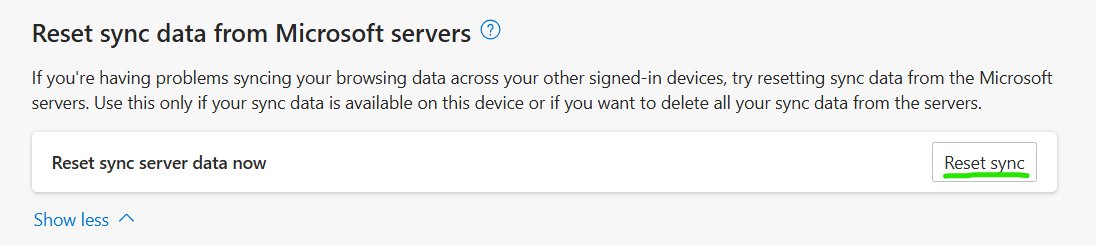
- Open Settings and more > Settings > Profiles > Sync.
- Make sure the toggle for Favorites is on.
- Sign in with the same account on every other device where you use Edge.
Managing Favorites on iPhone, iPad, and Android
Edge for iOS and Android uses the same account-based sync, so favorites saved on a phone appear on the computer too.
| What you want to do | Where to tap | Note |
|---|---|---|
| Save the current page | Menu … > Add to favorites | If the page is already saved, Edit favorite opens instead |
| See your favorites | Menu … > Favorites | The Favorites button sits on the top row of the menu |
| Turn on favorites sync | Menu … > Settings > your account picture > Sync under Sync settings | Turn on Sync, then pick items under Data items |
| Force a sync now | Same Sync page > Sync now | Useful after a big change on the computer |
| Sign out | Settings > your account | You can keep or delete the favorites stored on that phone |
Favorites, Collections, and Shortcuts: What Is the Difference?
Collections no longer compete with favorites. Microsoft stopped new additions in Edge 145 and removed Collections in Edge 149, released June 4, 2026.
| Feature | What it is | Status and what to do |
|---|---|---|
| Favorites | Saved web addresses in folders, synced to your account | Current; the place to keep every saved site |
| Collections | Research boards of pages, notes and images | Retired; use Move to Favorites to turn each collection into a folder in the root of Favorites (web pages only; notes and images are not moved) |
| Keyboard shortcuts | Key combinations that save or open favorites | Ctrl + D, Ctrl + Shift + D, Ctrl + Shift + O, Ctrl + Shift + B |
| Reading list and tabs set aside | Features from the old Edge | Data lives in Other favorites > Reading list saves and Tabs set aside |
How to Open Favorites Faster
Match what you are doing to the quickest route. Every row below is a built-in Edge feature.
| Your situation | Fastest route | Why |
|---|---|---|
| You open the same few sites daily | Keep them on the favorites bar | One click, always visible |
| You need any saved site | Ctrl + Shift + O | Opens the Favorites menu without the mouse |
| You start work with the same set of tabs | Right-click Favorites bar > Open all | Launches every bar item in one go |
| You prefer the keyboard on the bar | Alt + Shift + B, then arrow keys | Moves focus to the first bar item |
| You are searching a long, messy list | Open edge://favorites, right-click, Sort by name |
An alphabetical list is quick to scan |
| You browse on a phone | Menu … > Favorites | Same synced list as your PC |
To search your favorites for one site, open the full Favorites page rather than the small menu; with folders sorted by name, a long list reads like an index.
How to check your favorites saved and synced
- Press Ctrl + Shift + O and confirm the favorite sits in the folder you chose.
- Open Settings > Profiles > Sync and confirm Favorites is switched on.
- Open Edge on your phone or second PC and check that the same folder and favorite appear there.
- On a phone, open the Sync page and tap Sync now if the change has not arrived yet.
Privacy and Security Tips for Favorites
Favorites reveal where you bank, shop and work. Treat the list, and any exported copy of it, as personal data.
| Risk | What to do |
|---|---|
| An exported HTML file lists every favorite in readable form | Store backups in a private folder and delete old copies you no longer need |
| Sync copies favorites to every signed-in device | Sign out of Edge on shared or old devices; on a phone, choose to delete the stored data when signing out |
| Clearing data while syncing deletes it everywhere | Export a backup before clearing browsing data on a synced profile |
| Opening many saved sites leaves history | Use Open all in new InPrivate window when you do not want the session recorded |
| Work and personal favorites mixed together | Keep separate Edge profiles, each with its own sync account |
Troubleshooting Edge Favorites Problems
The favorites bar is missing
The bar is set to Never or Only on new tabs, or was toggled off with a shortcut.
- Press Ctrl + Shift + B once.
- If it is still missing, open Settings > Appearance > Toolbar and set Favorites to Always.
Why is my Microsoft Edge managed and I cannot change favorites?
A work or school policy controls favorites; admins can force the bar on or off, block editing, or push a locked folder.
- Check whether the device or profile belongs to an employer or school.
- If editing is blocked, you can still open existing favorites; ask the administrator to allow edits.
- If a Managed favorites folder cannot be deleted, hide it from the bar instead; only the admin can change its contents.
- Keep personal favorites in a separate personal Edge profile.
Favorites do not appear on another device
Sync is off, the Favorites toggle is off, or the devices use different accounts.
- Open Settings > Profiles > Sync on both devices and turn on Favorites.
- Confirm both devices show the same account under the profile icon.
- On a phone, open the Sync page and tap Sync now.
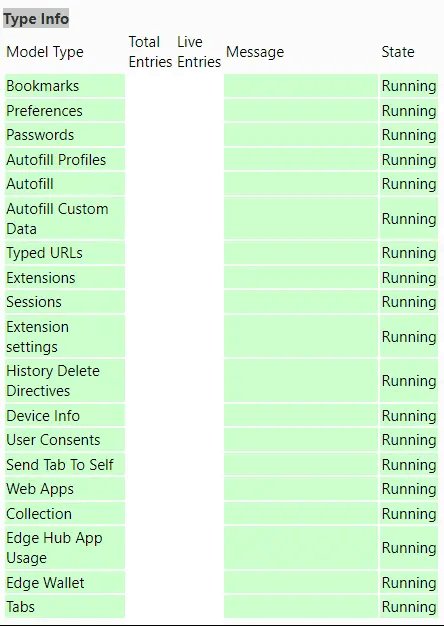
- If it still fails, type
edge://sync-internalsin the address bar and send the details through Send feedback.
Imported favorites seem to be missing
Edge puts imported favorites in their own folder rather than merging them.
- Show the favorites bar with Ctrl + Shift + B.
- Open the folder named Imported on the bar.
- Drag its contents into your own folders.
Reading list or Collections items disappeared
These features were retired and their saved pages moved into Favorites.
- Open Favorites > Other favorites and look for Reading list saves or Tabs set aside.
- For Collections, look for folders named after each collection in the root of Favorites.
- Do not delete an empty Reading list saves folder on a synced device; that can delete the list from the device that holds it.
Best Practices for Keeping Edge Favorites Organized
A small routine keeps favorites useful for years. The habits below take minutes and prevent most lost-favorite problems.
| Habit | How often | Why it helps |
|---|---|---|
| Name favorites when you save them | Every time | Short names fit the bar and are easy to scan |
| Keep only daily sites on the bar | Monthly review | The bar stays readable without scrolling |
| Group everything else into topic folders | As you save | Folders beat one long list |
| Run Sort by name on big folders | After imports | Alphabetical order makes a manual search quick |
| Remove duplicates | After imports or new devices | Stops the same site appearing three times |
| Export a dated backup | Monthly, and before clean-ups | The only documented way to restore deleted favorites |
If you do one thing, turn on sync and keep a recent exported backup; together they protect against a lost PC and an accidental delete.
Frequently Asked Questions
How do I manage favorites in Microsoft Edge?
Press Ctrl + Shift + O to open the Favorites menu, or type edge://favorites in the address bar for the full Favorites page. From there you can open, move, sort, edit and delete favorites and folders, and use More options to import, export or remove duplicates.
How do I access Microsoft Edge settings?
Select Settings and more (the three dots) in the top-right corner of Edge, or press Alt + F, then select Settings. The favorites bar option is under Appearance > Toolbar, and import and sync options are under Profiles.
What is the shortcut to show the favorites bar in Edge?
Press Ctrl + Shift + B on Windows or Command + Shift + B on a Mac. The same shortcut hides the bar again. For a permanent choice, set Favorites to Always, Never or Only on new tabs under Settings > Appearance > Toolbar.
Why is my Microsoft Edge managed by my organization and my favorites locked?
Your work or school has applied policies to Edge. Administrators can force the favorites bar on or off, stop you adding, editing or deleting favorites, and push a Managed favorites folder that you can hide but not change. Only the administrator can lift those limits.
Can I sort Edge favorites alphabetically?
Yes. Open Settings and more > Favorites > More options > Open favorites page, right-click an empty area of the list and select Sort by name. Repeat inside any folder you want in alphabetical order.
Can I open all my favorites at once?
Yes. Open Settings and more > Favorites, right-click Favorites bar and choose Open all, Open all in new window, or Open all in new InPrivate window. Every site on the favorites bar opens in its own tab.
Where did my Edge Collections go?
Microsoft retired Collections, and they are unavailable from Edge 149, released June 4, 2026. The Move to Favorites option converts each collection into a folder in the root of Favorites, carrying web pages only, not notes or images.
How do I move favorites to a new computer?
Sign in to Edge with the same account and turn on sync, and your favorites follow you. Without sync, export favorites to an HTML file on the old PC, then use Import browser data > Favorites or bookmarks HTML file on the new one.
Does Edge sync favorites to my phone?
Yes. Sign in to Edge for iOS or Android with the same account and turn on Sync in the app's Sync settings. Favorites saved on the phone then appear on your computer, and the reverse.