To stop the "Mail wants to sign using key privateKey in your keychain" prompt, type your Mac login password in the dialog and click Always Allow so Mail can use your signing certificate without asking again.
This guide explains why the prompt appears, how to send without signing, how to fix a keychain password that is out of sync, and what to do when the prompt keeps coming back.
Fix the Mail privateKey keychain prompt with Always Allow
The prompt asks for your keychain password, which is normally the same password you use to log in to your Mac.
- When the dialog appears, type your Mac user password in the password field.
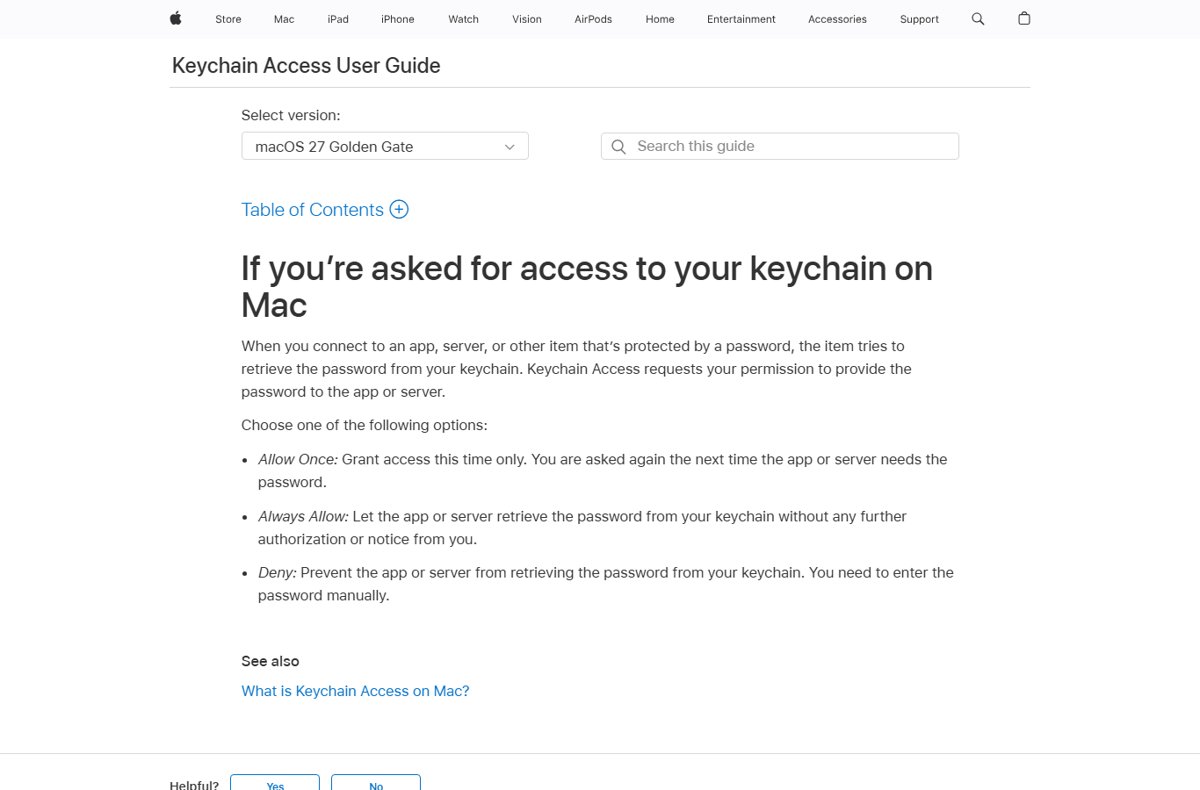
- Click Always Allow, not Allow.
- Repeat once more if Mail shows the prompt a second time for another item.
- Send the message again and confirm the dialog does not return.
Allow grants access this time only, so the prompt comes back with the next signed message. Always Allow lets Mail use the key without asking again.
What does "Mail wants to sign using key privateKey" mean?
| Part of the prompt | What it means |
|---|---|
| Sign | Mail is adding a digital signature so recipients can verify the message came from you |
| Key "privateKey" | The secret half of a personal certificate (digital identity) stored in your keychain; it is what creates the signature |
| In your keychain | The key is stored in Keychain Access, usually in the login keychain |
| Why it asks | Mail does not yet have permission to use that key, or the keychain is locked |
| Where the certificate came from | A certificate authority, an employer or a profile you installed; Mail signs automatically when the From account has one |
Which privateKey prompt fix should you use?
| Your situation | Do this | Why |
|---|---|---|
| You want signed email and the prompt appears once | Enter your password and click Always Allow | Grants Mail permanent access to the key |
| You never meant to sign email | Click the signed icon in the message header to send unsigned | No signature means Mail never asks for the key |
| Your login password does not unlock the prompt | Enter your previous Mac password, then sync the keychain | The keychain password may still be the old one |
| The prompt returns after a macOS or Mail update | Allow access again | Updated apps must be reauthorized |
| The prompt appears with no update and no certificate you recognise | Click Deny or Don't Change and check the certificate | An unexpected request can mean a modified app |
Send email without signing in Mail on Mac
If you do not need signed email, sending unsigned avoids the key request entirely. Some mailing lists also reject signed messages.
- In Mail, choose File > New Message.
- Look for the signed icon, a checkmark, in the message header.
- Click the signed icon so the checkmark changes to an x.
- Write and send the message; it goes out unsigned.
- If you have several accounts, pick an account without a personal certificate in the From pop-up menu.
Let Mail use the private key in Keychain Access
If you clicked Allow earlier, or want to check the key's settings, open the key in Keychain Access.
- Search for Keychain Access in Spotlight and press Return.
- Choose Window > Keychain Viewer (or press Command-1) if the keychain list is hidden.
- Select login in the Keychains list, then All Items.
- Click the Kind column heading to sort, and find the key named privateKey.
- Double-click the key to open its Get Info window and select Access Control.
- If Ask for Keychain password is selected, clear it so Mail is not asked for the password every time, then save the change.
The next signed message may still show the prompt once. Click Always Allow at that point.
Sync your Mac login and keychain passwords
Your login keychain password normally matches your Mac user password. If an administrator reset your password, or it was changed outside Settings, the two can drift apart and the prompt rejects your current password.
- When the prompt asks for the keychain password, try your previous Mac user password.
- If that unlocks it, change your Mac user password in System Settings so the keychain password updates to match.
- To control how often the keychain locks, open Keychain Access, select login, and choose Edit > Change Settings for Keychain "login".
- Set or clear Lock after and Lock when sleeping, then click Save.
If you change the password on a MacBook the normal way in System Settings, both passwords stay in sync.
Check the Mail signing certificate and identity preference
An expired or untrusted certificate, or one tied to a different address, can cause repeated requests and failed signatures.
- In Keychain Access, select login and then My Certificates.
- Double-click your email certificate and check its Trust setting is Use System Defaults or Always Trust.
- With the certificate selected, choose Keychain Access > Certificate Assistant > Evaluate, select S/MIME, enter your email address and click Continue.
- If the certificate is for another address, select it and choose File > New Identity Preference.
- Enter the email address in the Location or Email Address field and click Add.
If the certificate has expired, request a new one from the certificate authority or your IT department and import it by double-clicking the file.
How to check the privateKey prompt is fixed
- Quit Mail and open it again.
- Choose File > New Message and send a signed test message to yourself.
- Confirm the message sends without the keychain dialog appearing.
- Open the received message and check that it shows as signed.
- Restart your Mac and send one more signed message to confirm the setting survives a restart.
Mail keeps asking for privateKey keychain access: fixes
The prompt repeats and blocks sending email
Mail only got one-time access, or the keychain locks between messages.
- Click Always Allow instead of Allow next time the dialog appears.
- Clear Ask for Keychain password in the key's Access Control pane.
- Turn off Lock after in the login keychain settings if the keychain locks too often.
- To send right now, click the signed icon so the message goes out unsigned.
Your Mac password is not accepted in the dialog
The login keychain still uses an older password.
- Enter your previous Mac user password.
- If you cannot remember it, see the reset option below, which deletes saved keychain passwords.
The prompt returned after a macOS or Mail update
Updated apps lose their earlier keychain trust and must be reauthorized.
- Enter your password and click Always Allow once more.
- If you see a dialog about changing the keychain to allow access and you did not update anything, click Don't Change and check the software for malware.
Reset default keychains on Mac: last resort only
Apple recommends resetting the default keychain only after you contact Apple Support and they advise it. A reset deletes every password saved in the keychain.
- Open Keychain Access and choose Keychain Access > Settings.
- Click Reset Default Keychains.
- Choose Apple menu > Log Out, then log in again.
- Sign in to Mail and other apps again so they save new passwords.
- Re-import your email certificate, since a new blank keychain does not contain it.
Mail privateKey keychain prompt FAQ
What password does the Mail privateKey prompt want?
It wants your login keychain password, which is normally the same as your Mac user password. If your password was reset by an administrator, try your previous Mac password instead.
Should I click Allow or Always Allow?
Click Always Allow if you want to keep sending signed email. Allow grants access once, so the prompt returns with the next signed message. Deny blocks Mail from using the key.
Why does Mail want to sign my email?
Mail signs automatically when the sending account has a personal certificate in your keychain. The signature lets recipients verify that the message really came from you.
How do I stop Mail signing emails on Mac?
In a new message, click the signed icon in the header so the checkmark changes to an x. The message then goes out unsigned, and Mail does not need the private key.
What happens if I click Deny?
Mail cannot use the private key, so it cannot sign that message. You can send the message unsigned by clicking the signed icon, or allow access later.
Why does the prompt come back after a macOS update?
Updated apps must sometimes be reauthorized for keychain access. Enter your password and click Always Allow again. If no update happened and the request looks unexpected, click Don't Change and check for malware.
What is the privateKey in my keychain?
It is the secret half of a digital identity: a certificate with a public key others can see and a private key only you hold. The private key creates your email signature and decrypts mail encrypted to you.
Bottom line: stop the Mail privateKey prompt
Enter your Mac login password and click Always Allow if you want signed email; otherwise click the signed icon and send unsigned. The prompt is Mail asking permission to use your signing certificate's private key. Always Allow grants it once and for all, while a password mismatch or an app update explains most repeat prompts. Keep the keychain reset for last, because it deletes saved passwords.