To update PHP in XAMPP to 8.5.12 or 8.4.27, stop Apache, swap the \xampp\php folder for the x64 Thread Safe ZIP from php.net, point the Apache module line at it and restart.
XAMPP has no installer with these versions yet, so this guide covers the manual folder swap, the Apache settings it touches, how to verify it, and fixes when Apache will not start. It is part of the PHP security update guide for the October 2026 releases.
The fastest way to update PHP in XAMPP to 8.5.12 or 8.4.27
PHP 8.5.12 and 8.4.27 shipped on 21 October 2026 and fix two critical remote code execution flaws, CVE-2026-109618 and CVE-2026-109619. php.net rates the risk highest for Apache with mod_php, which is how XAMPP runs PHP.
- Open the XAMPP Control Panel (
\xampp\xampp-control.exe) and click Stop next to Apache. - Rename
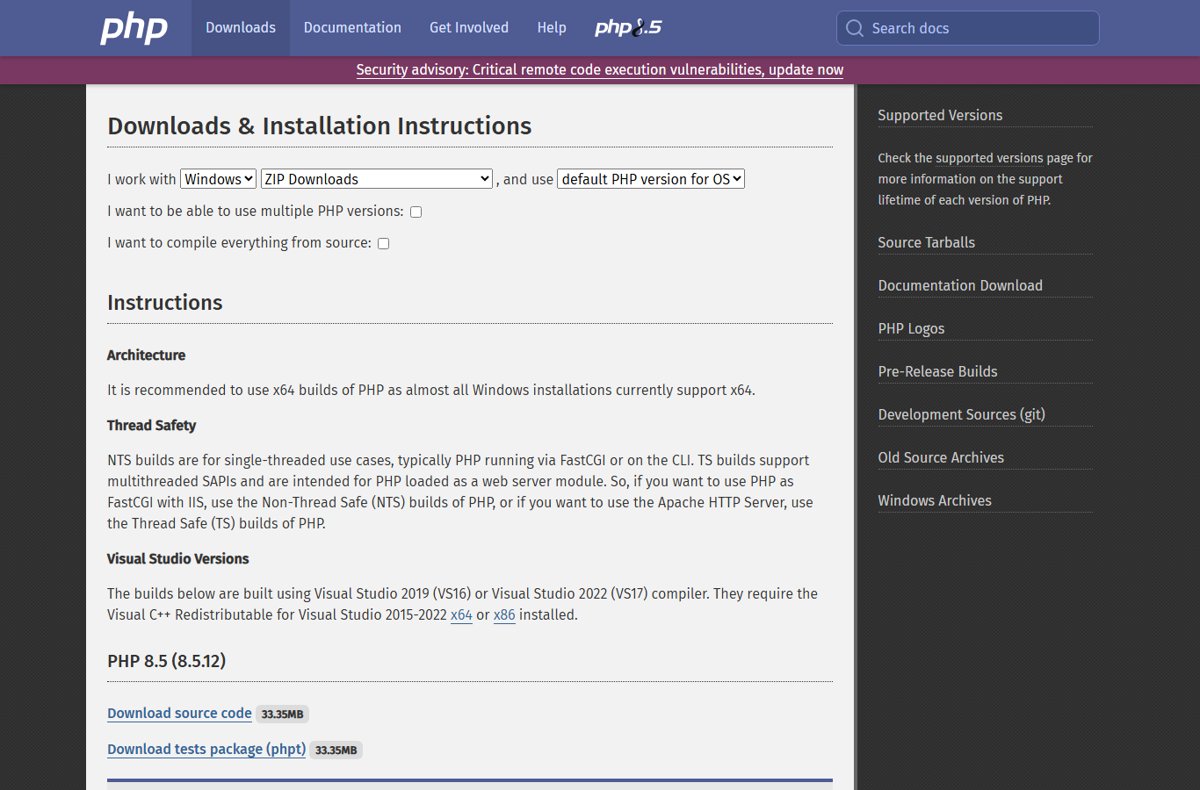
\xampp\phpto\xampp\php_old. - Download the VS17 x64 Thread Safe ZIP for PHP 8.5.12 or 8.4.27 from the php.net Windows downloads page.
- Extract it into a new
\xampp\phpfolder and copy your oldphp.iniinto it. - Open
\xampp\apache\conf\extra\httpd-xampp.confand confirmLoadModule php_modulepoints tophp8apache2_4.dllin\xampp\php. - Click Start next to Apache and check the version with
phpinfo().
XAMPP PHP update options compared
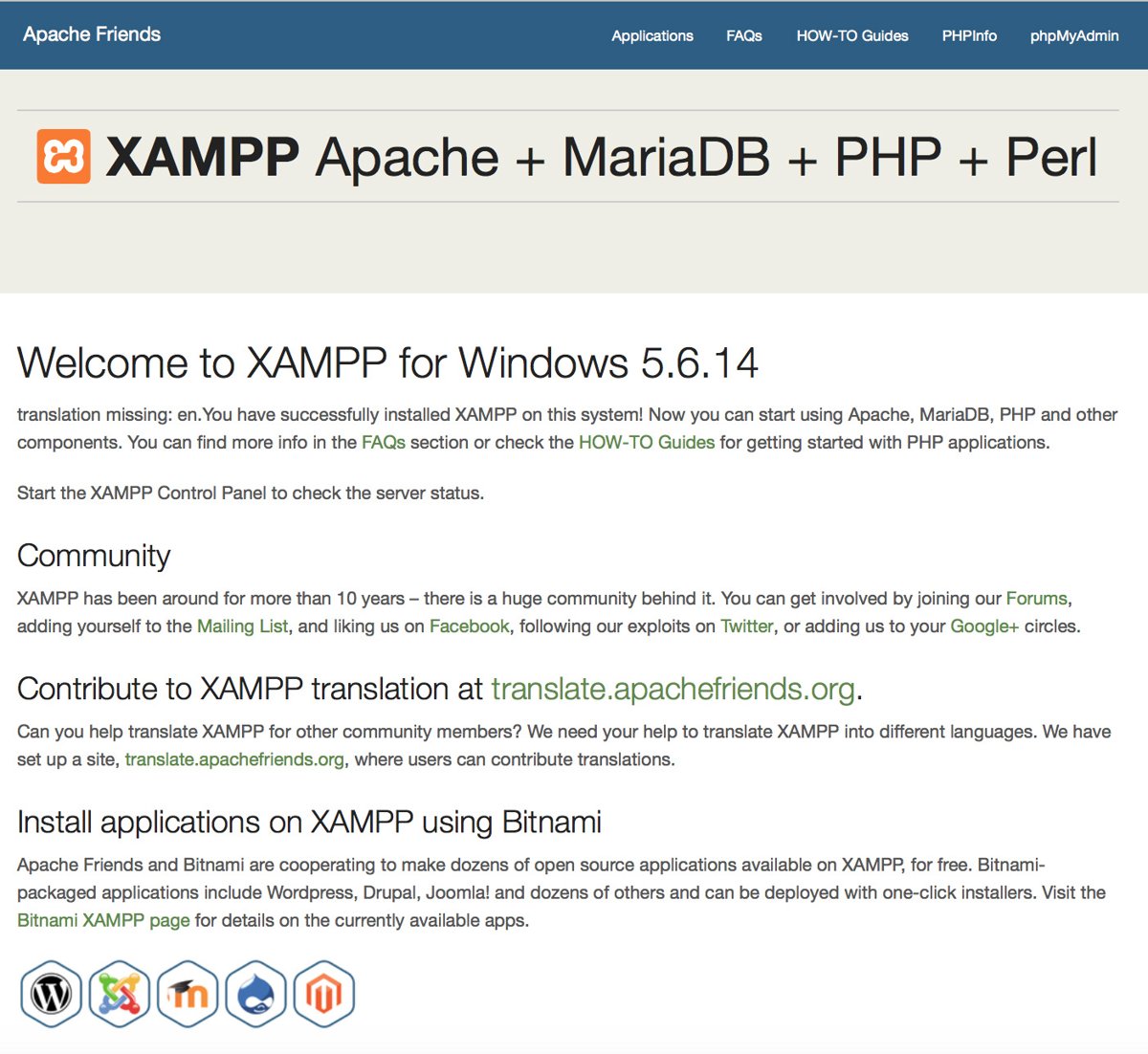
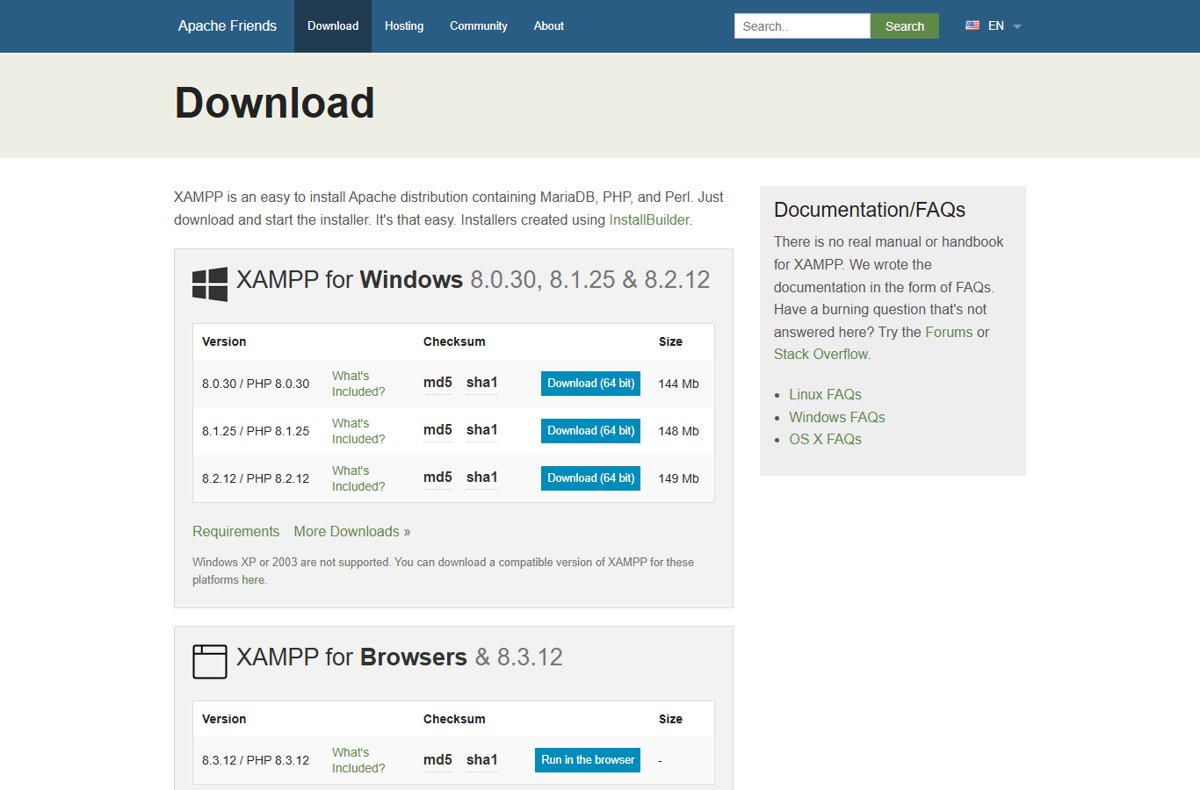
The Apache Friends download page lists XAMPP for Windows 8.0.30, 8.1.25 and 8.2.12 as its newest installers. None of them bundles PHP 8.4 or 8.5, and none carries the 21 October fix.
| Your situation | What to do | Why |
|---|---|---|
| Your projects run on PHP 8.4 or 8.5 | Swap in PHP 8.5.12 or 8.4.27 manually | No XAMPP installer ships these branches |
| Your projects need PHP 8.2 | Swap in PHP 8.2.35 the same way | XAMPP 8.2.12 bundles PHP 8.2.12, which is unpatched |
| You run XAMPP 8.0.30 or 8.1.25 | Move to a supported branch | PHP 8.1 and older get no updates from the PHP project |
| XAMPP is reachable from the internet | Take it offline first, then update | Apache Friends says XAMPP is for development only |
Check the PHP version XAMPP uses
Check the version before you change anything, so you know which branch to download. The full PHP version check also shows whether a build is vulnerable.
- Start Apache in the XAMPP Control Panel.
- Create a file named
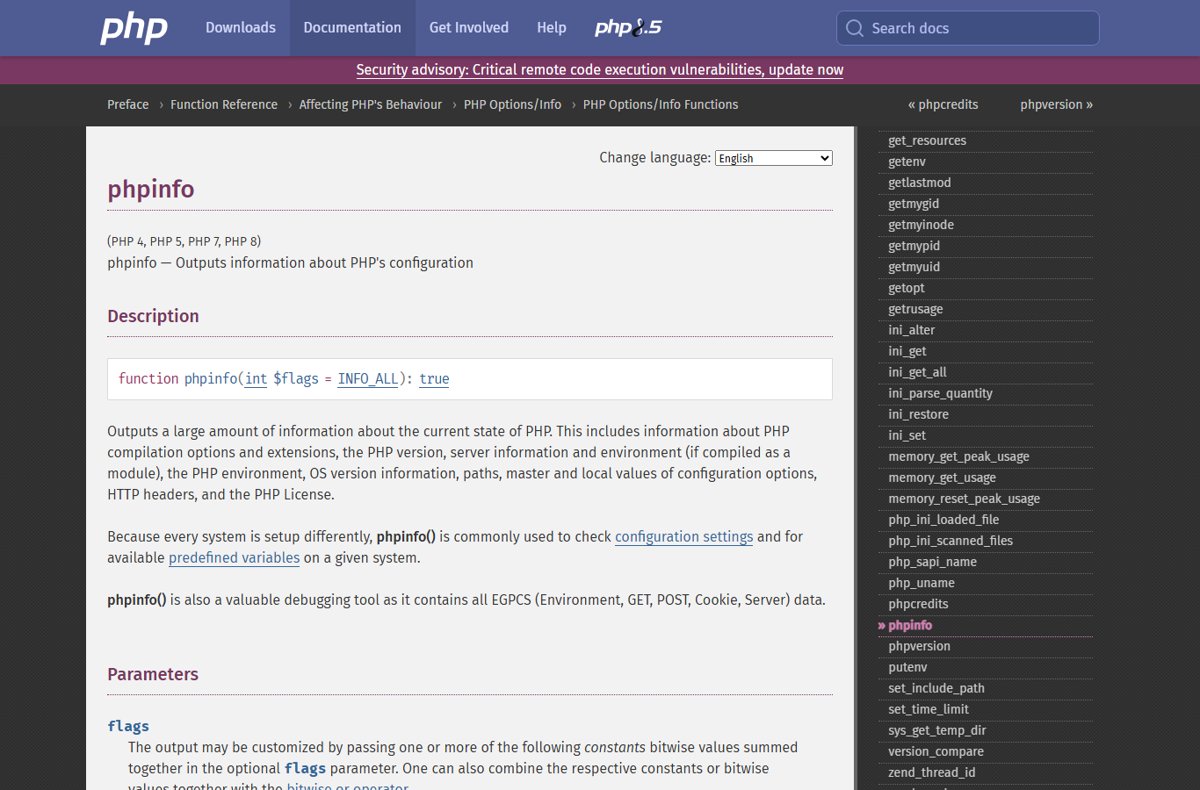
info.phpin\xampp\htdocscontaining<?php phpinfo(); ?>. - Open
http://localhost/info.phpin a browser and read the PHP Version line at the top. - Open Command Prompt in
\xampp\phpand runphp -vto see the command-line version. - Note whether Thread Safety reads enabled; XAMPP's Apache module needs a Thread Safe build.
Delete info.php when you finish, because phpinfo() exposes your full configuration to anyone who can load it.
Back up php.ini and the php folder
The whole PHP runtime, its extensions and php.ini live in \xampp\php. Keeping the old folder intact gives you a one-step rollback.
- Click Stop next to Apache in the XAMPP Control Panel.
- Open File Explorer and go to your XAMPP folder, usually
C:\xampp. - Rename the
phpfolder tophp_old. - Copy
\xampp\apache\conf\extra\httpd-xampp.confto a safe place, such as your Documents folder. - Leave
php_oldin place until the new version passes every check below.
Download the patched PHP build for XAMPP
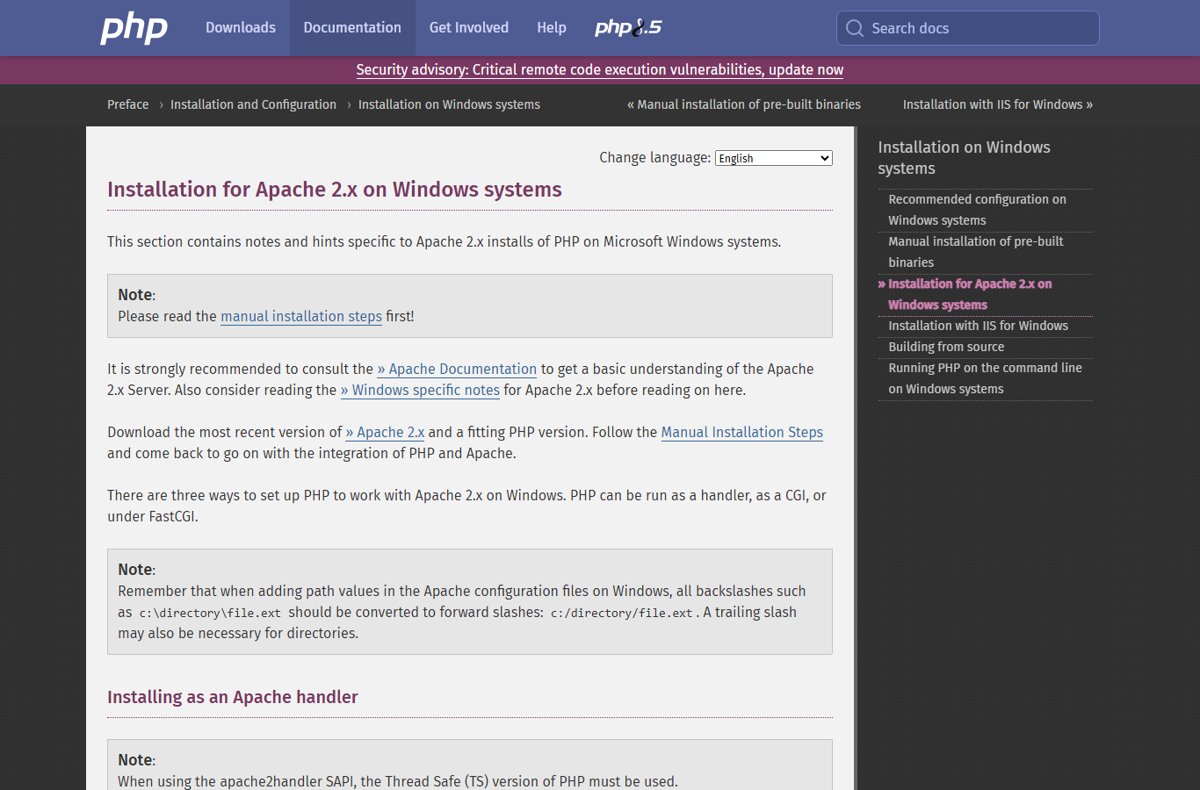
php.net says Apache running PHP as a module needs the Thread Safe (TS) build. Non Thread Safe builds are for FastCGI and the command line, and they will not load in XAMPP's Apache.
| Branch | Windows ZIP to pick | Security support until |
|---|---|---|
| PHP 8.5.12 | VS17 x64 Thread Safe | 31 Dec 2029 |
| PHP 8.4.27 | VS17 x64 Thread Safe | 31 Dec 2028 |
| PHP 8.3.36 | VS17 x64 Thread Safe | 31 Dec 2027 |
| PHP 8.2.35 | x64 Thread Safe | 31 Dec 2026 |
Get the ZIP only from https://www.php.net/downloads.php?os=windows, which lists a SHA-256 hash for each file. The builds need the Microsoft Visual C++ Redistributable for Visual Studio 2015-2022, and an x64 PHP build needs the x64 runtime.
Release notes and hashes are in the PHP 8.5.12 download and changes and PHP 8.4.27 download page posts.
Replace the PHP folder in XAMPP
- Create a new, empty folder named
phpinside your XAMPP folder. - Extract the contents of the Thread Safe ZIP into it, so
php.exeandphp8apache2_4.dllsit directly in\xampp\php. - Copy
php.inifrom\xampp\php_oldinto the new\xampp\phpfolder. - Keep
php_olduntouched so you can switch back in one step.
Apache Friends lists \xampp\php\php.ini as the XAMPP PHP configuration file, so reusing it keeps your existing settings.
Update the Apache PHP module settings
XAMPP loads PHP through \xampp\apache\conf\extra\httpd-xampp.conf. php.net names the module file php8apache2_4.dll for every PHP 8 release, so the line often needs no change, but confirm it.
LoadModule php_module "C:/xampp/php/php8apache2_4.dll"
PHPIniDir "C:/xampp/php"
LoadModule loads PHP into Apache as a handler, and PHPIniDir tells it which folder holds php.ini. Use forward slashes and plain straight quotes, and replace C:/xampp with your own XAMPP path.
You should see: Apache starts from the XAMPP Control Panel without an error, and phpinfo() shows the new version.
Make sure the file named in LoadModule really exists at that path. If XAMPP is installed on another drive, every path in this file must use that drive.
Verify the new PHP version in XAMPP
- Click Start next to Apache in the XAMPP Control Panel.
- Open
http://localhost/and confirm the XAMPP start page loads. - Load
http://localhost/info.phpand confirm PHP Version reads 8.5.12 or 8.4.27. - Check that Loaded Configuration File shows
\xampp\php\php.ini. - Run
php -vfrom Command Prompt in\xampp\phpto confirm the command-line build matches. - Delete
info.phpfrom\xampp\htdocs.
Once both checks show the new number, you can delete \xampp\php_old.
Fix Apache and PHP errors after a XAMPP PHP update
Apache will not start after the PHP swap
Apache cannot load the PHP module file, usually because the build is Non Thread Safe or the path is wrong.
- Confirm
php8apache2_4.dllexists in\xampp\php; only Thread Safe ZIPs include it. - Check the
LoadModule php_modulepath inhttpd-xampp.confuses forward slashes and straight quotes. - Install the x64 Microsoft Visual C++ Redistributable for Visual Studio 2015-2022 if it is missing.
- Start Apache again from the XAMPP Control Panel.
phpinfo still shows the old PHP version
Apache was not restarted, or it still loads PHP from another folder.
- Click Stop, then Start next to Apache in the Control Panel.
- Open
httpd-xampp.confand confirmLoadModuleandPHPIniDirpoint to the new\xampp\phpfolder. - Reload
http://localhost/info.php.
Changes in php.ini have no effect
PHP is reading a different php.ini, or Apache has not reread it.
- Read Loaded Configuration File in
phpinfo()to see which file PHP uses. - Run
php --inifrom Command Prompt in\xampp\phpto see the file the command line uses. - Edit the file shown, then restart Apache so it reads the new settings.
You need to roll back to the old PHP
A project or extension does not work on the new branch.
- Stop Apache in the Control Panel.
- Rename
\xampp\phpto\xampp\php_newand\xampp\php_oldback to\xampp\php. - Restore your saved copy of
httpd-xampp.confand start Apache. - Keep the rolled-back install off the network, since it is still vulnerable.
Update XAMPP itself instead
Installing a newer XAMPP release only helps when Apache Friends publishes one with a patched PHP. As of 21 October 2026 its download page still tops out at XAMPP 8.2.12 with PHP 8.2.12.
- Open
https://www.apachefriends.org/download.htmland check whether a release lists PHP 8.5.12, 8.4.27, 8.3.36 or 8.2.35. - If one does, back up
\xampp\htdocsand your databases. - Stop every module in the XAMPP Control Panel and uninstall the old XAMPP.
- Install the new release and copy your projects back into
\xampp\htdocs. - If no patched release is listed, use the folder swap above instead.
Apache Friends notes that after moving the XAMPP folder you must run setup_xampp.bat, so keep the install in one place. Laragon, WampServer and plain PHP installs need their own steps, so update PHP on other Windows stacks separately.
XAMPP PHP 8.5.12 and 8.4.27 update FAQ
How do I update PHP in XAMPP?
Stop Apache, rename \xampp\php to php_old, extract the Thread Safe Windows ZIP from php.net into a new \xampp\php folder, copy your php.ini across and restart Apache. Then confirm the version with phpinfo().
Can I update XAMPP to PHP 8.4?
Yes, but only manually. The newest XAMPP installers for Windows bundle PHP 8.0.30, 8.1.25 or 8.2.12, so you replace the php folder with the PHP 8.4.27 Thread Safe build from php.net.
How do I update XAMPP to PHP 8.3?
Use the same folder swap with the PHP 8.3.36 x64 Thread Safe ZIP. PHP 8.3 receives security fixes until 31 December 2027, according to php.net.
How do I check the PHP version in XAMPP?
Put <?php phpinfo(); ?> in a file in \xampp\htdocs and open it at http://localhost/. The PHP Version line shows the version Apache uses. Running php -v in \xampp\php shows the command-line version.
Should I download the Thread Safe or Non Thread Safe PHP for XAMPP?
Download the Thread Safe build. php.net states that Apache loading PHP as a module requires Thread Safe, and only those ZIPs include the php8apache2_4.dll module XAMPP loads.
Is XAMPP affected by CVE-2026-109618?
Yes, if it runs an unpatched PHP. php.net says every PHP installation serving web requests is at risk, and the risk is highest with Apache mod_php, the setup XAMPP uses.
Do I need to reinstall XAMPP to change the PHP version?
No. PHP lives in its own \xampp\php folder, so swapping that folder and restarting Apache changes the version. Your projects in htdocs and your MariaDB databases are not touched.
Bottom line: should you swap PHP in XAMPP today?
Yes. Swap in the PHP 8.5.12 or 8.4.27 Thread Safe build now rather than waiting for a new XAMPP installer. No XAMPP release ships a patched PHP yet, the swap takes minutes and keeps a rollback copy, and php.net rates Apache mod_php as the most exposed setup. If you cannot update straight away, the PHP mitigations for CVE-2026-109618 reduce exposure but do not fix it.