To reinstall macOS without deleting your files, start your Mac in macOS Recovery, choose Reinstall macOS, select your normal startup disk, and follow the installer. A standard Recovery reinstall replaces the macOS system files while keeping your apps, user accounts, settings, and personal files intact.
The steps differ between Apple silicon Macs and older Intel Macs. Intel models also support several Recovery keyboard combinations that let you reinstall the current macOS version, install the latest compatible version through Internet Recovery, or attempt to reinstall the macOS version that originally came with the Mac.
You can also download a full macOS installer or create a bootable USB installer when Recovery does not work or when you need to reinstall macOS on several Macs. Back up important files before starting, connect a MacBook to power, and use a stable internet connection because macOS installation normally requires access to Apple’s servers.
Which macOS Reinstallation Method Should You Use?
| What you want to do | Best method |
|---|---|
| Reinstall macOS without deleting files | macOS Recovery |
| Reinstall macOS on an Apple silicon Mac | Hold the power button and open Options |
| Reinstall the current macOS on an Intel Mac | Command-R Recovery |
| Install the latest macOS compatible with an Intel Mac | Option-Command-R Internet Recovery |
| Reinstall the original macOS on an Intel Mac | Shift-Option-Command-R Internet Recovery |
| Download a full macOS installer | Software Update, App Store, or Terminal |
| Reinstall from a USB drive | Bootable macOS installer |
| Completely erase the Mac and reinstall macOS | Disk Utility followed by macOS Recovery |
| Reset a newer Mac before selling it | Erase All Content and Settings |
How to Reinstall macOS Without Losing Data
macOS Recovery is the normal method when macOS is damaged, system files are missing, an update failed, or you simply want a fresh copy of the operating system without wiping the computer.
Apple states that reinstalling through Recovery does not remove your apps or personal data. You should still make a backup first because disk problems, power loss, or other installation failures can create additional problems.
Reinstall macOS on an Apple Silicon Mac
These steps apply to Macs using Apple silicon, including M1, M2, M3, M4, M5, and later Apple-designed chips.
- Shut down the Mac completely.
- Press and continue holding the power button.
- Release it when Loading startup options appears.
- Select Options.
- Click Continue.
- Select an administrator account if requested and enter its password.
- Choose Reinstall macOS.
- Click Continue and follow the instructions.
- Select your normal macOS volume when asked where to install.
Your startup disk is usually named Macintosh HD. If the installer shows both Macintosh HD and Macintosh HD – Data, choose Macintosh HD.
Do not close a MacBook lid while installation is running. The computer can restart several times, show a progress bar, or display a blank screen for several minutes.
Reinstall macOS on an Intel Mac
Intel Macs use keyboard shortcuts to enter Recovery.
- Restart the Mac.
- Immediately press and hold Command-R.
- Release the keys when the Apple logo, spinning globe, or Recovery screen appears.
- Enter an administrator password if requested.
- Select Reinstall macOS.
- Click Continue.
- Select Macintosh HD when asked for the installation disk.
- Allow the installation to finish.
A wired or built-in keyboard works best when entering Recovery. Some Bluetooth keyboards connect too late during startup for the Mac to detect the key combination.
Which macOS Version Will Recovery Reinstall?
The version depends on the Mac and the Recovery method you use.
| Mac / Recovery method | macOS normally installed |
|---|---|
| Apple silicon Recovery | Current version of the most recently installed macOS |
| Intel Mac with Command-R | Current version of the most recently installed macOS |
| Intel Mac with Option-Command-R | Latest macOS version compatible with the Mac |
| Intel Mac with Shift-Option-Command-R | macOS originally supplied with the Mac, or the closest version still available |
This distinction matters if you are trying to reinstall an older macOS release. Pressing Command-R does not automatically upgrade an Intel Mac to the newest macOS it supports.
How to Reinstall macOS Using Internet Recovery
Internet Recovery is especially useful on an Intel Mac when the normal Recovery system is unavailable or when you want a different macOS version from the one stored in local Recovery.
Install the latest macOS supported by an Intel Mac
- Shut down or restart the Mac.
- Immediately hold Option-Command-R.
- Keep holding the keys until a spinning globe appears.
- Connect to Wi-Fi if requested.
- Wait for Internet Recovery to load.
- Select Reinstall macOS.
- Follow the installer instructions.
This combination attempts to install the newest macOS release that Apple considers compatible with that Mac.
Reinstall the original macOS version
On an Intel Mac, use Shift-Option-Command-R during startup when you need the macOS version that originally shipped with the computer, or the closest version Apple still makes available.
This option is useful when preparing some older Intel Macs for a specific application or when a later macOS release is causing compatibility problems.
Internet Recovery is stuck on the spinning globe
Connect to a normal home or office network rather than hotel, airport, school, or public Wi-Fi that requires a web page to complete sign-in. Recovery can have trouble connecting through captive portals and some enterprise networks.
If possible, connect the Mac directly to Ethernet. You can also restart and retry Option-Command-R.
Download a Full macOS Installer for Reinstallation
You do not have to use Recovery when macOS still starts normally. Apple lets you download full installers for compatible versions of macOS, including macOS Tahoe, Sequoia, Sonoma, Ventura, Monterey, Big Sur, and several older releases.
Official Apple download information: Download and install macOS from Apple
Apple provides current installers through Software Update, the App Store, Terminal, or direct Apple downloads depending on the macOS version.
Download the macOS Tahoe full installer
For macOS Tahoe 26, Apple recommends Software Update or Terminal. Open:
System Settings > General > Software Update
If you need the complete installer instead of an incremental update, Terminal gives you more control.
Download a macOS full installer using Terminal
On macOS Catalina 10.15 or later, open Terminal and run:
softwareupdate --list-full-installersThis displays the full macOS installers Apple currently makes available for that Mac.
To download one, use:
softwareupdate --fetch-full-installer --full-installer-version VERSIONReplace VERSION with the exact version shown in the previous command. For example:
softwareupdate --fetch-full-installer --full-installer-version 26.6If that exact release is available and compatible, macOS downloads the complete installer into the Applications folder.
The application normally appears with a name such as:
Install macOS Tahoe.appYou can run it directly or keep it to create a bootable installer.
Download macOS Sequoia, Sonoma, Ventura, Monterey, or Big Sur
Apple provides App Store downloads for several previous releases, including:
- macOS Sequoia 15
- macOS Sonoma 14
- macOS Ventura 13
- macOS Monterey 12
- macOS Big Sur 11
- macOS Catalina 10.15
- macOS Mojave 10.14
- macOS High Sierra 10.13
Use Apple’s official macOS download page rather than searching for DMG, ISO, PKG, or installer files on third-party download websites. Apple checks Mac compatibility before providing many of these installers.
Can you download a macOS ISO?
Apple does not distribute current macOS releases as a standard ISO download for reinstalling a physical Mac. Apple normally provides an installer application, Recovery installation, or older DMG and PKG packages.
ISO files found on third-party websites are generally converted copies created by someone other than Apple. They are unnecessary for reinstalling macOS on supported Mac hardware.
How to Reinstall macOS from a USB Bootable Installer
A bootable USB installer is useful when Recovery repeatedly fails, when you need a particular macOS version, or when you are reinstalling the same release on several Macs and do not want to download the full installer every time.
Apple says a 32GB USB drive has enough space for any current macOS installer, while 16GB is sufficient for many older versions. Creating the installer erases the USB drive.
Create a macOS bootable USB installer
Download the full installer first and make sure it is inside the Applications folder. Connect the USB drive and rename it MyVolume.
For macOS Tahoe, open Terminal and run:
sudo /Applications/Install\ macOS\ Tahoe.app/Contents/Resources/createinstallmedia --volume /Volumes/MyVolumeEnter your administrator password when prompted. Terminal does not display password characters while you type.
Press Y when Terminal asks for permission to erase the USB drive. Wait until Terminal reports that the install media is available.
Apple’s official USB installer instructions: Create a bootable installer for macOS
Boot from the macOS USB installer on Apple silicon
- Shut down the Mac.
- Connect the USB installer directly to the Mac.
- Press and hold the power button.
- Wait for startup options to appear.
- Select the macOS installer.
- Click Continue.
- Follow the macOS installation instructions.
Boot from the macOS USB installer on an Intel Mac
- Shut down the Mac.
- Connect the USB installer.
- Turn on the Mac and immediately hold Option.
- Release the key when the startup disks appear.
- Select the bootable macOS installer.
- Press Return or click the onscreen arrow.
- Choose Install macOS and continue.
An Intel Mac with the Apple T2 Security Chip can block startup from external media. If the USB installer does not appear as a startup option, open Startup Security Utility from Recovery and check whether booting from external or removable media is permitted.
Can you reinstall macOS offline from USB?
A bootable USB contains the macOS installer and avoids downloading the full operating system again, but Apple still recommends connecting the Mac to the internet during installation. The installer can require model-specific firmware and other information from Apple.
For that reason, a macOS bootable USB should not be treated as a guaranteed completely offline installer.
How to Erase and Reinstall macOS for a Clean Install
A clean installation deletes the contents of the Mac before installing macOS again. Use this when you intentionally want to remove existing accounts, apps, settings, and files, or when disk corruption prevents a normal reinstall.
Warning: The following process deletes data from the startup disk. Back up anything you need before erasing it.
Erase the disk from macOS Recovery
- Start the Mac in macOS Recovery.
- Select Disk Utility.
- Click Continue.
- Select your macOS volume, normally Macintosh HD.
- Click Erase.
- Use APFS as the format when requested.
- Select Erase Volume Group if that option appears.
- Quit Disk Utility when erasing finishes.
- Select Reinstall macOS from Recovery.
- Install macOS on the newly erased Macintosh HD volume.
After installation, Setup Assistant starts as though the Mac were being configured again.
Reset a Mac to Factory Settings Before Selling It
If you have a Mac with Apple silicon or an Intel Mac with the Apple T2 Security Chip running macOS Monterey 12 or later, Apple recommends Erase All Content and Settings when preparing the computer for a new owner.
On macOS Ventura or later:
- Open System Settings.
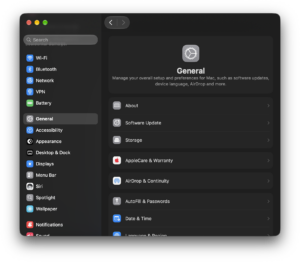
- Select General.
- Open Transfer or Reset.
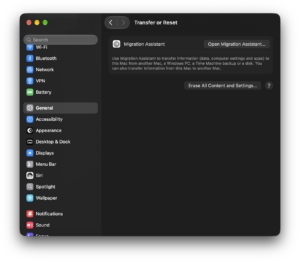
- Click Erase All Content and Settings.
- Enter the administrator password.
- Follow Erase Assistant.
Erase Assistant removes your personal data, installed apps, Apple Account connection, Find My association, and Activation Lock while retaining the installed operating system. This is faster and safer for transferring ownership than manually erasing a supported newer Mac.
Reinstall macOS on MacBook Air or MacBook Pro
MacBook Air and MacBook Pro do not have a separate reinstallation procedure. The correct method depends on the processor inside the Mac.
Open Apple menu > About This Mac. If you see Chip: Apple M-series, use the Apple silicon method by holding the power button during startup. If About This Mac lists an Intel processor, use the Recovery keyboard shortcuts.
Connect the MacBook to its power adapter before starting. Installation can take a while, and allowing the battery to run out during an operating system installation can interrupt the process.
Fix macOS Reinstall Errors
Reinstall macOS says there is not enough disk space
If the existing macOS still starts, remove unnecessary files before retrying. Check System Settings > General > Storage to see what is consuming space.
If the Mac cannot start normally, Recovery gives you access to Disk Utility and other recovery tools, although deleting personal files safely from that environment is less straightforward. Restore from a backup or erase the disk only when necessary.
Macintosh HD does not appear in the installer
Quit the installer and open Disk Utility from Recovery. Choose View > Show All Devices and check whether the internal drive appears.
Run First Aid on the startup disk and then return to the installer. If Disk Utility cannot see the internal storage at all, the problem can be hardware-related rather than a damaged macOS installation.
macOS installer says the software is damaged or cannot be verified
Delete an old downloaded installer and obtain a fresh copy directly from Apple. Also confirm that the Mac has a working internet connection and that its date and time are correct.
If normal installation keeps failing, retry from macOS Recovery so other installed software cannot interfere with the process.
macOS installation is stuck
A Mac can remain on the Apple logo, progress bar, or a blank screen for an extended period during installation. Do not force it off simply because the progress bar stops moving for a short period.
If there has been no change for several hours, restart into macOS Recovery, run Disk Utility First Aid, confirm the internet connection works, and retry the installation.
Internet Recovery shows a globe with an exclamation mark
The Mac could not successfully load Recovery from Apple’s servers. Try another network, connect through Ethernet if possible, and restart using Option-Command-R.
Avoid Wi-Fi networks that require you to sign in through a browser page.
Recovery does not open on an Intel Mac
Restart and press the keys immediately after the Mac begins turning on. Try the built-in keyboard or a wired USB keyboard if you were using Bluetooth.
If Command-R fails, try Option-Command-R to load Internet Recovery.
Recovery does not open on an Apple silicon Mac
Shut the Mac down completely rather than restarting it. Press and keep holding the power button until the startup options screen appears. Releasing the button too early starts macOS normally.
macOS still will not reinstall
Apple recommends checking the internet connection and available storage, installing from Recovery, and repairing the startup disk with Disk Utility. On rare occasions, a Mac with Apple silicon or the T2 Security Chip can require a firmware revive or restore using another Mac.
Apple installation troubleshooting: Fix errors while installing macOS
Frequently Asked Questions
Does reinstalling macOS delete everything?
No. A normal reinstall through macOS Recovery keeps your apps, personal files, user accounts, and settings. Erasing the startup disk with Disk Utility before reinstalling does delete them.
Can I reinstall macOS without losing my files?
Yes. Start in macOS Recovery and choose Reinstall macOS without opening Disk Utility and erasing the disk. Make a backup first even though the standard reinstall is designed to preserve data.
Do I need internet to reinstall macOS?
Yes, Recovery installation requires an internet connection. A bootable USB reduces how much data needs to be downloaded, but the installer can still need internet access for firmware and Mac-specific information.
How do I reinstall macOS on an M1, M2, M3, M4, or M5 Mac?
Shut down the Mac, hold the power button until startup options appear, choose Options > Continue, and select Reinstall macOS.
How do I reinstall macOS on an Intel Mac?
Restart and hold Command-R to reinstall the most recently installed macOS version. Use Option-Command-R when you want Internet Recovery to install the latest compatible macOS.
What does Command-R do on a Mac?
On an Intel Mac, Command-R starts the built-in macOS Recovery system and normally reinstalls the current version of the most recently installed macOS.
What does Option-Command-R do?
On an Intel Mac, Option-Command-R starts Internet Recovery and attempts to install the latest macOS version compatible with that computer.
What does Shift-Option-Command-R do?
On an Intel Mac, this Internet Recovery combination attempts to install the macOS version originally supplied with the computer or the closest version that Apple still provides.
Can I reinstall macOS from a USB drive?
Yes. Download the full macOS installer from Apple and use its createinstallmedia tool to make a bootable USB installer.
Where can I download the full macOS installer?
Apple provides full installers through Software Update, the App Store, Terminal, and direct Apple downloads depending on the version. For current releases, Terminal can list available installers with softwareupdate --list-full-installers.
Can I reinstall an older version of macOS?
Yes, if that macOS release is compatible with your Mac and Apple still provides the installer. Older releases can be obtained through the App Store, Terminal, or Apple’s official download page.
Can I downgrade macOS using Recovery?
Standard Recovery is not a general downgrade tool. Intel Internet Recovery can offer the original macOS version with Shift-Option-Command-R, while installing another older release usually requires a compatible full or bootable installer and often requires erasing the startup disk first.
Should I erase Macintosh HD before reinstalling macOS?
No if you want to keep your existing files and apps. Erase Macintosh HD only when you intentionally want a clean installation, need to resolve a disk problem that a normal reinstall cannot fix, or have already backed up the data you need.
Should I install macOS on Macintosh HD or Macintosh HD – Data?
Choose Macintosh HD. Macintosh HD – Data stores user data and is not the normal destination for the macOS system installation.
How long does reinstalling macOS take?
The time depends on the Mac, macOS version, storage speed, and internet connection. Recovery first downloads installation files and can restart the Mac several times, so the complete process can range from well under an hour to several hours on a slow connection.
Do I need an Apple Account to reinstall macOS?
A standard Recovery reinstall generally does not require you to purchase or activate macOS. Apple can ask for authentication in certain recovery, Activation Lock, or setup situations, so you should know the Apple Account associated with the Mac.