To alt-tab on a Mac, press Command-Tab, which switches to the most recently used app among your open apps.
This guide covers the Mac's app switcher, the shortcut for switching windows inside one app, Mission Control and Stage Manager, Windows keyboards on a Mac, and when a third-party switcher such as AltTab Pro makes sense.
How to alt-tab on a Mac with Command-Tab
Command-Tab is the closest built-in match to Alt+Tab on Windows. It works in every recent version of macOS without any setup.
- Press Command-Tab once and release both keys to jump back to the previous app.
- To pick a different app, press and hold Command, then press Tab.
- Keep holding Command and press Tab again, or press the Left Arrow or Right Arrow key, until the app you want is highlighted.
- Release Command to switch to the highlighted app.
- To cancel without switching, press Esc or the Period key before you release Command.
Mac alt-tab like Windows: which shortcut to use
Windows Alt+Tab cycles through individual windows. macOS splits that job across several tools, so match your goal to a row.
| What you want to do | Use this on a Mac | Why |
|---|---|---|
| Jump to another open app | Command-Tab | Cycles through open apps, most recently used first |
| Move between windows of the same app | Command-Grave accent (`) | Switches only among the front app's windows |
| See every open window at once | Control-Up Arrow (Mission Control) | Lays out all desktop windows in one layer |
| See every window of the front app | Control-Down Arrow | Shows only that app's windows |
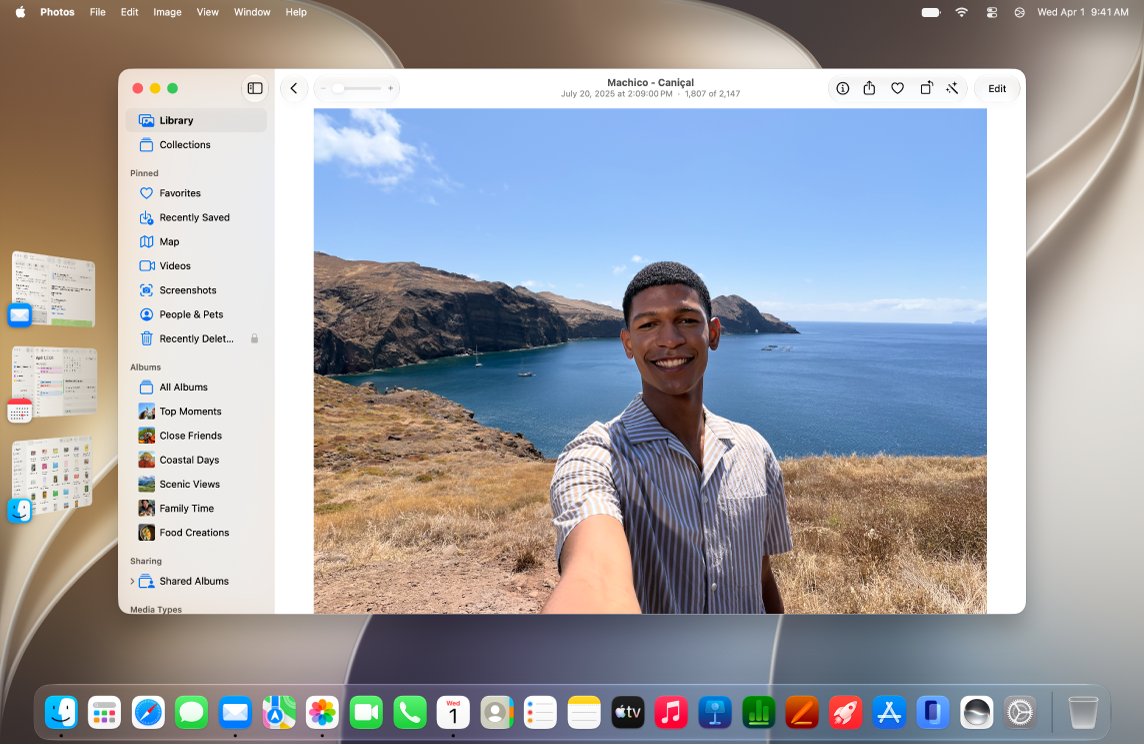
| Keep recent apps one click away | Stage Manager | Lists recently used apps along the left edge of the screen |
| Pick a specific window from any app with one shortcut | A third-party switcher such as AltTab Pro | macOS has no built-in window-by-window switcher across apps |
Command-Tab: switches apps, not windows
The Mac app switcher shows one icon per app, not one thumbnail per window. If Safari has three windows open, Command-Tab brings Safari forward but does not choose among the three.
Closing every window of an app does not quit the app, so the app still appears in the switcher. A small dot under its Dock icon shows it is still running.
- Hold Command and press Tab to open the switcher.
- Note the order: the app you used most recently sits next to the current one.
- Press Tab repeatedly to move right through the list.
- Release Command on the app you want.
- To see thumbnails of every open window of the app you just switched to, press Control-Down Arrow, then click the window you want.
- Press Command-H to hide an app you want out of the way, or Command-Q to quit an app you no longer need, so it drops out of the switcher.
Command-Tab lists only apps that are already open. To open one that is not running, press Command–Space bar to show Spotlight and type the app's name.
Command-Backtick: windows of the current app
Command–Grave accent (`) switches between the windows of the app you are using. Use it after Command-Tab to finish the job Windows Alt+Tab does in one step.
- Bring the app forward with Command-Tab.
- Press Command–Grave accent (`) to move to that app's next window.
- Press it again to keep cycling through the app's windows.
- Find the Grave accent key above Tab and to the left of 1 on most keyboards; the character printed on it varies by keyboard layout.
Switching between Excel workbooks works the same way: each open workbook is its own Excel window, so Command–Grave accent (`) moves from one workbook to the next.
Apps that support tabs can also gather their windows into one tabbed window with Window > Merge All Windows, which cuts down on window switching.
Mission Control and Stage Manager
Mission Control shows every open desktop window in a single layer, which is the closest visual match to a Windows window switcher. Stage Manager keeps the current app centred and recent apps on the left.
- Press Control-Up Arrow or the Mission Control key, or swipe up with three fingers on a trackpad, to see all open windows.
- Click the window you want to bring it to the front.
- Press Control-Down Arrow to show only the windows of the front app.
- To group windows by app, choose Apple menu > System Settings > Desktop & Dock, then turn on Group windows by application under Mission Control.
- To use Stage Manager, go to Desktop & Dock > Desktop & Stage Manager and turn Stage Manager on, or click Control Center in the menu bar and select Stage Manager.
- Click any app on the left side of the screen to switch to it.
If Stage Manager will not turn on, go to Desktop & Dock > Mission Control and turn on Displays have separate Spaces. You can change the Mission Control shortcuts in Keyboard settings.
Multitasking on a Mac: full-screen apps and window tiling
Full screen and tiling cut down how often you need to switch at all. Full-screen apps get their own space, and tiling puts two windows side by side on one desktop.
- Click the green button in the top-left corner of a window, or press Control-Command-F, to use the app in full screen.
- Swipe left or right with three or four fingers on the trackpad to move between apps in full screen.
- Press Control-Up Arrow to open Mission Control; full-screen apps and desktop spaces appear as thumbnails in the Spaces bar along the top, so the one you want is easy to find.
- To tile instead, hold the pointer over the green button, or choose Window > Move & Resize, and pick a tiling option such as Left or Right.
- Use the keyboard to tile the active window: Fn-Control-Left Arrow or Fn-Control-Right Arrow for half the desktop, Fn-Control-F to fill it, and Fn-Control-R to return to the previous size.
Alt-tab on a Mac with a Windows keyboard
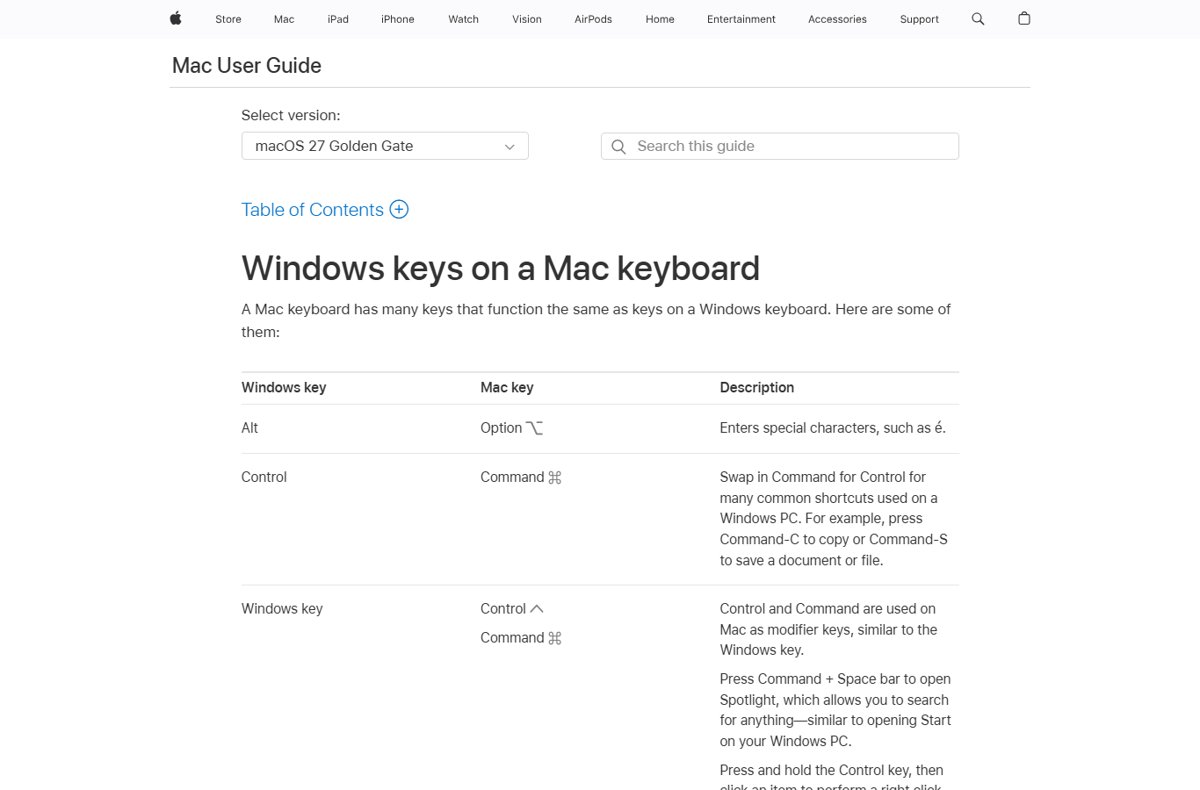
A keyboard made for Windows PCs works on a Mac, but the modifier keys map differently. Apple says to press Alt instead of Option, and Ctrl or the Windows logo key instead of Command.
- Press the Windows logo key plus Tab to do what Command-Tab does.
- Hold the Windows logo key and tap Tab to move through open apps.
- Release the Windows logo key to switch.
- Press the Windows logo key plus the Grave accent key to switch windows inside the current app.
Pressing Alt+Tab on a Windows keyboard connected to a Mac sends Option-Tab, which is not the app switcher shortcut.
Where is the Alt key on a Mac keyboard?
Apple keyboards label the Alt key as Option, marked with the ⌥ symbol. It is not the key you use for switching apps; that job belongs to Command.
| Windows key | Mac equivalent | Symbol in Mac menus |
|---|---|---|
| Alt | Option (labelled Alt on some keyboards) | ⌥ |
| Ctrl or Windows logo (for shortcuts like copy and switch) | Command | ⌘ |
| Tab | Tab | ⇥ |
| Alt+Tab | Command-Tab | ⌘⇥ |
AltTab Pro vs built-in macOS app switching
AltTab Pro is a third-party app for people who want Windows-style switching on a Mac. It fills the one gap the built-in tools leave: choosing any single window from any app with one shortcut.
Start with Command-Tab plus Command-Grave accent, and add a third-party switcher such as AltTab Pro only if you constantly juggle many windows from several apps. Command-Tab switches apps, Command-Grave accent switches windows inside one app, and Mission Control shows everything at once, so most people never need more. A dedicated window switcher saves a step when you have many windows from different apps open, but it is extra software to install and keep updated. Download any such app only from its developer's own website.
Is a third-party alt-tab app secure on a Mac?
When a third-party app tries to access and control your Mac through accessibility features, macOS shows an alert, and the app gets nothing until you grant access in Privacy & Security settings. Giving an app that access also exposes your contacts, calendar and other information to it, under its own terms and privacy policy rather than Apple's.
- Read the app's terms and privacy policy before you install it.
- When the alert appears, click Open System Settings only for an app you know and trust; otherwise click Deny.
- To review access later, choose Apple menu > System Settings > Privacy & Security > Accessibility.
- Turn permission on or off for each app in the list; click the add button at the bottom of the list to add an app that is missing.
Mac shortcuts to switch, close, hide and minimize windows
Switching is only half of the Windows Alt+Tab habit; the other half is clearing windows out of the way. These are Apple's built-in shortcuts for both.
| Shortcut | What it does |
|---|---|
| Command-Tab | Switch to the next most recently used open app |
| Command–Grave accent (`) | Switch to the next window of the front app |
| Control-Down Arrow | Show all open windows of the front app |
| Control-Up Arrow | Open Mission Control to see every open window |
| Command-W | Close the front window |
| Option-Command-W | Close all windows of the front app |
| Command-M | Minimize the front window to the Dock |
| Option-Command-M | Minimize all windows of the front app |
| Command-H | Hide the windows of the front app |
| Option-Command-H | Keep the front app in view and hide all other apps |
| Command-Q | Quit the front app |
| Option-Command-Esc | Force quit an app that stops responding |
How to check the Mac app switcher works
- Open two apps, such as Safari and Notes.
- Hold Command and press Tab; the app switcher appears with an icon for each open app.
- Release Command; the other app comes to the front and its name appears in bold in the menu bar.
- Open a second window in that app and press Command–Grave accent (`); the other window moves to the front.
Alt-tab not working on Mac: fixes by symptom
Alt+Tab on a Windows keyboard does nothing
On a Mac, the Alt key acts as Option, so Alt+Tab sends Option-Tab, which is not the app switcher shortcut.
- Press the Windows logo key plus Tab instead.
- Keep holding the Windows logo key and tap Tab to move through open apps.
Command-Tab seems to skip the app you want
The switcher lists only open apps, ordered by most recent use, so the app is either not running or further along the list.
- Hold Command and keep pressing Tab, or use the Left Arrow and Right Arrow keys, to move through the whole list.
- If the app is not in the list, press Command–Space bar, type the app's name and press Return to open it.
Command-Tab brings the app forward but not the window you want
Command-Tab switches apps, not individual windows.
- Press Command–Grave accent (`) to cycle through that app's windows.
- Or press Control-Down Arrow to see all of the app's windows and click the one you want.
A third-party alt-tab app does nothing when you press its shortcut
Apps that control your Mac through accessibility features get no access until you allow it.
- Choose Apple menu > System Settings > Privacy & Security > Accessibility.
- Turn on permission for the app, or click the add button to add it if it is missing.
How to alt-tab on a Mac: frequently asked questions
How do you use alt-tab on a MacBook?
Press Command-Tab. Hold Command and keep pressing Tab, or use the arrow keys, to highlight an app, then release Command to switch. Press Esc before releasing to cancel.
How do you enable alt-tab on a Mac?
There is nothing to enable. Command-Tab is built into macOS and works out of the box. Only a third-party switcher needs setup: allow it under System Settings > Privacy & Security > Accessibility the first time it asks.
What is alt-tab on a Mac?
The Mac version of alt-tab is Command-Tab, which switches to the next most recently used app among your open apps. It shows apps, not individual windows.
How do I alt-tab between windows of the same app on macOS?
Press Command–Grave accent (`). The Grave accent key is usually above Tab and to the left of 1. It cycles through the windows of the app you are using.
Where is the Alt key on a Mac keyboard?
The Alt key on a Mac is called Option and carries the ⌥ symbol; Apple refers to it as Option (or Alt). For alt-tab style switching, use Command instead of Option.
Can I see all open windows on a Mac like Windows Alt+Tab?
Yes. Press Control-Up Arrow or the Mission Control key to show every open desktop window in one layer, then click the one you want. Control-Down Arrow shows only the front app's windows.
Why does Command-Tab not switch between my Safari windows?
Command-Tab switches between apps, not windows. After it brings Safari forward, press Command–Grave accent (`) to move between Safari's windows, or merge them with Window > Merge All Windows.
How do I alt-tab on a Mac with a Windows keyboard?
Press the Windows logo key plus Tab. On a Windows keyboard connected to a Mac, Apple maps Command to the Windows logo key or Ctrl, and Option to Alt.
Can I customize the app switching shortcuts on my Mac?
You can customize some of them. Choose Apple menu > System Settings > Keyboard > Keyboard Shortcuts, select Mission Control, double-click the current key combination and press the new one, then quit and reopen your apps. Restore Defaults puts every shortcut back.
Do I need an app like AltTab Pro to alt-tab on a Mac?
No. Command-Tab, Command–Grave accent and Mission Control cover app and window switching out of the box. A third-party switcher only adds one-shortcut switching to any window from any app.