To zoom in on a Mac, press Command + Plus (+) when you want to enlarge a webpage or other supported content. You can also spread two fingers apart on a MacBook trackpad, or use macOS Accessibility Zoom when you need to magnify the entire screen, including menus, windows, and app controls.
The best method depends on what you want to enlarge. Browser zoom changes the size of a webpage, trackpad gestures work well with webpages, PDFs, and images, while Accessibility Zoom magnifies the Mac screen itself.
These methods work on MacBook Air, MacBook Pro, iMac, Mac mini, Mac Studio, and other Macs running current versions of macOS.
How to Zoom In on Mac with Keyboard Shortcuts
For webpages, the fastest Mac zoom shortcut is Command + Plus (+). The same basic shortcuts work in Safari, Chrome, Firefox, and many apps that support content zoom.
| Action | Mac keyboard shortcut |
|---|---|
| Zoom in | Command + Plus (+) |
| Zoom out | Command + Minus (-) |
| Reset browser zoom | Command + 0 |
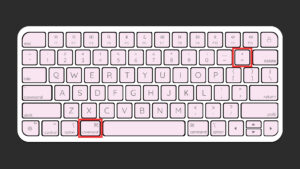
Press Command + Plus several times when you need a larger zoom level. Each press increases the size another step.
If you accidentally make a webpage too large or too small, Command + 0 returns supported browsers to their normal page zoom.
How to Zoom In on Mac with Trackpad
A MacBook trackpad or Magic Trackpad lets you zoom using the same pinch gesture commonly used on phones and tablets.
- Place two fingers on the trackpad.
- Spread the fingers apart to zoom in.
- Pinch the fingers together to zoom out.
Pinch to zoom works in supported webpages, PDFs, photos, maps, and other apps that support Multi-Touch gestures.
Use Smart Zoom on a Mac Trackpad
You can also double-tap the trackpad with two fingers to quickly zoom in on a webpage or PDF. Double-tap again with two fingers to return to the previous view.
If pinch or Smart Zoom does not work:
- Open Apple menu > System Settings.
- Select Trackpad.
- Open Scroll & Zoom.
- Turn on Zoom in or out.
- Turn on Smart zoom if you want to use the double-tap gesture.
How to Zoom In on the Entire Mac Screen
macOS includes a built-in Accessibility Zoom feature that magnifies the whole screen or a selected area. This is useful when text, buttons, menus, or interface elements are too small across multiple apps.
Enable Mac screen zoom
- Open Apple menu > System Settings.
- Select Accessibility.
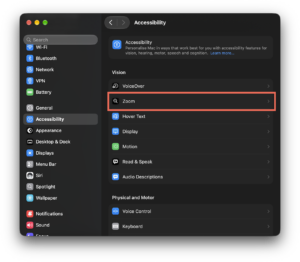
- Click Zoom.
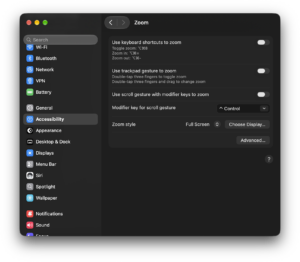
- Turn on Use keyboard shortcuts to zoom.
You can then use these shortcuts:
| Screen Zoom action | Shortcut |
|---|---|
| Turn screen zoom on or off | Option + Command + 8 |
| Zoom in | Option + Command + Plus (+) |
| Zoom out | Option + Command + Minus (-) |
Once enabled, press Option + Command + Plus repeatedly to increase magnification. Use Option + Command + 8 when you want to quickly switch between the normal and enlarged view.
Choose Full Screen, Split Screen, or Picture-in-Picture Zoom
Open System Settings > Accessibility > Zoom and use the Zoom style setting to choose how macOS displays magnified content.
| Zoom style | What it does |
|---|---|
| Full Screen | Magnifies the entire display |
| Split Screen | Shows a magnified area along one edge of the screen |
| Picture-in-Picture | Displays a movable magnified window around the pointer |
Picture-in-Picture works well when you need occasional magnification while keeping the rest of the desktop at its normal size.
How to Zoom In on Mac with Trackpad and Accessibility Zoom
macOS also provides a three-finger trackpad gesture specifically for Accessibility Zoom. You need to enable it before the gesture works.
- Open System Settings > Accessibility > Zoom.
- Turn on Use trackpad gesture to zoom.
- Double-tap the trackpad with three fingers to switch zoom on or off.
- Double-tap with three fingers and drag to adjust the zoom level gradually.
This three-finger Accessibility gesture controls screen magnification. The standard two-finger pinch gesture controls zoom inside supported apps and webpages.
How to Zoom In on Mac with a Mouse
You can control macOS screen magnification with a mouse wheel or scroll gesture after enabling the modifier-key option.
- Open System Settings > Accessibility > Zoom.
- Turn on Use scroll gesture with modifier keys to zoom.
- Choose Control, Option, or Command as the modifier key.
- Hold that key while scrolling up to zoom in.
- Scroll down while holding the same key to zoom out.
This works with a compatible mouse wheel as well as trackpad scrolling.
Zoom with an Apple Magic Mouse
Magic Mouse supports Smart Zoom. Double-tap the mouse surface with one finger to zoom in on a supported webpage or PDF, then double-tap again to zoom back out.
You can review the gesture under System Settings > Mouse.
How to Zoom In on Safari on Mac
Safari lets you increase the size of text, images, and other webpage content without magnifying the rest of macOS.
The quickest Safari shortcuts are:
- Command + Plus (+) to zoom in.
- Command + Minus (-) to zoom out.
- Command + 0 to return to the normal page size.
You can also open the Page menu in Safari’s Smart Search field and change the zoom level from there.
Set a permanent Safari zoom level
If webpages are consistently too small, Safari can automatically use a larger zoom percentage.
- Open Safari.
- Select Safari > Settings from the menu bar.
- Click Websites.
- Select Page Zoom.
- Choose a zoom percentage for individual websites.
- Use When visiting other websites to set a default zoom level for other sites.
For example, setting the default to 125% makes websites larger without requiring you to press the zoom shortcut every time.
Make only the text larger in Safari
If the page layout is already comfortable and you only need larger text, hold Option while opening Safari’s View menu, then choose Make Text Bigger.
How to Zoom In on Chrome on Mac
Google Chrome uses the standard Mac browser zoom shortcuts:
- Command + Plus (+) increases page zoom.
- Command + Minus (-) decreases page zoom.
- Command + 0 resets the page to its default zoom.
You can also click the three-dot Chrome menu and use the Zoom controls beside the current percentage.
Change the default Chrome zoom on Mac
Open Chrome > Settings and look under Appearance for the default page zoom option. Choose a larger percentage if most websites appear too small.
Chrome can also remember custom zoom levels for individual websites, so one site can remain at 125% while other sites stay at 100%.
How to Zoom In on Firefox on Mac
Firefox uses the same keyboard shortcuts:
- Command + Plus (+) to zoom in.
- Command + Minus (-) to zoom out.
- Command + 0 to reset zoom.
Firefox remembers the zoom level for websites you change. You can also open the Firefox menu and use the plus and minus buttons beside the displayed zoom percentage.
Set a default Firefox zoom level
Open Firefox > Settings, find the Default zoom control in the appearance or accessibility settings, and choose your preferred percentage. Firefox also provides an option to enlarge text without resizing images and other page elements.
How to Make Everything Bigger on Mac Without Repeatedly Zooming
If text, icons, windows, and controls always appear too small, changing the display size gives you a more permanent solution than repeatedly activating screen zoom.
- Open Apple menu > System Settings.
- Select Displays.
- Choose a display option toward Larger Text.
macOS adjusts the effective display resolution so interface elements appear larger. This setting remains active until you change it again.
Use Hover Text for small text
Hover Text can enlarge text under the pointer without magnifying the complete screen.
- Open System Settings > Accessibility.
- Select Hover Text.
- Turn on Hover Text.
- Move the pointer over text.
- Hold the Command key to display the enlarged version.
You can change the Hover Text size, font, colors, and activation key from the same settings panel.
Fix Zoom Not Working on Mac
Command + Plus does not zoom in
Make sure the app you are using supports page or content zoom. In a browser, try opening the View menu or the browser’s zoom controls to confirm that zoom is available.
If the shortcut still fails, test Command + Minus and Command + 0, then quit and reopen the app.
Mac screen zoom shortcut does nothing
The Accessibility Zoom shortcuts need to be enabled first. Open System Settings > Accessibility > Zoom and turn on Use keyboard shortcuts to zoom.
After enabling it, press Option + Command + 8 to activate screen zoom.
Pinch to zoom is not working
Open System Settings > Trackpad > Scroll & Zoom and make sure Zoom in or out is enabled. Also remember that some apps do not support pinch gestures.
The Mac screen is stuck zoomed in
Press Option + Command + 8 to switch Accessibility Zoom off. If you only enlarged a browser page, press Command + 0 instead.
A website stays zoomed in every time you open it
Browsers can remember zoom settings for individual websites. Open the affected website and press Command + 0. Safari, Chrome, and Firefox also provide settings where saved site-specific zoom levels can be reviewed or changed.
Frequently Asked Questions
What is the shortcut to zoom in on a Mac?
Press Command + Plus (+) to zoom in on a webpage in Safari, Chrome, Firefox, and other supported apps.
What is the shortcut to zoom out on a Mac?
Press Command + Minus (-). In a browser, press Command + 0 to return to the normal zoom level.
How do I zoom in on my entire Mac screen?
Open System Settings > Accessibility > Zoom and enable keyboard shortcuts. Press Option + Command + Plus (+) to zoom in and Option + Command + 8 to toggle screen magnification.
How do I zoom in on a MacBook Air or MacBook Pro?
Use Command + Plus (+) for browser content, spread two fingers apart on the trackpad for supported webpages and images, or enable Accessibility Zoom to enlarge the complete display.
How do I zoom in on Mac without a mouse?
Use the keyboard shortcut Command + Plus (+) or a two-finger pinch gesture on the MacBook trackpad. Accessibility Zoom also supports keyboard and three-finger trackpad controls.
How do I zoom in with a Mac trackpad?
Spread two fingers apart on the trackpad to enlarge supported content and pinch them together to zoom out. You can also double-tap with two fingers to Smart Zoom on webpages and PDFs.
Why is everything on my Mac suddenly huge?
Accessibility Zoom may be active. Press Option + Command + 8 to turn it off. If only a webpage is enlarged, press Command + 0.
Can I permanently make websites larger on a Mac?
Yes. Safari, Chrome, and Firefox let you choose a larger default page zoom percentage. This is useful when 100% zoom consistently feels too small.
Can I make Mac text larger without zooming the entire screen?
Yes. You can choose Larger Text under Display settings, use Safari or Firefox text-only zoom where supported, or enable Hover Text under Accessibility.
Does Mac have a built-in magnifier?
Yes. The built-in Accessibility Zoom feature supports Full Screen, Split Screen, and Picture-in-Picture magnification, so you do not need to install a separate magnifier app.