Open the Group Policy Editor by pressing Win + R, typing gpedit.msc and pressing Enter; use Intune and Microsoft Entra ID when the devices and users live in the cloud instead of on one PC or a domain.
This hub covers the local consoles, gpupdate and gpresult, Active Directory tools, Intune, Entra ID, the Microsoft 365 admin center, Windows Server, and fixes for policies that do not apply.
Open the Group Policy Editor from the "Run" window
The Run box is the quickest route on Windows 11 and Windows 10 Pro, Enterprise and Education.
- Press Win + R to open the Run box.
- Type
gpedit.mscin the Open field. - Press Enter or select OK.
- Approve the User Account Control prompt if one appears.
- Expand Computer Configuration or User Configuration in the left pane to reach the policy you want.
Other routes, edition limits and fixes are in this walkthrough to open Group Policy Editor in Windows 11.
What is the Group Policy Editor?
The Local Group Policy Editor is a Microsoft Management Console (MMC) snap-in that edits the policy settings stored in a Group Policy Object (GPO).
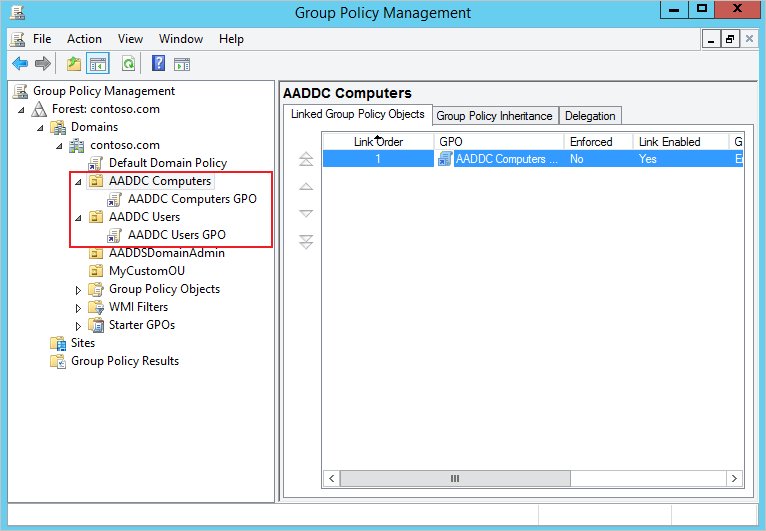
Group Policy settings can live locally on one PC or in Active Directory Domain Services, where GPOs are linked to sites, domains and organizational units (OUs).
| Part | What it holds | When it applies |
|---|---|---|
| Computer Configuration | System-wide settings such as power management and firewall rules | At computer startup and during background refresh |
| User Configuration | Settings for the signed-in user, such as Folder Redirection | At user sign-in and during background refresh |
| Administrative Templates | Registry-based settings, each with a built-in description | With the rest of its section |
| Security Settings | Account policies, audit policy, user rights and security options | Some need a restart or a fresh sign-in |
Processing order, filtering and tutorials for AppLocker and firewall rules are in this Windows Group Policy explainer.
Group Policy vs Intune vs Microsoft Entra ID: which admin tool to use
Each Microsoft admin tool covers a different scope. Match the job to the row, then open the console in the last column.
| Your job | Use this | Console or address |
|---|---|---|
| Change a setting on one stand-alone PC | Local Group Policy | gpedit.msc |
| Push the same settings to domain-joined PCs and servers | Domain GPO in Active Directory | Group Policy Management Console (gpmc.msc) |
| Enroll, configure and secure laptops and phones from the cloud | Microsoft Intune | Microsoft Intune admin center |
| Manage users, groups, MFA and Conditional Access | Microsoft Entra ID | Microsoft Entra admin center |
| Deploy apps, updates and OS images to on-premises fleets | Configuration Manager (ConfigMgr) | Configuration Manager console and Software Center |
| Add licenses, domains and billing for Microsoft 365 | Microsoft 365 admin center | admin.microsoft.com |
Configuration Manager is now part of the Microsoft Intune family, and its client gives users Software Center to install deployed apps. Admins can enable the new Software Center from client settings.
Open the Group Policy Editor from the Start menu
Microsoft documents typing the file name in Start search. Settings and Control Panel have their own search boxes, but Start search is the documented route, so use it when you launch the editor from Settings or Control Panel too.
- Select Start or press the Windows key.
- Type
gpedit.msc. - Select the
gpedit.mscresult. - Select Yes at the User Account Control prompt.
Open the Group Policy Editor from the Command Prompt
gpedit.mscRun it in Command Prompt or PowerShell to start the Local Group Policy Editor snap-in. An elevated prompt avoids a second UAC prompt.
You should see: The Local Group Policy Editor window opens with Local Computer Policy at the top of the tree.
How to install GPEdit.msc on Windows 10 and 11 Home
If gpedit.msc will not start, first check your edition under Settings > System > About.
On Home, the supported routes are an edition upgrade to Pro or setting the policy's registry value directly. Tools that crack Windows packages onto unsupported editions break the license terms.
- Open Settings > System > About and read Edition under Windows specifications.
- If it says Home, upgrade the edition to Windows 11 Pro or Windows 10 Pro.
- Restart after the upgrade, then press Win + R, type
gpedit.mscand press Enter. - To stay on Home, back up the registry and set only the documented value for the one policy you need.
Weigh the risks of each route before you enable gpedit on Windows 11 Home. The same choice answers how to apply local group policy on Windows Home and how to enable gpedit msc in Windows 10.
Editing policies globally versus editing policies for specific users or groups
Opening gpedit.msc directly edits the Local Group Policy Object, which applies to the computer and to every local user, administrators included.
Multiple Local Group Policy Objects (MLGPO) add two more layers for user settings, and the last layer read wins a conflict.
| Layer | Who gets it | Order |
|---|---|---|
| Local Group Policy | The computer and all local users | Applied first |
| Administrators or Non-Administrators | Members of the local Administrators group, or everyone else | Applied second; a user gets one of the two |
| User-specific Local Group Policy | One named local account | Applied last, so it has the highest local precedence |
| Domain GPOs | Domain-joined computers and users | Applied after all local layers, so they override conflicting local settings |
Opening the Local Group Policy Editor to change settings for specific users or groups
To change settings for all users, open gpedit.msc as usual. For one group or one account, load the editor as an MMC snap-in and pick the target.
- Press Win + R, type
mmcand press Enter. - Select File > Add/Remove Snap-in.
- Select Group Policy Object Editor and then Add.
- In Select Group Policy Object, select Browse and open the Users tab.
- Select Administrators, Non-Administrators or a single user, then OK and Finish.
- Select OK, then edit the policies under User Configuration for that target.
What do you plan to change in the Local Group Policy Editor?
Most jobs start in one of these branches. A setting shown as unavailable in a local console is controlled by a domain GPO.
| Goal | Where to look |
|---|---|
| Password and account lockout rules | Computer Configuration > Windows Settings > Security Settings > Account Policies |
| Audit policy, user rights and security options | Computer Configuration > Windows Settings > Security Settings > Local Policies |
| Turn off local policy processing on domain PCs | Computer Configuration > Administrative Templates > System > Group Policy (domain GPO) |
| Per-user desktop, Start and app settings | User Configuration > Administrative Templates |
| Feature-update and Windows Update behaviour | Computer Configuration > Administrative Templates > Windows Components |
After a feature update, confirm your existing settings with this check on whether Windows 11 26H2 changes Group Policy defaults.
What does the gpupdate /force command do
Plain gpupdate applies only policy settings that changed. Adding /force reapplies every policy setting, changed or not.
| Command | What it reapplies | Use it when |
|---|---|---|
| gpupdate | Only changed settings, user and computer | A routine refresh after editing a GPO |
| gpupdate /force | All settings, whether or not they changed | A setting looks wrong or was changed locally |
| gpupdate /target:computer | Computer settings only | You changed only Computer Configuration |
| gpupdate /sync | Next startup or sign-in runs synchronously | Settings that apply only in foreground processing |
That covers gpupdate vs gpupdate /force in one line: same command, but /force skips the change check.
Gpupdate command syntax
Microsoft's syntax line is gpupdate [/target:{computer | user}] [/force] [/wait:<VALUE>] [/logoff] [/boot] [/sync] [/?].
| Switch | Effect | Example |
|---|---|---|
| /target:{computer|user} | Updates only computer or only user settings; both by default | gpupdate /target:user |
| /force | Reapplies all policy settings | gpupdate /force |
| /wait:<value> | Seconds to wait before returning; default 600, 0 = no wait, -1 = forever | gpupdate /wait:0 |
| /logoff | Signs out after the update when an extension needs it | gpupdate /force /logoff |
| /boot | Restarts after the update when an extension needs it | gpupdate /force /boot |
| /sync | Makes the next foreground application synchronous; ignores /force and /wait | gpupdate /sync |
| /? | Shows help | gpupdate /? |
How to run the gpupdate /force command
Use this to force a group policy update on the PC you are signed in to. The same steps run plain gpupdate.
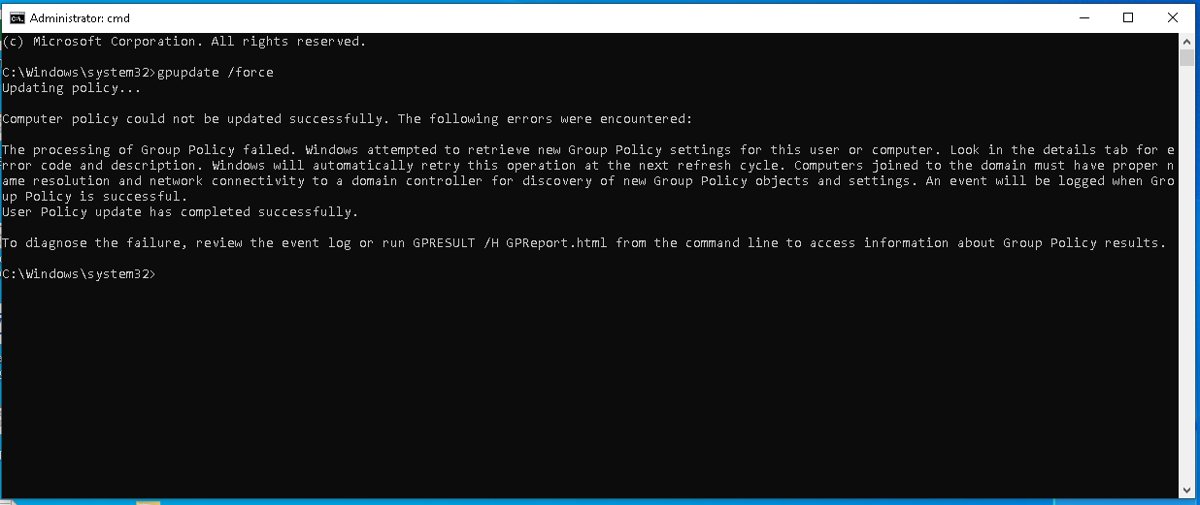
- Select Start, type
cmd, and select Run as administrator. - Type
gpupdate /forceand press Enter. - Wait until both the computer and user policy updates report that they completed.
- Answer Y if it asks to sign out or restart for policies that apply only then.
PowerShell and remote options, plus fixes when the command fails, are in the guide to force a Group Policy update.
Automatically reboot or logoff after GPUpdate
gpupdate /force /bootSome client-side extensions only apply at startup (computer-targeted Software Installation) or at sign-in (user Software Installation, Folder Redirection). /boot restarts the PC after the update and /logoff signs the user out. Neither switch does anything when no extension needs it.
You should see: The PC restarts or signs out, and the setting is in place at the next sign-in.
Run gpupdate on a remote computer
The Invoke-GPUpdate cmdlet from the GroupPolicy PowerShell module schedules gpupdate on a remote computer. Microsoft's Sysinternals PsExec is another option when you prefer running the command remotely in a console.
Invoke-GPUpdate -Computer "CONTOSO\COMPUTER-02" -Target "User"Schedules a user policy refresh on COMPUTER-02. Add -Force to reapply everything, -RandomDelayInMinutes to spread a refresh over many PCs, and -Boot to restart afterwards.
You should see: The command returns without error and the remote PC runs gpupdate.
Check applied group policy with gpresult
gpresult shows the Resultant Set of Policy (RSoP): the settings that won after all GPOs were combined. It needs an output switch such as /r, /v, /z, /x or /h.
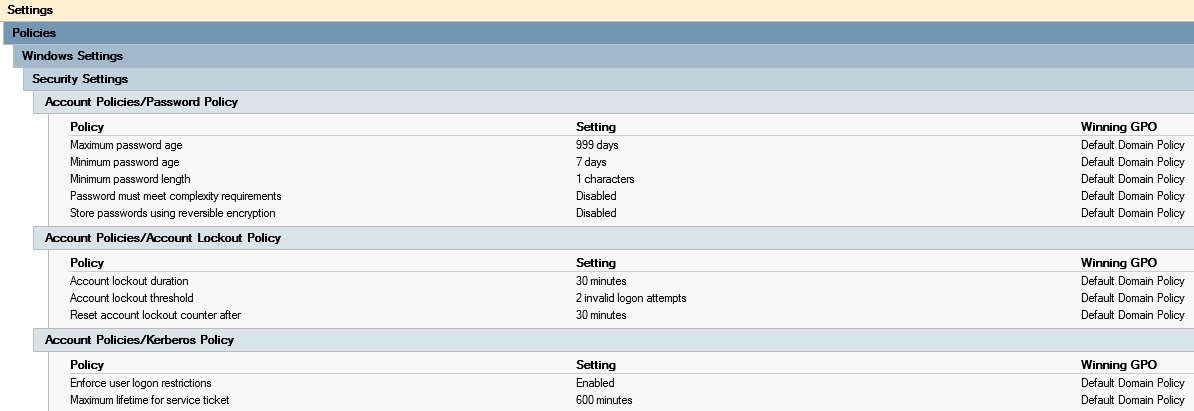
gpresult /rShows a summary of applied and filtered GPOs for the current user and computer. Use gpresult /h report.html for a browsable report, /scope computer for one side, or /s <name> for a remote PC.
You should see: Your GPO appears under Applied Group Policy Objects. A GPO under filtered or denied lists names the reason it was skipped.
Open Local Security Policy and Local Users and Groups (secpol.msc, lusrmgr.msc)
Local Security Policy edits the Security Settings branch on its own, and Local Users and Groups manages local accounts.
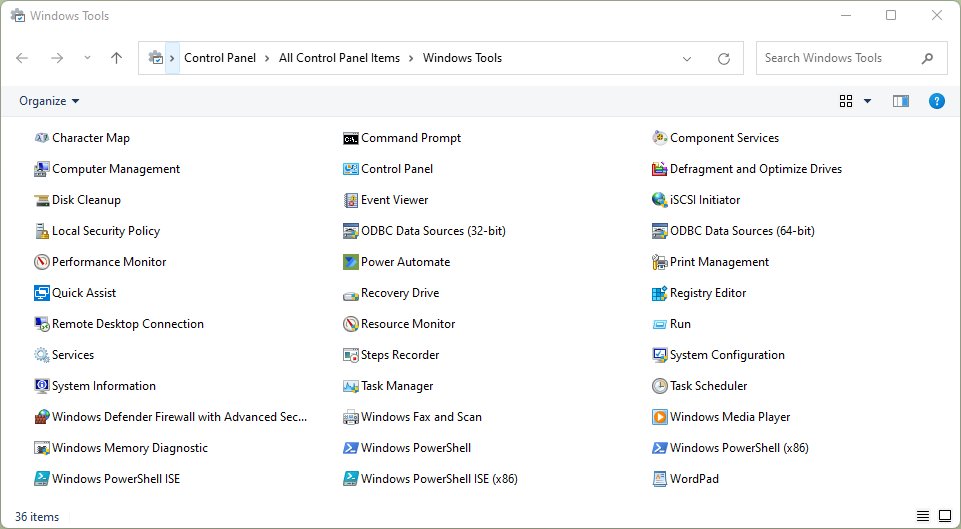
Press Win + R and type the console name below. You can also open Local Security Policy from Windows Tools, and Local Users and Groups from Computer Management.
| Console or command | Opens or does | Notes |
|---|---|---|
| gpedit.msc | Local Group Policy Editor | All local policy, both configurations |
| secpol.msc | Local Security Policy | Account Policies and Local Policies; some changes need a restart |
| lusrmgr.msc | Local Users and Groups | Local accounts and group membership |
| gpmc.msc | Group Policy Management Console | Domain GPOs; ships with Windows Server and RSAT |
| dsa.msc | Active Directory Users and Computers | Needs the AD DS tools from RSAT on a client |
| gpupdate /force | Reapplies all policy settings | Run in an elevated prompt |
| gpresult /r | Summary of applied policy | Add /h <file> for an HTML report |
| mmc | Empty Microsoft Management Console | Add snap-ins such as per-user Group Policy |
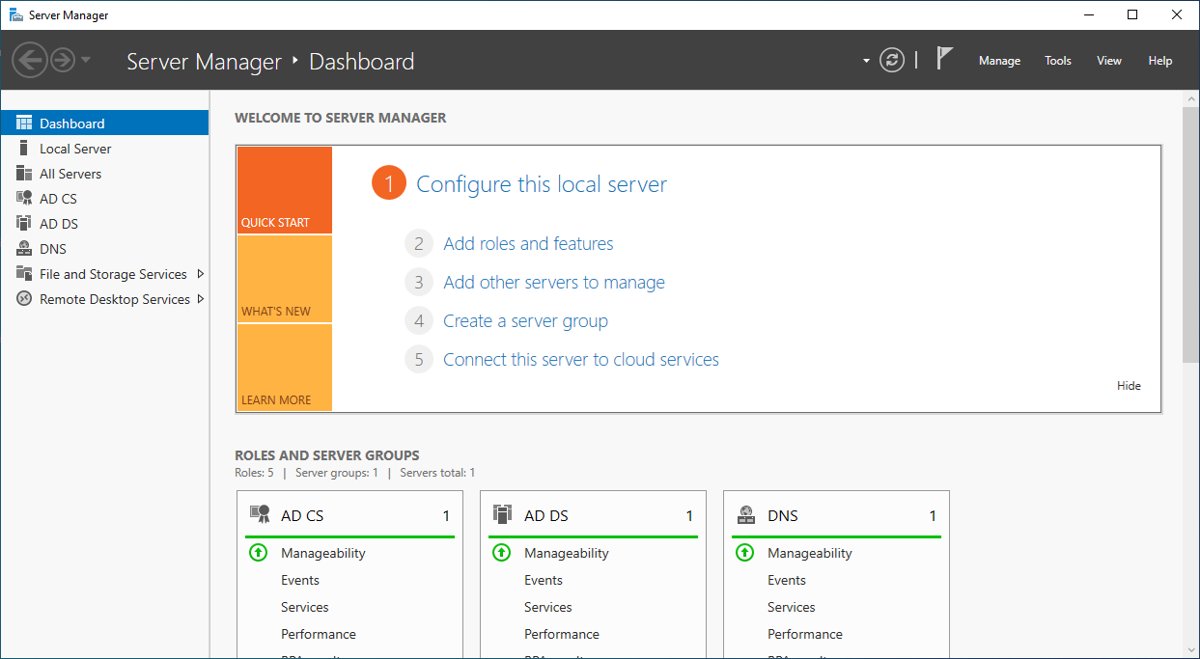
Install RSAT and Active Directory Users and Computers on Windows 11
Remote Server Administration Tools (RSAT) run on Windows 11 Pro or Enterprise and Windows 10 Pro or Enterprise (October 2018 update or later). They do not install on Home.
On a client they come as Features on Demand, so there is nothing separate to download. Get the RSAT tools for Windows 11 and 10 there, then install Active Directory Users and Computers and open it with dsa.msc.
- Sign in with an administrator account.
- Select Start, type Optional Features, and select Add an optional feature.
- Select View features and search for the RSAT tool you need.
- Select the AD DS and AD LDS tools and the Group Policy Management tools.
- Select Next, then Install, and wait for the progress to finish.
- Press Win + R, type
dsa.mscorgpmc.msc, and press Enter.
What Intune does
Microsoft Intune is a cloud endpoint management service for Android, iOS/iPadOS, Linux, macOS, tvOS, visionOS and Windows, run from the Microsoft Intune admin center with no on-premises servers.
Group Policy analytics in Intune imports your on-premises GPOs, shows which settings cloud MDM supports, and can migrate them to a settings catalog policy.
| Area | What Intune does | Example job |
|---|---|---|
| Enroll | Brings devices under management | Windows Autopilot, Apple Automated Device Enrollment |
| Configure | Applies settings profiles and the settings catalog | Replace a GPO with a settings catalog policy |
| Secure | Compliance policies feed Conditional Access | Block non-compliant PCs from email |
| Apps | Deploys and protects apps | Microsoft 365 Apps rollout in rings |
| Update | Keeps devices patched | Feature update policies for a new Windows release |
Two common first projects are to deploy Microsoft 365 Apps with Intune and to target a Windows 11 26H2 enterprise rollout with a feature update policy.
How Intune is used: MDM, MAM, or both
| Mode | What Intune manages | Typical device |
|---|---|---|
| Mobile device management (MDM) | The whole device: settings, security, apps, remote wipe | Corporate laptops and phones |
| Mobile application management (MAM) | Only work apps and their data; selective wipe | Personal BYOD phones |
| Both | An enrolled device plus app protection on sensitive apps | Corporate phone handling sensitive data |
Enrollment for iPhone, iPad and Mac needs an MDM push certificate first, and you can manage Apple devices with Intune once it is in place.
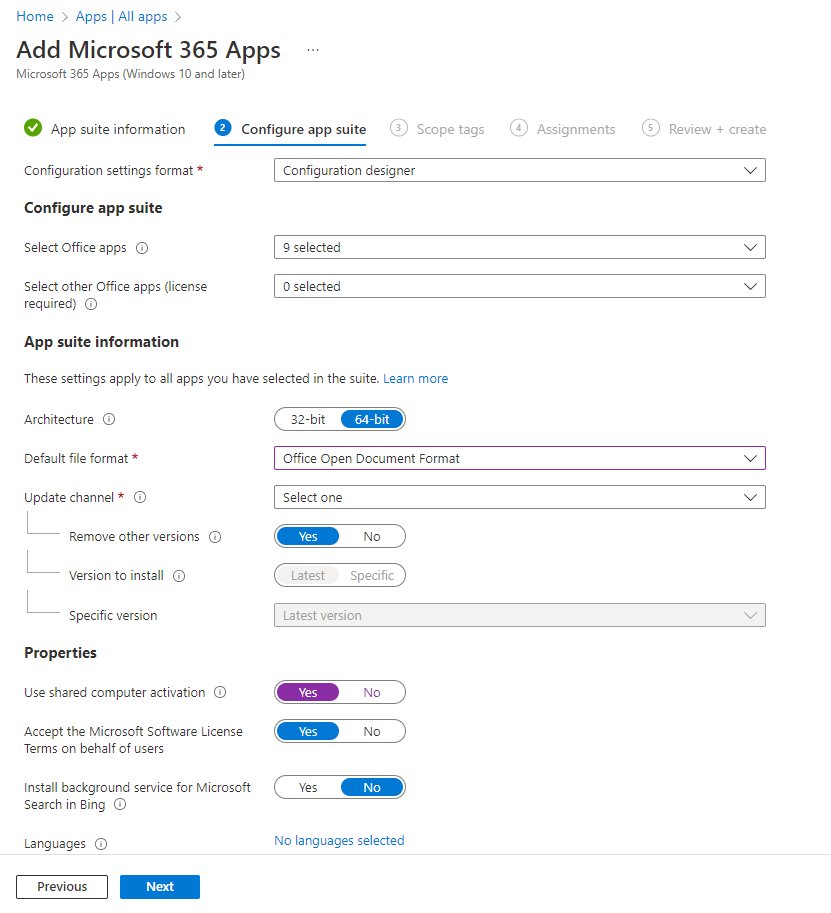
How Intune works with Microsoft Entra
Intune does not store identities or authenticate users. It relies on Microsoft Entra ID for sign-in, for the groups you assign policies and licenses to, and for Conditional Access.
| Piece | Role | Notes |
|---|---|---|
| Authentication | Users sign in with Entra credentials | SSO, MFA or passwordless |
| Users and groups | Targets for policies, profiles, apps and licenses | Each managed user or device needs an Intune license; admins do not |
| Conditional Access | Combines device compliance with user, app, location and risk | Allows or blocks access to company resources |
| Advanced capabilities | Extra endpoint security, remote help, analytics and more | Through Microsoft 365 plans, Intune Suite or add-ons |
| Copilot in Intune | Summarizes policies, explains settings, helps triage devices | Powered by Microsoft Security Copilot |
| Try Intune | Free 30-day trial | Then set up the organization's subscription |
Users install the Company Portal app to enroll, and the Intune Company Portal download lists it for Windows and Mac. To remove standing local admin rights, configure EPM in Intune with elevation rules.
What is Microsoft Entra ID?
Microsoft Entra ID is the cloud identity and access management service at the base of the Microsoft Entra product family,.
Every Microsoft 365, Azure or Dynamics CRM Online tenant is already an Entra tenant, with an initial domain such as contoso.onmicrosoft.com. Product details and licenses are in this Microsoft Entra overview.
| Microsoft Entra product | What it does |
|---|---|
| Entra ID | Authentication, policy enforcement and protection for users, devices and apps |
| Entra Domain Services | Managed group policy, LDAP and Kerberos/NTLM for legacy apps |
| Private Access and Internet Access | VPN-free access to private apps and filtered internet access |
| ID Governance | Automated access requests, assignments and reviews |
| ID Protection | Detects identity risk; works with risk-based Conditional Access |
| Verified ID and External ID | Verifiable credentials; partner, guest and customer sign-in |
| Workload ID | Identities for apps, services and containers |
How Microsoft Entra ID works in practice: users sign in once, Conditional Access checks the conditions, and the Microsoft Graph API automates tasks such as user lifecycle and licensing.
Microsoft Entra ID vs. Active Directory: key differences
Active Directory Domain Services runs on your domain controllers; Entra ID is identity as a service in the cloud. Hybrid organizations sync them with Microsoft Entra Connect, and you can get the Entra Connect sync tool for Windows Server from the Entra admin center.
| Concept | Active Directory | Microsoft Entra ID |
|---|---|---|
| Users | Created manually or by an in-house provisioning system | Synced with Entra Connect or created from cloud HR systems |
| Groups | Admins assign members | Manual or dynamic membership by query |
| Admin rights | Delegated through domains, OUs and groups | Built-in RBAC roles, plus PIM for just-in-time access |
| Credentials | Passwords, certificates and smart cards | Smart lockout, banned passwords, MFA, FIDO2, self-service reset |
| Apps | LDAP, Kerberos and NTLM; SaaS needs AD FS | OAuth2, SAML and WS-* apps; app proxy for on-premises apps |
| Policy | Group Policy linked to sites, domains and OUs | Conditional Access, with Intune for device settings |
How to access the Microsoft Entra admin center
The Microsoft Entra admin center is the web portal for every Entra product. Licenses run from Entra ID Free through P1, P2 and Entra Suite, and Microsoft 365 and Enterprise Mobility + Security plans include Entra features; a free 30-day P1 or P2 trial is available.
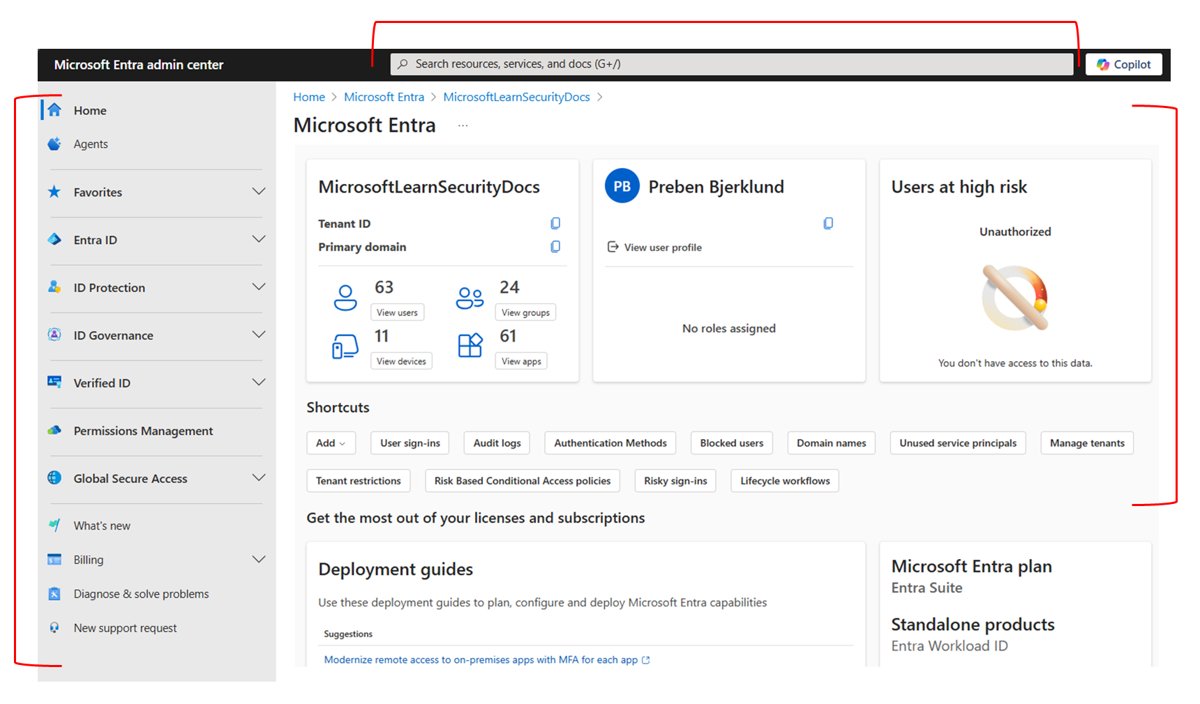
- Open the Microsoft Entra admin center in a browser.
- Sign in with a work account that holds an admin role.
- Check Home for the tenant name, ID and licenses.
- Select Entra ID > Users or Groups to manage accounts.
- Open Conditional Access, Authentication methods or Password reset for access rules.
- Review Recommended actions and Identity secure score as best practices for the tenant.
Password reset is the key feature most businesses switch on first, and this explainer covers self-service password reset in Entra ID, including writeback. Before you prepare your environment, Microsoft publishes deployment plans and an operations guide.
Microsoft 365 admin center: sign in, domains and billing
Go to admin.microsoft.com, or select the app launcher and choose Admin if you are already signed in. You need a work account with an admin role, and this guide to reach the Microsoft 365 admin center covers access-denied errors.
- Sign in at admin.microsoft.com with your admin account.
- Select Users > Active users to add users and assign licenses.
- Select Settings > Domains to add a custom domain.
- Select Billing > Bills & payments to find invoices.
You can change the onmicrosoft.com domain by adding a new one and making it the fallback, and download a Microsoft 365 invoice as a PDF from billing.
Windows Server editions, system requirements and end of support
Domain GPOs live on Windows Server domain controllers, and the Group Policy Management Console is included with Windows Server. Windows Server 2025 comes in Standard, Datacenter and Datacenter: Azure Edition; check the Windows Server 2025 editions and the Windows Server 2025 hardware minimums before you buy.
Windows Server 2019 extended support ends January 9, 2029, per Microsoft's lifecycle page, and the Server 2019 end of life explainer covers upgrade paths. Server 2016 is closer to its end, so plan the Windows Server 2016 end of support move first.
For role setup, install a DHCP server and authorize it in Active Directory, and review the Windows Server 2022 changes such as SMB over QUIC if you run that release.
| Release | Lifecycle | What to do |
|---|---|---|
| Windows Server 2025 | Current release | Pick Standard for few VMs, Datacenter for heavy virtualization |
| Windows Server 2022 | Supported | Keep patched; plan the next upgrade |
| Windows Server 2019 | Extended support to Jan 9, 2029 | Schedule an in-place or migration upgrade |
| Windows Server 2016 | Fixed Lifecycle Policy, ending soonest | Upgrade first or move to paid ESU |
Where is the Local Group Policy Editor in Windows? I can’t find it!
Why is group policy editor missing or why can't I find it?
The PC runs a Home edition, or the search used the wrong name.
- Press Win + R, type
gpedit.mscand press Enter. - If Windows cannot find it, open Settings > System > About and check Edition.
- On Home, upgrade to Pro or use the registry route described earlier.
Why can't I open local group policy editor?
The account is not an administrator or UAC was declined.
- Sign in with an administrator account.
- Run
gpedit.mscagain and select Yes at the UAC prompt.
A setting is greyed out in gpedit.msc or secpol.msc
A domain GPO controls that setting.
- Run
gpresult /rto see which GPO applies. - Change the setting in that GPO with the Group Policy Management Console.
gpupdate force not working or taking a long time
The PC cannot reach a domain controller, or a startup-only extension is waiting.
- Check the Group Policy events in Event Viewer > Windows Logs > System.
- Confirm network access to a domain controller, then run
gpupdate /forceagain. - Restart if the output says some policies apply only at startup.
Group Policy not applying: symptom, cause and fix
Start with the Group Policy events in the System log; the operational log lists applied and denied GPOs with reasons.
| Symptom | Likely cause | Fix |
|---|---|---|
| Event ID 1129, gpupdate fails | No network connectivity to the domain controller, such as blocked LDAP port 389 | Restore connectivity to the DC, then rerun gpupdate /force |
| Event ID 1006 | Windows could not authenticate to Active Directory (LDAP bind failed) | Read the error code on the event's Details tab and fix the credential or DC issue |
| Event ID 1002 after a long uptime | Low memory or disk space | Free resources or restart the PC |
| GPO listed as filtered in gpresult | Security or WMI filtering excluded the PC or user | Adjust the GPO's filtering in GPMC |
| Software or Folder Redirection policy not applied | That extension runs only at startup or sign-in | Run gpupdate /force /boot or /logoff |
| Local setting reverts after refresh | A domain GPO overrides local policy | Edit the domain GPO instead |
Group Policy, Intune and Entra ID FAQ
What is group policy editor?
The Local Group Policy Editor (gpedit.msc) is an MMC snap-in that edits Group Policy settings for a Windows PC. It splits settings into Computer Configuration, applied at startup, and User Configuration, applied at sign-in, with background refreshes between.
Where is group policy editor located?
It is the gpedit.msc console. Press Win + R, type gpedit.msc and press Enter, or type gpedit.msc in Start search. Both routes need an administrator account.
Is group policy editor on Windows 11 Home?
If gpedit.msc does not open on Home, the supported fixes are upgrading to Windows 11 Pro or setting the policy's registry value directly. Pro, Enterprise and Education run gpedit.msc with no extra steps.
Is group policy editor on Windows 11 Pro?
Yes. Windows 11 Pro opens the Local Group Policy Editor with gpedit.msc from Run, Start search or a command prompt, and it also supports RSAT for domain Group Policy Management.
How to enable group policy editor in Windows 10?
On Windows 10 Pro or Enterprise it is already enabled; run gpedit.msc. On Windows 10 Home, upgrade the edition or set the registry value for the specific policy, after backing up the registry.
Is there a group policy editor download?
No standalone download exists for gpedit.msc. Domain tools such as the Group Policy Management Console come from RSAT, installed through Optional features on Windows 10 and 11 Pro or Enterprise.
What does gpupdate /force do?
gpupdate /force reapplies every Group Policy setting, user and computer, whether or not it changed. Plain gpupdate applies only changed settings. Add /boot or /logoff when a policy applies only at startup or sign-in.
Can Intune replace Group Policy?
Often, yes. Group Policy analytics in Intune imports your GPOs, shows which settings cloud MDM supports, and migrates them to a settings catalog policy. Some older settings are not supported on cloud-native devices.
Is Microsoft Entra ID the same as Active Directory?
No. Active Directory Domain Services runs on your domain controllers, while Entra ID is a cloud identity service. Entra Connect syncs on-premises AD users to Entra ID for hybrid setups.
What licenses does Microsoft Entra ID have?
Entra ID comes as Free, P1 and P2, plus Entra Suite and add-ons such as ID Governance. Microsoft 365 and Enterprise Mobility + Security plans include Entra ID, and a free 30-day P1 or P2 trial exists.