To factory reset a Samsung Galaxy phone, open Settings > General management > Reset > Factory data reset, tap Reset, then Delete all.
The sections below also cover Recovery Mode and remote erase, finding a lost Android, moving data and contacts, apps and APK files, and connecting Android to a Windows PC.
Perform a factory reset to erase all apps and data
Use your phone's Settings to revert to factory defaults whenever it still unlocks: it is the only route that does not trigger Google's Factory Reset Protection.
- Back up your data, and decrypt an encrypted microSD card with Decrypt SD card.
- Connect to Wi-Fi or mobile data so the phone can sign out of your Samsung account.
- Open Settings > General management > Reset > Factory data reset.
- Tap Reset and enter your PIN, pattern or password.
- Tap Delete all, then enter your Samsung account password if asked.
- Wait for the phone to restart at the setup screen.
If two-step verification blocks the Samsung account step, use one of your Samsung account backup codes.
Back up your data first
| Backup | Where | What it saves |
|---|---|---|
| Samsung Cloud | Settings > your Samsung account name > Samsung Cloud > Back up data | Call logs, messages and settings; restore with Restore data |
| Google One | Settings > Accounts and backup > Back up data (Google Drive) > Back up now | Device data, restored only during setup; 15 GB free |
| Smart Switch | On a Windows 10 or later PC or a Mac on macOS 10.9 or later, or to a microSD card or USB drive | Every data category by default |
Install Samsung Smart Switch for Windows and Mac for a local copy. Before you sell the phone, remove your Google account with Settings > Accounts and backup > Manage accounts > your account > Remove account.
How to factory reset a Samsung tablet or phone
| Your situation | Reset route | What you need |
|---|---|---|
| Phone unlocks | Settings > General management > Reset > Factory data reset | Screen lock, Samsung account password |
| Forgot the PIN or the screen won't respond | Recovery Mode with the hardware keys | The phone's Google account at setup |
| Lost, signed in to a Samsung account | Samsung Find > Erase data at samsungfind.samsung.com | Allow this phone to be found turned on |
| Lost, signed in to Google | Find Hub > Factory reset device at google.com/android/find | Power, data connection, Find Hub on |
| Changed the PIN within 72 hours (One UI 6.1+) | Forgot PIN/password/pattern? after five tries, then the previous lock | No reset needed |
| Phone only frozen | Soft reset: Power + Volume down for 7 seconds | Nothing is erased |
Galaxy tablets use the same Settings path. Locked out? You can factory reset a Samsung without the password through Recovery Mode or a remote erase.
How factory resets work on your Samsung Android phone
A soft reset turns the phone off and on. A hard reset, or factory reset, permanently erases all data and restores the factory settings.
| Item | After a factory reset |
|---|---|
| Apps, photos, messages, accounts | Erased; restore from a backup during setup |
| microSD card | A remote Find Hub erase may not delete it |
| Google account | Asked for again after Recovery Mode or remote resets |
| Find Hub listing | Gone after a remote factory reset |
Resetting to fix a problem? Samsung suggests trying Safe mode first to rule out a third-party app.
Reset your Samsung Android phone with Recovery Mode
- Switch the phone off and connect it to a computer with a USB cable, as Samsung's steps for phones require.
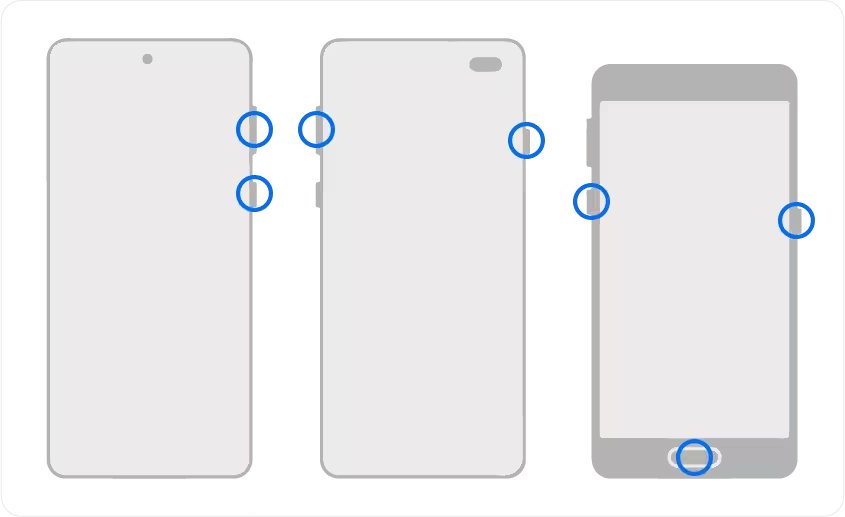
- Hold the keys Samsung lists for your model until the Samsung logo appears: Volume Up + Bixby + Power on the S8 to S10, or Volume Up + Home + Power on the S6 and S7. Newer Galaxy phones use a different combination, so check Samsung's support page for your exact model.
- Use the volume keys to highlight Wipe data/factory reset, then press the Side key.
- Highlight Factory data reset (or Yes) and press the Side key.
- When Data wipe complete appears, select Reboot system now.
- Sign in with the phone's previous Google account at setup.
Galaxy tablets use Volume Up + Power + Home, or Volume Up + Power without a Home button. The wipe takes a few minutes before first-time setup starts.
Understand Google factory reset protection (FRP)
What is Google FRP?
A security feature for lost or stolen phones on Android 5.1 and later. After certain resets the phone asks for the Google account previously on it before setup continues.
When is FRP activated?
Once a Google account and a screen lock are set, any reset other than Factory data reset in Settings triggers it. On Android 9 and later the previous screen lock may also verify you.
Which accounts work for verification?
Any Google account that was added and synced on the phone as an account or user works; a guest account does not.
How do I avoid FRP when selling a phone?
Reset from Settings, and remove your Google account first under Settings > Accounts and backup > Manage accounts.
How to perform a soft reset for most Samsung devices
- Hold Power (Side) and Volume down for more than 7 seconds until the phone vibrates and restarts.
- If the screen stays black, hold both for 20 seconds, then charge for an hour.
- If it keeps freezing, free up storage and check Settings > Software update.
- For Safe mode, touch and hold Power off in the power menu, then tap Safe mode.
Reset all settings without erasing apps and data
Each option is under Settings > General management > Reset and keeps apps and data.
| Option | What it clears |
|---|---|
| Reset all settings | Every setting except security, language, accounts and personal data |
| Reset mobile network settings | Mobile network settings; your carrier may resend them |
| Reset Wi-Fi and Bluetooth settings | Saved Wi-Fi networks and paired Bluetooth accessories |
| Reset accessibility settings | TalkBack and spoken assistance preferences |
How to locate your phone using Google Find Hub
Find Hub, formerly Google Find My Device, turns on when you add a Google Account and works free from any computer or laptop.
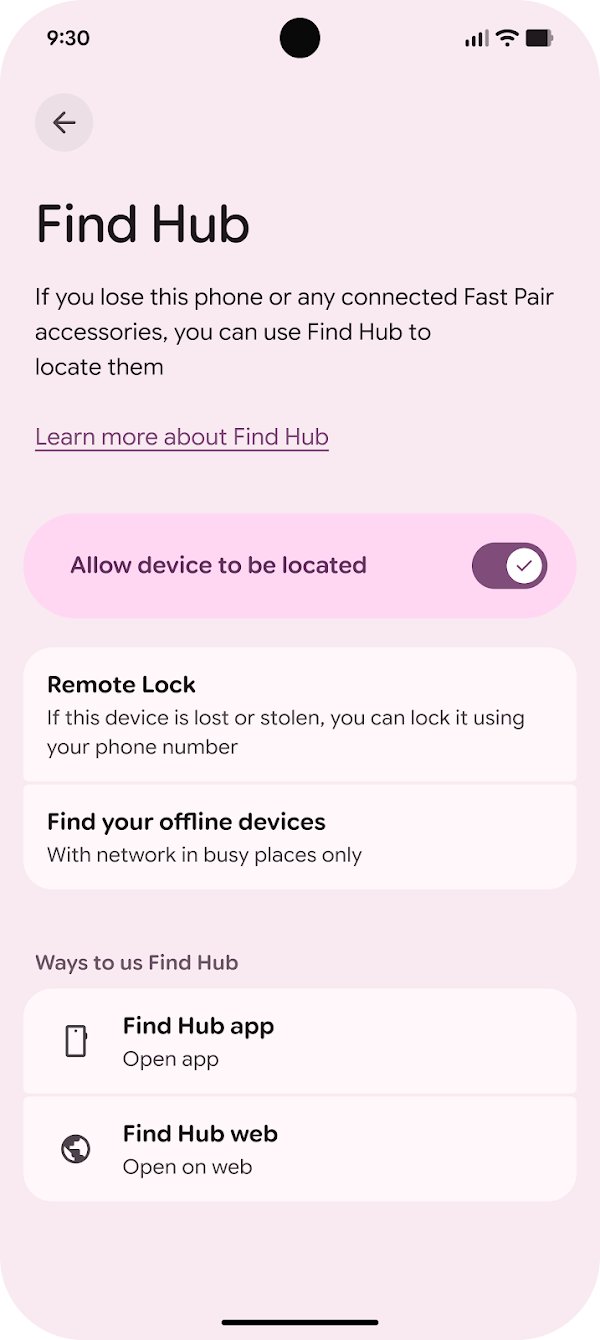
- Open google.com/android/find, or Find Hub on another Android device and tap Sign in as guest.
- Sign in with the phone's Google Account (your Gmail address).
- Select the phone; GPS is usually accurate to about 20 meters.
- If the current location is unavailable, use the last known location.
Prepare now so the phone can be found later: set up Android Device Manager, now Find Hub, keep Location on, and make sure the phone has Show In Menus ticked at play.google.com/library/devices.
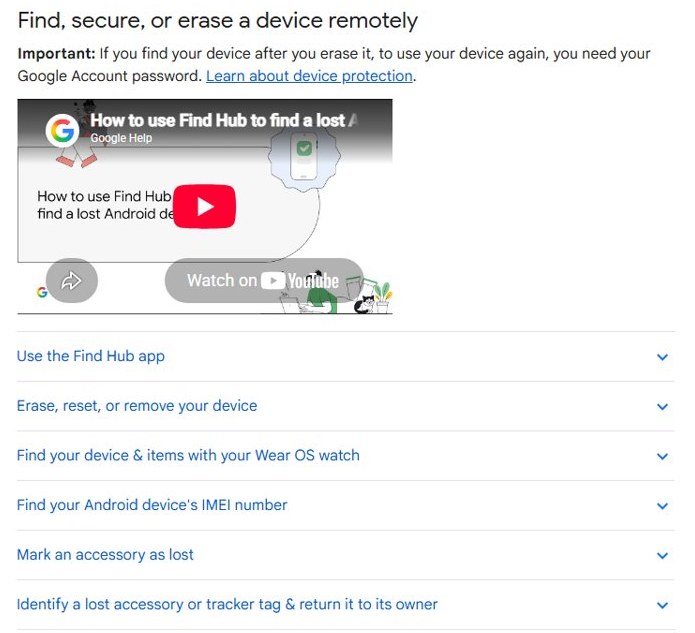
Find, secure, or erase a device remotely
The phone needs power, a data connection, a Google Account, Find Hub turned on and visibility on Google Play.
- Tap Play sound to ring it at full volume for 5 minutes, even on silent.
- Tap Mark as lost to lock it and leave a contact number and message on the lock screen.
- Erase it with Factory reset device > Next, verify your account, then Reset > Erase.
- If it turns up later, set it up with your Google Account password.
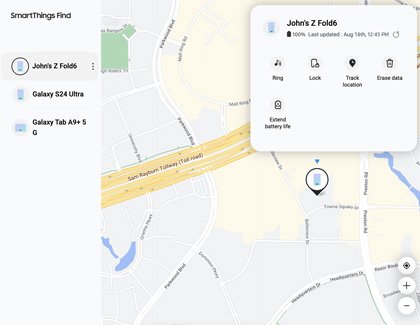
How to use Samsung Find on a Galaxy device
- On the phone, open Settings > Find My Mobile and turn on Allow this phone to be found.
- When it is missing, open samsungfind.samsung.com and sign in with the phone's Samsung account.
- Select the phone on the Devices tab to see it on the map.
- Choose Lock, or Erase data to wipe it.
Samsung Find works on One UI 2 and later and comes preloaded with One UI 6.1; the older SmartThings Find app still works separately. Tablets, watches and Buds sit in the same list, so you can locate a lost Samsung Galaxy tablet the same way.
Google Find Hub vs Samsung Find
Turn on both on a Galaxy. Google is your best solution for finding your phone when it is not a Galaxy.
| Feature | Google Find Hub | Samsung Find |
|---|---|---|
| Works on | Android 6+ app; network finding needs Android 9+ | Galaxy on One UI 2 or later |
| Look on a map | Last known location, even offline | Devices tab map |
| Ring, lock, erase | Play sound, Mark as lost, Factory reset device | Ring, Lock, Erase data |
| Pinpoint location | Find nearby (tags need UWB) | SmartTags on Items |
| Find more than just phones | Wearables, headphones, compatible accessories and tracking tags | Galaxy Watch, Buds, S Pen, SmartTags |
| Manage sharing | 1 hour, rest of the day or until you stop; share via satellite in some markets | 1 hour, 24 hours or until off |
Find Hub's network data is encrypted for privacy, a global network helps locate offline phones, unknown tracker alerts flag a stranger's tag, and a tag link can help an airline locate lost luggage. There are more ways to find a lost cell phone, iPhones included.
How to locate your phone with your smartwatch or third-party apps
- Keep the phone on and connected to the Wear OS watch by Bluetooth.
- From the watch face, swipe down and tap Find my phone.
- Tap the check mark; the phone rings even on silent.
To locate your phone in your house, Find Hub's Play sound works without a smart speaker. Third-party apps add little: Find Hub and Samsung Find are built in.
If all else fails, block your phone's IMEI
| Step | Where |
|---|---|
| Find the IMEI | Phone Settings, or the device in Find Hub |
| Disable the phone | Your mobile provider, quoting the IMEI |
| Protect your account | Secure your Google Account |
The IMEI is for your carrier; location comes from Find Hub, even if you hoped to track a lost phone by its serial number.
Android phone settings: screenshot, flashlight, emergency contacts and calls
| Task | Where | Full steps |
|---|---|---|
| Open Settings | Settings app; search for any setting | open phone settings |
| Screenshot | Side + Volume Down; saved to Gallery > Screenshots | screenshot on a Galaxy S25 |
| Flashlight | Quick settings panel | turn the flashlight on and off |
| Emergency contacts | Personal Safety app (Android 12+) | add an emergency contact |
| End calls with Power | Settings > Accessibility > Power button ends call | power button ends calls |
| Hide caller ID | Phone > Settings > Supplementary services > Show caller ID (Samsung, Australia) | hide your caller ID with *67 |
| Voicemail | Your carrier's codes | dial directly to voicemail |
| Bixby | Voice control of Galaxy functions | what Bixby can do |
| Google Assistant | Say "Hey Google, open Assistant settings" | open Google Assistant settings |
Android apps, Google Play and Google Messages: uninstall, subscriptions and texts
| Task | Where | Full steps |
|---|---|---|
| Uninstall an app | Play Store > profile icon > Manage apps & devices > Manage > Uninstall | uninstall apps on Android |
| Play Protect | Play Store > profile icon > Play Protect > Settings; keep it on | Google Play Protect settings |
| Subscriptions | Google Account > Payments & subscriptions; uninstalling does not cancel | manage Google Play subscriptions |
| Play Points | 1 point per $1 in the US | earn and use Play Points |
| My Activity | Google Account > Data & privacy > My Activity | Google My Activity on Android |
| VPN by Google | Pixel 7 and later, Pixel Tablet | what remains of Google's VPN |
| Google Messages | Texting app with RCS chats | use Google Messages |
| Texts in a browser | Messages > account menu > Device Pairing | set up Google Messages for web |
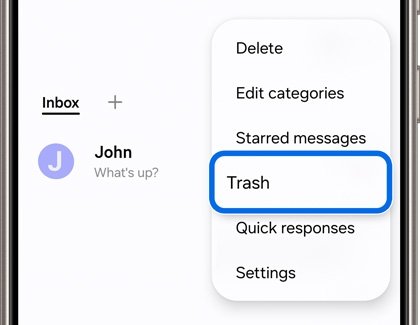
| Deleted texts | Messages > Trash > Restore within 30 days | recover deleted text messages |
| Texts on Windows | Phone Link Messages | send text messages from a PC |
How to install an APK file or APK bundles on Android
What is an APK? The package file an Android app ships in. Why use an APK? Only for an app its developer offers outside Google Play; finding APK installers elsewhere invites malware.
Warning: why sideloading is disabled by default. Android blocks apps from other sources until you allow unknown apps, and Play Protect still scans them.
- Get the APK from the app's developer only.
- Tap the file and allow that one app on the Install unknown apps screen (Android 8.0+).
- Stop if Play Protect warns that the app is harmful.
- To transfer the APK installer via USB, turn on USB debugging in Developer options and run
adb install path_to_apk. - For an APK bundle of several files, run
adb install-multiplewith every file.
Advanced: run the APK installer with ADB from Google's Platform Tools, which include fastboot, not a minimal ADB repack. You can also install an APK from a PC over Wi-Fi, or open APK files on the phone.
How to transfer data between Android phones
- Charge both phones, connect to Wi-Fi and keep the old one unlocked nearby.
- On the new phone, activate your SIM and sign in.
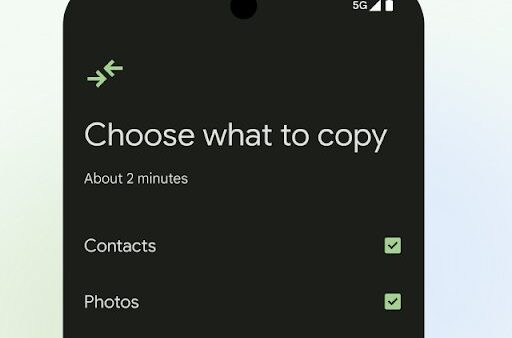
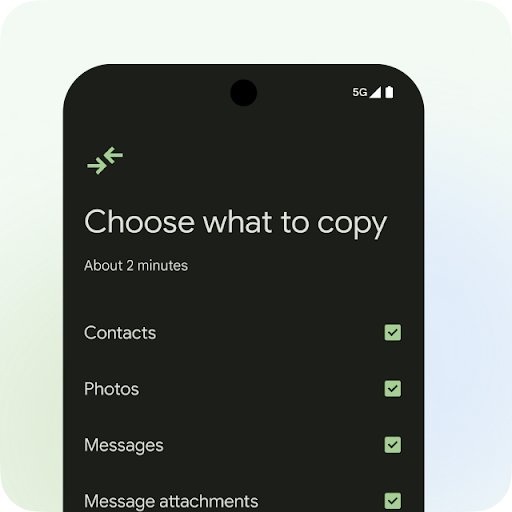
- Select your data on Choose what to copy.
- Transfer your data while you explore the new phone.
- On a new Galaxy, scan the Smart Switch QR code during quick setup instead to bring over Wi-Fi, accounts, apps, photos and contacts.
- Pair Bluetooth headphones and speakers again, and restore WhatsApp chats from the backup made on the old phone.
All this data transfers onto your brand-new Android phone: Play apps, photos, contacts, texts and call history. On Pixel 9 models you can transfer even after setup. Google Password Manager logs you into apps and services; eSIM steps vary by carrier.
Can you transfer contacts between Android and iPhone?
Yes: Move to iOS copies Android to iPhone, and Smart Switch copies an iPhone to a Galaxy.
| Moving | Use | What moves |
|---|---|---|
| Galaxy to Galaxy | Smart Switch QR code at setup | Accounts, apps, photos, contacts |
| Android to Android | Copy during setup | Apps, photos, contacts, texts |
| No old phone | Google One backup at setup | Backed-up data |
| Android to iPhone | Move to iOS | Contacts, messages, photos, WhatsApp |
| Apple Cash | Transfer to your bank or debit card first | Money |
You can transfer Android to iPhone with your eSIM, while Apple Pay money for an Android user goes through your bank.
How to manually transfer contacts to a new Android phone
The easy way is to sync with your Google Account. The manual way is to back up and restore the contacts file.
- In Contacts, tap Fix & manage > Export to file > Export to .VCF file.
- Share the file to the new phone over Quick Share (formerly Nearby Share), Bluetooth or USB.
- Or open Settings > Google > Set up & restore > Restore contacts, pick the old phone and tap Restore.
Moving the SIM to the other Android phone carries only SIM contacts, so turn on Backup device-only & SIM contacts automatically under Google Contacts sync first. A third-party app is rarely needed, since Google sync, Smart Switch and a vCard file all transfer contacts to a new phone.
How to transition from DeX to Phone Link
Phone Link needs Windows 10 or 11, Android 10 or later on the same Wi-Fi, and a personal Microsoft account.
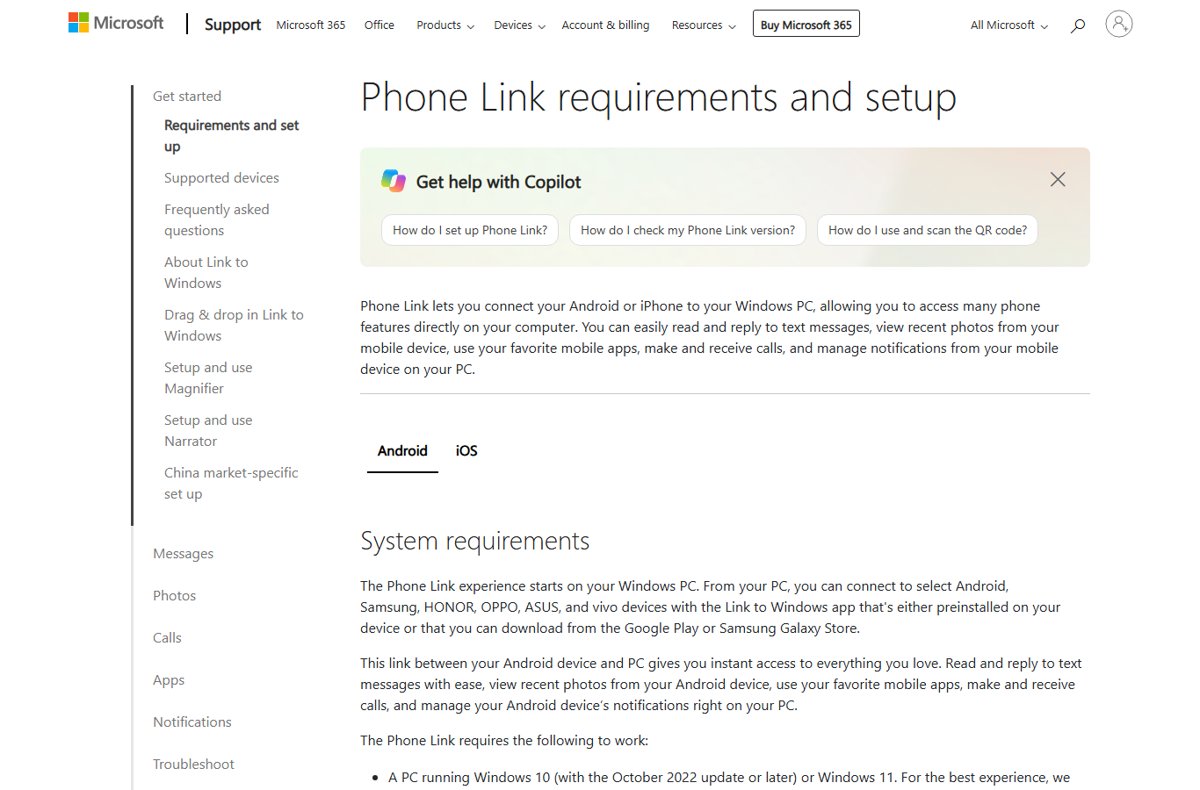
- Open Phone Link on the PC and sign in.
- Open Link to Windows on the Galaxy with the same Microsoft account.
- On the PC, select Pair with QR code.
- On the phone, tap Link your phone and PC, scan, then accept the permissions.
- No camera? Choose Pair manually on the PC and type the code shown on the phone.
What can Phone Link do? Texts, calls, photos, notifications and, on select Samsung phones, apps in PC windows, which makes Microsoft's Phone Link a viable alternative to DeX. Set up Phone Link on Windows step by step, or use Phone Link QR pairing.
What is Samsung DeX for Windows?
Samsung DeX turns a Galaxy into a desktop-style workspace; DeX for PC put that window on a Windows PC.
| DeX option | Needs |
|---|---|
| DeX on a monitor or TV | Galaxy S8 or later, USB-C to HDMI adapter |
| Wireless DeX | Miracast TV |
| Download DeX for PC | Samsung lists Windows 7 and 10 and macOS builds |
| Phone Link Apps | Windows 10 or 11, Link to Windows |
What happens to DeX? DeX on monitors, TVs and tablets stays, and Samsung's US list runs to the Galaxy S26 series, though the S26 FE and Z Flip7 FE lack HDMI and wireless DeX. Samsung's support pages give no reason for pulling support for DeX on Windows PCs, and its DeX for PC download page was last updated in February 2024. You can use Samsung DeX on Windows 11 via Phone Link, or check the Samsung DeX for PC download.
Android tools for a Windows PC: Play Games, ADB, Android Studio and Flow
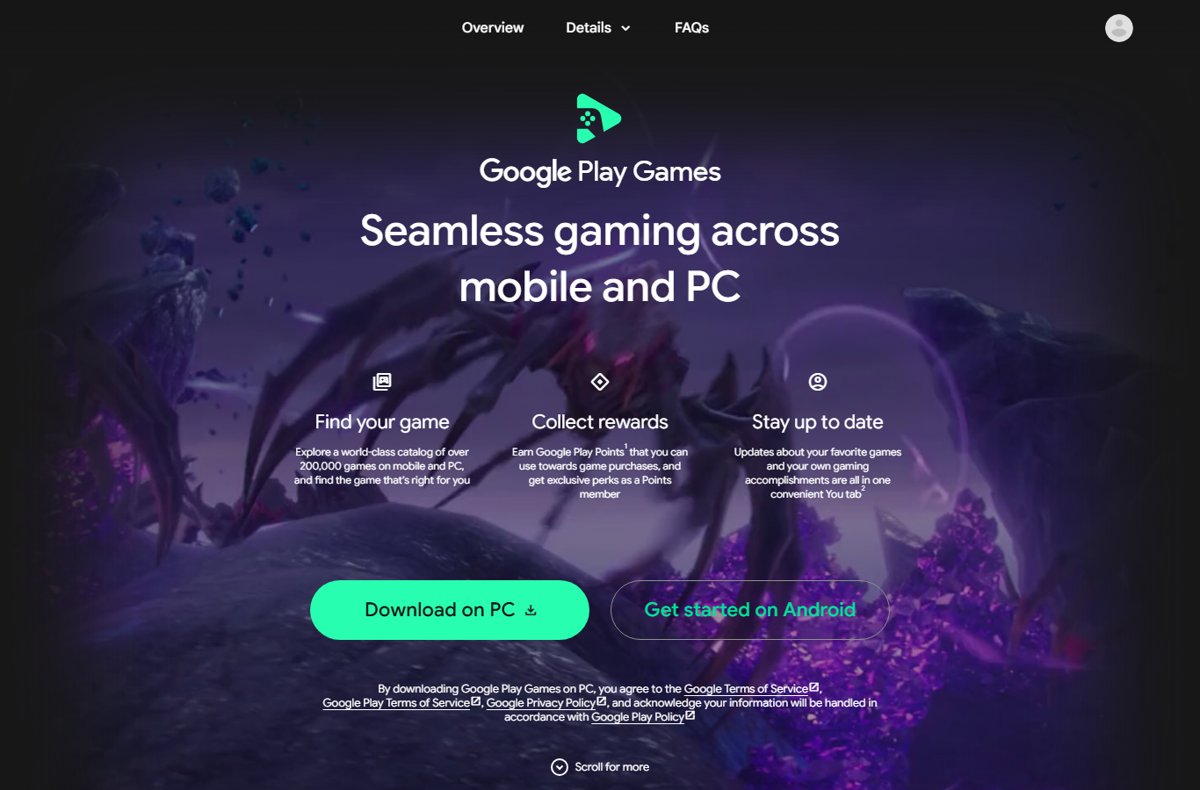
| Tool | Needs | Full steps |
|---|---|---|
| Google Play Games | Windows 10 (v2004), 4 physical CPU cores, 8 GB RAM, SSD with 10 GB free, Intel UHD Graphics 630 or comparable, hardware virtualization, Windows admin account | install Google Play Games on Windows; Google Play Games for PC download |
| Google Play on PC | play.google.com in a browser | Google Play Store on PC |
| Windows Subsystem for Android | Retired March 5, 2025 | WSA on Windows 11 |
| ADB | USB debugging on | ADB download for PC |
| Android Studio | 64-bit Windows 10 or later, 8 GB RAM; ARM-based Windows PCs are not supported | Android Studio for PC |
| Samsung Flow | Galaxy and Windows PC | use Samsung Flow |
| Cast to a TV | Google Home > Cast my screen | cast your phone to a TV |
Samsung Galaxy S26 vs S26 Ultra and Galaxy A14 5G specs
| Model | What Samsung lists | Full specs |
|---|---|---|
| Galaxy S26 series | Snapdragon 8 Elite Gen 5 for Galaxy; S26+ 6.7-inch, 4,900mAh; Ultra adds Privacy Display | Galaxy S26 Ultra vs S26 and S26+ specs |
| Galaxy A14 5G | Same Factory data reset route | Galaxy A14 5G specs |
Amazon Fire tablet apps, factory reset and web browser
Fire OS shares Android's foundation but uses Amazon's services; Fire OS 8 incorporates Android 10 and 11.
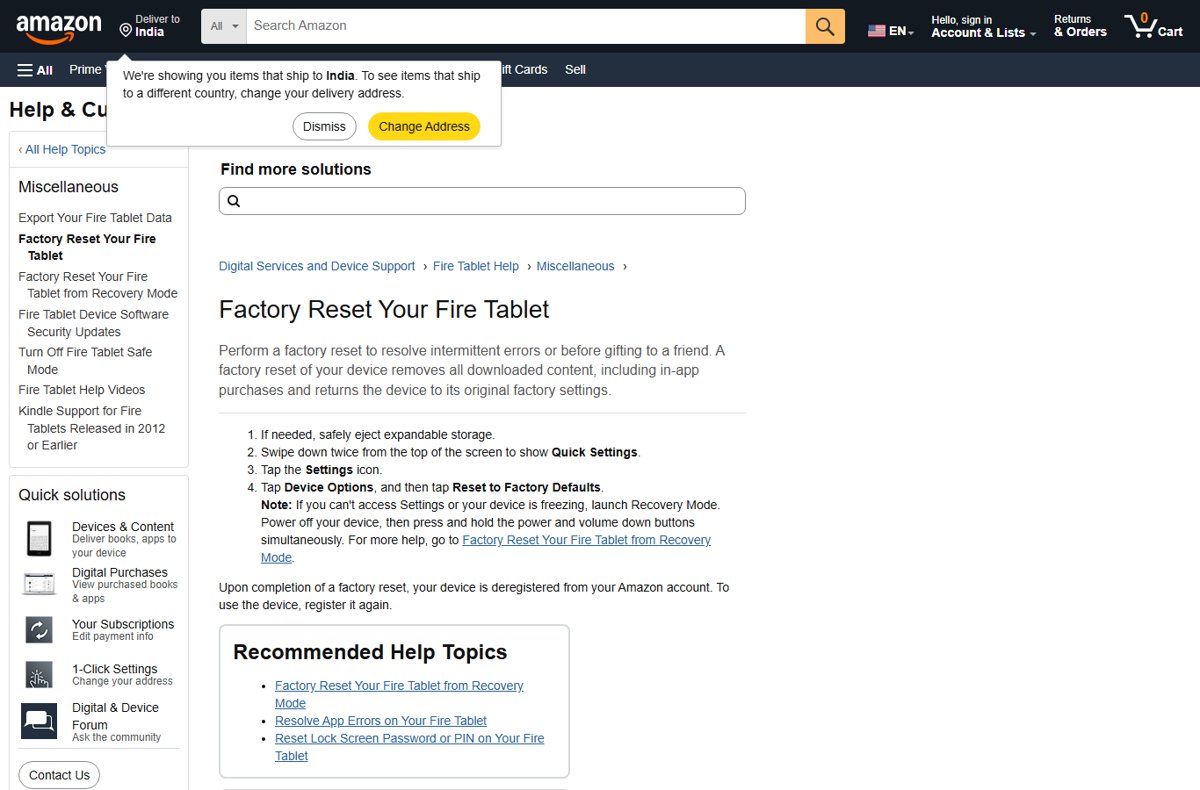
| Task | How | Full steps |
|---|---|---|
| Install apps | Amazon Appstore | install apps on an Amazon Fire tablet |
| Sideload | Device Options > About Fire Tablet, tap Serial Number seven times, then turn on USB debugging in Developer Options | Android apps on a Kindle Fire |
| Factory reset | Settings > Device Options > Reset to Factory Defaults | factory reset an Amazon Fire tablet |
| Frozen tablet | Recovery Mode: Power + Volume down | factory reset a Kindle Fire |
| Browse | Built-in browser | Fire tablet web browser |
Android phone problems: symptom, cause and fix
| Symptom | Cause | Fix |
|---|---|---|
| Find Hub shows offline | Off, flat battery or no signal | Mark as lost now; carrier can block the IMEI |
| APK won't install | No unknown-apps permission or Play Protect block | Allow the one app; never override a harmful warning |
| Find Hub says "Can't sync location" | Location encryption out of sync | Act on the Account action required notification, then tap Sync recent location |
| Phone Link won't connect | Different Wi-Fi networks, a work or school account, or Android older than 10 | Same Wi-Fi, one personal Microsoft account, then pair again with the QR code |
| Move to iOS stops partway | A call or another app interrupted it | Keep Move to iOS on screen, forget known Wi-Fi networks, turn off cellular data, restart both phones |
| Phone slow or freezing | Full storage or old software | speed up an old Android phone |
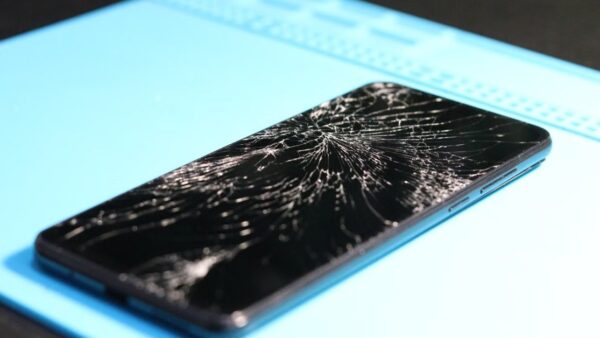
| Cracked screen | Damaged touch layer | Back up with a USB mouse, then fix a cracked phone screen |
What happens if I can't reset?
Why can't I factory reset my Samsung phone?
No network to sign out of the Samsung account, or a forgotten password.
- Connect to Wi-Fi and retry.
- Reset the Samsung account password, or contact Samsung.
Phone asks for the previous Google account (FRP lock)
The reset did not come from Settings.
- Enter that account and password, or the previous screen lock on Android 9 and later.
- Forgot the password? Reset it with Google and allow up to 24 hours before it unlocks the phone.
- Not sure which account? Check google.com/android/devicemanager.
- Without account details, visit a Samsung service center with proof of purchase.
Factory reset a Samsung phone with no PIN or a forgotten password
The screen lock blocks the Settings route.
- Changed the lock in the last 72 hours on One UI 6.1 or later? Tap Forgot PIN/password/pattern? after five tries and enter the old one.
- Otherwise erase the phone with Samsung Find or Find Hub.
- As a last route, use Recovery Mode, then sign in with your Google account at setup.
Black screen or frozen phone during the reset
The phone hung or the battery ran flat.
- Hold Power and Volume down for 20 seconds.
- Charge the phone for at least an hour, then start the reset again.
Samsung factory reset and Find Hub FAQ
How do I factory reset a Samsung phone that is locked?
Use Recovery Mode: switch it off, connect it to a computer by USB, hold the key combination Samsung lists for your model, then choose Wipe data/factory reset. You can also erase it remotely from Samsung Find or Find Hub. Setup then asks for the phone's Google account.
How do I factory reset a Samsung phone from a PC?
Sign in at samsungfind.samsung.com with your Samsung account and choose Erase data, or at google.com/android/find with your Google Account and choose Factory reset device. The phone must be powered on and connected to mobile data or Wi-Fi.
How do I factory reset a Samsung Galaxy S21, S22 or S23?
Open Settings > General management > Reset > Factory data reset, tap Reset, then Delete all. If the phone won't start normally, use Recovery Mode with a USB cable connected to a computer and the key combination Samsung lists for that model.
How do I factory reset a Samsung Galaxy A13 or A14?
Galaxy A phones use the same Factory data reset option under Settings > General management > Reset. Back up first, note your Samsung account password, and stay on Wi-Fi so the phone can sign out of the account.
How do I find my Android phone from my computer?
Open google.com/android/find in any browser and sign in with the Google Account used on the phone. Select the phone to see it on a map, ring it with Play sound, lock it with Mark as lost or erase it.
How do I find my Android phone if it's dead?
Find Hub still shows the last known location when the phone is offline. Supported phones, such as the Pixel 8 series, can be found after they power off when Find your offline devices uses a network option and Bluetooth and Location were on.
Can I find my Android phone for free?
Yes. Google Find Hub is free and turns on automatically when you add a Google Account, and Samsung Find is free with a Samsung account. Neither needs an extra app installed on the lost phone.
How do I find my Android phone using Gmail?
Your Gmail address is your Google Account. Sign in with it at google.com/android/find, or tap Sign in as guest in the Find Hub app on a friend's Android phone, then select your device.
What Android version is required to use Find Hub?
Phones on Android 6 or later can use the Find Hub app, and the Find Hub network for offline finding needs Android 9 or later. Laptops and tablets can use Find Hub in a web browser.
How do I stop sharing my location with someone in Find Hub?
Open Find Hub, tap the person you share with, then tap Stop sharing and confirm. If they also share with you, you stay on their contact page; otherwise you return to the list of shares.
What if I don't have my old device when setting up a new Android phone?
Restore from your Google One backup instead. During setup, skip the option to set up with another device and choose to restore, with Wi-Fi on and your Google Account signed in so the backups appear.