Customize Windows 11 from Settings > Personalization: the Taskbar, Start, Themes, Background, Colors, Lock screen and Fonts pages hold almost every look-and-feel option.
This hub gives the setting path and key steps for the taskbar, Start menu, desktop icons, wallpaper, dark mode, fonts, cursor, notifications and lock screen, plus a fixes table for search and missing icons.
Customize the Windows 11 taskbar from Taskbar settings
Every taskbar option in Windows 11 sits on one Settings page, and right-clicking the taskbar is the quickest way in.
Windows 10 opens the same page from the same right-click, so you can customize the Windows 10 taskbar with nearly identical steps.
- Right-click an empty part of the taskbar.
- Select Taskbar settings to open Settings > Personalization > Taskbar.
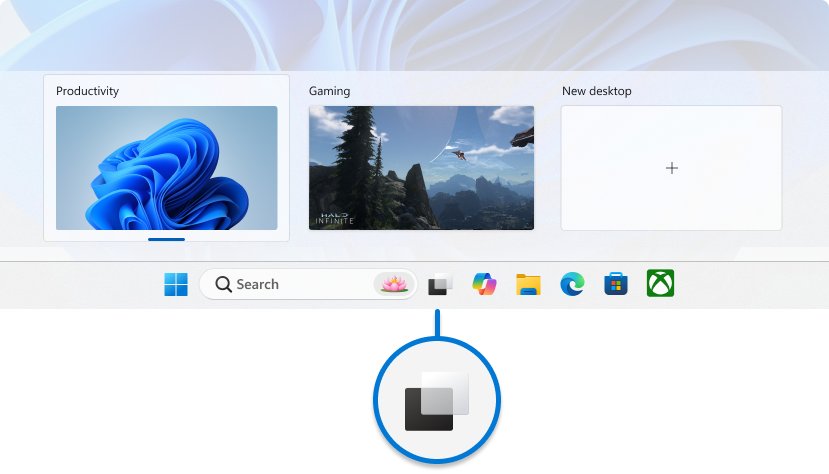
- Under Taskbar items, choose a Search option and switch Task view and Widgets on or off.
- Expand Taskbar behaviors to set Taskbar alignment, Automatically hide the taskbar and Show my taskbar on all displays.
- Close Settings; the taskbar changes as soon as you flip each switch.
Where is that setting in Windows 11 and Windows 10
Press Windows key + I to open Settings, then follow the path for your version.
| Setting | Windows 11 path | Windows 10 path |
|---|---|---|
| Taskbar items, alignment, auto-hide | Settings > Personalization > Taskbar | Settings > Personalization > Taskbar |
| Taskbar position (top, left, right) | Personalization > Taskbar > Taskbar behaviors > Taskbar position (26H2 and KB5120998) | Personalization > Taskbar > Taskbar location on screen |
| Start menu layout and folders | Settings > Personalization > Start | Settings > Personalization > Start |
| Desktop icons (This PC, Recycle Bin, Network) | Personalization > Themes > Desktop icon settings | Personalization > Themes > Desktop icon settings |
| Wallpaper | Settings > Personalization > Background | Settings > Personalization > Background |
| Dark mode and accent colour | Settings > Personalization > Colors | Settings > Personalization > Colors |
| Lock screen and screen saver | Settings > Personalization > Lock screen | Settings > Personalization > Lock screen |
| Fonts | Settings > Personalization > Fonts | Settings > Personalization > Fonts |
| Mouse pointer size and colour | Settings > Accessibility > Mouse pointer and touch | Settings > Ease of Access > Mouse pointer |
| Text cursor thickness | Settings > Accessibility > Text cursor | Settings > Ease of Access > Text cursor |
| Notifications | Settings > System > Notifications | Settings > System > Notifications & actions |
What does pinning an app mean in Windows 11?
Pinning keeps an app's icon in a fixed place so it is one click away, even when the app is closed.
| Pinned to | Where it appears | How to add or remove it |
|---|---|---|
| Taskbar | Icon on the taskbar; Windows key + number opens it by position | Right-click the icon > Unpin from taskbar |
| Start | Pinned section of the Start menu | Right-click the pin > Unpin from Start |
| Quick access | File Explorer navigation pane (folders) | Pin a folder with Pin to Quick access |
Method 1: Pin an app to the taskbar from the Start menu
Want to pin apps and files to the taskbar in Windows 11? The search route works for Start menu shortcuts, installed programs and Store apps alike.
Edge can also pin any app or website after you install the site as an app.
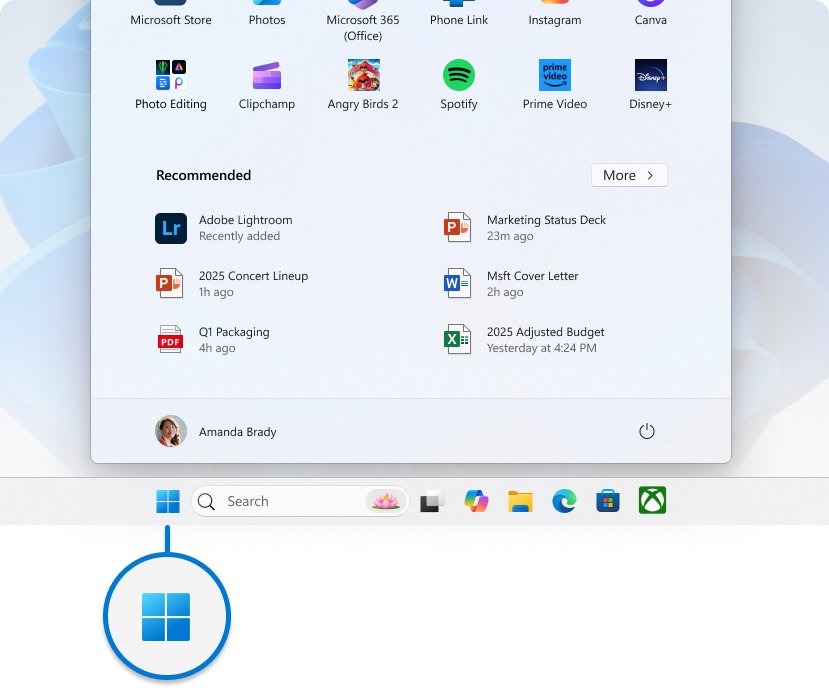
- Select Start, or press the Windows key.
- Type the app name to search Windows, or select All and find it in the list.
- Right-click the app.
- Select Pin to taskbar; if it is missing, select Show more options > Pin to taskbar.
Method 2: Pin an app to Start from the Start menu
- Open Start and search for the app, or find it under All.
- Right-click the app and select Pin to Start.
- Drag the new pin to the position you want in the Pinned section.
- To pin a folder, right-click it in File Explorer and select Pin to Start.
Method 3: Pin a running app to the taskbar
An open app already shows an icon on the taskbar, so pinning it takes one right-click.
- Open the app.
- Right-click its icon on the taskbar.
- Select Pin to taskbar.
- Close the app; the icon stays in place.
Easy ways to pin items to your taskbar
Each item type has its own route; installers such as setup.exe and msiexec.exe are excluded from pinning by Windows.
| Item you want to pin | Route | Notes |
|---|---|---|
| Desktop shortcut | Right-click the shortcut > Show more options > Pin to taskbar | Method 5 on most pinning guides |
| App or shortcut in File Explorer | Right-click the file > Show more options > Pin to taskbar | Works for program files and shortcuts |
| Folder | Right-click > Pin to Start, or Pin to Quick access in File Explorer | Folders pin to Start or Quick access |
| Control Panel, Settings or Windows Tools | Search for it, right-click the result > Pin to taskbar | Same search route as Method 1 |
| This PC, Network, Recycle Bin | Show them on the desktop from Desktop icon settings | Gives one-click access without a pin |
| Website | Edge: Settings and more > More tools > Apps > Install this site as an app, then Pin to taskbar | The site opens in its own window |
Best way to organize the Windows 11 taskbar
- Drag pinned icons left or right to reorder them; Windows key + 1 opens the first one.
- Right-click any icon you no longer use and select Unpin from taskbar.
- Right-click a pinned app to open its Jump List of recent files.
- Open Settings > Personalization > Taskbar and turn off Task view or Widgets to free space.
- Set Search to Search icon only or Hide if you start searches with Windows key + S.
Configure the taskbar layout
Windows 11 centres the taskbar by default, and Taskbar alignment moves Start and the icons to the left edge.
Alignment and the multi-monitor switch are the two ways to change the taskbar location on builds before 26H2.
- Right-click the taskbar and select Taskbar settings.
- Under Taskbar items, pick Search box, Search icon and label, Search icon only or Hide.
- Expand Taskbar behaviors.
- Set Taskbar alignment to Left or Center.
Configure the taskbar behaviors
No single key toggles auto-hide, but Windows key + T puts focus on the taskbar, and you can hide the taskbar with a shortcut key sequence from there.
- Open Settings > Personalization > Taskbar > Taskbar behaviors.
- Tick Automatically hide the taskbar; point at or touch the bottom edge to bring it back.
- Tick Show badges on taskbar apps to see unread counts.
- Tick Show my taskbar on all displays for a multi-monitor setup.
Move the Windows 11 taskbar to the top or side in 26H2
Windows 11 version 26H2 adds a Taskbar position setting with bottom, top, left and right choices, and the August 27, 2026 preview update KB5120998 rolls it out gradually to 24H2 and 25H2.
The search box and the smaller taskbar size only work at the top or bottom, which the 26H2 movable taskbar walkthrough explains with its other limits.
- Install the latest update from Settings > Windows Update.
- Open Settings > Personalization > Taskbar.
- Expand Taskbar behaviors.
- Choose Top, Left, Right or Bottom in Taskbar position.
- Optionally set Taskbar size to Small.
Change the taskbar color in Windows 11
Light mode never colours the taskbar, so Show accent color on Start and taskbar only works in Dark or Custom mode.
Any shade from View colors works when you change the taskbar color this way.
- Open Settings > Personalization > Colors.
- Set Choose your mode to Dark, or to Custom with a dark Windows mode.
- Set Accent color to Manual and pick a colour, or select View colors for a custom one.
- Turn on Show accent color on Start and taskbar.
Add an address bar and power button to the Windows 11 taskbar
Windows 11 no longer lets apps add areas to the taskbar, so the taskbar search box is the supported way to add an address bar that takes typed queries.
A shortcut that runs shutdown /s /t 0 gives you a power button on the taskbar once pinned; /s shuts down and /t 0 removes the 30-second default delay.
- Right-click the desktop and select New > Shortcut.
- Type
shutdown /s /t 0as the location and select Next. - Name the shortcut, for example Shut down, and select Finish.
- Right-click the shortcut, select Show more options and then Pin to taskbar.
System tray
The system tray, also called the notification area, is the right end of the taskbar where system and app icons sit.
- Open Settings > Personalization > Taskbar.
- Expand the system tray icons section.
- Switch each icon on to show it on the taskbar, or off to hide it.

Customize your Start menu
Press the Windows key or Ctrl + Esc to open the Start menu, then right-click it to reach its settings.
Get files recommended to you by leaving Show recently opened items in Start, Jump Lists, and File Explorer on; turn it off to keep files out of Start.
- Open Settings > Personalization > Start.
- Switch Show recently added apps, Show most used apps and Show recently opened items in Start, Jump Lists, and File Explorer on or off.
- Select Folders and turn on Settings, File Explorer, Downloads or other folders to show them next to the Power button.
- Open Start, select All and pick Category, Grid or List view; Windows remembers your choice.
- Group your apps into folders by dragging one pin onto another in Pinned; drag pins out to remove the folder.
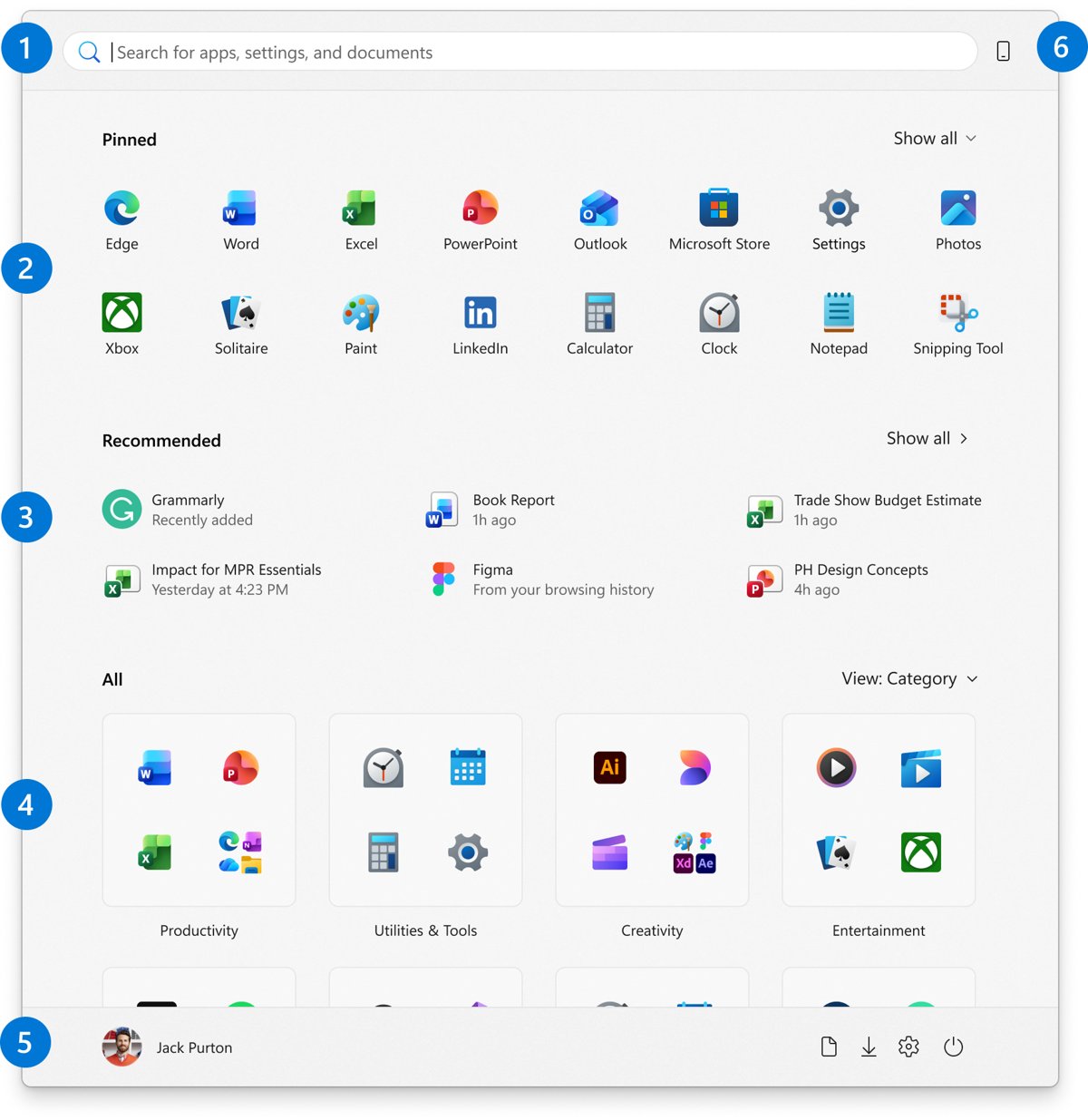
New Start menu vs classic Start menu in Windows 11
Windows 11 26H2 brings a redesigned Start with a scrollable All section, a Start menu size setting and toggles to hide Pinned, Recent or All.
You can enable the new Start menu by installing 26H2, while Settings offers no switch back to the Windows 10 layout.
| Goal | Setting or policy | Result |
|---|---|---|
| Smaller or larger Start | Start menu size: Small, Large or Automatic (26H2) | Automatic is the default |
| Pins-only Start | Turn off Recent and All (26H2) | Closest match when you want to get the old Start menu back |
| Start on the left like Windows 10 | Taskbar alignment > Left | Start opens from the left corner |
| Alphabetical app list | All > List view | A classic Start menu layout without third-party tools |
| Remove Recommended for every user | Group Policy Remove Recommended section from Start Menu | Under Administrative Templates > Start Menu and Taskbar |
Customize the default desktop icons
Recycle Bin is the only icon on a new Windows desktop; this is also how to restore system icons such as This PC, Recycle Bin and Network.
If the bin vanished, you can find the Recycle Bin again from this dialog, then right-click it to empty the Recycle Bin.
- Open Settings > Personalization > Themes.
- Select Desktop icon settings.
- Tick Computer (This PC), Recycle Bin, Network, User's Files or Control Panel.
- Clear Allow themes to change desktop icons if a theme keeps swapping your icons.
- Select Apply, then OK.
Show or hide all desktop icons
This is how to enable desktop icons when the desktop is empty but your files are still in File Explorer > Desktop.
The same toggle is step one when you show desktop icons on Windows 11.
- Right-click an empty area of the desktop, or press and hold on a touch screen.
- Select View.
- Select Show desktop icons to tick or clear it.
Resize the desktop icons
Icons that look too big usually follow the View size or the display Scale in Settings > System > Display; you can resize desktop icons either way.
- Right-click the desktop and select View.
- Choose Large icons, Medium icons or Small icons.
- For finer steps, hold Ctrl and scroll the mouse wheel on the desktop.
Add shortcuts to your desktop
- Right-click the desktop and select New > Shortcut to point at a file, folder or web page.
- Or open Start, select All and drag an app onto the desktop.
- Or right-click a file or folder and select Show more options > Send to > Desktop (create shortcut).
- In a browser, drag the View site information icon from the address bar onto the desktop.
Change the wallpaper and theme in Windows 11
A theme bundles the background, colour, sounds and mouse cursor, so applying one changes several pages at once.
Choosing Windows spotlight is the built-in way to get Bing's daily photos as wallpaper, because it shows a new image every day.
The wider Windows 11 personalization settings cover every page, and the Windows 10 personalization settings use the same names.
- Right-click the desktop and select Personalize.
- Select Background and set Personalize your background to Picture, Solid color, Slideshow or Windows spotlight.
- For a picture, select Browse photos and choose a fit: Fill, Fit, Stretch, Tile, Center or Span.
- Go back and select Themes to apply a theme, or select Save to keep your current mix.
Turn on dark mode in Windows 11
Dark mode darkens Windows and apps that support it; Custom lets you keep apps light with a dark taskbar.
Apps that ignore the system mode need their own setting, and you can force dark mode further with contrast themes.
- Open Settings > Personalization > Colors.
- Set Choose your mode to Dark.
- Turn Transparency effects on or off to taste.
Change fonts and the mouse cursor in Windows 11
Fonts install from .ttf or .otf files, and the pointer and text cursor live under Accessibility.
| Task | Route | Full walkthrough |
|---|---|---|
| Install a font on Windows 11 | Right-click the .ttf or .otf file > Install or Install for all users | Steps to install TrueType fonts |
| Install a font on Windows 10 | Same right-click, or Settings > Personalization > Fonts > Get more fonts in Microsoft Store | Steps to add a font in Windows 10 |
| Bigger or coloured pointer | Settings > Accessibility > Mouse pointer and touch: size slider and style | Options to change cursor size and color |
| Thicker text cursor | Settings > Accessibility > Text cursor: Text cursor thickness | Same Accessibility area |
| Swap buttons or pointer speed | Settings > Bluetooth & devices > Mouse | All the mouse buttons and pointer options |
Turn off notifications and Action center alerts in Windows 11 and 10
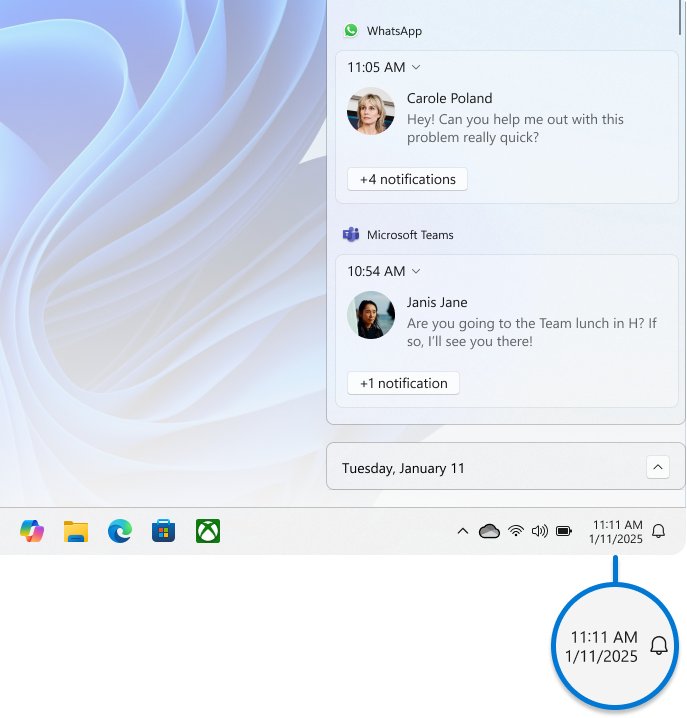
Windows 11 shows alerts in the notification center, while Windows 10 calls the same panel Action center and keeps its switches under Notifications & actions.
You can turn off notifications for every app or just the noisy ones.
- Open Settings > System > Notifications.
- Switch Notifications off to silence everything.
- Or select one app under Notifications from apps and other senders and clear Show notification banners or Play a sound.
- Turn on Do not disturb to hold banners for a while.
Customize the lock screen and screen saver in Windows 11
The screen saver dialog hides under the lock screen page, which is where you change the screen saver and its wait time.
- Open Settings > Personalization > Lock screen.
- Set Personalize your lock screen to Windows spotlight, Picture or Slideshow.
- Under Related settings, select Screen saver.
- Pick a screen saver, set Wait in minutes and tick On resume, display logon screen.
- Select OK.
Windows: Restore personal files and shortcuts to the desktop
OneDrive backs up the Desktop folder, so a moved or corrupted backup location can leave the desktop empty while files sit in OneDrive.
- Open File Explorer and go to the Desktop folder inside OneDrive.
- Right-click it and select Properties.
- Open the Location tab and select Move.
- Choose the folder you want as the desktop and select Select Folder.
- Select Apply, then Yes to move the files.
Windows 11 taskbar and Start menu not working fixes
Match the symptom, then apply the fix in the last column.
| Symptom | Likely cause | Fix |
|---|---|---|
| Start or taskbar search shows nothing | SearchHost.exe stuck or the index is damaged | End SearchHost.exe in Task Manager Details, then rebuild the index; more ways to fix Start menu search |
| Taskbar frozen or icons missing | Windows Explorer has hung | Press Ctrl + Shift + Esc, right-click Windows Explorer and select Restart |
| Start menu will not open | Missing updates or a damaged Start package | Install updates from Settings > Windows Update, restart, then run DISM.exe /Online /Cleanup-image /Restorehealth and sfc /scannow |
| All list missing from Start | Remove All Programs list from the Start menu policy is on | Set the policy to Not configured |
| Desktop icons not showing | Show desktop icons is off or OneDrive moved the Desktop | Tick View > Show desktop icons; the desktop icons not showing fixes cover the rest |
| Desktop icons blank | Corrupted icon cache | Delete IconCache.db from %userprofile%\AppData\Local with Explorer closed, then start explorer.exe |
| Desktop icons keep changing | A theme is allowed to change them | Clear Allow themes to change desktop icons |
| Accent colour option greyed out | Light mode is on | Switch Choose your mode to Dark or Custom |
| No Taskbar position option | Device has not received the 26H2 or KB5120998 rollout | Install the latest update; the feature arrives gradually |
Windows 11 taskbar and desktop customization FAQ
Where is desktop icon settings in Windows 11?
Desktop icon settings is under Settings > Personalization > Themes, in the Related settings area. It lets you add Computer (This PC), Recycle Bin, Network, User's Files and Control Panel to the desktop.
How do I show desktop icons in Windows 10?
Right-click the desktop, select View and tick Show desktop icons. Windows 10 uses the same menu as Windows 11, and system icons are added from Settings > Personalization > Themes > Desktop icon settings.
How do I show desktop icons in Windows 11 Pro?
Use View > Show desktop icons, as on every edition. On Pro, the policy Hide and disable all items on the desktop can block icons, so a managed PC may need that policy set to Not configured.
Why are icons on my desktop so big?
The desktop is set to Large icons, or display scaling is high. Right-click the desktop, select View and choose Medium or Small icons, or check Scale in Settings > System > Display.
Why do my desktop icons keep changing?
A theme is allowed to replace them. Open Desktop icon settings and clear Allow themes to change desktop icons, which is turned on by default, then select OK.
Why won't icons show on my desktop?
Show desktop icons is turned off, or OneDrive moved the Desktop folder. Tick View > Show desktop icons first, then check the Location tab of the OneDrive Desktop folder.
How do I set the icons on the desktop?
Drag apps from Start > All onto the desktop, or right-click the desktop and select New > Shortcut. Then use View to set the size and arrangement.
Can I move the taskbar to the top in Windows 11?
Yes, on Windows 11 26H2 or after the KB5120998 rollout. Open Settings > Personalization > Taskbar > Taskbar behaviors and set Taskbar position to Top, Left or Right.