To go incognito on a Mac, open a private browsing window in your browser. In Safari, press Command + Shift + N to open a Private Window. The same shortcut opens Incognito mode in Google Chrome and InPrivate mode in Microsoft Edge, while Firefox uses Command + Shift + P.
Safari does not call the feature “Incognito.” Apple calls it Private Browsing, Chrome calls it Incognito, Firefox uses Private Browsing, and Microsoft Edge calls it InPrivate. They serve the same basic purpose: limiting the browsing data saved on your Mac after the private session ends.
| Browser | Private mode | Mac shortcut |
|---|---|---|
| Safari | Private Browsing | Command + Shift + N |
| Google Chrome | Incognito | Command + Shift + N |
| Firefox | Private Browsing | Command + Shift + P |
| Microsoft Edge | InPrivate | Command + Shift + N |
How to Go Incognito on Mac in Safari
Safari’s version of Incognito mode is called Private Browsing. You can open a private window from the menu bar or with a keyboard shortcut.
- Open Safari.
- Click File in the Mac menu bar.
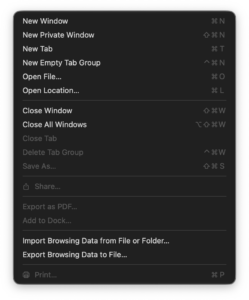
- Select New Private Window.
The faster method is:
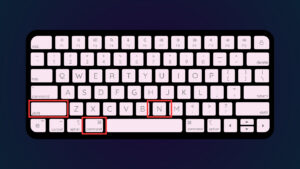
Command + Shift + N
A Safari Private Window has a dark Smart Search field with white text, making it easy to distinguish from a normal Safari window.
Safari does not save the pages you visit to browsing history when you use a Private Window. Recent searches, AutoFill information, and changes to cookies and website data from the private session are also not retained after the session ends.
Open a link in a Private Window in Safari
You do not have to copy a link into a separate Private Window. Control-click or right-click the link and choose Open Link in New Private Window when that option is available.
How to Open Incognito Mode in Chrome on Mac
Google Chrome uses the term Incognito mode. To open it:
- Open Google Chrome.
- Click the three-dot menu in the upper-right corner.
- Select New Incognito Window.
You can open the same window instantly with:
Command + Shift + N
Chrome opens a separate Incognito session with the Incognito icon beside the address bar. Regular Chrome windows can remain open at the same time.
Chrome removes Incognito browsing history, cookies, and site data when the Incognito session ends. Downloads and bookmarks that you create while using Incognito remain on the Mac.
How to completely exit Chrome Incognito mode
Close all Incognito windows. If several Incognito windows are open, closing only one does not end the private session.
You can press Command + W to close the current window or use the red close button in the upper-left corner.
How to Go Incognito in Firefox on Mac
Firefox calls its Incognito feature Private Browsing.
- Open Firefox.
- Click the menu button in the upper-right corner.
- Select New Private Window.
The Firefox private browsing shortcut on Mac is:
Command + Shift + P
Firefox normally identifies a Private Window with a purple mask icon. Browsing history, search entries, cookies, and cached web content from that session are not retained after the private session ends.
Files you download still remain on your Mac, and bookmarks you create are also saved.
Make Firefox always use Private Browsing on Mac
Firefox can be configured to use Private Browsing automatically:
- Open Firefox > Settings.
- Select Privacy & Security.
- Scroll to History.
- Choose the custom history settings.
- Enable Always use private browsing mode.
- Restart Firefox.
Firefox can also use Never remember history, which provides equivalent always-private behavior.
How to Open InPrivate Browsing in Edge on Mac
Microsoft Edge calls its private browsing mode InPrivate.
- Open Microsoft Edge.
- Click the three-dot menu.
- Select New InPrivate window.
The Edge InPrivate shortcut on Mac is:
Command + Shift + N
When you close all InPrivate windows, Edge removes browsing history, cookies, cached files, form data, and other browsing information created during that session.
Open a website link directly in Edge InPrivate
Right-click or Control-click a link and select Open link in InPrivate window. This is useful when you want to open only one site privately without moving your entire browsing session into InPrivate mode.
Incognito Shortcut on Mac
For Safari, Chrome, and Edge, the shortcut is the same:
Command + Shift + N
Firefox uses:
Command + Shift + P
If the shortcut does nothing, make sure the browser is the active application. Mac keyboard shortcuts are sent to whichever app currently has focus.
How to Always Open Safari in Private Browsing on Mac
Safari can start with a Private Window every time you launch it.
- Open Safari.
- Select Safari > Settings.
- Open the General tab.
- Find Safari opens with.
- Select A new private window.
If A new private window does not appear as an option, open System Settings > Desktop & Dock and turn on Close windows when quitting an application. Return to Safari Settings afterward.
How to Turn Off Incognito or Private Browsing on Mac
There is no master Incognito switch that needs to be disabled after browsing. Close the private window and return to a normal browser window.
Safari
Close the Private Window, then select File > New Window to return to normal Safari browsing.
Chrome
Close every Incognito window and reopen a normal Chrome window.
Firefox
Close the Private Window. If Firefox has been configured to always use Private Browsing, return to Settings > Privacy & Security > History and disable the always-private option.
Microsoft Edge
Close all InPrivate windows and open a normal Edge window.
What Does Incognito Mode Do on a Mac?
Private browsing is useful when you do not want your browser to retain a local record of a session. It can help when you are using a shared Mac, signing into a second account, researching a gift, testing a website without existing cookies, or using a computer that is not yours.
Depending on the browser, private mode generally prevents or removes:
- Browsing history from the private session.
- Search and form history.
- Cookies created during the session.
- Temporary site data after the private session ends.
- Saved login sessions created only inside that private window.
What Incognito Mode Does Not Hide
Incognito mode does not make you anonymous online. It mainly controls what the browser saves locally on the Mac.
Your activity can still be visible to:
- Websites you visit.
- Your internet service provider.
- Your employer or school when using their network or device.
- Network administrators.
- Services you sign in to during the private session.
Private browsing also does not delete files you download. A PDF, photo, installer, or other file saved during an Incognito session remains in the Downloads folder until you remove it yourself.
Bookmarks created during private browsing can also remain after you close the window.
Safari Private Browsing vs Chrome Incognito on Mac
| Feature | Safari Private Browsing | Chrome Incognito |
|---|---|---|
| Browsing history saved | No | No |
| Session cookies retained after closing | No | No |
| Downloaded files deleted automatically | No | No |
| Bookmarks remain | Yes | Yes |
| Mac keyboard shortcut | Command + Shift + N | Command + Shift + N |
| Can open privately by default | Yes | No standard always-Incognito setting |
For basic private browsing, either browser works. Safari has tighter integration with macOS privacy features, while Chrome is useful when you need a clean Chrome session without the cookies from your regular profile.
Why Is Incognito Mode Not Working on Mac?
The Incognito option is missing in Chrome
If New Incognito Window is completely missing, Chrome may be controlled by a work, school, parental-control, or device-management policy that disables Incognito mode.
Safari does not show New Private Window
Quit and reopen Safari, then check the File menu again. Restrictions configured through Screen Time or device management can also limit Private Browsing.
Websites still remember who you are
Opening a private window does not stop a website from identifying you after you sign in. If you enter your Google, Microsoft, Facebook, Amazon, or another account password, that website knows which account is being used during the session.
Downloaded files are still on the Mac
This is expected. Private browsing removes the browser’s record of the private session, but it does not automatically delete files saved to your Mac. Open Finder and remove the downloaded files manually if you no longer need them.
Frequently Asked Questions
How do I go incognito on a MacBook?
In Safari, Chrome, or Edge, press Command + Shift + N. In Firefox, press Command + Shift + P. The steps are the same on a MacBook Air, MacBook Pro, iMac, Mac mini, and Mac Studio.
What is the Incognito shortcut on Mac?
The shortcut is Command + Shift + N in Chrome, Safari, and Microsoft Edge. Firefox uses Command + Shift + P.
Does Safari have Incognito mode?
Yes. Apple calls it Private Browsing. Select File > New Private Window or press Command + Shift + N.
How can I tell if Safari is in Private Browsing mode?
A Safari Private Window has a dark Smart Search field with white text. Normal Safari windows use the standard appearance.
Can I make Safari always open in Incognito mode?
Yes. Open Safari > Settings > General and set Safari opens with to A new private window.
Does Incognito hide my IP address?
No. Private browsing by itself does not hide your public IP address from websites or your internet provider.
Does Incognito hide browsing from Wi-Fi owners?
No. Private mode stops the browser from retaining certain local browsing information, but it does not make network traffic invisible to the network operator.
Can my employer see Incognito browsing on a Mac?
Yes, when the Mac or network is managed by your employer. Private browsing does not prevent workplace monitoring tools, network systems, or administrators from recording activity.
Does Incognito delete downloads?
No. Files downloaded in Safari Private Browsing, Chrome Incognito, Firefox Private Browsing, or Edge InPrivate remain on your Mac until you delete them.
Does Incognito save bookmarks?
Yes. If you deliberately create a bookmark while browsing privately, the bookmark remains available afterward.
How do I exit Incognito mode on Mac?
Close all private browsing windows and open a normal browser window. In Chrome and Edge, make sure every Incognito or InPrivate window is closed if you want the complete private session to end.