Turn on Bluetooth in Windows 11 by pressing Windows + A and selecting the Bluetooth tile, or go to Settings > Bluetooth & devices and switch Bluetooth to On; in Windows 10 the switch is under Settings > Devices > Bluetooth & other devices.
This guide covers every route to the Bluetooth settings, pairing by device type, file transfer, drivers, and a symptom table for the problems that stop Bluetooth working.
Turn Bluetooth on and off in quick settings
Quick settings is the fastest route on Windows 11; toggling also resets the radio.
- Press Windows + A, or select the Network, Sound or Battery icon next to the time and date on the taskbar.
- Select the Bluetooth tile to toggle Bluetooth on and off.
- Check the tile: when Bluetooth is off it is not highlighted and may say Off.
- When Bluetooth is on, the tile is highlighted and says Connected, Not connected, or shows the name of the connected device.
If the tile is not there, the Bluetooth action may simply need adding back to quick settings. If it is not offered in the notification settings either, the PC may have no Bluetooth adapter or no driver for it. That keyboard route through Windows + A is the quickest way to enable Bluetooth in Windows 11 using only the keyboard.
Alternative ways to reach the Bluetooth settings
Microsoft moved the Bluetooth switch between versions, which is why the Bluetooth switch is so hard to find in Windows 11 for anyone used to Windows 10. This table shows where each setting lives on both.
| Setting | Windows 11 | Windows 10 |
|---|---|---|
| Bluetooth on/off switch | Settings > Bluetooth & devices > Bluetooth | Settings > Devices > Bluetooth & other devices > Bluetooth |
| Taskbar toggle | Quick settings (Windows + A) > Bluetooth tile | Action center icon > Bluetooth tile (select Expand if hidden) |
| Add a new device | Bluetooth & devices > Add device, or the quick settings chevron > New devices | Bluetooth & other devices > Add Bluetooth or other device > Bluetooth |
| Printers and scanners | Bluetooth & devices > Printers & scanners > Add device | Devices > Printers & scanners > Add a printer or scanner |
| Discovery mode (Default/Advanced) | Bluetooth & devices > Devices > Bluetooth devices discovery | Not offered |
| Send or receive files | Devices > Related settings > Send or receive files via Bluetooth | Right-click the Bluetooth taskbar icon > Receive a file or Send a file |
| Classic Bluetooth Settings window | Devices > Related settings > More Bluetooth settings | More Bluetooth options on the Bluetooth & other devices page |
| LE Audio | Devices > Use LE Audio when available (22H2 or newer) | Not supported |
| Airplane mode settings | Quick settings > Airplane mode tile | Action center > Airplane mode tile |
| Search | Type Bluetooth in taskbar search (the old Cortana voice route is not needed) | Type Bluetooth in the taskbar search box |
Turn Bluetooth on and off in the Settings app
The Settings app holds the main switch on both versions. When you turn on Bluetooth in Settings, Windows 11 immediately shows Discoverable as followed by your computer name.
- Step 1: Open the Settings app: select Start > Settings.
- Step 2: Navigate to the Bluetooth & devices section: select Bluetooth & devices in Windows 11, or Devices > Bluetooth & other devices in Windows 10.
- Step 3: Turn Bluetooth on: switch Bluetooth to On.
- To turn Bluetooth off, switch the same toggle to Off.
Device Manager is a third place to disable or enable the Bluetooth module, and all three are walked through when you switch Bluetooth on or off in Windows 11. If the switch is missing from Settings, the adapter or its driver is not present.
Turn Bluetooth on and off in action center
Windows 10 keeps its taskbar toggle in action center. Toggling Bluetooth here works the same as the Windows 11 tile.
- Select the action center icon at the right end of the Windows 10 taskbar.
- If you see only a few tiles, select Expand above the tiles.
- Select the Bluetooth tile to toggle Bluetooth on and off.
Checking if your computer has Bluetooth
Most Windows laptops and many desktops have Bluetooth built in, but some do not. If you are setting up a new device and Bluetooth is missing, check the product specifications first.
| Check | What you see if Bluetooth is present | If it is missing |
|---|---|---|
| Settings > Bluetooth & devices | A Bluetooth on/off switch | No adapter, or its driver is not installed |
| Device Manager | A Bluetooth category with a radio such as Intel(R) Wireless Bluetooth(R) or Realtek Bluetooth Adapter | Check Other devices for an unknown adapter |
| Laptop body | A physical Bluetooth or wireless switch | Make sure it is switched on |
| Product specifications | Bluetooth listed under connectivity | Plug a USB Bluetooth adapter into a USB port to add Bluetooth |
There are a few more signs worth knowing, and they are laid out step by step when you check whether a PC has Bluetooth. Check for Windows 11 compatibility too: an accessory may list a minimum Bluetooth version.
What Bluetooth version is on a Windows device
Understanding Bluetooth in Windows 11 starts with the radio's version, because some accessories need a minimum Bluetooth specification for full functionality. Open Device Manager, expand Bluetooth, right-click the radio (not Microsoft Bluetooth Enumerator or Microsoft Bluetooth LE Enumerator), select Properties > Advanced, and read the LMP number next to Firmware Version.
| LMP version | Bluetooth core specification |
|---|---|
| LMP 9 | Bluetooth 5.0 |
| LMP 10 | Bluetooth 5.1 |
| LMP 11 | Bluetooth 5.2 |
| LMP 12 | Bluetooth 5.3 |
| LMP 13 | Bluetooth 5.4 |
| LMP 14 | Bluetooth 6.0 |
Older radios report LMP 6 to 8, which is Bluetooth 4.0 to 4.2.
Accessories with a higher specification still work, with reduced functionality. Bluetooth LE Audio needs Windows 11 version 22H2 or newer plus LE Audio capable drivers; if Use LE Audio when available is absent under Bluetooth & devices > Devices, the PC does not support it yet.
Which method should you use?
Pairing differs by device type, so pick the route that fits before you start.
| Device | Best pairing method | Notes |
|---|---|---|
| Headphones, earbuds or speaker that shows a pop-up | Swift Pair notification > Connect | Device must be nearby and in pairing mode; first use asks you to allow Swift Pair |
| Any other headphones, mouse, keyboard or phone | Add device > Bluetooth, or the quick settings chevron | Follow any extra prompt, such as a code to confirm, then select Done |
| Apple AirPods | Add device > Bluetooth with the case open in pairing mode | No Apple app is needed; AirPods on a Windows PC pair like any headset |
| Bluetooth printer or scanner | Printers & scanners > Add device | The search can take a few minutes |
| Xbox Wireless Controller | Bluetooth, USB cable, or the Xbox Wireless Adapter for Windows | Some PCs have Xbox Wireless built in |
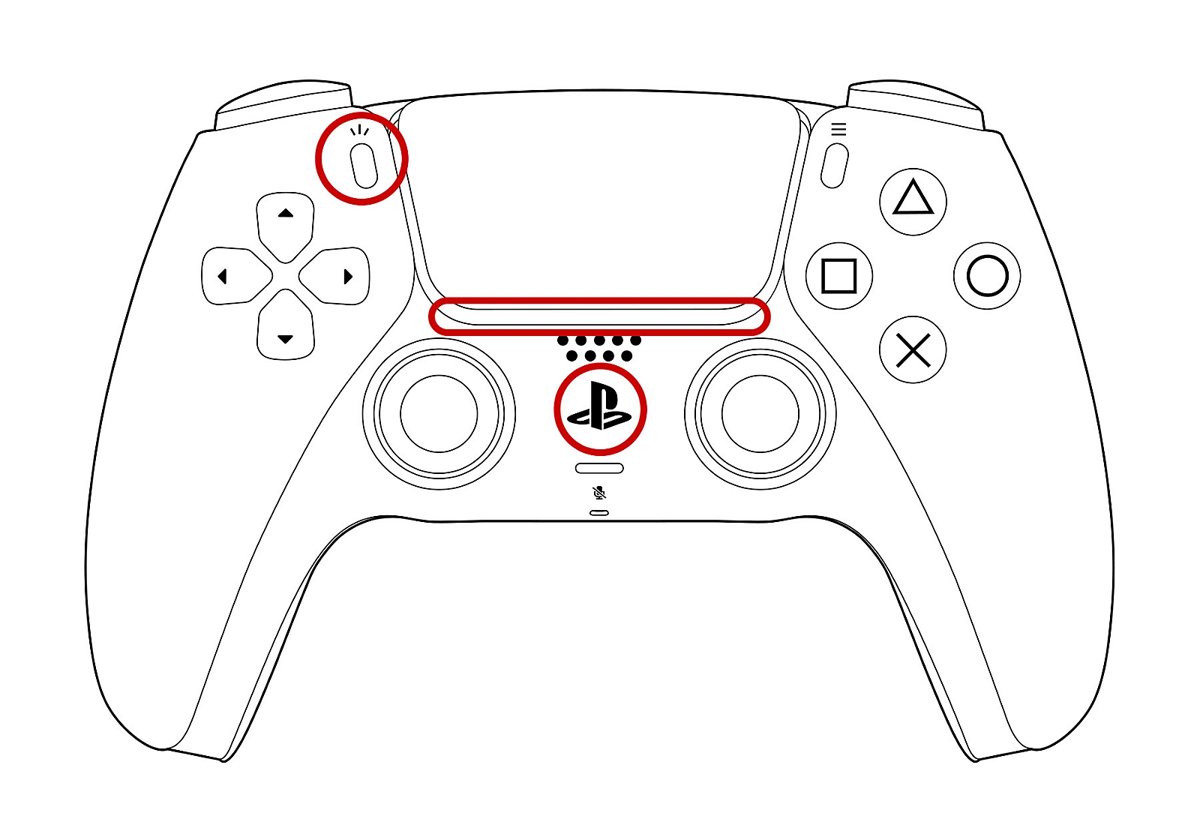
| PS5 DualSense controller | Add device > Bluetooth, or USB | Games that expect an Xbox pad may need a mapper to use a PS5 controller with DS4Windows |
| Apple Magic Mouse | Add device > Bluetooth | Pointer works after pairing, but Magic Mouse scrolling on Windows 11 needs Apple's driver |
| Device not in the list | Set Bluetooth devices discovery to Advanced | Shows all types of Bluetooth devices |
Pair a Bluetooth device
Once paired, a device reconnects automatically whenever both are in range with Bluetooth on.
- Turn on the Bluetooth device and make it discoverable; the device's manual or maker's site explains its pairing mode.
- Step 4: Add a new Bluetooth device: on the taskbar select the Network, Sound or Battery icon, then the Manage Bluetooth devices chevron on the Bluetooth tile.
- Step 5: Select your device from the list under New devices; scroll past Your devices if needed.
- Step 6: Complete the pairing process: follow any extra instructions, then select Done.
- In Windows 10, select Settings > Devices > Bluetooth & other devices > Add Bluetooth or other device > Bluetooth, pick the device, then select Done.
Headphones need one more step after pairing: pick them as the output so sound goes to them. You can connect Bluetooth headphones to Windows 11 and set them as default in one pass, and a headset with a microphone also needs choosing as the input.
Pair a Bluetooth device using Swift Pair
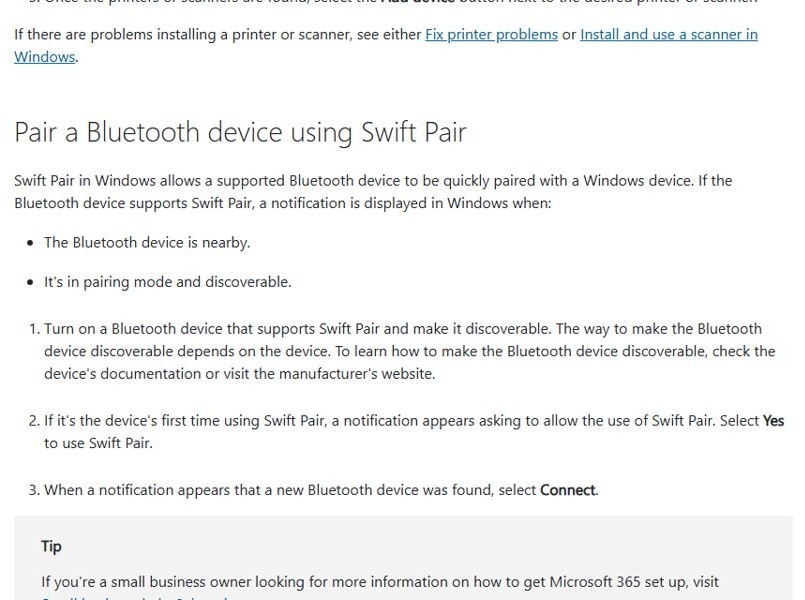
Swift Pair shows a Windows notification when a supported device is nearby, in pairing mode and discoverable. It skips the Settings app entirely.
- Turn on a device that supports Swift Pair and make it discoverable.
- If this is your first time using Swift Pair, select Yes when Windows asks to allow it.
- When the notification says a new Bluetooth device was found, select Connect.
- After the device connects, select Close.
Pair a Bluetooth printer or scanner
- Turn on the Bluetooth printer or scanner and make it discoverable.
- Select Start > Settings > Bluetooth & devices > Printers & scanners.
- Next to Add a printer or scanner, select Add device.
- Select Add device next to the printer or scanner you want.
In Windows 10 the route is Settings > Devices > Printers & scanners > Add a printer or scanner.
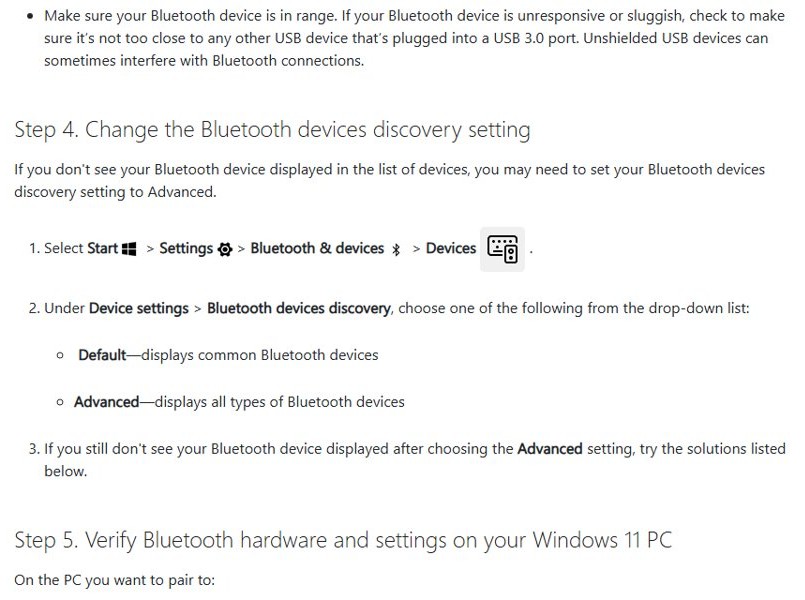
Pairing a device that doesn't show up automatically
Windows 11 hides uncommon device types by default. If your device never appears under New devices, widen the search.
- Set Bluetooth discovery to Advanced: select Start > Settings > Bluetooth & devices > Devices.
- Under Device settings > Bluetooth devices discovery, choose Advanced instead of Default.
- Put the device back into pairing mode and bring the device closer to your PC.
- Select Add device > Bluetooth and look for it again.
Using your Bluetooth device to send and receive files
Bluetooth File Transfer moves files between a PC and a paired phone or laptop without cables; the other device can run iOS or Android.
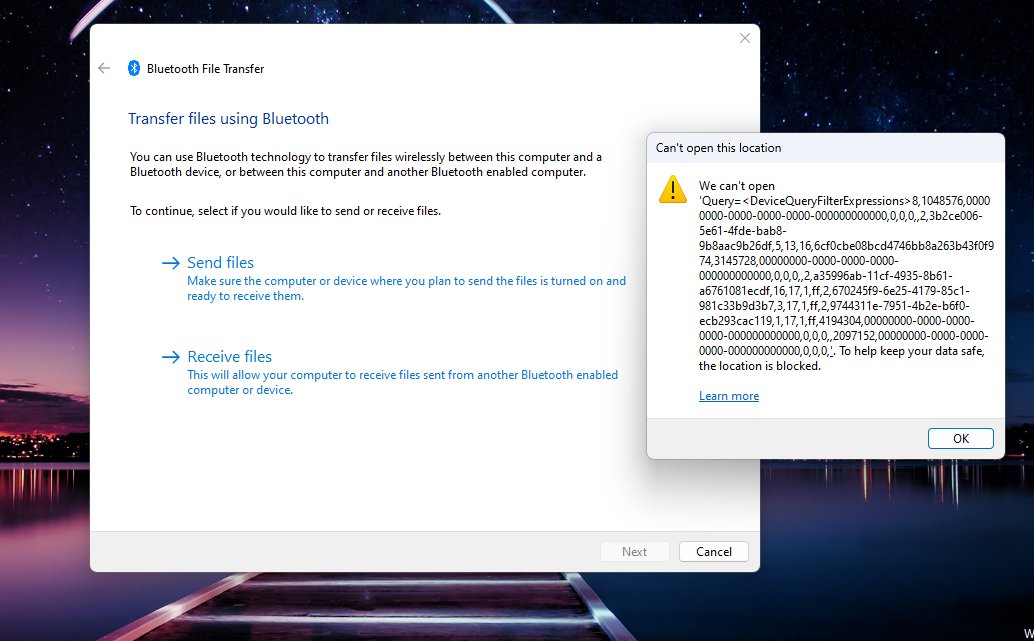
- Pair the two devices first.
- Select Start > Settings > Bluetooth & devices > Devices, then under Related settings select Send or receive files via Bluetooth.
- To send: select Send files, pick the device, select Next, select Browse to choose the file, then Next.
- To receive: select Receive files; the Waiting for a connection page appears. Start the transfer on the other device.
- When the Save the received file page appears, keep or change the location, then select Finish.
A full walkthrough to send or receive files over Bluetooth covers phones on the other end, and if you skipped the save page you can still find received Bluetooth files on the PC.
Overview of all sections in Bluetooth and devices
The Bluetooth & devices page in Windows 11 gathers every Bluetooth control. These are the parts that matter for Bluetooth.
| Section | What it does |
|---|---|
| Bluetooth switch | Turns the radio on or off and shows the PC's discoverable name |
| Devices | Lists paired devices; More options (…) > Remove device unpairs one |
| Bluetooth devices discovery | Default shows common devices, Advanced shows all types |
| Use LE Audio when available | Uses LE Audio on supported Windows 11 PCs and earbuds |
| More Bluetooth settings | Opens the classic Bluetooth Settings window with extra options |
Fix Bluetooth issues in Windows 11
Match what you see to the row, try the fix, then move to the detailed section below. Rule out the device itself first: charge it, turn it off and on, and keep it in range.
| Symptom | Likely cause | Fix |
|---|---|---|
| Bluetooth toggle missing or grayed out | Adapter hardware error, driver or firmware fault | Shift + Shut down, wait a minute, then update the driver and optional firmware |
| Bluetooth tile gone from quick settings | Tile removed, or no adapter detected | Add the Bluetooth action back; if it is not offered, check the adapter in Device Manager |
| Device won't pair or isn't listed | Not in pairing mode, out of range, low battery, discovery set to Default | Pairing mode, charge, move closer, set discovery to Advanced, remove and re-add |
| Connected but no sound | Wrong output device or audio format | Pick the device under Output; for Apple earbuds, AirPods connected but silent has extra steps |
| Sound in one ear or mono, poor call quality | Earbuds paired as separate or hands-free devices | Remove both and re-pair earbuds for stereo |
| AirPods drop out, mic fails or one side silent | AirPods profile or connection problem | Re-pair and check output; more AirPods fixes on Windows 11 |
| Audio stutters or keeps disconnecting | Power saving, USB 3.0 interference, distance | Turn off energy saver, untick power management, move away from USB 3.0 devices |
| Bluetooth keyboard or mouse lags or stops typing | Batteries, range, interference | Fresh batteries, re-pair, then work through wireless keyboard fixes |
| Bluetooth gone from Device Manager | Adapter off, driver removed, firmware hang | Full shutdown, Scan for hardware changes, manufacturer driver |
| File transfer fails or waits forever | Receiver not ready, encryption, policy | Select Receive a file first, allow 40- or 56-bit encryption |
| Windows 10 audio or wireless display trouble | Output device, driver, adapter support | Pick the output and update drivers; Windows 10 Bluetooth audio and wireless display fixes go further |
| Bluetooth issues after upgrading to Windows 11 | Driver built for an earlier version | Update, roll back or reinstall the Bluetooth driver |
Fix Bluetooth disappeared from Settings on Windows 11
A missing or grayed-out Bluetooth toggle means the Bluetooth hardware has hit an error, usually in drivers or firmware from the PC maker.
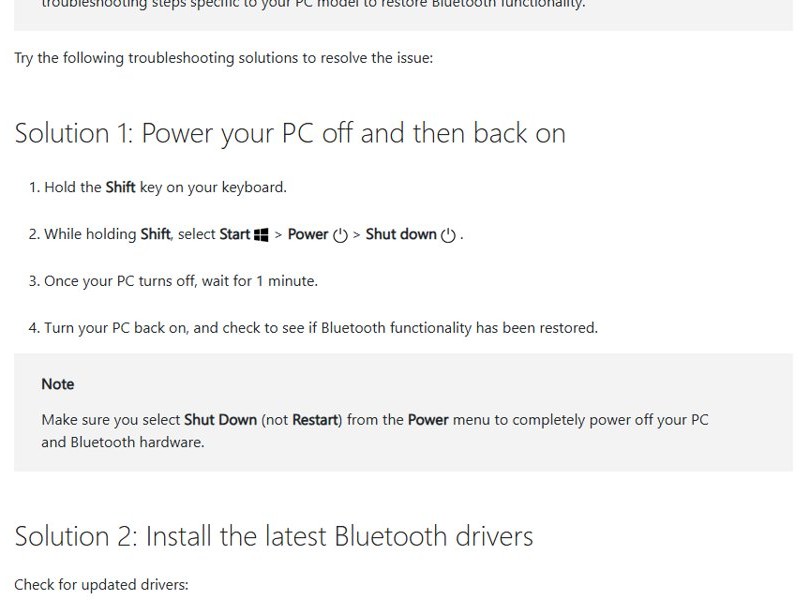
Solution 1: Power your PC off and then back on
A normal restart does not fully power down the Bluetooth hardware.
- Hold Shift on the keyboard.
- While holding Shift, select Start > Power > Shut down, not Restart.
- Wait one minute, turn the PC on and check for the Bluetooth toggle.
Solution 2: Install the latest Bluetooth drivers
The adapter driver is outdated or broken.
- Right-click Start > Device Manager.
- Expand Bluetooth, right-click the adapter (its name may include Bluetooth or Radio) and select Update driver > Search automatically for drivers.
- Restart if prompted and check again.
Solution 3: Install optional firmware updates from your PC manufacturer
BIOS or UEFI firmware leaves the Bluetooth hardware unresponsive.
- Select Start > Settings > Windows Update > Advanced options > Optional updates.
- Tick any available updates and select Download & install.
- Select Restart now when the install finishes.
Solution 4: Verify Airplane Mode is off
Airplane mode can disable Bluetooth.
- Press Windows + A to open quick settings.
- Make sure the Airplane mode tile is off.
Solution 5: Run the automated Bluetooth troubleshooter
Settings or services are misconfigured.
- Open the Get Help app and run the Bluetooth troubleshooter.
- Apply the fixes it suggests and restart.
When none of these brings it back, the steps for a missing Bluetooth toggle in Windows 11 go into firmware and driver cases in more depth.
Fix Bluetooth pair connection problem on Windows 11
When Bluetooth appears in Device Manager but a device will not pair, the cause is usually pairing mode, range, battery or a stale pairing record.
Solution 2: Turn on Bluetooth and verify the device is in pairing mode
The device must be in pairing mode and within range.
- Select Start > Settings > Bluetooth & devices and turn on Bluetooth.
- Put the device in pairing mode.
- Move it closer to the PC for a stable signal.
Solution 3: Remove and re-add the Bluetooth device
An old pairing record blocks the connection; forget the device and pair it fresh.
- Select Start > Settings > Bluetooth & devices.
- Select More options (…) next to the device > Remove device > Yes.
- Select Add device and pick it from the list.
Solution 4: Check the device’s battery level
Some devices will not enter pairing mode or hold a connection on low battery.
- Charge the device fully.
- Turn it off and back on, then pair again.
- Keep rechargeable headphones or speakers on power while pairing.
Solution 5: Turn off and turn on Bluetooth
The radio needs a reset.
- In Bluetooth & devices, turn Bluetooth off.
- Wait 10 seconds, turn it back on and pair again.
Fix 1: Disconnect unwanted Bluetooth devices
Too many active connections compete for the radio.
- Open Bluetooth & devices > Devices.
- Disconnect or remove paired devices you are not using, then retry.
Solution 6: Check for Windows Updates and Solution 7: Restart your PC
A pending update or temporary glitch.
- Select Start > Settings > Windows Update > Check for updates and install everything offered.
- Select Start > Power > Restart to reboot your Windows 11 PC.
Fix Bluetooth audio not working on Windows 11
A device that connects but plays nothing, sounds poor or drops out usually has the wrong output or audio format selected.
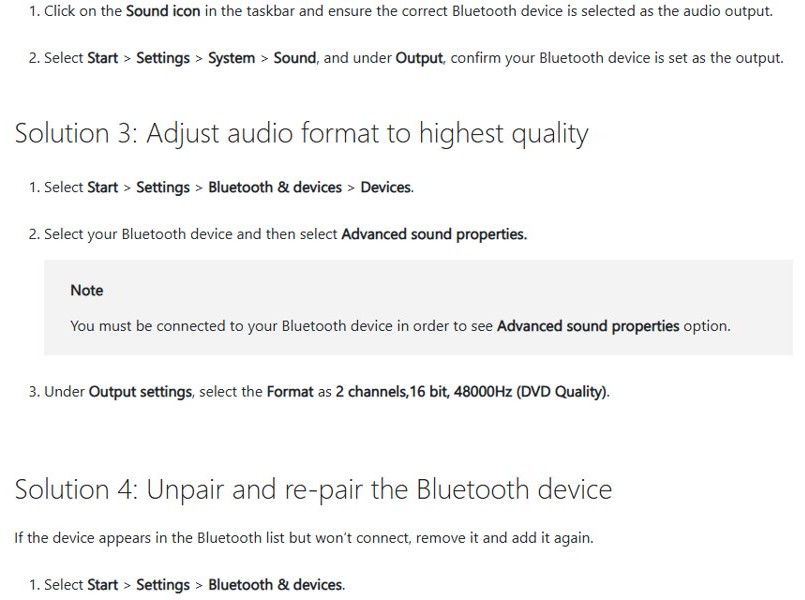
Solution 2: Check volume and output settings
Windows is sending sound to another device.
- Select the Sound icon on the taskbar and pick the Bluetooth device as output.
- Or select Start > Settings > System > Sound and choose it under Output.
Solution 3: Adjust audio format to highest quality
A low-quality format is set for the device.
- With the device connected, select Settings > Bluetooth & devices > Devices > your device > Advanced sound properties.
- Under Output settings, set Format to 2 channels, 16 bit, 48000 Hz (DVD Quality).
Solution 7: Check whether your Bluetooth supports A2DP protocol
Without A2DP the device cannot stream high-quality audio.
- Check the device's documentation or the maker's site for A2DP support.
- If it supports it, remove and re-pair the device so Windows picks up its audio profile.
Fix Bluetooth file transfer issues on Windows 11
File transfer fails with Waiting for connection, Bluetooth file transfer not completed or File transfer is disabled by policy when the connection works but the transfer cannot start or finish.
Solution 4: Check file transfer settings
The PC is not ready to receive.
- Right-click the Bluetooth icon in the taskbar and select Receive a file.
- Make sure the sending device is discoverable and in range.
Solution 5: Enable file sharing for devices that use encryption
Windows uses 128-bit encryption, which some devices do not support.
- Select Start > Settings > Network & internet > Advanced network settings > Advanced sharing settings.
- Expand All networks and choose the 40- or 56-bit encryption option for File sharing connections.
Solution 6: Uninstall and re-install Bluetooth adapter
The adapter misbehaves after a Windows update.
- In Device Manager, right-click the Bluetooth adapter > Uninstall device > Uninstall.
- Select Start > Power > Restart so Windows reinstalls it.
Run the automated Bluetooth troubleshooter
Microsoft's first recommendation on Windows 11 is the automated Bluetooth troubleshooter in the Get Help app, which runs diagnostics and attempts fixes on its own.
- Select Start > Settings > System > Troubleshoot > Other troubleshooters.
- Next to Bluetooth, select Run.
- Follow the instructions in Get Help and apply what it suggests.
Give the Bluetooth Support Service a restart
Windows needs the Bluetooth Support Service (bthserv) to discover and pair devices. Restarting it is one of the quickest fixes when Bluetooth keeps disconnecting.
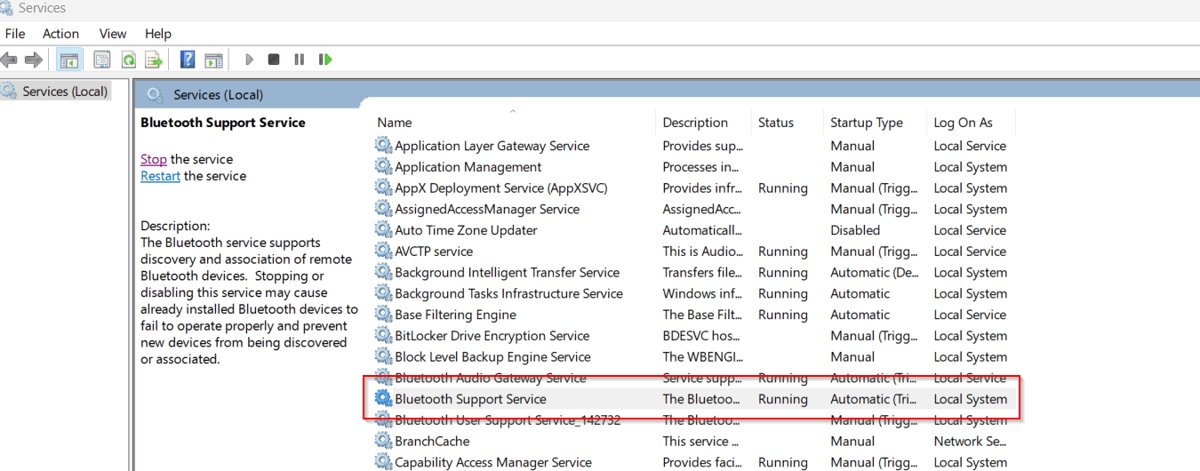
- Press Windows + R, type
services.mscand select OK. - Scroll to Bluetooth Support Service.
- Right-click it and select Restart.
- Try connecting the device again.
What the service does and which startup type to leave it on is explained in the breakdown of the Bluetooth Support Service process.
Stop Windows from powering down your adapter
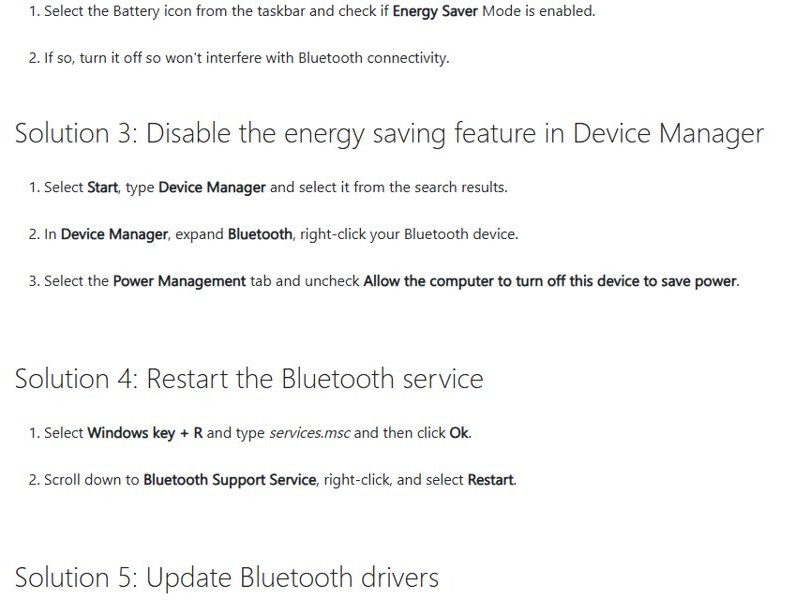
Power saving is a common reason a Bluetooth connection drops.
- Select the Battery icon on the taskbar and turn off Energy saver if it is on.
- Select Start, type Device Manager and open it.
- Expand Bluetooth, right-click the adapter and select Properties.
- On the Power Management tab, untick Allow the computer to turn off this device to save power, then select OK.
Update or reinstall Bluetooth drivers
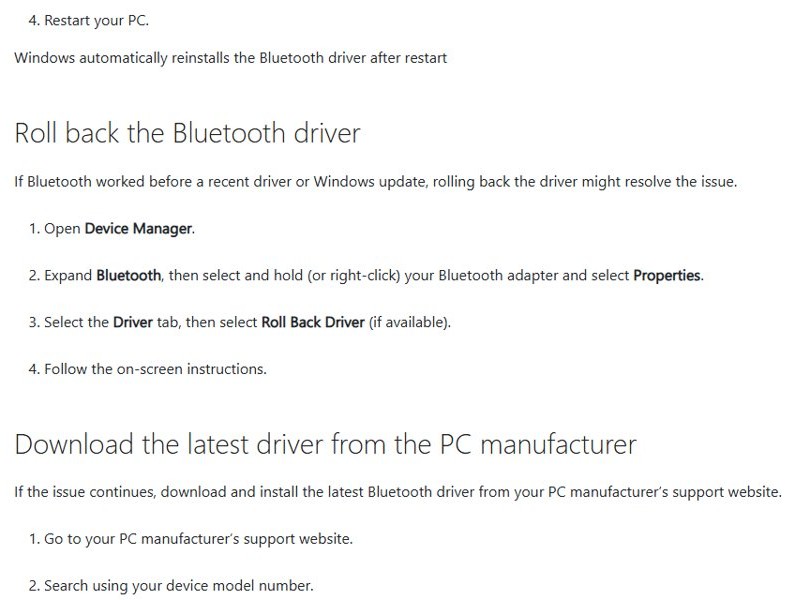
An outdated or incompatible driver is one of the most common causes of Bluetooth problems, especially after an upgrade to Windows 11. Pick the option that fits your situation.
| Situation | Do this | Where |
|---|---|---|
| Bluetooth acts up, no recent change | Update the driver automatically | Device Manager > Bluetooth > adapter > Update driver > Search automatically for drivers |
| Updates are pending | Install them, then restart | Settings > Windows Update > Check for updates |
| Trouble started recently, after a driver or Windows update | Roll the driver back | Adapter Properties > Driver > Roll Back Driver (if available) |
| Update did nothing, or Bluetooth icon missing but adapter listed | Reinstall: uninstall the adapter and restart | Adapter > Uninstall device, restart; if needed Action > Scan for hardware changes |
| Windows says the best driver is installed | Download the latest driver from the PC maker | Maker's support site, searched by model number |
| Maker supplied .inf and .sys files | Install manually | Update driver > Browse my computer for drivers > Browse |
Each of these routes is walked through when you reinstall Bluetooth drivers on Windows 11/10. PCs with an Intel radio can also take the Intel wireless Bluetooth driver package directly.
Run an SFC and DISM scan
If several Windows features misbehave at once, repair system files from an administrator Terminal: DISM first, then SFC.
DISM.exe /Online /Cleanup-image /Restorehealth
sfc /scannow
DISM fetches clean component files from Windows Update; sfc /scannow then scans all protected system files and replaces corrupted ones with a cached copy.
You should see: Windows Resource Protection did not find any integrity violations, or found corrupt files and successfully repaired them.
Step 7: Test the connection
- Open Settings > Bluetooth & devices and check the device shows Connected under its name.
- Check the quick settings Bluetooth tile shows the device name.
- For audio, play a sound and confirm it comes from the Bluetooth device under System > Sound > Output.
- For a mouse or keyboard, move the pointer or type a line in Notepad.
- Turn the device off and on: it should reconnect by itself within a few seconds while in range.
Do you keep Bluetooth turned on or off?
Keep Bluetooth on if you use wireless devices daily, since they reconnect only while it is on. Turn it off on a flight.
| Tip for better Bluetooth performance | Why it helps |
|---|---|
| Keep devices in range and away from USB 3.0 ports | Unshielded USB devices can interfere with Bluetooth |
| Charge devices before pairing | Low battery stops pairing mode and drops connections |
| Remove devices you no longer use | Fewer stale pairings to compete for the radio |
| Use LE Audio when your PC and earbuds support it | Better battery life and call quality |
| Keep drivers and Windows updated | Most connection bugs are driver fixes |
| Turn off energy saver while streaming audio | Power saving can cut the connection |
Getting the best out of Bluetooth on Windows 11 comes down to these habits; if it is still not working, try these fixes above.
Windows Bluetooth settings FAQ
How do I reset Bluetooth settings in Windows 11?
Windows 11 has no single Bluetooth reset button. Turn Bluetooth off in Settings > Bluetooth & devices, wait 10 seconds and turn it back on, then remove the problem device and pair it again. If that fails, uninstall the adapter in Device Manager and restart.
Why isn't Bluetooth in my quick settings?
The Bluetooth tile may have been removed and needs adding back to quick settings. If Windows does not offer the Bluetooth action at all, the PC may have no Bluetooth adapter, or the adapter's driver is not installed. Check the Bluetooth category in Device Manager.
Why can't I turn on Bluetooth in settings?
A missing or grayed-out Bluetooth toggle usually means a hardware, driver or firmware error. Shut down fully with Shift held, wait a minute, restart, then update the Bluetooth driver and install optional firmware updates from Windows Update. Also make sure airplane mode is off.
Why did my Bluetooth settings disappear?
Bluetooth settings disappear when Windows cannot see the adapter, often after a driver update, firmware hang or a laptop's wireless switch being turned off. Check the physical switch, do a full shutdown, then reinstall the driver from Device Manager or your PC maker's site.
Where is Bluetooth settings in Windows 11?
Bluetooth settings are under Start > Settings > Bluetooth & devices. The quick toggle is in quick settings, opened with Windows + A. Extra options sit under Bluetooth & devices > Devices, including discovery mode, file transfer and More Bluetooth settings.
How do I open Bluetooth settings in Windows 10?
Select Start > Settings > Devices > Bluetooth & other devices. From there you can switch Bluetooth on or off and select Add Bluetooth or other device to pair something new. The action center Bluetooth tile turns it on and off from the taskbar.
How do I turn on Bluetooth on an HP or Dell laptop?
HP and Dell laptops use the same Windows switch: press Windows + A and select the Bluetooth tile, or open Settings > Bluetooth & devices. If the laptop has a physical wireless or Bluetooth switch on its body, make sure that is on as well.