To show hidden files on a Mac, open Finder and press Command + Shift + . (period). Hidden files and folders will immediately appear with slightly faded icons. Press the same keyboard shortcut again when you want to hide them.
This works on current versions of macOS, including macOS Tahoe, Sequoia, Sonoma, and Ventura. You can also make hidden files remain visible using Terminal, access the normally hidden Library folder directly, and reveal hidden files on USB drives or external hard drives.
macOS hides some files because they contain system settings, application data, caches, and other files that most users do not need to edit. Viewing them is safe, but deleting or changing an unfamiliar hidden file can cause an app or macOS feature to stop working correctly.
How to Show Hidden Files on Mac with Finder
The Finder keyboard shortcut is the fastest way to reveal hidden files and does not require Terminal or any third-party app.
- Open Finder.
- Go to the folder where you want to see hidden files.
- Press Command + Shift + . on your keyboard.
The shortcut can also be written as:
⌘ + ⇧ + .Files and folders that macOS normally hides should now appear. Finder displays many of them with faded or semi-transparent icons so you can distinguish them from ordinary files.
For example, you may see files whose names begin with a period, such as:
.DS_Store.git.ssh.config.zshrc
A filename beginning with a period is commonly treated as hidden on Unix-based systems such as macOS.
Mac Show Hidden Files Shortcut
The keyboard shortcut you need to remember is:
| Action | Shortcut |
|---|---|
| Show hidden files | Command + Shift + . |
| Hide hidden files again | Command + Shift + . |
The same shortcut acts as a toggle, so there is no separate keyboard command for hiding the files again.
Make sure Finder is the active app before pressing it. If you are typing inside Safari, Terminal, Word, or another application, the shortcut may not affect Finder.
How to Show Hidden Files on Mac Using Terminal
Terminal is useful if you want Finder to keep showing hidden files rather than toggling them manually when needed.
- Press Command + Space to open Spotlight.
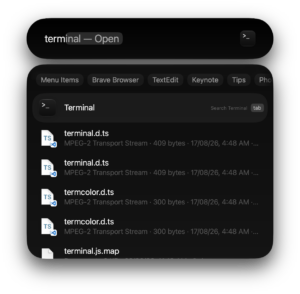
- Type Terminal.
- Press Return.
- Enter the following command:
defaults write com.apple.finder AppleShowAllFiles -bool trueThen restart Finder with:
killall FinderFinder will close and reopen automatically. Hidden files should then be visible.
You do not normally need to use sudo or enter an administrator password for these commands because you are changing your own Finder preference.
Terminal command to hide hidden files again
To restore Finder’s normal behavior, run:
defaults write com.apple.finder AppleShowAllFiles -bool falseThen restart Finder:
killall FinderThe normally hidden files will disappear from Finder again. They have not been deleted. Finder simply stops displaying them.
How to Show the Hidden Library Folder on Mac
The user Library folder is one of the most common hidden locations people need to access. It contains application settings, Application Support files, caches, preferences, browser data, plug-ins, and other files associated with your user account.
You do not need to reveal every hidden file on the Mac just to open Library.
Open Library from the Finder Go menu
- Open Finder.
- Click Go in the menu bar.
- Hold down the Option key.
- Click Library.
The Library option appears in the Go menu while you hold Option.
Open Library with Go to Folder
You can also jump directly to it:
- Open Finder.
- Select Go > Go to Folder.
- Enter:
~/LibraryPress Return to open your personal Library folder.
Do not confuse ~/Library with /Library. The tilde indicates the Library folder belonging to your user account, while /Library contains resources used more broadly across the Mac.
How to Show Hidden Files on an External Hard Drive or USB on Mac
The same Finder shortcut works on most external drives, USB flash drives, SD cards, and mounted network volumes.
- Connect the external drive to your Mac.
- Open Finder.
- Select the drive under Locations.
- Press Command + Shift + ..
You may see hidden items such as .DS_Store, .Spotlight-V100, or other metadata folders created by macOS.
These files can appear when the same USB drive is connected to a Windows PC, where they may look unnecessary. Avoid deleting unfamiliar hidden folders unless you know what created them and whether they are still required.
How to Show Hidden Files in Open and Save Windows
The Command + Shift + . shortcut also works in many standard macOS Open and Save dialogs.
For example, if an app asks you to select a configuration file stored inside a hidden folder:
- Open the app’s Open or Save window.
- Press Command + Shift + ..
- Navigate to the hidden file or folder.
This is useful because you can access the hidden item without changing Finder’s visibility setting permanently.
How to Hide Hidden Files Again on Mac
If you used the Finder shortcut, simply press:
Command + Shift + .The hidden files disappear immediately.
If you enabled them through Terminal, use:
defaults write com.apple.finder AppleShowAllFiles -bool false
killall Finder
Leaving hidden files visible does not damage the Mac, but Finder becomes considerably more cluttered and makes it easier to accidentally move or delete files that applications rely on.
Hidden Files Not Showing on Mac
If Command + Shift + . does nothing, check these points before changing system settings.
Make sure Finder is active
Click a Finder window first and try the shortcut again. The menu bar at the top of the screen should say Finder.
Make sure you are pressing the period key
The final key is the period or full-stop key:
.On non-US keyboard layouts, its position may differ.
Restart Finder
Hold Option, right-click the Finder icon in the Dock, and select Relaunch. You can also open Terminal and run:
killall FinderTry the Terminal setting
If the shortcut still fails, use:
defaults write com.apple.finder AppleShowAllFiles -bool true
killall Finder
Check file permissions
Showing hidden files does not bypass macOS permissions. You may be able to see a protected system folder without being allowed to open or modify everything inside it.
You should not disable System Integrity Protection merely to view hidden files. Finder and Terminal already provide the access normally needed for troubleshooting and configuration work.
Hidden Files vs Hidden File Extensions on Mac
A hidden file is different from a hidden filename extension. For example, Finder may display a photo as holiday instead of holiday.jpg even though the file itself is not hidden.
To show filename extensions for all files:
- Open Finder.
- Select Finder > Settings.
- Open Advanced.
- Enable Show all filename extensions.
This setting reveals extensions such as .jpg, .pdf, .zip, and .txt. It does not reveal hidden files or folders.
Frequently Asked Questions
What is the shortcut to show hidden files on Mac?
Press Command + Shift + . in Finder. Press the same shortcut again to hide the files.
How do I show hidden files on macOS Tahoe?
Open Finder and press Command + Shift + .. The shortcut continues to work on macOS Tahoe 26 and displays hidden items with faded icons.
How do I permanently show hidden files on Mac?
Open Terminal and run:
defaults write com.apple.finder AppleShowAllFiles -bool true
killall Finder
Finder will continue displaying hidden files until you disable the setting.
How do I find hidden folders on Mac?
Open Finder and press Command + Shift + .. If you know the folder’s path, you can also use Go > Go to Folder and enter the path directly.
How do I access the hidden Library folder?
Open Finder, click Go, hold Option, and select Library. You can also use Go to Folder and enter ~/Library.
Why are hidden files faded on Mac?
Finder deliberately displays normally hidden items with a lighter appearance when they are revealed. This helps you identify files that macOS would ordinarily keep out of sight.
Can I delete .DS_Store files?
A .DS_Store file contains Finder information about a folder’s appearance and settings. macOS can recreate it, but there is usually no reason to remove these files from your Mac. They are more commonly noticed when a Mac-formatted folder is opened from another operating system.
Why can’t I open a hidden file after revealing it?
Visibility and permissions are separate. Showing a file in Finder does not grant permission to modify protected system files or data belonging to another user.
Do I need an app to show hidden files on Mac?
No. macOS already includes the Finder shortcut and Terminal commands required to reveal hidden files. A third-party utility is unnecessary for this task.
Does showing hidden files change or move them?
No. The Finder shortcut only changes whether hidden items are displayed. Their names, locations, contents, and hidden attributes remain unchanged.