If your Mac keyboard is not working, first determine whether the problem affects every key or only certain keys. For a MacBook keyboard, restart the Mac, connect the charger, and check Accessibility settings such as Slow Keys and Mouse Keys. For a Magic Keyboard, check its battery and Bluetooth connection, then connect it directly to the Mac with a USB cable to pair it again.
If only one or two keys have stopped responding, debris under the keys or an incorrect keyboard layout is more likely than a complete keyboard failure. External USB keyboards should also be tested in another port without a hub or dock.
The fixes below cover MacBook Air and MacBook Pro keyboards, Magic Keyboard, Bluetooth keyboards, USB keyboards, keys that type the wrong characters, and keyboards that stop responding after macOS starts.
Mac Keyboard Not Working: Start With These Quick Fixes
Before changing system settings, try the checks that solve the most common keyboard problems.
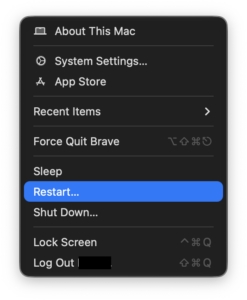
- Restart your Mac.
- If you have a MacBook, connect its charger.
- Disconnect external docks, hubs, and unnecessary USB devices.
- Turn an external keyboard off and back on.
- Check the keyboard battery if it is wireless.
- Try another USB port or cable if the keyboard is wired.
- Open a different app and test the keyboard again.
If the keyboard works in one app but not another, the problem is probably with that app rather than macOS or the keyboard itself.
Fix MacBook Keyboard Not Working
If the built-in keyboard on a MacBook Air or MacBook Pro does not respond at all, connect the Mac to power first. Apple notes that a Mac laptop can sometimes be displaying a low-battery alert that you cannot respond to because the keyboard is unavailable.
Leave the Mac connected to power for a few minutes and restart it.
If you can use the trackpad, test the keyboard in a simple app such as Notes or TextEdit. This helps separate a system-wide keyboard problem from an issue inside a specific application.
Check Slow Keys
Slow Keys changes how long you must hold a key before macOS accepts the keystroke. If it was enabled accidentally, the keyboard can appear completely unresponsive when you type normally.
- Open the Apple menu > System Settings.
- Select Accessibility.
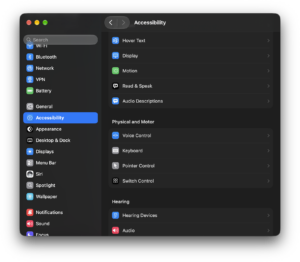
- Open Keyboard.
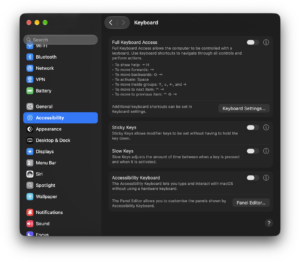
- Make sure Slow Keys is turned off.
If Slow Keys was the problem, normal keyboard response should return immediately after you disable it.
Turn Off Mouse Keys
Mouse Keys allows certain keyboard keys to control the pointer. When enabled, some keys, especially those associated with the numeric keypad, may stop typing normally.
- Open System Settings > Accessibility.
- Select Pointer Control.
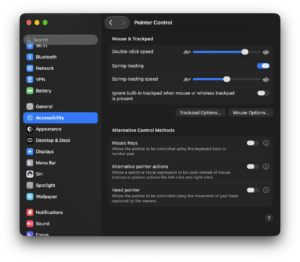
- Turn off Mouse Keys.
You can also press Option + Command + F5 to open Accessibility Shortcuts and check whether Mouse Keys has been enabled.
Fix Magic Keyboard Not Working on Mac
If an Apple Magic Keyboard suddenly stops typing, check its power and connection before removing it from Bluetooth settings.
Turn the Magic Keyboard Off and Back On
The power switch is on the back edge of current Magic Keyboard models.
- Move the switch so no green is visible.
- Wait several seconds.
- Turn it back on so green is visible.
- Wait for the Mac to reconnect.
If it reconnects but stops working again shortly afterward, check its battery level from Control Centre > Bluetooth.
Connect the Magic Keyboard With a USB Cable
Connecting a Magic Keyboard directly to the Mac is one of the fastest ways to fix a broken Bluetooth pairing.
- Connect the Magic Keyboard to your Mac with its USB-C or Lightning cable, depending on the model.
- Make sure the keyboard is switched on.
- Leave it connected for about one minute.
- Disconnect the cable.
- Test the keyboard wirelessly.
The cable connection charges the keyboard and pairs it with the Mac automatically. This is usually more reliable than repeatedly removing and adding the keyboard through Bluetooth settings.
Check Bluetooth
- Open Apple menu > System Settings.
- Select Bluetooth.
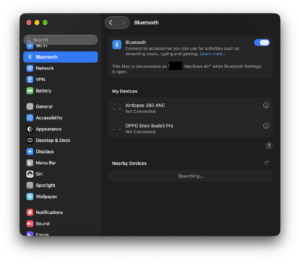
- Make sure Bluetooth is turned on.
- Find the Magic Keyboard in the device list.
If the keyboard is listed but refuses to connect, turn it off and on again. If necessary, forget the device and pair it again.
Magic Keyboard Connected but Not Typing
A Magic Keyboard can appear as connected even when macOS is not responding correctly to its keystrokes. Before deleting the Bluetooth pairing, connect the keyboard by cable and test it.
If it works while connected by cable but stops after the cable is removed, the keyboard itself is probably working and the problem is with Bluetooth connectivity.
In that case:
- Restart the Mac.
- Move other wireless devices away temporarily.
- Disconnect unnecessary USB 3 devices or hubs near the Mac.
- Turn Bluetooth off and back on.
- Pair the Magic Keyboard again using its cable.
If the keyboard does not work even through a direct cable connection, test the cable and another USB port before assuming the keyboard has failed.
Fix USB Keyboard Not Working on Mac
A wired keyboard removes Bluetooth from the equation, so troubleshooting is usually quicker.
- Disconnect the keyboard.
- Reconnect it firmly.
- Try another USB or USB-C port.
- If you are using a hub or dock, connect the keyboard directly to the Mac.
- Try another cable if the keyboard has a detachable one.
- Test the keyboard on another computer if possible.
If another keyboard works in the same Mac port, the original keyboard or its cable is likely at fault. If no keyboard works in that port, test another port and check whether other USB devices work there.
Some Mac Keyboard Keys Not Working
If most keys work but one, two, or a small group of keys do not, focus on the affected keys instead of resetting unrelated Mac settings.
First, check whether the key feels physically different. A key that sticks, feels shallow, or requires unusual pressure may have debris underneath it.
Clean a MacBook Keyboard With Compressed Air
Apple recommends compressed air for MacBook keys that feel different or do not respond.
- Hold the MacBook at approximately a 75-degree angle.
- Use the straw supplied with the compressed-air can.
- Keep the straw roughly 1.5 cm away from the keyboard.
- Spray across the affected keys from left to right.
- Rotate the MacBook onto its right side and repeat.
- Rotate it onto its left side and repeat again.
Do not invert the compressed-air can while spraying.
If the same physical key remains unresponsive after cleaning, the keyboard may require service.
Mac Keyboard Typing Wrong Letters or Symbols
If pressing a key produces the wrong character, check the keyboard input source before troubleshooting the hardware.
- Open System Settings > Keyboard.
- Find Text Input.
- Click Edit.
- Review the enabled input sources.
- Select the keyboard layout that matches your physical keyboard.
For example, a US keyboard used with a British, French, German, or another input layout can produce different punctuation and symbols even though every physical key is working correctly.
You can enable Show Input menu in menu bar to see and change the active keyboard layout more quickly.
Mac Number Keys or Numeric Keypad Not Working
If the numeric keypad is the only part of an external keyboard that does not work, press Num Lock if the keyboard has one.
Also check Mouse Keys:
- Open System Settings > Accessibility.
- Select Pointer Control.
- Turn Mouse Keys off.
Mouse Keys can make numeric keys move the pointer instead of entering numbers.
Mac Keyboard Shortcuts Not Working
If normal typing works but shortcuts such as Command + C, Command + V, or Command + Space do not, test each modifier key separately.
Open TextEdit and check whether Command, Option, Control, Shift, and Fn respond normally. If only one modifier key fails in every app, the problem may be physical.
If the keys themselves work, review custom shortcuts:
- Open System Settings > Keyboard.
- Select Keyboard Shortcuts.
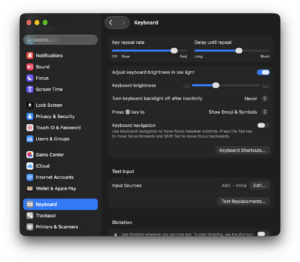
- Check whether the shortcut has been disabled or reassigned.
Remember that applications can define their own shortcuts, so a combination that works in Finder may perform a different action or nothing at all in another app.
Mac Keyboard Not Working After an Update
If the keyboard stopped working immediately after a macOS update, restart the Mac once more before changing settings. Some update processes finish installing components during the first restart.
For an external keyboard, disconnect it and reconnect it after macOS has fully loaded. For a Magic Keyboard, connect it directly by cable for about one minute so the Mac can pair it again.
Also check:
- System Settings > Accessibility > Keyboard for Slow Keys.
- System Settings > Accessibility > Pointer Control for Mouse Keys.
- System Settings > Keyboard > Text Input for the correct input source.
- System Settings > Bluetooth for external wireless keyboards.
If only a third-party keyboard stopped working after the update, check the manufacturer for current macOS software or firmware. Basic USB keyboards usually work without additional drivers, but programmable keyboards may depend on their own configuration software.
Mac Keyboard Works at Login but Stops After Signing In
If the keyboard works on the login screen but stops after you enter your account, the physical keyboard is clearly capable of communicating with the Mac. Concentrate on settings or software loaded by your user account.
Check Slow Keys, Mouse Keys, custom keyboard utilities, macro software, remapping tools, and input-source settings. Quit recently installed keyboard or automation utilities and test again.
You can also create or use another macOS user account temporarily. If the keyboard works there, the problem is likely connected to settings or software in your normal account.
MacBook Keyboard and Trackpad Not Working
If the built-in keyboard and trackpad fail at the same time, restart the Mac and connect it to power. If possible, attach an external USB keyboard and mouse to determine whether macOS itself is still responsive.
When both built-in input devices remain unavailable after a restart but external devices work, the problem is more likely to require hardware diagnosis than a simple keyboard preference change.
Back up important files while you still have access to the Mac and arrange service if the built-in keyboard and trackpad continue to fail.
Use the On-Screen Keyboard When the Physical Keyboard Does Not Work
If you need temporary access while troubleshooting, macOS includes Keyboard Viewer.
- Open System Settings > Keyboard.
- Go to Text Input and click Edit.
- Enable Show Input menu in menu bar.
- Open the Input menu from the menu bar.
- Select Show Keyboard Viewer.
You can click the on-screen keys using a mouse or trackpad. This is useful for entering short text, checking whether modifier keys are detected, or reaching settings while a physical keyboard is unavailable.
When Does a Mac Keyboard Need Repair?
Hardware service becomes more likely when:
- The same physical keys remain dead after cleaning.
- The keyboard has liquid damage.
- A MacBook key feels mechanically damaged.
- The entire built-in keyboard fails but external keyboards work.
- A Magic Keyboard does not work wirelessly or over a known-good cable.
- A wired keyboard fails on multiple computers.
- The MacBook keyboard and trackpad fail together repeatedly.
If you have ruled out settings, Bluetooth, cables, ports, and debris, use Apple Support or an Apple Authorised Service Provider to arrange diagnosis.
Frequently Asked Questions
Why is my Mac keyboard suddenly not working?
Common causes include a Bluetooth disconnection, discharged Magic Keyboard battery, Slow Keys or Mouse Keys being enabled, an incorrect keyboard layout, debris under MacBook keys, a faulty USB connection, or hardware damage.
How do I fix a MacBook keyboard that will not type?
Connect the MacBook to power, restart it, check Slow Keys and Mouse Keys, verify the input source, and test the keyboard in another app. If individual keys do not respond, clean them with compressed air following Apple’s recommended procedure.
Why is my Magic Keyboard connected but not typing?
Connect it directly to the Mac with its charging cable for about one minute. This charges and pairs the keyboard again. If it works by cable but not wirelessly, troubleshoot Bluetooth rather than the keys themselves.
How do I reconnect a Magic Keyboard to my Mac?
Turn the keyboard on and connect it to the Mac using its USB-C or Lightning cable. macOS automatically pairs compatible Magic Keyboard models through the wired connection. Disconnect the cable afterward for wireless use.
Why are only some keys on my MacBook not working?
Debris under the key mechanism is a common possibility when only individual keys fail or feel different. Clean the keyboard with compressed air. If the same keys remain unresponsive, they may require repair.
Why do I have to hold down keys before my Mac types?
Slow Keys is probably enabled. Open System Settings > Accessibility > Keyboard and turn off Slow Keys.
Why are my number keys moving the mouse pointer?
Mouse Keys is enabled. Open System Settings > Accessibility > Pointer Control and turn off Mouse Keys.
Why is my Mac keyboard typing the wrong characters?
The active input source probably does not match the physical keyboard layout. Open System Settings > Keyboard > Text Input and select the correct language and keyboard layout.
Can I use my Mac if the built-in keyboard is broken?
Yes. You can temporarily use a USB keyboard, Bluetooth keyboard, Magic Keyboard, or the built-in Keyboard Viewer while arranging a repair.
Should I reset the SMC when my Mac keyboard stops working?
Do not start with an SMC reset. Current Mac keyboard troubleshooting should first cover power, Accessibility settings, Bluetooth, cables, input sources, debris, and hardware testing. Apple silicon Macs also manage many functions automatically that older Intel troubleshooting guides associated with the SMC.
Why does my keyboard work before login but not after login?
That usually points to a user-level setting or application rather than complete keyboard failure. Check Accessibility options, keyboard remapping tools, macros, login applications, and input sources.
Can a Mac keyboard stop working because of dirt?
Yes. Debris can prevent individual MacBook keys from responding normally or make them feel different. Apple recommends cleaning affected MacBook keys with compressed air using a specific angled procedure.
When should I take my MacBook in for keyboard repair?
Arrange service when keys remain unresponsive after software checks and cleaning, the keyboard has suffered liquid or physical damage, or the built-in keyboard repeatedly fails while an external keyboard works normally.



Fix: Touchscreen Not Working in Windows 10/11 - Techdows
[…] Input hardware on other platforms follows a different route entirely: see How to Fix Mac Keyboard Not Working, MacBook, Magic Keyboard & USB Fixes. […]
[Fixed!] Keyboard Arrow Keys Not Working in Excel (7 Fixes) - Techdows
[…] On a MacBook or a Magic Keyboard, the hardware checks differ; see how to fix a Mac keyboard that is not working. […]
Why is my wireless keyboard not working? 6 quick fixes - Techdows
[…] On a Mac, click the Bluetooth icon to check Bluetooth is on, remove the keyboard from the Bluetooth settings and pair it again. MacBook and Magic Keyboard specifics are in the Mac keyboard fixes. […]