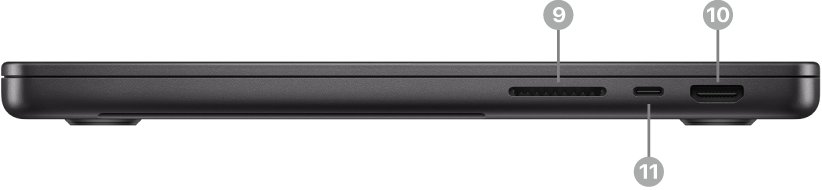
The current 14-inch and 16-inch MacBook Pro has three Thunderbolt (USB-C) ports, one HDMI port, one SDXC card slot, a MagSafe 3 charging port and a 3.5 mm headphone jack.
This guide lists what each port connects, how the ports changed from 2012 to 2026, how many displays each chip drives, which adapters cover USB-A and Ethernet, and what to do when a port stops working.
What ports does the MacBook Pro have?
Every current MacBook Pro has the same six openings. The chip decides whether the three USB-C ports run Thunderbolt 4 or Thunderbolt 5.
| If you have | Ports | Thunderbolt speed |
|---|---|---|
| 14-inch MacBook Pro with M5 | MagSafe 3, three Thunderbolt 4 (USB-C), HDMI, SDXC card slot, 3.5 mm headphone jack | Up to 40Gb/s (Thunderbolt 4 and USB 4) |
| 14-inch MacBook Pro with M5 Pro or M5 Max | MagSafe 3, three Thunderbolt 5 (USB-C), HDMI, SDXC card slot, 3.5 mm headphone jack | Up to 120Gb/s (Thunderbolt 5) |
| 16-inch MacBook Pro (M5 Pro or M5 Max) | MagSafe 3, three Thunderbolt 5 (USB-C), HDMI, SDXC card slot, 3.5 mm headphone jack | Up to 120Gb/s (Thunderbolt 5) |
Two Thunderbolt ports and the MagSafe 3 port sit on the left side with the headphone jack. The right side holds the SDXC card slot, the HDMI port and the third Thunderbolt port.
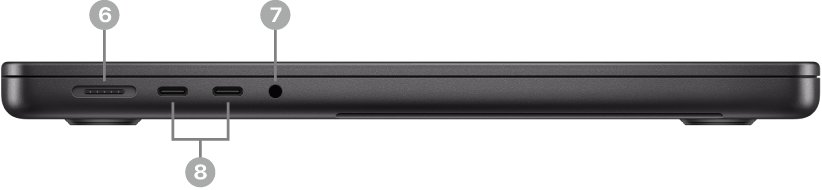
MacBook Pro ports explained: what each port connects
| Port | What you can plug in | Good to know |
|---|---|---|
| Thunderbolt (USB-C) | Displays, external drives, docks, hubs, iPhone or iPad, USB-C chargers | Accepts Thunderbolt 5, Thunderbolt 4, Thunderbolt 3 and USB-C cables. Any of the three ports can charge the laptop. |
| HDMI | Monitors, TVs and projectors with an HDMI cable | Carries multichannel audio as well as video. |
| SDXC card slot | SD, SDHC, SDXC, MMC and UHS-II cards from cameras | Imports photos and video without a card reader. |
| MagSafe 3 | The included USB-C to MagSafe 3 Cable | The connector light glows amber while charging and green when full. |
| 3.5 mm headphone jack | Wired headphones, headsets, powered speakers | Supports high-impedance headphones. |
There is no USB-A port and no Ethernet port on any current MacBook Pro. Both connect through a USB-C adapter, covered further down.
Lightning is the connector on older iPhone and iPad models, not a Mac port. Plug a USB-C to Lightning Cable into any Thunderbolt port to charge one of those devices from the MacBook Pro.
MacBook Pro ports list by year
Port layouts changed three times: Thunderbolt 2 and USB-A until 2015, USB-C only from 2016 to 2020 on Intel models, and the return of HDMI and the SD slot on the 14-inch and 16-inch models from 2021.
| Models | Ports |
|---|---|
| 13-inch and 15-inch, 2012 to 2015 | HDMI, SDXC card slot, Thunderbolt or Thunderbolt 2, USB-A, MagSafe power port, headphone jack. The 13-inch Early 2015 model has MagSafe 2, two Thunderbolt 2 (20Gb/s), two USB 3 (5Gb/s), HDMI, SDXC and a 3.5 mm jack. |
| Intel models, 2016 to 2020 | Thunderbolt 3 (USB-C) ports and a headphone jack. The 13-inch 2019 two-port model has two Thunderbolt 3 ports (40Gb/s); the count varies by model. |
| 13-inch with M1 or M2, 2020 to 2022 | Thunderbolt / USB 4 ports and a headphone jack. The 13-inch M2 model has two Thunderbolt / USB 4 ports (40Gb/s). |
| 14-inch with M3, 2023 | Thunderbolt / USB 4 ports, HDMI, SDXC card slot, headphone jack. |
| 14-inch and 16-inch, 2021 and later | Thunderbolt 4 ports (Thunderbolt 5 on Pro and Max chips from 2024, and on every 16-inch from 2024), HDMI, SDXC card slot, headphone jack. |
| 14-inch with M4 or M5 | Thunderbolt 4 ports, HDMI, SDXC card slot, headphone jack, MagSafe 3. |
MacBook Pro M2 13-inch vs. MacBook Air ports
The 13-inch MacBook Pro with M2 has the same two USB-C ports as the M2 MacBook Air, but no MagSafe port, so charging takes one of them.
| Model | USB-C ports | Charging | HDMI and SD | External displays |
|---|---|---|---|---|
| 13-inch MacBook Pro (M2, 2022) | Two Thunderbolt / USB 4 | USB-C only | No (adapter needed) | One, up to 6K at 60Hz |
| MacBook Air (M2, 2022) | Two Thunderbolt / USB 4 | MagSafe 3 or USB-C | No (adapter needed) | One, up to 6K at 60Hz |
| MacBook Air (M5) | Two Thunderbolt 4 | MagSafe 3 or USB-C | No (adapter needed) | Up to two |
| 14-inch MacBook Pro (M5) | Three Thunderbolt 4 | MagSafe 3 or USB-C | Yes, built in | Up to two |
Pick a 14-inch or 16-inch MacBook Pro if you plug in an HDMI monitor or camera cards every day. Pick a MacBook Air if its two USB-C ports and MagSafe cover your desk.
How to check which ports your MacBook Pro has
Older MacBook Pro models differ by year and screen size, so confirm your exact model before buying a cable. This also answers whether a 2015 model has HDMI.
- Choose Apple menu > About This Mac.
- Double-click your model name, then press Command-C to copy it.
- Open Apple's Tech Specs page at support.apple.com/specs.
- Click the Search Tech Specs bar and press Command-V to paste the model name.
- Click Search, then open the specs page for your Mac.
- Read the Charging and Expansion or Connections and Expansion section to see every port and its speed.
The 13-inch MacBook Pro (Retina, Early 2015) has an HDMI port that supports 1080p at up to 60Hz, 3840 by 2160 at 30Hz and 4096 by 2160 at 24Hz.
MacBook Pro display ports: how many external displays you can connect
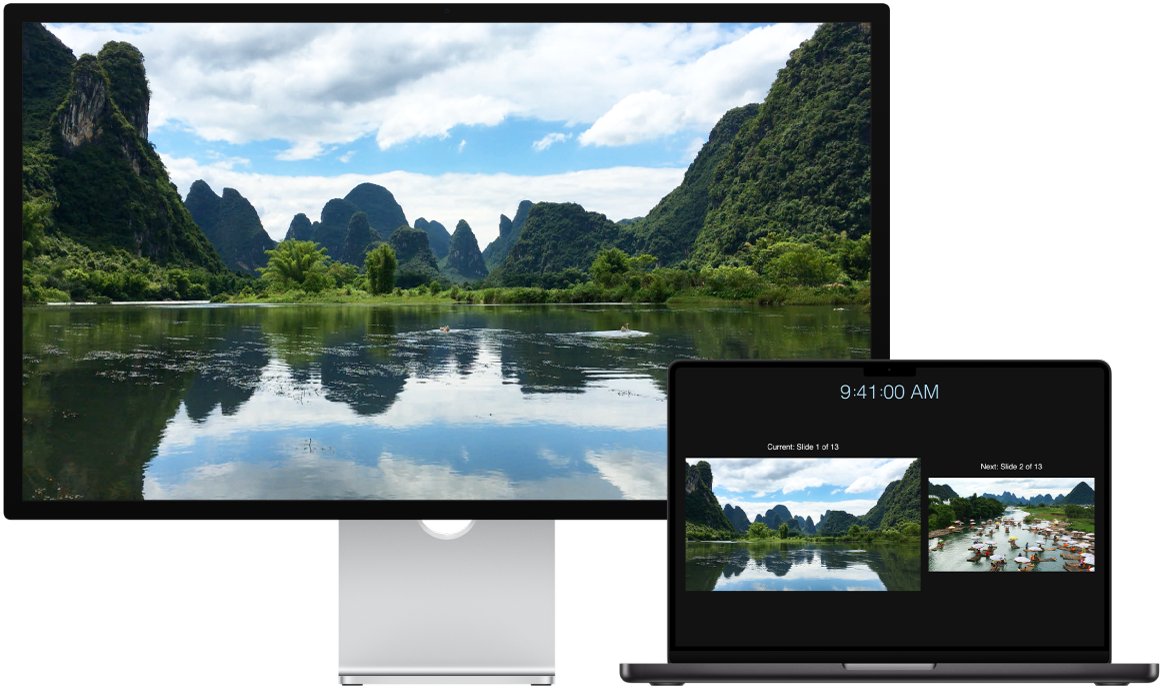
Both the HDMI port and the Thunderbolt ports carry video. The limit comes from the chip and its graphics hardware, not from the number of ports.
| Chip | Maximum external displays | Resolution limits |
|---|---|---|
| M5 | Two | Two at up to 6K 60Hz or 4K 144Hz, or one at up to 8K 60Hz, 5K 120Hz or 4K 240Hz |
| M5 Pro | Three | Three at up to 6K 60Hz or 4K 144Hz, or one 8K 60Hz display plus one 5K 120Hz display |
| M5 Max | Four | Four at up to 6K 60Hz (three over Thunderbolt, one over HDMI), or two at up to 8K 60Hz |
| M2 (13-inch, 2022) | One | Up to 6K at 60Hz |
| Intel 13-inch, Early 2015 | Two | Up to 3840 by 2160 on each |
M5 models can run every supported display from a single Thunderbolt port, which leaves the other ports free for charging and storage. When you connect several displays, connect the one with the highest resolution first.
Where is the charging port on a MacBook Pro?
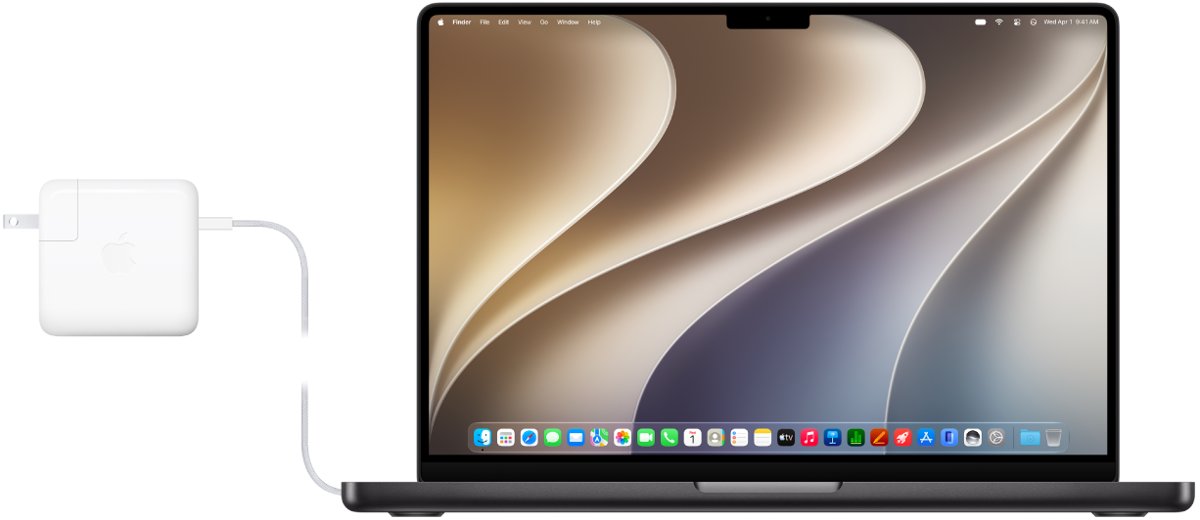
The MagSafe 3 charging port is on the left side, next to the two left Thunderbolt ports. Any Thunderbolt port also charges the laptop with a USB-C Charge Cable.
- Plug the USB-C end of the USB-C to MagSafe 3 Cable into your Apple power adapter.
- Fully extend the prongs on the adapter and plug it into an outlet.
- Attach the magnetic end to the MagSafe 3 port on the left side.
- Check the light on the connector: amber means charging and green means fully charged.
- To charge over USB-C instead, connect a USB-C Charge Cable from the adapter to any Thunderbolt port.
The 14-inch model fast-charges with a 96W or higher USB PD power source, reaching about 50 percent in around 30 minutes. The 16-inch model fast-charges with the 140W USB-C Power Adapter.
MacBook Pro adapters for USB-A, Ethernet and older displays
The essentials kit most MacBook Pro users need is short: a USB-C to USB adapter or multiport adapter for USB-A devices, and a USB-C to Ethernet adapter for wired networks. Everything else depends on your cables and displays.
| Your cable or device | What to use |
|---|---|
| Thunderbolt 3, 4 or 5 cable, or a USB-C cable | Plug straight in, no adapter needed |
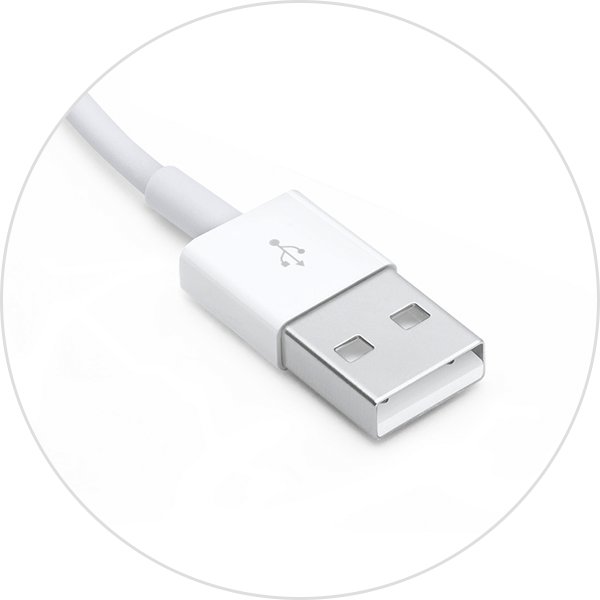
| USB-A flash drive, mouse or printer cable | Apple USB-C to USB Adapter or the USB-C Digital AV Multiport Adapter |
| Ethernet cable | A USB-C to Ethernet adapter, such as the Belkin USB-C to 2.5 Gb Ethernet Adapter |
| HDMI display on a 13-inch or Intel model | USB-C Digital AV Multiport Adapter or a USB-C to HDMI cable |
| DisplayPort, Mini DisplayPort, VGA or DVI display | A USB-C to DisplayPort, Mini DisplayPort, VGA or DVI adapter or cable |
| Thunderbolt or Thunderbolt 2 device | Apple Thunderbolt 3 (USB-C) to Thunderbolt 2 Adapter |
| iPhone or iPad with Lightning | USB-C to Lightning Cable |
| SD card on a 13-inch model | USB-C to SD Card Reader |
A USB-C or Thunderbolt adapter used for a display must support DisplayPort Alt Mode, Thunderbolt 3 or Thunderbolt 4.
Check a new accessory is connected to your MacBook Pro
- Plug in the USB or Thunderbolt device or insert the SD card.
- Click Allow when macOS asks whether to let the accessory connect. Don't Allow still charges the device but blocks data.
- For a drive or card, confirm it appears in the Finder sidebar.
- For a display, open System Settings > Displays and confirm it is listed with the expected resolution.
- To change the approval prompt, open System Settings > Privacy & Security > Accessories and pick an option next to Allow accessories to connect.
MacBook Pro ports not working: fixes by symptom
"USB Devices Disabled" or the device needs more power
The device draws more power than the port or an unpowered hub can supply.
- Disconnect the device and reconnect it.
- Try a different port on the MacBook Pro.
- Remove the hub and connect the device directly.
- If the hub has its own power adapter, plug it into an outlet.
The accessory charges but no data transfers
The accessory was denied when macOS asked to allow it.
- Open System Settings > Privacy & Security > Accessories.
- Set Allow accessories to connect to Ask for new accessories.
- Unplug the accessory, plug it back in and click Allow.
The external display stays dark or runs at low resolution
The display has no power, the adapter lacks video support, or the chip's display limit is reached.
- Connect the display to power and turn it on.
- Use a cable that matches the port, or an adapter that supports DisplayPort Alt Mode or Thunderbolt.
- Check the display table above for your chip's limit.
- Connect the highest-resolution display first, then the others.
- Open System Settings > Displays and set the resolution and refresh rate.
MacBook Pro ports FAQ
What ports does a MacBook Pro have?
A current 14-inch or 16-inch MacBook Pro has three Thunderbolt (USB-C) ports, one HDMI port, one SDXC card slot, a MagSafe 3 charging port and a 3.5 mm headphone jack. M5 models use Thunderbolt 4, while M5 Pro and M5 Max models use Thunderbolt 5.
Does MacBook Pro have a USB port?
Yes, but only USB-C. The three Thunderbolt ports accept any USB-C cable and run USB 4. Standard USB-A ports disappeared in 2016, so a USB-A device needs the Apple USB-C to USB Adapter or a multiport adapter.
Do MacBook Pros have Ethernet ports?
No current MacBook Pro has an Ethernet port. Connect a wired network through a USB-C to Ethernet adapter, such as the Belkin USB-C to 2.5 Gb Ethernet Adapter. The 2015 models used the Apple Thunderbolt to Gigabit Ethernet Adapter instead.
What ports does the MacBook Pro 2025 have?
The 14-inch MacBook Pro with M5 has three Thunderbolt 4 ports, HDMI, an SDXC slot, MagSafe 3 and a headphone jack. Pro and Max models introduced in 2024 or later, including every 16-inch, have Thunderbolt 5 ports in the same layout.
Where is the charging port on a MacBook Pro?
The MagSafe 3 charging port is on the left side of the 14-inch and 16-inch MacBook Pro, beside two Thunderbolt ports. You can also charge through any of the three Thunderbolt (USB-C) ports with a USB-C Charge Cable.
How do I check the HDMI port on a MacBook Pro 2015?
Choose Apple menu > About This Mac, copy the model name and paste it into the Search Tech Specs bar on Apple's specs site. The 13-inch Early 2015 model lists an HDMI port supporting 1080p at 60Hz and 4K at 30Hz.
What ports does a MacBook have compared with a MacBook Pro?
The MacBook Air has a MagSafe 3 port, two Thunderbolt ports and a headphone jack, with no HDMI or SD slot. The MacBook introduced in 2015 or later uses USB-C, and MacBook Neo has two USB-C ports.
Can I charge my MacBook Pro through USB-C?
Yes. Connect a USB-C Charge Cable from a compatible power adapter to any Thunderbolt port. The 14-inch model fast-charges with a 96W or higher USB PD adapter, reaching about 50 percent in around 30 minutes.
Bottom line: are MacBook Pro ports enough without a dock?
For most desks the built-in ports are enough: HDMI covers one monitor, the SD slot covers camera cards, and three Thunderbolt ports handle drives and a second display. Only USB-A devices, wired Ethernet and setups beyond your chip's display limit need an adapter or dock.

![[Fix] Microsoft Software Protection Platform (sppsvc) high CPU usage](https://techdows.com/wp-content/uploads/2026/10/Fix-Microsoft-Software-Protection-Platform-sppsvc-high-CPU-usage-600x338.jpg)