Windows 11 signs you in with a Microsoft account or a local account, and you unlock either one with a password, a Windows Hello PIN, your face, your fingerprint or a security key, all set from Settings > Accounts > Sign-in options.
This guide covers choosing and switching account types, adding users, every sign-in method, changing and resetting passwords, getting back in when you are locked out, and administrator accounts.
Open the right Windows sign-in page
Every sign-in method lives on one Settings page, and the Sign-in experience for each account starts there. You can set or change sign-in options without leaving it.
- Press Windows logo key + R, type
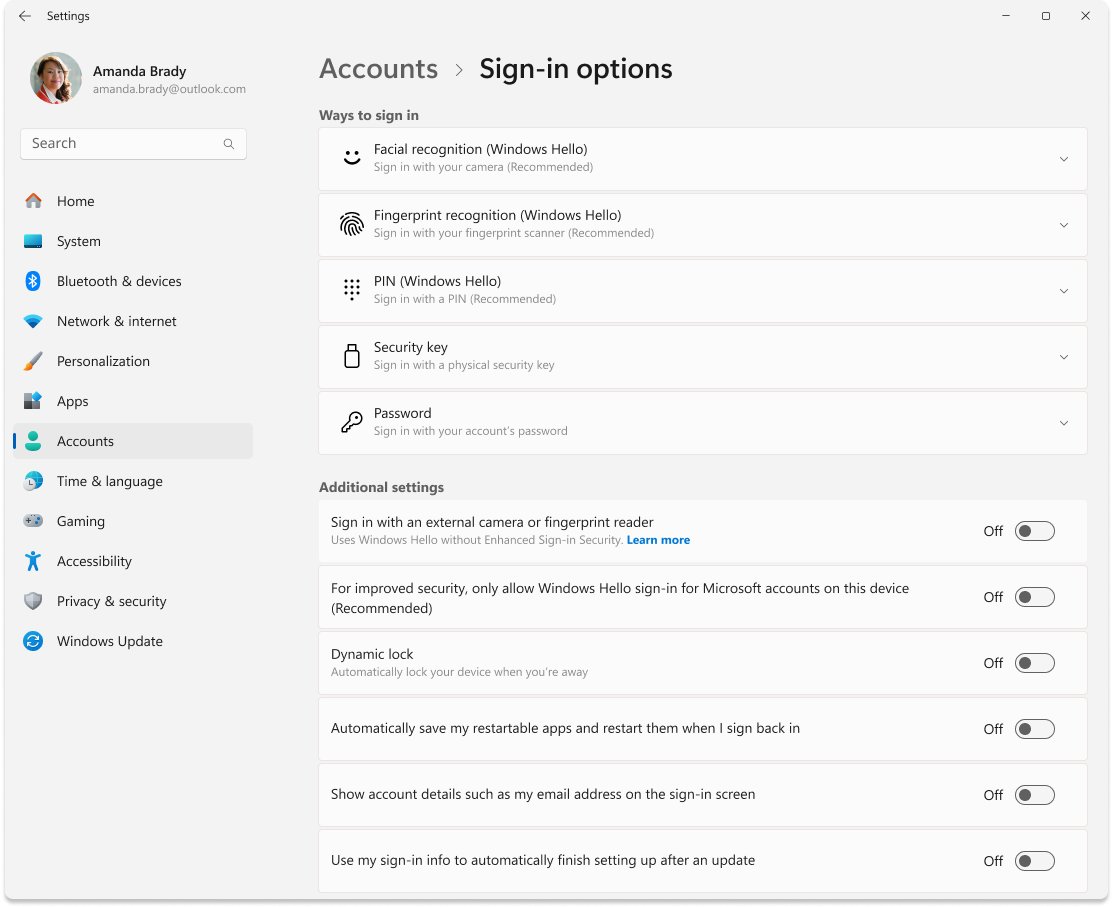
ms-settings:signinoptionsand press Enter, or open Start > Settings > Accounts > Sign-in options. - Under Ways to sign in, select the method you want: Facial recognition (Windows Hello), Fingerprint recognition (Windows Hello), PIN (Windows Hello), Security key, Password or Picture password.
- Select Set up, Change or Remove next to that method and follow the prompts.
- Scroll to Additional settings for the passwordless toggle, Dynamic lock and the sign-in-again timer.
Windows 11 sign-in options at a glance
Pick the method that matches the hardware in front of you. Windows asks for a PIN whenever you add face or fingerprint, because the PIN is the fallback when the sensor fails.
| Sign-in option | Needs hardware? | Works offline? | Where to set it |
|---|---|---|---|
| PIN (Windows Hello) | No; uses the TPM when present | Yes. The PIN is local to the device and never sent to a server | Sign-in options > PIN (Windows Hello) > Set up |
| Facial recognition (Windows Hello) | Yes, an infrared camera | Yes. The face profile is stored on the device and never leaves it | Sign-in options > Facial recognition > Set up |
| Fingerprint recognition (Windows Hello) | Yes, a fingerprint reader | Yes. The fingerprint profile stays on the device or the reader | Sign-in options > Fingerprint recognition > Set up |
| Security key (FIDO2) | Yes, a USB or NFC key | Microsoft does not state it for Windows sign-in | Sign-in options > Security key > Manage |
| Local account password | No | Yes. A local account works without internet | Sign-in options > Password > Change |
| Microsoft account password | No | Not documented; change and reset happen online | Sign-in options > Password, or account.microsoft.com |
| Picture password | No; touch screen or mouse | Not stated by Microsoft | Sign-in options > Picture password |
| Passkeys for websites | No; unlocked with Windows Hello | Not stated by Microsoft | Settings > Accounts > Passkeys |
Local account vs. Microsoft account: what you actually lose
A local account exists only on one PC and needs no internet, which is the usual reason people want to stay off the grid. A Microsoft account syncs settings and unlocks the services in the table below.
| Feature | Microsoft account | Local account |
|---|---|---|
| Sign-in needs internet at first setup | Yes on Home and Pro for personal use | No once the account exists |
| Settings and app sync across PCs | Yes | No, tied to one device |
| I forgot my PIN link on the sign-in screen | Yes | No |
| Online password reset | Yes, from any browser | No; security questions or a reset disk |
| Passwordless Windows Hello-only mode | Yes | No |
| Activation linked to the account after a hardware change | Yes | No |
| OneDrive 5 GB, Microsoft Rewards, Xbox network | Yes | Sign in per app instead |
If you replace a motherboard, a linked digital license is what lets the activation troubleshooter reactivate Windows.
Method 1: Remove a secondary Microsoft account
These are the quick steps to remove a Microsoft account that someone else uses on your PC, or one you added only for apps. Removing it deletes that person's data from the device, but the Microsoft account itself keeps working online.
- Sign in with an administrator account.
- Open Settings > Accounts > Other users.
- Select the account, then select Remove next to Account and data.
- Confirm the removal when Windows asks.
- For an account used only by Mail or Store apps, open Settings > Accounts > Email & accounts and remove it there instead.
Method 2: Switch to local account
Use this to remove Microsoft account after signing in, when it is your own account on the PC. Your files and apps stay in place.
- Open Settings > Accounts > Your info.
- Select Sign in with a local account instead. The link appears only when you are signed in with a Microsoft account.
- Verify your identity, then select Next.
- Enter a username that differs from the other accounts on the PC, a password and a hint.
- Select Next, then Sign out and finish.
To go the other way, the same page shows Sign in with a Microsoft account instead on a local account; you can switch from local to Microsoft account and keep your files.
Method 3: Delete the Microsoft account from the PC
What happens when you remove a Microsoft account from the PC entirely: its profile and files on that device are deleted, while the online account, mail and OneDrive stay. Windows will not remove the account you are signed in with, so you need a second administrator.
- Create a local account in Settings > Accounts > Other users and change it to Administrator under Account options > Change account type.
- Sign out, then sign in with the new administrator account.
- Back up any files you need from the old profile.
- Open Settings > Accounts > Other users, select the Microsoft account and choose Remove.
- Confirm the removal and wait for Windows to delete the profile.
Avoid signing in at Windows Setup
Windows 11 Home and Pro for personal use require an internet connection and a Microsoft account during first setup, and Microsoft has removed the known in-setup tricks for creating a local account. The supported routes are to finish setup with a Microsoft account and switch afterwards, or to use an answer file on Pro deployments; this is how you install Windows 11 with a local account today.
| Your situation | Supported route |
|---|---|
| Home or Pro, personal PC | Complete setup with a Microsoft account, then use Method 2 above |
| Pro, Enterprise or Education deployment | An unattend answer file with the LocalAccounts setting creates the account during installation |
| You want a second, offline user | Create a new local account from Settings after setup |
Create a new local account in Windows 11
Settings is the fastest way to add a user, whether it is a family member, a visitor or a spare local profile. You can also add a user account with net user or PowerShell.
- Open Settings > Accounts > Other users and select Add account.
- Select I don't have this person's sign-in information.
- Select Add a user without a Microsoft account.
- Enter a username, a password and three security questions, then select Next.
- To give the user admin rights, select the account, choose Change account type and pick Administrator.
For visitors, a limited guest account is a standard local user; Microsoft advises leaving the built-in Guest account disabled.
The classic User Accounts dialog still works too: control userpasswords2 adds, removes and resets accounts from one window.
Change account name and account picture in Windows 11
The name and the picture live in different places, and a Microsoft account name is changed online, not on the PC.
| What to change | Account type | Where |
|---|---|---|
| Display name | Local account | Control Panel > User Accounts > Change your account name |
| Display name | Microsoft account | Your info on account.microsoft.com; up to 24 hours to show |
| Account picture | Either | Settings > Accounts > Your info > Adjust your photo > Choose a file or Open camera |
| Old pictures | Either | Windows keeps the last three; delete them from the AccountPictures folder |
You can rename a local account from Computer Management or PowerShell as well, and change your account picture from a photo or the camera.
What is Windows Hello?
Meet Windows Hello: the Windows sign-in that replaces typing a password with a PIN, your face or your fingerprint. Microsoft's case that passwords are the past rests on how the credentials are stored, which is what secure by design means here. Windows Hello sign-in covers all three methods end to end.
| Property | What Microsoft states |
|---|---|
| PIN scope | Tied to one device; useless to anyone without that hardware |
| PIN storage | Local to the device, never transmitted, not stored on a server |
| PIN protection | Backed by the TPM with anti-hammering; local passwords are not linked to the TPM |
| Biometric data | An enrollment profile stored on the device that never leaves it or roams |
| Why a PIN is required | It is the fallback when the face or fingerprint sensor is unavailable |
| Before you begin: face | Needs an infrared (IR) camera, built in or external |
| Before you begin: fingerprint | Needs a fingerprint reader with its driver installed |
| Passwordless mode | Needs a Microsoft account |
| External camera or reader | Turns off Enhanced Sign-in Security on PCs that use it |
How to set up a Windows Hello PIN in Windows 11
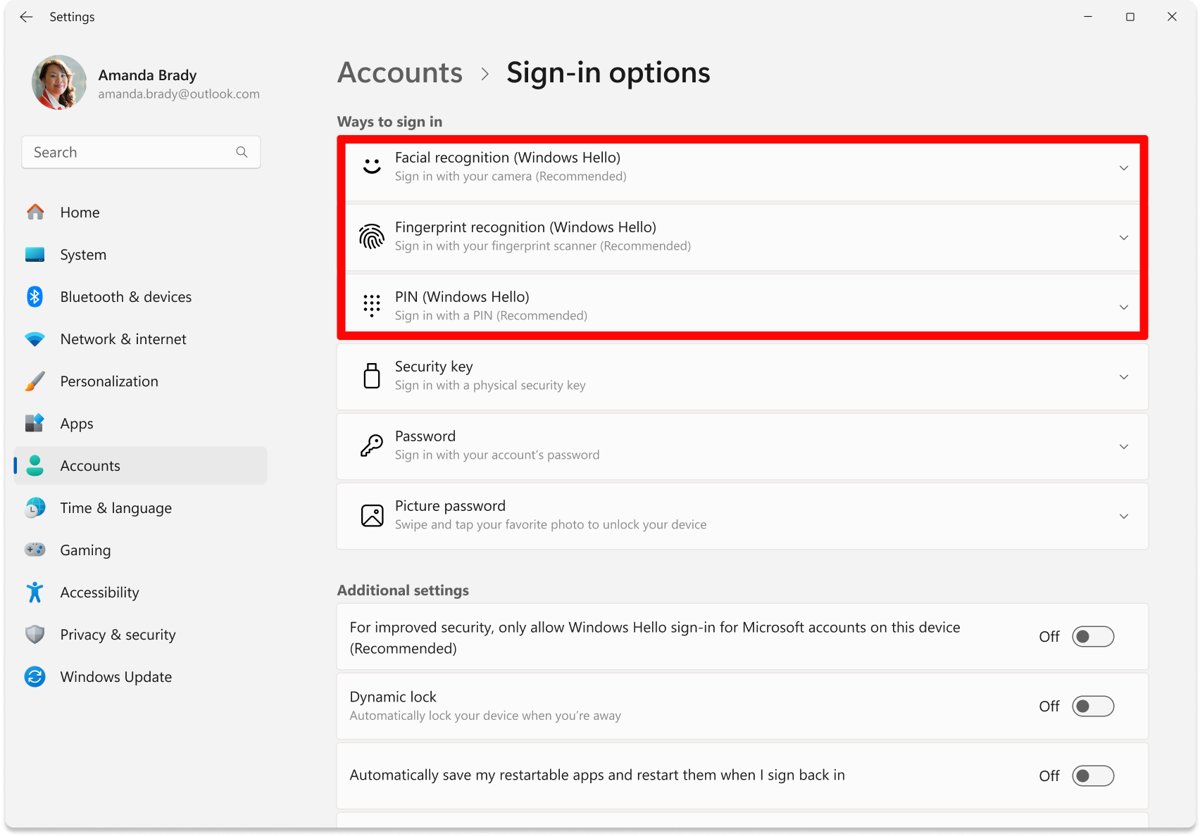
Setting up a PIN (Windows Hello) comes first, since face and fingerprint both need it.
- Open Settings > Accounts > Sign-in options.
- Select PIN (Windows Hello), then Set up.
- Enter your current account password to confirm it is you.
- Type the new PIN twice; letters and symbols are allowed for a stronger one.
- Confirm it, then lock the PC with Windows logo key + L and sign in with the PIN.
How to change or remove your Windows Hello PIN
If you sign in to Windows with a PIN, change or reset your PIN here. The PIN is separate from your Microsoft account password, so changing one never changes the other.
- Open Settings > Accounts > Sign-in options > PIN (Windows Hello).
- Select Change PIN, enter the current PIN, then the new one twice.
- Forgot it? On a Microsoft account, select I forgot my PIN on the sign-in screen or in Settings and verify your identity.
- On a local account there is no I forgot my PIN link; sign in with the password through Sign-in options, then set a new PIN in Settings.
- To remove the PIN, select Remove under the PIN entry; face and fingerprint stop working without it.
- To remove or change a sign-in option such as face or fingerprint, select it under Ways to sign in and choose Remove; Windows deletes the stored biometric template.
Error codes and PIN complexity rules are part of the walkthrough to change your Windows 11 PIN.
How to set up fingerprint recognition in Windows 11
Setting up fingerprint recognition (Windows Hello) takes a few touches of each finger on the reader.
- Open Settings > Accounts > Sign-in options.
- Select Fingerprint recognition (Windows Hello), then Set up.
- Follow the prompts and enter your PIN.
- Touch and lift your finger on the sensor until Windows has the whole print.
- Add a second finger as a backup if the setup offers it.
If the option reads that no compatible reader was found, install the Windows 11 fingerprint driver from Windows Update or your PC maker.
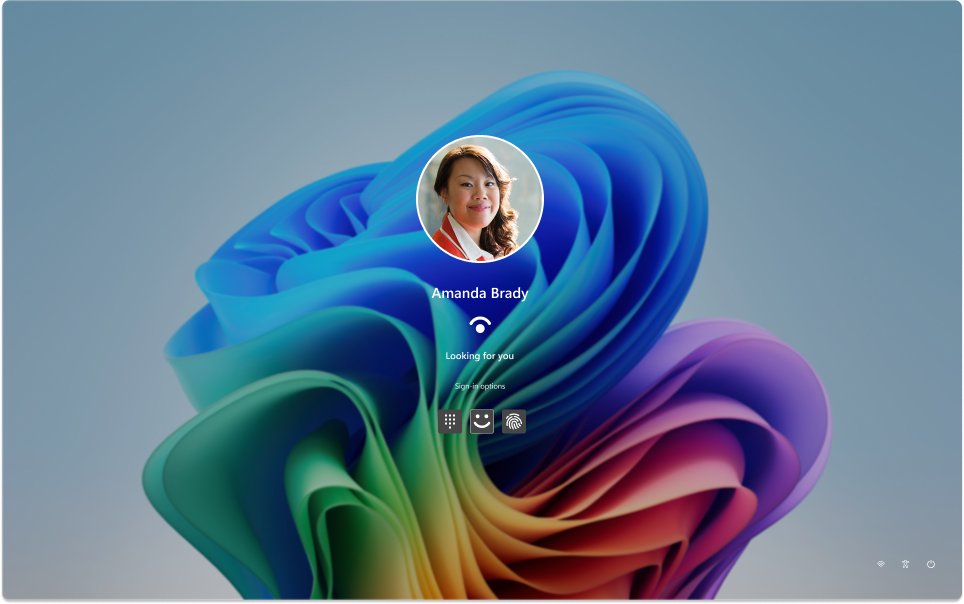
How to set up facial recognition (Windows Hello Face)
Setting up face recognition needs an IR camera; a normal webcam does not appear as an option. This is the same page to set up face or fingerprint unlock on any PC.
- Open Settings > Accounts > Sign-in options.
- Select Facial recognition (Windows Hello), then Set up.
- Follow the prompts and enter your PIN.
- Look straight at the camera until the scan finishes.
- Lock the PC with Windows logo key + L and look at the camera to test it.
To fix external Windows Hello devices, note that an external Windows Hello camera takes over from a built-in one when both are present. You can install Windows Hello Face when the camera driver is missing.
How to set up a security key (FIDO2)
Manage passkeys and security keys from two separate pages. A security key is a USB or NFC device; passkeys are per-site credentials that let you sign in across apps and websites with no password required, each unique and resistant to phishing.
- Open Settings > Accounts > Sign-in options and select Security key, then Manage.
- Insert the key into a USB port or tap it on the NFC reader.
- Under Security Key PIN, select Add or Change and set the key's PIN.
- Select Close when done. Reset wipes everything stored on the key.
- For passkeys, open Settings > Accounts > Passkeys to view saved ones or select Delete passkey.
Passkey providers and a missing Passkeys page are covered when you view passkeys in Settings.
Set up picture password in Windows 11
A picture password is an image plus three gestures, used on top of your text password rather than instead of it. It is turned off by default on domain-joined PCs.
- Open Settings > Accounts > Sign-in options.
- Under Ways to sign in, select Picture password and follow the on-screen instructions.
- Confirm your account password.
- Choose a picture and draw three gestures: taps, lines or circles.
- Repeat the gestures to confirm them.
When the option is missing, the guide to set up picture password lists the policy that hides it.
How to change your password in Windows 11
Start in Settings when you know the current password. If you sign in to Windows with a Microsoft account password, this page changes the online password too; you can also change a personal Microsoft account password online at account.microsoft.com/security > Change password.
- Open Settings > Accounts > Sign-in options > Password.
- Select Change and verify with your PIN or current password.
- Enter the current password, then the new one twice and a hint for a local account.
- Follow the prompts to save the new password.
- Lock the PC with Windows logo key + L and sign in with the new password.
The Ctrl Alt Del screen also gives a signed-in user a way to change the password locally. If you were after a browser or Wi-Fi password instead, you can find saved passwords on your computer.
Avoid shortcuts that change the wrong thing
Most failed password changes come from editing the wrong credential. Use this table before you change or reset anything.
| What you change | What it affects | What it does not touch |
|---|---|---|
| Windows Hello PIN | Sign-in on this one PC | Your Microsoft account password |
| Microsoft account password | Every device and service using that account | Your PIN |
| Local account password | That account on this PC | Any online account |
| Work or school password | Your organisation's account, via its portal | Personal Microsoft accounts |
| Saved website passwords | Browser and Credential Manager entries | Windows sign-in |
Credential Manager is one of three places to find passwords stored on this computer, separate from your Windows sign-in.
Locked out of Windows 11 account: what to do
Find your situation and follow the row. Microsoft support cannot retrieve or bypass a lost password, so these are the only supported ways back in.
| Situation | Do this |
|---|---|
| Forgot the PIN, Microsoft account | Select I forgot my PIN on the sign-in screen and verify your identity |
| Forgot the PIN, local account | Choose Sign-in options and use the password, then set a new PIN |
| Forgot PIN and password | Reset the password first, then the PIN |
| Forgot Microsoft account password | Select I forgot my password, or reset it at account.live.com/ResetPassword.aspx from any device |
| No access to the recovery email or phone | Use Microsoft's Sign-in helper tool |
| Forgot local account password | Answer the security questions, or select Use a password reset disk instead |
| Another admin account exists | Have that admin set a new password in Local Users and Groups |
| Face or fingerprint stopped responding | Sign in with the PIN; that restores biometrics, a restart does not |
| PIN and biometrics not offered | Start Safe Mode, which accepts only a password |
| Work or school account | Use mysignins.microsoft.com/security-info > Can't access your account? or ask IT |
| No admin and no reset option | Reset the PC from the sign-in screen; Remove everything deletes your files |
Each route is laid out step by step when you reset a forgotten Windows password.
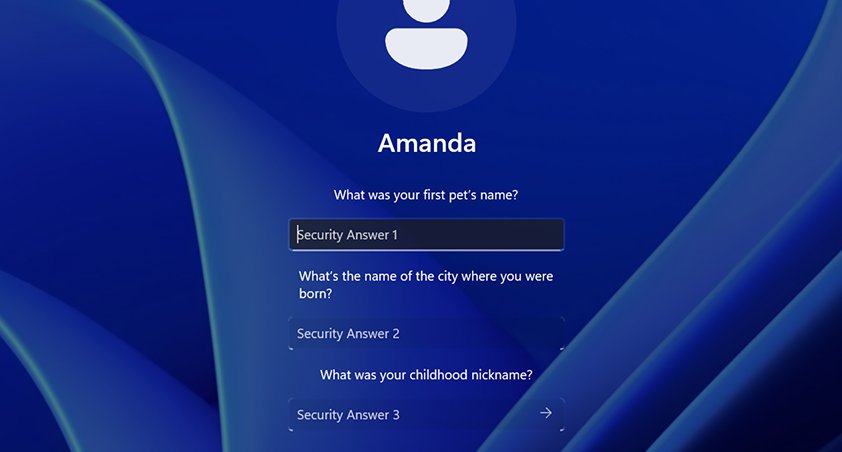
Recover a local account from the sign-in screen
If you sign in with a local account password in Windows, recovery happens on the PC itself; there is no online reset.
- Type any password and select the arrow, then select OK.
- Select Reset password.
- Answer the three security questions and enter a new password.
- Or select Use a password reset disk instead and insert the USB drive you made earlier.
- Make a reset disk now if you have none: search Control Panel for Create a password reset disk.
Use an administrator account for another local user
Any administrator can set a new password for a local user from Local Users and Groups. The user loses access to anything encrypted with the old password, such as saved credentials. You can open Local Users and Groups from Run with lusrmgr.msc.
- Sign in with the administrator account.
- Press Windows logo key + R, type
lusrmgr.mscand press Enter, or open Computer Management > Local Users and Groups. - Select Users, right-click the account and choose Set Password.
- Read the warning, then enter the new password twice and confirm.
Administrator accounts, UAC and run as administrator in Windows 11
An administrator signs in with two tokens and works as a standard user until a User Account Control prompt approves elevation; Microsoft recommends a standard account for daily use. You can check for admin privileges under Settings > Accounts > Your info, where the word Administrator appears under your name.
| Task | Where | Note |
|---|---|---|
| Make a user an administrator | Settings > Accounts > Other users > Change account type | Keep the number of administrators small |
| Change UAC level | Control Panel > System and Security > Change User Account Control settings | Never notify is not recommended |
| Run one app elevated | Right-click the app > Run as administrator | A consent or credential prompt appears |
| Stronger elevation protection | Administrator protection in Windows 11 26H2 | Off by default; Group Policy or Intune |
| Built-in Administrator account | Local Users and Groups | Disabled by setup; Microsoft advises keeping it off |
The User Account Control settings explain each slider level, and you can run apps as administrator ten different ways. Administrator protection is the newer layer that blocks silent elevation.
Control when Windows asks again
Why change password sign-in options? Mostly to sign in faster at home or to lock up faster when you walk away. These settings sit under Additional settings.
| Setting | Where | Effect |
|---|---|---|
| Sign in again after being away | Sign-in options > If you've been away, when should Windows require you to sign in again? | Sets whether waking from sleep asks for sign-in |
| Dynamic lock | Sign-in options > Dynamic lock | Locks the PC about a minute after your paired phone leaves |
| Lock now | Windows logo key + L | Locks immediately |
On a PC nobody else can reach, you can enable automatic sign-in and undo it later. A Windows Hello PIN or fingerprint is the safer way to use Windows without a password prompt each time.
How to add or remove passwords as a sign-in option
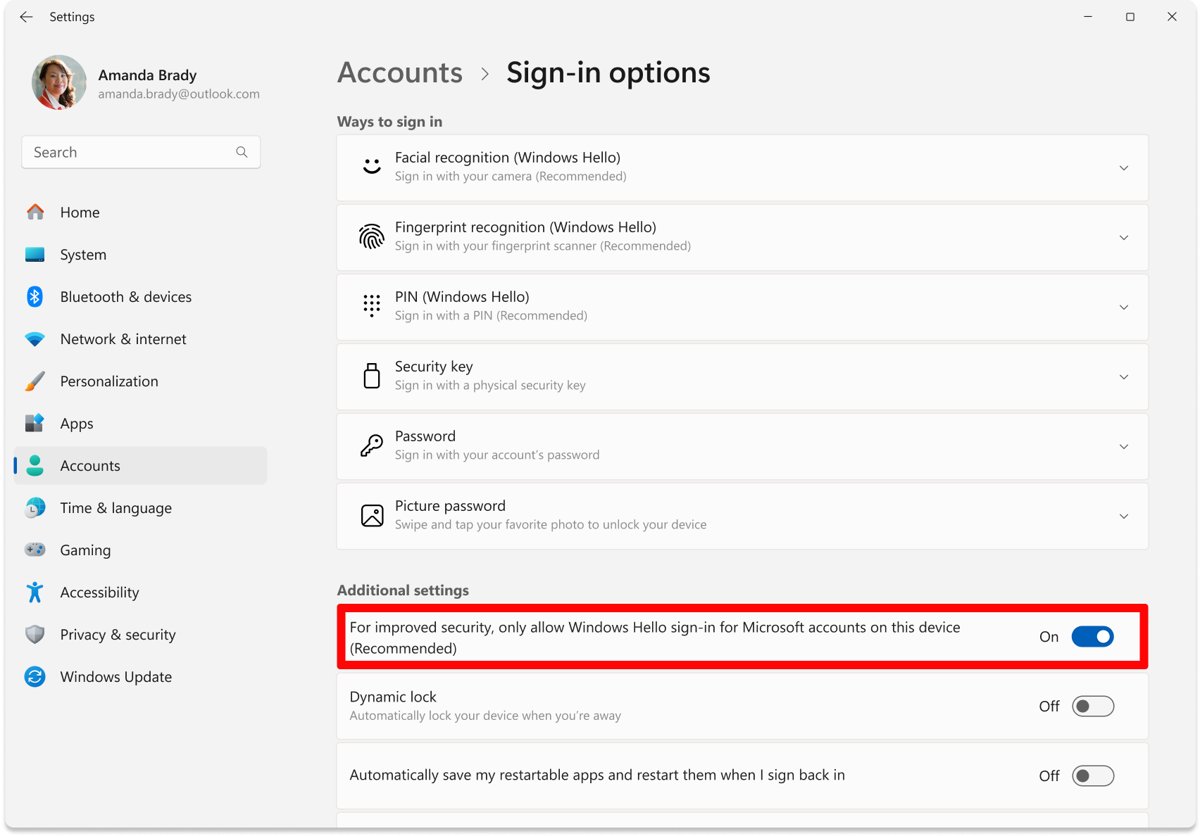
Tighten privacy and passwordless options with one toggle on a Microsoft account: once on, Windows stops offering the password at sign-in and uses Windows Hello only. Turn it off to add the password back.
- Set up a Windows Hello PIN, face or fingerprint first.
- Open Settings > Accounts > Sign-in options.
- Under Additional settings, turn on For improved security, only allow Windows Hello sign-in for Microsoft accounts on this device.
- Restart and confirm that only Windows Hello methods appear.
- Turn the toggle off to restore the password option.
How to create a Microsoft account in Windows 11
A Microsoft account is free and can use your own email, including Gmail, or a new Outlook.com address. What's included: 5 GB of cloud storage, Microsoft Rewards and the Xbox network, and a balance you can top up when you redeem a Microsoft gift card.
- Open Microsoft’s How to create a new Microsoft account page and select Create free account to sign up with your own email address.
- For a new Outlook.com address instead, go to outlook.com and select Create free account.
- Follow the on-screen prompts. An address that was used for a Microsoft account cannot be reused, even if that account was closed long ago.
- On a PC that uses a local account, open Settings > Accounts > Your info and select Sign in with a Microsoft account instead.
How to close a Microsoft account
Closing is permanent after a 30 or 60-day window and is different from removing the account from a PC. Risks and impact of closing a Microsoft account: you lose Outlook.com mail and contacts, OneDrive files, Xbox purchases and any BitLocker recovery keys saved to it.
- Checklist: ensure you're ready to close your Microsoft account by backing up mail, contacts and OneDrive files.
- Save your BitLocker recovery key somewhere other than the account and cancel active subscriptions.
- Open Microsoft's Close account page and sign in.
- Confirm it is the right account, select Next and tick each acknowledgement.
- Pick a 30 or 60-day window, choose a reason and select Mark account for closure.
Those are the steps to take before closing your Outlook.com account too, since Outlook.com has no separate closure. Deleting accounts and removing data happens after the window ends; signing in at account.microsoft.com before then reopens it. You can close a Microsoft account with the full backup checklist.
Common Windows Hello problems and how to fix them
Tips and troubleshooting for the sign-in problems readers search for most.
Can't create a Microsoft account
The sign-up method or device is being blocked.
- Try the other sign-up method: your own email instead of a new Outlook.com address, or the reverse.
- Try on another device or browser.
- On a new PC, finish with a local account where allowed and create the Microsoft account later.
Fingerprint not working
Too many failed reads, a dirty sensor or a missing driver.
- Sign in with the PIN; this re-enables fingerprint after failed attempts.
- Clean the sensor and remove then re-add the fingerprint in Sign-in options.
- Reinstall the reader driver from Windows Update.
Face recognition option missing or greyed out
No infrared camera, or its driver is not installed.
- Confirm the camera is an IR Windows Hello camera.
- Install the camera driver from Windows Update or the PC maker.
- If you use an external camera, plug it in before opening Sign-in options.
Windows Hello not offered at all
A work policy blocks it, or no PIN is set.
- Set up PIN (Windows Hello) first.
- On a work or school PC, ask IT whether policy blocks Windows Hello.
Fifteen fixes in order are in the guide to fix fingerprint not working.
Windows 11 accounts and sign-in FAQ
Should you remove your Microsoft account from Windows 11?
Only if you do not need sync, online password reset, the I forgot my PIN link or activation linked to your account. A local account works offline and stays on one PC, but you lose those recovery options and passwordless mode.
Why do I need a Microsoft account?
Windows 11 Home and Pro for personal use require one during first setup. It also syncs settings, links your Windows activation, lets you reset a forgotten password online and gives you 5 GB of OneDrive storage.
Can I create a Microsoft account with Gmail?
Yes. A Microsoft account can use any existing email address, including Gmail, or a new Outlook.com address. Microsoft sends a code to that address to confirm you own it.
Can I create a Microsoft account for free?
Yes. Creating a Microsoft account is free, and it includes 5 GB of cloud storage, Microsoft Rewards and access to the Xbox network. Paid Microsoft 365 plans are optional.
Why can't I create a new Microsoft account?
Microsoft may block a sign-up method or device. Try your own email instead of a new Outlook.com address or the reverse, then try another device. Old Outlook.com addresses are never reused, so a previously used name will not work.
Can I create multiple Microsoft accounts?
Yes. Each account needs its own email address or Outlook.com name, and you can add each one to the PC as a separate user from Settings > Accounts > Other users.
How do I delete a Microsoft account from my laptop?
Open Settings > Accounts > Other users, select the account and choose Remove. This deletes its files from that laptop only; to delete the account permanently, close it on Microsoft's Close account page.
Is a PIN safer than a password in Windows 11?
Microsoft says yes, because a Windows Hello PIN is tied to one device, never leaves it and is protected by the TPM. A stolen PIN is useless without the PC, while a stolen password works anywhere.
Does Windows Hello send my face or fingerprint to Microsoft?
No. The biometric enrollment profile is stored only on the device, or on an external reader's own module, and never leaves it or roams with your account.