Press Win + R, type a command such as msinfo32, devmgmt.msc or appwiz.cpl, and press Enter to open that Windows tool directly.
This list covers the Run box, Command Prompt (CMD), PowerShell and Windows Terminal on Windows 11 and 10: how to open each one, including as administrator, the commands worth knowing, PowerShell 7 setup and fixes for the errors people hit most.
How to open the Run dialog box
Microsoft lists Windows key + R as the shortcut that opens the Run dialog box, and it works the same on Windows 11 and Windows 10.
- Press Windows key + R to open the Run dialog box.
- Type a command in the Open box, for example
msinfo32. - Press Enter or select OK.
- Check that the tool opens in its own window; a typo returns a "Windows cannot find" message instead.
If the shortcut does nothing on your keyboard, there are several other ways to open the Run box, including from Start and from Task Manager.
Why use Run commands?
A Run command skips the menus and lands you on the exact tool, console or folder. The basics are worth learning first: the file extension tells you what kind of window opens.
Tips for using Run commands efficiently: keep a short list of the ten you use most, and type them instead of browsing Settings or Control Panel.
| What you type | Example | What opens |
|---|---|---|
A .msc name |
devmgmt.msc |
A Microsoft Management Console (MMC) snap-in, such as Device Manager |
A .cpl name |
appwiz.cpl |
A classic Control Panel item |
| A program name | msinfo32, mstsc, regedit |
A built-in Windows app or utility |
| A shell location | shell:AppsFolder |
A File Explorer view of every installed app |
| A Settings URI | ms-settings:display |
One page of the Settings app |
| A shell name | cmd, powershell, pwsh, wt |
Command Prompt, Windows PowerShell, PowerShell 7 or Windows Terminal |
For every command beyond this hub, keep the full list of Windows 11 Run commands open in a tab. The Shell:AppsFolder view is also the quickest way to launch third-party programs and make installed application shortcuts.
Access system management tools
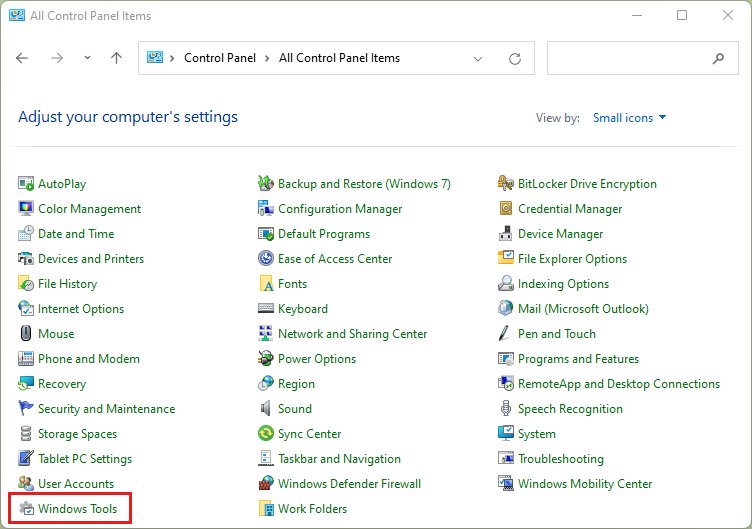
These are the administrative tools, system configuration and user account consoles most people open from the Run box. Each one is a Windows utility you can also reach from Computer Management or the Windows Tools folder in Control Panel.
| Run command | What it opens | Full walkthrough |
|---|---|---|
msinfo32 |
System Information: hardware, components and software (get system info and specs) | Built in, no extra setup |
compmgmt.msc |
Computer Management, which groups Event Viewer, Disk Management, Services and more | open Computer Management |
devmgmt.msc |
Device Manager for hardware and device drivers | run Device Manager as admin |
diskmgmt.msc |
Disk Management for partitions and volumes | Built in, no extra setup |
services.msc |
The Services console | manage Windows services |
eventvwr.msc |
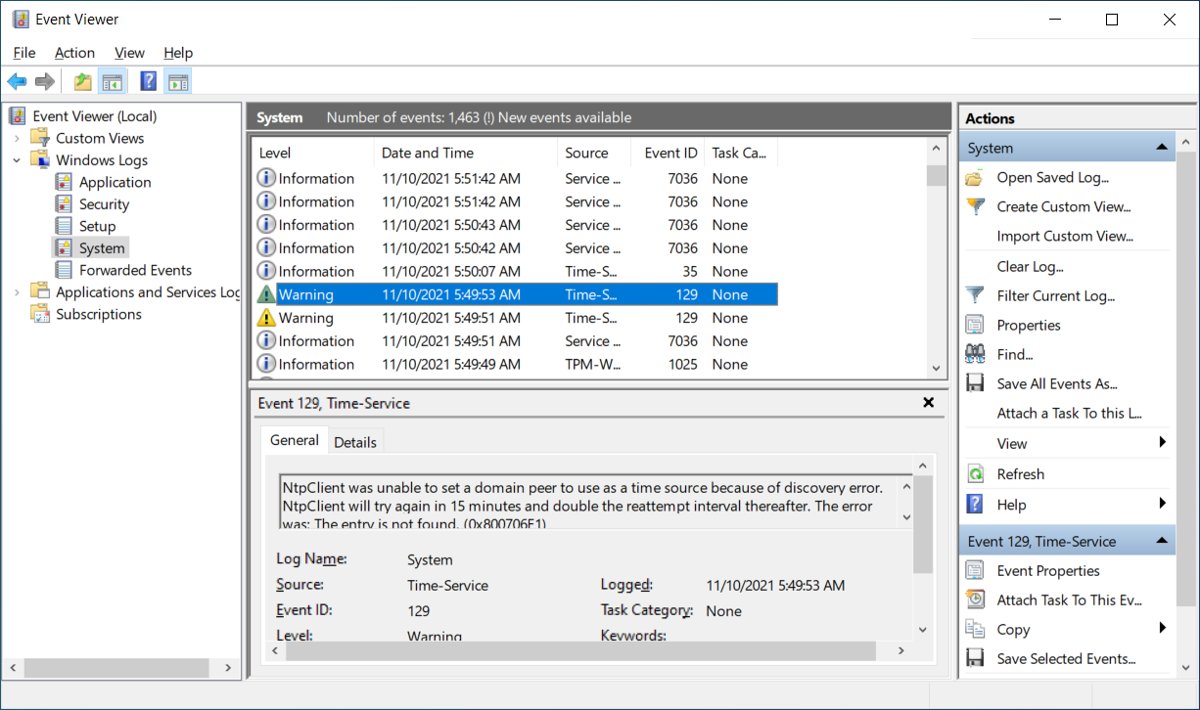
Event Viewer, the first stop for troubleshooting and diagnostics | Event Viewer opening methods |
taskschd.msc |
Task Scheduler | open Task Scheduler |
gpedit.msc |
Local Group Policy Editor (not in Home editions) | open Group Policy Editor |
secpol.msc |
Local Security Policy, including User Rights Assignment | Local Security Policy routes |
lusrmgr.msc |
Local Users and Groups for user account and security changes | Local Users and Groups |
certmgr.msc |
Certificates for the current user | Certificate Manager snap-in |
msconfig |
System Configuration for boot and startup troubleshooting | access MSConfig on Windows 10 |
regedit |
Registry Editor | edit the registry safely |
perfmon |
Performance Monitor | Built in, no extra setup |
resmon |
Resource Monitor | Built in, no extra setup |
Back up the registry before you change a value in regedit, because Microsoft warns that a wrong edit can severely damage the system.
Classic Control Panel commands
Control Panel items still open from Run with their .cpl file names, which is the fastest way to navigate the Control Panel without its category view.
| Run command | What it opens | Full walkthrough |
|---|---|---|
appwiz.cpl |
Programs and Features: uninstall, change or repair desktop programs | uninstall programs with appwiz.cpl |
ncpa.cpl |
Network Connections: adapters, IP and DNS settings | manage network adapters |
mmsys.cpl |
The classic Sound control panel for playback and recording devices | set default speakers and microphones |
Control Panel items also have canonical names, such as Microsoft.PowerOptions, Microsoft.ProgramsAndFeatures and Microsoft.InternetOptions, which administrators use to launch or hide items. Proxy, security zone and cached-data settings live in the Internet Properties dialog.
Policy can hide Control Panel entirely; there are twelve ways to reach Control Panel and fixes for a blocked one.
Built-in app shortcuts
Windows apps and Settings pages have their own launch names. The ms-settings: URIs open one page of Settings, which covers display, Windows Update, accessibility, power and battery settings.
| Command or URI | What it opens |
|---|---|
explorer |
File Explorer (Windows key + E does the same) |
shell:AppsFolder |
One folder with every installed app, including third-party programs |
mstsc |
Remote Desktop Connection (RDP) |
dxdiag |
DirectX Diagnostic Tool for display and sound driver details |
ms-settings:display |
Settings > System > Display, to change display settings and scaling |
ms-settings:personalization |
Personalization: background, colors and themes |
ms-settings:windowsupdate |
Windows Update, for update and maintenance checks |
ms-settings:easeofaccess-narrator |
Narrator under Accessibility; other accessibility tools use easeofaccess- names too |
ms-settings:powersleep |
Power and sleep settings |
ms-settings:batterysaver |
Battery saver on laptops |
ms-settings:bluetooth |
Bluetooth and devices |
ms-settings:appsfeatures |
Installed apps |
ms-settings:about |
System > About (Windows key + Pause opens it too) |
A DirectX Diagnostic Tool report is what game and driver support usually asks for; you can save a dxdiag report to a text file from its window.
Network and Internet commands
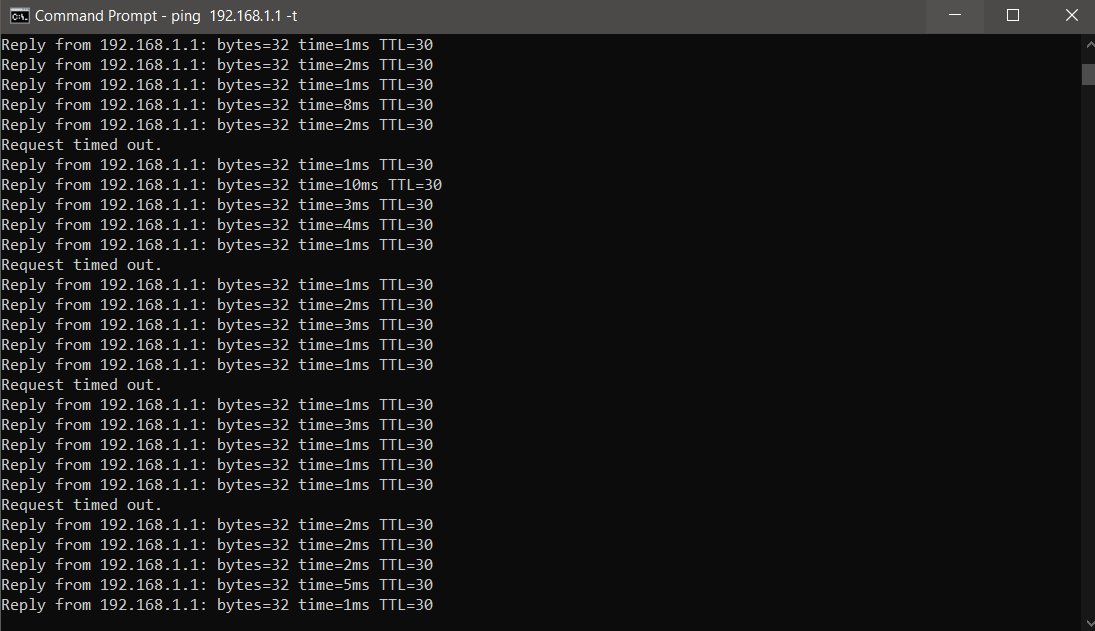
These advanced networking commands run in Command Prompt or PowerShell, not in the Run box. ipconfig /release, /renew and /flushdns change state, so run them in an administrator window.
| Command | What it does |
|---|---|
ipconfig /all |
Shows the full TCP/IP configuration for every adapter |
ipconfig /release |
Releases the DHCP address on all adapters, or on one named adapter |
ipconfig /renew |
Requests a new DHCP configuration |
ipconfig /flushdns |
Flushes and resets the DNS client resolver cache |
ping <address> |
Tests whether another device or site answers |
netsh wlan show profiles |
Lists the wireless networks saved on the PC |
netsh wlan show interfaces |
Shows the Wi-Fi adapter, signal and current network |
netsh wlan show wlanreport |
Builds a wireless network report |
netsh wlan delete profile name=<name> |
Forgets one saved Wi-Fi network |
Release, renew and the rest of the IP config switches, with their output explained, are in the ipconfig switch reference. When pages fail to load after a DNS change, flush the DNS cache, then ping an IP address to test the connection.
Ways to open CMD in Windows
Command Prompt is the window for cmd.exe, the Windows Command Processor. On Windows 11 or 10, the first three routes below are the quickest.
| Where you are | What to do |
|---|---|
| Start menu or the search bar | Press Windows key + S, type cmd, then select Command Prompt |
| Run dialog box | Press Windows key + R, type cmd, press Enter |
| Power user menu | Press Windows key + X (the same as right-clicking Start) to open the Quick Link menu, then choose the Terminal entry |
| Task Manager | Press Ctrl + Shift + Esc, then start cmd as a new task |
| Windows Terminal | Press Windows key + R, type wt, then open a Command Prompt tab |
| Desktop shortcut, taskbar or File Explorer | Pin Command Prompt to the taskbar or create a shortcut to cmd.exe once, then open it with one click |
You can also open Command Prompt in Windows 11 with any of these routes and stop it opening at startup. To check that a cmd.exe process is genuine, learn what the Windows Command Processor is and where it lives.
How to open Command Prompt before Windows boots
When Windows will not start normally, Safe Mode with Command Prompt starts Windows in safe mode with a command prompt window instead of the usual interface. The Windows Recovery Environment (WinRE) also offers a Command Prompt with the Windows PE command-line tools.
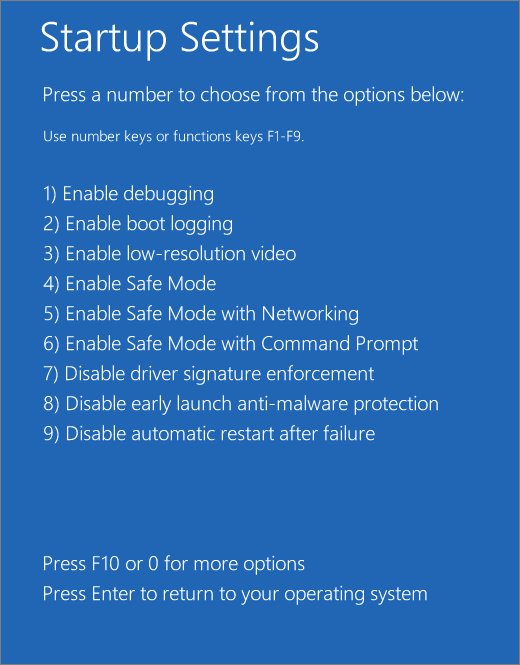
- Start the PC in the Windows Recovery Environment.
- Select Troubleshoot > Advanced options > Startup Settings > Restart.
- On the Startup Settings screen, press the number or function key for Safe Mode with Command Prompt.
- Run your repair commands, such as
chkdskorsfc, in the window that opens. - Restart to leave safe mode; if it keeps booting into safe mode, open
msconfigand clear the safe boot option.
Have your BitLocker recovery key ready if the drive is encrypted, because Microsoft says you need it to change startup settings.
Access Command Prompt as administrator
Commands such as sfc and chkdsk require membership in the Administrators group, so they fail in a normal window.
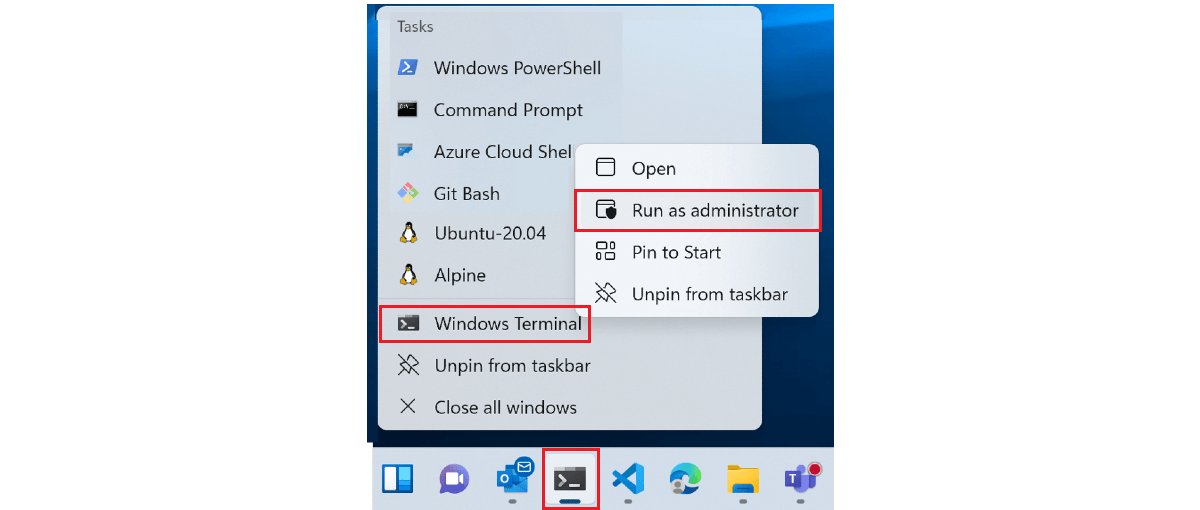
- Select Start and type
cmd. - Right-click Command Prompt and select Run as administrator.
- Select Yes on the User Account Control prompt.
- Run the command; the window stays elevated until you close it.
On Windows 11 version 24H2 or later, Sudo for Windows elevates one command from a normal window: turn on Enable sudo under Settings > System > Advanced, then type sudo before the command, for example sudo netstat -ab.
There are ten more ways to run CMD as administrator, and you can run a command as admin straight from the Run box or Task Manager.
Getting started with PowerShell
Windows ships Windows PowerShell 5.1 (powershell.exe). PowerShell 7 (pwsh.exe) is a separate install that runs side by side with it.
- Press Windows key + R, type
powershell(orpwshfor PowerShell 7) and press Enter. - Type
Get-Commandto list the commands available in the session. - Type
Get-Help Get-Processto read the help for one command. - Run
Update-Helpfrom an administrator window to download the full help files. - Type
$PSVersionTableto confirm which version you are running.
For tasks that change the system, run PowerShell as administrator from Start, Terminal (Admin), File Explorer or the Run box, then confirm the window is elevated.
How to open Windows Terminal and set the default profile
Windows Terminal is a host app that runs Command Prompt, PowerShell and WSL shells side by side in tabs and panes. It opens with PowerShell as the default profile.
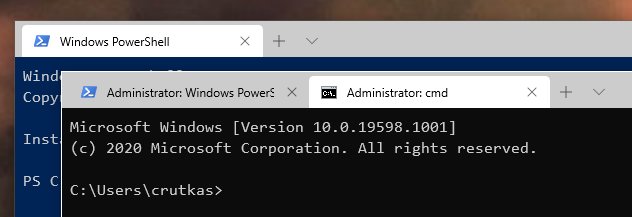
- Press Windows key + R, type
wtand press Enter. - Open the Settings window in Windows Terminal.
- Select Startup and pick a Default profile, such as Command Prompt.
- Set Default terminal application to Windows Terminal so other command-line apps open in it too.
Default terminal application needs Windows 11, or Windows 10 22H2 with the May 23, 2023 update (KB5026435). There are four quick ways to open Terminal, including as administrator, and a Windows Terminal beginners walkthrough for tabs, panes and shortcuts.
If Terminal is missing, download Windows Terminal from the Microsoft Store; GitHub builds do not update automatically.
PowerShell vs. Command Prompt: key differences
Microsoft describes Windows as having two command-line shells, the Command shell and PowerShell, and recommends PowerShell for new automation. Windows Terminal is neither: it is the window that hosts them.
CMD commands are not DOS commands either. They are Win32 console commands built into every supported version of Windows.
| Command Prompt (cmd.exe) | PowerShell | Windows Terminal | |
|---|---|---|---|
| What it is | The original Windows command shell | A command-line shell, scripting language and automation platform | A terminal app that hosts shells in tabs and panes |
| Runs | Windows Commands and batch (.bat) files | Cmdlets, scripts and all Windows Commands | Any shell: CMD, PowerShell, WSL distributions |
| Output | Text | .NET objects you can pipe and filter | Whatever the hosted shell prints |
| Scripts | .bat and .cmd files |
.ps1 scripts, controlled by execution policy |
Not applicable |
| Versions | Built into Windows | Windows PowerShell 5.1 built in; PowerShell 7 installs separately and runs on Windows, macOS and Linux | Microsoft Store app; GitHub builds also available |
| Open from Run | cmd |
powershell or pwsh |
wt |
| Best for | Classic commands and old batch files | Automation, admin tasks, modules | Working in several shells at once |
PowerShell can run CMD commands, but Command Prompt cannot run PowerShell cmdlets.
What is PowerShell used for?
Microsoft defines PowerShell as a cross-platform task automation solution: a command-line shell, a scripting language and a configuration management framework. Jeffrey Snover, its inventor, laid out the vision in the Monad Manifesto.
The benefits of using PowerShell over CMD come from those objects: you filter and sort output without parsing text. Advanced techniques, in overview, build on functions and modules.
| Common use case | What PowerShell gives you |
|---|---|
| Command-line shell | Command history, tab completion and prediction, aliases, a pipeline and in-console help |
| Scripting language | Automating system management; building, testing and deploying in CI/CD pipelines |
| Functions | Named, reusable blocks of code you call like a command |
| Module | A module is a package of commands; Microsoft modules cover Azure, Windows, Exchange and SQL, with third-party modules for AWS and VMware |
| Data formats | Built-in support for CSV, JSON and XML |
| Configuration management | Desired State Configuration (DSC) to enforce settings as code |
| Developers | Classes, an extensible type system and the PowerShell extension for Visual Studio Code |
Windows PowerShell 5.1 stays needed for some older modules that do not run in PowerShell 7, so keep both installed.
PowerShell vs. PowerShell ISE
Use Visual Studio Code with the PowerShell extension instead of the PowerShell ISE for new scripts. Microsoft says the ISE is no longer in active feature development and has no support for PowerShell 6 or later. It still ships with Windows and gets security fixes, so it stays usable for Windows PowerShell 5.1 scripts.
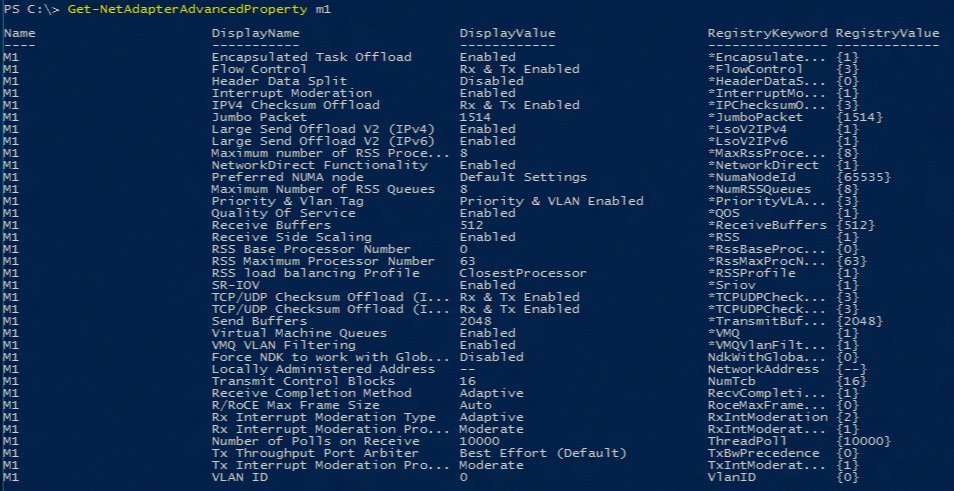
Basic PowerShell commands list
| Command | What it does |
|---|---|
Get-Command |
Finds commands by name, verb or noun |
Get-Help <command> -Full |
Shows the complete help article for a command |
Update-Help |
Downloads the latest help files |
$PSVersionTable |
Shows the PowerShell version and edition |
Get-ExecutionPolicy -List |
Shows the execution policy for every scope |
Set-ExecutionPolicy RemoteSigned -Scope CurrentUser |
Lets your own and unblocked scripts run |
Unblock-File <path> |
Removes the downloaded-from-internet mark from a script |
winget search <app> / winget install <app> |
Finds and installs apps from the command line |
Command Prompt commands list
These are the most useful Command Prompt commands for everyday tasks; type help in CMD to list the rest, and add /? after any command for its switches. Some are operating system specific and exist only on newer Windows versions.
| Command | What it does | Full walkthrough |
|---|---|---|
cd / dir |
Changes folder / lists the files in it | every Command Prompt command |
cls |
Clears the CMD screen | Built in, no switches |
systeminfo |
Prints the OS, hardware and update details | Built in |
tasklist / taskkill |
Lists running processes / ends one | list running processes |
xcopy / robocopy |
Copies files and whole folder trees | XCOPY switches and examples |
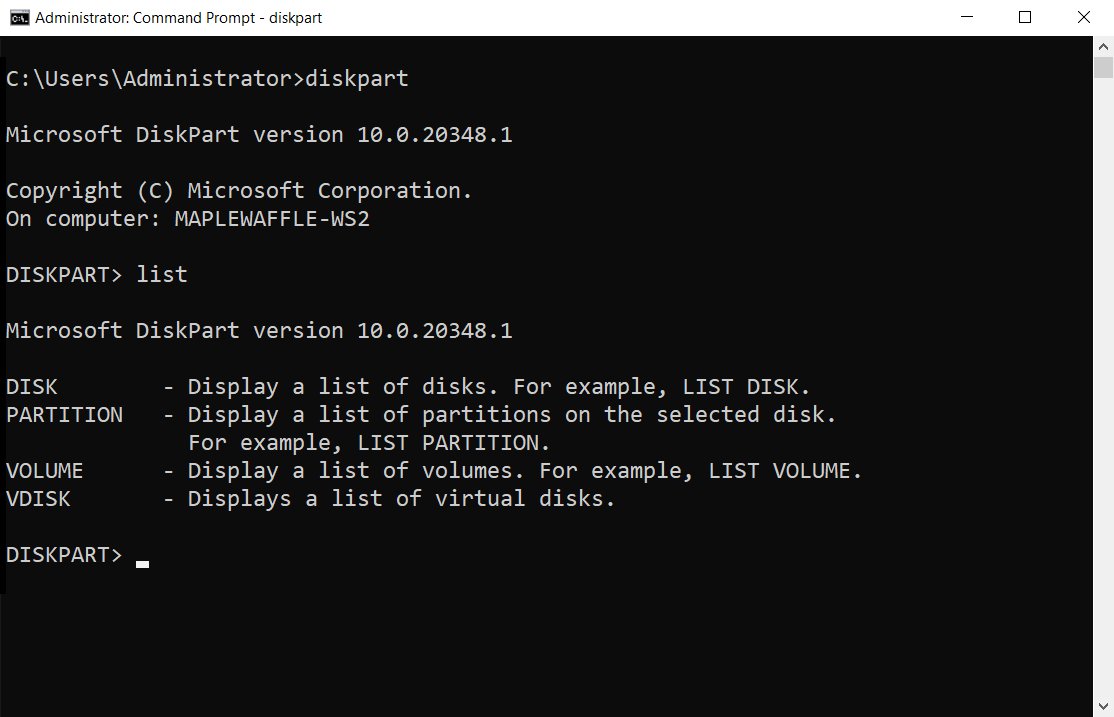
diskpart |
Lists, cleans, formats and resizes disks and partitions | DISKPART commands |
chkdsk /f / chkdsk /r |
Fixes file system errors / also finds bad sectors | every chkdsk switch |
shutdown /s / shutdown /r |
Shuts down / restarts; /t sets a delay in seconds |
shut down from the command line |
gpupdate /force |
Reapplies all Group Policy settings | force a Group Policy update |
setx |
Sets a user or system environment variable permanently | edit environment variables |
certutil |
Manages certificates and prints file hashes | Certutil commands |
To run the same commands again later, save them in a .bat file; you can create and run a batch file in Notepad in a minute.
Repair Windows with SFC, DISM and chkdsk commands
Run these in an administrator Command Prompt, in this order, when Windows behaves oddly or updates fail.
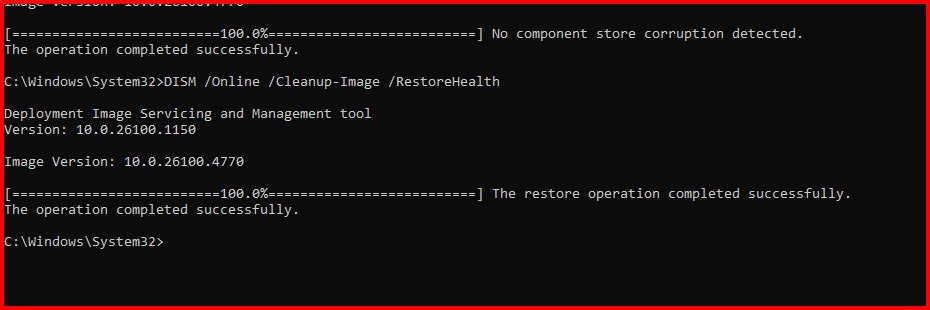
- Type
Dism /Online /Cleanup-Image /ScanHealthto check whether the Windows image is damaged. - If it reports damage, type
Dism /Online /Cleanup-Image /RestoreHealthto repair the image. - Type
sfc /scannowto scan protected system files and repair them where possible. - Type
chkdsk C: /fto fix file system errors; answer Y to schedule the check at the next restart, because Windows cannot lock the system drive while it runs. - Restart the PC.
Read the results and fix a failed scan with the SFC /scannow walkthrough, add a repair source when needed with the DISM RestoreHealth steps, and decide between /scan, /f and /r with the chkdsk repair walkthrough.
How to check PowerShell version
$PSVersionTablePrints a table about the PowerShell running in the current window. PSVersion is the version number; PSEdition is Desktop for Windows PowerShell 5.1 and Core for PowerShell 6 and later.
You should see: A PSVersion of 5.1.x means Windows PowerShell; 7.x means PowerShell 7.
Five more methods, including checks from CMD, are in the PowerShell version check walkthrough.
Update or install PowerShell 7 on Windows
PowerShell 7 does not replace Windows PowerShell 5.1; it installs to its own folder. Microsoft recommends WinGet for Windows clients, and WinGet ships with Windows 11 as part of App Installer.
- Open Command Prompt, PowerShell or Windows Terminal.
- Type
winget search --id Microsoft.PowerShell --exactto see the latest version. - Type
winget install --id Microsoft.PowerShell --source wingetto install it. - Open a new window and type
pwshto start PowerShell 7. - To update later, use the same install method again; a newer PowerShell 7 replaces the older one.
The MSI, ZIP and Store packages are listed on the PowerShell download page. The Store (MSIX) package updates automatically but installs for one user and does not support remoting. WinGet updates other apps the same way; WinGet install and upgrade commands cover upgrading everything at once.
Set the PowerShell execution policy
The execution policy decides which .ps1 scripts can run. Restricted allows single commands but no scripts; RemoteSigned runs local scripts and requires a signature on downloaded ones unless you unblock them.
- Open PowerShell (no admin needed for your own account).
- Type
Get-ExecutionPolicy -Listto see the policy in each scope. - Type
Set-ExecutionPolicy -ExecutionPolicy RemoteSigned -Scope CurrentUser. - Confirm with Y; the change applies at once without restarting PowerShell.
- For a trusted downloaded script, run
Unblock-File <path>instead of loosening the policy further.
Avoid Unrestricted and Bypass on a daily-use PC. The running scripts is disabled fix walks through the exact error message.
Common errors and fixes while opening Command Prompt
| Symptom | Likely cause | Fix |
|---|---|---|
| A command fails with an access or elevation error in CMD | The window is not elevated | Close it and open Command Prompt with Run as administrator |
| "Running scripts is disabled on this system" | Execution policy is Restricted | Set RemoteSigned for CurrentUser, as shown above |
gpedit.msc not found |
Windows Home has no Local Group Policy Editor | enable gpedit on Windows 11 Home or upgrade to Pro |
| chkdsk offers to check the drive at the next restart | Windows cannot lock a drive that is in use | Answer Y to schedule the check, then restart |
| "Windows cannot find" a Run command | Typo, or the tool is not in this edition | Check the spelling and the edition column above |
| CMD will not start in Windows at all | A damaged system or a policy block | Use Safe Mode with Command Prompt or WinRE |
Fix Command Prompt and PowerShell admin problems
Can't run Command Prompt as admin
Your account is a standard user, or User Account Control asks for credentials you do not have.
- Right-click Command Prompt in Start and select Run as administrator.
- Enter an administrator account's password when User Account Control asks.
- If no admin account is available, ask the PC's administrator to add you to the Administrators group in
lusrmgr.msc.
Command Prompt runs chkdsk at every startup
A chkdsk /f or /r was scheduled for a drive that was in use, so it runs before Windows loads.
- Let the scan finish once; it runs only at the next restart.
- If it repeats, open an administrator Command Prompt and run
chkdsk C: /scanto check the drive online. - Run
sfc /scannowafterwards to rule out damaged system files.
Windows Run commands, CMD and PowerShell FAQ
What is a Run command?
A Run command is a short name you type into the Run dialog box (Windows key + R) to open a tool directly. Examples include msinfo32 for System Information, devmgmt.msc for Device Manager and appwiz.cpl for Programs and Features.
What is the Run command for Device Manager?
Type devmgmt.msc in the Run box and press Enter. Device Manager opens directly, and the same command works from Command Prompt or PowerShell.
What run command shows the specs?
Type msinfo32 to open System Information, which shows the processor, memory, BIOS and Windows version. For graphics and sound details, dxdiag opens the DirectX Diagnostic Tool.
What is the Run command for Remote Desktop (RDP)?
Type mstsc in the Run box to open Remote Desktop Connection. Enter the remote computer's name or IP address and select Connect.
What is the Run command for Task Manager?
Press Ctrl + Shift + Esc to open Task Manager without the Run box at all. It is faster than any typed command and works on Windows 11 and 10.
How do I run commands in PowerShell as admin?
Search for PowerShell in Start, right-click it and select Run as administrator, then approve the User Account Control prompt. On Windows 11 24H2 or later with sudo enabled, you can also type sudo before a single command.
How do I run commands on Windows 11?
Press Windows key + R for one-off Run commands, or open Windows Terminal by typing wt for CMD and PowerShell commands. Terminal opens PowerShell by default and can open Command Prompt in a new tab.
Why does Command Prompt run chkdsk?
A check was scheduled with chkdsk /f or /r on a drive Windows could not lock, usually the system drive. Windows runs the check at the next restart, before the desktop loads.
Can I run Command Prompt in Safe Mode?
Yes. In the Windows Recovery Environment, select Troubleshoot > Advanced options > Startup Settings > Restart, then choose Safe Mode with Command Prompt. Windows starts with a command prompt window instead of the desktop.
Can I run Linux or bash commands in PowerShell?
Not natively, though PowerShell has aliases for some familiar names. To run real bash, install a Linux distribution with WSL; Windows Terminal detects it and adds a profile automatically.
Is Windows PowerShell still needed after installing PowerShell 7?
Yes. PowerShell 7 installs side by side with Windows PowerShell 5.1 and does not replace it. Some Windows modules only run in Windows PowerShell 5.1.