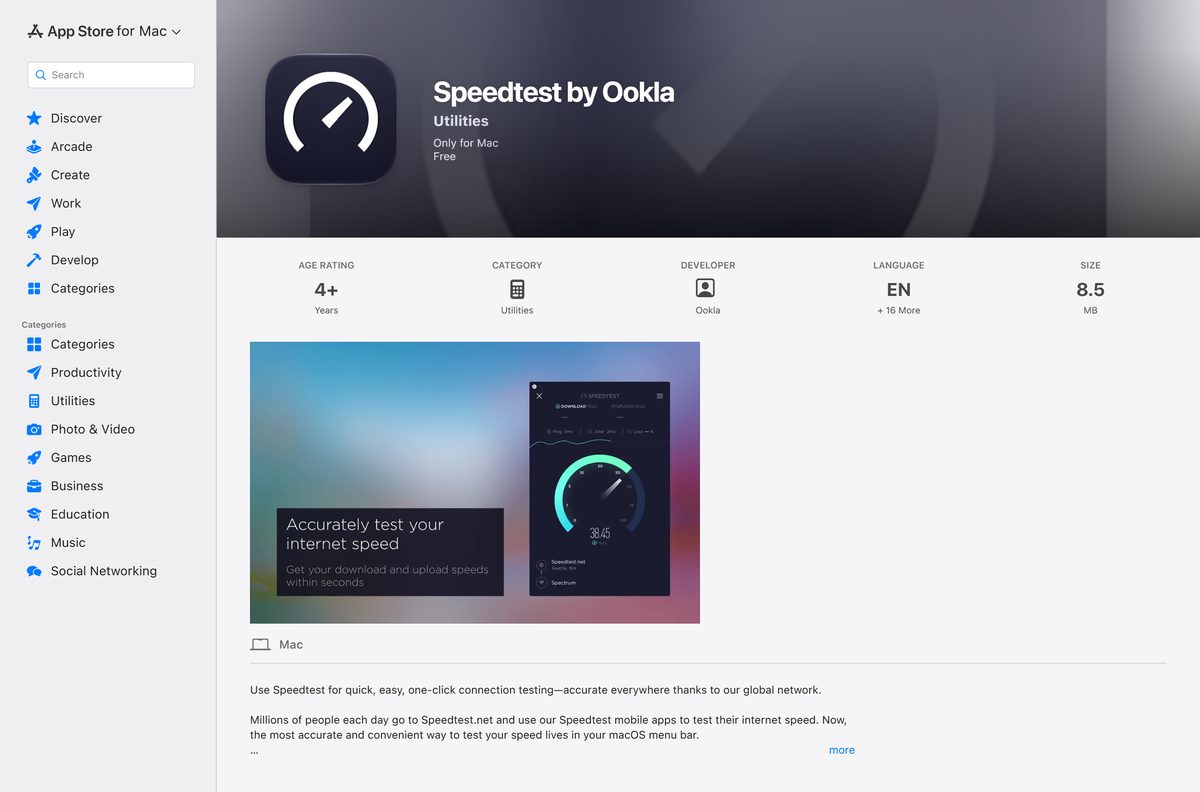
Speedtest by Ookla is a free speed test for Mac, and the download runs through the Mac App Store listing that Ookla links from speedtest.net.
Version 1.29 arrived on 8 October 2026, and the listing is 8.5 MB. macOS 12 Monterey is the floor, so anything from Monterey up to macOS 27 Golden Gate installs it.
This guide covers which download fits your Mac, the official links, the install, the Terminal build, updates, removal and fixes.
Which Speedtest download do you need for your Mac?
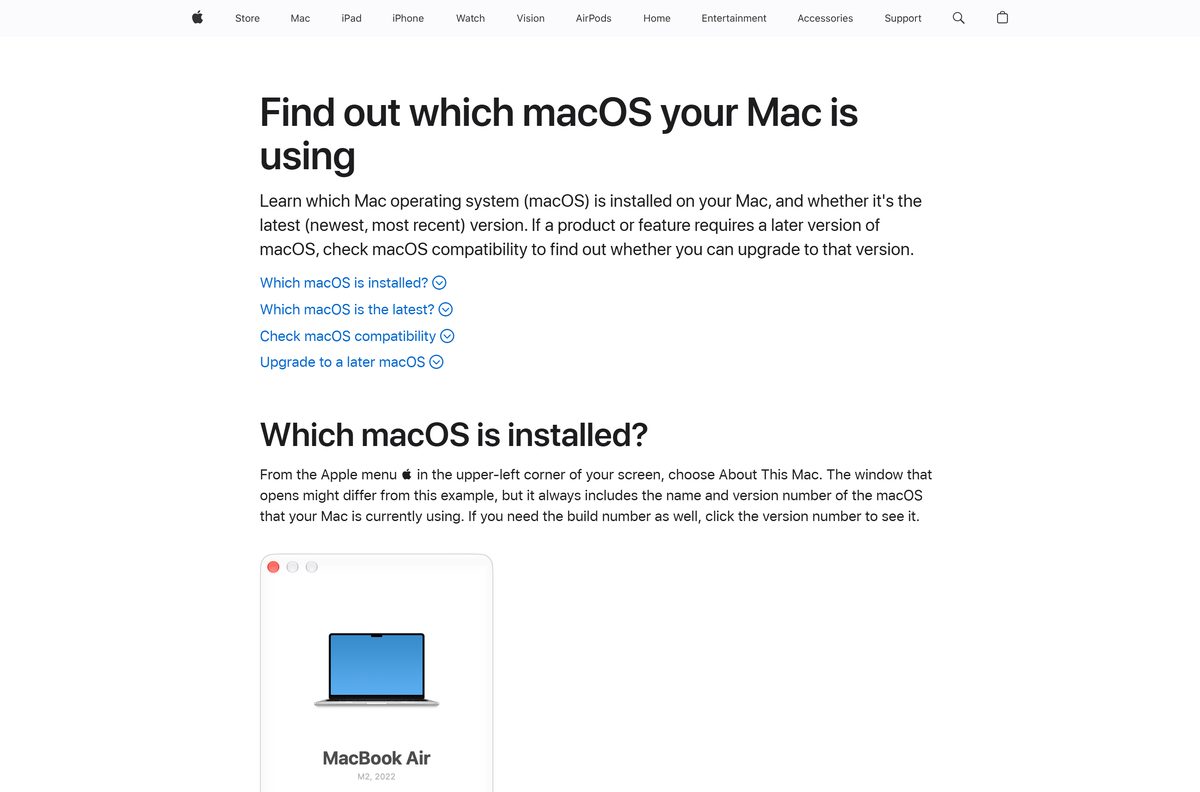
Open the Apple menu and select About This Mac to read your macOS version. Match that line below.
| Your situation | What to get | Download size |
|---|---|---|
| macOS 12 Monterey or later | Speedtest by Ookla on the Mac App Store | 8.5 MB |
| macOS 11 Big Sur or older, or no Apple Account on the Mac | The browser test at speedtest.net | Nothing to install |
| A result you want to log from Terminal | Speedtest CLI for macOS | 1.0 MB |
| An iPhone or iPad to test beside the Mac | Speedtest for iOS | Separate listing |
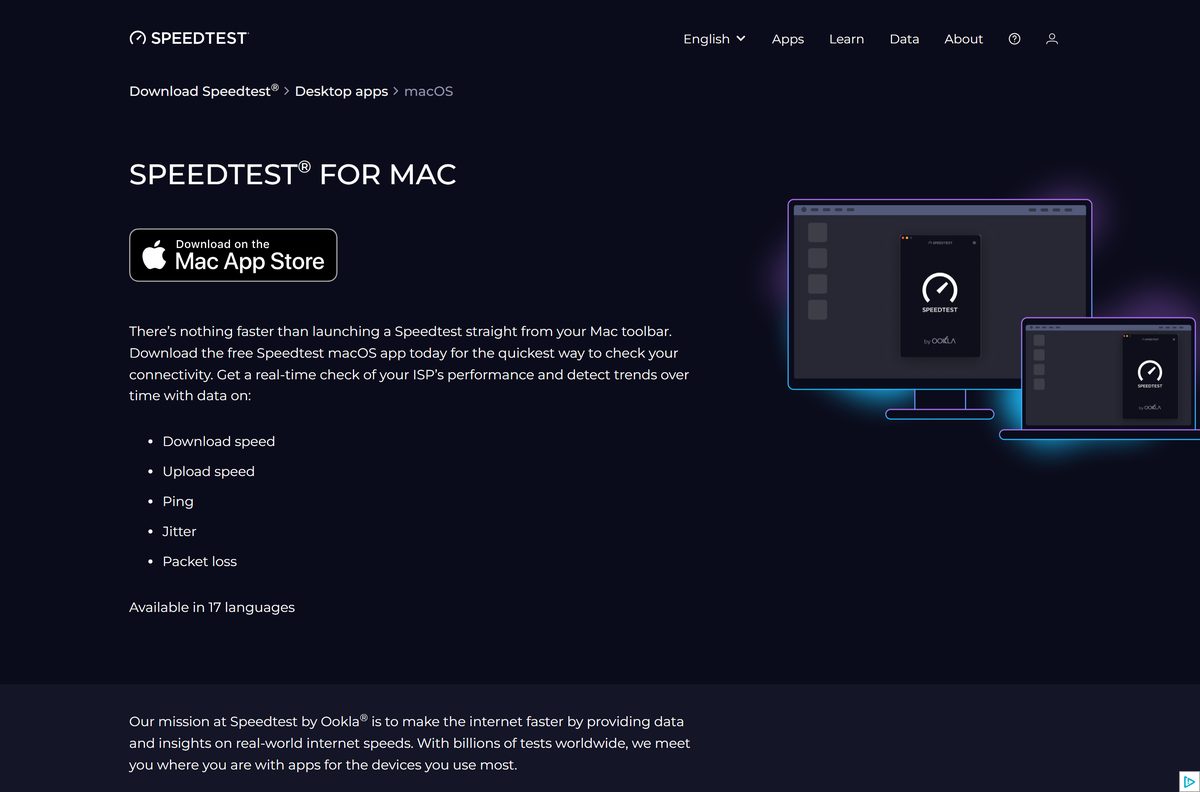
The App Store is the only route Ookla publishes for the Mac app. There is no DMG and no standalone installer.
Check the Speedtest system requirements for your Mac
The hardware barely matters here. The operating system is the one line that rules a Mac out.
| Field | Value |
|---|---|
| Software | Speedtest by Ookla |
| Developer | Ookla, LLC. |
| Latest version | 1.29, published 8 October 2026 |
| Price | Free, no in-app purchase on macOS |
| Supported OS | macOS 12 Monterey or later |
| Download size | 8.5 MB, or 8,519,940 bytes |
| Delivery | Mac App Store, no standalone installer |
| Offline installer | No |
| Bundle identifier | com.ookla.speedtest-macos |
| Seller on the listing | Ookla |
| Official download | speedtest.net/apps/mac |
| Last verified | 2026-10-25 |
Apple’s macOS version list runs from Monterey 12.7.6 to macOS 27 Golden Gate 27.0.1, and everything from Monterey onwards qualifies.
Download Speedtest for Mac from the official Ookla pages
Each link below stays on speedtest.net or Apple’s own store. Ookla hands the Mac download to Apple and keeps no mirror.
- Speedtest for Mac page — the macOS page and its store badge
- Speedtest by Ookla on the Mac App Store — 8.5 MB · the Get button that installs the app
- The browser test at speedtest.net — no install, no sign-in, any macOS
- Speedtest CLI for macOS — 1.0 MB · Homebrew formula plus a universal archive
- Ookla’s app index — the same test for Windows, iOS, Android and Apple TV
Download portals rank for this term and serve whatever build they last repackaged.
How to install Speedtest on your Mac
The install is an ordinary Mac App Store install, and the first test takes one more click.
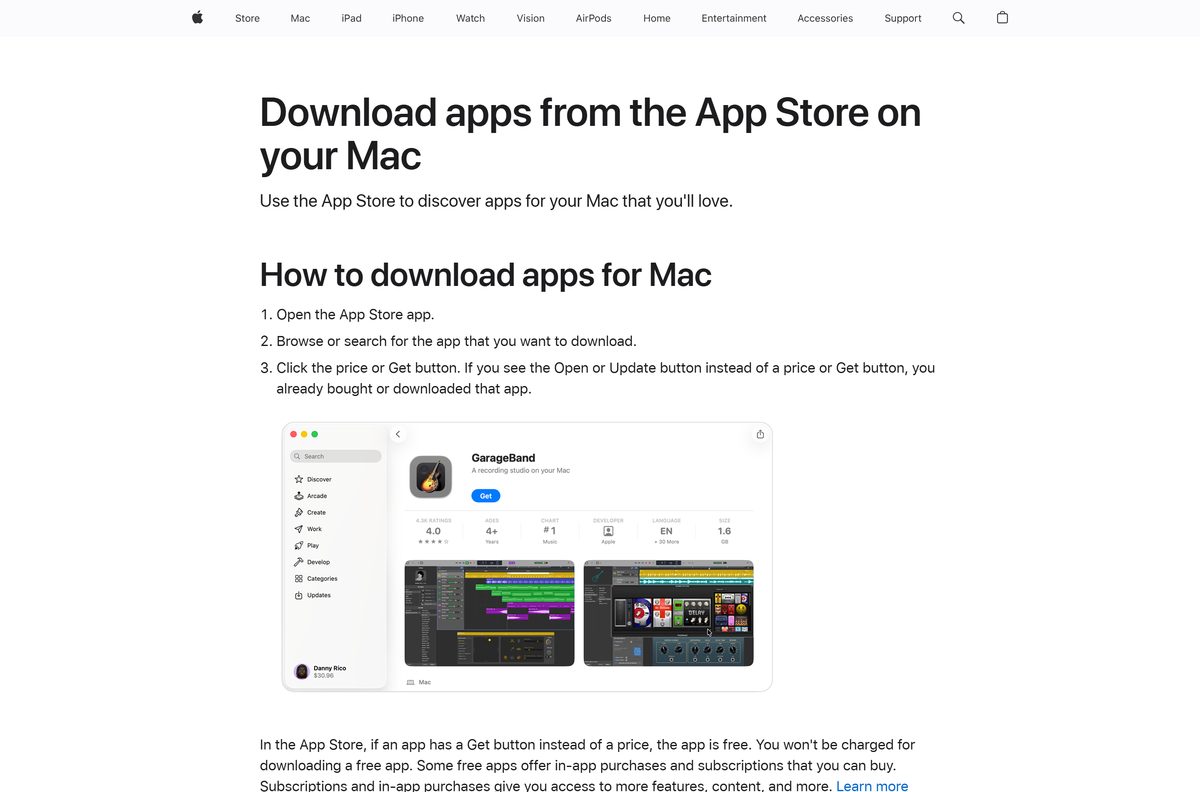
- Open the App Store from the Dock, or open the Speedtest macOS page and select its store badge.
- Type Speedtest by Ookla in the search box and press Return.
- Confirm the result’s developer reads Ookla.
- Select Get.
- Sign in with your Apple Account if the store asks. Nothing is charged.
- Wait for the 8.5 MB download, which takes seconds on most connections.
- Select Open, or launch Speedtest from Launchpad.
- Select GO to test against the nearest server.
The app then sits in the menu bar, so the next test is one click away. Ookla’s desktop app guide notes a desktop test skips browser limits.
Should you download a separate Speedtest build for Apple silicon?
No. One Mac App Store listing covers M-series and Intel Macs. The listing shows a single Get button and names one requirement, macOS 12 Monterey or later. No Intel build and no Apple silicon build are offered separately, so the chip never changes what you download. The only place Ookla names processors is Speedtest CLI, whose macOS build is one universal archive carrying x86_64 and arm64 code.
Apple’s list of Mac computers with Apple silicon names every M-series model, if the chip in your Mac is unclear.
Which macOS versions can run the Speedtest app?
The requirement is a version number, not a model year. A 2015 Intel Mac on Monterey qualifies.
| macOS release | Latest version | Speedtest app |
|---|---|---|
| macOS 27 Golden Gate | 27.0.1 | Supported |
| macOS Tahoe 26 | 26.7.1 | Supported |
| macOS Sequoia 15 | 15.8.1 | Supported |
| macOS Sonoma 14 | 14.8.9 | Supported |
| macOS Ventura 13 | 13.7.8 | Supported |
| macOS Monterey 12 | 12.7.6 | Supported, the oldest release allowed |
| macOS Big Sur 11 | 11.7.11 | Not supported, use the browser test |
| macOS Catalina 10.15 and older | 10.15.8 | Not supported, use the browser test |
An older Mac loses little. The browser test reaches the same server network, which Ookla calls very similar measurement in its downloading apps guide.
Is Speedtest free on a Mac?
Yes. The Mac app is free and carries no in-app purchase. The store listing shows Free, with no price and no purchase list beneath it. Ookla’s removing ads guide states twice that paid ad removal is a mobile feature, so there is nothing to buy on macOS. Any site charging for a Speedtest installer is charging for a free download.
Ookla sells network data and analytics to providers and regulators, as its company page sets out.
How to check the Speedtest app on your Mac came from Ookla
The bundle identifier and Gatekeeper together confirm the copy in Applications is Ookla’s.
- Confirm the developer on the store listing reads Ookla.
- Open Terminal from Applications > Utilities.
- Type mdls -name kMDItemCFBundleIdentifier , then drag the app from Applications onto the window to fill in its path.
- Press Return and confirm the value reads com.ookla.speedtest-macos .
- Run spctl -a -vv on the same path and confirm Gatekeeper answers accepted .
- Move the copy to the Trash if either answer names a different developer.
A Mac installer offered anywhere else is not Ookla’s, because Ookla publishes no standalone Mac installer. Techdows covers the shell in how to open Terminal on Mac.
Run a Speedtest on your Mac without installing anything
The browser test needs no install and no Apple Account. It is the route for macOS 11 or older, and for a work Mac that blocks the store.
- Open speedtest.net in Safari, Chrome or Firefox.
- Read the server name beside GO, and select it to test to a different city.
- Stop any downloads and quit file-syncing apps first.
- Select GO and leave the tab in the foreground until the test ends.
- Read the Download, Upload and Ping figures.
- Repeat against a second nearby server to confirm the result.
Testing to several servers gives a fuller picture, which is Ookla’s advice in its adjusting servers guide.
Install Speedtest CLI on your Mac with Homebrew
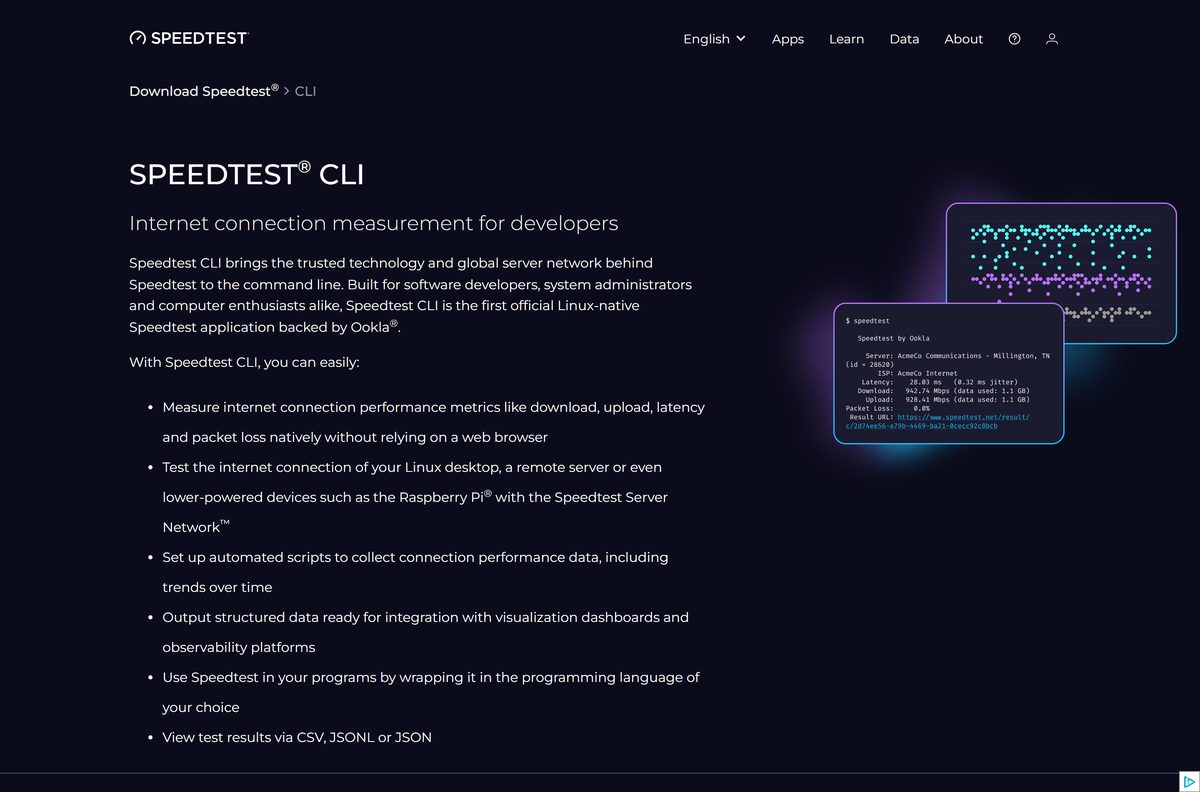
Speedtest CLI is Ookla’s command-line build, and 1.2.0 is current. It prints results as CSV, JSONL or JSON, which suits a logging script.
- Open Terminal from Applications > Utilities.
- Run brew tap teamookla/speedtest to add Ookla’s own formula.
- Run brew update .
- Run brew install speedtest –force .
- Run brew uninstall speedtest-cli –force first if an older community package causes a conflict.
- Run speedtest and read the download, upload, latency and packet loss figures it prints.
The same page links a universal 1.0 MB archive for a Mac without Homebrew. One archive serves Intel and Apple silicon.
How to check your Speedtest version and update it
Store apps update through the store, not through a check inside the app.
- Open Speedtest, then select Speedtest > About Speedtest in the menu bar.
- Compare the number there against the Version line on the store listing.
- Open the App Store and select Updates in the sidebar.
- Select Update beside the Speedtest entry if one is waiting.
- Open App Store > Settings and switch on Automatic Updates to stop checking by hand.
The listing describes the current release as stability fixes, so a skipped update costs no features.
Fix Speedtest not installing or not reporting correctly on a Mac
The App Store will not install it
The listing requires macOS 12 Monterey or later, and the store blocks the install below that.
- Open the Apple menu and select About This Mac to read the macOS version.
- Upgrade the Mac if it supports a newer release, using Apple’s macOS version guide.
- Use the browser test on a Mac that cannot upgrade.
- Install Speedtest CLI with Homebrew as a third route.
No servers appear, or the test never starts
Test traffic runs over port 8080, and a firewall or proxy on the network drops it.
- Run the same test on a phone’s mobile data to confirm the network is the cause.
- Ask whoever runs the network to allow outbound traffic on port 8080.
- Select a different server from the list and try again.
- Compare the result against the browser test.
The figure sits far below the speed you pay for
Something else is taking the bandwidth, or Wi-Fi is the weak link rather than the line.
- Stop every download and quit peer-to-peer software before testing.
- Connect the Mac to the router over Ethernet to rule out interference.
- Restart the modem and the router, then wait for both to come back.
- Run the test again and keep the figures for your provider.
The number disagrees with a download manager
Units. Speedtest reports megabits per second, while transfer tools usually report megabytes per second.
- Multiply the megabytes-per-second figure by eight before comparing.
- Change the units on the Speedtest settings page to have the site convert for you.
- Re-run the test with nothing else downloading.
Ookla’s slow speeds guide covers the first three, and the units trap sits in its bandwidth mismatch guide.
How to uninstall Speedtest from your Mac
A store app removes like any other Mac app, and the account keeps the licence.
- Quit the app with Command + Q.
- Open Applications in Finder.
- Drag Speedtest to the Trash, then empty the Trash.
- Run brew uninstall speedtest –force in Terminal if you also installed the command-line build.
- Run brew untap teamookla/speedtest to drop Ookla’s formula from Homebrew.
The listing stays in your purchase list, so a reinstall from the Mac App Store costs nothing.
Which Speedtest app covers the device you want to test?
| Device | App page | Where it comes from |
|---|---|---|
| Mac on macOS 12 or later | Speedtest for Mac | Mac App Store |
| Windows PC | Speedtest for Windows | Microsoft Store |
| iPhone or iPad | Speedtest for iOS | App Store |
| Android phone or tablet | Speedtest for Android | Google Play |
| Terminal, a server or a script | Speedtest CLI | Homebrew or an archive |
A phone reading slower than the Mac on the same Wi-Fi is usually the antenna, not the line, and Ookla says as much in its downloading apps guide.
Frequently asked questions
Is the Speedtest app for Mac free?
Yes. The Mac App Store listing shows Free, with no price and no in-app purchase. Paid ad removal applies to the iOS and Android apps only, so nothing on the Mac costs money.
What is the official Speedtest download page for Mac?
Ookla publishes the macOS page at speedtest.net/apps/mac, and its badge opens the Speedtest by Ookla listing on the Mac App Store. That listing is the only route for the Mac app.
How big is the Speedtest download for Mac?
The listing states 8.5 MB, and Apple’s catalogue record reports 8,519,940 bytes. The store downloads the app during the install, so no installer file is left on disk.
Which macOS version does the Speedtest app need?
macOS 12 Monterey or later, which covers Monterey, Ventura, Sonoma, Sequoia, Tahoe and macOS 27 Golden Gate. A Mac on macOS 11 Big Sur or older runs the browser test instead.
Does the Speedtest Mac app run on Apple silicon?
Yes, and the listing offers one download for every Mac. There is no separate Intel or Apple silicon build to choose, and macOS 12 or later is the only stated requirement.
Is there a Speedtest offline installer for Mac?
No. The Mac App Store fetches the app when the install begins, so the install needs a working connection. Ookla publishes no DMG, PKG or standalone setup file for macOS.
Which Speedtest version is current for macOS?
Version 1.29, published on 8 October 2026. Read your own copy under Speedtest then About Speedtest in the menu bar, and compare it with the listing’s Version line.
Is the Speedtest Mac app safe to install?
The App Store copy is published by Ookla and reviewed by Apple before listing. Confirm a copy on your Mac by checking its bundle identifier reads com.ookla.speedtest-macos.
Why will the Speedtest app not install on my Mac?
Usually the Mac sits below macOS 12 Monterey, which the store blocks. Check the version under About This Mac, upgrade if the model allows it, and otherwise use the browser test.
Can you run a speed test on a Mac without installing an app?
Yes. speedtest.net runs the whole test in Safari, Chrome or Firefox with no sign-in. It reaches the same server network as the app, which Ookla puts at over 5,500 hosts.