To sign in to iCloud.com with your Apple ID password instead of your Mac login, enter your Apple Account email or phone number, dismiss the Touch ID or Mac password prompt, and type your Apple Account password.
The Mac prompt appears because iCloud.com lets a device that is already signed in to your Apple Account approve the sign-in itself. This guide covers the password route, why the prompt appears, other browsers, and fixes when the password is rejected.
Sign in to iCloud.com with your Apple Account password
Apple ID is now called Apple Account, but the email address or phone number and password are the same. Password sign-in still works on every supported browser.
- Open Safari, Chrome, Firefox or Edge on your Mac and go to icloud.com.
- Select Sign In.
- Enter your Apple Account email address or phone number.
- If macOS shows a Touch ID or Mac password prompt, dismiss it instead of confirming it.
- Type your Apple Account password in the password field and continue.
- If asked, enter the six-digit verification code shown on a trusted device or sent to your trusted phone number.
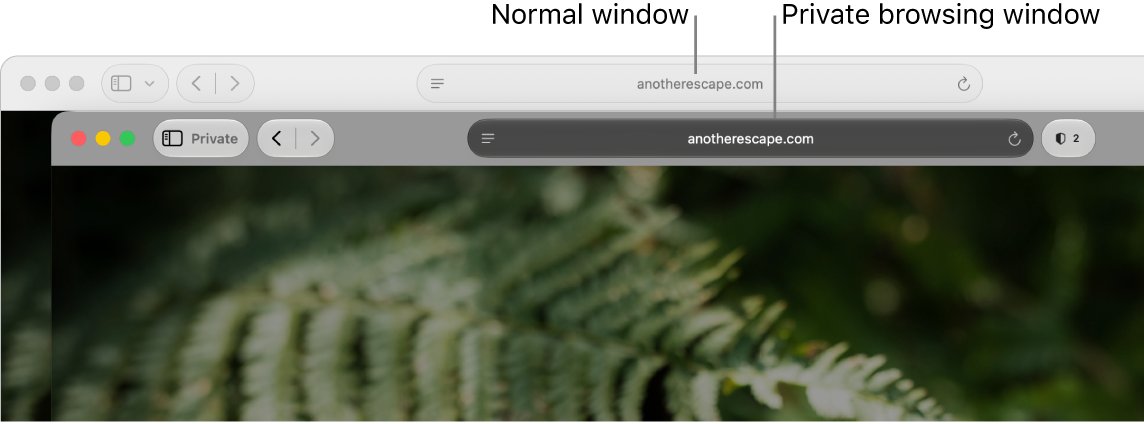
If the prompt keeps returning in Safari, open a private window and sign in there with your email and password.
Why iCloud.com asks for your Mac login password
The password a Mac asks for is its own login password, the one you type to unlock the Mac or install updates. It is not your Apple Account password, which is why a me.com or iCloud password is refused at that prompt.
| What you see | Why it happens | What to do |
|---|---|---|
| Touch ID or Mac password prompt after you enter your email | iCloud.com offers Face ID or Touch ID sign-in on a device already signed in to your Apple Account, and the Mac approves it locally | Approve it with the Mac password, or dismiss it and type your Apple Account password |
| Request for the passcode of one of your devices | Your account uses end-to-end encrypted iCloud content, which can ask for a device passcode (the login password on a Mac) | Enter the Mac login password; this is a second check, not a replacement for your Apple Account password |
| Six-digit code request | Two-factor authentication on a new browser or device | Enter the code from a trusted device or trusted phone number |
| QR code for Sign in with Passkey | You chose passkey sign-in, which uses an iPhone or iPad with iOS 17 or iPadOS 17 or later | Scan it with the iPhone, or go back and use your password |
iCloud.com sign-in options and what each one needs
| Sign-in option | What you enter | Requirement |
|---|---|---|
| Apple Account password | Email address or phone number, then your Apple Account password | A supported browser; a verification code if two-factor authentication asks |
| Face ID or Touch ID | Your fingerprint or face, or the device's own password | You are already signed in to your Apple Account on that device |
| Sign in with Passkey | Email address or phone number, then a QR code scan | iCloud Keychain turned on and an iPhone or iPad with iOS 17, iPadOS 17 or later |
| Security key | A physical security key after your password | Security keys set up for your Apple Account |
The Mac's login password only stands in for Touch ID on that Mac. It never becomes your Apple Account password and does not change it.
Sign in to iCloud.com in a Safari private window
A private window does not save your AutoFill information, cookies or website data, so it starts from a clean sign-in page each time.
- Open Safari on your Mac.
- Choose File > New Private Window. The Smart Search field turns dark with white text.
- Go to icloud.com and select Sign In.
- Enter your Apple Account email address or phone number.
- Enter your Apple Account password, then the verification code if one is requested.
- Close the private window when you finish to end the session.
Sign in to iCloud.com with Chrome, Firefox or Edge on Mac
Apple supports iCloud.com on Mac in Safari 13.1 or later, Firefox 128 or later, Google Chrome 130 or later, Opera, and Microsoft Edge 130 or later.
- Update the browser to a supported version.
- Open icloud.com in that browser and select Sign In.
- Enter your Apple Account email address or phone number.
- If a system passkey or Touch ID prompt appears, dismiss it.
- Enter your Apple Account password and complete two-factor authentication.
Change your Apple Account password on Mac
If you no longer know your Apple Account password, change it on a Mac that is already signed in. This step can ask for your computer login password, which is a second place the two passwords meet.
- Choose Apple menu > System Settings.
- Click your name at the top of the sidebar.
- Click Sign-In & Security.
- Click Password.
- Enter your computer login password if asked.
- Enter and verify the new Apple Account password, then sign in to iCloud.com with it.
The Mac login password is a separate setting, and you can change the Mac login password on its own. Keeping the two passwords different makes the prompts easier to tell apart.
Sign out of iCloud.com on every browser
Sign out everywhere if an old browser session keeps opening iCloud.com without the password you expect.
- Sign in to icloud.com.
- Select your Apple Account photo or the account button in the top-right corner.
- Choose Sign Out to leave only the browser you are using now.
- To leave every browser, select iCloud Settings, then Sign Out Of All Browsers, then Sign Out.
Is iCloud.com signed in to the right Apple Account?
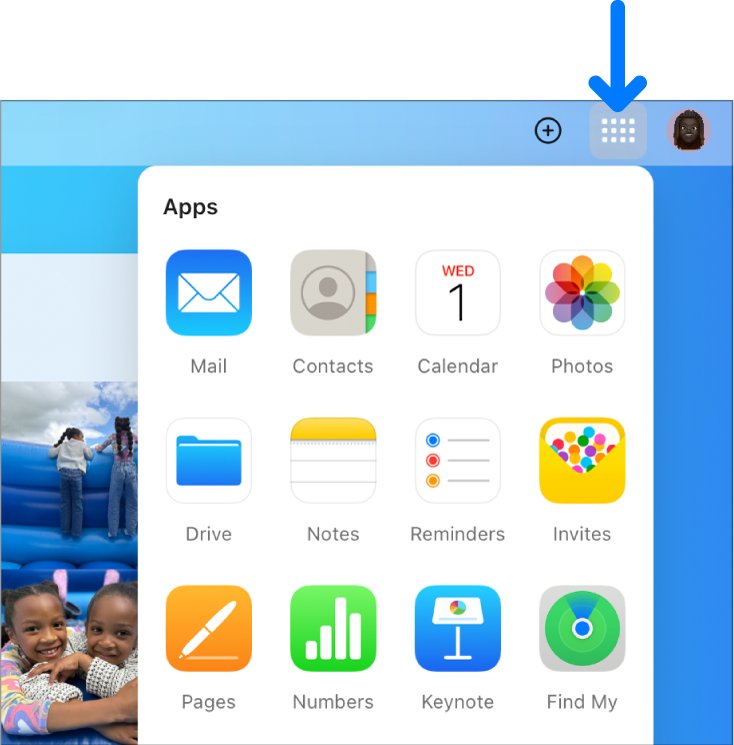
- Look at the iCloud.com homepage: tiles such as Mail, Photos, iCloud Drive and Notes should show your own data.
- Compare the photos with your iPhone. If they differ, you signed in to a different Apple Account.
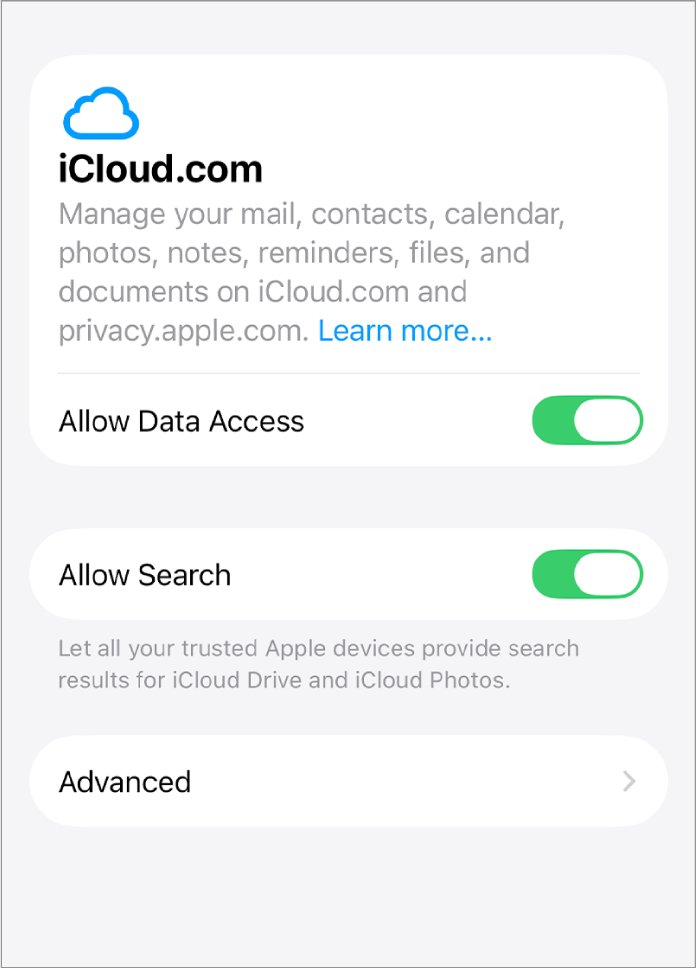
- If only Find My iPhone and iCloud Settings appear, Advanced Data Protection has turned off web access.
- If you signed in on a phone or tablet, expect a smaller set of apps than on a computer.
iCloud.com password sign-in problems on Mac
iCloud.com rejects your me.com or iCloud password
The prompt is asking for the Mac login password, or the Apple Account password has changed.
- Read the prompt: a macOS sheet asking for a password wants the Mac login password.
- Dismiss that prompt and type your Apple Account password in the iCloud.com page itself.
- If the Apple Account password is still refused, select Forgot Password? and follow the onscreen instructions.
- Change the password from System Settings > [your name] > Sign-In & Security on a trusted Mac if you have one.
Only Find My and iCloud Settings show after sign-in
Advanced Data Protection turns off web access to most iCloud data.
- On your Mac, choose Apple menu > System Settings and click your name.
- Click iCloud, then Data Access on iCloud.com.
- Turn on Allow Data Access.
- Reload icloud.com.
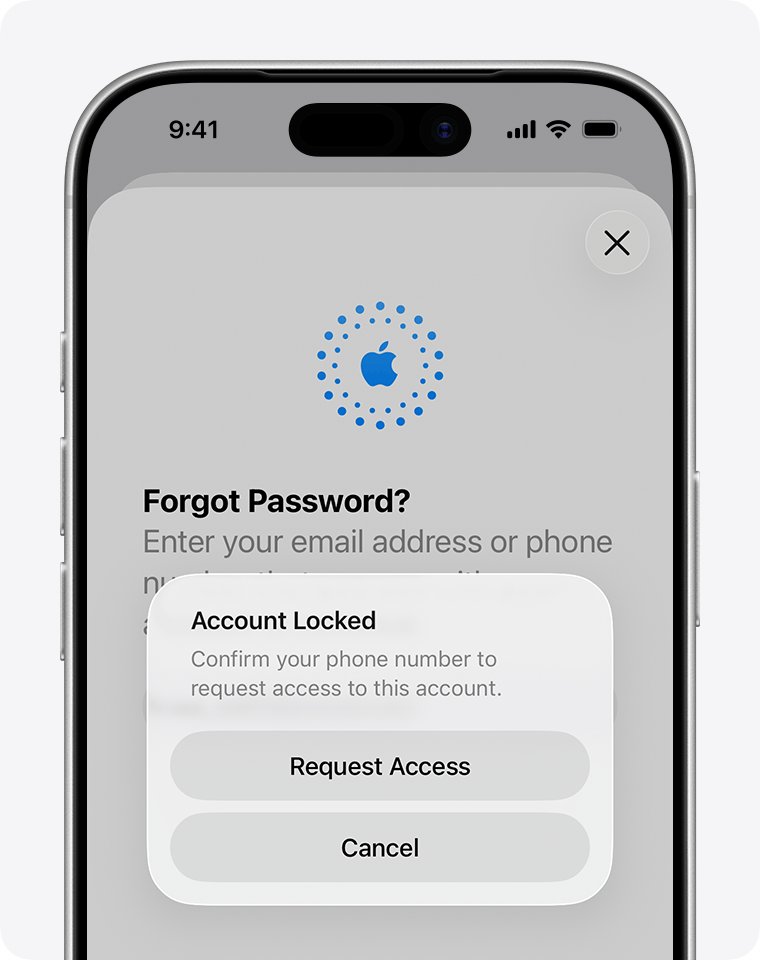
Your Apple Account is locked or disabled
Too many wrong password or account details were entered.
- Note the exact message, such as "This Apple Account has been locked for security reasons".
- Reset your Apple Account password to regain access.
- If the alert offers Request Access, tap it and follow the onscreen instructions.
No verification code arrives
Two-factor authentication sends the code to a trusted device or trusted phone number you cannot reach.
- Unlock a trusted iPhone, iPad or Mac signed in to the same Apple Account and look for the code.
- Choose to receive the code on your trusted phone number instead.
- If you lost your trusted device and only need to locate it, select Find Devices on the sign-in page.
iCloud.com Apple Account password sign-in FAQ
How do I sign in to iCloud.com?
Go to icloud.com in a supported browser and select Sign In. Enter your Apple Account email address or phone number and your password, use Face ID or Touch ID on a signed-in device, or choose Sign in with Passkey and scan the QR code.
Why does iCloud.com want my Mac password instead of my Apple ID password?
iCloud.com offers Touch ID sign-in on a Mac already signed in to your Apple Account, and the Mac can approve it with its own login password. Accounts with end-to-end encrypted data can also be asked for a device passcode, which on a Mac is the login password.
How do I sign in to iCloud on iPhone?
Open Settings and tap Apple Account. Tap Use Another Apple Device to sign in with a nearby iPhone or iPad, or tap Sign in Manually and enter your email address or phone number and password, then the six-digit code if asked.
How do I sign in to iCloud on a PC?
Open icloud.com in Firefox 128, Google Chrome 130 (desktop mode) or Microsoft Edge 130 or later on Windows, then enter your Apple Account email or phone number and password. Apple recommends Windows 11 and iCloud for Windows 15 for the desktop app.
How do I sign in to iCloud on my phone's browser?
Open icloud.com in the phone's browser and sign in with your Apple Account email or phone number and password. Signing in from a phone or tablet shows a different set of apps and features than signing in from a computer.
How do I sign in to my iCloud account on a Mac?
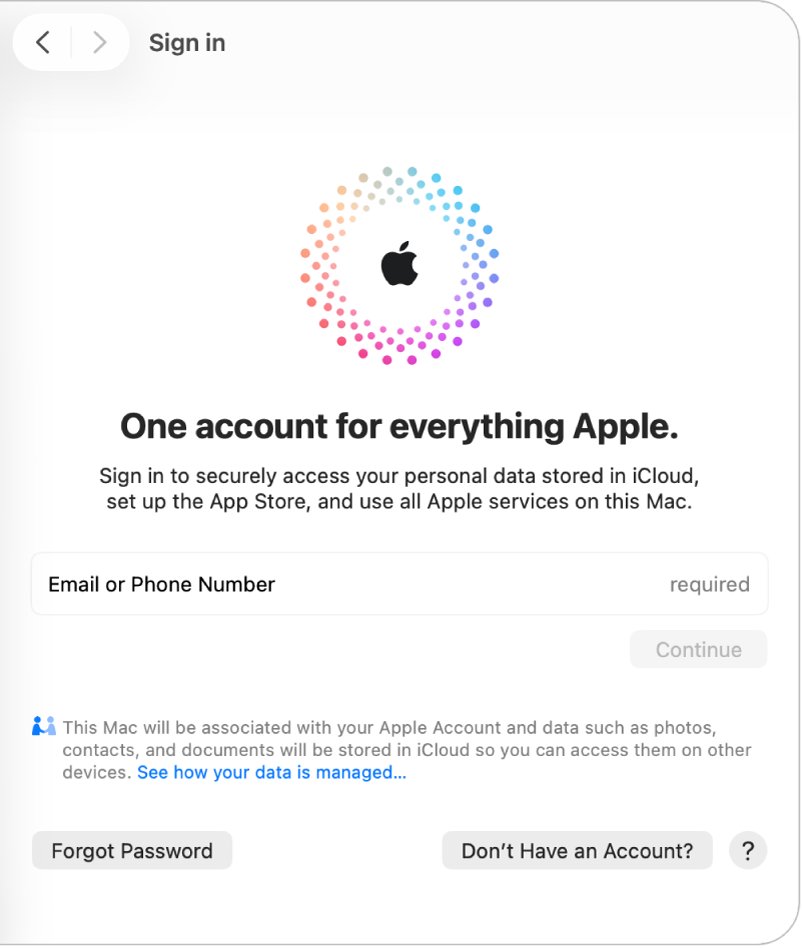
Open System Settings, click Sign in at the top of the sidebar, enter your Apple Account email or phone number, click Continue, then enter your password. If you already see your name, the Mac is signed in.
Is the Mac login password the same as my Apple Account password?
No. The Mac login password unlocks that one computer and approves changes on it. The Apple Account password signs you in to iCloud, the App Store and other Apple services on every device and on the web.
Do I need a verification code every time I sign in to iCloud.com?
No. Two-factor authentication asks for a code when you sign in for the first time on a new device or browser. After that it asks again only if you sign out completely, erase the device, or change your password for security reasons.
The same Apple Account password also signs you in to the App Store on your Mac and iPhone.