To create breakout rooms in Microsoft Teams, join the meeting in Teams for Windows or Mac as the organizer, select Rooms in the meeting controls, choose up to 50 rooms, pick how people are assigned, and select Create rooms.
Participants on Teams for the web, iOS, Android, Linux or a phone dial-in can be moved into rooms, but only the desktop app can create and manage them. This guide covers creating rooms before and during a meeting, settings and timers, opening, managing and closing rooms, joining a room as a participant, adding or deleting rooms, and fixes for the usual problems.
How to create breakout rooms during a Teams meeting
This is the quickest route when the meeting is already running and everyone is in the main room.
- Join the meeting from Teams for Windows or Mac as the organizer or an appointed room manager.
- Select Rooms in the meeting controls.
- Choose the number of rooms you want, up to 50.
- Choose how participants are assigned: automatically or manually.
- Select Create rooms.
- Select Open rooms when you are ready for people to move.
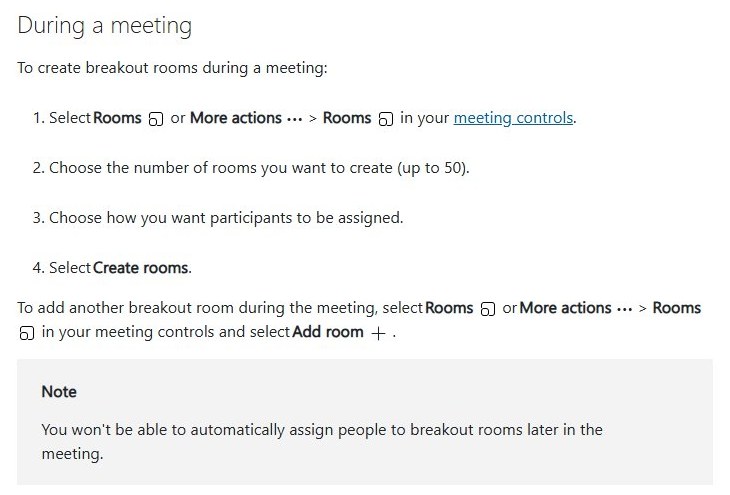
To add one more room later in the meeting, select Rooms > Add room. Automatic assignment is not available for rooms added later, so place those people manually.
What breakout rooms are in Microsoft Teams
Breakout rooms split one Teams meeting into smaller groups, then bring everyone back to the main meeting when the rooms close. Each room has its own audio, video and chat.
| Feature | What it means in practice |
|---|---|
| Rooms per meeting | Up to 50 |
| Meeting size | Up to 1,000 participants in a meeting that uses breakout rooms |
| Room chat | Each room has its own chat; the organizer sees every room's chat in the main chat list |
| Announcements | Sent to all rooms at once and marked IMPORTANT in each room's chat |
| Timer | Rooms close automatically when the time limit runs out |
| Attendance data | The meeting attendance report shows which room each person joined and when |
| Expiry | Rooms that are not opened within 60 days expire, drop off the room list and cannot be recovered; new rooms you add keep the numbering going |
Who can create and manage breakout rooms
Only some meeting roles see the Rooms button. Match your role to a row before you plan the session.
| Your role | What you can do | What to do if you need more |
|---|---|---|
| Meeting organizer | Create, assign, open, close, delete and join any room | Nothing; you have full control |
| Co-organizer from the organizer's organization | Manage breakout rooms | Ask the organizer to add you under Roles > Choose co-organizers |
| Presenter appointed as a breakout room manager | Add and delete rooms, set time limits, assign people, send announcements, open, close and recreate rooms, join any room | Ask the organizer to turn on Assign presenters to manage rooms |
| Attendee | Join the room you are assigned to, or pick one if the organizer allows it | Ask to be made a presenter and room manager |
| Person outside the organizer's organization | Take part in rooms only | Management is limited to the organizer's own organization |
Only one breakout room manager controls the rooms at a time. To take over, select Rooms, check who has control, and select Manage rooms.
Appoint breakout room managers
A presenter has to be invited to the meeting before you can make them a room manager. Microsoft caps it at 10 managers per meeting, they must be invited presenters from your organization, and attendees promoted from the roster during the meeting cannot be picked. Managers are not tied to one room; they move freely between all of them.
- Before the meeting, open the event in Calendar, select View event > More options > Breakout rooms > Rooms settings. During the meeting, select Rooms > Rooms settings.
- Turn on Assign presenters to manage rooms.
- Search for or choose the presenters who will help.
- Select Save.
Microsoft Teams breakout rooms requirements and limitations
| Requirement or limit | Detail |
|---|---|
| App to create and manage rooms | The Teams desktop app for Windows or macOS |
| Apps that can only join rooms | Teams on the web, iOS, Android, Linux, and phone dial-in |
| Meeting type | A scheduled private meeting, Meet Now, a scheduled channel meeting or a channel Meet Now; not meetings organized in a private or shared channel |
| Maximum rooms | 50 |
| Maximum participants | 1,000; once rooms exist in a smaller meeting, its capacity locks until all rooms close |
| Teams (free) accounts | Cannot be added or assigned to a room |
| Not available inside rooms | Adding people from the participant panel, adding people to the meeting chat, and copying the join info |
| Phone participants | Dial-in users move to rooms automatically and need reassigning if they drop and rejoin |
| Admin policy | An IT admin can turn the feature off for your account |
| Pre-assigning before the meeting | Only the organizer can do it, only for invited people in approved organizations, and not when the meeting has more than 1,000 invitees |
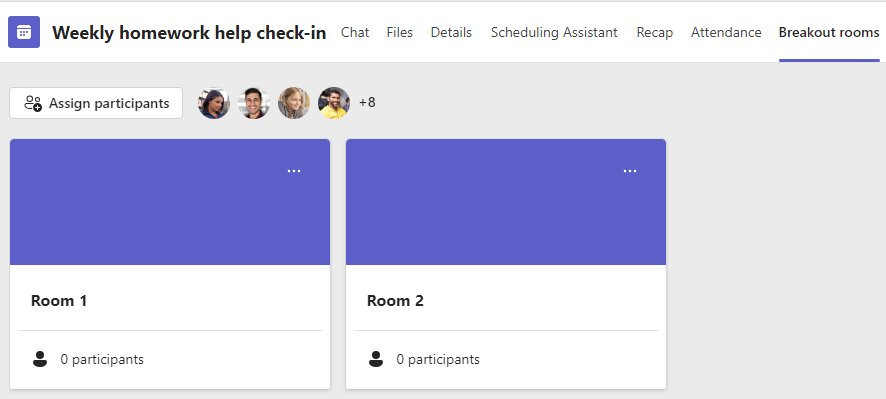
How to create breakout rooms before a Teams meeting
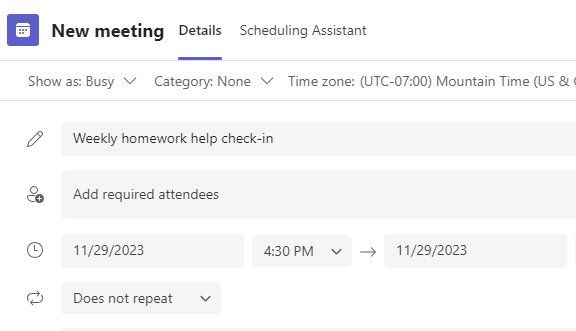
Creating rooms in advance lets you assign people from the invite list and open the rooms the moment the meeting starts. Schedule the meeting and send the invites first, because the option appears only after invites go out.
- Select Calendar in Teams.
- Select the meeting, then select View event.
- Select More options > Breakout rooms.
- Select Create rooms.
- Choose the number of rooms you want, up to 50, and select Add rooms.
- Select Assign participants.
- Choose how participants are assigned, then select Next > Save.
Pre-meeting setup is only available while the main meeting is not running and all rooms are closed. Once the meeting starts, you manage rooms from the Rooms panel inside it. People who were pre-assigned but join late, after rooms are already open, are not moved automatically, so place them by hand.
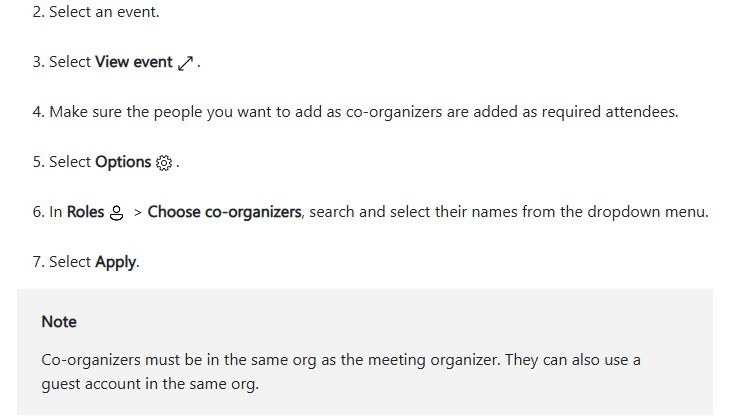
To have someone help run the rooms, add them as a co-organizer first: in the event, select Options > Roles > Choose co-organizers, pick their name and select Apply. A meeting can have up to 10 co-organizers. Co-organizers must be added as required attendees first and must be in the organizer's organization.
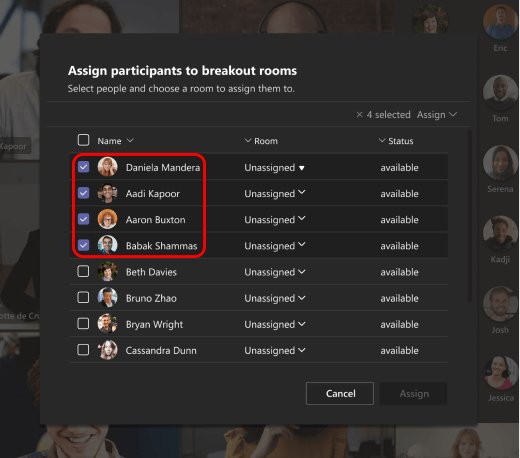
How to assign participants to breakout rooms in Teams
Manual assignment suits planned groups. Shuffle spreads people at random and can skip anyone you have already placed.
- Before the meeting, open the event and select More options > Breakout rooms; during it, select Rooms.
- Select Assign participants.
- To place people by hand, select Manually assign people to rooms > Next before the meeting, or work in the list during it.
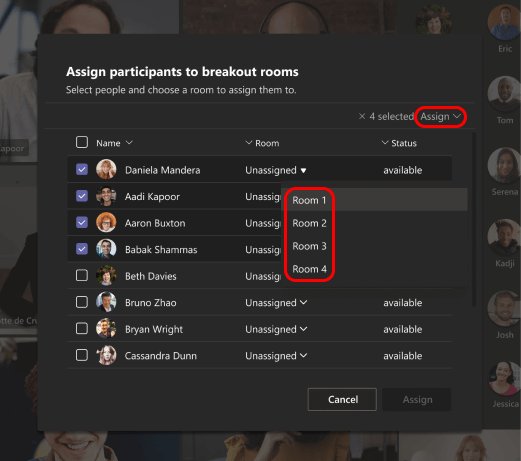
- In the Room column, select Unassigned or the person's current room, then choose the new room.
- To randomise instead, select Shuffle and choose Everyone or Only unassigned people.
- Select Save.
In recurring meetings, room assignments carry over to future occurrences until you change them.
If someone did not land in their room, hover over their name in the Rooms panel, select More options and choose Ask to join; Teams then prompts them to join the room.
How to configure breakout room settings
Room settings decide whether people move automatically, whether they can leave early, how long rooms last and who helps you run them. Open them from Rooms > Rooms settings during a meeting, or from the event's Breakout rooms page beforehand.
| If you want to | Do this in Rooms settings | Result |
|---|---|---|
| Send people into rooms without a prompt | Leave Automatically move people to rooms on | Assigned people land in their room as soon as it opens |
| Let people choose their own room | Pick the self-select assignment option when you create rooms | Participants see the open rooms and join one themselves |
| Let people come back early | Turn on the option that lets participants return to the main meeting | Participants get a Leave room button |
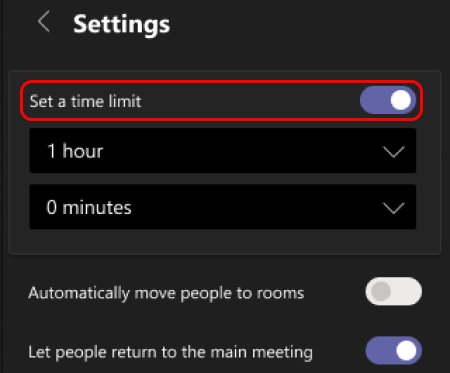
| Keep the session on schedule | Turn on Set a time limit and pick the time from the dropdown menus | Rooms close by themselves and people rejoin the main meeting |
| Get help running rooms | Turn on Assign presenters to manage rooms and pick presenters | Those presenters become breakout room managers |
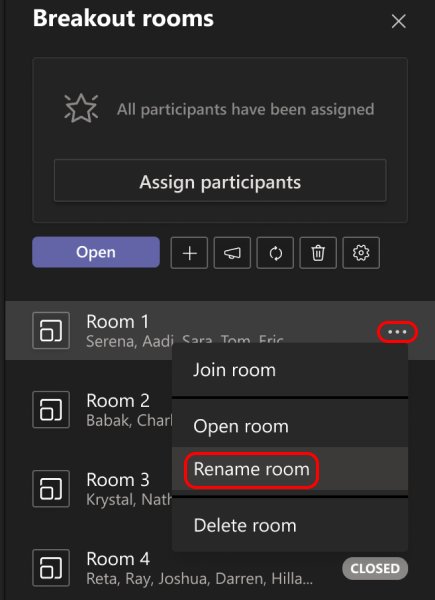
| Label rooms by topic | Hover over a room, select More options > Rename, type a name, select Rename | The new name shows for everyone |
Select Save after any change. Settings can be changed again during the meeting.
Set breakout room time limits
- Select Rooms > Rooms settings (or the event's Breakout rooms page before the meeting).
- Turn on Set a time limit.
- Pick the hours and minutes from the dropdown menus.
- Select Save.
When the time runs out, rooms close and people rejoin the main meeting. If you turn off Automatically move people to rooms, participants can choose to rejoin the main meeting or leave once time expires.
How to open breakout rooms
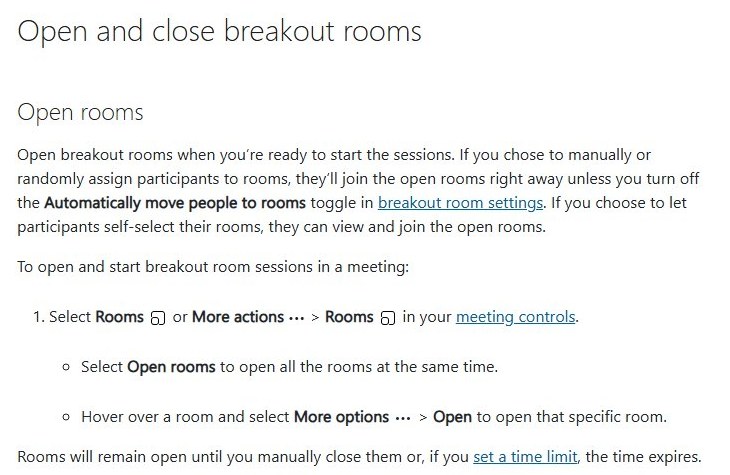
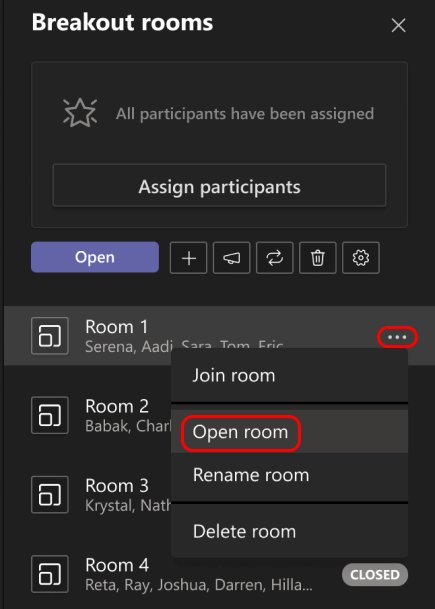
- Select Rooms in the meeting controls.
- Select Open rooms to open every room at once.
- To open just one, hover over that room and select More options > Open.
- Watch each room's status change to open as people arrive.
A room with nobody assigned will not open. Rooms stay open until you close them or the time limit runs out. If you chose manual or random assignment, people join the open rooms straight away unless Automatically move people to rooms is off.
How to manage rooms while they are open
While rooms are open, the organizer can visit any room, move people and talk to every group at once.
| Task | Steps |
|---|---|
| Join a room | Select Rooms, hover over the room, select More options > Join room; select Return to go back to the main meeting |
| Move someone to another room | Select Rooms > Assign participants, check the person's name, choose the new room, select Assign, then Move |
| Send an announcement | Select Rooms > Make an announcement, type the message and select Send |
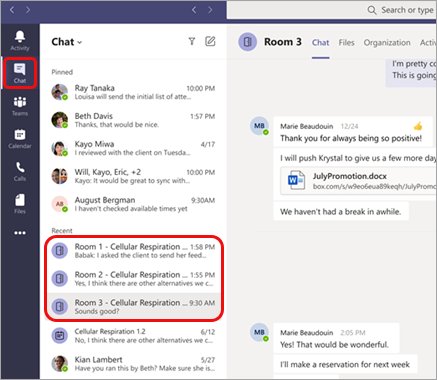
| Read room chats | Open your main Teams chat list; each room's chat appears there, including replies to announcements |
| Hand control to another manager | The other manager selects Rooms > Manage rooms |
| Check everyone is in the right room | Select Rooms, check each room's status and the names listed under it, and place anyone still shown as Unassigned |
| Check who went where afterwards | Open the meeting chat, select Attendance, then pick a participant under Participants |
Send an announcement to breakout rooms
Select Rooms > Make an announcement, type the message and select Send. It shows in every room's chat marked IMPORTANT, and replies appear in that room's chat in your main chat list.
How to join a breakout room in Teams as a participant
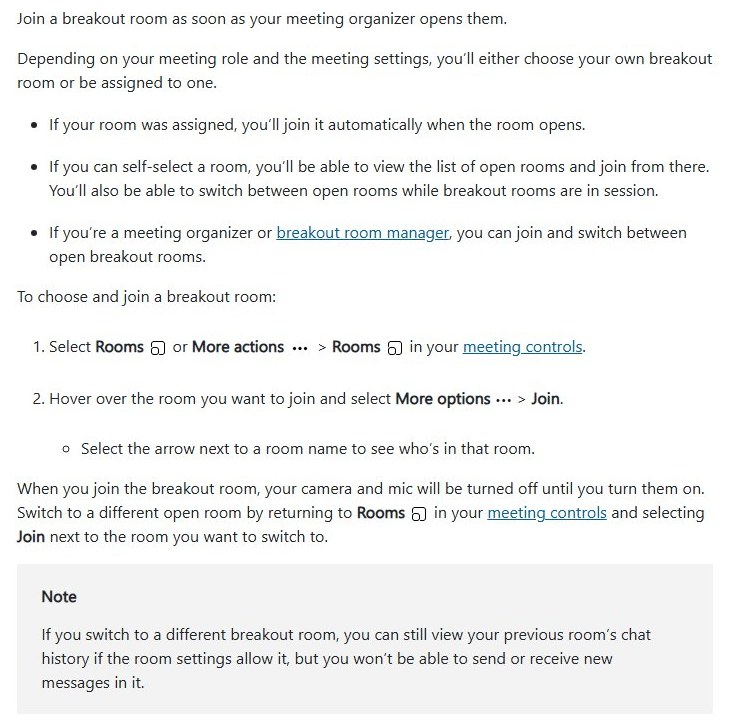
How you get into a room depends on the meeting settings. If the organizer assigned you, Teams moves you in automatically when the room opens. If you can self-select, you pick from the list of open rooms and can switch between them while rooms are in session.
- Select Rooms, or More actions > Rooms, in the meeting controls.
- Select the arrow next to a room name to see who is already in it.
- Hover over the room you want and select More options > Join.
- Turn your camera and mic on; both stay off when you enter a room.
- To switch rooms, go back to Rooms and select Join next to another open room.
After switching, you can still read your previous room's chat history if the room settings allow it, but you cannot send or receive new messages there. You can join from Teams on the web, iOS, Android or Linux, or by phone dial-in, as well as the desktop app.
How to close breakout rooms
Closing a room ends its session and sends everyone in it back to the main meeting.
- Select Rooms in the meeting controls.
- Select Close rooms to close every room at once.
- To close just one, hover over that room and select More options > Close.
- Check that the room's status reads Closed.
If you reopen rooms later, assigned participants return to the same rooms they were in before. Selecting End meeting in the main meeting does not close open breakout rooms; close them from Rooms first.
How to recreate, add, or delete rooms
A room must be closed before you delete it. Anyone still inside is moved to the main meeting when it closes, or you can reassign them first.
| Task | Steps |
|---|---|
| Reopen rooms | Select Rooms > Open rooms; assigned people return to their earlier rooms |
| Add a room | Select Rooms > Add room, then assign people to it manually |
| Delete one room | Close it, hover over it, select More options > Delete, and confirm |
| Delete every room | Close the rooms, select Remove rooms, and confirm |
| Recreate all rooms | Select Rooms > Recreate rooms, confirm, then set up rooms and assignments again |
Attendance reports do not include data from deleted rooms, so download the report as a CSV before you delete rooms you need records for.
Best practices for running smooth breakout rooms
Each practice below maps to a Teams control, so the room runs on settings rather than reminders.
| Practice | Teams control that supports it |
|---|---|
| Give clear instructions before opening rooms | Say the task in the main meeting, then repeat it with Make an announcement |
| Assign a role in each room | Name rooms by task with Rename and pick a note taker per room |
| Use shared files for group output | Share a file in each room's chat so the group works in one copy |
| Visit rooms without taking over | Use Join room, keep your camera and mic off until needed, then select Return |
| Build in transition time | Set a time limit a few minutes longer than the task and announce a warning before it ends |
| Get a co-host | Make a presenter a breakout room manager so one person watches the main room |
Tips for teachers, trainers, and large meeting hosts
| Situation | What to set up |
|---|---|
| Same groups every week | Create rooms on a recurring meeting; assignments carry over to later occurrences |
| Class or cohort with set groups | Create rooms before the meeting and assign each name manually |
| Large audience near 1,000 people | Create rooms ahead of time, because rooms created in a smaller meeting lock its capacity |
| Students joining from phones or browsers | They can join rooms; only you need the Windows or Mac desktop app |
| Several facilitators | Turn on Assign presenters to manage rooms so a manager can take over with Manage rooms |
| Need records of participation | Use Attendance in the meeting chat and download the CSV before deleting rooms |
When the groups are known in advance, create and assign rooms from the calendar event and set a time limit, so rooms open the moment the meeting starts and close on schedule. If you also run Zoom calls, the Zoom breakout rooms walkthrough covers the same workflow, and you can share the Teams recording with groups afterwards. To collect quick votes from every group once they are back, run a Teams poll in the main meeting.
Common problems and how to fix them
Breakout rooms not showing in Teams meeting controls
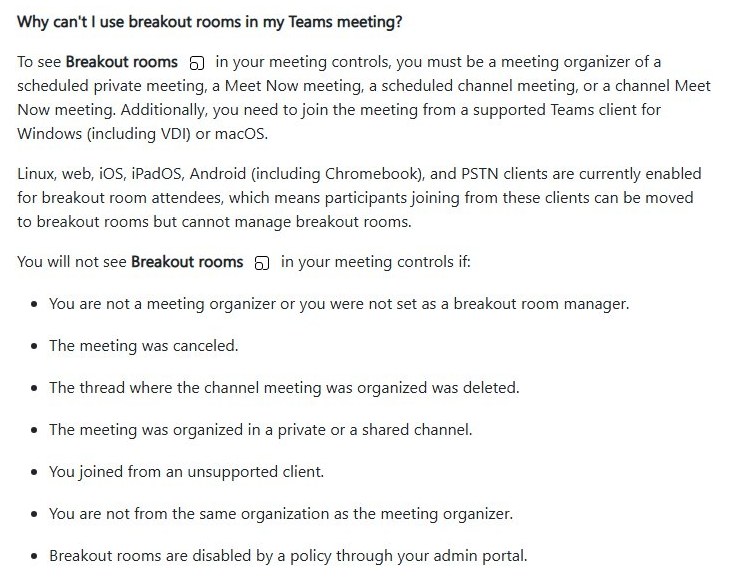
You are not the organizer or a room manager, you joined from an unsupported app, the meeting was cancelled or organized in a private or shared channel, the channel thread was deleted, you are outside the organizer's organization, or an admin policy turns the feature off.
- Rejoin the meeting from Teams desktop for Windows or Mac.
- Ask the organizer to make you a co-organizer or a breakout room manager.
- Confirm you are in the organizer's organization; outside accounts cannot manage rooms.
- If the button is still missing, ask your IT admin whether breakout rooms are disabled for your account.
A participant was not assigned to a room
Teams (free) accounts, unsupported devices, people absent when rooms were assigned, and older Teams versions cannot be placed automatically.
- Select Rooms > Assign participants.
- Find the person and assign them to a room manually.
- If Teams will not place them, ask them to update Teams or sign in with a work or school account.
- Keep the main meeting as their group if they still cannot move.
A room will not open
Empty rooms do not open, and timed rooms with nobody joining stay closed.
- Assign at least one person to the room.
- Select Open rooms again or open that room from More options > Open.
How to stop a breakout room that will not close
A single room sometimes fails to respond to Close rooms.
- Right-click the room in the Rooms panel.
- Select Close room.
- Check that its status changes to Closed.
Phone participant not moving to a breakout room
Dial-in callers move to rooms automatically, even with automatic entry off, but they need reassigning after they drop and redial, and dial-out callers return through the lobby.
- Check the caller has a room assigned in the Rooms panel.
- If the room is already open, select Assign again.
- Admit dial-out callers from the lobby when they come back to the main meeting.
- Make sure both the organizer and the room manager have an audio conferencing license; otherwise phone users can get stuck in the main meeting or in a room.
A room closed early
A room closes automatically when everyone in it leaves before the timer ends.
- Reopen the room from More options > Open.
- Reassign the participants if they returned to the main meeting.
Microsoft Teams breakout rooms FAQ
How do I create breakouts in Teams?
Join the meeting in Teams for Windows or Mac as the organizer and select Rooms in the meeting controls. Pick up to 50 rooms, choose automatic or manual assignment, and select Create rooms, then Open rooms.
How do I set up a breakout room before the meeting?
Open Calendar, select the meeting and View event, then More options > Breakout rooms. Select Create rooms, choose the number, Add rooms, and assign participants. The option only appears after the invites have been sent.
How do I use breakout rooms as a participant?
If you are assigned a room, Teams moves you there when the organizer opens it. If you can choose, select Rooms, hover over a room, and select More options > Join. Your camera and mic stay off until you turn them on.
How do I stop a breakout session in Teams?
Select Rooms and then Close rooms to end every room, or close one room from its More options menu. Everyone returns to the main meeting. A time limit closes rooms automatically when it runs out.
How many breakout rooms can I make in Teams?
Teams allows up to 50 breakout rooms per meeting. The meeting itself can hold up to 1,000 participants when breakout rooms are used.
Can I make a breakout room in Teams on my phone or the web?
No. Creating and managing rooms needs Teams desktop for Windows or Mac. Teams on the web, iOS and Android can join breakout rooms but cannot create or manage them.
How do I lead a breakout session as a presenter?
Ask the organizer to turn on Assign presenters to manage rooms and pick you. Then select Rooms > Manage rooms to take control. Only one manager controls the rooms at a time.
What is the use of a breakout session?
A breakout session splits a large meeting into small groups for discussion or group work, then brings everyone back together. In Teams, each room has its own audio, video and chat, and the organizer can visit any room.
Can people leave a breakout room and return to the main meeting?
Yes, if the organizer allows it in Rooms settings. Participants then see a Leave room button. Otherwise they return when the room closes or its time limit ends.
Can I see the chat from each breakout room?
Yes. Each room's chat appears in the organizer's main Teams chat list, and replies to announcements show there too. When a room closes, its chat session ends.
Does ending the meeting close breakout rooms in Teams?
No. Selecting End meeting closes only the main meeting. Close the rooms from Rooms > Close rooms, and check that each room shows Closed.
How many breakout room managers can a Teams meeting have?
Up to 10. They must be invited presenters from the organizer's organization, and they can move between all rooms rather than being tied to one.