To uninstall programs in Windows 11 or 10, open Start > Settings > Apps > Installed apps, select More (the three dots) next to the app and choose Uninstall.
This guide covers every uninstall route, stubborn and leftover removals, installing and updating apps, Microsoft Store fixes, default apps and startup apps.
Uninstall programs from the Settings app
Settings removes both Microsoft Store apps and most desktop programs, so start here. Screenshots of each screen help when you uninstall apps on Windows 11 for the first time.
- Select Start > Settings > Apps > Installed apps.
- Type the app name in the search box above the list.
- Select More (three dots) next to the app.
- Select Uninstall, then Uninstall again to confirm.
- Follow the program's own uninstaller if a second window opens.
Some apps cannot be uninstalled from Settings yet. For those, use Control Panel, described below.
Which uninstall method to use in Windows 11 and 10
| Your situation | Use this method | Why |
|---|---|---|
| Normal app or program | Settings > Apps > Installed apps | Handles Store apps and most desktop programs |
| App visible in the Start menu | Right-click it in All apps > Uninstall | Two clicks, no searching |
| Older desktop program, Settings shows no Uninstall | Control Panel > Programs and Features (appwiz.cpl) |
Runs the program's own Uninstall/Change option |
| Many programs, or a script | winget uninstall in Windows Terminal, CMD or PowerShell |
Removes by name or ID, can run silently |
| Built-in or Store app package | Remove-AppxPackage in PowerShell |
Removes app packages Settings will not |
| Program not in any list | Its own uninstaller in the install folder (File Explorer) | Some programs ship an uninstall file but no listing |
| Uninstall fails while Windows runs | Safe Mode | Fewer drivers and services hold files open |
| Leftovers after a normal uninstall | Vendor removal tool or a third-party uninstaller | Cleans folders and entries the uninstaller skipped |
Uninstall programs from the Start menu
- Select Start, then All apps.
- Find the app in the alphabetical list, or type its name.
- Right-click it (or press and hold) and select Uninstall.
- Confirm. A desktop program opens Control Panel or its own uninstaller; a Store app is removed straight away.
Uninstall programs and features with the Control Panel
Programs and Features is the classic list for older programs, and it also offers Repair and Change where the installer supports them. You can also open Programs and Features with appwiz.cpl to manage updates and Windows features.
- Type Control Panel in taskbar search and open it, or press Win + R, type
appwiz.cpland press Enter. - Select Programs > Programs and Features.
- Right-click the program and select Uninstall or Uninstall/Change.
- Follow the directions on the screen, then restart if the uninstaller asks.
Uninstall programs using Windows Terminal
WinGet works in Windows Terminal, Command Prompt and PowerShell, and it can remove apps that were not installed with it. It is part of App Installer on Windows 11 and current Windows 10. Every flag is listed in the WinGet command reference.
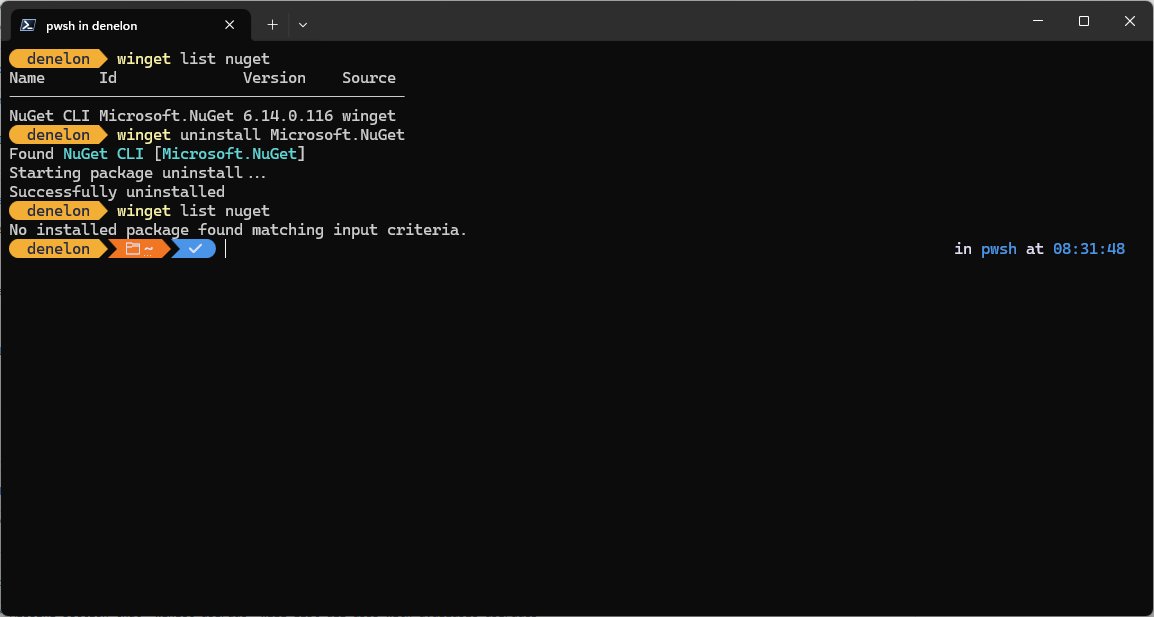
- Right-click Start and select Terminal (or open Command Prompt or PowerShell).
- Run
winget listto see installed apps with their IDs. - Run
winget uninstall --id <ID> -eto remove one app by its exact ID. - Add
--silentto hide the uninstaller window, or--source wingetto skip the Microsoft Store agreement prompt. - List several IDs after
winget uninstallto remove multiple programs at once.
For Store app packages, run Get-AppxPackage -Name <name> in PowerShell to read the full package name, then Remove-AppxPackage -Package <full name>.
Use the program’s built-in uninstaller
Settings and Control Panel both start the uninstaller the program registered. When a program has no listing, open its install folder in File Explorer instead.
- Open File Explorer and go to the program's folder, usually under Program Files or Program Files (x86).
- Look for a file named like uninstall or unins000.
- Double-click it and follow its prompts.
- Check Installed apps afterwards to confirm the entry is gone.
Uninstall programs in Safe Mode
Safe Mode starts Windows with a limited set of files and drivers, so a program's services cannot block the uninstaller. If the device uses BitLocker, have the recovery key ready.
- Open the Windows Recovery Environment.
- Select Troubleshoot > Advanced options > Startup Settings > Restart.
- Press 4 or F4 for Enable Safe Mode.
- Uninstall the program from Control Panel or its own uninstaller.
- Restart to return to normal mode. If Windows keeps booting into Safe Mode, run
msconfigand clear Safe boot under Boot options.
Third-party uninstallers
Windows' own tools remove almost everything. A dedicated uninstaller earns its place mainly for leftovers or bulk removal.
| Option | What it adds | When to use it |
|---|---|---|
| Vendor removal tool | Removes drivers and services the vendor installed | Antivirus suites and audio or driver packages |
| Revo Uninstaller | Runs the uninstaller, then scans for leftovers | Programs that leave folders behind; get the Revo Uninstaller free download from the publisher |
| WinGet | Removes several apps in one command | Clearing many programs at once |
| Registry "cleaners" | Nothing a reinstall needs | Avoid them |
Understanding different types of programs in Windows 11
| Type | Where it is listed | How it is removed |
|---|---|---|
| Microsoft Store app | Installed apps and Start | Settings, Start or Remove-AppxPackage |
| Desktop program (installer) | Installed apps and Programs and Features | Settings, Control Panel or winget uninstall |
| Built-in Windows app | Installed apps, sometimes without Uninstall | Some cannot be uninstalled at all |
| Portable program | Not listed anywhere | Delete its folder; WinGet --purge removes portable packages it installed |
| System component or update | Programs and Features > installed updates | Not removed like an app |
Those types explain most Windows 11 program removal challenges and solutions, including why you can't find the program to remove in Windows 11: portable programs never register, and some built-in apps are part of Windows.
How to uninstall stubborn programs that won’t remove
Why can't I find the program to remove in Windows 11?
It is portable, built in, or listed under another name.
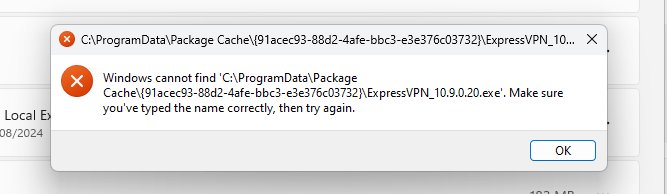
- Search Installed apps by publisher name as well as product name.
- Check Control Panel > Programs and Features.
- Run
winget listin Terminal, which shows apps installed by any method. - For a portable program, delete its folder.
Uninstall button greyed out or missing
Settings cannot remove some apps yet, or the app is part of Windows.
- Uninstall it from Control Panel instead.
- For a Store package, use
Remove-AppxPackagein Terminal (Admin). - Accept that some built-in apps cannot be uninstalled.
Error message while uninstalling
A damaged install or missing installer files.
- Select Advanced options > Repair (or Repair in Programs and Features), then uninstall again.
- Run the Program Install and Uninstall troubleshooter.
- Try
winget uninstall --id <ID> -e --force.
Program won't uninstall because it is running
Its process or service keeps files open.
- Close the program and end it in Task Manager.
- Disable it in Settings > Apps > Startup and restart.
- Uninstall again, or use Safe Mode.
Suspicious program comes back
Malware reinstalls it.
- Run a full scan in Windows Security.
- Remove the app only after threats are cleaned.
- If nothing works, contact the publisher or use Reset this PC and keep your files.
How to remove leftover files after uninstalling
- Restart the PC so no file is still in use.
- Open File Explorer and delete the program's folder in Program Files or Program Files (x86) if it is still there.
- Type
%appdata%in the address bar and delete the program's folder; repeat for%localappdata%and%programdata%. - Open Settings > Apps > Startup and remove nothing that is still needed; an entry named We couldn't find this app is a leftover.
- Delete any shortcut left in
shell:startup.
Only delete folders whose name clearly matches the removed program, and skip registry edits unless the vendor documents them.
How to uninstall built-in Windows 11 apps
Many inbox apps show Uninstall in Settings. Others need PowerShell, and a few cannot be removed. Microsoft Edge can only be uninstalled in the EEA, which the guide to remove Microsoft Edge explains along with the alternatives.
- Try Settings > Apps > Installed apps > More > Uninstall first.
- If it is greyed out, right-click Start and open Terminal (Admin).
- Run
Get-AppxPackage -Name *<name>*and copy the PackageFullName value. - Run
Remove-AppxPackage -Package <PackageFullName>. - Reinstall the app from Microsoft Store Library later if you need it again.
Uninstall antivirus, McAfee, Edge, Skype, WinZip and Nahimic
| Software | What is different | Short answer |
|---|---|---|
| Third-party antivirus | Leaves drivers and services; Defender must come back on | Remove it in Settings, run the vendor tool, then uninstall third-party antivirus software checks |
| McAfee | Preinstalled suites and WebAdvisor | Uninstall from Start or Control Panel, then use the McAfee removal steps for leftovers |
| Skype | Retired on May 5, 2025; Teams Free replaces it | Safe to remove; uninstall Skype in Windows 11 from Start or Settings |
| WinZip | Leaves startup items and tasks | Uninstall, then remove WinZip completely with the folder cleanup |
| Nahimic | A service and driver that Windows Update can reinstall | Disable the Nahimic service before removing the app and driver |
| Microsoft Edge | Part of Windows outside the EEA | Change the default browser instead of removing it |
Best practices before uninstalling
| Check | Why it matters |
|---|---|
| Try Repair first in Advanced options or Programs and Features | A broken app often needs fixing, not removing |
| Note licence keys and export settings | Paid programs may need the key to reinstall |
| Scan with Windows Security if the app looks suspicious | Remove malware only after threats are cleaned |
| Close the program and end it in Task Manager | Running files block the uninstaller |
| Uninstall unnecessary programs one at a time | A failure is easy to trace to one program |
Why you might want to uninstall a program: it is unused, it starts with Windows and slows sign-in, or it conflicts with another app. Keeping Windows 11 clean is mostly about removing what you never open and trimming startup apps.
How to install apps on Windows 11 and 10
There are three safe sources: Microsoft Store, the developer's own website and WinGet. Each route is compared in the guide to install apps on a laptop or PC.
- Microsoft Store: open the Store, search the app and select Get or Install.
- Installer: download the setup file only from the developer's site, run it and follow the prompts.
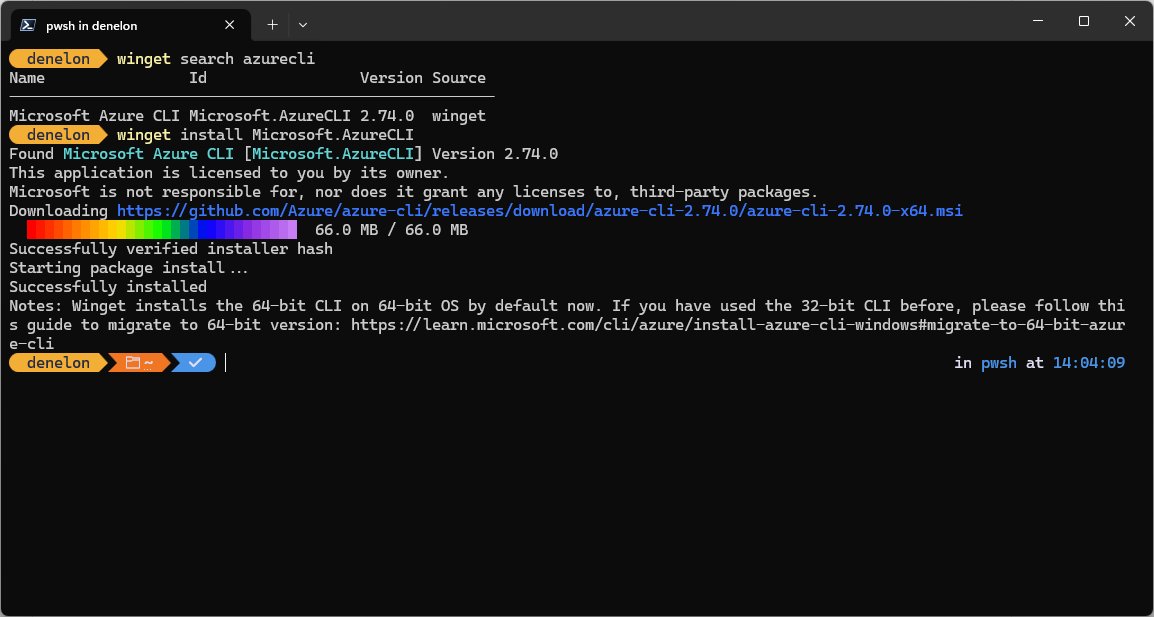
- WinGet: run
winget install --id <ID> -e, for examplewinget install --id Git.Git -e. - Several apps: list their IDs after
winget installand WinGet installs them in sequence. - Check the app appears in Settings > Apps > Installed apps.
Developers who script installs sometimes prefer Chocolatey, a separate package manager; the Chocolatey download for Windows page covers its setup.
How to open Microsoft Store on Windows: select Start, type Microsoft Store and open it, or press Win + R and run wsreset.exe, which opens it after resetting the cache. To download Microsoft Store apps, sign in with a Microsoft account first. If the Store is missing on Windows 10, check the version is 15063 or later.
How to check if an app or program is installed in Windows
- Open Start > Settings > Apps > Installed apps and search the name.
- Open Start and check the alphabetical All apps list.
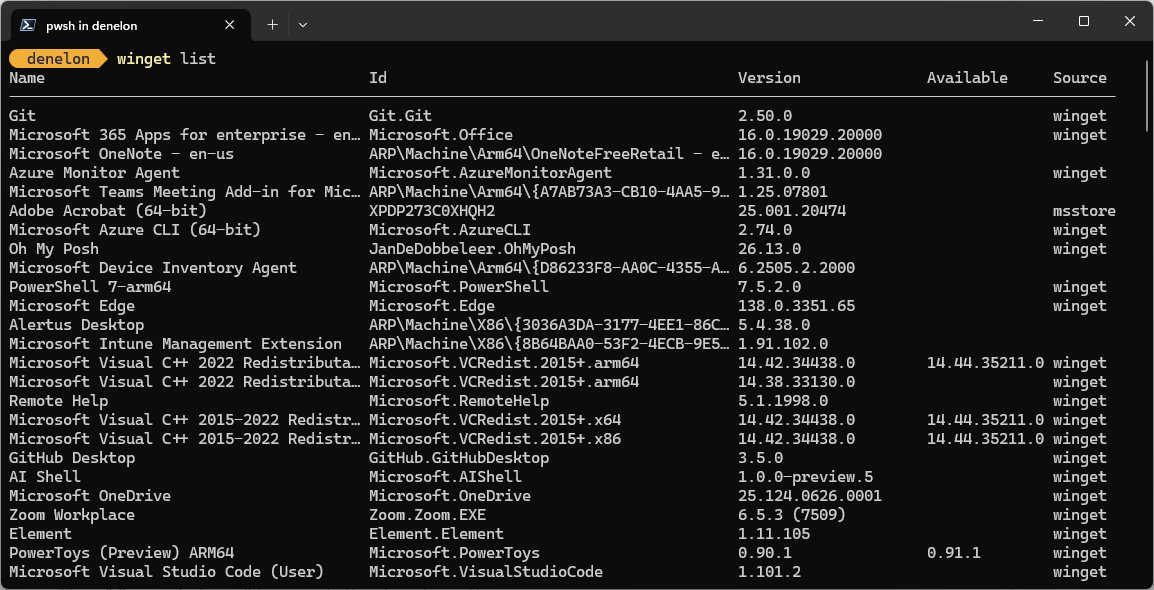
- Run
winget list <name>in Terminal for its version and ID. - After an uninstall, the app should be gone from all three.
Get updates for apps and games in Microsoft Store
Store app updates are automatic, though they can be paused. To update Microsoft Store apps manually, use the Library page.
- Open Microsoft Store and select Library.
- Select Get updates; the Store updates itself first if needed.
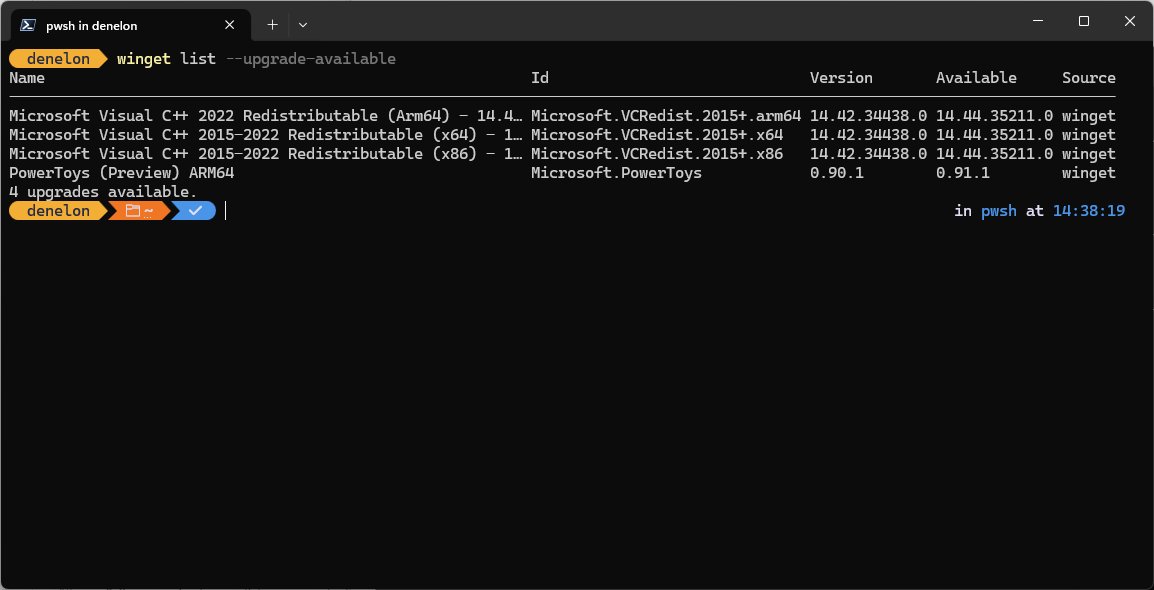
- For desktop programs, run
winget upgradeto preview updates. - Run
winget upgrade --allto install them. Pinned apps are skipped unless you add--include-pinned.
Why Microsoft Store stops opening
| Symptom | Likely cause | Fix |
|---|---|---|
| Store does not open or closes | Corrupt Store cache | Run wsreset.exe, then repair or reset Microsoft Store |
| Apps not installing or updating | Pending Windows or Store updates, signed out | Install Windows updates, sign in, Library > Get updates |
| Games will not download | Gaming Services or install location | Work through the Store game download fixes |
| High CPU from wsappx | Store app installs or updates running | Let updates finish, then fix wsappx high CPU |
| AppXSVC busy or stopped | The service that installs and removes Store apps | Leave it on manual; AppX Deployment Service explained |
| Store authentication errors | Wrong date and time | Set the correct date and time, then sign in again |
Common fixes for Microsoft Store issues
Method 1: Run wsreset.exe (start here)
A corrupt Store cache stops the Store opening or downloading.
- Press Win + R, type
wsreset.exeand select OK. - Wait about ten seconds while a blank Command Prompt window runs.
- The Store opens on its own when it finishes.
Method 2: Reset the Store via Settings
Store app data is damaged.
- Open Settings > Apps > Installed apps.
- Select More next to Microsoft Store > Advanced options.
- Select Repair; if that fails, select Reset.
Method 3: Reinstall Store via PowerShell and Xbox app
The Store package is missing or broken.
- Sign out of the Store and sign in again.
- Re-register the Store package in PowerShell (Admin), as in the Store repair guide linked above.
- For games, also check that the Xbox app and Gaming Services install.
Clear stuck Store download queue
An install is stuck behind another.
- Close Microsoft Store and any stuck installs.
- Open Library and cancel or retry each queued item.
- Restart the PC and try a Store update or install test.
Store apps not installing or updating, error 0x80073Dxx
Install conflicts or pending updates.
- Select Start > Settings > Windows Update > Check for updates and install them.
- Set the correct date and time, since wrong time breaks Store authentication.
- Run the built-in troubleshooters Windows offers, then reinstall the app from Library.
- As a last resort, use Reset this PC and keep your files.
How to change the default apps
Defaults live in Settings > Apps > Default apps. You can change default programs by file type, link type or app, and fix defaults that revert.
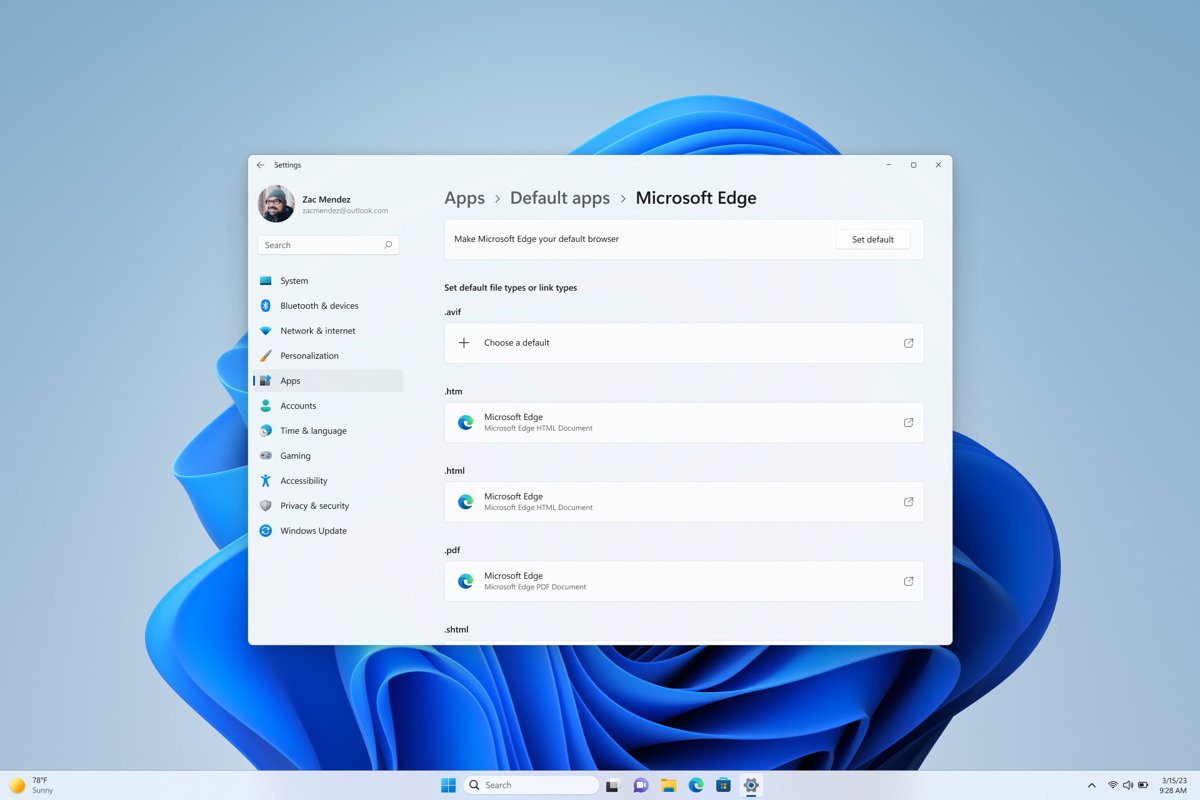
- Open Start > Settings > Apps > Default apps.
- Set the default for one file type or link type: type the extension, such as
.pdf, select it and choose an app. - Set defaults by app: select an app to see every file and link type it can open, then change any of them.
- Set your default browser: select the browser and choose Set default.
- Change a default from File Explorer: right-click a file, select Open with > Choose another app, pick the app and select Always.
An easier way, just for browsers: each browser owns several types (.htm, .html, HTTP, HTTPS), which is the per-type reality behind Set default. To make Chrome the default browser or set or remove Edge as default, use that button. For PDFs, open PDFs in Adobe Acrobat Reader by setting the .pdf type.
Reset to Microsoft's recommended defaults
What the reset changes, and what it doesn't: a reassigned type opens in the new app at once, but files and app settings are untouched.
- Open Settings > Apps > Default apps.
- Select the app Windows used before, such as Photos or Microsoft Edge.
- Select each type you changed and choose that app again.
- Repeat for the browser with Set default.
Windows 10 uses the same approach; reset Open with settings covers its differences.
How to manage startup apps in Windows 11
Apps registered with a startup task appear in Settings and Task Manager. To disable startup programs everywhere they hide, use both lists.
- Select Start > Settings > Apps > Startup.
- Set an app's toggle to Off to stop it starting when you sign in.
- Set it to On to start it automatically.
- Select the chevron next to an app for its advanced settings, where offered.
How to disable startup programs in Windows 10 (Task Manager)
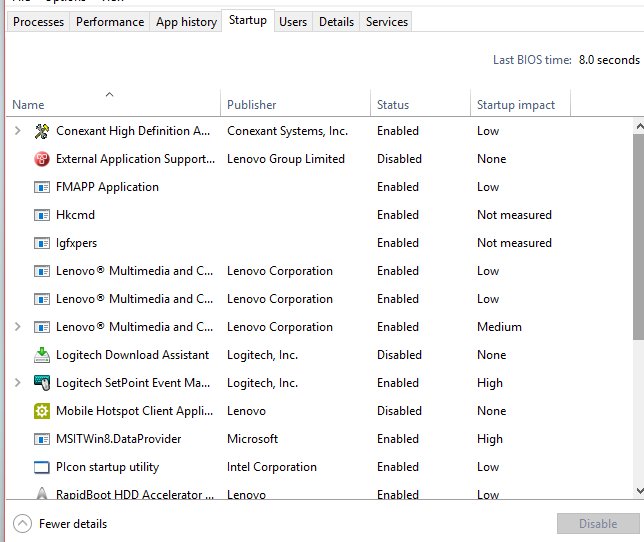
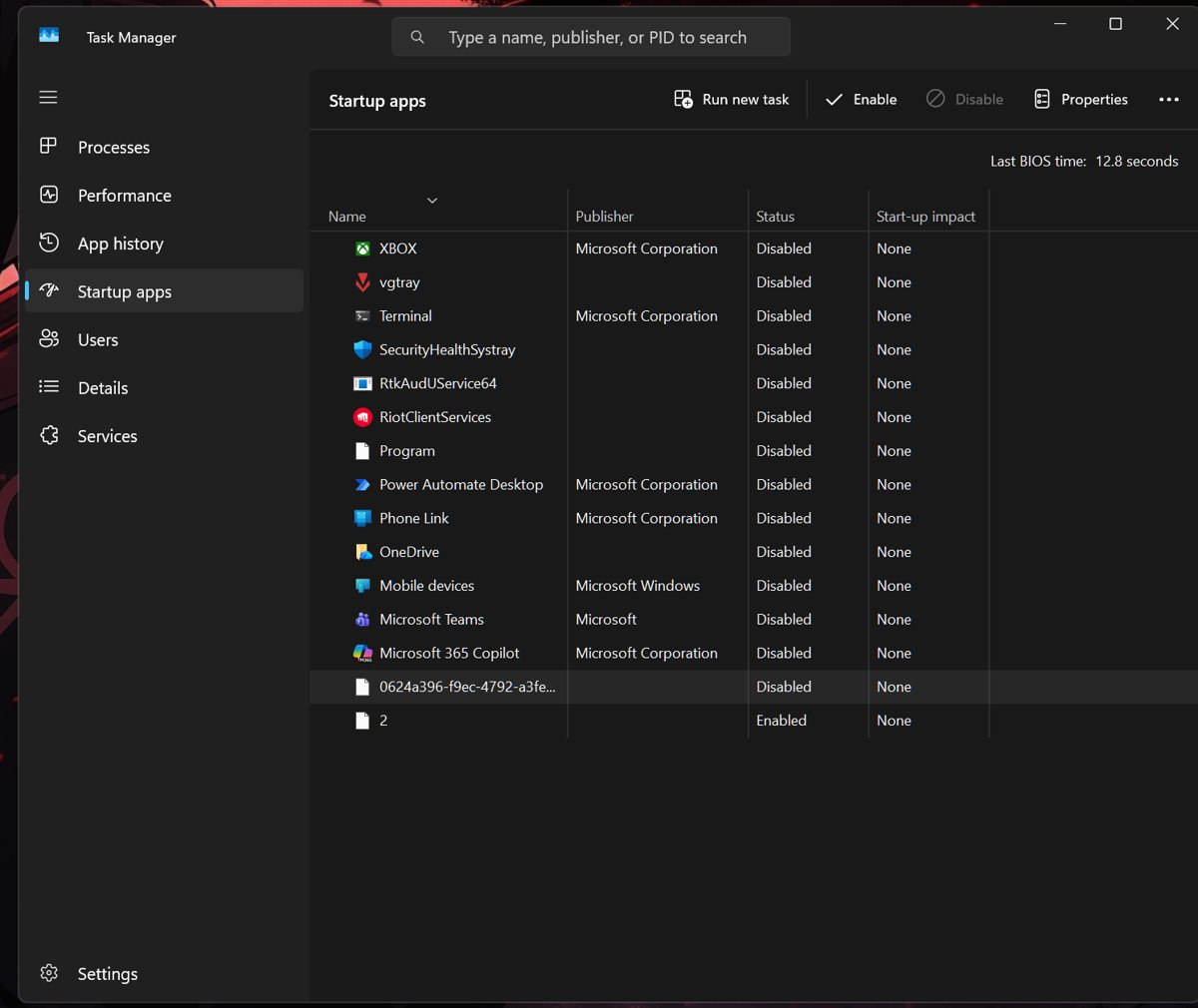
Task Manager shows the same list with a startup impact rating, on Windows 10 and Windows 11.
- Right-click Start and select Task Manager.
- Open the Startup apps tab (Startup on Windows 10).
- Select the app and select Disable, or Enable to turn it back on.
Impact ratings: Low is under 300 ms of CPU and 292 KB of disk; Medium is up to 1 second or 3 MB; High is more than that; Not measured means no data yet. An entry called simply Program in the Startup tab is usually a leftover with a missing file.
How to add startup programs using the Windows Startup folder
- Press Win + R, type
shell:appsfolderand press Enter. Keep this window open. - Press Win + R again, type
shell:startup(your account) orshell:common startup(all users) and press Enter. - Drag the app from the first window into the second to create a shortcut.
- To remove an application from startup programs, delete its shortcut from the Startup folder.
shell:startup is %userprofile%\AppData\Roaming\Microsoft\Windows\Start Menu\Programs\Startup; shell:common startup is %ProgramData%\Microsoft\Windows\Start Menu\Programs\Startup.
Seeing everything: PowerShell and Autoruns
Settings misses some autostart locations. To view all startup programs, check these.
| Location | Where it lives | Notes |
|---|---|---|
| Registry Run keys (current user) | HKCU\Software\Microsoft\Windows\CurrentVersion\Run |
Runs at every sign-in; RunOnce runs once |
| Registry Run keys (all users) | HKLM\Software\Microsoft\Windows\CurrentVersion\Run and HKLM\Software\Wow6432Node\Microsoft\Windows\CurrentVersion\Run |
Back up the registry before editing |
| Task Scheduler entries | Tasks with a logon or startup trigger | Used for advanced startup rules |
| Services | Auto-start services | Change with care |
| Autoruns (Sysinternals) | Startup folder, Run keys, services, tasks and more | The most complete Microsoft view |
Troubleshooting startup app problems
We couldn't find this app in the Startup list
The app was uninstalled, or sits on a removable or network drive.
- Select the icon next to the toggle to see the broken path.
- Reinstall the app, or delete its entry in the Run key that the window names.
Startup impact is not measured
Windows has no data for the app yet.
- Restart once or twice with the app enabled.
- Check Task Manager > Startup apps again.
App still starts after you disable it
It also uses the Startup folder, a scheduled task or a service.
- Delete its shortcut in
shell:startup. - Check Task Scheduler and Autoruns for other entries.
- Turn off the app's own run-at-startup option.
A disabled app you need right now
Disabling only stops automatic launch.
- Start it manually from Start > All apps whenever you need it.
Where to uninstall programs on Windows 11 and 10
| Task | Windows 11 | Windows 10 |
|---|---|---|
| Uninstall apps | Settings > Apps > Installed apps | Settings > Apps > Apps & features |
| Classic uninstall | Control Panel > Programs and Features | Control Panel > Programs and Features |
| Default apps | Settings > Apps > Default apps | Settings > Apps > Default apps |
| Startup apps | Settings > Apps > Startup or Task Manager > Startup apps | Task Manager > Startup |
| Store updates | Microsoft Store > Library > Get updates | Microsoft Store > Library > Get updates |
Uninstall programs in Windows FAQ
Where can I uninstall programs in Windows 11?
Open Start > Settings > Apps > Installed apps, select More next to the program and choose Uninstall. You can also right-click it in the Start menu's All apps list, or use Control Panel > Programs and Features.
Why can't I uninstall a program in Windows 11 or 10?
The program may be running, built into Windows, damaged or blocked by malware. Close it, try Control Panel instead of Settings, repair it first, or run the Program Install and Uninstall troubleshooter. Safe Mode helps when a service keeps files locked.
Can I uninstall programs in Safe Mode?
Yes. Desktop programs can be removed from Control Panel or their own uninstaller in Safe Mode. Start it from the Windows Recovery Environment under Troubleshoot > Advanced options > Startup Settings, then press 4.
Can I uninstall multiple programs at once?
Not from Settings or Control Panel, which remove one at a time. WinGet can: list several package IDs after winget uninstall and it removes each in turn. Add –silent to hide each uninstaller window.
How do I completely uninstall a program?
Uninstall it from Settings or Control Panel, restart, then delete its leftover folders in Program Files, %appdata% and %localappdata%. For antivirus and driver packages, run the vendor's own removal tool afterwards.
How do I uninstall programs on a laptop?
Exactly as on a desktop PC: Settings > Apps > Installed apps, the Start menu or Control Panel. Preinstalled maker software, such as HP utilities, is removed the same way, one program at a time.
How do I uninstall programs in Windows 11 with PowerShell?
Run winget uninstall –id followed by the app ID for desktop programs. For Store app packages, find the full name with Get-AppxPackage, then run Remove-AppxPackage -Package with that name.
Can I install programs on the D drive?
Many desktop installers let you choose the install folder during setup, so you can pick a folder on the D drive. Check the setup screen for a Browse or custom install option before you select Install.
Is there a free tool to uninstall programs?
Windows includes three free ones: Settings, Control Panel and WinGet. Free third-party uninstallers such as Revo Uninstaller add a leftover scan, which helps for programs that leave folders behind.