To reset an iPhone that has no Wi-Fi or cellular data, connect it with a cable to a Mac or Windows PC that is online and restore it from Finder or the Apple Devices app; the computer supplies the internet connection the iPhone lacks.
This guide shows which reset options work with no connection on the iPhone, how to activate it afterwards, how to reset settings without wiping your data, and what to do when the reset or activation fails.
Reset iPhone without Wi-Fi using a computer
Apple lists a Mac or Windows PC, a cable that can charge the iPhone, an internet connection on the computer and up to 60 minutes. Restoring erases everything on the iPhone, so back it up first if you still can.
- Connect the iPhone to the Mac or PC with a cable that can charge it.
- On a Mac, open a Finder window and select the iPhone in the sidebar under Locations. On a Windows PC, open Apple Devices and select the iPhone in the sidebar.
- Select Trust on the computer or iPhone if asked, or Allow the accessory to connect.
- On Windows, select General.
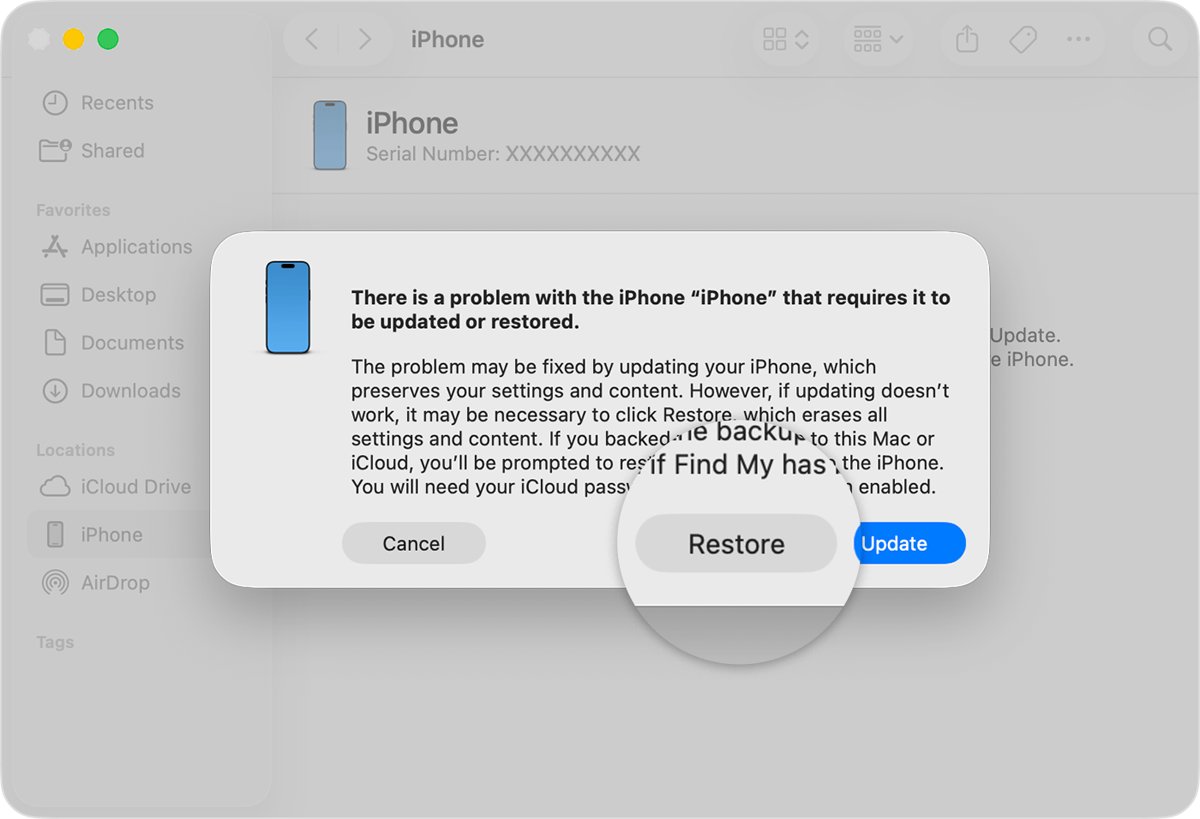
- Select Restore and follow the onscreen instructions.
- Wait for the download and restore to finish; the iPhone restarts to the Hello screen.
- Keep the iPhone connected so the computer can activate it, then follow the setup screens.
If the iPhone is locked, frozen or not recognised, put it into recovery mode first, as shown further down.
Do you need Wi-Fi to reset an iPhone?
Some reset options run entirely on the iPhone, but every full erase ends with activation, which needs a connection. Match your situation to a row.
| Your situation | Use this | Connection needed |
|---|---|---|
| You know the passcode and want a clean iPhone | Settings > General > Transfer or Reset iPhone > Erase All Content and Settings | None to start; Wi-Fi, cellular or a computer to activate afterwards |
| No Wi-Fi or cellular at all | Restore with Finder or Apple Devices on a computer | Internet on the computer only |
| Forgot the passcode, iPhone shows Unavailable | Forgot Passcode? on the Lock Screen | An active cellular or Wi-Fi connection on the iPhone |
| Forgot the passcode and the iPhone is offline | Recovery mode restore with a computer | Internet on the computer only |
| You want to fix Wi-Fi or settings without losing data | Reset Network Settings or Reset All Settings | None |
| The screen is frozen | Force restart | None, and nothing is erased |
Factory reset iPhone from Settings without Wi-Fi
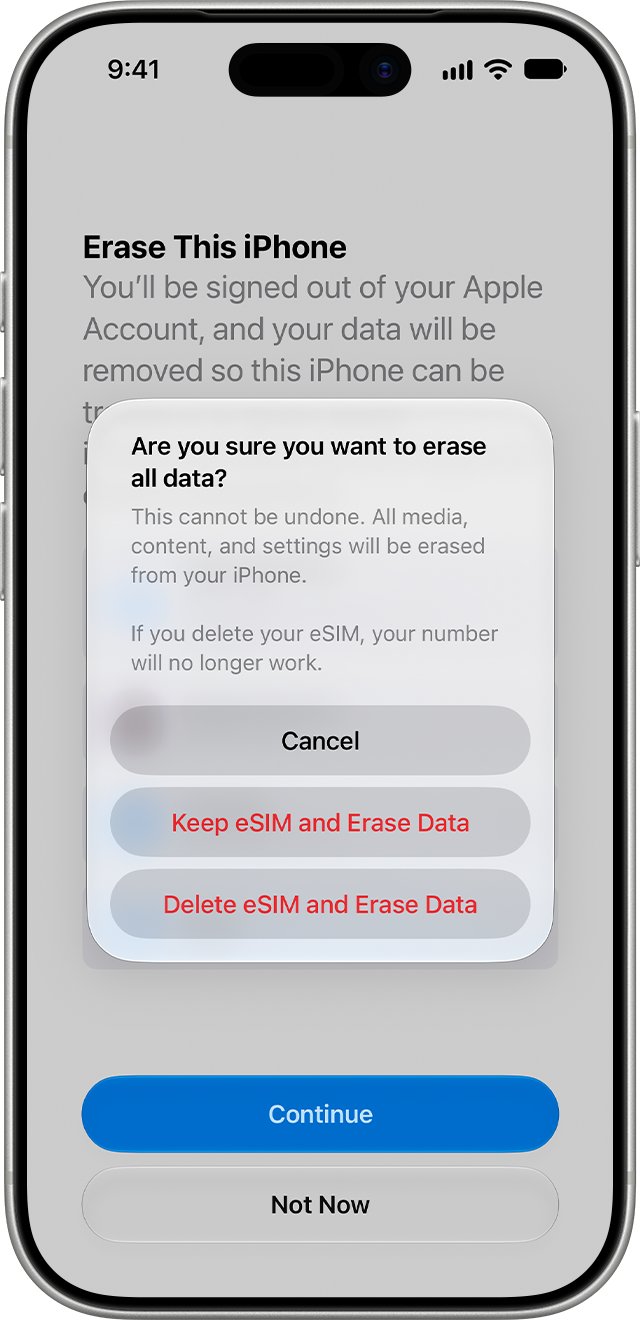
Erase All Content and Settings starts from the iPhone itself. If Find My is on, Apple says you might need to enter your Apple Account password, and the erase turns Find My and Activation Lock off.
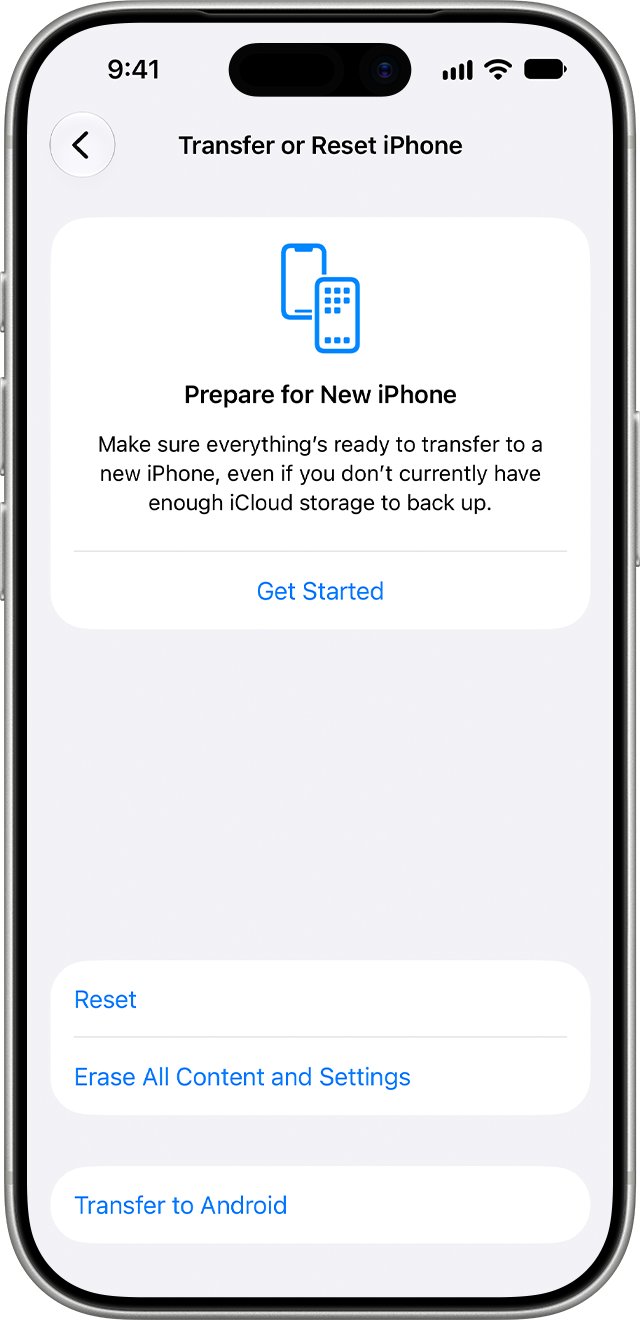
- Open Settings and tap General.
- Tap Transfer or Reset iPhone.
- Tap Erase All Content and Settings, then tap Continue.
- Choose whether to keep or delete your eSIM. Deleting it means contacting your carrier to reactivate the plan.
- Enter your iPhone passcode.
- Enter your Apple Account password if asked, then tap the done button on the keyboard.
- Wait for the reset to complete and the Hello screen to appear.
Keep the eSIM if cellular data is your only way online after the reset. Without it, plan to activate through Wi-Fi or a computer.
Put iPhone in recovery mode to reset it without Wi-Fi
Recovery mode lets a computer restore an iPhone you cannot unlock or that the computer does not see. These are Apple's steps for an iPhone with Face ID.
- Press and hold the side button and the Volume down button until the power off slider appears, then drag the slider to turn the iPhone off.
- Connect the cable to your Mac or Windows PC.
- Connect the cable to the iPhone and quickly press and hold the side button.
- Keep holding the side button through the Apple logo, and release it only when an image of a computer and a cable appears.
- In Finder or Apple Devices, select Restore when you are offered Restore or Update.
- If the download takes longer than 15 minutes and the iPhone leaves recovery mode, let the download finish, turn the iPhone off and start recovery mode again.
Apple says that if you do not have a computer and cannot borrow one, an Apple Store or Apple Authorized Service Provider can help.
Reset iPhone without wiping data
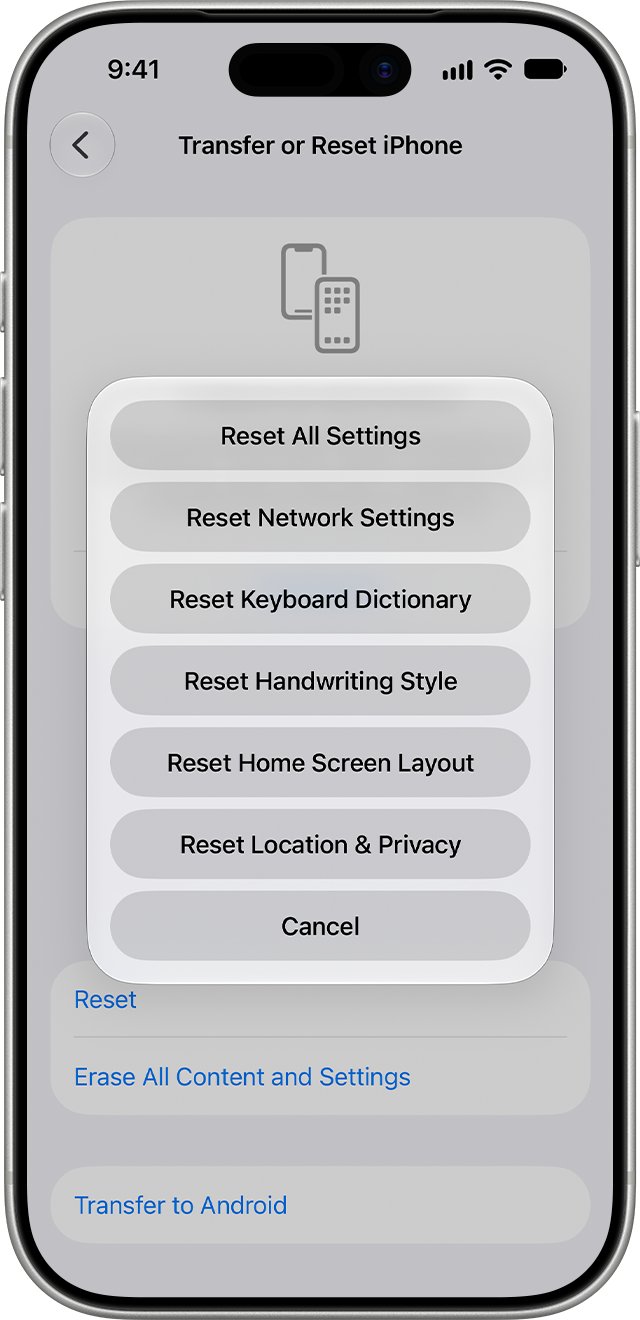
The options on the Reset screen return settings to their defaults without erasing your content, and none of them needs a network.
| Option | What it resets | Data deleted? |
|---|---|---|
| Reset All Settings | All settings, including network settings, keyboard dictionary, location, privacy and Apple Pay cards | No data or media |
| Reset Network Settings | Wi-Fi networks and passwords, cellular settings, VPN and APN settings; device name returns to iPhone | No |
| Reset Location & Privacy | Location services and privacy settings | No |
| Reset Home Screen Layout | Built-in apps return to their original layout | No |
| Reset Keyboard Dictionary | Only words you added | No |
| Delete All eSIMs | Every eSIM stored on the iPhone | Your cellular plans, until set up again |
To reach these, open Settings, tap General, tap Transfer or Reset iPhone, then tap Reset. Avoid Erase All Content and Settings on that screen unless you want everything removed.
Activate iPhone after reset without Wi-Fi
Apple says you need to connect to a Wi-Fi network or a cellular network to activate and continue setting up an iPhone. A computer with internet can do the activation instead.
- On the setup screens, tap Continue Without Wi-Fi if it appears, to activate over cellular data.
- If there is no cellular service either, connect the iPhone to a Mac with the latest version of macOS or a PC with the latest version of iTunes, and confirm the computer is online.
- Locate the iPhone in Finder or Apple Devices and wait while the computer detects and activates it.
- When Set Up as New or Restore from Backup appears, the iPhone is activated.
- Disconnect and finish the setup screens on the iPhone.
Reset iPhone without a computer: what Forgot Passcode needs
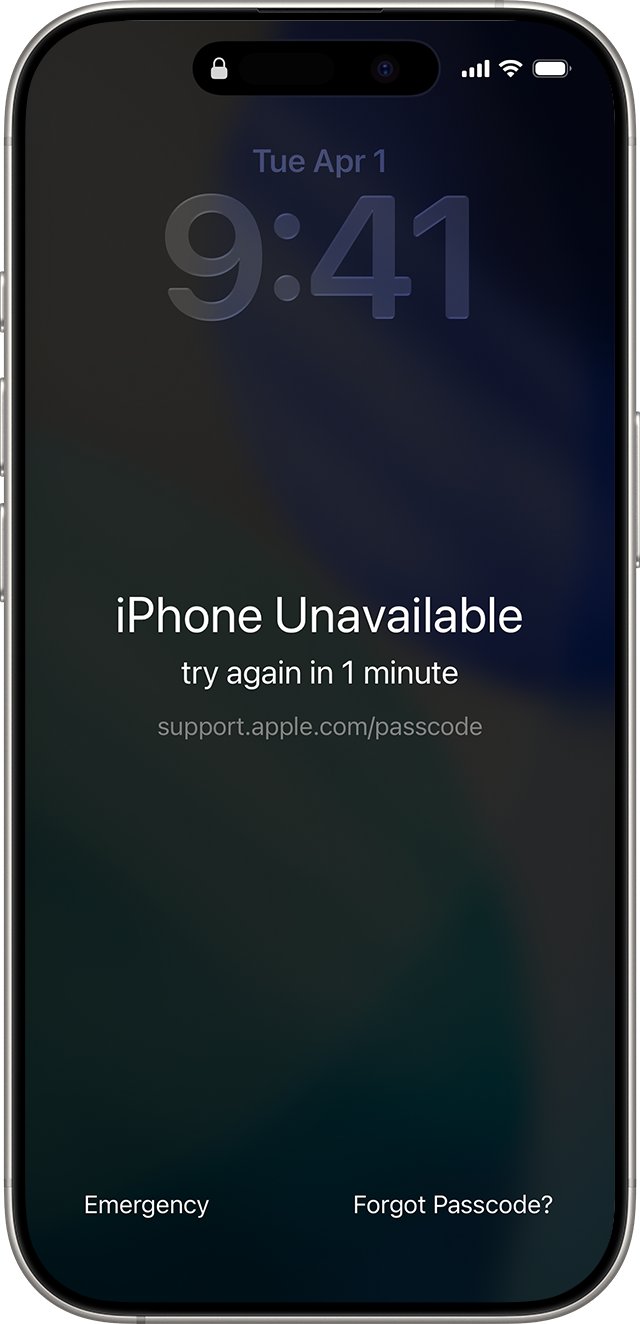
The Lock Screen reset is the only way to erase a locked iPhone without a computer, and it does not work offline.
| Requirement | Detail |
|---|---|
| Software | iOS 15.2 or later |
| Find My | Turned on before you were locked out |
| Connection | An active cellular or Wi-Fi connection |
| Account | Your Apple Account and password |
| Button name | Forgot Passcode? on iOS 17 or later; Erase iPhone on iOS 15.2 and iOS 16 |
Without a connection, the Forgot Passcode? button does not appear. Use the recovery mode restore with a computer instead.
How do I know my iPhone reset finished?
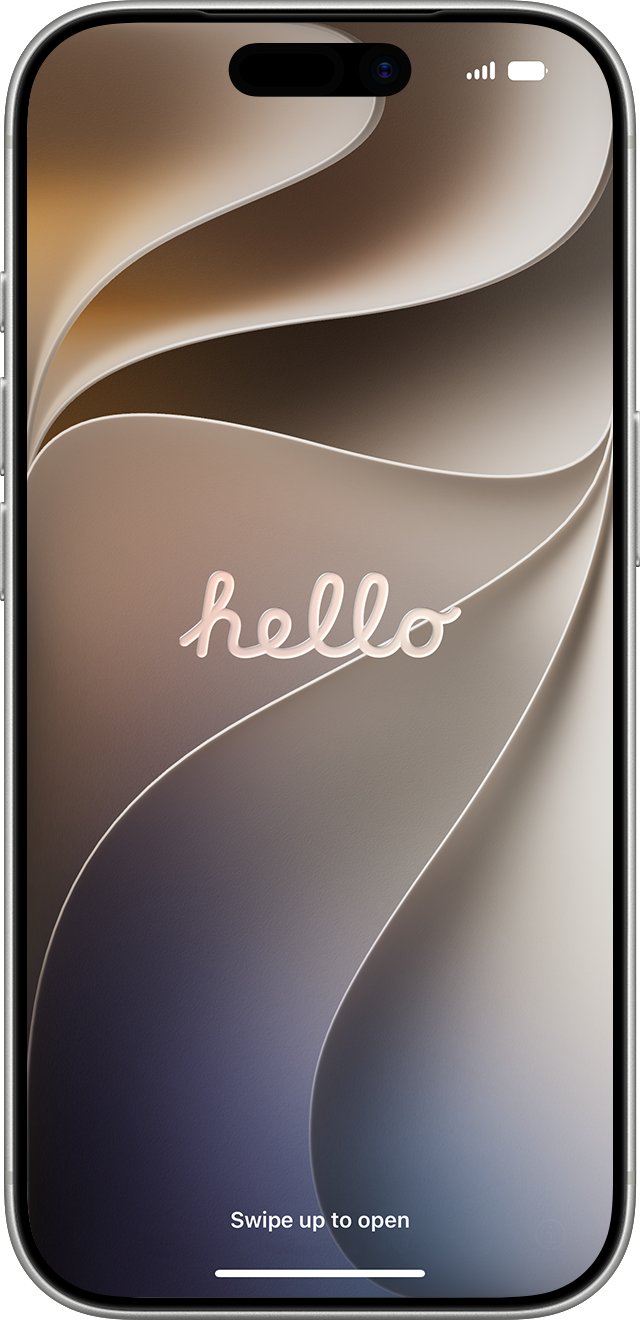
- Look for the Hello screen in many languages. It means the erase or restore is complete.
- Unplug the iPhone from the computer once the Hello screen appears after a restore.
- Watch for Set Up as New or Restore from Backup, which confirms activation went through.
- After a settings-only reset, open Settings > Wi-Fi: saved networks are gone after Reset Network Settings, and your photos and apps are still there.
iPhone won't connect to Wi-Fi or cellular after reset
iPhone won't connect to Wi-Fi after reset
Reset Network Settings and full erases remove saved networks and passwords, or Airplane Mode is on.
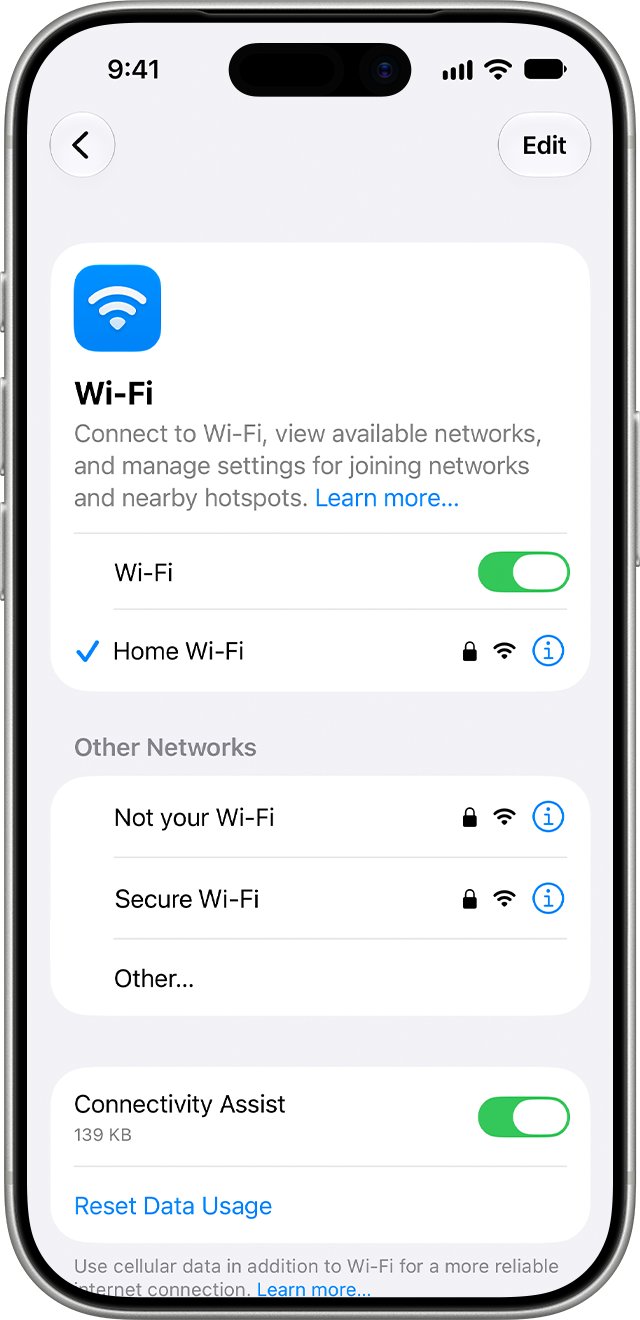
- Open Settings, tap Wi-Fi and make sure Wi-Fi is on.
- Tap the network name and enter its password again.
- Look for the blue checkmark that confirms the connection.
- Make sure Airplane Mode is off.
- Restart the router and modem, and try another Wi-Fi network if other devices also cannot connect.
Cellular and Wi-Fi not working on iPhone
Cellular Data is switched off, an eSIM was deleted during the erase, or network settings are corrupt.
- Open Settings, tap Cellular and turn Cellular Data on.
- If you deleted your eSIM during the erase, contact your carrier to set it up again.
- Tap General > Transfer or Reset iPhone > Reset > Reset Network Settings.
- If neither connection returns, activate and set up the iPhone through a computer.
Activation server unavailable during setup
Apple's activation service is busy or the cellular connection is unreliable.
- Restart the iPhone.
- Switch from cellular data to a reliable Wi-Fi network if one is available.
- Wait a few minutes and try again.
- Connect the iPhone to a computer with internet and let the computer activate it.
The Forgot Passcode? button is missing
The button appears only with an active cellular or Wi-Fi connection and Find My turned on.
- Move the iPhone somewhere it has cellular coverage or a Wi-Fi network it already knows, then try the Lock Screen again.
- If you cannot get it online, turn it off and use recovery mode with a computer.
- Restore it in Finder or Apple Devices.
Setup asks for a password after the reset
A password prompt during activation means Activation Lock might be on.
- Enter the Apple Account and password that were used on the iPhone.
- If you do not know it, recover the account from Forgot password or don't have an Apple Account? on the sign-in screen.
- If the iPhone was bought used, ask the previous owner to remove it from their account.
Reset iPhone without Wi-Fi FAQ
Do you need Wi-Fi to reset an iPhone?
Not to start one. Erase All Content and Settings runs from Settings, and the setting resets need no network. Activation afterwards needs Wi-Fi, cellular data or a computer with an internet connection, so plan one of those before you erase.
How do I factory reset my iPhone without Wi-Fi?
Connect it to a Mac or Windows PC that is online, open Finder or Apple Devices, select the iPhone and choose Restore. The computer downloads the software and activates the iPhone, so the iPhone itself never needs Wi-Fi or cellular data.
Can I reset my iPhone without a computer?
Yes, if you know the passcode: open Settings, General, Transfer or Reset iPhone, then Erase All Content and Settings. A locked iPhone can be reset from the Lock Screen only with iOS 15.2 or later, Find My on and an active connection.
Can I reset my iPhone without losing anything?
Yes. Reset All Settings returns every setting to its default without deleting data or media. Reset Network Settings clears only Wi-Fi, cellular, VPN and APN settings. Both sit under Settings, General, Transfer or Reset iPhone, Reset.
How do I reset Wi-Fi settings on my iPhone?
Open Settings, tap General, tap Transfer or Reset iPhone, tap Reset, then tap Reset Network Settings. It removes saved Wi-Fi networks and passwords, cellular settings and VPN settings, so you need to rejoin your networks afterwards.
Can you reset your iPhone without iTunes?
Yes. Use Erase All Content and Settings on the iPhone, or the Forgot Passcode? option when locked out. On a computer, current Macs use Finder and Windows PCs use the Apple Devices app from the Microsoft Store.
Can an iPhone be reset without the password?
Without the passcode, use Forgot Passcode? on the Lock Screen or a recovery mode restore with a computer. Both erase the iPhone. If Activation Lock is on, setup still asks for the Apple Account password that was used on it.
Why won't my iPhone work without Wi-Fi?
Cellular Data is probably off, so every data service is using Wi-Fi only. Open Settings, tap Cellular and turn Cellular Data on. Check the per-app list on the same screen, since an app with cellular data off uses only Wi-Fi.
How do I restart my iPhone without resetting it?
A force restart of the iPhone reboots it without erasing anything and needs no network. It is the right step for a frozen screen before you consider any reset.