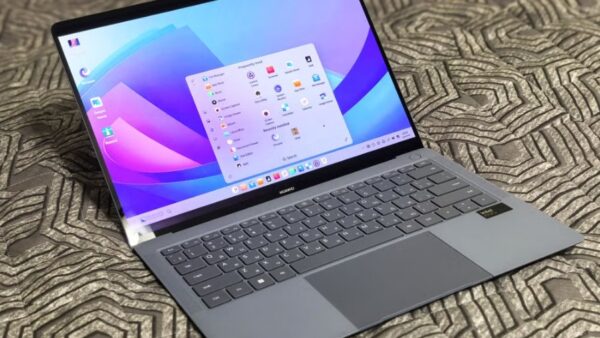
Open display settings in Windows 11 or Windows 10 by right-clicking an empty part of the desktop and selecting Display settings, or go to Start > Settings > System > Display.
This hub covers resolution, scaling, orientation, brightness, night light, color, HDR, refresh rate, multiple monitors and the fixes for the most common display problems.
How to open display settings in Windows 11 and 10
Every setting in this guide starts on the same Display page. The route is identical on both versions.
- Right-click an empty area of the desktop.
- Select Display settings.
- If several monitors are connected, select the one you want to change in the diagram at the top.
- Change the setting you came for: Scale, Display resolution, Display orientation, Brightness or Multiple displays.
There are other routes too, from the Start search box to the Settings app shortcut, and you can open Display settings ten ways on Windows 11 if right-clicking the desktop is not an option.
Where display settings live in Windows 11 vs Windows 10
Most labels match, but Windows 10 uses longer names for scale and night light and keeps text size under Ease of Access.
| Setting | Windows 11 | Windows 10 |
|---|---|---|
| Main display page | Settings > System > Display | Settings > System > Display |
| Scale (size of text and apps) | Scale & layout > Scale | Change the size of text, apps, and other items |
| Display resolution | Scale & layout > Display resolution | Display resolution |
| Orientation | Display orientation drop-down | Orientation drop-down |
| Brightness slider | Quick settings on the taskbar, or Display > Brightness | Action center, or Settings > System > Display |
| Automatic brightness | Brightness > Change brightness automatically when lighting changes | Brightness and color > Change brightness automatically when lighting changes |
| Night light | Display > Night light | Display > Night light settings |
| Detect a monitor | Display > Multiple displays > Detect (or Connect for wireless) | Display > Multiple displays > Detect |
| Text size only | Accessibility > Text size (Windows key + U) | Ease of Access > Display > Make text bigger (Windows key + U) |
Windows 10 users can find a full tour to change display settings in Windows 10, and graphics preferences per app sit one level deeper, where you open graphics settings from the Display page.
Change the display resolution
Before you change anything, select the right monitor at the top of the Display page. Resolution is set per display.
- Open Settings > System > Display.
- Select the monitor you want to change.
- In the Display resolution row, open the list.
- Choose the option marked (Recommended), which is the panel's native resolution.
- Select Keep changes when Windows asks, or wait for it to revert if the screen looks wrong.
A resolution below native makes text less sharp. If the resolution changes on its own, check Windows Update for a newer graphics driver.
If 1920 x 1080 is missing from the list, the fixes to set 1920×1080 in Windows 10 start with the driver. It helps to know what 1080p Full HD resolution means and to check which monitor you have before you pick a value.
Change the size of text and apps in Windows 11
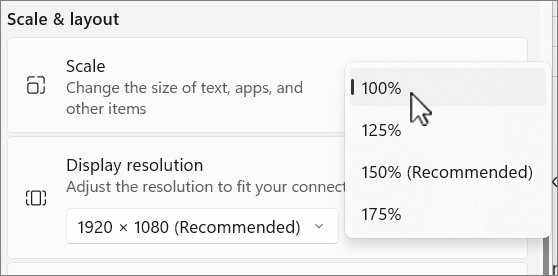
Scale enlarges everything on one display: text, icons, windows and apps. It is the right fix when a sharp, high-resolution screen makes everything look tiny.
- Open Settings > System > Display.
- Scroll to Scale & layout.
- Select Scale, then choose a percentage.
- Pick the value marked (Recommended) unless you need things larger.
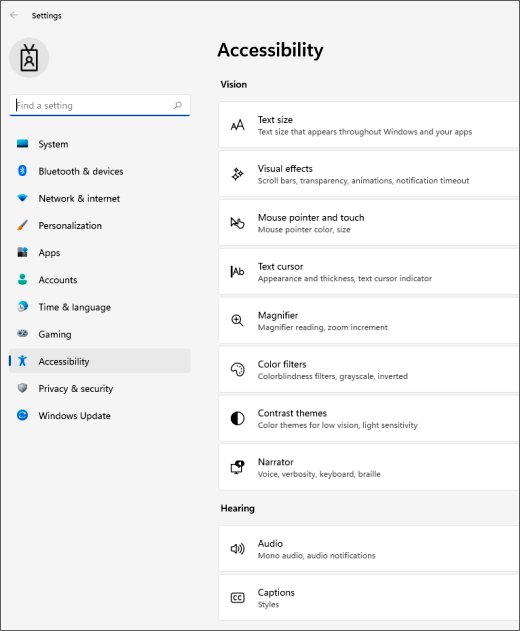
- To enlarge only text, press Windows key + U, select Text size, drag the slider and select Apply.
Custom scaling and per-monitor values are explained when you adjust display scale on Windows 11, and Magnifier and browser zoom are other ways to change text size in Windows. For a temporary close-up, zoom in and out on the desktop with Magnifier.
Change the size of text and apps in Windows 10
Windows 10 uses a longer label for the same scale control, and keeps the text-only slider in Ease of Access.
- Open Settings > System > Display.
- Scroll to Scale and layout.
- Under Change the size of text, apps, and other items, select a percentage.
- For text only, press Windows key + U to open Ease of Access.
- On the Display tab, drag the Make text bigger slider to the right and select Apply.
Some apps pick up the new size only after you sign out and back in. Themes, accent colors and the other visual options are grouped when you adjust display appearance settings on either version.
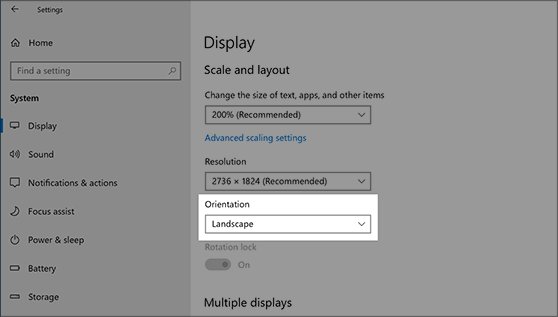
Change the display orientation
Use portrait for a rotated monitor that shows long documents or code.
- Open Settings > System > Display.
- Select the monitor you have rotated.
- Open the Display orientation list (Orientation on Windows 10).
- Choose Landscape, Portrait or one of the flipped options.
- Select Keep changes, then physically rotate the screen to match.
Adjusting display resolution and refresh rates
The refresh rate is how many times per second the image updates; a 60Hz display redraws 60 times a second. Higher rates make games, scrolling and pen input smoother, while lower rates save battery.
- Open Settings > System > Display > Advanced display.
- Select the monitor at the top if more than one is connected.
- Read Display information for the current resolution, refresh rate and whether the display supports variable refresh rate (VRR).
- Select a value next to Choose a refresh rate.
- Avoid rates marked with an asterisk (*) unless you accept a resolution change, since they do not support the current resolution.
- On supported Windows 11 laptops, turn Dynamic refresh rate on or off on the same page.
Dynamic refresh rate (DRR) needs a display with VRR and at least 120 Hz. If a game runs at a lower rate with DRR on, turn DRR off.
GPU control panels have their own refresh options, and the full steps to change monitor refresh rate cover both. With two screens at different rates, video can stutter until you sync refresh rates for smooth playback.
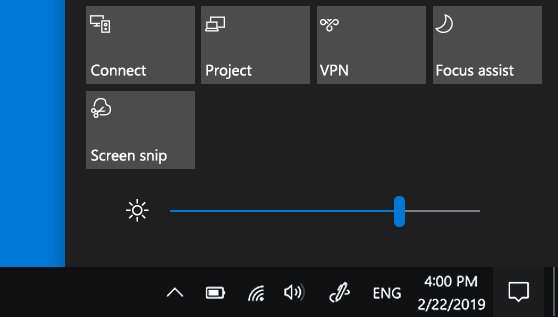
Adjust display brightness
The slider only appears for built-in screens; change an external monitor with its own buttons.
| Method | Where | Works on |
|---|---|---|
| Brightness shortcut key | The brightness keys on a laptop keyboard, often combined with Fn | Built-in laptop screens; key position varies by maker |
| Physical buttons on your monitor | The monitor's on-screen menu | External monitors (the only option for most of them) |
| Quick settings | Select the Network icon on the taskbar, then move the Brightness slider | Windows 11 built-in screens |
| Action center | Select action center, move the Brightness slider | Windows 10 built-in screens |
| Settings app | Settings > System > Display, then the Brightness slider | Windows 11 and 10 built-in screens |
| Energy saver (battery saver) | Settings > System > Power & battery > Energy saver, with Lower screen brightness when using energy saver on | Windows 11 laptops on battery |
| Power mode | Settings > System > Power & battery > Power mode > Best Power Efficiency | Windows 11; cuts power use, not a direct brightness control |
| Automatic brightness | Brightness > Change brightness automatically when lighting changes | PCs with a light sensor |
If dark video scenes make the screen jump, set Change brightness based on content to Off under Brightness.
Each of these, plus the Windows Mobility Center slider and a PowerShell or Terminal command, is walked through when you adjust screen brightness on Windows 10 or 11. On Windows 10 you can also turn adaptive brightness on or off and check for a light sensor, and a shorter screen timeout saves more power than dimming alone.
Night light
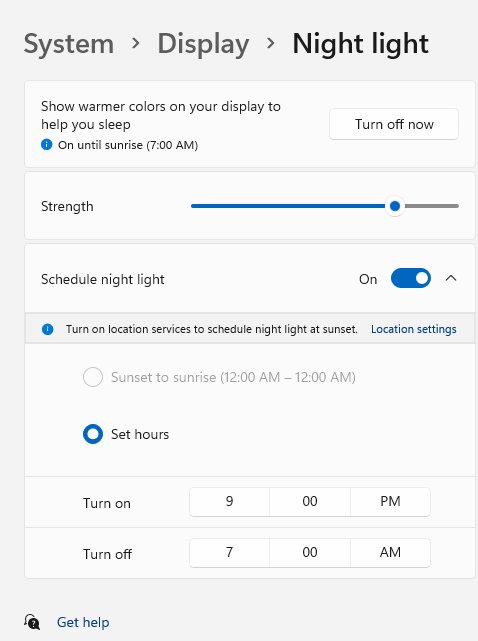
Night light shifts the display to warmer colors to cut blue light in the evening. It is not available with some drivers, such as DisplayLink or the Basic Display driver.
- Open Settings > System > Display and turn on Night light.
- Select Night light to open its page.
- Move the Strength slider to set how warm the screen looks.
- Turn on Schedule night light.
- Choose Sunset to sunrise, or select Set hours and enter your own times.
If the toggle is grayed out, update the display driver.
Color profile management
Windows 11 lets you add, remove and set a default color profile for each display, and can manage color for apps automatically on supported screens.
- Open Settings > System > Display > Color profile.
- Select the display you want to manage near the top.
- Turn on Automatically manage color for apps if your display offers it.
- Select Add profile and pick an ICC profile to add one.
- Choose a profile and select Set profile to make it the default.
- Expand a profile and select Remove to delete it.
Monitor makers publish ICC profiles for their panels, and the steps to change the display color profile cover where to get one and how to switch back.
Calibrate display color
Calibration creates a new color profile for the display the tool runs on.
- Open Settings > System > Display > Color profile.
- Select the display to calibrate.
- Select Calibrate display.
- Follow the on-screen steps for gamma, brightness, contrast and color balance.
- For an HDR external display, use the Windows HDR Calibration app it prompts you to open.
Use HDR
HDR shows brighter highlights, deeper shadows and a wider range of colors than standard dynamic range (SDR). External HDR displays need HDR10 support and a DisplayPort 1.4, HDMI 2.0 or higher, USB-C or Thunderbolt connection.
- Open Settings > System > Display.
- Select the HDR-capable display at the top.
- Turn on Use HDR.
- Open Advanced display and check HDR certification for your display.
- Install HEVC Video Extensions, VP9 Video Extensions or AV1 Video Extension from Microsoft Store for HDR video in apps that need them.
Built-in laptop screens need at least 1080p and a recommended 300 nits or more. With multiple monitors, turn HDR on per display.
A "Not found" certification only means the maker has not published one, and you can fix HDR certification not found messages by checking the monitor's badge.
Choose a display option
Press Windows key + P to switch how Windows uses a second screen. Extend is what most dual-monitor setups want.
| If you want to | Choose | Typical use |
|---|---|---|
| See things on one display only | PC screen only | Laptop with the external monitor left off |
| See the same thing on all displays | Duplicate | Presentations and projectors |
| Spread the desktop across screens and move windows between them | Extend | Dual-monitor work and multitasking |
| See everything on the second display only | Second screen only | Closed-lid laptop or a TV as the only screen |
The same menu handles projectors, and the wired and Miracast steps to project your screen on Windows 11 build on these four modes.
How to set up dual monitors
Multiple monitors keep reference material on one screen while you work on the other. Getting started with multiple monitors takes a few minutes once the cables are right.
Prerequisites: a free video port on the PC or dock and a cable that fits both ends.
- Before you start, check for updates under Settings > Windows Update > Check for updates.
- Connect your second monitor to a free video port on the PC or dock, and power it on.
- Press Windows key + P and select Extend.
- Open Settings > System > Display and select Identify to see which number belongs to each screen.
- Drag the numbered boxes to match your desk, then select Apply.
- Select each display in turn and set its resolution and scale.
For a wireless display adapter, connect the adapter to the TV's HDMI port, then press Windows key + K and select it. You can also set up multiple monitors on Windows 11 with a screenshot for every step, including choosing your main display for the taskbar.
Rearrange your displays
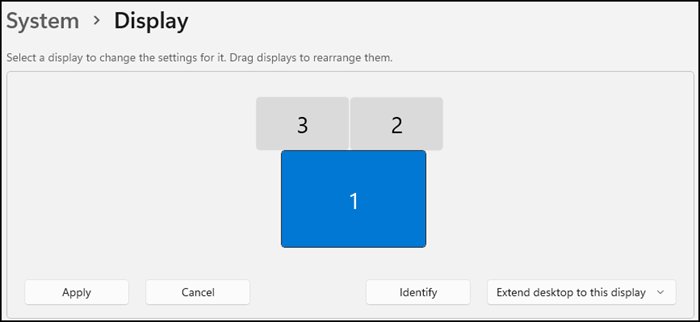
The arrangement decides where the mouse crosses from one screen to the next. It appears only when Windows detects more than one display.
- Open Settings > System > Display.
- Select Identify; a number appears on each screen.
- Drag each numbered box so it matches where the monitors sit on your desk.
- Select Apply.
- Move the pointer across every screen edge to test the layout.
Scaling with multiple monitors
Each monitor keeps its own scale, so a 4K laptop panel and a 1080p screen can both look right.
- Open Settings > System > Display.
- Select the first monitor in the diagram.
- Choose its Scale value, usually the one marked (Recommended).
- Select the next monitor and set its scale.
- Sign out or restart apps that still look blurry on one monitor.
Per-display scaling is covered in detail when you set different scaling for each monitor in Windows 11.
Multiple display options
When you undock a laptop, Windows minimizes windows from the external monitor and restores them on re-dock. If Windows keeps moving your windows around, change this.
- Open Settings > System > Display.
- Select Multiple displays to expand it.
- Tick or clear Remember window locations based on monitor connection.
- Tick or clear Minimize windows when a monitor is disconnected.
Display connection types: HDMI, DisplayPort, USB-C, VGA and wireless
Typical video ports are HDMI, VGA, DVI and DisplayPort. The connection decides whether HDR and extra monitors are possible.
| Connection | Good for | Watch out for |
|---|---|---|
| HDMI | TVs and most monitors | HDR needs HDMI 2.0 or higher |
| DisplayPort | PC monitors | HDR needs DisplayPort 1.4 |
| USB-C / Thunderbolt | Laptops; supported for HDR displays | A USB adapter on a USB-C port can add another video output |
| USB adapter or dock (DisplayLink) | Adding a second or third monitor to a laptop with one video port | Night light does not work with DisplayLink drivers |
| VGA | Older monitors and projectors | No HDR support |
| Wireless display adapter (Miracast) | Casting to a TV with Windows key + K | Plug the adapter into the TV's HDMI port first |
| Display splitter | Duplicating one signal to several screens | Cannot extend the desktop; it only duplicates |
On a desktop, enable DisplayPort on the graphics card by using the card's own port and switching the monitor input. Older setups still rely on VGA cables and adapters.
Docks with DisplayLink chips need you to install DisplayLink drivers first, and casting to a TV starts when you enable Wireless Display in Windows 11.
Use a laptop or iPad as a second monitor in Windows
A spare laptop or tablet can act as an extra screen. The method depends on the device you have.
| Device | Route | Connection |
|---|---|---|
| Windows laptop | Cast to it as a wireless display with Windows key + K | Wi-Fi |
| iPad | A companion app on the iPad and the PC | Wi-Fi or USB |
| Android tablet or phone | A companion app on both devices | USB cable |
The steps to use a laptop screen as an external monitor also cover Macs. Apple tablet owners can use an iPad as a second monitor through a companion app, and wired Android setups work with Splashtop Wired XDisplay.
Graphics settings and GPU options in Windows 11
Some display behavior is set by the graphics driver.
| Option | What it does | Who controls it |
|---|---|---|
| Hardware-accelerated GPU scheduling | A GPU scheduling option for supported graphics cards | Windows graphics settings |
| Per-app GPU preference | Picks the power-saving or high-performance GPU for an app | Windows graphics settings |
| GPU scaling | Makes the graphics card fit lower resolutions to the screen | NVIDIA, AMD or Intel control panel |
| Intel Graphics Command Center | Intel's own display and color options | Intel's app |
| Microsoft Basic Display Adapter | Fallback driver; night light is not available with it | Device Manager > Display adapters |
You can enable hardware-accelerated GPU scheduling on supported cards, and decide whether you need GPU scaling for older games. Intel users can open the Intel graphics control panel from Start, and a PC stuck on the fallback driver needs you to replace Microsoft Basic Display Adapter with the maker's driver.
Tips and troubleshooting: display problems by symptom
Match what you see to the likely cause, then apply the fix.
| Symptom | Likely cause | Fix |
|---|---|---|
| Screen flickers or flashes | Display driver or an incompatible app | Check whether Task Manager flickers, then work through the screen flickering fixes |
| Text or apps look blurry on one monitor | Non-native resolution or mixed scaling | Set (Recommended) resolution and scale per display, then sign out |
| Second monitor not detected | Wrong projection mode, cable, port or input | Press Windows key + P > Extend, then Multiple displays > Detect |
| Brightness slider missing | External monitor, or the Basic Display driver | Use the monitor's buttons, or update the display driver |
| Brightness will not change on Windows 10 | Driver or power settings | Follow the fixes when display brightness won't change |
| Brightness stuck in Boot Camp | Windows running on a Mac through Boot Camp | Work through the Boot Camp brightness fixes |
| Wrong resolution or it changes on its own | Outdated graphics driver | Settings > Windows Update > Check for updates |
| HDR option missing | Display lacks HDR10 or the cable is too old | Use DisplayPort 1.4, HDMI 2.0 or higher, USB-C or Thunderbolt |
| Night light grayed out | DisplayLink or Basic Display driver | Install the GPU maker's driver |
| Wireless display or audio drops | Pairing or driver problem | Re-pair and fix wireless display issues |
| Windows keeps moving my windows around | Window-location memory on dock/undock | Change Multiple displays options |
Fixing a second monitor that won't detect
First press Windows key + P and make sure Extend is selected. If it is, work through these checks in order.
Force detect displays
Windows did not register the new screen when it was plugged in.
- Open Settings > System > Display.
- Expand Multiple displays.
- Select Detect, or Connect for a wireless display.
Check that everything has power
A monitor, dock or adapter without power sends no signal.
- Confirm the monitor's power light is on.
- Make sure a powered dock or adapter is plugged in.
Look for misplaced connections
A loose cable, or a desktop monitor plugged into the motherboard instead of the graphics card.
- Reseat both ends of the cable.
- Disconnect other docks, dongles and adapters that can cause conflicts.
- Try the monitor with a different PC to see whether the monitor is at fault.
Confirm the display is set to the right input
The monitor is listening on a different port.
- Open the monitor's menu with its buttons.
- Select the input that matches the cable, such as HDMI or DisplayPort.
Reboot the computer
The graphics driver did not pick up the change.
- Select Start > Power > Restart.
Use a different port, cable, or connection type
A faulty cable or port.
- Swap the cable; if the new one works, the old one was faulty.
- Plug into another video output port on the PC.
Use a USB adapter
The PC has only one video output, so it supports a single external monitor.
- Use a USB-C video adapter or a docking station to add a port.
- Ask the PC maker which docks it supports.
Adding a second or third external monitor fails
The graphics card may not support more monitors, or a splitter is duplicating one signal.
- Confirm one external monitor works on its own first.
- Check with the graphics card maker how many monitors it supports.
- Replace a splitter with a dock or adapter that creates separate signals.
Update your display drivers
An old driver cannot drive the new monitor.
- Open Device Manager and expand Display adapters.
- Right-click the adapter and select Update driver.
The longer checklist to fix a second monitor not detected covers using only one external monitor and laptop-specific causes.
Troubleshoot issues that are occurring with an existing setup
If a working setup suddenly stopped, start with the fastest reset.
Try a Windows key sequence
The graphics driver has stalled.
- Press Windows key + Ctrl + Shift + B to reset the graphics driver.
- Wait for the screen to blink back.
Restart your device
A driver or app state survived the reset.
- Select Start > Power > Restart.
- If that fails, select Shut down, then turn the PC back on.
Roll back your display driver
A recent driver update broke the display.
- Search the taskbar for device manager and open it.
- Expand Display adapters.
- Right-click the adapter, select Properties > Driver > Roll Back Driver.
- Restart the PC.
Reinstall your display driver
The driver is damaged, or no previous driver exists to roll back to.
- In Device Manager, right-click the adapter and select Uninstall device.
- Tick Attempt to remove the driver for this device, then select Uninstall.
- Restart, open Device Manager again and right-click the adapter.
- Select Update driver > Search automatically for updated driver software.
Still having issues?
The problem needs Microsoft's attention.
- Open Feedback Hub.
- Describe what you were doing when the problem appeared, pick a category and submit it.
Windows Update, Device Manager and the NVIDIA, AMD and Intel apps are all ways to update your graphics driver when a clean reinstall is needed.
If your brightness slider is greyed out
Reasons why you can't change brightness on Windows 11 are usually the monitor type, the driver or a power setting. Try these fixes in order.
Fix 1: Restart your computer
The display driver loaded incorrectly.
- Select Start > Power > Restart.
Fix 2: Plug in your laptop
Energy saver can dim the screen on battery.
- Connect the charger and try the slider again.
Fix 3: Try all methods of adjusting brightness in Windows
One control may be blocked while others work.
- Try the keyboard keys, quick settings and Settings > System > Display in turn.
Fix 4: Disable auto-brightness
Automatic brightness keeps overriding the slider.
- Open Brightness on the Display page.
- Clear Change brightness automatically when lighting changes and set content-based brightness to Off.
Fix 5: Update graphics drivers
The Basic Display driver has no brightness control.
- Open Device Manager > Display adapters.
- Right-click the adapter and select Update driver.
Fix 6: Install Windows updates
A missing update holds a driver fix.
- Open Settings > Windows Update and select Check for updates.
Fix 7: Use System Restore
A recent change broke brightness control.
- Open System Restore from Start search.
- Pick a restore point from before the problem began and finish the wizard.
Fix 8: Repair system files
Corrupted system files.
- Open Terminal as administrator.
- Run
sfc /scannow; it scans protected system files and repairs them where possible. - Restart when it finishes.
What's the best way to fix brightness adjustment issues in Windows 11? Start with the driver, since an external monitor or a fallback driver explains most missing sliders.
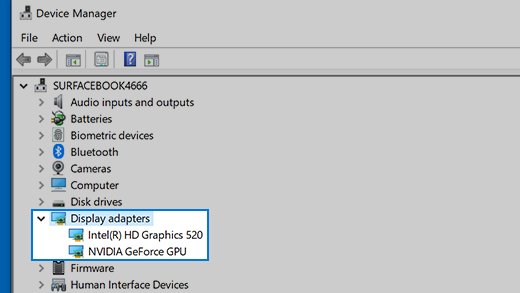
How do I determine the manufacturer of my display adapter (graphics card)?
Knowing the adapter tells you which driver to install and which control panel to open.
- Search the taskbar for device manager and open it.
- Select the arrow next to Display adapters.
- Read the maker and model of each adapter listed.
- If it says Microsoft Basic Display Adapter, the maker's driver is not installed.
Windows display settings FAQ
Where is display settings on my computer or laptop?
Right-click an empty area of the desktop and select Display settings, or open Start > Settings > System > Display. The page is in the same place on Windows 11 and Windows 10 laptops and desktops.
How do I reset display settings in Windows 11?
There is no single reset button. Choose the values marked (Recommended) for Display resolution and Scale, set orientation to Landscape, and turn off night light and HDR. If a driver is the cause, press Windows key + Ctrl + Shift + B.
How do I change display settings for 2 monitors?
Open Settings > System > Display and select a monitor in the diagram at the top. Resolution, scale, orientation and HDR then apply only to that monitor. Select the other one and repeat.
Why do my display settings keep changing?
Unexpected resolution changes usually come from the graphics driver. Check Settings > Windows Update for a newer driver. Windows also remembers window positions per monitor connection, which you can turn off under Multiple displays.
Why can't I change my display settings?
A missing or generic driver is the usual cause, so resolution, brightness and night light options are limited. Update the display adapter in Device Manager or install the maker's driver.
Why is brightness not in my display settings?
The Brightness slider does not appear for most external monitors, because Windows cannot control them. Use the buttons on the monitor. On a laptop, a missing slider usually means the display driver needs updating.
What display settings are best for eyes?
Use the recommended resolution, a scale that keeps text readable without squinting, brightness that matches the room, and night light in the evening. Automatic brightness helps on laptops with a light sensor.
What display setting creates a panoramic view?
Extend creates one wide desktop across all your monitors. Press Windows key + P and select Extend, then arrange the screens side by side in Settings > System > Display.