Microsoft Store lists a free Microsoft package called HEVC Video Extensions from Device Manufacturer, while the standard HEVC Video Extensions listing costs $0.99 in the US.
This guide shows how to check whether you already have the free version, how to get either listing from Microsoft Store, when free VLC is the better answer, and how to fix HEVC files that still refuse to play.
Quick Answer: The Best Free Ways to Play HEVC on Windows 10/11
Both HEVC listings come from Microsoft and work on Windows 10 and Windows 11. Start by checking whether your PC maker already installed the free one.
- Select Start > Settings > Apps > Installed apps and type HEVC in the search box. On Windows 10, open Settings > Apps > Apps and Features instead.
- If HEVC Video Extensions from Device Manufacturer or HEVC Video Extensions is listed, you already have the codec. Skip to the verify section.
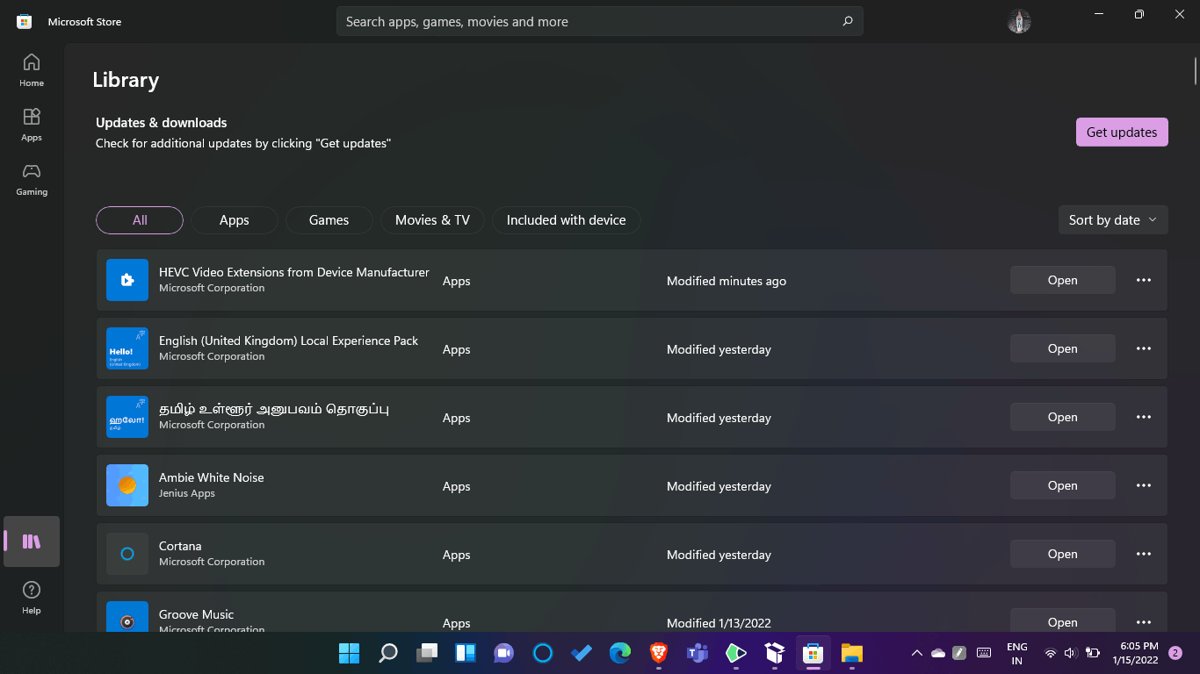
- If nothing is listed, open the free listing at HEVC Video Extensions from Device Manufacturer and install it through the Microsoft Store app.
- Close and reopen the app you play videos in, such as Photos, Media Player or Movies & TV.
- If the Store will not install the free listing on your PC, choose between the $0.99 HEVC Video Extensions and the free VLC player, which decodes HEVC on its own.
What Is HEVC and Why Does Windows Ask for an Extension?
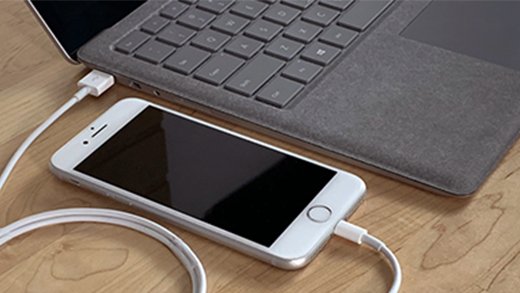
HEVC stands for High Efficiency Video Coding and is also called H.265. iPhone 7 and later running iOS 11 or later record video in HEVC when the camera is set to High Efficiency.
Windows ships with codecs for Windows Media Audio, Windows Media Video and MP3. Microsoft adds formats such as HEVC, VP9, AV1 and MPEG-2 as separate Store extensions, so apps like Photos show You need an extension to use this file until one is installed.
| Item | What it is | Price (US Store) |
|---|---|---|
| HEVC / H.265 | A video compression standard that stores the same picture in a smaller file than H.264 | Not applicable |
| HEVC Video Extensions | Microsoft codec, publisher Microsoft Corporation, category Utilities & tools. Plays and encodes HEVC in any app that uses Windows codecs | $0.99 |
| HEVC Video Extensions from Device Manufacturer | Microsoft codec, publisher Microsoft Windows, category System Components. Plays HEVC; its listing does not mention encoding | Free |
| HEIF Image Extension | The companion codec for HEIF photos, which Microsoft says you need alongside HEVC even for photos | Free |
Both HEVC listings require Windows 10 build 16299 or later, so they cover every current Windows 10 and Windows 11 release.
Which Free HEVC Solution Should You Choose?
| Your situation | Use this | Why |
|---|---|---|
| You want HEVC in Photos, Media Player and Movies & TV at no cost | HEVC Video Extensions from Device Manufacturer | Free, published by Microsoft, and works system-wide in apps that use Windows codecs |
| The Store will not install the free listing on your PC | HEVC Video Extensions ($0.99) | The same Microsoft codec, sold to any Windows 10 or 11 user |
| You need to create or export HEVC video on a PC with no hardware encoder | HEVC Video Extensions ($0.99) | Its listing states it can encode HEVC on devices without a hardware encoder |
| You only want to watch the file and pay nothing | VLC media player | Free and open source, with its own HEVC decoder, so no Windows extension is needed |
| You want another free player instead of VLC | A player whose own website lists HEVC or H.265 support | Download it only from the developer's own site, never from a download portal |
| Someone else needs to open the video | Convert to H.264 with HandBrake | H.264 plays on almost every device without extra codecs |
| Your iPhone keeps creating HEVC files | Switch the camera to Most Compatible | New videos are saved as H.264 instead |
| A site offers a "free HEVC codec" installer or a codec pack such as K-Lite | Skip it | Microsoft warns that free codec packs cause compatibility problems; see the safety section |
Option 1: Get Microsoft’s Official HEVC Video Extensions
Microsoft sells the codec through two Store listings. The product description on both is identical; the difference is the price, the publisher name and encoding support.
- Open HEVC Video Extensions from Device Manufacturer in your browser. Check that the publisher reads Microsoft Windows and the price reads Free.
- Select the install button, and allow the page to open the Microsoft Store app.
- Sign in with your Microsoft account if the Store asks, then wait for the install to finish.
- If the Store does not offer the free listing on your PC, open HEVC Video Extensions instead and check that the publisher reads Microsoft Corporation.
- Buy it for $0.99 with the payment method on your Microsoft account.
- Restart Photos, Media Player or whichever app showed the extension prompt, then open the video again.
Get the codec only from these two Microsoft Store pages. An appx or msix file of the extension posted elsewhere is not a Microsoft download.
Option 2: Install VLC Media Player for Free HEVC Playback
VLC is a free, open-source player from the VideoLAN project. Its release notes list HEVC/H.265 support in MKV, MP4 and raw files, plus HEVC hardware decoding on Windows through DxVA2 and D3D11.
VLC does not install a Windows codec, so Photos and Media Player still need an extension. VLC alone plays the file.
- Open the VLC listing on Microsoft Store and check that the publisher reads VideoLAN. The desktop installer is also on videolan.org.
- Install it. The listing is free.
- Right-click your HEVC video in File Explorer, select Open with, then choose VLC media player.
- To make VLC the default player, select Start > Settings > Apps > Default apps.
- Type the file extension, such as .mp4 or .mov, in Set a default for a file type or link type.
- Select the current app shown for that extension, choose VLC media player, then select Set default.
Store search also shows VLC UWP from VideoLAN. Its listing warns it lacks features of the desktop version, including DVD and Blu-ray support, so pick the one titled VLC.
Option 3: Use Other Free HEVC Players
Every player falls into one of two groups: it uses the Windows HEVC extension, or it carries its own decoder. Knowing which group a player belongs to explains why a file plays in one app and fails in another.
| Player | Needs the Windows HEVC extension? | Where to get it |
|---|---|---|
| Photos, Media Player, Movies & TV | Yes | Built into Windows or on Microsoft Store |
| VLC (desktop) | No, it has its own HEVC decoder | Microsoft Store listing by VideoLAN, or videolan.org |
| VLC UWP | No; its Store package declares HEVC playback | Microsoft Store listing by VideoLAN |
| Open-source players such as mpv, MPC-BE and MPC-HC | Check the project's own documentation | The project's own website or repository only |
If a player's own site does not state HEVC or H.265 support, treat it as unsupported rather than trusting a download portal's description.
How to Tell If Your Video Is HEVC
The file extension does not settle it. An .mp4 or .mov file can hold H.264 or HEVC video, and Microsoft notes that file extensions only hint at the format.
| Sign | What it tells you |
|---|---|
| Photos or Media Player says You need an extension to use this file | The video, or a HEIF photo, uses a format Windows has no codec for yet. HEVC is the usual cause for iPhone videos |
| The video came from an iPhone 7 or later set to High Efficiency | It was recorded in HEVC |
| MediaInfo shows HEVC as the format in its video section | Confirmed HEVC. The free, open-source MediaInfo from mediaarea.net also lists bit depth and colour details |
| The file plays in VLC but not in Photos | The file is fine and Windows lacks the codec. Install the extension or keep using VLC |
How to check the HEVC extension is installed and working
- Select Start > Settings > Apps > Installed apps. On Windows 10, use Apps and Features.
- Type HEVC in the search box. You should see HEVC Video Extensions from Device Manufacturer or HEVC Video Extensions.
- Open an HEVC video, such as an iPhone clip, in Photos or Media Player.
- Confirm the video plays with picture and sound and the You need an extension message no longer appears.
How to Fix HEVC Videos Not Playing After Installing a Codec
Photos still says "You need an extension to use this file"
The app was open during the install and has not loaded the new codec, or the file is a HEIF photo rather than a video.
- Close Photos completely and open it again, as Microsoft's own instructions say.
- Restart the PC if the message stays.
- Install the free HEIF Image Extension too. Microsoft says both extensions are needed, even for photos.
The extension is installed but HEVC files still fail
The extension's package is damaged.
- Select Start > Settings > Apps > Installed apps.
- Select the More icon next to the HEVC extension, then Advanced options.
- Select Repair. If that does not help, select Reset.
- Uninstall the extension from the same list and reinstall it from its Microsoft Store listing if both options fail.
Video plays but stutters, freezes or drops frames
Your GPU has no HEVC hardware decoding, so the CPU decodes in software. Microsoft says software playback varies with resolution and PC performance.
- Update the graphics driver from your PC maker or GPU vendor. AMD owners can use AMD Software.
- Open the same file in VLC to see whether a different decoder handles it better.
- Check the file in MediaInfo. 4K, high frame rate, 10-bit or HDR files are the heaviest to decode.
- Convert the file to H.264 at 1080p with HandBrake if playback stays choppy.
It plays in VLC but not in any Windows app
VLC uses its own decoder, while Windows apps depend on the extension.
- Install either Microsoft HEVC listing from Option 1.
- Keep VLC as the default player if you do not need HEVC in Photos or Media Player.
No video codecs work at all on a Windows N edition
Windows N editions omit Media Foundation and codecs including H.264 and H.265.
- On Windows 11 N, select Settings > Apps > Optional features, then select View features next to Add an optional feature.
- On Windows 10 N, select Settings > Apps > Apps and Features > Optional features > Add a feature.
- Select Media Feature Pack and install it.
- Restart the PC, then install the HEVC extension.
How to Convert HEVC to H.264 for Free
HandBrake is a free, open-source video transcoder for Windows, Mac and Linux. Its General presets such as Fast 1080p30 output H.264, which plays without an HEVC codec on nearly any device.
HandBrake's documentation says handbrake.fr is its only official download source and warns that copies elsewhere can carry malware.
- Install HandBrake from handbrake.fr.
- Launch HandBrake and select Open Source, or drag the HEVC video onto the main window.
- Under presets, choose Fast 1080p30 from the General group.
- Set the output file name in Save As, and pick a folder with Browse.
- Select Start on the toolbar and wait for HandBrake to report the encode is finished.
- Open the new file in Photos or Media Player to confirm it plays without the extension prompt.
Avoid the HEVC presets, such as Fast 2160p60 4K HEVC, because they produce H.265 again.
How to Change iPhone Settings to Avoid HEVC Files
Apple lets iPhone 7 and later switch between HEVC and H.264 capture. The change only affects new recordings, not videos already in your library.
- Open Settings on the iPhone and tap Camera.
- Tap Formats.
- Select Most Compatible. New photos save as JPEG and new videos as H.264.
- For transfers over USB, open Settings > Apps > Photos and leave Keep Originals off, so iOS can convert media to JPEG or H.264 when copying to your PC.
Microsoft notes that some iOS devices no longer offer Most Compatible. In that case, the extension, VLC or OneDrive, which shows HEVC videos in any browser, are the remaining routes.
Is It Safe to Download “Free HEVC Codec” Installers?
Microsoft's Codecs FAQ warns against free codec packs from the internet because of known compatibility issues, and says to install codecs only from trusted sources. That covers system-wide packs such as K-Lite as well as unofficial "free HEVC" downloads.
| Source | Safe? | Reason |
|---|---|---|
| HEVC listings on apps.microsoft.com | Yes | Published by Microsoft, delivered and updated by Microsoft Store |
| VLC from Microsoft Store or videolan.org | Yes | The developer's own channels |
| HandBrake from handbrake.fr | Yes | The only official source, per HandBrake |
| HEVC appx or msix files on file-sharing or download sites | No | Not distributed by Microsoft, so the file cannot be traced to Microsoft |
| System-wide codec packs such as K-Lite Codec Pack | Not recommended | Microsoft cites known compatibility issues with components in free codec packs |
| Pop-up sites offering a "free HEVC codec" to play one video | No | A common delivery route for unwanted software |
HEVC Hardware Support: Why Some PCs Play It Better Than Others
The extension uses your graphics hardware when it can. Microsoft's listing names Intel 7th Generation Core processors and newer GPUs for 4K and Ultra HD HEVC content.
| Your PC | How HEVC is decoded | What to expect |
|---|---|---|
| Intel 7th Gen Core or newer, or a GPU with HEVC decoding | Hardware | Smooth 4K and Ultra HD playback with low CPU load |
| Older CPU and GPU without HEVC hardware | Software, on the CPU | Playback quality depends on resolution and PC speed; 4K can stutter |
| PC with no hardware HEVC encoder | Software encoding via the $0.99 listing | You can still export HEVC, but slowly |
HEVC on Windows 10 vs Windows 11
| Point | Windows 10 | Windows 11 |
|---|---|---|
| Store listings | Same two Microsoft listings | Same two Microsoft listings |
| Minimum build | Build 16299 or later | All releases qualify |
| Check if installed | Settings > Apps > Apps and Features | Settings > Apps > Installed apps |
| Apps that use it | Photos, Movies & TV, Windows Media Player and other codec-based apps | Photos, Media Player and other codec-based apps |
| N editions | Install Media Feature Pack first | Install Media Feature Pack first |
Frequently Asked Questions
How do I download the HEVC video extension for free?
Open the HEVC Video Extensions from Device Manufacturer listing on Microsoft Store and install it. It is published by Microsoft Windows and priced Free. First check Settings > Apps > Installed apps, because your PC maker may have installed it already.
Is the Microsoft HEVC Video Extension free?
One version is. HEVC Video Extensions from Device Manufacturer is free, while the standard HEVC Video Extensions listing costs $0.99 in the US. Both are made by Microsoft; only the paid one lists HEVC encoding.
Is there a free HEVC video extension download for Windows 10?
Yes. The free Device Manufacturer listing supports Windows 10 build 16299 and later. Install it through Microsoft Store, then restart Photos or Movies & TV before opening the video again.
Is there a free HEVC video extension download for Windows 11?
Yes. Windows 11 uses the same two Microsoft Store listings as Windows 10. Install the free Device Manufacturer version, or pay $0.99 for the standard one if the Store will not offer the free listing.
Do I need to download the HEVC video extension for VLC?
No. VLC has its own HEVC decoder and does not use the Windows extension. Install VLC from Microsoft Store or videolan.org and it plays HEVC files straight away.
What is the difference between the two HEVC extensions?
Price and encoding. The $0.99 HEVC Video Extensions plays and creates HEVC video. The free Device Manufacturer version is listed for playback only. The product description on both listings is otherwise identical.
Is it safe to download the HEVC extension from other websites?
No. Get it only from its Microsoft Store listings. Appx files and "free HEVC codec" installers on other sites are not Microsoft downloads, and Microsoft warns that free codec packs cause compatibility issues.
Why does Photos still ask for an extension after I installed HEVC?
Photos needs a restart to load the new codec. If the file is an iPhone photo, it is HEIF rather than HEVC, so also install the free HEIF Image Extension from Microsoft Store.



How To Download And Install QuickTime Player In Windows 11 - Techdows
[…] 11. Right-click the file, select Open with and choose Media Player. For iPhone videos in HEVC, add HEVC Video Extensions from Microsoft Store, or use VLC from […]