To use Microsoft Word, open it, pick Blank document or a template, type your content, then save it with File > Save As; PowerPoint works the same way with slides instead of pages.
This guide covers the core Word tasks, the ribbon path for each one, deleting blank pages, recovering unsaved or damaged files, and building, saving and printing a PowerPoint presentation.

Start a document
Every time Word starts, it shows a template gallery and your recent files. A template comes with preset themes and styles, so you only add your content, which makes it the quickest way to build clear, organized drafts.
For a tour of the window itself, the Microsoft Word basics explained walk through each part of the screen.
- Open Word from the Start menu.
- Select a template from the gallery, or select a category to see more templates.
- Select a template to open a large preview, then select Create.
- Select Blank document instead if you want an empty page.
- Type your content, then press Ctrl + S to save it for the first time.
Templates suit structured files such as letters and résumés, while a blank page suits anything custom, like a classroom worksheet in Word.
How to use Microsoft Word?
How do you use Microsoft Word day to day? Almost every command sits on a ribbon tab, and the table maps common jobs to their exact path in Word for Windows.
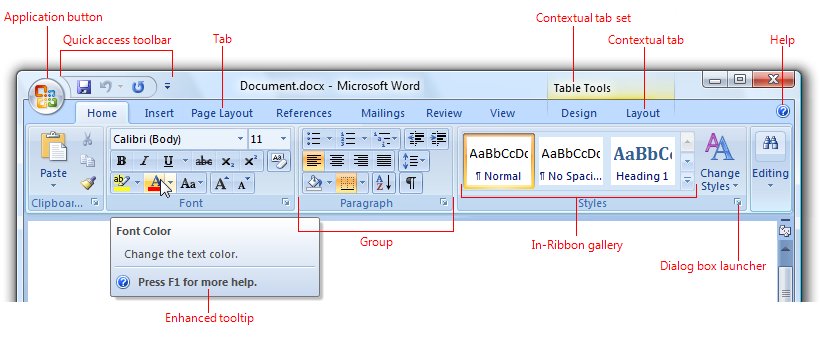
If the tabs themselves are unfamiliar, start with these Word ribbon basics.
| Word task | Ribbon path | Shortcut or note |
|---|---|---|
| Start a new document | File > New > Blank document | Templates appear in the same gallery |
| Open a document | File > Open > Browse | Recent files list on the start screen |
| Save a copy or a new format | File > Save As > Save as type | Default format is .docx |
| Change the font, size and color | Home > Font group | Type a value in the Font size box |
| Change alignment, line spacing and indentation | Home > Paragraph group | Paragraph Settings opens the full dialog |
| Add headings | Home > Styles group | Heading styles also build the Navigation pane |
| Change the margins | Layout > Margins > Custom Margins | Smaller bottom margin can pull a stray paragraph back |
| Add images | Insert > Pictures | Choose This Device for a local file |
| Add headers and footers | Insert > Header & Footer | Options controls how they appear |
| Add page numbers | Insert > Page Numbers | Include Page Count gives page X of Y |
| Find text | Home > Find | Ctrl + F |
| Replace text | Home > Replace | Ctrl + H |
| Run spelling and grammar checks | Home > Editor | Signed-in Microsoft 365 account needed |
| Track changes | Review > Tracking > Track Changes | Marks additions, deletions, moves and formatting |
| Hide comments before printing | Review > Markup > Display for review > No Markup | Then print as usual |
| Read without distractions | View > Views > Read Mode | View > Edit Document returns to editing |
| See section breaks clearly | View > Draft | Useful when a blank page will not go |
| Insert a page or section break | Layout > Breaks | Continuous avoids a new page |
| File > Print | Settings controls pages, color and markup | |
| Check your Word version | File > Account > Product Information | About Word shows 32-bit or 64-bit |
The Insert tab also handles a picture that fills the whole page and a scanned or drawn signature.
Forms rely on the Developer tab: you can make a Word document fillable with content controls, or add simple fill-in-the-blank lines for printed forms.
Open a document
Word lists your most recently used documents every time it starts. Files made in older versions open in Compatibility Mode, shown in the title bar, and you can keep working or upgrade them.
- Start Word and look at the recent documents list.
- Select Open if the file is not listed.
- Inside Word, select File > Open > Browse.
- Go to the file's folder, select it and select Open.
- To read without distractions, select View > Views > Read Mode, and use View > Edit Document to edit again.
Read documents in Read Mode with the side arrows, Page Down and Page Up, or a swipe on touch screens. Protected files and attachments often open in Read Mode automatically.
Word also opens other file types, so you can work across PDFs, text files and more; to turn a PDF into an editable file, convert PDF to Word first. A file you closed a moment ago is easy to find among recently closed files.
Save a document
Word saves in the .docx format by default. Choose another format from the Save as type list when you need one.
- Select the File tab, then Save As.
- Choose a folder under This PC, or select Browse.
- To save online, choose an online location or select Add a Place.
- Type a file name and select Save.
- Save changes as you work with Save on the Quick Access Toolbar or Ctrl + S.
Before a big rewrite, make a copy of the Word document so the original stays untouched. Saving to OneDrive with AutoSave is Microsoft's safest setup for Microsoft 365 subscribers.
Track changes
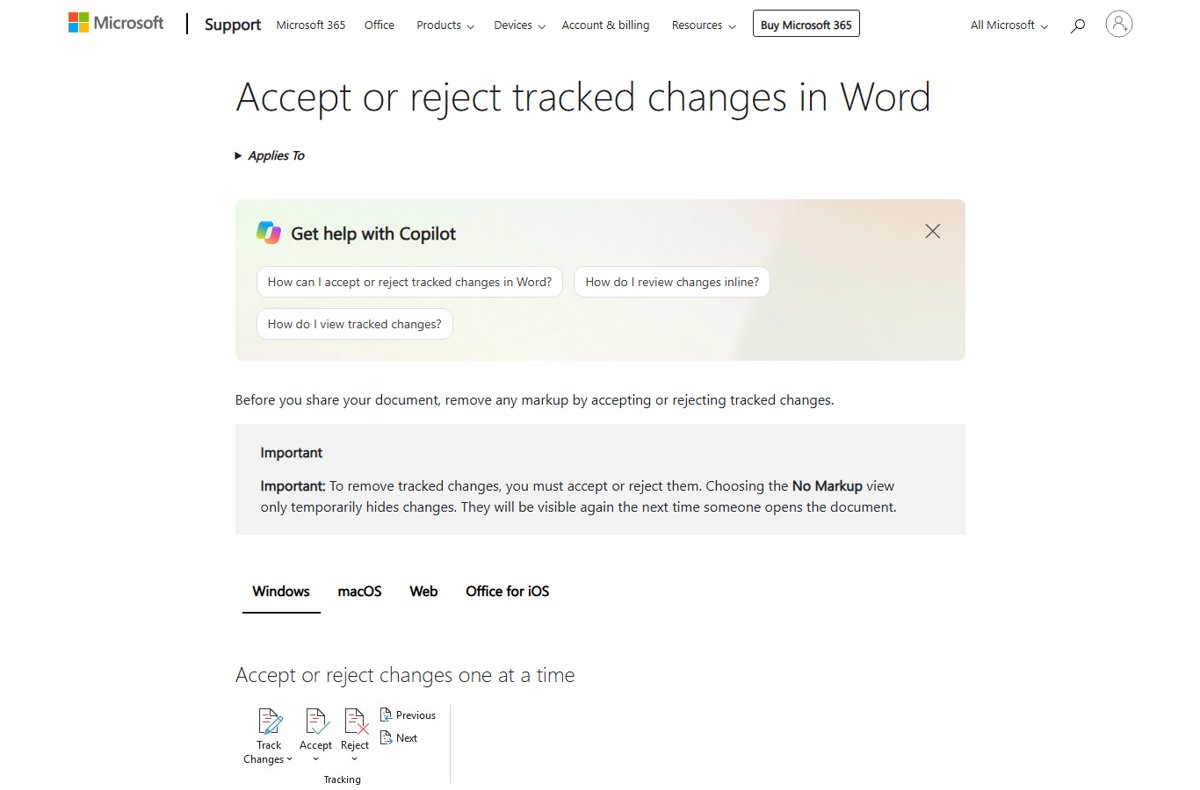
Track Changes marks every addition, deletion, move and formatting change, which is how reviewers see exactly what you edited.
- Open the document to be reviewed.
- Select the Review tab.
- In the Tracking group, select Track Changes.
- Edit as usual; each change is now marked.
- Select Track Changes again to stop tracking.
To review who changed what over time, Word can also show the editing history through Version History and Compare. PowerPoint has no Track Changes button, but you can still track changes in PowerPoint with comments and Compare.
Add a header or footer
Headers, footers and page numbers all live on the Insert tab, in Word for Windows and Word for the web.
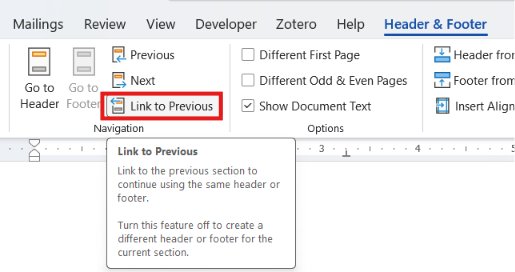
- Select Insert > Header & Footer.
- Type the header or footer text.
- Select Options to choose how they appear.
- To add page numbers, select Insert > Page Numbers and pick a position from the gallery.
- Select Include Page Count to show page X of Y.
Reports often need numbering that skips a cover page; a section break lets you start page numbers on a specific page.
Find and replace text
Find shows results next to the document so you see each match in context. Select a result to jump to it.
- Select Home > Find, or press Ctrl + F.
- Type the word or phrase.
- Select a result to jump to that spot.
- Select Replace, or press Ctrl + H, to swap text.
- Enter the replacement and replace one match or all of them.
Cut, copy and paste text in Word with the Home tab's Clipboard group or the standard Ctrl + X, Ctrl + C and Ctrl + V shortcuts.
How to run the Editor (spelling and grammar check)
Grammar checking in Word comes from Microsoft Editor. It refines writing with correct grammar and ensures accurate spelling in multiple languages once you sign in with a Microsoft 365 account.
- Open the Word document.
- On the Home tab, select Editor.
- In the Editor pane, select a category such as Grammar, Clarity or Conciseness.
- Accept or ignore each suggestion.
- Close the pane when the count reaches zero.
To see document word count at a glance, look at the status bar, or find the word count for a selection. If you prefer a third-party checker, the Grammarly desktop app for Office now replaces the old add-in.
Leverage AI-powered assistance in Word
Copilot in Word turns your ideas into polished documents faster: it drafts from a prompt, rewrites a selection and summarizes long files. It needs a Microsoft 365 plan that includes Copilot.
- Open a document while signed in with an eligible Microsoft 365 account.
- Select the Copilot button in the corner of your document.
- Type what you want drafted or changed.
- Review the result, then keep, regenerate or discard it.
Prompts that work, where the button hides and how to turn it off are in this Copilot in Word walkthrough.
Print your document
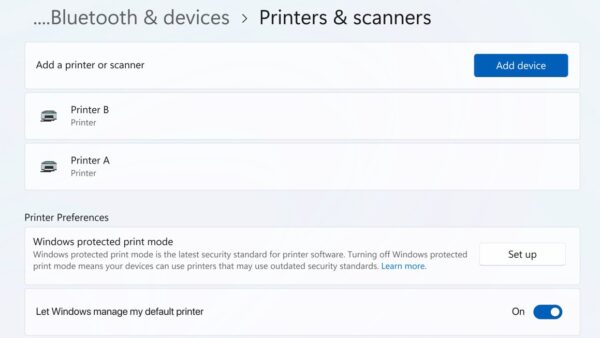
The Print screen shows a preview, your printer and every setting in one place.
- Select File > Print.
- Enter the number of copies in Copies.
- Under Printer, confirm the right printer.
- Under Settings, open Print All Pages to choose Print Current Page or Custom Print (for example 3, 4-6).
- Select Print.
To print a Word document without comments, go to Review, open Display for review in the Markup group, choose No Markup, then print. To print comments, choose Print Markup under Settings.
Print in Word for the web with File > Print: it builds a PDF preview that keeps the layout. For mail, you can also print envelopes in Word from the Mailings tab.
Edit files online with Word
Word for the web lets you create, edit and store documents online in Microsoft Word through a browser, with files kept in OneDrive. It saves changes automatically, and the status bar shows Saved or Saving.
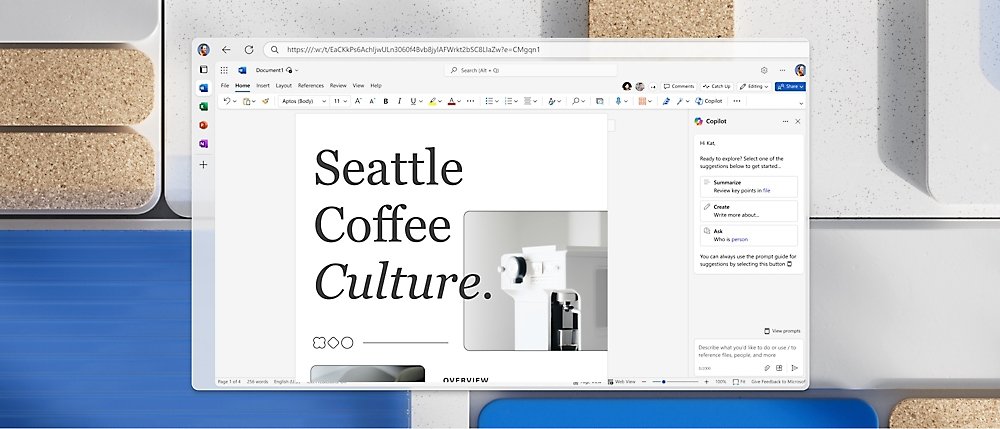
The desktop app keeps the advanced document editing tools; select Open in Word when the browser version lacks one.
- Open the document in Word for the web.
- If typing does nothing, you are in Reading view: select Edit Document > Edit in Word for the web.
- Edit in the browser: type, format text, add pictures and adjust the layout.
- Share documents online with File > Share > Share with People to send a link instead of an attachment.
- Comment in the browser, reply to comments and check off the ones you have addressed.
- Work together on the same doc: co-authors appear in the ribbon, and selecting a name jumps to where that person is working.
That is how to edit and share documents online with Word and collaborate online with OneDrive, and it is the free way to get the most out of your documents without a desktop licence.
7 ways to delete a page in Word
Pick the row that matches the page you want gone. The fastest route for a page with content is Ctrl + G with \page.
| Your situation | Do this | Why it works |
|---|---|---|
| 1. Delete a page in Word by selecting its content (text, graphics, tables) | Select everything on the page and press Delete | Removing the content removes the page |
| 2. Delete multiple pages one after the other by manually selecting them | Click at the start, Shift-click at the end, press Delete | One selection spans several pages |
| 3. Delete a page in Word using Go To (Find and Replace dialog) | Click in the page, press Ctrl + G, type \page, press Enter, select Close, press Delete | \page selects the whole current page |
| 4. Delete multiple pages one after the other with Find and Replace | Repeat Ctrl + G and \page on each page | Each pass selects one page |
| 5. Delete a blank page in Word | Show paragraph marks with Ctrl + Shift + 8 and delete empty marks or breaks | Hidden marks and breaks create blank pages |
| 6. Delete an extra page in Word at the end of the document | Set the last paragraph mark's font size to 01 | Word always keeps a final paragraph mark |
| 7. Remove an extra page containing text | Cut the text or tighten margins in Layout > Margins | Overflow text pushes onto a new page |
When a table sits at the very end of the file, you can still delete the final page in Word by shrinking the paragraph mark after it.
Why a blank page in Word won’t delete
How to remove a blank page in Word depends on what is holding it there. Turn on paragraph marks with Ctrl + Shift + 8 (⌘ + 8 on a Mac) before anything else, and switch to View > Draft to see section breaks.
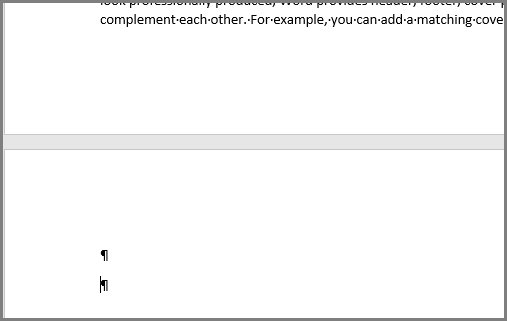
Remove a blank page at the end of the document
Word keeps a final paragraph mark that cannot be deleted, and it spills onto a new page.
- Press Ctrl + Shift + 8 to show paragraph marks.
- Select the last paragraph mark.
- Select inside the Font size box, type
01and press Enter. - If it still spills over, select Layout > Margins > Custom Margins and set a smaller bottom margin, such as 0.3 inches.
- Press Ctrl + Shift + 8 again to hide the marks.
Page breaks
A manual page break forces the next content onto a new page.
- Show paragraph marks with Ctrl + Shift + 8.
- Select the page break.
- Press Delete.
Section break problems
Next Page, Odd Page and Even Page section breaks can add blank pages.
- Double-click the section break.
- On the Layout tab, open Breaks and select Continuous.
- Select OK.
- For a break at the very end, put the cursor directly before it and press Delete.
Empty paragraph has a small square beside it
Page break before is turned on for that paragraph.
- Right-click the empty paragraph and select Paragraph.
- Open the Line and Page Breaks tab.
- Clear Page break before and select OK.
Deleting blank pages in Word this way leaves the rest of the layout intact, unlike deleting pages of content.
Why Microsoft Word is not working: symptoms, causes and fixes
Match what you see to a row, apply the fix, then open the linked guide if the quick fix does not hold.
| Symptom | Likely cause | Fix |
|---|---|---|
| Document opens blank | Display or view problem, graphics acceleration, or a damaged file | Switch to Draft view or use Open and Repair; full steps to fix a Word document opening blank |
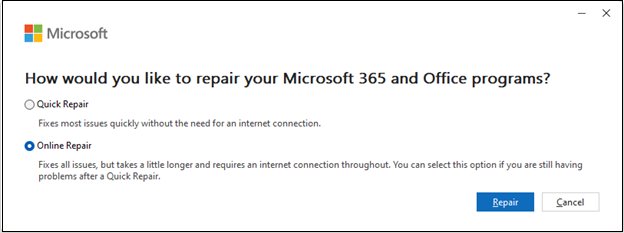
| Word is not opening a file or reports corruption | File damaged, often by a USB drive removed while open | File > Open > Browse, select the file, open the arrow next to Open, select Open and Repair |
| Word cannot edit or the file is locked | Protected View, Read Mode, Always Open Read-Only or Restrict Editing | Select Enable Editing, then make the Word document editable |
| Word asks for a password | The file is encrypted | Enter the password; to set or remove one, password-protect a Word document |
| Word closed and the file was never saved | Crash or closing without saving | File > Info > Manage Document > Recover Unsaved Documents, or recover the unsaved Word document from AutoRecover files |
| Toolbar and tabs have disappeared | Ribbon collapsed or set to auto-hide | Change Ribbon Display Options, or display the ribbon in Word 365 |
| Blank page will not delete | Hidden paragraph mark, page break or section break | Show marks with Ctrl + Shift + 8 and remove the break |
| Word cannot print comments correctly | Markup setting | File > Print > Settings > Print Markup, or No Markup on the Review tab to hide them |
Recover a file saved by AutoRecover
When Word closes unexpectedly, the Document Recovery pane opens the next time you start it. Under each file name you see the date and time it was saved automatically.
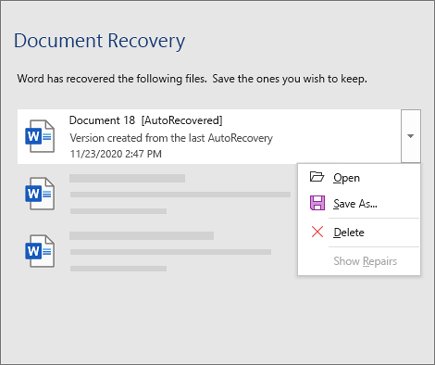
- Restart Word and look at Available Files in the Document Recovery pane.
- How do I decide which files to save? Open the version with the most recent time, because it holds the latest changes.
- Open each file to review it, then save the ones you need.
- Delete unwanted recovered files: select the arrow next to the file name, select Delete, then Yes.
- Closing recovered files: select Close, then Yes, I want to view these files later if you are unsure.
AutoRecover keeps its copies as .asd files; you can open an ASD file in Word and save it as a normal .docx.
If you haven’t saved the file
Word keeps unsaved drafts for a while when AutoRecover is on. Recover them from the Info screen.
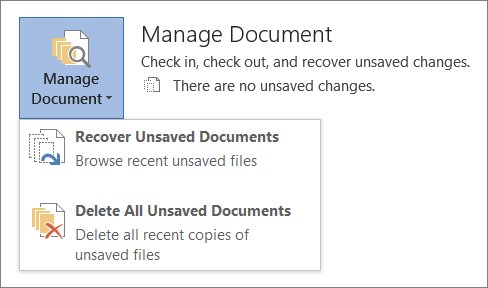
- Select File > Info.
- Select Manage Document > Recover Unsaved Documents.
- Select the file and select Open.
- Select Save As in the bar at the top and save it under a name.
If you've saved the file, open it, select File > Info, choose the version labelled (when I closed without saving) under Manage Document, then select Restore to overwrite the saved copy or Compare to see both.
Recover text from a damaged file in Word
Open and Repair can recover a Word document, workbook or presentation that will not open normally. Do not start from the Recent list, because it skips the Open dialog.
- Select File > Open > Browse.
- Go to the folder that holds the damaged file.
- Select the file.
- Select the arrow next to Open, then Open and Repair.
- Save the repaired content as a new file.
Preventing file corruption in the future: use Safely Remove Hardware before unplugging a USB drive, keep AutoRecover on, and store files on OneDrive with AutoSave. Application specific troubleshooting steps exist for each app in Microsoft's articles on damaged Word documents and damaged PowerPoint presentations.
Start with a blank presentation
PowerPoint works like a slide show: each slide is a canvas for words and pictures. If PowerPoint is not installed yet, download Microsoft PowerPoint from Microsoft, or get PowerPoint for free on the web and mobile.
- Launch PowerPoint.
- In the side pane, select New.
- Select Blank Presentation, or choose a theme.
- To choose a theme, pick one, select a color variation on the right, then select Create.
A theme is a slide design with matching colors, fonts and effects such as shadows and reflections, so choose a theme early to keep every slide consistent.
Insert more slides into your presentation
- Select the slide that the new one should follow.
- On the Home tab, select the bottom half of New Slide.
- Pick a slide layout.
- Repeat to insert a new slide for each point you want to make.
Adding content to your slides
Adding content to your PowerPoint presentation uses the placeholders on each layout plus the Insert tab.
| Content | How to add it |
|---|---|
| Add text | Select a text placeholder and type |
| Format your text | Select text, then Shape Format > WordArt Styles > Text Fill, Text Outline or Text Effects |
| Add pictures | Insert > Pictures > This Device, Stock Images (Microsoft 365) or Online Pictures, then Insert |
| Add shapes | Insert > Shapes, pick a shape, drag on the slide, then style it from Shape Format > Shape Styles |
| Add speaker notes | Select Notes at the bottom of the window and type in the Notes pane |
Shapes can do more than decorate; a circle plus a Pie shape builds Harvey balls in PowerPoint for comparison charts.
Change the overall design (optional)
Designer suggests professional layouts for Microsoft 365 subscribers while you add content.
- On the Design tab, select Design Suggestions.
- Browse the ideas in the pane on the right.
- Select a design to apply it to the slide.
- Press Ctrl + Z to undo a design you do not want.
- If no ideas appear, select File > Account > Manage Settings and turn on optional connected experiences.
Adding animations & transitions (optional)
A transition is the effect between slides; an animation moves an object within a slide. Only one transition applies to a slide at a time.
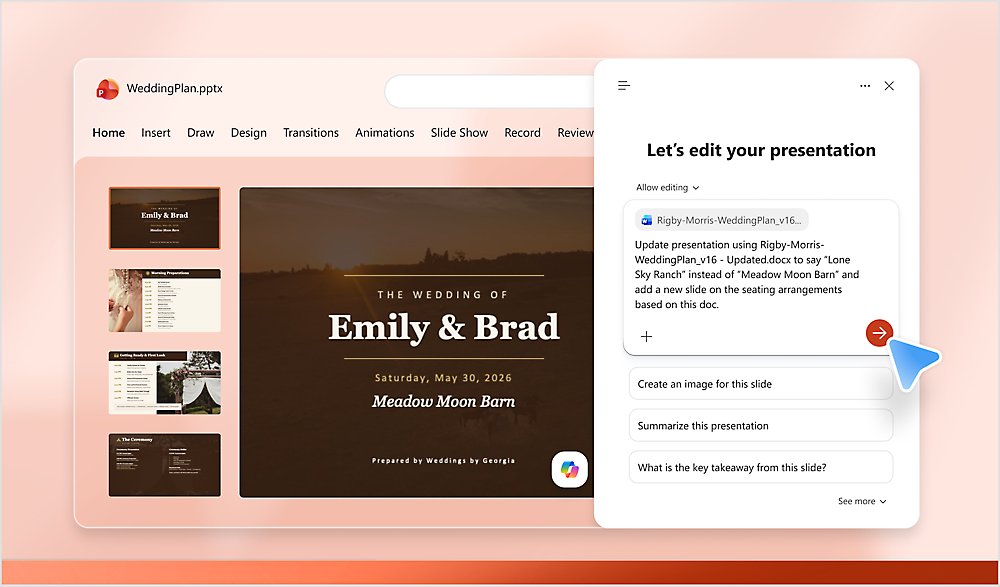
- Select a slide, open the Transitions tab and choose a transition.
- Select Effect Options for direction, then Preview.
- Select Apply To All to use it on every slide, or None to remove it.
- Select an object, open the Animations tab and choose an animation.
- Set On Click, With Previous or After Previous, plus Duration and Delay.
Save your PowerPoint presentation
- On the File tab, select Save.
- Pick or browse to a folder.
- Type a name in the File name box.
- Select Save.
- Save your presentation as you go with Ctrl + S, or store it on OneDrive so AutoSave handles it.
Printing your PowerPoint presentation
- Select File > Print.
- Choose the printer under Printer.
- Under Settings, choose all slides, selected slides, the current slide or typed slide numbers.
- Choose a print layout: full slides, notes pages, outline or handouts with several slides per page.
- Choose color, grayscale or pure black and white, set Copies, then select Print.
Give your presentation
- Open the Slide Show tab.
- Select From Beginning to start at slide 1, or From Current Slide to start where you are.
- Select Present Online for a remote audience.
- Press Esc at any time to get out of Slide Show view and stop a slide show.
Tips for creating an effective presentation
These tips to make a PowerPoint project easier to follow come from Microsoft's own guidance.
| Tip | Why it matters |
|---|---|
| Minimize the number of slides | Keeps the message clear and the audience attentive |
| Use a font size of 30 or larger | Smaller text is hard to read from a distance |
| Keep slide text to bullets or short lines | The audience listens instead of reading; some projectors crop edges |
| Use pictures, charts and SmartArt | Visual cues are easier to remember |
| Apply a subtle, consistent background | Design should not compete with the message and must contrast with text |
| Check spelling and grammar | Mistakes cost credibility |
Microsoft Word and PowerPoint FAQ
How do I download Microsoft Word?
Download Word from Microsoft as part of Microsoft 365 or Office, signed in with the account that owns the licence. You can also download Microsoft Word for Windows 11, 10 and Mac through the official links.
Can I use Microsoft Word for free?
Yes. Word for the web and the mobile apps are free with a Microsoft account, though they lack some desktop features. Students can often get Microsoft Word as a student free with a school email.
Why is Microsoft Word not free?
The full desktop app is paid, either through a Microsoft 365 subscription or a one-time Office purchase. The free web version covers everyday writing, and this breakdown of what Microsoft Word costs compares the plans.
What Microsoft Word version do I have?
Open Word and select File > Account. Under Product Information you see the product name and version number; About Word shows the full build and whether it is 32-bit or 64-bit.
How do I do a mail merge in Microsoft Word?
Start the merge from the Mailings tab, connect a recipient list such as an Excel sheet, insert merge fields, preview, then finish. A mail merge with an Excel list can then print letters or labels for every row.
How do Microsoft Word templates work?
A template is a ready-made document with preset themes and styles. Pick one when Word starts or from File > New, and Word opens a new copy so the template itself stays unchanged.
Why does Microsoft Word keep crashing?
Crashes often come from a damaged file or an add-in. Try Open and Repair on the file first. If Word closed without saving, the Document Recovery pane opens your work on the next start.
Why can't Microsoft Word edit my document?
The file is usually in Protected View, Read Mode or restricted. Select Enable Editing, or View > Edit Document in Read Mode. In Word for the web, select Edit Document > Edit in Word for the web.
Why is Microsoft Word not opening a document?
The file is usually damaged. Use File > Open > Browse, select the file, open the arrow next to Open and choose Open and Repair.