To select multiple files on a Mac, hold the Command (⌘) key and click each file you want. To select several files next to each other, click the first file, hold Shift, and click the last one. You can also press Command + A to select every file in the current Finder folder.
The best method depends on whether the files are next to each other, scattered throughout a folder, or arranged as icons. These shortcuts work on MacBook Air, MacBook Pro, iMac, Mac mini, and other Macs running current versions of macOS.
How to Select Multiple Files on Mac
Finder gives you four useful ways to select more than one file:
| What you want to select | Method |
|---|---|
| Several separate files | Hold Command (⌘) and click each file |
| A continuous group of files | Click the first file, hold Shift, then click the last |
| Every file in the folder | Press Command + A |
| Several files arranged together | Click an empty area and drag a selection box around them |
Select Multiple Files on Mac with Command-Click
Use Command-click when the files you need are not next to one another. This is usually the most useful method when choosing individual documents, photos, downloads, or folders from a larger collection.
- Open Finder.
- Go to the folder containing the files.
- Press and hold the Command (⌘) key.
- Click each file you want to select.
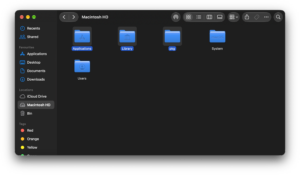
- Release Command after you have selected everything you need.
Each selected item remains highlighted while you continue Command-clicking other files.
For example, if a folder contains 20 images and you need files 2, 7, 11, and 18, hold Command and click those four files. You do not need to move them together first.
Deselect one file without losing the rest
If you accidentally select the wrong file, keep holding Command and click that file again. Finder removes it from the selection while leaving the other selected files highlighted.
Select Multiple Files on Mac with Shift-Click
Use Shift-click when you want to select a continuous range of files.
- Click the first file in the group.
- Press and hold Shift.
- Click the last file in the group.
Finder selects the first file, the last file, and everything between them.
This method is especially convenient in List view, where files have a clear order based on name, date, size, or another sorting option.
Example
If you have 30 files listed in Finder and want files 10 through 20, click file 10, hold Shift, and click file 20. All 11 files will be selected at once.
You can combine this with Command-click. Select one range with Shift, then hold Command to add or remove individual files from the selection.
How to Select All Files on Mac
Press Command + A to select every item in the active Finder window.
- Open the folder you want to work with.
- Click inside the Finder window to make sure it is active.
- Press Command (⌘) + A.
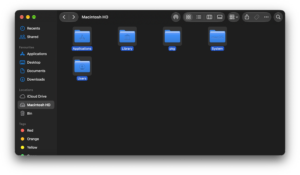
All files and folders currently displayed in that Finder location will become selected.
This shortcut is useful when you want to copy an entire folder’s contents, move everything to another drive, add tags to all items, or send a group of files to the Bin.
How to deselect all files
Click an empty area of the Finder window. The current selection will be cleared.
Select Multiple Files on Mac with a Mouse or Trackpad
You can select several nearby files without using the keyboard by dragging a selection box around them. Apple recommends this method particularly for files displayed in Finder’s Icon view.
- Open the folder in Finder.
- Place the pointer in an empty area beside the files.
- Press and hold the mouse or trackpad button.
- Drag across the files you want to select.
- Release when the selection box covers the required items.
Every file inside the selection area becomes highlighted.
Start the drag from empty space rather than directly on a file. Dragging a selected file itself can move the file instead of creating a selection box.
How to Select Multiple Files in Finder
The same Command, Shift, and Command-A shortcuts work across Finder’s main views, although some methods are more convenient depending on how the folder is displayed.
Icon view
Use Command-click for files scattered around the window or drag a selection rectangle around a group of nearby icons.
List view
List view is ideal for Shift-click. Sort the folder by Name, Date Modified, Kind, or Size, then select a continuous range from the first file to the last.
Column view
Command-click works for selecting individual items. Shift-click can select adjacent files within the active column.
Gallery view
You can use Command-click to select individual files while taking advantage of the large preview to identify images, videos, and documents.
You can switch Finder views with these shortcuts:
- Command + 1: Icon view
- Command + 2: List view
- Command + 3: Column view
- Command + 4: Gallery view
How to Select Multiple Files on a MacBook
The process is the same on a MacBook Air or MacBook Pro. The built-in trackpad replaces the mouse, while the keyboard shortcuts remain unchanged.
For files that are separated, hold Command and click them with the trackpad. For a range, click the first item, hold Shift, and click the last. For nearby icons, drag across them using the trackpad to create a selection box.
If dragging feels difficult, check your trackpad options under System Settings > Trackpad. Your click and drag preferences can affect how comfortable file selection feels, but they do not change the Command and Shift shortcuts.
How to Select Multiple Files on the Mac Desktop
The same Finder shortcuts also work for files stored directly on the desktop.
To select separate desktop files:
- Hold Command.
- Click each desktop file or folder you need.
To select a group of icons positioned near each other, click an empty part of the desktop and drag a box around them.
Pressing Command + A while the desktop is active selects all visible desktop items.
How to Select Multiple Files to Upload on Mac
Command-click and Shift-click also work in the file selection window that appears when a website or app asks you to upload or open files.
- Click the website’s Upload, Choose Files, or similar button.
- Browse to the folder containing your files.
- Hold Command and click separate files, or use Shift to select a range.
- Click Open or Choose.
Whether multiple uploads are accepted depends on the website or app. If it allows only one file, macOS cannot override that restriction.
What Can You Do After Selecting Multiple Files?
Once several files are selected, Finder can perform the same action on all of them at once.
| Action | Shortcut or method |
|---|---|
| Copy selected files | Command + C |
| Paste copied files | Command + V |
| Move copied files to another folder | Option + Command + V |
| Move selected files to Bin | Command + Delete |
| Quick Look selected files | Command + Y |
| Duplicate selected files | Command + D |
You can also drag the selected group into another folder, an external drive, an email, AirDrop, or another compatible app.
Why Can’t I Select Multiple Files on Mac?
You are using Control instead of Command
On Windows, people often use Control to select multiple files. macOS uses the Command (⌘) key instead.
Hold Command while clicking each file you want to add to the selection.
Shift-click selects files you did not want
Shift selects every item between the first and last file. If you need several unrelated files, use Command-click instead.
Dragging moves a file instead of selecting files
Start dragging from an empty part of the Finder window. If you begin directly on a file, Finder assumes you want to move that item.
Command-A selects more than expected
Command-A means Select All. It selects every item in the current Finder location, not just files of a particular type.
If you only need certain files, sort or search the folder first and then select the relevant results.
Files are difficult to select in Icon view
Switch to List view with Command + 2. Sorting the files into a clear list makes large Shift-click selections much easier.
Frequently Asked Questions
What is the shortcut to select multiple files on Mac?
Hold Command (⌘) and click each file. Use Shift-click when the files are next to each other.
How do I select multiple files on Mac without selecting all?
Hold Command and click only the files you want. Each click adds another file to the current selection.
How do I select several files in a row on Mac?
Click the first file, hold Shift, and click the last file. Finder selects everything between those two items.
How do I select all files in a folder on Mac?
Open the folder and press Command + A.
How do I deselect one file from multiple selected files?
Hold Command and click the selected file you want to remove from the group.
Can I use Ctrl-click to select multiple files on Mac?
No. Control-click on a Mac normally opens the contextual menu, similar to right-clicking. Use Command-click to select multiple separate files.
How do I select multiple photos on a Mac?
In Finder, hold Command and click individual photos, use Shift-click for a continuous range, or press Command-A to select everything in the folder. Apple’s Photos app also uses Command and Shift for many multiple-selection tasks.
How do I select multiple files with only the trackpad?
Click an empty area beside the files and drag across them to create a selection box. This works particularly well when files are displayed as icons.
Can I select multiple folders and files at the same time?
Yes. Finder lets you include files and folders in the same selection using Command-click, Shift-click, or a selection box.
What key replaces Ctrl when selecting files on a Mac?
Use the Command (⌘) key. Command performs many of the selection and shortcut functions that Windows users associate with Ctrl.
Quick Summary
- Hold Command and click to select separate files.
- Use Shift-click to select a continuous range.
- Press Command + A to select everything in the current folder.
- Drag across nearby icons to select them with a mouse or trackpad.
- Command-click a selected file again to remove only that file from the selection.